Requirements for Android application development with Kanzi
When you are developing Kanzi applications for Android you can use Android Studio, the Clang toolchain, and the Gradle build system. This development approach is tested on:
Ubuntu/Linux 18.04.1
Windows 10
To develop Android applications with Kanzi, you need Android Studio, version Electric Eel or newer. You can download it from https://developer.android.com/studio.
Kanzi provides two Android frameworks with different features and requirements. See Developing Kanzi applications for Android.
The libraries of these frameworks are compatible with:
Kanzi Android framework (droidfw) |
Kanzi application framework (appfw) |
|---|---|
Android API 26 or higher |
Android API 21 or higher |
Android 8 or higher |
Android 5 or higher |
Java language level 8 (1.8) or higher |
Java language level 7 (1.7) or higher |
NDK 26.3.11579264 |
NDK 26.3.11579264 |
The application templates of these frameworks are compatible with:
Gradle 8.4
Android Gradle plugin 8.3.2
JDK 17 or 21
CMake 3.21 or newer
You can use other versions of AGP and Gradle, but this requires manual adjustments to your project.
For AGP and Gradle upgrades, we recommend that you use the Android Gradle plugin upgrade assistant. See https://developer.android.com/build/agp-upgrade-assistant.
To use Android features in Kanzi Studio, such as deployment of projects to Android devices and import of Java Kanzi Engine plugins, you need 64-bit JDK 17 or 21. See Setting up Android environment for Kanzi Studio.
Note that you can use Java plugins only with Kanzi Android framework (droidfw) applications.
To deploy an application to the Android Emulator, in the Android Emulator enable OpenGL ES 3.0. See Enabling OpenGL ES 3.0 in the Android Emulator.
Setting up Android Studio environment
Installing JDK
Android Studio comes with JDK that it usually installs to C:\Program Files\Android\Android Studio\jbr or C:\Users\<user>\AppData\Local\Programs\Android Studio\jbr.
The version of built-in JDK can vary with the version of the Android Studio, and might not be compatible with your project’s Gradle tooling. See Troubleshooting Android application development with Kanzi.
To install a specific JDK version and use it for a specific Android Studio project:
In Android Studio, open the Android application of your Kanzi project.
In the main menu, select File > Settings.
In the Settings window, select Build, Execution, Deployment > Build Tools > Gradle, and set Gradle JDK to Download JDK.
In the Download JDK window, set:
Version to the version that you want to use. Kanzi Android templates are compatible with JDK 17 or 21.
Vendor to a trusted source. For example, Eclipse Temurin (AdoptOpenJDK Hotspot).
Click Download.
Synchronize your project with Gradle.
Installing native build tools
To install native build tools for Android Studio:
In the Android Studio Welcome screen, select More Actions > SDK Manager.
In the SDK Manager window in the SDK Tools tab, select:
NDK 26.3.11579264
CMake 3.21 or newer
Click OK.
Setting up Android environment for Kanzi Studio
You must set up the Android environment for Kanzi Studio to use Android and Java functionality in Kanzi Studio.
To set up Android environment for Kanzi Studio:
In Kanzi Studio in the main menu, select Edit > User Preferences and in the Advanced tab click Open Build Environment Configuration.
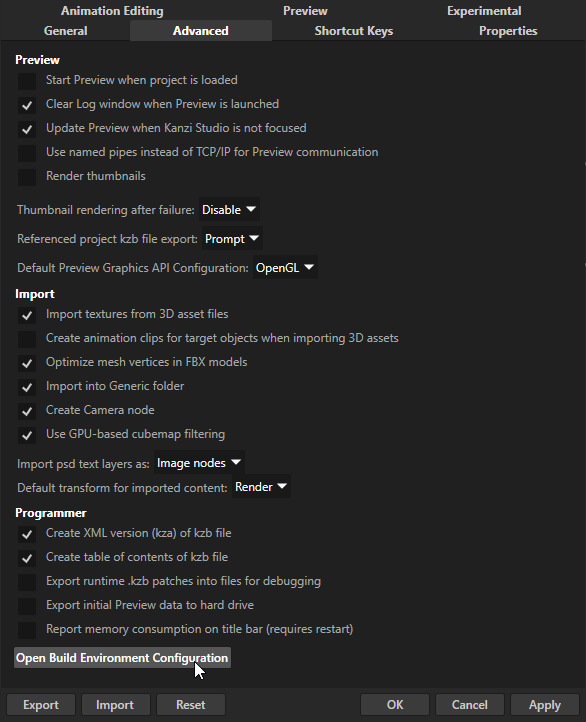
In the Build Environment Configuration dialog make sure that these environment variables are correctly set:
ANDROID_HOMEto the location of your Android SDK installationFor example,
C:\Users\<user>\AppData\Local\Android\Sdk.(Optional)
ANDROID_STUDIOto the location of your Android Studio installationKanzi Studio uses this environment variable to open Kanzi applications for Android in Android Studio. For example, when you open Code Behind source from the Activity Browser.
If not set, Kanzi Studio looks for Android Studio at
C:\Program Files\Android\Android Studio\bin\studio64.exe.JAVA_HOMEto the location of your 64-bit JDK 17 or 21 installationYou can use the JDK that you installed with Android Studio. See Installing JDK.
Alternatively, you can install a standalone JDK. For example, from https://github.com/adoptium/temurin17-binaries/releases/download/jdk-17.0.8.1%2B1/OpenJDK17U-jdk_x64_windows_hotspot_17.0.8.1_1.zip.
Kanzi Studio stores the environment variables in the
%ProgramData%\Rightware\<KanziVersion>\kanzi_environment_variables.batfile. The Kanzi Command Prompt uses the environment variables set in this file. See Using the Kanzi Command Prompt.
Kanzi Android build process
This diagram shows the process that Kanzi uses to build an Android package.
