Using tags
Use tags to group, find, and filter nodes in your project. You can assign multiple tags to a single node.
For example, you can use tags to:
Find nodes using the quick search in the Node Tree. See Finding tagged nodes in the Node Tree.
Find nodes using the Find Project Item tool. See Finding tagged nodes using the Find Project Item tool.
Render only specific nodes in your project. See Using the Tag Filter.
Tagging a node
You can create a tag and tag a node in the Properties of that node.
To tag a node:
In the Node Tree select the node you want to tag.
In the Properties:
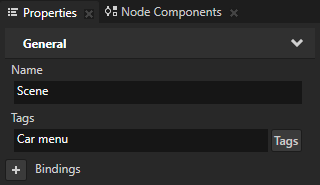
In the Tags property enter the name of the tag and press Enter.
Kanzi Studio creates the tag and tags the node with the tag.
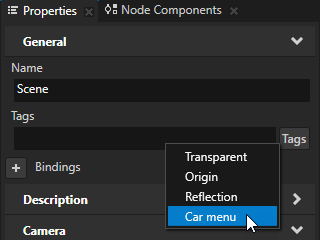
Click the Tags button next to the Tags property and select a tag from the list of existing tags.
Kanzi Studio uses the existing tag to tag the node.
Creating a tag without tagging a node
You can create a tag without tagging a node at the same time.
To create a tag without tagging a node:
In the Library press Alt and right-click Tags and select Tag.
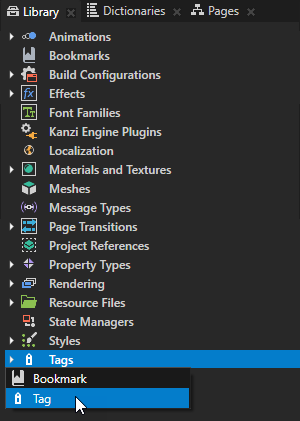
Name the tag and click OK.
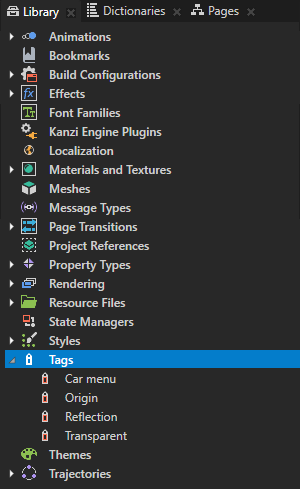
Kanzi Studio creates the tag and lists it in the Library > Tags.
Finding tagged nodes in the Node Tree
To find tagged nodes in the Node Tree:
Create a tag and assign it to nodes. See Tagging a node.
In the Node Tree, in the search box, enter the tag name that you are looking for.
The Node Tree shows only the nodes that contain the tag you entered in the search box.
Finding tagged nodes using the Find Project Item tool
To find tagged nodes using the Find Project Item tool:
Create a tag and assign it to nodes. See Tagging a node.
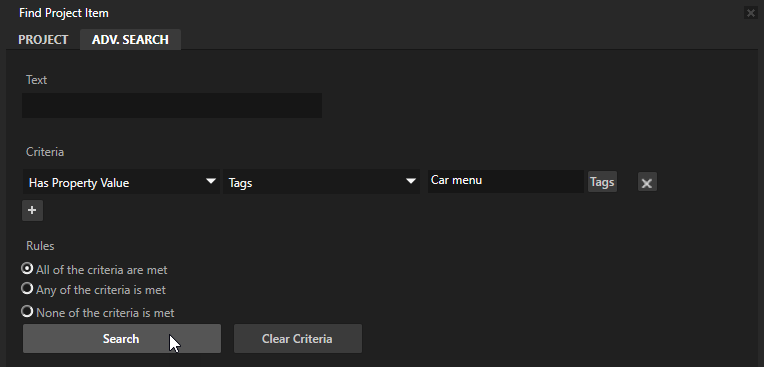
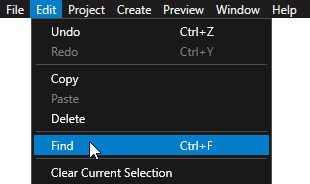
Select Edit > Find.
The Find Project Item window opens.
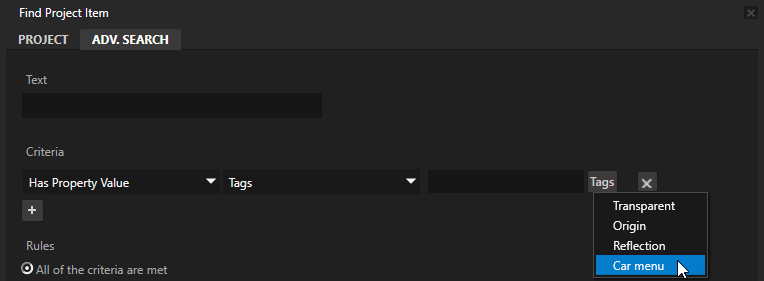
In the Advanced Search tab in the Criteria section click
 to add a new criterion and in the criterion:
Select Has Property Value.
Select the Tags property.
Click the Tags button and select the tag you are looking for.
Click Search.
The Find Project Item shows all nodes with the tag you selected.