Text
Kanzi has these text nodes:
Use the Text Block nodes to show a small amount of text in your application.
See Using the Text Block nodes.

Use the Text Box nodes to add single-line text input to your application.

Font type
The default font family in Kanzi is Fira Sans Regular. The font file is stored in <KanziInstallation>/Studio/Asset Library/Fonts. When you want to use your own font, import it to your Kanzi Studio project.
See Importing fonts.
You can use these font types in your Kanzi applications:
TrueType and OpenType fonts (ttf and otf files)
iType linked fonts (ltt files). See iType linked fonts.
Bitmap fonts (fnt files). See Using bitmap fonts.
Make sure that the font you use includes all the glyphs for the text that you want to include in your Kanzi application.
Font size
Kanzi sets the size of fonts in pixels. When you set the Font Size property, Kanzi passes that value to the Freetype library, which Kanzi uses to render fonts, using the FT_Set_Char_Size function with the default dpi value of 72.
For example, both of these display the letter H of the same size:
Text Block or Text Box nodes with these properties set:
Text to H
Font Family to Arial
Font Size to 36
HTML markup
<p style="font-family:arial; font-size:36px;">H</p>
If you want to control the dpi scaling or set the font size in units other than pixels, you must implement that functionality in your Kanzi application. For example, if you want to automatically select the content that the images and layouts in your project use based on the dpi setting, implement that functionality in your Kanzi application.
Setting the font engine for the Preview
You can set which font engine you want the Kanzi Studio Preview to use to render the text in your application.
To set the font engine for the Preview:
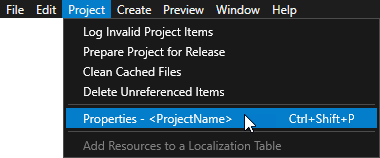
In the main menu select Project > Properties.
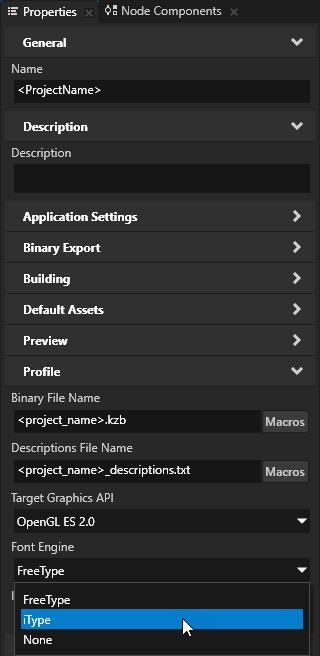
In the Properties set the Font Engine property:
FreeType uses the FreeType rasterizer, HarfBuzz shaper, and ICU bidirectional library, and libunibreak for line breaking. This is the default font engine.
iType uses the Monotype iType rasterizer and WorldType® Shaper™ for shaping. See Installing the iType font engine.
None to not load a font engine. When you do not load a font engine, the Preview does not render the text in your application.
To learn how to set which font engine to load at application startup, see FontEngine.
Setting font hinting
Font hinting provides instructions for rasterization: mapping the outlines of fonts to screen pixels. Font hinting aims to both maintain the design aesthetic of a font and optimize the readability of the font at different sizes.
Text nodes in Kanzi by default use the font hinting data included in a font.
For example, font hinting can affect the height and width of characters, the width of lines, edge contrast, and the space between characters.
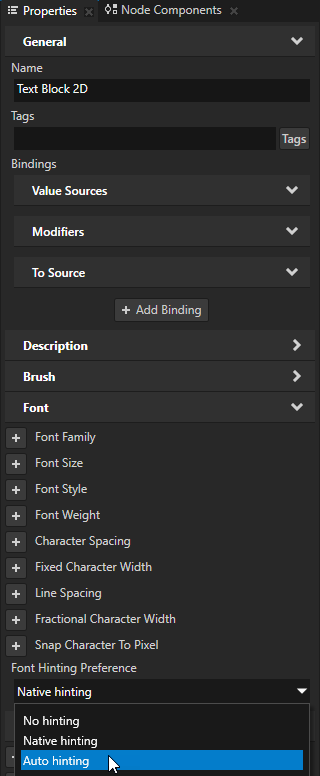
To set font hinting for a Text Block or Text Box node, in the Node Tree select that node, in the Properties add the Font Hinting Preference property, and set it to:
No hinting to render text without font hinting.
Native hinting to render text using the hinting data included in the font. If the font does not contain hinting data, Kanzi uses the hinter of the font engine rasterizer. This is the default value.
Auto hinting to render text using the hinter of the font engine rasterizer. See Setting the font engine for the Preview.
Font fallback
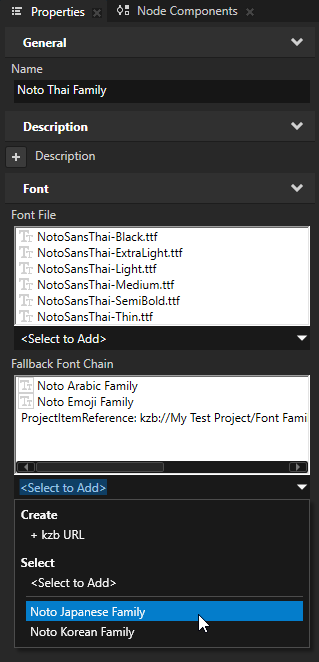
In Kanzi, you can define a Fallback Font Chain for a Font Family. If a character is not available in the current font, Kanzi searches the fallback font chain in order, selecting the first font family that contains the missing character.
If the character is not found in any fallback font family, the glyph with glyph ID 0 in the current font is used as the missing glyph character.
Use fallback fonts to:
Display multiple languages in a single text node.
Show special characters like emojis and symbols alongside regular text.
When rendering with a fallback font, Kanzi attempts to select a font file from the fallback family that closely matches the style and weight of the current font.
To optimize performance and memory usage, fallback fonts are only loaded when a character is not found in the current font or any of the earlier fallback fonts in the chain.
To configure the Fallback Font Chain, you can choose from existing font families using the dropdown menu, or add a font family using a kzb URL.
Color fonts
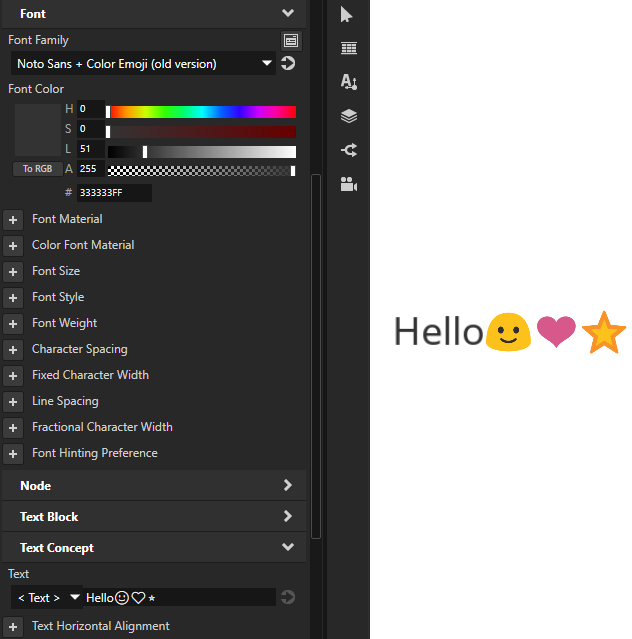
To render emoji and other colored glyphs, import a font file that contains color glyphs. The color font file can be either the primary font of a Font Family or a fallback font.
These color font formats are supported for each Kanzi font engine:
Font file type |
FreeType |
iType |
|---|---|---|
glyf table (normal non-colored scalable text and icons) |
✅ |
✅ |
CBDT table (non-scalable PNG images) |
✅ |
✅ |
SBIX table (non-scalable PNG images) |
✅ |
❌ |
COLRv0 table (scalable shapes with solid colors) |
✅ |
❌ |
SVG table (SVG images with color gradients) |
❌ |
❌ |
COLRv1 table (scalable shapes with color gradients) |
❌ |
❌ |
When you use a font file that contains glyphs in a non-supported font format:
If the font file contains glyphs in multiple formats, Kanzi uses non-colored version of the glyphs
Kanzi does not render the glyphs
Note
Kanzi renders colored glyphs using a different brush and material than normal text. This material uses only the alpha channel of the Foreground Brush property color (Font Color property for 3D text). This means that you can change the color of text without affecting the emoji colors.
Customizing word wrapping in Thai text with iType font engine
You can customize how Kanzi iType font engine wraps words in Thai text by setting a Thai dictionary that you want to use instead of the one that is built into the iType font engine.
WorldType® SDK comes with:
Thai dictionary
Python utility that creates a Thai dictionary that your application can use
You can find these resources in the WorldType® SDK in the wtle/product/tools/language_dictionaries/thai directory.
To wrap words automatically in Thai text:
Create a Thai dictionary for the iType font engine by passing to
GenerateThaiDictionary.py:Thai dictionary in plain-text format
File where you want to store the generated dictionary
py -2 GenerateThaiDictionary.py thai-dictionary.txt thai-dictionary.wtd
GenerateThaiDictionary.pycreates a wtd file that you set in the application configuration of your Kanzi application:Reading lines from file "thai-dictionary.txt"... done. Extracting, filtering, and normalizing words... done. Adding words to trie... done. number of words: 8 number of characters: 31 longest word length: 7 number of trie nodes: 32 number of trie edges: 31 Compressing trie into a DAWG (Directed Acyclic Word Graph)... done. number of edges in root node: 9 number of DAWG nodes: 24 number of DAWG edges: 30 edges / characters = 96.8 % dawgEdges / trieEdges = 96.0 % dawgNodes / trieNodes = 75.0 % DAWG array elements: 31 Writing DAWG to file "thai-dictionary.wtd"... done. file size: 0 k
To set your application to use the Thai dictionary that you created, in a text editor set the iType font engine dictionary in the
<ProjectName>/Application/bin/application.cfgfile:# Set additional backend dictionaries. ITypeDictionaryUrls = file:///usr/share/itype/thai-dictionary.wtd
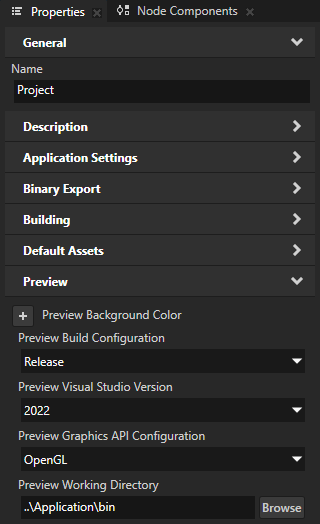
(Optional) To set the Kanzi Studio Preview to correctly render Thai text when you use the iType font engine, in Kanzi Studio open your project and in the main menu select Project > Properties. In the Properties set the Preview Working Directory property to the directory that contains the
application.cfgfile that you created in the previous step.