Bloom
A post-processing effect that simulates light bleeding from bright areas into surrounding regions, creating a natural glow effect. This optical illusion, common in both photography and human vision, adds realism to rendered scenes by simulating how cameras and eyes respond to high-contrast lighting conditions. Bloom significantly enhances visual depth and atmosphere with relatively low performance impact.
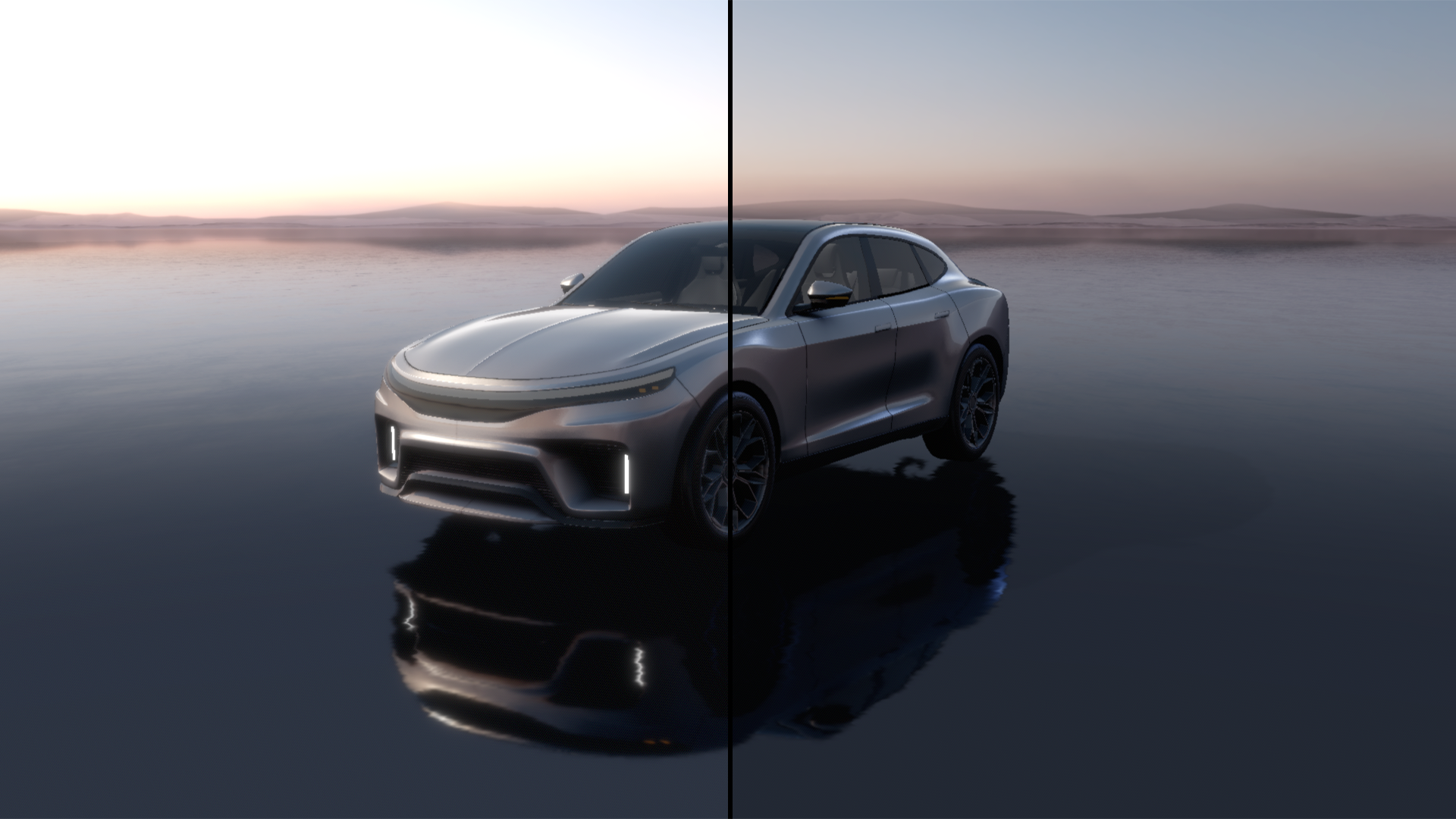
Bloom properties
Property |
Type |
Range |
Description |
|---|---|---|---|
Effect Strength |
Float |
0 - 1 |
Controls the overall intensity of the post-processing effect. |
Bloom Intensity |
Float |
0 - 1 |
Determines the brightness of the bloom effect. Higher values create a more pronounced glow. |
Bloom Radius |
Float |
0 - 1 |
Controls the spread of the bloom effect. Higher values increase the size of the glow around bright areas. |
Use Intensity Texture |
Boolean |
When enabled, applies the effect based on the Intensity Texture mask. When disabled, applies the effect uniformly. |
|
Intensity Texture |
Texture |
A grayscale texture that controls where the effect is applied. White areas receive maximum effect, black areas receive no effect. |
Tip
For optimal performance, use a texture of the correct size (for example image not greater than 1024 pixels - that has similar aspect ratio as your screen) .
Adjusting the amount of glow
To adjust the amount of glow:
Set the the Bloom Intensity property to 1.
This way you set the amount of captured bright pixels to maximum and create an overall brighter image.
Adjust the value of the Bloom Radius property.
This way you adjust the glow spread.
Creating realistic appearance
To create a realistic appearance:
Set the Use Intensity Texture property to enabled.
Use a grayscale image to mask the areas on the screen for which you want to adjust glow.
Lighter areas increase the glow intensity, while darker areas decrease the glow intensity.