Step 6 - Add application states
In this step, you learn how to create and use application states.
Create states
Use a State Manager to create different states in your Kanzi application.
The State Tools window shows the State Manager for the node that you select in the Node Tree or Prefabs windows.
You can find the State Tools window below the Preview window.
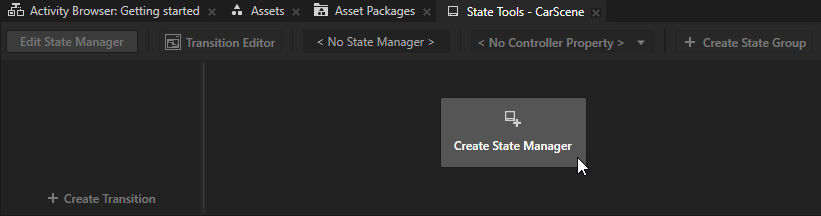
In this section, you use the Kanzi Studio State Tools to create a state manager and define application states.
To create states:
In the Activity Browser window, next to the Settings Activity click
 to activate that Activity.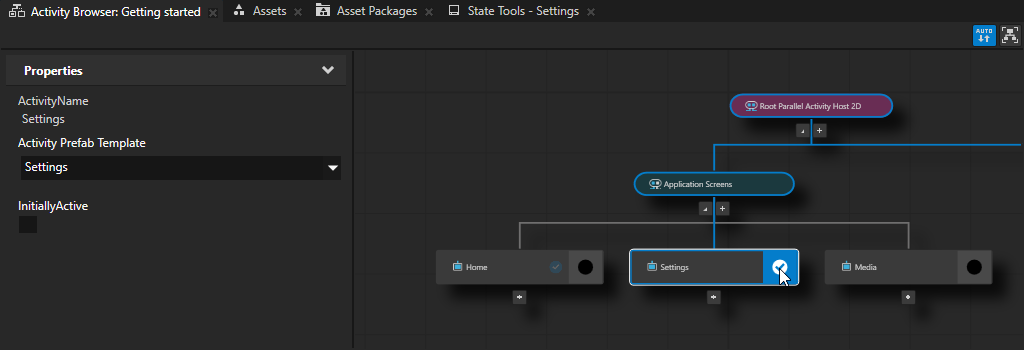
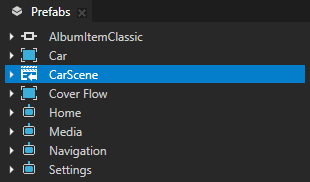
In the Prefabs window, select the CarScene prefab.
In the State Tools window, click Create State Manager.
When you click Create State Manager, Kanzi Studio:
Creates a state manager
Assigns the state manager to the selected node
Sets the State Tools window to the Edit mode.
When the State Tools window is in the Edit mode, the Preview window tab and border turn orange.
Tip
When the State Tools window is in the Edit mode Kanzi Studio keeps track of all the changes you make to the property values in the selected node and its tree. If you are not changing the definition of states in your application, switch off the editing mode of the State Tools.
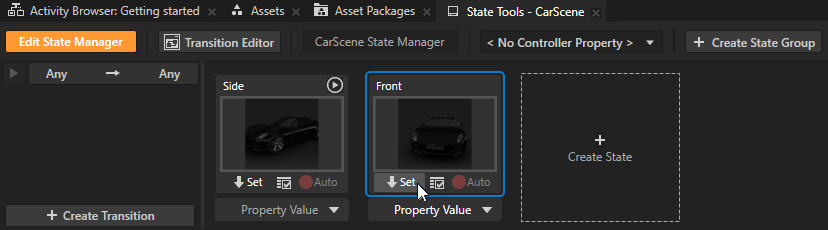
In the State Tools, click Create State twice to create two states. Double-click the name of each state and rename the states.
For example, name one state Side and the other Front.
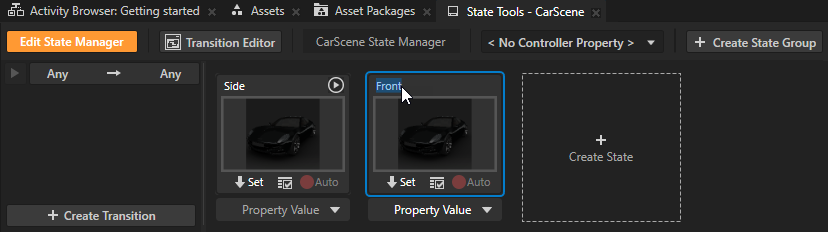
Use the State Tools to set what the application looks like in that state:
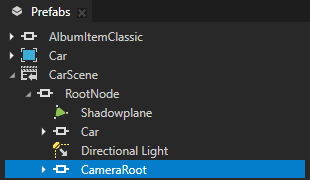
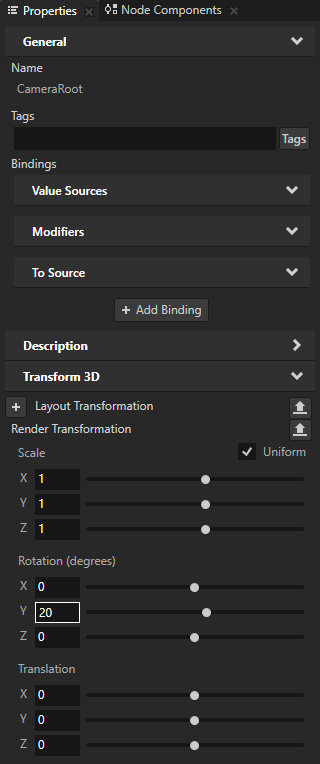
In the Prefabs window, select the CarScene > RootNode > CameraRoot node. In the Properties window, add and set the Render Transformation Rotation Y property field to 20.
With this setting you show the car model from a different angle by rotating the node that contains the Camera node.
In the State Tools window, in the Side state, click
 .
.When you click
, Kanzi Studio saves to that state the values of the properties that you changed.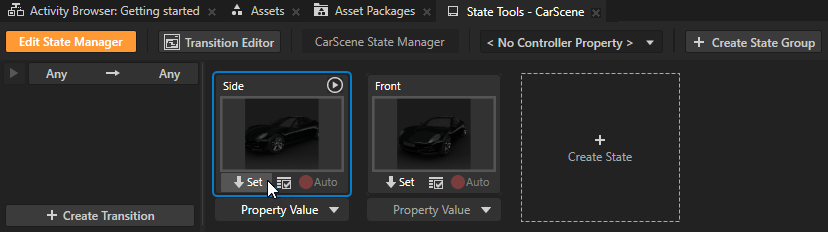
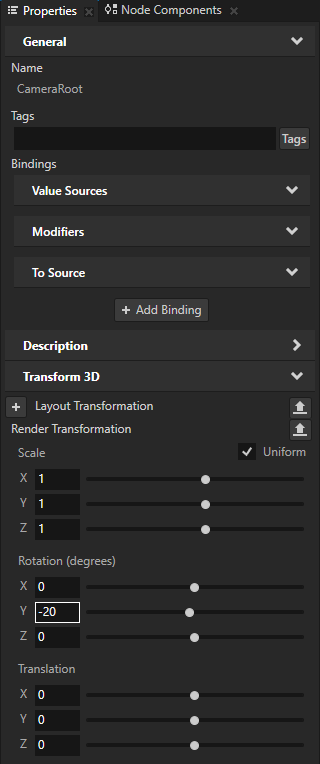
Repeat the previous step, but set the Render Transformation Rotation Y property field to -20 and save the change to the Front state.
Tip
When the State Tools window is in the Edit mode, you can click any state in that State Manager to see what your application looks like in that state.
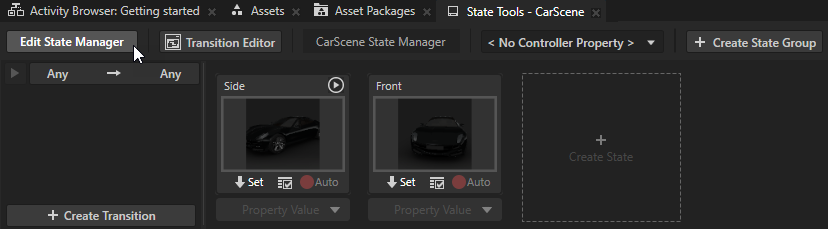
Click Edit State Manager to exit the State Tools Edit mode.
Set the application state
In this section, you create a button in your Kanzi application that allows users of your application to switch between the states that you created in the previous section.
To set the application state:
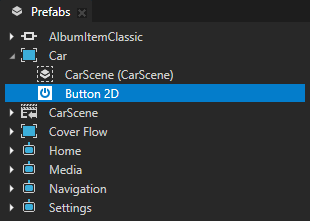
In the Prefabs window, press Alt and right-click the Car prefab and select Button 2D.
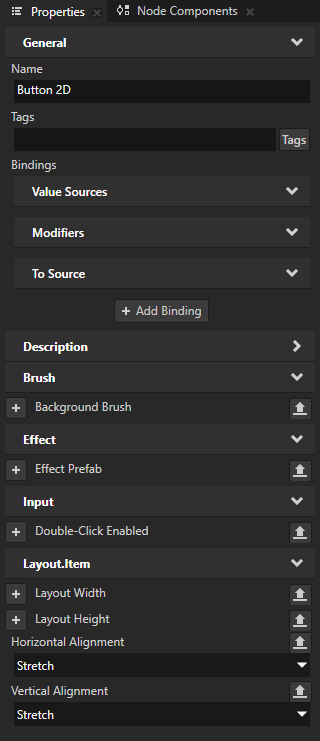
In the Properties window, add the Horizontal Alignment and Vertical Alignment properties and set both to Stretch.
With this setting you set the size of the Button 2D node to be of the same size as the Viewport 2D, which is the entire screen. In this way you enable the users of your application to click anywhere in Car Activity to interact with the button.
In the Node Components, press Alt and right-click the Button: Click trigger, and select Dispatch Message Action > State Manager > Next State.
Use the Next State action to go to the next state in the state group of the state manager you set in this action.
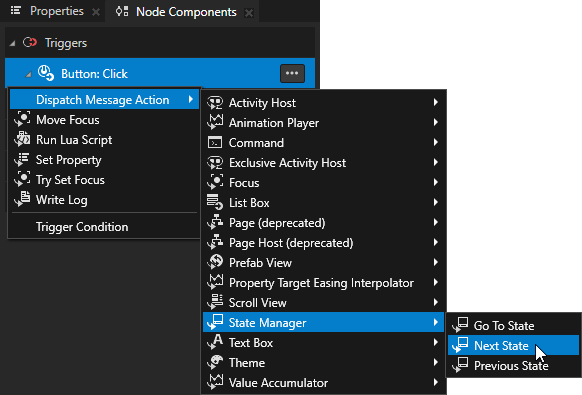
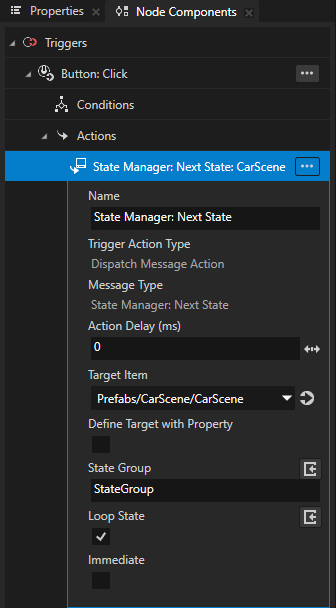
In the Next State action, set:
Target Item to Prefabs/CarScene/CarScene
State Group to StateGroup
In the Preview window, when you click anywhere in the Car Activity, except the Next and Previous buttons, you switch between the Side and Front application states.

What’s next?
In this tutorial, you learned about the Kanzi Studio features by creating a simple Kanzi application. Now you can start learning how to use Kanzi:
Complete the tutorials. See Tutorials.
Read about the fundamental concepts that make Kanzi tick. See Kanzi fundamentals.
Explore the details of Kanzi features. See Working with ….
Make sure that the performance of your Kanzi application is optimal. See Best practices.
Getting help
To open the Kanzi documentation in Kanzi Studio press F1.
Kanzi Studio opens Kanzi documentation in your default browser.
See also
To find out more about working with the state managers, see Using state managers.