Developing for Android with the Kanzi application framework (appfw)
Use the Kanzi application framework (appfw) when you want to create an application for multiple platforms and you intend to share non-trivial application code between the platforms.
Kanzi application framework (appfw) is a framework for developing cross-platform applications. You write application and plugin code in C++ and extending Android-specific functionality requires writing JNI glue code. When you use Kanzi application framework (appfw), you can render a Kanzi application to only one Android View at a time.
Android lifecycle events in a Kanzi application
The Android lifecycle events set how your Kanzi application behaves when the activity state changes. Each event maps to an Android activity callback method. A Kanzi application uses these lifecycle events:
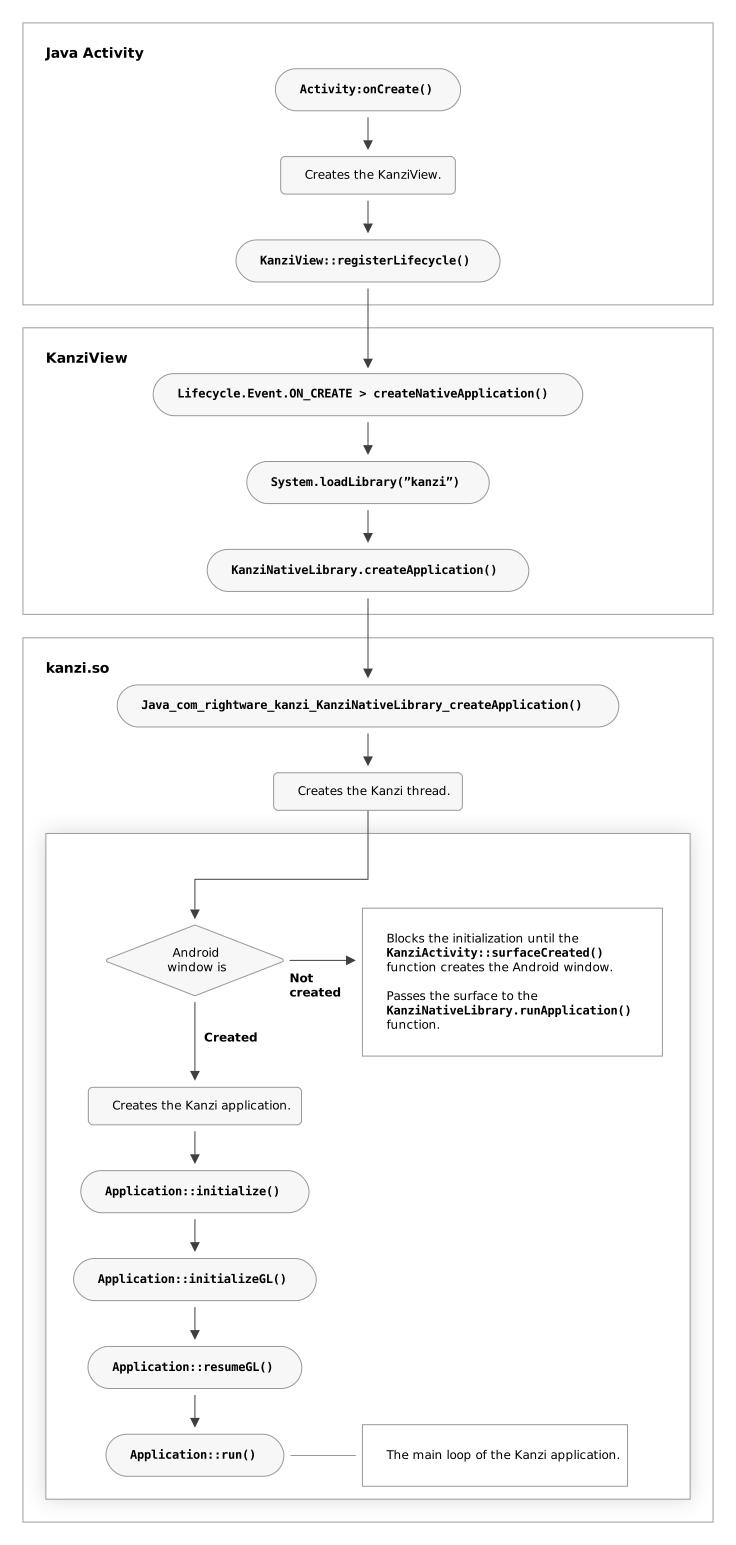
Lifecycle.Event.ON_CREATE// Load the native library that provides Kanzi functionality, // initialize the context, and assign the KanziView for rendering. // This function calls the KanziNativeLibrary.createApplication() function, // which loads the Kanzi project. KanziView.createNativeApplication();
Lifecycle.Event.ON_DESTROY// Halt and destroy the Kanzi application. // This function calls the KanziNativeLibrary.haltApplication() and // KanziNativeLibrary.destroyApplication() functions. KanziView.destroyNativeApplication();
SurfaceHolder.Callback.surfaceCreated(KanziView.surfaceCreated)// When the application surface is created, run the Kanzi application. KanziNativeLibrary.runApplication(holder.getSurface());
SurfaceHolder.Callback.surfaceDestroyed(KanziView.surfaceDestroyed)// When the Kanzi application surface is destroyed, pause rendering. KanziNativeLibrary.haltApplication();
SurfaceHolder.Callback.surfaceChanged(KanziView.surfaceChanged)// When the format or size of the Kanzi application surface changes, // resize the application surface. // @param width: The new width of the surface. // @param height: The new height of the surface. KanziNativeLibrary.resizeEvent(width, height);
Kanzi does not use the LifeCycle.Event.ON_PAUSE and Lifecycle.Event.ON_RESUME events because they do not tell whether the application surface is ready for rendering. To pause and resume rendering, KanziView uses these functions:
SurfaceHolder.Callback.surfaceCreated(KanziView.surfaceCreated)SurfaceHolder.Callback.surfaceDestroyed(KanziView.surfaceDestroyed)
See https://developer.android.com/reference/androidx/lifecycle/Lifecycle.Event.html and https://developer.android.com/reference/android/view/SurfaceHolder.Callback.
This diagram shows the initialization sequence of a Kanzi application on the Android platform.
Adding Kanzi application framework (appfw) to your Android application
To use Kanzi application framework (appfw) with your existing Android Studio application project:
Integrate Kanzi libraries
Add a
KanziViewto your Android activityImport Kanzi Studio project assets
Integrating Kanzi libraries into an Android Studio project
You can add Kanzi to your Android application by making your Android Studio project depend on prebuilt Kanzi Android library and native Kanzi libraries as an Android library sub-project.
To integrate Kanzi libraries into an existing Android Studio project:
From the
<KanziWorkspace>/Templates/Android_librarydirectory, copy to the root of your Android project:getkanzi.gradlefilekanzinativedirectory
Remove the content from the
<AndroidProject>/kanzinative/src/main/cppdirectory.From the
<ProjectName>/Applicationdirectory of your Kanzi project, copy to<AndroidProject>/kanzinative/src/main/cppdirectory:CMakeLists.txtfilecmakeandsrcdirectories
In the
settings.gradleorsettings.gradle.ktsfile of your project, add:dependencyResolutionManagement { repositories { flatDir { apply from: 'getkanzi.gradle' dirs getKanziAndroidLibrariesPath() } } }
dependencyResolutionManagement {
  repositories {
     flatDir {
       apply(from ="getkanzi.gradle")
       dirs(extra.get("getKanziAndroidLibrariesPath"))
     }
  }
}
This utility helps your project find Kanzi libraries from your local Kanzi installation or platform package.
You can either:
Keep your project in the Kanzi workspace directory
Point
KANZI_HOMEenvironment variable to your Kanzi workspaceIn your project
local.properties, set thekanzi.homeproperty to your Kanzi workspace or platform packageInclude Kanzi libraries from your own location or repository
To include
kanzinativeas a sub-project, in thesettings.gradleorsettings.gradle.ktsfile of your project add:include ':kanzinative'
include(":kanzinative")
To make your application depend on prebuilt Kanzi Android library and
kanzinativesub-project, in theapp/build.gradleorapp/build.gradle.ktsfile of your project, add:dependencies { implementation 'com.rightware.kanzi:kanziruntime@aar' implementation project(':kanzinative') }
dependencies {
  implementation("com.rightware.kanzi:kanziruntime@aar")
  implementation(project(":kanzinative"))
}
Adding a KanziView to an Android activity
To add a KanziView to an Android activity:
Add to your Android application content the
KanziViewand set its layout.For example, in
app/src/main/res/layout/content_main.xml, add:<com.rightware.kanzi.KanziView android:id="@+id/kanzicontent" android:layout_width="match_parent" android:layout_height="wrap_content" android:layout_marginTop="24dp" app:layout_constraintBottom_toBottomOf="parent" app:layout_constraintEnd_toEndOf="parent" app:layout_constraintStart_toStartOf="parent" />
Import to the Android activity the
ConfigurationandKanziViewclasses.For example, in
app/src/main/java/com/rightware/<projectname>/MainActivity.javaadd:import android.content.res.Configuration; import com.rightware.kanzi.KanziView;
In the
MainActivity.javafile, add the Kanzi View to theMainActivityclass:public class MainActivity extends AppCompatActivity { private KanziView mView = null; @Override protected void onCreate(Bundle savedInstanceState) { ... mView = findViewById(R.id.kanzicontent); mView.registerLifecycle(getLifecycle()); } ... @Override public void onConfigurationChanged(Configuration newConfig) { super.onConfigurationChanged(newConfig); mView.setOrientation(newConfig.orientation); } }
Adding Kanzi Studio project assets to your application
To add Kanzi Studio assets to your Android application:
Import Kanzi Studio project assets, such as kzb and cfg files, to your Android Studio project, using one of these options:
In the
app/build.gradleorapp/build.gradle.ktsof your Android Studio project, set the path to the<ProjectName>/Application/bindirectory of your Kanzi Studio project:android { defaultConfig { sourceSets { main { assets.srcDirs = "<ProjectName>/Application/bin" } } } }
android {
  defaultConfig {
    sourceSets.named("main") {
      assets.srcDirs("<ProjectName>/Application/bin")
    }
  }
}
Copy the content of the
<ProjectName>/Application/bindirectory of your Kanzi Studio project to theapp/src/main/assetsdirectory of your Android Studio project.In Kanzi Studio, in the Project > Properties set the Binary Export Directory property of your Kanzi Studio project to the
app/src/main/assetsdirectory of your Android Studio project.This way you tell Kanzi Studio where to export your project kzb file.
Note
Kanzi Studio does not export the
application.cfgfile. Copy the file manually to theapp/src/main/assetsdirectory of your Android Studio project.
Disable compression of the assets files that you import, so Kanzi Engine can load them. In the
app/build.gradleorapp/build.gradle.ktsfile of your project add:android { aaptOptions { noCompress "kzb", "cfg", "json" } }
android {
  androidResources {
    noCompress += listOf("kzb", "cfg", "json")
  }
}
See also
Kanzi Android application framework API reference
Deploying Kanzi applications to Android
Application configuration reference