ステップ3 - ブルームエフェクトを微調整する
このステップでは、まず前のステップで作成したブルームエフェクト用のレンダーパスを、再利用して複数回適用できるレンダーパスのプレハブに変換します。その後、ブルームエフェクトの複数のパスを作成します。エフェクトをより広い範囲に広げ、よりリアルに見せるために、各パスでぼかしの設定とブルームの強度を調整します。
ブルーム効果を適用するレンダーパスを再利用する
このセクションでは、ブルームエフェクトの最初のパスを作成するレンダーパスを、Render Pass View を使用してインスタンス化するレンダーパスプレハブに変換します。
ブルーム効果を適用するレンダーパスを再利用するには:
ブルームエフェクトの1パスを適用するレンダーパスプレハブを作成してインスタンス化します。
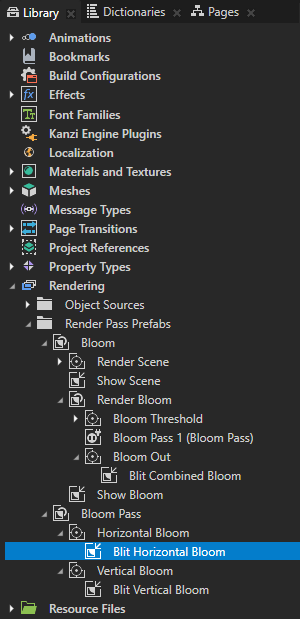
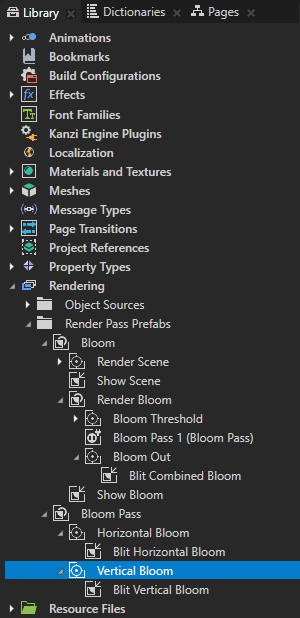
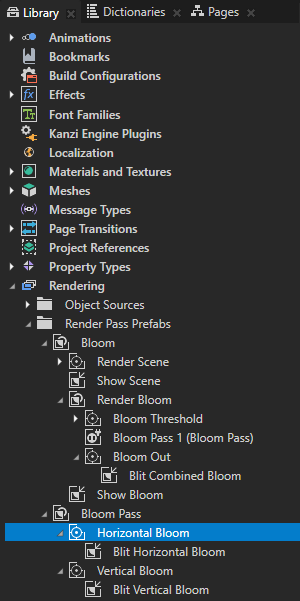
Library > Rendering > Render Pass Prefabs > Bloom > Render Bloom で Group レンダーパスを作成し、Bloom Pass という名前を付けます。Horizontal Bloom と Vertical Bloom レンダーパスを Bloom Pass レンダーパスにドラッグします。
Bloom Pass レンダーパスを使用して、ブルームエフェクトの1パスを適用するレンダーパスをグループ化します。
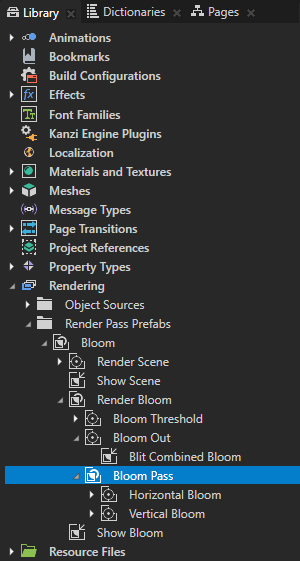
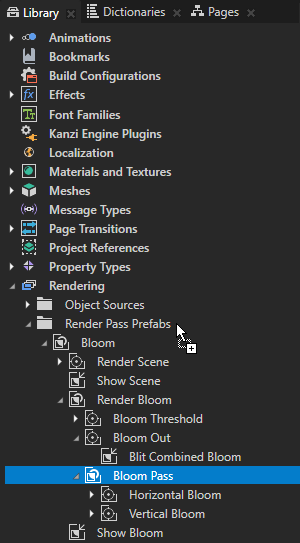
Library で、Bloom Pass レンダーパスを Render Pass Prefabs フォルダにドラッグします。
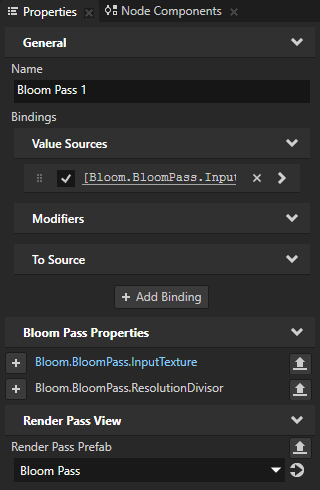
この方法で、Bloom Pass レンダーパスをレンダーパスプレハブに変換します。Kanzi Studio は、Render Bloom レンダーパスに Render Pass View という名前の Bloom Pass を作成し、Bloom Pass レンダーパスプレハブをインスタンス化します。
Library > Rendering > Render Pass Prefabs では、すべてのトップレベルアイテムは、Render Pass View を使用してインスタンス化できるレンダーパスプレハブです。
Kanzi Studio は、無効なバインディングを含むレンダーパスを無効としてマークします。これらのバインディングは、もはや同じレンダーパスプレハブにないレンダーパスのプロパティをバインドしているため、無効です。
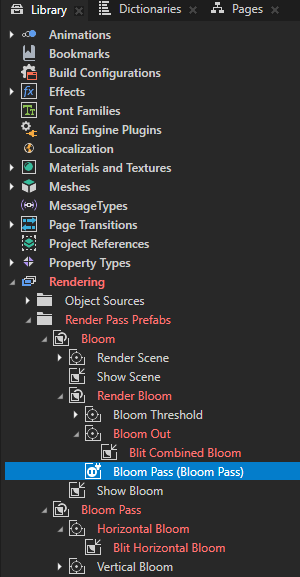
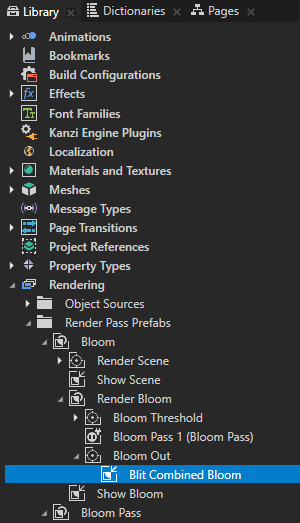
Library で、Bloom レンダーパスプレハブ内の Blit Combined Bloom レンダーパスを選択します。Properties で、無効なバインディングの横にある
 をクリックして、そのバインディングを削除します。
Blit Combined Bloom レンダーパスの Texture 0 プロパティを、異なるレンダーパスプレハブにある Vertical Bloom レンダーパスの結果テクスチャにバインドすることはできません。
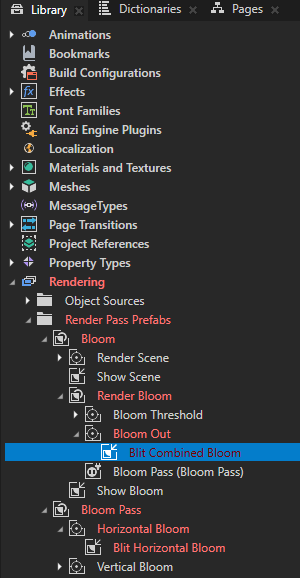
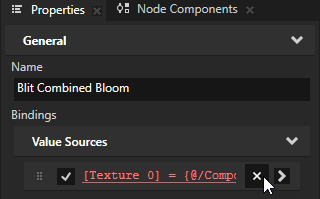
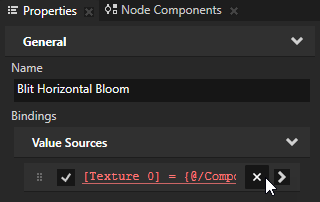
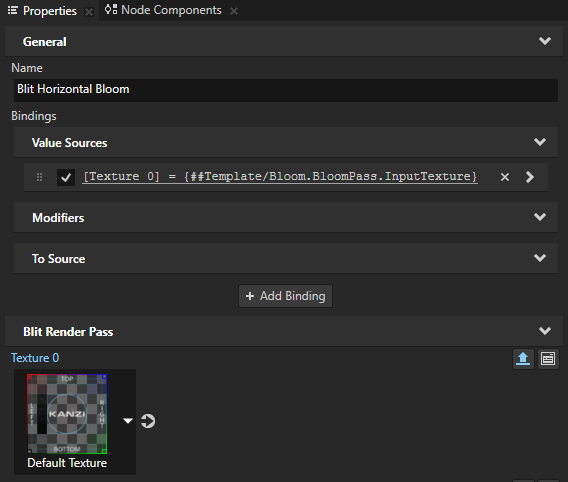
Library で、Bloom Pass レンダーパスプレハブ内の Blit Horizontal Bloom レンダーパスを選択します。Properties で、無効なバインディングの横にある
をクリックして、そのバインディングを削除します。Blit Horizontal Bloom レンダーパスの Texture 0 プロパティを、異なるレンダーパスプレハブにある Bloom Threshold レンダーパスの結果テクスチャにバインドすることはできません。
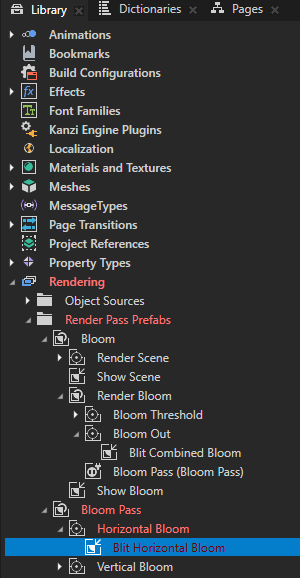
Library で、Bloom レンダーパスプレハブ内の Bloom Pass Render Pass View を Bloom Pass 1 に名前を変更し、それを Bloom Out レンダーパスの上にドラッグします。
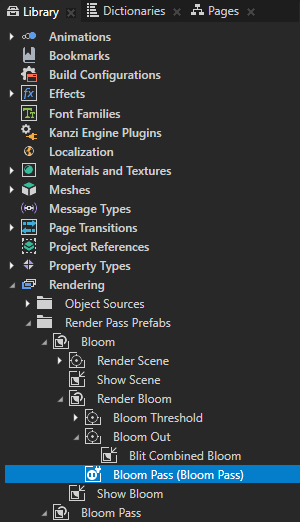
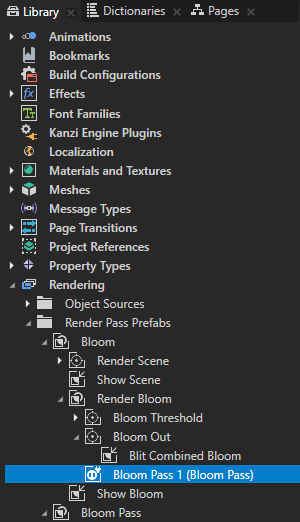
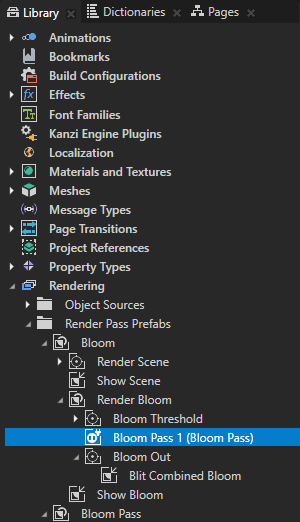
Bloom Pass 1 が入力として受け取り、出力するテクスチャを設定します。
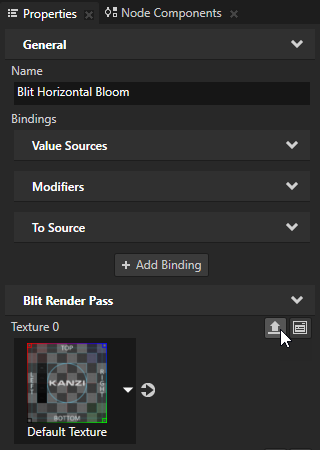
Library で、Bloom Pass レンダーパスプレハブ内の Blit Horizontal Bloom レンダーパスを選択します。Properties で、Texture 0 プロパティの横にある
 をクリックします。Publish Property ダイアログで、プロパティタイプに Bloom.BloomPass.InputTexture と名前を付け、OK をクリックします。
Kanzi Studio:
Texture 0 プロパティから Bloom.BloomPass.InputTexture という名前のカスタムプロパティを作成します。
Bloom.BloomPass.InputTexture プロパティを Bloom Pass レンダーパスプレハブのルートに追加し、Blit Horizontal Bloom レンダーパス内で、レンダーパスプレハブのルートにあるプロパティへの
#Templateバインディングを作成します。Bloom.BloomPass.InputTexture プロパティを、Bloom Pass レンダーパスプレハブをインスタンス化した Bloom Pass 1 レンダーパスビューで頻繁に使用されるプロパティとして表示します。
Bloom.BloomPass.InputTexture プロパティタイプを使用して、Render Pass View ごとに Bloom Pass レンダーパスプレハブをインスタンス化する際に、Blit Horizontal Bloom レンダーパスの Texture 0 プロパティを異なる値に設定できます。
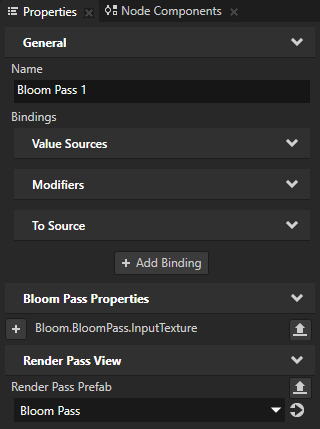
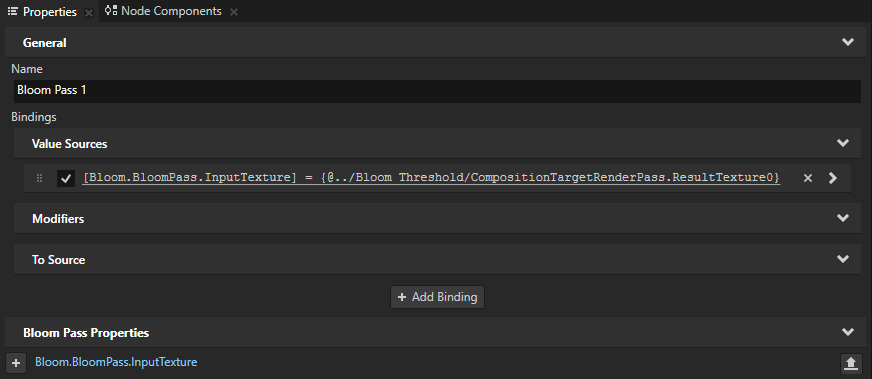
Library で、Bloom レンダーパスプレハブ内の Bloom Pass 1 Render Pass View を選択します。Library から、Bloom Threshold レンダーパスを Properties ウィンドウにドラッグし、Bloom Pass 1 の Bloom.BloomPass.InputTexture プロパティにドロップします。
Bloom Pass 1 Render Pass View を設定して、Bloom Threshold レンダーパスの結果テクスチャを入力として受け取るようにします。
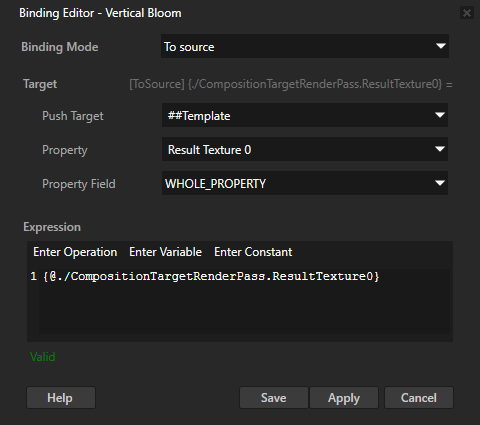
Library で、Bloom Pass レンダーパスプレハブ内の Vertical Bloom レンダーパスを選択します。Properties で、+ Add Binding をクリックし、Binding Editor で設定します。
Binding Mode から To source へ
Kanzi Studio は自動的に Push Target プロパティを ##Template に設定します。これにより、このバインディングが設定するプロパティ値がレンダーパスプレハブルートにプッシュされます。
Property から [Existing Properties] > Result Texture 0 へ
Expression へ
{@./CompositionTargetRenderPass.ResultTexture0}
Save をクリックします。
このバインディングは、Vertical Bloom レンダーパスの Result Texture 0 プロパティの値を Bloom Pass レンダーパスプレハブのルートにプッシュします。Vertical Bloom レンダーパスの Result Texture 0 プロパティは、Bloom Pass レンダーパスプレハブをインスタンス化する各 Render Pass View で利用可能になりました。
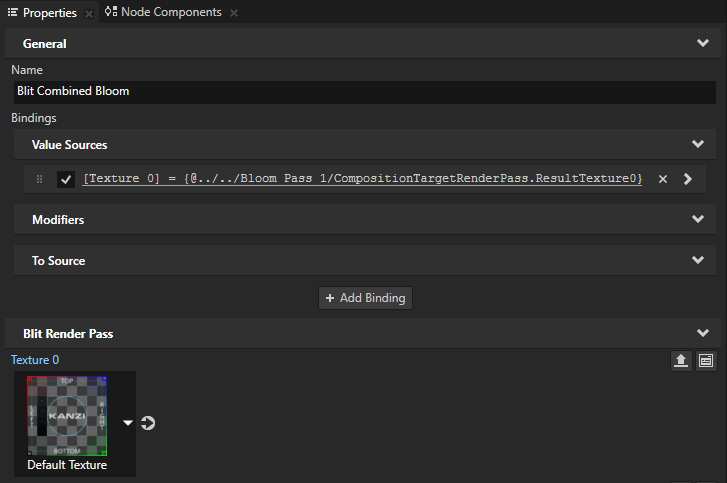
Library で、Bloom レンダーパスプレハブ内の Blit Combined Bloom レンダーパスを選択します。Library から、Bloom Pass 1 Render Pass View を Properties ウィンドウにドラッグし、Blit Combined Bloom レンダーパスの Texture 0 プロパティにドロップします。
Blit Combined Bloom レンダーパスを設定して、Bloom Pass 1 Render Pass View の結果テクスチャを画面に描画します。これは、前のステップで Bloom Pass 1 Render Pass View で利用可能にした Bloom Pass > Vertical Bloom レンダーパスの結果テクスチャです。
各 Render Pass View が Bloom Pass レンダーパスプレハブをインスタンス化する際に、コンポジションターゲットの解像度をカスタマイズ可能にします。
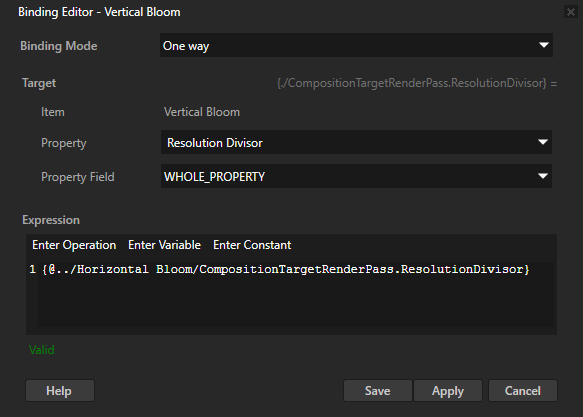
Library で、Bloom Pass レンダーパスプレハブ内の Vertical Bloom レンダーパスを選択します。Properties で、+ Add Binding をクリックし、Binding Editor で設定します。
Property から [Existing Properties] > Resolution Divisor へ
Expression へ
{@../Horizontal Bloom/CompositionTargetRenderPass.ResolutionDivisor}
Save をクリックします。
Vertical Bloom レンダーパスの Resolution Divisor プロパティを Horizontal Bloom レンダーパスの Resolution Divisor プロパティにバインドします。このバインディングにより、Horizontal Bloom と Vertical Bloom レンダーパスで Resolution Divisor プロパティの値が常に同じであることを確認します。
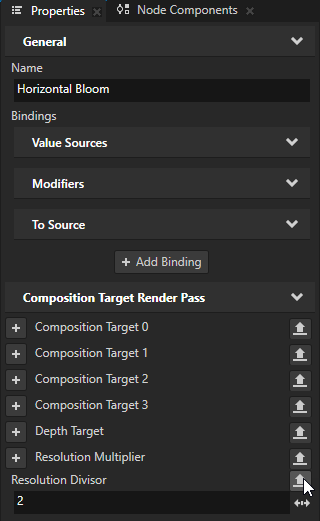
Library で、Horizontal Bloom レンダーパスを選択します。Properties で、Resolution Divisor プロパティの横にある
をクリックします。Publish Property ダイアログで、OK をクリックします。Bloom.BloomPass.ResolutionDivisor プロパティタイプを使用して、Render Pass View ごとに Bloom Pass レンダーパスプレハブをインスタンス化する際に、Blit Horizontal Bloom レンダーパスの Resolution Divisor プロパティを異なる値に設定できます。
Library で、Blit Vertical Bloom レンダーパスを選択します。Properties で、Blur Direction プロパティの横にある
をクリックします。Publish Property ダイアログで、プロパティタイプに Bloom.BloomPass.VerticalBlurDirection と名前を付け、OK をクリックします。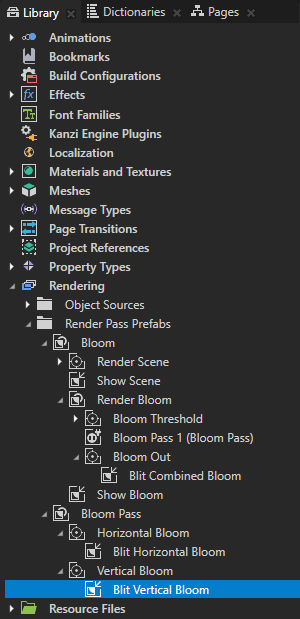
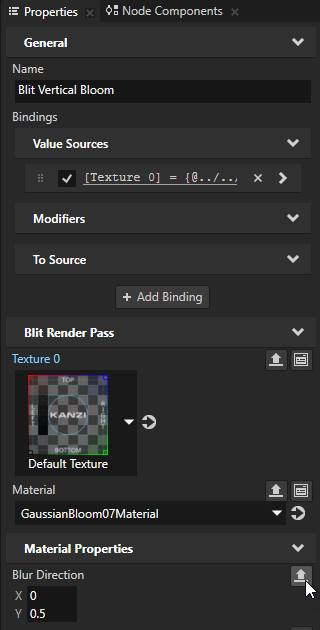
Blit Horizontal Bloom と Blit Vertical Bloom のレンダーパスがテクスチャを描画するために使用するマテリアルを、Bloom Pass レンダーパスプレハブをインスタンス化する各 Render Pass View でカスタマイズ可能にします。
Library で、Blit Horizontal Bloom レンダーパスを選択します。Properties で、Material プロパティの隣にある
をクリックします。Publish Property ダイアログで、OK をクリックします。
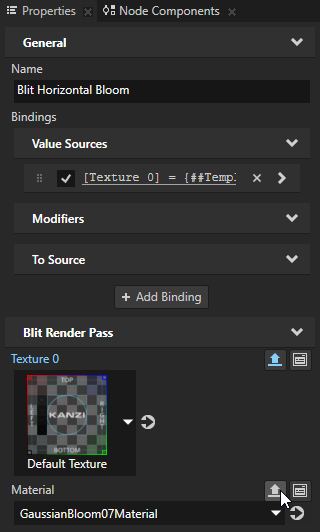
Properties で、Material プロパティにバインドされているバインディングを右クリックし、Copy Binding を選択します。
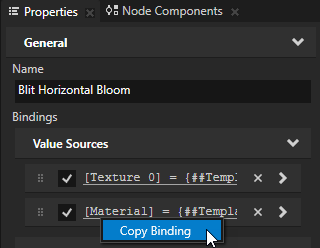
Library で、Blit Vertical Bloom レンダーパスを選択します。Properties で、Bindings を右クリックし、Paste Binding(s) を選択します。
ヒント
複数のノードに同じバインディングを作成するには、Node Tree でそれらのノードを選択し、Properties で + Add Binding をクリックするか、プロパティを右クリックして Create Binding を選択します。
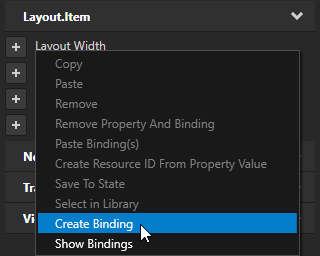
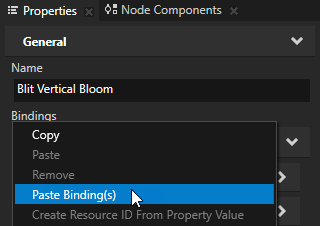
前のステップを2回繰り返して、これらのプロパティを各 Render Pass View が Bloom Pass レンダーパスプレハブをインスタンス化する際にカスタマイズ可能にします。
Blur Radius
Intensity
Kanzi Studio は、カスタマイズ可能にしたプロパティを、Bloom Pass 1 Render Pass View で頻繁に使用されるプロパティとして表示し、Bloom Pass レンダーパスプレハブをインスタンス化します。
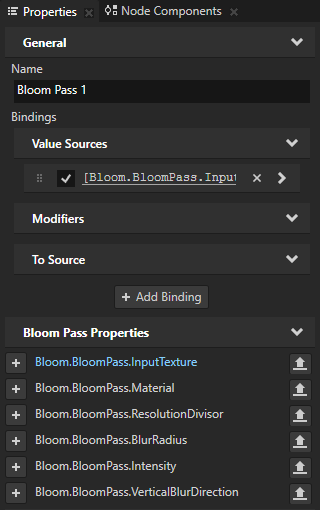
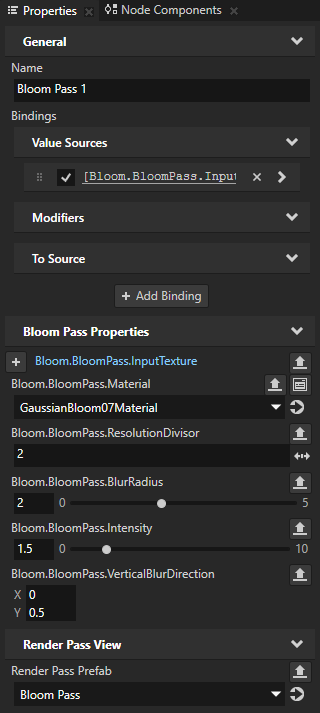
Library で、Bloom Pass 1 Render Pass View を選択します。Properties で、追加して設定します。
Bloom.BloomPass.Material から GaussianBloom07Material へ
Bloom.BloomPass.ResolutionDivisor から 2 へ
Bloom.BloomPass.BlurRadius から 2 へ
Bloom.BloomPass.Intensity を1.5に
Bloom.BloomPass.VerticalBlurDirection プロパティ Y プロパティフィールドを 0.5 に設定します。
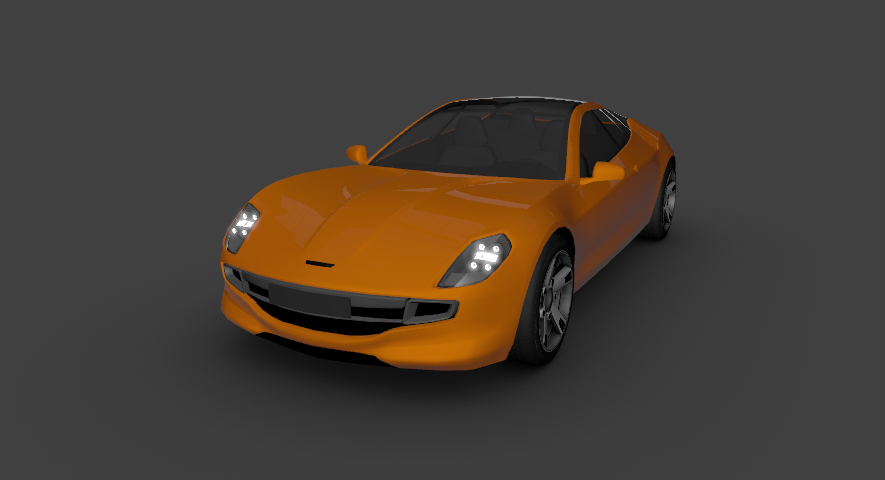
Preview は現在、ブルームエフェクトの最初のパスを表示しています。
ブルーム効果の広がりと強度を調整する
このセクションでは、ブルームエフェクトの複数のパスを作成します。Render Pass View を使用して Bloom Pass レンダーパスプレハブを複数回インスタンス化し、各インスタンスをカスタマイズしてブルームエフェクトの広がりと強度を調整します。
ブルーム効果の広がりと強度を調整するには、以下のようにします。
Library で、Bloom Pass 1 Render Pass View を3回複製します。複製したものに Bloom Pass 2、Bloom Pass 3、Bloom Pass 4 と名前を付け、Bloom Out レンダーパスの上にドラッグします。
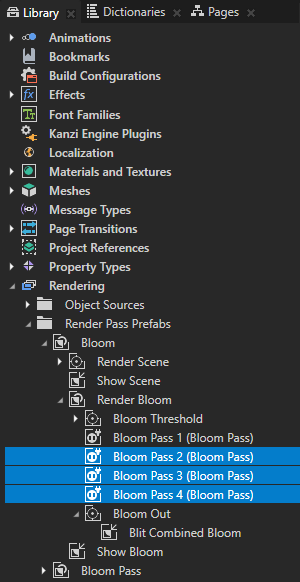
Blit Combined Bloom レンダーパスを設定して、ブルームエフェクトの4つのパスすべての合成結果を描画します。
Library で、Bloom Out > Blit Combined Bloom レンダーパスを選択します。Properties で、Blit レンダーパス > Texture 1、Texture 2、Texture 3 プロパティを追加します。
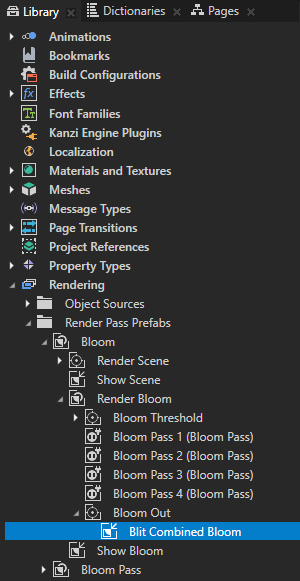
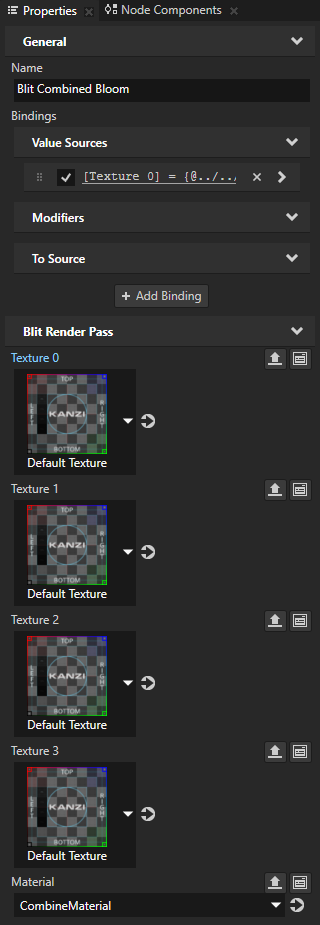
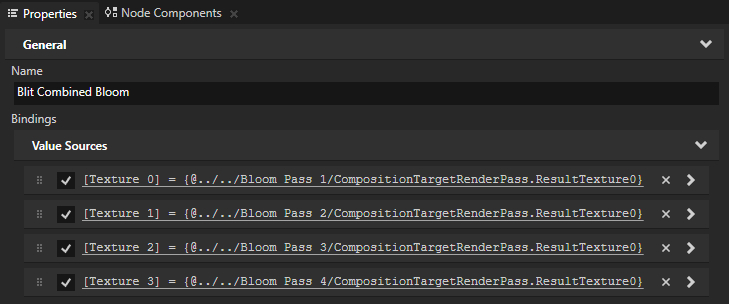
Library から Properties ウィンドウにドラッグしてドロップします。
Bloom Pass 2 の Texture 1 プロパティ
Texture 2 プロパティの Bloom Pass 3
Texture 3 プロパティの Bloom Pass 4
この方法で、Blit Combined Bloom レンダーパスを設定し、CombineMaterial マテリアルを使用して Bloom Pass 1、Bloom Pass 2、Bloom Pass 3、および Bloom Pass 4 の結果テクスチャを描画します。
ブルームエフェクトの各パスに対して、前のパスの結果テクスチャを入力テクスチャとして設定します。
Library で、Bloom Pass 2 レンダーパスビューを選択します。Library から、Bloom Pass 1 レンダーパスビューを Properties ウィンドウにドラッグし、Bloom Pass 2 レンダーパスビューの Bloom.BloomPass.InputTexture プロパティにドロップします。
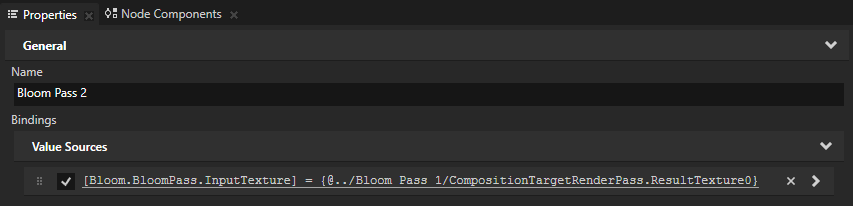
前の手順を2回繰り返します。
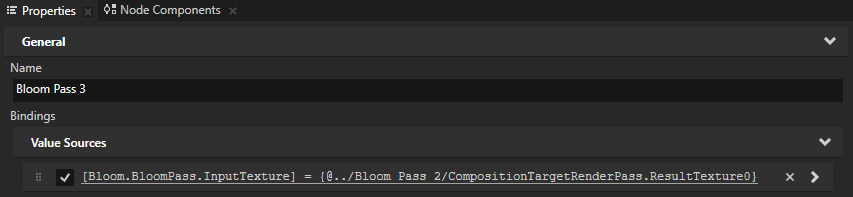
Bloom Pass 3 には、Bloom Pass 2 の結果テクスチャを使用します。
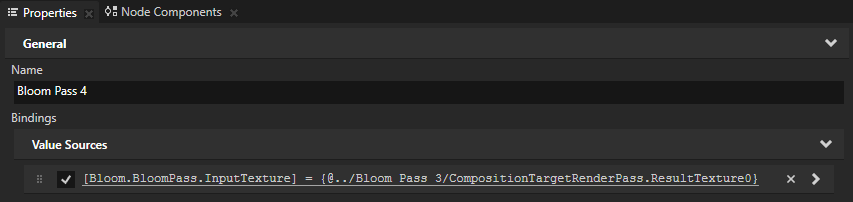
Bloom Pass 4 には、Bloom Pass 3 の結果テクスチャを使用します。
<KanziWorkspace>/Tutorials/Bloom/Assets/GaussianBloom09_13_15Material.kzexportからマテリアルを読み込みます。GaussianBloom09Material、GaussianBloom13Material、および GaussianBloom15Material マテリアルは、9、13、および15ピクセルのカーネルサイズを使用して方向性のあるガウスぼかし効果を提供します。パフォーマンスを最適化するために、可能な場合は小さいカーネルサイズを使用します。
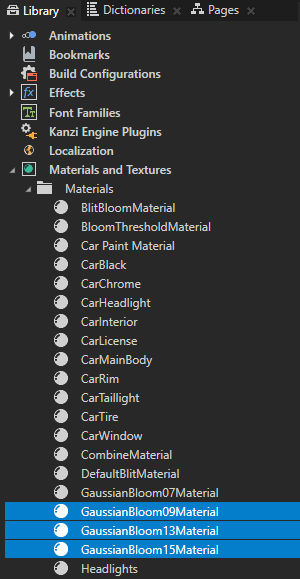
ブルーム効果の広がりと強度を調整するには、Bloom Pass をインスタンス化する各 Render Pass View をカスタマイズしてください。
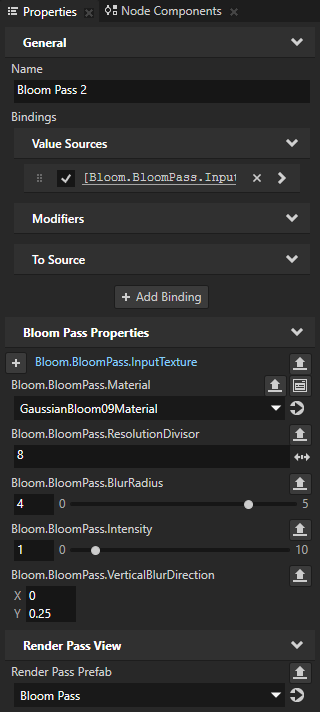
Library で、Bloom Pass 2 Render Pass View を選択します。Properties で、次を設定します:
Bloom.BloomPass.Material から GaussianBloom09Material へ
Bloom.BloomPass.ResolutionDivisor から 8 まで
ブルームエフェクトの各パスで合成ターゲットの解像度を下げることで、エフェクトがより広い範囲に広がります。
Bloom.BloomPass.BlurRadius から4まで
Bloom.BloomPass.Intensity を 1 に
Bloom.BloomPass.VerticalBlurDirection プロパティ Y プロパティフィールドを 0.25 に設定します。
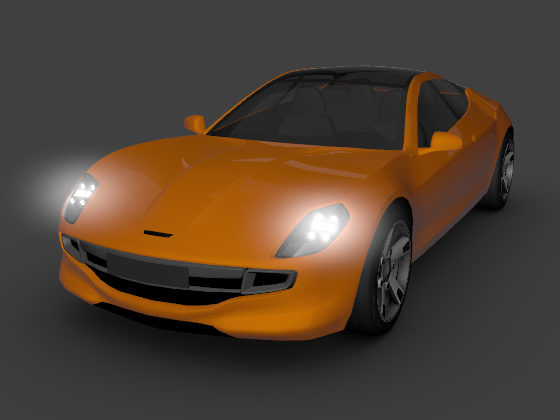
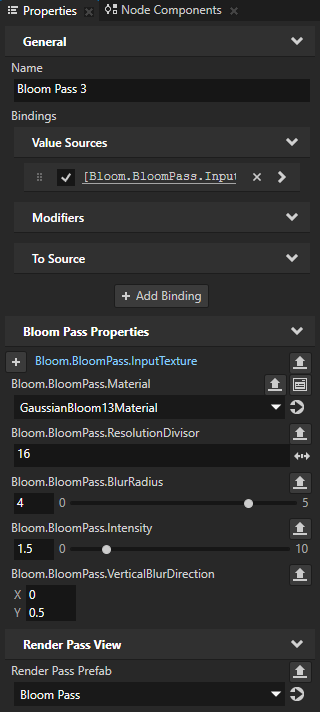
Library で、Bloom Pass 3 Render Pass View を選択します。Properties で、次を設定します:
Bloom.BloomPass.Material から GaussianBloom13Material へ
Bloom.BloomPass.ResolutionDivisor から16まで
Bloom.BloomPass.BlurRadius から4まで
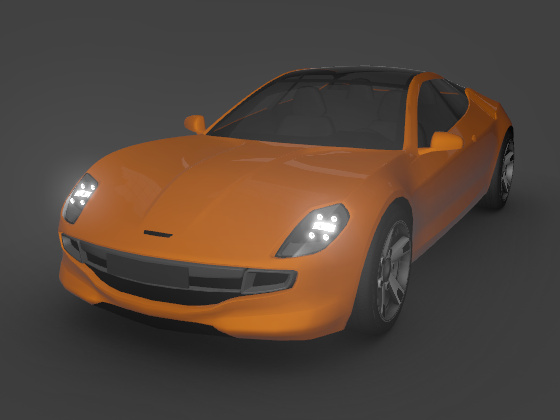
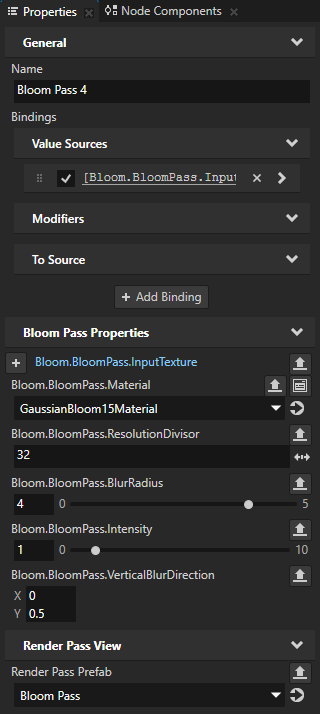
Library で、Bloom Pass 4 レンダーパスビューを選択します。Properties で、以下を設定します。
Bloom.BloomPass.Material から GaussianBloom15Material へ
Bloom.BloomPass.ResolutionDivisor から32まで
Bloom.BloomPass.BlurRadius から4まで
Bloom.BloomPass.Intensity を 1 に
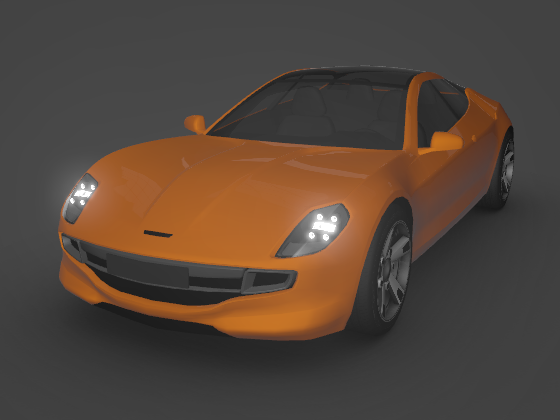
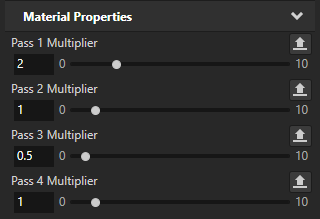
Library で、Bloom Out > Blit Combined Bloom レンダーパスを選択します。Properties で、これらの Material Properties を追加して設定します。
Pass 1 Multiplier から 2 へ
Pass 2 Multiplier を 1 に
Pass 3 Multiplier を 0.5 に
Pass 4 Multiplier を 1 に
これらのプロパティを使用して、Bloom Pass 1、Bloom Pass 2、Bloom Pass 3、および Bloom Pass 4 の重みを設定し、その結果テクスチャを Blit Combined Bloom がレンダリングします。ブルーム効果の各パスが最終結果にどのように影響するかを確認するために、さまざまな乗数値を試すことができます。
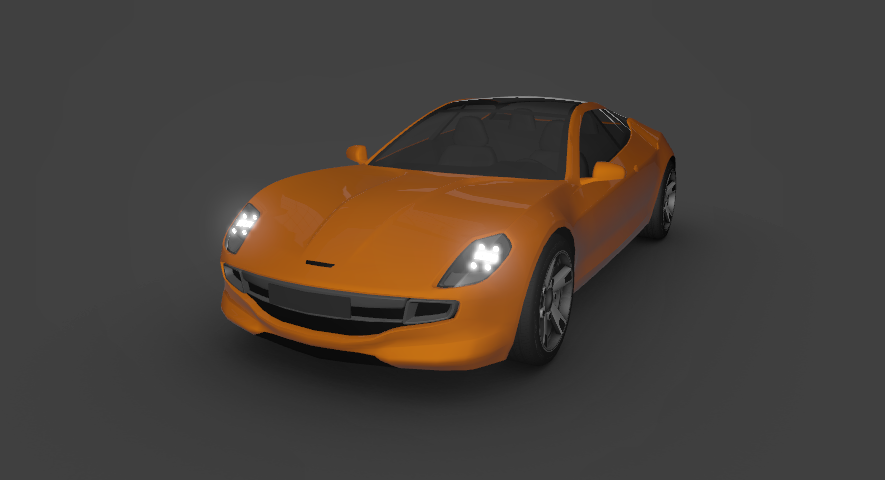
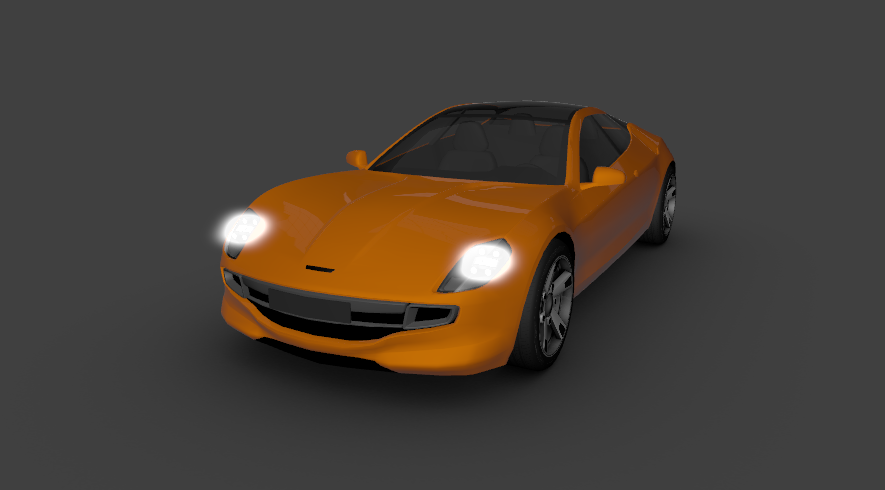
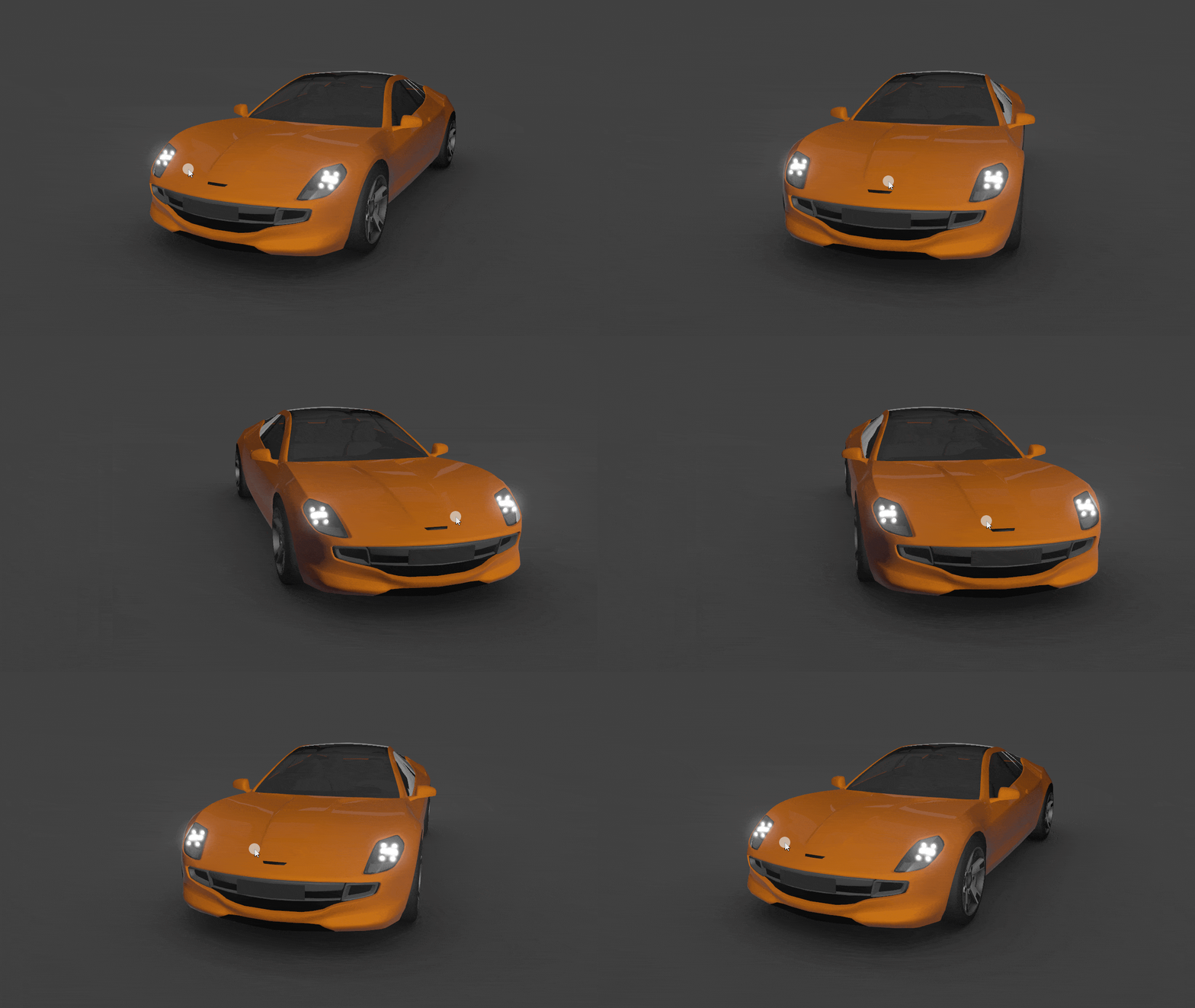
Preview で、車をクリックしてドラッグし、車が回転するときのブルーム効果の見え方を確認してください。
次の作業
このチュートリアルでは、レンダーパスとシェーダーを使用して 3D コンテンツにブルームエフェクトを適用する方法を学びました。
次に行えること:
3Dコンテンツにステンシルを適用して、Kanzi がコンテンツの選択された領域のみをレンダリングする方法を学びます。チュートリアル: 3Dコンテンツにステンシルを適用する を参照してください。
Kanzi アプリケーションでスワイプジェスチャーを使用して3Dモデルを回転させる方法を学びます。チュートリアル: 3Dモデルを回転させる を参照してください。
Blur Effect 2D エフェクトを使用して、2Dノードのコンテンツにガウスぼかしエフェクトを適用する方法を学びます。チュートリアル: ガウスぼかし効果を作成する を参照してください。
関連項目
Kanzi のレンダーパスについて詳しく知るには、レンダリング を参照してください。