Grid Layout ノードを使用する
ノードを格子状に配置するには、Grid Layout ノードを使用します。
Grid Layout ノードに子ノードを自動的に左上から右下に向かって配置させることができます。または、各子ノードをグリッド内の特定の行と列に手動で割り当てることもできます。
Grid Layout 3D ノードの深さは、その Grid Layout 3D ノード内のすべての子ノードの最大深さです。

Grid Layout ノードの作成
Grid Layout ノードを作成するには、
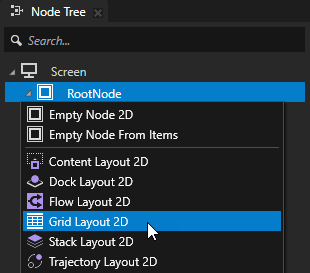
Node Tree で、Grid Layout ノードを作成したいノード Alt を押しながら右クリック を選択し、Grid Layout 2D または Grid Layout 3D のいずれかを選択します。
3Dノードは、Scene ノードのような3Dノード内でのみ作成でき、2Dノードは2Dノード内でのみ作成できます。
ヒント
Preview ツールで、Grid Layout 2D tool
 を使用して Preview でクリックしてドラッグし、Grid Layout 2D ノードを作成します。列と行をスケーリングするには、Preview でそれらの列と行をクリックしてドラッグします。
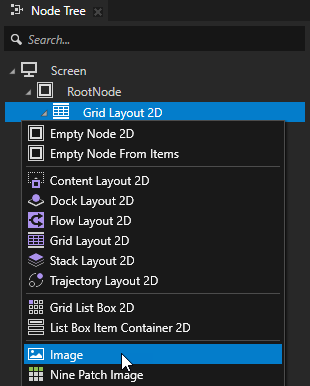
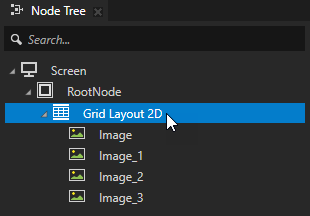
Node Tree で、前のステップで作成したレイアウトに子ノードを追加します。
例えば、Grid Layout 2D ノードを作成した場合、いくつかの Image ノードを追加し、Grid Layout 3D ノードを作成した場合、いくつかの Sphere ノードを追加します。
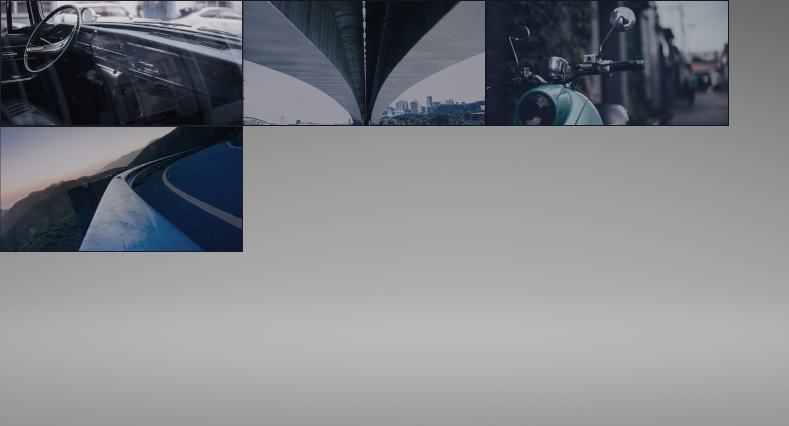
子ノードを追加すると、Grid Layout ノードはグリッドの左上から右下に向かってそれらを配置します。Grid Layout ノード内の各子ノードの位置を手動で設定するには、各子ノードで Column および Row プロパティを設定します。Grid Layout ノードにノードをセルに割り当てる を参照してください。
Grid Layout ノードがその子ノードを配置する方向を設定する
Grid Layout ノードに子ノードを自動的に配置させる場合、その Grid Layout ノードが子ノードを配置する方向を設定できます。
Grid Layout ノードが子ノードを配置する方向を設定するには、
Node Tree で、方向を設定したい Grid Layout ノードを選択します。
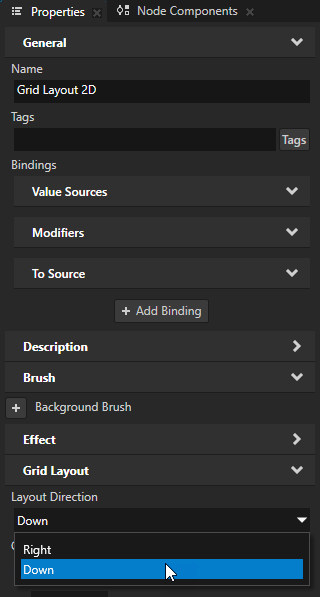
Properties で、Layout Direction プロパティを追加して設定します。
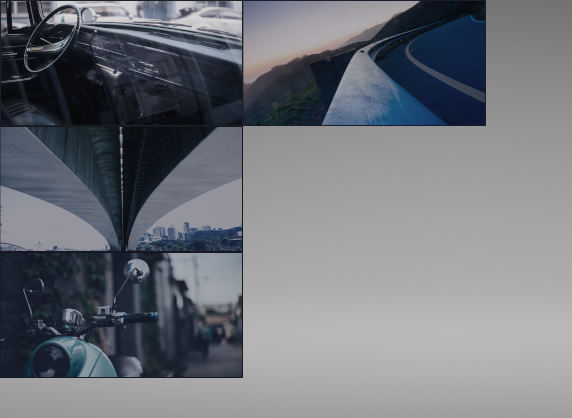
Down は、Grid Layout ノードが最初にその子ノードを最初の列に配置するようにします。最初の列がいっぱいになると、Grid Layout ノードがその子ノードを2番目の列に配置し始めます。
Right は、Grid Layout ノードが最初に子ノードを最初の行に配置するようにします。最初の行がいっぱいになると、Grid Layout ノードが子ノードを2番目の行に配置し始めます。この設定がデフォルト値です。
Grid Layout ノードにノードをセルに割り当てる
Grid Layout ノード内の各子ノードを特定の行と列に手動で割り当てることができます。
Grid Layout ノード内のセルにノードを割り当てるには、
Grid Layout ノードを作成し、いくつかの子ノードを追加します。Grid Layout ノードの作成 を参照してください。
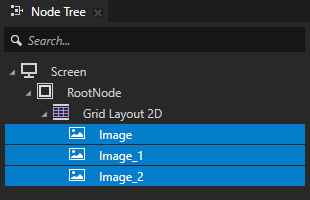
Node Tree で、Grid Layout ノードの子ノードを選択します。Properties で、Grid Layout > Column および Grid Layout > Row プロパティを追加します。
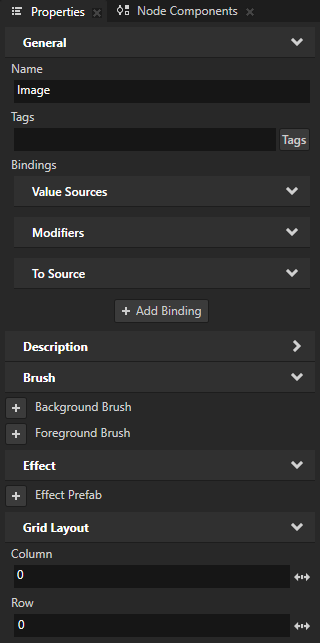
Column プロパティと Row プロパティを使用して、Grid Layout ノード内でノードが占有する列のゼロベースのインデックスと行のゼロベースのインデックスを指定します。
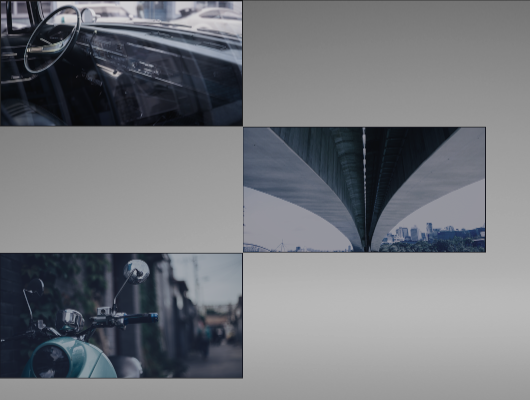
たとえば、3つの画像を市松模様に配置するには、次のように設定します:
2番目の子ノードの場合: Column を1に、Row を1に。
このノードを2番目の列と2番目の行に割り当てます。
3番目の子ノードの場合: Column を0に、Row を2に。
このノードを最初の列と3番目の行に割り当てます。
ヒント
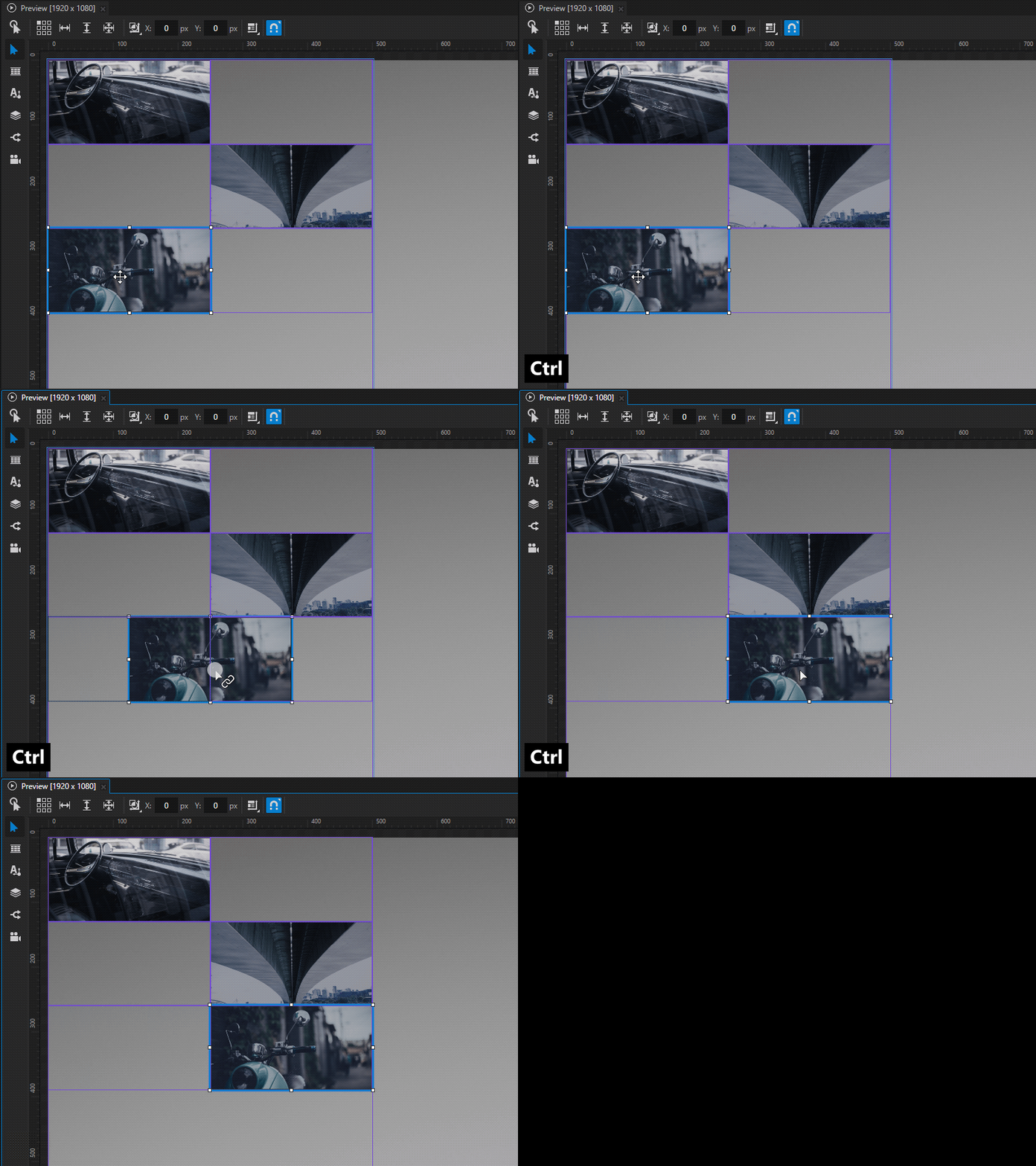
ノードを別の Grid Layout 2D セルに Preview で割り当てるには:
Node Tree で、ノードを選択します。
Ctrl キーを押し続けてください。
Preview で、ノードを割り当てたいセルにドラッグします。
Grid Layout ノードで列と行にまたがる
Grid Layout ノードの各セルに対して、そのセルがまたがる列数と行数を設定できます。
Grid Layout ノードの列と行にまたがってセルを広げるには、
Grid Layout ノードを作成し、いくつかの子ノードを追加します。Grid Layout ノードの作成 を参照してください。
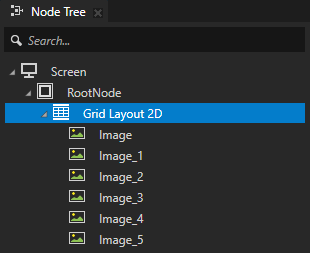
Grid Layout ノードの各子ノードに、Grid Layout > Column および Grid Layout > Row プロパティを追加します。Grid Layout ノードにノードをセルに割り当てる を参照してください。
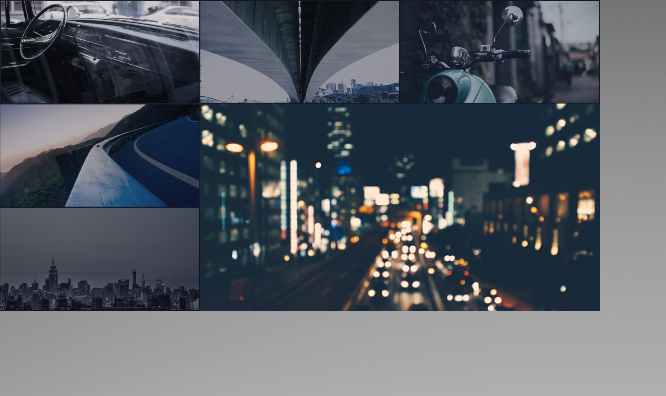
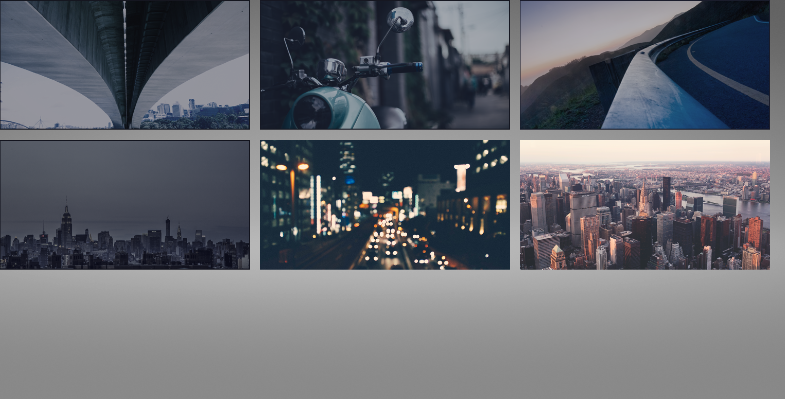
Grid Layout ノードはデフォルトで3列3行です。例えば、最初の5つの子ノードをグリッドレイアウトの最上行と左列に配置できます。6番目の子ノードは残りのスペースを占有できます。Grid Layout ノードの子ノードには、次のプロパティを設定します。
チャイルドノード
Column
Row
Layout Width
1
0
0
200
2
1
0
200
3
2
0
200
4
0
1
200
5
0
2
200
6
1
1
400
Grid Layout ノードは、デフォルトでその列と行のサイズを、その列と行の中で最も大きい子ノードのサイズに基づいて自動的に計算します。ここでは、他の画像よりも大きい6番目の画像が、Grid Layout ノードの2番目の列と2番目の行を引き伸ばしています。これにより、レイアウトに隙間が生じます。
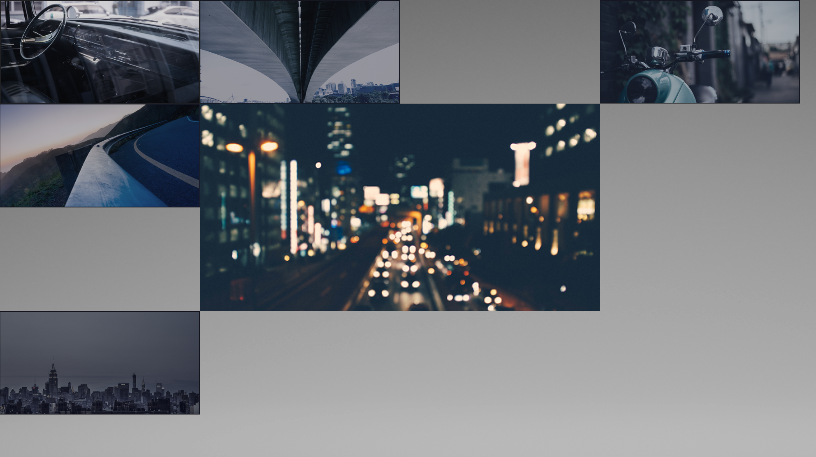
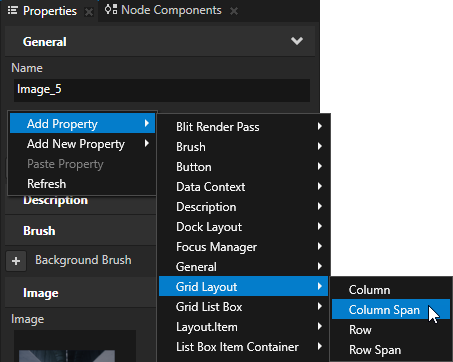
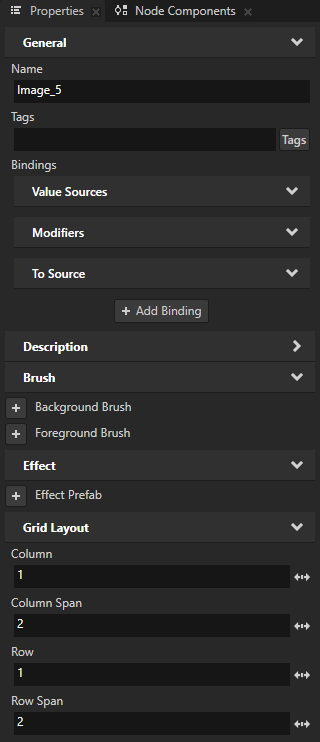
Grid Layout ノードで、複数の列と行にまたがるようにしたい子ノードを選択します。Properties で、Column Span と Row Span プロパティを追加し、そのセルがまたがる列と行の数に設定します。
セルは右側の列と下方向の行にまたがっています。
例えば、最後の画像を2行2列にまたがるように設定するには、Column Span プロパティと Row Span プロパティを2に設定します。
Grid Layout ノードが列と行のサイズを計算する方法の設定
Grid Layout ノードで列と行を作成する際、その Grid Layout ノードが列と行のサイズをどのように計算するかを設定できます。例えば、Grid Layout ノード内でコンテンツを均等に分配するには、行と列に対して比例サイズを使用できます。
Grid Layout ノードがその列と行のサイズをどのように計算するかを設定するには:
Grid Layout ノードを作成し、いくつかの子ノードを追加します。Grid Layout ノードの作成 を参照してください。
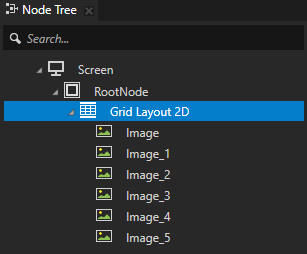
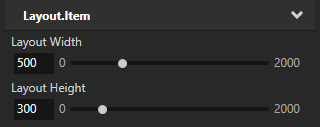
Properties で、Grid Layout ノードのサイズを設定するには、Layout Width プロパティと Layout Height プロパティを設定します。
例えば、Layout Width を500に、Layout Height を300に設定します。
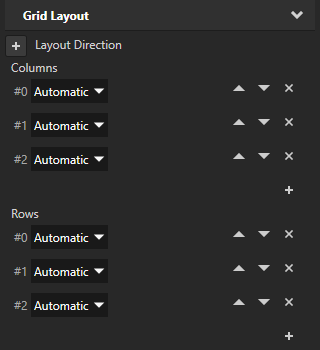
Grid Layout ノードの Columns プロパティと Rows プロパティの値を次のように設定します:
Automatic が、Grid Layout ノードにおいて、各列と行のサイズをその列と行内の最大の子ノードのサイズに基づいて自動的に計算させるようにします。
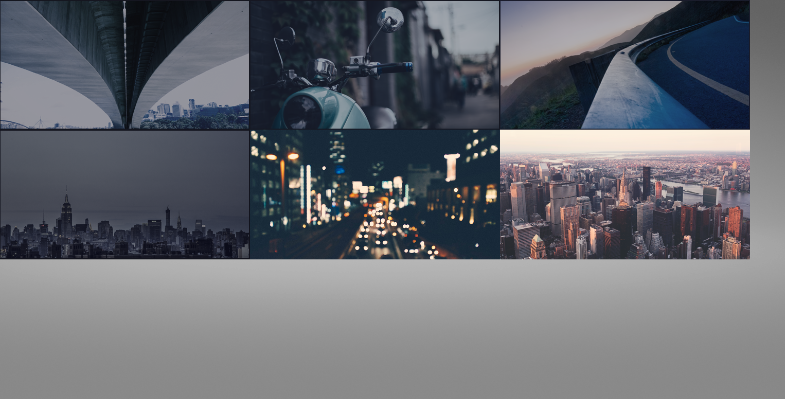
Fixed は、列と行内の子ノードのサイズに関係なく、列と行の正確なサイズを設定します。
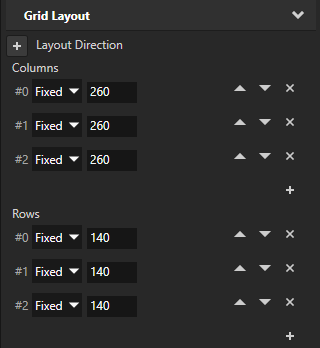
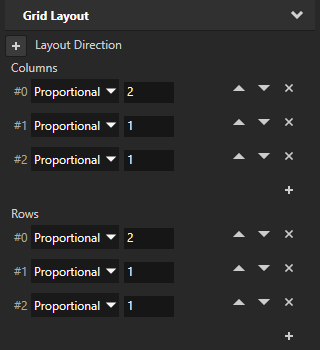
Proportional は、同じ設定を使用する他の列や行の残りのサイズ、および Grid Layout ノード全体のサイズに対して、列と行のサイズを比例して設定します。
例:
列内のコンテンツを均等に分配するには、Proportional を選択し、各列に同じ値を使用します。
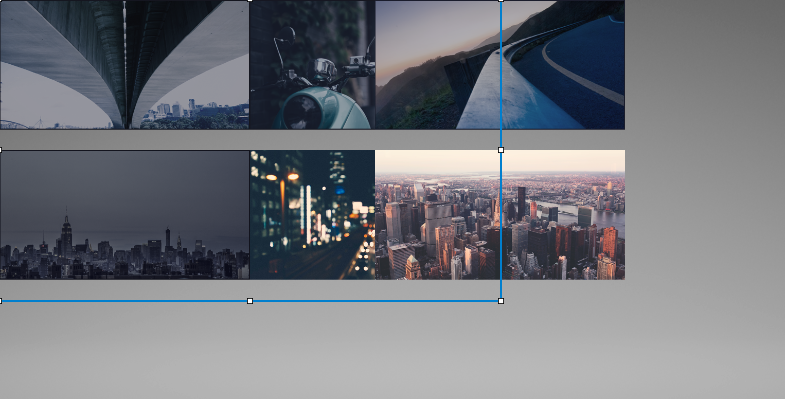
Grid Layout ノードの幅の半分を最初の列に占めさせたい場合、3つの列があるときは、Proportional を選択し、最初の列に値 2 を使用し、他の2つの列には値 1 を使用します。
異なる画面サイズに対応するユーザーインターフェースを作成するために、Grid Layout ノードを使用する
Grid Layout ノードを使用して、異なる画面サイズのデバイス間で一貫したユーザーインターフェースを持つアプリケーションを作成できます。Grid Layout ノードは、その子ノードを分配して、画面サイズやデバイスの向きに関係なく、アプリケーションインターフェース内で同じ相対的なスペースを占めるようにすることができます。例えば、Grid Layout ノードを使用すると、ユーザーインターフェースのコントロールを画面の端から厳密に定義された距離で、左上と右下の隅に配置することができます。
異なる画面サイズに対応したユーザーインターフェースを作成するためのより高度なアプローチについては、チュートリアル: 動的レイアウトを使用したアプリケーションの作成 を参照してください。
異なる画面サイズに対して一貫したユーザーインターフェースを作成するために、Grid Layout ノードを使用します。
Grid Layout ノードを作成し、いくつかの子ノードを追加します。Grid Layout ノードの作成 を参照してください。
Grid Layout ノードを選択します。Properties で、次を設定します。
Columns と Rows を Proportional に。
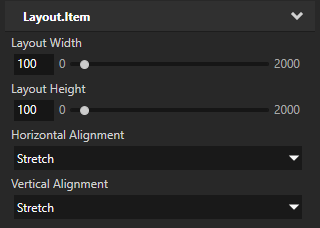
Horizontal Alignment と Vertical Alignment を Stretch に。
画像をピクセルパーフェクトに保つために、Horizontal Alignment および Vertical Alignment プロパティを Stretch に設定する代わりに、アプリケーションレイアウトに応じて位置が変わる子ノードに Snap to Pixel プロパティを追加してください。
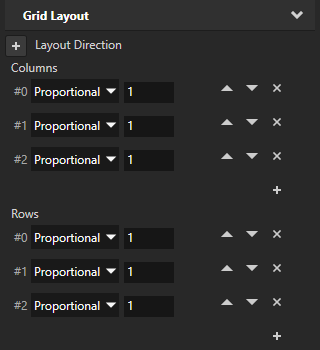

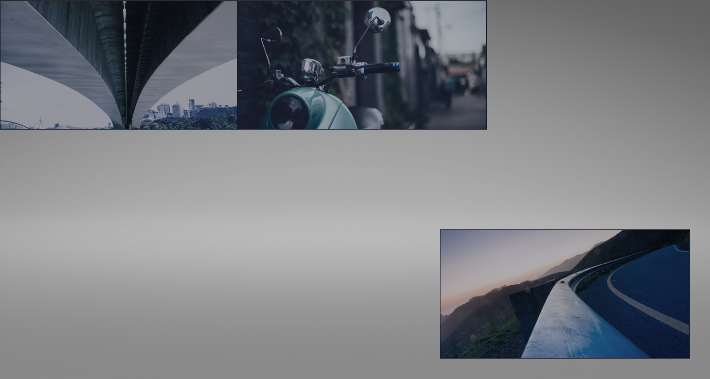
これらの設定により、Grid Layout ノードはその全幅と全高にわたってコンテンツを均等に分配し、Grid Layout ノードは画面全体にストレッチするように設定します。
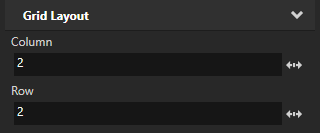
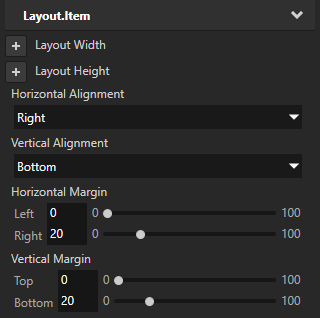
Node Tree で、Grid Layout ノードの3番目の子を選択します。Properties で、追加して設定します。
Column から 2 へ
Row から 2 へ
Horizontal Alignment から Right へ
Vertical Alignment から Bottom へ
Horizontal Margin プロパティ Right プロパティフィールドを20に設定する
Vertical Margin プロパティ Bottom プロパティフィールドを20に設定します。
これらの設定により、Grid Layout ノードの3番目の子ノードを Grid Layout ノードの3列目と3行目に配置し、画面の右下隅から20ピクセルの位置に配置します。Grid Layout ノードの3番目の子ノードは、画面のサイズや向きに関係なくその位置に留まります。
Node Tree で、Grid Layout ノードの最初の子ノードを選択します。Properties で、追加して設定します。
Horizontal Margin プロパティ Left プロパティフィールドを20に設定します。
Vertical Margin プロパティ Top プロパティフィールドを20に設定します。
これらの設定により、最初の子ノードと画面の端の間に20ピクセルのマージンを作成します。
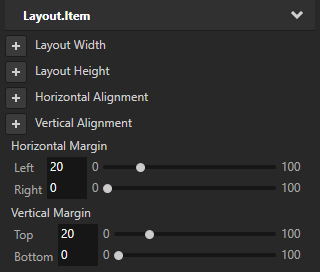
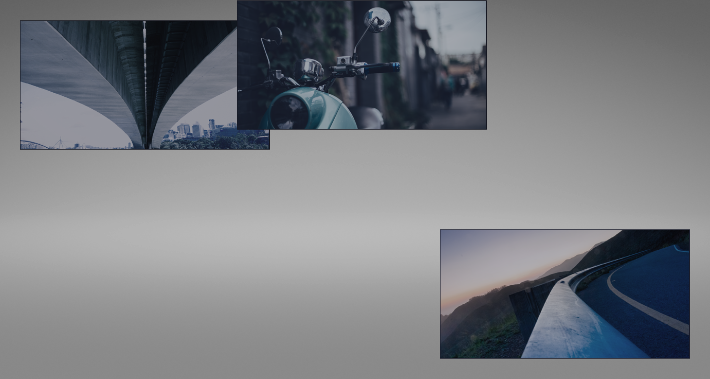
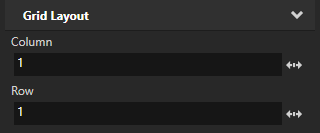
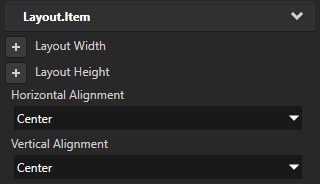
Node Tree で、Grid Layout ノードの2番目の子ノードを選択します。Properties で、追加して設定します。
Column を 1 に
Row を 1 に
Horizontal Alignment から Center へ
Vertical Alignment から Center へ
これらの設定により、Grid Layout の2列目と2行目に2番目の子ノードを配置します。
Grid Layout 2D ノードの外観を設定する
2D ノードの外観を設定するには:
2Dノードを単色、テクスチャ、またはマテリアルで塗りつぶすことができます。2Dノードの外観の調整 を参照してください。



2Dノードにポストプロセッシングエフェクトを適用できます。2Dノードのエフェクト を参照してください。




2Dノードを3つの軸すべてで回転させて、3Dのパースペクティブ効果を作成できます。2Dノードに3Dパースペクティブ効果を作成する を参照してください。

2Dノードにカスタムレンダリングを適用して、ポストプロセッシングエフェクトを作成できます。2Dノードにカスタムレンダリングを適用する を参照してください。
2Dノードをピクセルパーフェクトとしてレンダリングできます。ピクセルパーフェクトな2Dノードのレンダリング を参照してください。
APIで Grid Layout 3D ノードを使用する
自動セルサイズで2列2行の Grid Layout 3D ノードを作成し、グリッドを上から下にグリッド列にアイテムを配置するように設定します。
// Create a GridLayout3D named Grid.
GridLayout3DSharedPtr grid = GridLayout3D::create(domain, "Grid");

// Set the grid so that it arranges the items in the grid by first adding them
// in the rows of the first column. When all the rows in the first column are full,
// grid starts adding the items in the rows of the second column, and so on.
grid->setDirection(GridLayoutConcept::GridDirectionDown);

// Set the grid to have two automatic columns and rows that get their size from
// the size of their content.
grid->addAutomaticColumn();
grid->addAutomaticColumn();
grid->addAutomaticRow();
grid->addAutomaticRow();

// Create and add four cubes, one to each cell in the grid. Let the grid
// automatically set which cells the child nodes occupy. Since #GridDirection is
// set to GridDirectionDown, the grid automatically arranges the items in the grid
// by first adding items to both rows in the first column from top to bottom,
// then both rows in the second column from top to bottom.
Model3DSharedPtr child1 = Model3D::createBox(domain, "Box1", Vector3(2.0f, 2.0f, 2.0f), ThemeRed);
grid->addChild(child1);
Model3DSharedPtr child2 = Model3D::createBox(domain, "Box2", Vector3(3.0f, 3.0f, 3.0f), ThemeBlue);
grid->addChild(child2);
Model3DSharedPtr child3 = Model3D::createBox(domain, "Box3", Vector3(1.0f, 1.0f, 1.0f), ThemeOrange);
grid->addChild(child3);
Model3DSharedPtr child4 = Model3D::createBox(domain, "Box4", Vector3(4.0f, 4.0f, 4.0f), ThemeGreen);
grid->addChild(child4);
この例では、固定セルサイズと自動セルサイズの両方を使用して、2列2行の Grid Layout 3D ノードを作成します。デフォルトで、Grid Layout 3D ノードはそのアイテムが占めるセルを自動的に設定します。
// Create a GridLayout3D named Grid.
GridLayout3DSharedPtr grid = GridLayout3D::create(domain, "Grid");

// Set the grid to have two columns and two rows.
// Set the size of the first column to five units, but let the second column adapt
// its size from the size of its content.
grid->addFixedColumn(5.0f);
grid->addAutomaticColumn();
// Set the size of the first row to four units, but let the second row adapt its size
// from the size of its content.
grid->addFixedRow(4.0f);
grid->addAutomaticRow();

// Create and add three cubes to the grid and let the grid automatically set
// which cells the child nodes occupy. In this example, the three child nodes occupy
// the entire first row and the first column of the second row. The last cell (bottom-right)
// of the grid stays empty.
Model3DSharedPtr child1 = Model3D::createBox(domain, "Box1", Vector3(2.0f, 2.0f, 2.0f), ThemeOrange);
grid->addChild(child1);
Model3DSharedPtr child2 = Model3D::createBox(domain, "Box2", Vector3(3.0f, 3.0f, 3.0f), ThemeBlue);
grid->addChild(child2);
Model3DSharedPtr child3 = Model3D::createBox(domain, "Box3", Vector3(1.0f, 2.0f, 1.0f), ThemeGreen);
grid->addChild(child3);
この例では、Grid Layout 3D ノードを作成し、2列3行のサイズを持ち、Grid Layout 3D ノードがグリッド内の他の列と行のサイズに比例して計算します。この例では、グリッド内の各アイテムが占めるセルを手動で設定します。
// Create a GridLayout3D named Grid.
GridLayout3DSharedPtr grid = GridLayout3D::create(domain, "Grid");

// Set the width and height of the entire grid to six units.
grid->setWidth(6.0f);
grid->setHeight(6.0f);

// Set the grid to have two weighted columns and three weighted rows.
// The first column gets one third and the second column two thirds
// of the entire grid width.
grid->addWeightedColumn(1.0f);
grid->addWeightedColumn(2.0f);
// Each row gets one third of the entire grid height.
grid->addWeightedRow(1.0f);
grid->addWeightedRow(1.0f);
grid->addWeightedRow(1.0f);

// Create an orange cube named Box1 and add it to the cell in the first row and the first column
// (the upper-left corner of the grid).
Model3DSharedPtr child1 = Model3D::createBox(domain, "Box1", Vector3(2.0f, 2.0f, 2.0f), ThemeOrange);
GridLayout3D::setColumn(*child1, 0);
GridLayout3D::setRow(*child1, 0);
grid->addChild(child1);
// Create a blue cube named Box2 and add it so that it spans the second and third cells in the first column.
Model3DSharedPtr child2 = Model3D::createBox(domain, "Box2", Vector3(3.0f, 3.0f, 3.0f), ThemeBlue);
GridLayout3D::setColumn(*child2, 0);
GridLayout3D::setRow(*child2, 1);
GridLayout3D::setRowSpan(*child2, 2);
grid->addChild(child2);
// Create a green cube named Box3 and add it to the cell in the third row and the second column.
// (the bottom-right corner of the grid).
Model3DSharedPtr child3 = Model3D::createBox(domain, "Box3", Vector3(1.0f, 1.0f, 1.0f), ThemeGreen);
GridLayout3D::setColumn(*child3, 1);
GridLayout3D::setRow(*child3, 2);
grid->addChild(child3);
詳細については、GridLayout3D クラスを参照してください。
APIで Grid Layout 2D ノードを使用する
自動セルサイズで2列2行の Grid Layout 2D ノードを作成し、グリッドを上から下にグリッド列にアイテムを配置するように設定します。
// Create a GridLayout2D named Grid.
GridLayout2DSharedPtr grid = GridLayout2D::create(domain, "Grid");

// Set the grid so that it arranges the items in the grid by first adding them
// in the rows of the first column. When all the rows in the first column are full,
// grid starts adding the items in the rows of the second column, and so on.
grid->setDirection(GridLayoutConcept::GridDirectionDown);

// Set the grid to have two automatic columns and rows that get their size from
// the size of their content.
grid->addAutomaticColumn();
grid->addAutomaticColumn();
grid->addAutomaticRow();
grid->addAutomaticRow();

// Create and add four empty nodes, one to each cell in the grid. Let the grid
// automatically set which cells the child nodes occupy. Since #GridDirection is
// set to GridDirectionDown, the grid automatically arranges the items in the grid
// by first adding items to both rows in the first column from top to bottom,
// then both rows in the second column from top to bottom.
EmptyNode2DSharedPtr child1 = EmptyNode2D::create(domain, "Empty1", 128.0f, 128.0f, ThemeRed);
grid->addChild(child1);
EmptyNode2DSharedPtr child2 = EmptyNode2D::create(domain, "Empty2", 256.0f, 256.0f, ThemeBlue);
grid->addChild(child2);
EmptyNode2DSharedPtr child3 = EmptyNode2D::create(domain, "Empty3", 128.0f, 128.0f, ThemeOrange);
grid->addChild(child3);
EmptyNode2DSharedPtr child4 = EmptyNode2D::create(domain, "Empty4", 128.0f, 128.0f, ThemeGreen);
grid->addChild(child4);
この例では、固定セルサイズと自動セルサイズの両方を使用して、2列2行の Grid Layout 2D ノードを作成します。デフォルトで、Grid Layout 2D ノードはそのアイテムが占めるセルを自動的に設定します。
// Create a GridLayout2D named Grid.
GridLayout2DSharedPtr grid = GridLayout2D::create(domain, "Grid");

// Set the grid to have two columns and two rows.
// Set the size of the first column to 200 units, but let the second column adapt
// its size from the size of its content.
grid->addFixedColumn(200.0f);
grid->addAutomaticColumn();
// Set the size of the first row to 100 units, but let the second row adapt its size
// from the size of its content.
grid->addFixedRow(100.0f);
grid->addAutomaticRow();

// Create and add three empty nodes to the grid and let the grid automatically set
// which cells the child nodes occupy. In this example, the three child nodes occupy
// the entire first row and the first column of the second row. The last cell (bottom-right)
// of the grid stays empty.
EmptyNode2DSharedPtr child1 = EmptyNode2D::create(domain, "Empty1", 128.0f, 128.0f, ThemeRed);
grid->addChild(child1);
EmptyNode2DSharedPtr child2 = EmptyNode2D::create(domain, "Empty2", 256.0f, 256.0f, ThemeBlue);
grid->addChild(child2);
EmptyNode2DSharedPtr child3 = EmptyNode2D::create(domain, "Empty3", 128.0f, 128.0f, ThemeOrange);
grid->addChild(child3);
この例では、Grid Layout 2D ノードを作成し、グリッド内の他の列と行のサイズに比例してサイズを計算する2列3行を持ちます。グリッド内の各アイテムに対して、そのアイテムが占有するセルを設定します。
// Create a GridLayout2D named Grid.
GridLayout2DSharedPtr grid = GridLayout2D::create(domain, "Grid");

// Set the width and height of the entire grid to six hundred units.
grid->setWidth(600.0f);
grid->setHeight(600.0f);

// Set the grid to have two weighted columns and three weighted rows.
// The first column gets one third and the second column two thirds
// of the entire grid width.
grid->addWeightedColumn(1.0f);
grid->addWeightedColumn(2.0f);
// Each row gets one third of the entire grid height.
grid->addWeightedRow(1.0f);
grid->addWeightedRow(1.0f);
grid->addWeightedRow(1.0f);

// Create an empty node named Empty1 and add it to the cell in the first row and the first column
// (the upper-left corner of the grid).
EmptyNode2DSharedPtr child1 = EmptyNode2D::create(domain, "Empty1", 128.0f, 128.0f, ThemeRed);
GridLayout2D::setColumn(*child1, 0);
GridLayout2D::setRow(*child1, 0);
grid->addChild(child1);
// Create an empty node named Empty1, add it to the cell in the second row and the first column
// and make it span across the second and third rows of the first coloumn in the grid.
EmptyNode2DSharedPtr child2 = EmptyNode2D::create(domain, "Empty2", 256.0f, 256.0f, ThemeBlue);
GridLayout2D::setColumn(*child2, 0);
GridLayout2D::setRow(*child2, 1);
GridLayout2D::setRowSpan(*child2, 2);
grid->addChild(child2);
// Create an empty node named Empty3, add it to the cell in the third row and the second column
// (the bottom-right corner of the grid).
EmptyNode2DSharedPtr child3 = EmptyNode2D::create(domain, "Empty3", 128.0f, 128.0f, ThemeOrange);
GridLayout2D::setColumn(*child3, 1);
GridLayout2D::setRow(*child3, 2);
grid->addChild(child3);
詳細については、GridLayout2D クラスを参照してください。
Grid Layout プロパティタイプとメッセージ
Grid Layout ノードの利用可能なプロパティタイプとメッセージのリストについては、Grid Layout 2D と Grid Layout 3D を参照してください。