Drag-And-Drop Manipulator を使用する
Kanzi アプリケーションでユーザーがノードをドラッグアンドドロップできるようにするには、Drag-And-Drop Manipulator を使用します。
ノードにドラッグアンドドロップジェスチャーを有効にする を参照してください。
Drag-And-Drop Manipulator トリガーを使用して、ドラッグアンドドロップジェスチャーに反応します。たとえば、ユーザーがそのノードをドラッグアンドドロップしたときにノードの外観を設定できます。
Drag-And-Drop Manipulator トリガーを使用する を参照してください。
Drag-And-Drop Manipulator は、Kanzi アプリケーション内のノードにジェスチャー認識を追加するために使用できる入力マニピュレーターの1つです。入力マニピュレータの使用 を参照してください。
Drag-And-Drop Manipulator を使用する方法をチュートリアルで学びましょう。チュートリアル: ドラッグアンドドロップ をご覧ください。
ノードにドラッグアンドドロップジェスチャーを有効にする
ノードにドラッグアンドドロップジェスチャーを有効にするには:
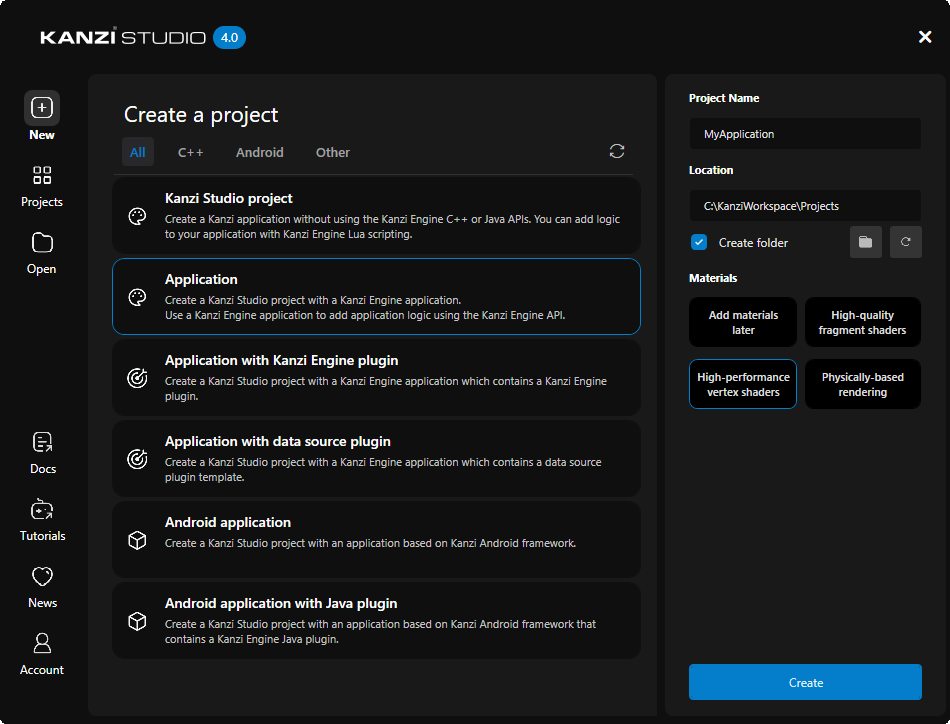
Kanzi Studio で Application テンプレートを使用してプロジェクトを作成します。
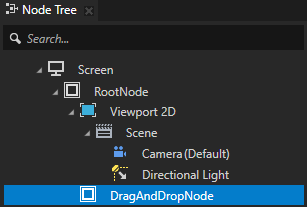
Node Tree で、ドラッグアンドドロップジェスチャーを有効にしたいノードを作成します。
例えば、Empty Node 2D ノードを作成し、DragAndDropNode と名付けます。
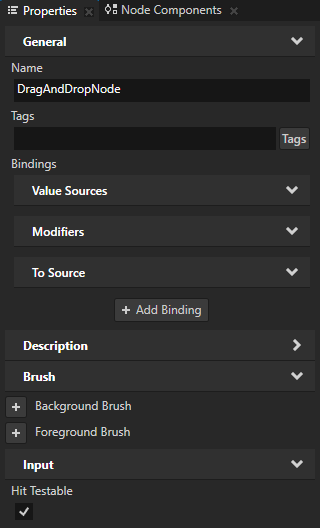
Node Tree で前のステップで作成したノードを選択し、Properties で Input > Hit Testable プロパティを追加し、有効に設定します。
このプロパティを有効にすると、ユーザーがノードを選択できるようになります。
デフォルトで、ヒットテストは Button、Toggle Button、List Box Item Container、Scroll View、Slider、および Text Box ノードに対して有効になっています。
どのノードが入力を受け取るかを定義する を参照してください。
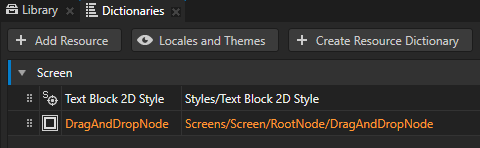
Node Tree Alt を押しながら右クリック で作成したノードを選択し、Alias を選択します。
Kanzi Studio は、エイリアスを作成したノードを指すエイリアスを作成し、リソースディクショナリを含む最も近い先祖ノードのリソースディクショナリにそれを追加します。
エイリアスの名前の前に
#記号を付けて、エイリアスターゲットノードにアクセスします。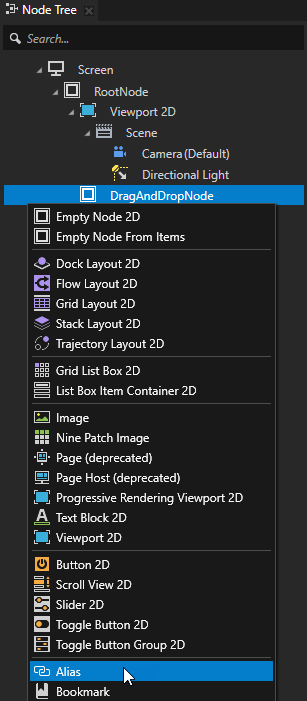
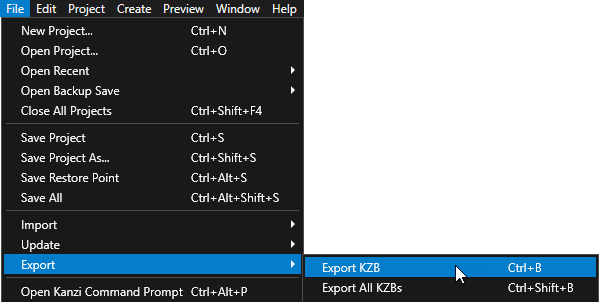
File > Export > Export KZB を選択します。
Kanzi Studio は、Kanzi Studio プロジェクトから kzb ファイルと構成ファイルを作成します。Kanzi Studio は、エクスポートされたファイルを
<ProjectName>/Application/binディレクトリ、または Project > Properties の Binary Export Directory プロパティで設定した場所に保存します。kzb ファイルには、ローカライゼーションテーブルでロケールパックとしてマークしたリソースを除き、Kanzi Studio プロジェクトのすべてのノードとリソースが含まれています。Visual Studioから Kanzi アプリケーションを実行すると、アプリケーションはkzbファイルと構成ファイルを読み込みます。
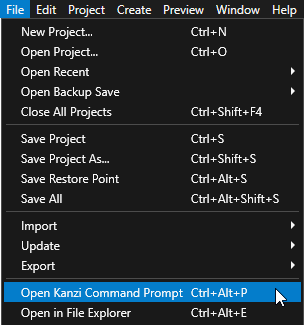
Kanzi Studio で、File > Open Kanzi Command Prompt を選択します。
Kanzi Command Prompt は、Kanzi 環境変数が設定された Windows コマンドプロンプトを開き、Kanzi のバージョンに対して Kanzi Command Prompt を開きます。
Kanzi Command Prompt を使用すると、絶対パスを使用したり環境変数を設定したりせずに、Kanzi のユーティリティや、Gradle、CMake などのビルドツールにアクセスできます。
ヒント
Kanzi Command Prompt は、Rightware ディレクトリの Windows スタートメニューで見つけることができます。
Kanzi のバージョンが複数インストールされている場合は、そのコマンドプロンプトで作業したい Kanzi のバージョンに対応する Kanzi Command Prompt を起動するようにしてください。
<ProjectName>/Applicationディレクトリ内の Kanzi Command Prompt で、アプリケーション用の Visual Studio ソリューションを生成するスクリプトを実行します。generate_cmake_vs2022_solution.bat
このスクリプトは、
<ProjectName>/Application/build_vs2022ディレクトリにアプリケーション用の Visual Studio ソリューションを生成します。Visual Studioで
<ProjectName>/Application/build_vs<Version>/<ProjectName>.slnVisual Studioソリューションを開き、アプリケーションのロジックを実装するファイルでDragAndDropManipulatorを作成して設定します。ドラッグアンドドロップメッセージのハンドラを定義します。
例えば、アプリケーションのロジックを実装するクラスのパブリックセクションの後に、次を追加します。
private:
    // Define the handler for the DragAndDropManipulator::StartedMessage message from 2D nodes
    // that have an input manipulator which generates drag-and-drop messages.
    // This prepares the 2D node for dragging.
    void onDragStarted(DragAndDropManipulator::StartedMessageArguments& messageArguments)
    {
        // Get from the message arguments the node that the user drags.
        Node2DSharedPtr dragAndDropNode = dynamic_pointer_cast<Node2D>(messageArguments.getSource());

        if (!dragAndDropNode)
        {
            return;
        }

        // Save the point from which the user started dragging the node,
        // relative to the origin (by default the top left corner) of the node.
        m_dragGrabOffset = messageArguments.getPoint();

        // When starting a drag-and-drop gesture on the node, bring the node to front.
        dragAndDropNode->moveToFront();
    }

    // Define the handler for the DragAndDropManipulator::MovedMessage message from 2D nodes
    // that have an input manipulator which generates drag-and-drop messages.
    // This translates (moves) the node by the distance the user drags it.
    void onDragMoved(DragAndDropManipulator::MovedMessageArguments& messageArguments)
    {
        // Get from the message arguments the node that the user drags.
        Node2DSharedPtr dragAndDropNode = dynamic_pointer_cast<Node2D>(messageArguments.getSource());

        if (!dragAndDropNode)
        {
            return;
        }

        // Move the node by traveled distance given by getPoint, relative to the origin of the node.
        // To keep dragging from the same point on the node, subtract the grab offset.
        SRTValue2D transform = dragAndDropNode->getLayoutTransformation();
        transform.translate(messageArguments.getPoint() - m_dragGrabOffset);
        dragAndDropNode->setLayoutTransformation(transform);
    }

    // Offset from the top left corner of the DragAndDropNode where the user pressed down or clicked on it.
    Vector2 m_dragGrabOffset;
Application::onProjectLoaded関数内でDragAndDropManipulatorを作成し、そのメッセージを購読します。たとえば、追加します:
void onProjectLoaded() override
{
    ScreenSharedPtr screen = getScreen();
    Domain* domain = getDomain();

    // Get the DragAndDropNode using its alias.
    NodeSharedPtr dragAndDropNode = screen->lookupNode<Node>("#DragAndDropNode");

    // Create an input manipulator that generates drag-and-drop messages.
    DragAndDropManipulatorSharedPtr nodeDragAndDropManipulator = DragAndDropManipulator::create(domain);

    // Add the input manipulator to the DragAndDropNode.
    dragAndDropNode->addInputManipulator(nodeDragAndDropManipulator);

    // Set the duration of the long press before the drag-and-drop starts to 200 ms. The default is 500 ms.
    // This is the amount of time the user has to press the node before they can start dragging it.
    nodeDragAndDropManipulator->setPressDuration(chrono::milliseconds(200));

    // Subscribe to the DragAndDropManipulator::StartedMessage message at the DragAndDropNode node.
    // The DragAndDropManipulator generates this message when the user has pressed the node
    // for the duration set by DragAndDropManipulator::setPressDuration.
    dragAndDropNode->addMessageHandler(DragAndDropManipulator::StartedMessage, bind(&MyProject::onDragStarted, this, placeholders::_1));

    // Subscribe to the DragAndDropManipulator::MovedMessage message at the DragAndDropNode node.
    // The DragAndDropManipulator generates this message when the finger or mouse moves.
    dragAndDropNode->addMessageHandler(DragAndDropManipulator::MovedMessage, bind(&MyProject::onDragMoved, this, placeholders::_1));
}
アプリケーションをビルドして実行します。Kanzi アプリケーションのデプロイ を参照してください。
アプリケーション内で、ドラッグアンドドロップジェスチャーを有効にしたノードを長押ししてドラッグします。

Drag-And-Drop Manipulator トリガーを使用する
Drag-And-Drop Manipulator トリガーを使用して、ドラッグアンドドロップジェスチャーに反応します。たとえば、ユーザーがそのノードをドラッグアンドドロップしたときにノードの外観を設定できます。
Drag-And-Drop Manipulator には次のトリガーがあります。
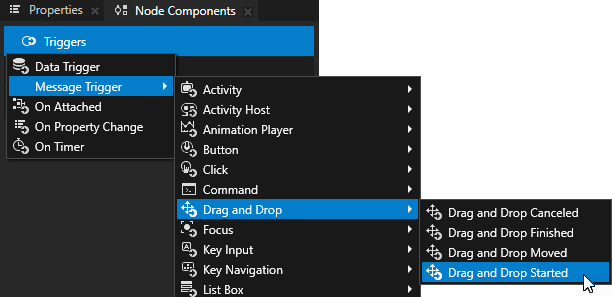
Drag and Drop Started トリガーは、ユーザーがノードを十分に長く押して、入力マニピュレーターがドラッグアンドドロップジェスチャーを認識したときに発動します。
Drag and Drop Moved トリガーは、ユーザーがドラッグアンドドロップジェスチャーでノードをドラッグしたときに発動します。
Drag and Drop Finished トリガーは、ユーザーがドラッグアンドドロップジェスチャーを指を離すかマウスボタンを放すことで終了したときに発動します。
Drag and Drop Canceled トリガーは、ドラッグアンドドロップジェスチャー中にフォーカスがノードから外れると発動します。
Drag-And-Drop Manipulator トリガーを使用するには、
ノードにドラッグアンドドロップジェスチャーを有効にします。ノードにドラッグアンドドロップジェスチャーを有効にする を参照してください。
Drag-And-Drop Manipulator トリガーで設定したい動作を定義します。例えば、Drag and Drop Started、Drag and Drop Moved、Drag and Drop Finished、Drag and Drop Canceled トリガーが発動したときにノードの外観を設定する状態を定義するステートマネージャーを作成します。ステートマネージャーの作成 を参照してください。
Drag-And-Drop Manipulator トリガーを追加して設定します。
Node Tree でトリガーを追加したいノードを選択し、Node Components > Triggers で Drag-And-Drop Manipulator トリガーの1つを追加します。
例えば、Node Tree でドラッグアンドドロップジェスチャーを有効にしたノードを選択し、Node Components Alt を押しながら右クリック Triggers で、Message Trigger > Drag and Drop > Drag and Drop Started を選択します。
前のステップで作成したトリガーで、Set Message Handled プロパティを無効にします。
Set Message Handled プロパティを無効にすると、このトリガーはメッセージをインターセプトしますが、停止はしません。この方法で、入力マニピュレータがメッセージを処理することを許可します。
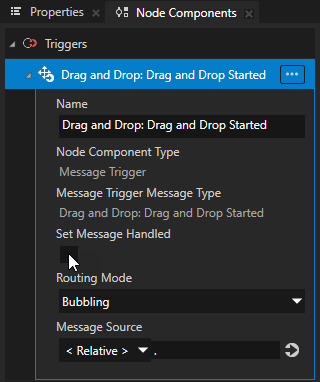
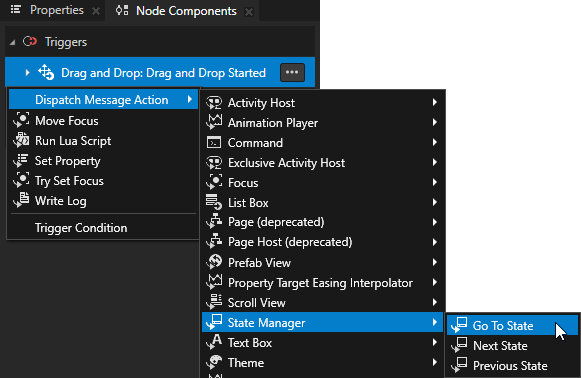
Node Components Alt を押しながら右クリック で作成したトリガーの中で、アクションを選択し、設定してください。
例えば、Dispatch Message Action > State Manager > Go to State を選択し、アクションセットで:
Target Item をドラッグアンドドロップジェスチャーを有効にしたノードに
Drag and Drop Started トリガーがオフになったときにノードの外観を設定する状態に State します。
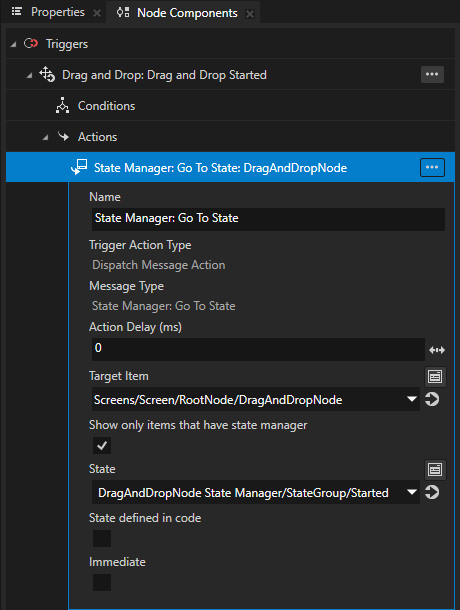
前の手順を繰り返して、さらに多くの Drag-And-Drop Manipulator トリガーを追加および構成します。
例えば、Drag and Drop Moved トリガーと Drag and Drop Finished トリガーを追加します。
各トリガーの Go to State アクションで、State をそのトリガーが発動されたときにノードの外観を設定する状態に設定します。
File > Export > Export KZB を選択します。
アプリケーションをビルドして実行します。Kanzi アプリケーションのデプロイ を参照してください。
アプリケーション内で、ドラッグアンドドロップジェスチャーを有効にしたノードを長押ししてドラッグします。