アプリケーション開発
Kanzi アプリケーションの動作や機能を追加またはカスタマイズする方法はいくつかあります。
設定を使用して、アプリケーションの最も一般的なスタートアップおよびランタイムパラメータを設定できます。たとえば、アプリケーションの解像度やアプリケーションが使用するkzbファイルなどを設定できます。アプリケーションの設定 を参照してください。
コードビハインドを使用して、アプリケーションのUI要素に動作を追加します。コードビハインドは、Kanzi Studio を離れることなく、ソリューションやプロジェクトファイルを作成せずに機能を追加する最も簡単な方法です。コードビハインドで実装された動作を Preview で即座に確認できます。コードビハインドを使用したプログラミングアクティビティ を参照してください。
すべての Kanzi アプリケーションのベースクラスである
Applicationクラスから C++ クラスを派生させます。Applicationクラスのさまざまな仮想関数をオーバーライドして、初期化や初期化解除など、アプリケーションのライフサイクルのさまざまな時点 (たとえば、アプリケーションの起動時、アプリケーションが UI コンテンツをロードするときなど) に対応します。アプリケーションのライフサイクルイベントへの対応 を参照してください。Applicationクラスが入力の処理、アニメーションのティッキング、コンテンツのレイアウトとレンダリングを委任するMainLoopSchedulerクラスを使用し、繰り返される制御フローを通じて画面の更新を行います。アプリケーションのメインループのステージに関連して、繰り返しまたは一度だけの機能を追加するために、アプリケーションのメインループで実行されるタスクを追加できます。メインループロジックの変更 を参照してください。Kanzi Engine プラグインを開発し、アプリケーション間で再利用できる機能を実装します。
アプリケーションの設定
設定を使用して、アプリケーションの最も一般的な起動および実行時のパラメータを設定できます。例えば、アプリケーションの解像度や、アプリケーションが使用するkzbファイルなどを設定できます。
Kanzi アプリケーションを設定できます。
C++アプリケーションでは、アプリケーションクラスの
Application::onConfigure関数をオーバーライドします。Kanzi は、application.cfgを読み込む前およびグラフィックスサブシステムを初期化する前に、アプリケーション初期化の一環としてこの関数を呼び出します。この関数を使用してアプリケーションプロパティを設定します。application.cfgで、Kanzi Studio プロジェクトのパラメーターを設定することにより、アプリケーションを再コンパイルしたり、C++ アプリケーションを使用したりせずに行うことができます。
application.cfg で指定した設定は、Application::onConfigure で指定した設定を上書きします。
例えば、application.cfg でどのkzbファイルをロードするかを設定するには
# Loads the kzb file named my_application.kzb.
BinaryName = "my_application.kzb"
Application::onConfigure で読み込むkzbファイルを設定するには
// Loads the kzb file named my_application.kzb.
configuration.binaryName = "my_application.kzb";
Kanzi アプリケーションで使用できるすべての設定のリストについては、アプリケーション構成リファレンス を参照してください。
アプリケーションライフサイクルイベントへの反応
スタートアップロジックの追加
これらの関数でアプリケーションのスタートアップロジックを定義できます。
Kanzi は、アプリケーションの起動直後、初期 UI コンテンツをロードする前に
Application::onStartup関数を 1 回呼び出します。ここには、初期化済みの Kanzi オブジェクトの変更を必要とするアプリケーション起動ロジックを追加できます。Kanzi は、初期 UI コンテンツをロードした直後に
Application::onProjectLoaded関数を 1 回呼び出します。通常、ここには既に読み込まれたコンテンツに依存する初期化コードを挿入します。例えば、初期メッセージハンドラやリスナーをアタッチしたり、UIにデータを入力したりすることができます。
例えば、このコードは Kanzi がノードツリーをロードした後に Button にハンドラーをアタッチします。
void onProjectLoaded() override
{
    // Get reference to the Screen node.
    ScreenSharedPtr screen = getScreen();
    kzAssert(screen);

    // Look up reference to a button by alias.
    Button2DSharedPtr button = screen->lookupNode<Button2D>("#Button");
    kzAssert(button);

    // Attach a handler to the button.
    button->addMessageHandler(Button2D::ClickedMessage, [this](auto& arguments)
                              {
                                  this->buttonHandler(arguments);
                              });
}
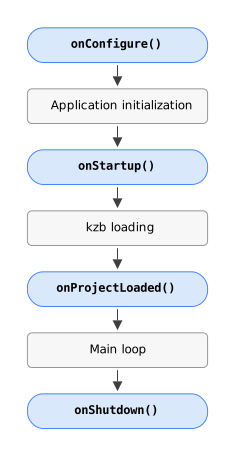
この図は、スタートアップとシャットダウンロジックのコールバックを示しています。
アプリケーションの状態を観察する
アプリケーションのステートを監視することで、アプリケーションが実行中、最小化、または一時停止のいずれの状態にあるかを確認できます。
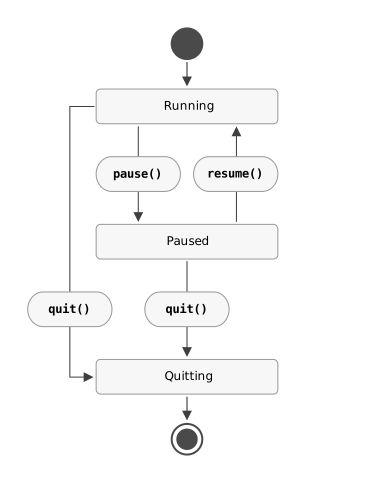
Kanzi アプリケーションは常に次のいずれかの状態にあります。
MainLoopState::Runningステート。このモードは、Kanzi アプリケーションの通常の動作モードです。これはアプリケーションの初期ステートです。MainLoopState::Pausedステート。プラットフォームは、アプリケーションがフォーカスを失ったり最小化されたりしたときの動作にルールを課すことができます。このようなステートを示すために、プラットフォームのバックエンドはアプリケーションをMainLoopState::Pausedステートに設定することができます。この状態では、Kanzi は通常の入力処理とレンダリングを停止し、
MainLoopState::Running状態に戻されるのを待ちます。さらに、この状態ではアプリケーションが重い作業を停止するのが一般的です。MainLoopState::Quittingステート。このステートは、アプリケーションまたはプラットフォームがMainLoopScheduler::quitを呼び出してアプリケーションの終了を要求したことを示します。このステートでは、アプリケーションは、初期化解除に関連する作業でない限り、新しい作業を開始しないようにする必要があります。
この図は、Kanzi アプリケーションの状態を示しています。
アプリケーションの状態を確認するには、MainLoopScheduler::getState を呼び出します。
例えば、アプリケーションが終了する際にタスクを追加しないようにするには:
void doSomethingRepeatedly()
{
    doSomething();

    // If a condition is met...
    if (someCondition() &&
        // ...and the application is not quitting...
        getState() != MainLoopState::Quitting)
    {
        // ...add another task to the task dispatcher.
        getDomain()->getTaskDispatcher()->submit([this]()
                                                 {
                                                     this->doSomethingRepeatedly();
                                                 });
    }
}
アプリケーションの状態変化に反応する
これらの関数を使用して、アプリケーションの状態変化に対応します。
関数 |
ディスクリプション (Description) |
|---|---|
Kanzi は、レンダリングが実行されなかったフレームでこの関数を呼び出し、アプリケーションを一時停止するかどうか、またどのくらいの期間一時停止するかを判断します。デフォルトの実装では、アクティブなアニメーション、タイマー、デプロイ待ちのリソースに基づいて適切なタイムアウトを計算します。 この関数を使用して、アプリケーションのサスペンションをカスタマイズします。 |
|
Kanzi は、アプリケーションのメインループが |
|
Kanzi は、アプリケーションのメインループが |
|
Kanzi は、アプリケーションの初期化解除の直前にこの関数を呼び出します。 |
メインループロジックの変更
メインループは一連のステージで構成されており、各ステージは一連のタスクで構成されています。タスクとは、関数、関数オブジェクト、ラムダを含む任意の呼び出し可能な項目です。
using Task = function<void(chrono::nanoseconds)>;
public interface Task {
    void handle(Duration lastFrameDuration);
}
interface Task {
    fun handle(lastFrameDuration: Duration?)
}
Kanzi がタスクを実行する際、タスクへの引数として最後のフレームの持続時間を渡します。
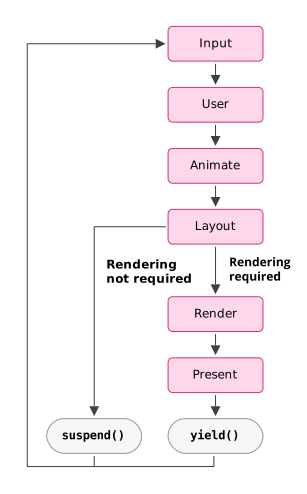
Kanzi のデフォルトのステージは次のとおりです。
入力ステージでは、Kanzi が入力イベントを処理します。
ユーザーステージでは、Kanzi は更新ロジックを処理します。つまり、リソースのデプロイ、kzb ファイルとプレハブのロード、タスクディスパッチャとタイマーのタスクの実行を行います。
アニメートステージでは、Kanzi がアクティブなアニメーションをティックします。
レイアウトステージで、Kanzi はノードツリーのレイアウトを実行します。
レンダーステージで、Kanzi はノードツリーをレンダリングします。
現在のステージでは、Kanzi がノードツリーを表示します。
この図は、Kanzi メインループの制御フローを示しています。
アプリケーションでは、任意のメインループスケジューラーステージでタスクを削除、置換、または挿入することができます。MainLoopScheduler を参照してください。
定期的なタスクの追加
Kanzi が毎フレームタスクを実行するようにしたい場合、MainLoopScheduler::appendTask と MainLoopScheduler::prependTask を使用して、MainLoopScheduler::TaskRecurrence::Recurring オプションでメインループの任意のステージに追加できます。
例えば、外部ライブラリの更新関数を呼び出すために、繰り返しタスクを使用することができます。
void onStartup() override
{
    // From the main loop Animate stage, tick an external physics engine.
    getMainLoopScheduler().appendTask(AnimateStage,
                                      kzMakeFixedString("TickPhysics"),
                                      MainLoopScheduler::TaskRecurrence::Recurring,
                                      [this](auto deltaTime)
                                      {
                                          this->getPhysicsEngine()->tick(deltaTime);
                                      });
}
void onStartup()
{
    // From the main loop Animate stage, tick an external physics engine.
    MainLoopScheduler mls = getDomain().getMainLoopScheduler();
    mls.appendTask(MainLoopScheduler.AnimateStage, "TickPhysics", TaskRecurrence.Recurring,
        new MainLoopScheduler.Task() {
            @Override
            public void handle(Duration lastFrameDuration)
            {
                getPhysicsEngine().tick(lastFrameDuration);
            }
        });
}
fun onStartup() {
    // From the main loop Animate stage, tick an external physics engine.
    domain.mainLoopScheduler.appendTask(
        MainLoopScheduler.AnimateStage, "TickPhysics", TaskRecurrence.Recurring
    ) { lastFrameDuration -> getPhysicsEngine().tick(lastFrameDuration) }
}
一度きりのタスクを追加する
Kanzi がタスクを一度だけ実行するようにしたい場合、MainLoopScheduler::appendTask と MainLoopScheduler::prependTask を使用して、メインループの任意のステージに追加し、再発オプション MainLoopScheduler::TaskRecurrence::OneTime を設定できます。
例えば、ユーザーが Enter キーを押したときに出力のスクリーンショットをキャプチャするには:
void onKeyInputEvent(const KeyEvent& keyEvent) override
{
    // First invoke the base class implementation.
    Application::onKeyInputEvent(keyEvent);

    // If the user presses the Enter key:
    if (keyEvent.getKeyUp() == LogicalKey::Enter)
    {
        // Force re-rendering.
        getScreen()->invalidateDraw();

        // Add a post-rendering task to capture the screen output.
        getMainLoopScheduler().appendTask(RenderStage,
                                          kzMakeFixedString("CaptureScreenshot"),
                                          MainLoopScheduler::TaskRecurrence::OneTime,
                                          [this](auto)
                                          {
                                              this->captureScreen();
                                          });
    }
}
@Override
public boolean onKeyUp(int keyCode)
{
    boolean handled = super.onKeyUp(keyCode);

    if (keyCode == KeyEnter)
    {
        // Force re-rendering.
        getScreen().invalidateDraw();

        // Add a post-rendering task to capture the screen output.
        MainLoopScheduler mls = getDomain().getMainLoopScheduler();
        mls.appendTask(MainLoopScheduler.RenderStage, "CaptureScreenshot",
            TaskRecurrence.OneTime, new MainLoopScheduler.Task() {
                @Override
                public void handle(Duration lastFrameDuration)
                {
                    captureScreen();
                }
            });
    }

    return handled;
}
override fun onKeyUp(keyCode: Int): Boolean {
    val handled = super.onKeyUp(keyCode)
    if (keyCode == KeyEnter) {
        // Force re-rendering.
        screen.invalidateDraw()

        // Add a post-rendering task to capture the screen output.
        domain.mainLoopScheduler.appendTask(
            MainLoopScheduler.RenderStage, "CaptureScreenshot",
            TaskRecurrence.OneTime
        ) { captureScreen() }
    }
    return handled
}
タスクのオーバーライド
Kanzi が入力を処理し、レイアウトを実行し、コンテンツをレンダリングし、画面を更新し、その他の繰り返しタスクを実行するデフォルトのアプローチを変更したい場合は、MainLoopScheduler::replaceTask を使用して既存のタスクを置き換えることができます。
例えば、コード内でデフォルトのレンダリングをオーバーライドしてカスタムのポストプロセッシングエフェクトを適用することができます。これを実現するには、まずデフォルトのレンダリング実装でコンテンツをオフスクリーンテクスチャにレンダリングし、その後ポストプロセッシングシェーダーを使用してそのテクスチャを画面にレンダリングします。
// An off-screen texture to hold the rendering result before applying the post-processing effect.
TextureSharedPtr m_offscreenTexture;

// A material that applies a full-screen post-processing effect in the fragment shader.
MaterialSharedPtr m_postProcessMaterial;

/// Brush for rendering the post-processing effect.
MaterialBrushSharedPtr m_brush;

/// Brush renderer for post-processing effect.
BrushRendererPtr m_brushRenderer;

/// Quad geometry for post-processing effect.
GeometrySharedPtr m_geometry;

void onProjectLoaded() override
{
    // Create a framebuffer for off-screen rendering.
    m_offscreenTexture = createOffscreenTexture();

    // Acquire a material for applying a post-processing effect.
    m_postProcessMaterial = createPostProcessMaterial();

    // Construct a brush for the post-processing effect.
    m_brush = MaterialBrush::create(getDomain(), "Effect Brush");

    // Construct a Brush Renderer for the brush.
    m_brushRenderer = m_brush->createBrushRenderer(nullptr);

    // Attach the post-processing material to the brush renderer.
    m_brushRenderer->attachMaterial(m_postProcessMaterial);

    // Get the unit geometry.
    m_geometry = getUnitQuadGeometry(getDomain());

    // Get the token of the default rendering task from the render stage.
    auto& scheduler = getMainLoopScheduler();
    auto tasks = scheduler.getTaskInfo(RenderStage);
    auto itTask = find_if(cbegin(tasks), cend(tasks), [](const auto& taskInfo)
                          {
                              return taskInfo.name == "Render";
                          });
    kzAssert(itTask != cend(tasks));
    auto token = itTask->token;

    // Replace the default rendering task with a custom implementation.
    scheduler.replaceTask(RenderStage,
                          token,
                          [this](auto)
                          {
                              // Set the offscreen texture as the rendering target.
                              this->setRootCompositionTarget(this->m_offscreenTexture);

                              // Render to the off-screen texture using the default rendering logic.
                              this->render();

                              // Revert offscreen texture.
                              this->setRootCompositionTarget(nullptr);

                              // Render the texture to the screen with the post-processing effect applied.
                              this->renderPostProcessed();

                              // Mark the current frame as rendered.
                              this->getMainLoopScheduler().setCurrentFrameRendered();
                          });
}

TextureSharedPtr createOffscreenTexture()
{
    // Get the off-screen texture size from the window size.
    // This assumes that the window size does not change during runtime.
    auto graphicsOutput = getGraphicsOutput();
    auto width = graphicsOutput->getWidth();
    auto height = graphicsOutput->getHeight();

    // Create a render target with color and depth attachments.
    auto createInfo = Texture::CreateInfoRenderTarget(width, height, GraphicsFormatR8G8B8A8_UNORM);
    createInfo.depthStencilFormat = GraphicsFormatD16_UNORM;
    auto texture = Texture::create(getDomain(), createInfo, "Offscreen Texture");
    return texture;
}

MaterialSharedPtr createPostProcessMaterial()
{
    // Acquire a custom post-processing effect.
    // Note that the default textured debug material copies the texture to the screen without any effect.
    return Material::acquireMaterialTextured(*getResourceManager());
}

void renderPostProcessed()
{
    auto& renderer = *getRenderer();
    auto graphicsOutput = getGraphicsOutput();
    auto& compositionStack = renderer.getCompositionStack();

    // Set the active graphics output as the render target.
    compositionStack.pushCompositionActiveGraphicsOutput();
    compositionStack.pushDefaultSettings2D();

    // Set the off-screen texture and other shader inputs for the post-processing material.
    m_postProcessMaterial->setTexture(StandardMaterial::TextureProperty, m_offscreenTexture);

    // Bind the brush renderer.
    m_brushRenderer->bind(renderer);

    // Set a default orthographic projection.
    {
        Matrix4x4 projectionMatrix = Matrix4x4::createOrthogonalProjection(-1.0f, 1.0f, -1.0f, 1.0f, -1.0f, 1.0f);
        Matrix4x4 cameraMatrix;
        cameraMatrix[14] = 0.5f;
        renderer.setMatrix(FixedMatrixProjection, projectionMatrix);
        renderer.setMatrix(FixedMatrixCamera, cameraMatrix);
    }

    // Render the texture as a full-screen quad.
    auto transform = getUnitQuadTargetTransformation(Vector2(-1.0f, -1.0f), Vector2(2.0f, 2.0f));
    m_brushRenderer->draw(renderer, *m_geometry, transform);

    // Remove composition target from the composition stack.
    compositionStack.popSettings();
    compositionStack.popComposition();
}
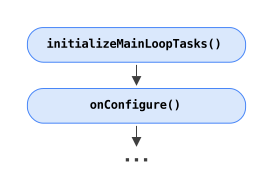
個々のタスクを置き換える代わりに、Application::initializeMainLoopTasks をオーバーライドすることで、メインループ全体を再定義することができます。Kanzi はこの関数でデフォルトのメインループタスクをアタッチします。コピーを許可するために、その実装は意図的にヘッダーで公開されています。
タイマーの追加
Kanzi が定期的にタスクを実行するようにしたい場合、MainLoopScheduler::prependTimer を使用してメインループのステージの前にタスクを追加し、MainLoopScheduler::appendTimer を使用してメインループのステージの後にタスクを追加できます。
タイマーの再発オプションを使用して、タイマーを一度だけ (MainLoopScheduler::TaskRecurrence::OneTime) または繰り返し (MainLoopScheduler::TaskRecurrence::Recurring) 実行します。Kanzi のメインループの単一のイテレーションで繰り返しタイマーが複数回経過した場合、Kanzi はそのタイマーを一度だけ実行します。
using TimerTask = function<void(chrono::nanoseconds, unsigned int)>;
public interface TimerTask {
    void handle(Duration elapsedDuration, int repeatCount);
}
interface TimerTask {
    fun handle(elapsedDuration: Duration?, repeatCount: Int)
}
Kanzi がタイマーを実行するとき、引数として渡されるのは次の通りです。
タイマーの間隔の倍数に切り捨てられた経過時間
経過したインターバルの数
たとえば、繰り返しタイマーを使用して時計の時間を更新するには:
void activateClock()
{
    // Add a recurring timer task that updates the clock once every second.
    m_clockTimer = getMainLoopScheduler().appendTimer(UserStage,
                                                      kzMakeFixedString("Clock"),
                                                      MainLoopScheduler::TimerRecurrence::Recurring,
                                                      chrono::seconds(1),
                                                      [this](auto elapsedDuration, auto repeatCount)
                                                      {
                                                          this->updateClock(elapsedDuration * repeatCount);
                                                      });
}

void deactivateClock()
{
    // Remove the clock timer.
    getMainLoopScheduler().removeTimer(m_clockTimer);
}
void activateClock()
{
    MainLoopScheduler mls = getDomain().getMainLoopScheduler();

    // Add a recurring timer task that updates the clock once every second.
    mClockTimer = mls.appendTimer(MainLoopScheduler.UserStage, "Clock",
        TimerRecurrence.Recurring, Duration.ofSeconds(1), new MainLoopScheduler.TimerTask() {
            @Override
            public void handle(Duration elapsedDuration, int repeatCount)
            {
                updateClock(elapsedDuration.multipliedBy(repeatCount));
            }
        });
}

void deactivateClock()
{
    MainLoopScheduler mls = getDomain().getMainLoopScheduler();
    // Remove the clock timer.
    mls.removeTimer(mClockTimer);
}
fun activateClock() {
    // Add a recurring timer task that updates the clock once every second.
    mClocktimer = domain.mainLoopScheduler.appendTimer(
        MainLoopScheduler.UserStage, "Clock",
        TimerRecurrence.Recurring, Duration.ofSeconds(1)
    ) { elapsedDuration, repeatCount -> updateClock(elapsedDuration.multipliedBy(repeatCount.toLong())) }
}

fun deactivateClock() {
    // Remove the clock timer.
    domain.mainLoopScheduler.removeTimer(mClocktimer)
}
UIの応答性とリソースのロードのバランスを取る
アプリケーションリソースをすべて含むために必要なメモリは、ターゲットデバイスのRAMの量を超えることがあります。アプリケーションを部分に分割し、ナビゲーションを定義して、同時に一部の部分のみがロードされるようにすることができます。
アプリケーションがあるパートに移動すると、Kanzi は必要なリソースをロードするリクエストを受け取ります。これらのリソースをUIスレッドではなくローダースレッドでロードするように Kanzi に指示することができます。これにより、Kanzi がリソースをロードしている間も、アプリケーションの応答性を維持することができます。
リソースはローダースレッドでロードできますが、OpenGLは、テクスチャ、メッシュ、マテリアルなどのGPUリソースがUIスレッドでデプロイされることを要求します。ここで、リソースはGPUメモリにコピーされます。
Kanzi は、デプロイする必要があるリソースをキューに保持し、デフォルトで各フレームに1つのリソースのみをデプロイします。この方法で、Kanzi はUIの応答性を維持しますが、アプリケーションリソースのデプロイに時間がかかることがあります。
DeploymentQueueBudget アプリケーション構成を使用して、設定された時間が経過するまで各フレームでリソースをロードし続けることができます。アプリケーションが多くの小さなリソースをデプロイする必要がある場合、0より大きい時間予算はすべてのリソースをデプロイする時間を大幅に短縮できます。
Application::progressDeploymentQueueOverride をオーバーライドすることで、独自のデプロイメントロジックを定義できます。アプリケーションのアセットや実行環境に関する知識を活用して、フレームごとに異なる数のリソースをデプロイするように動作を変更してください。
例えば、アプリケーションに多くの大きなリソースが含まれている場合、デフォルトで、毎フレーム1つのリソースをデプロイする実装はフレームレートの不均一を引き起こす可能性があります。独自のデプロイメントロジックを定義することで、リソースのデプロイメントを調整することができます。
void progressDeploymentQueueOverride() override
{
    ResourceManager* resourceManager = getResourceManager();

    // Deploy once and check whether any items remain in the queue.
    while (resourceManager->processDeploymentQueueItem() &&
           // Check whether conditions exists to continue deployment.
           shouldContinueDeployment())
    {
    };
}
デプロイメントキューの予算を設定する方法については、DeploymentQueueBudget を参照してください。
リソースをロードするために使用するスレッド数を設定する方法については、LoadingThreadCount を参照してください。
入力の処理
グローバル入力の処理
通常、UIコントロールとそのメッセージを使用して入力を処理しますが、場合によってはグローバルな入力を処理したいことがあります。Kanzi はすべての入力イベントに対して Application::handleEvents を、キーボードイベントに対して Application::onKeyInputEvent を、マウスイベントに対して Application::onPointerInputEvent を呼び出します。これらの関数を使用して、アプリケーション内のイベント処理ロジックを定義してください。オーバーライドする際には、必ずベースの実装を呼び出してください。
たとえば、デバッグモードを実装したい場合。一度きりのタスクを追加する を参照してください。
入力処理の無効化
Kanzi アプリケーションはデフォルトで入力を処理します。パフォーマンスを最適化するために、入力処理が不要なアプリケーションでは入力処理を無効にすることができます。入力を無効にすると、Kanzi はプラットフォームから受け取る入力イベントにCPUリソースを費やしません。入力処理を無効にすると、アプリケーションはキーのフォーカスも管理できなくなることに注意してください。
入力処理とキーのフォーカス管理を無効にするには、Application::setScreenOverride 関数をオーバーライドします。
// To disable input handling and key focus management, leave the implementation empty.
void setScreenOverride() override
{
}
アプリケーションパフォーマンスの測定
Kanzi パフォーマンスプロファイリングシステムを使用すると、Kanzi アプリケーションのパフォーマンスを測定できます。次のパフォーマンスを測定できます。
アプリケーションの起動時および実行時の Kanzi Engine の異なる部分。Kanzi Engine のパフォーマンスを測定する を参照してください。
あなたの Kanzi アプリケーションコード。アプリケーションコードのパフォーマンスを測定する を参照してください。
リソースのロードとデプロイ。リソースの読み込みとデプロイ時間の測定 を参照してください。