ステップ1 - コンテンツを準備する
このチュートリアルのこのステップでは、まずユーザーがドラッグするアイテムを視覚化するプレハブを作成し、次に各アイテムのテクスチャを設定します。
チュートリアルを入手する
チュートリアルを入手するには、Kanzi Studio Quick Start ウィンドウで Projects をクリックし、Tutorials タブを選択します。Drag and drop チュートリアルの横にある  をクリックします。
Kanzi Studio はチュートリアルを <KanziWorkspace>/Tutorials ディレクトリにダウンロードします。以下が含まれています。
<KanziWorkspace>/Tutorials/Drag and drop/Start/Tool_projectディレクトリにあるチュートリアルの開始地点プロジェクト。<KanziWorkspace>/Tutorials/Drag and drop/Completedディレクトリにある完成したチュートリアル。
開始プロジェクトの内容
スタートポイントとなるプロジェクトには、このチュートリアルを完了するのに必要なコンテンツが含まれています。
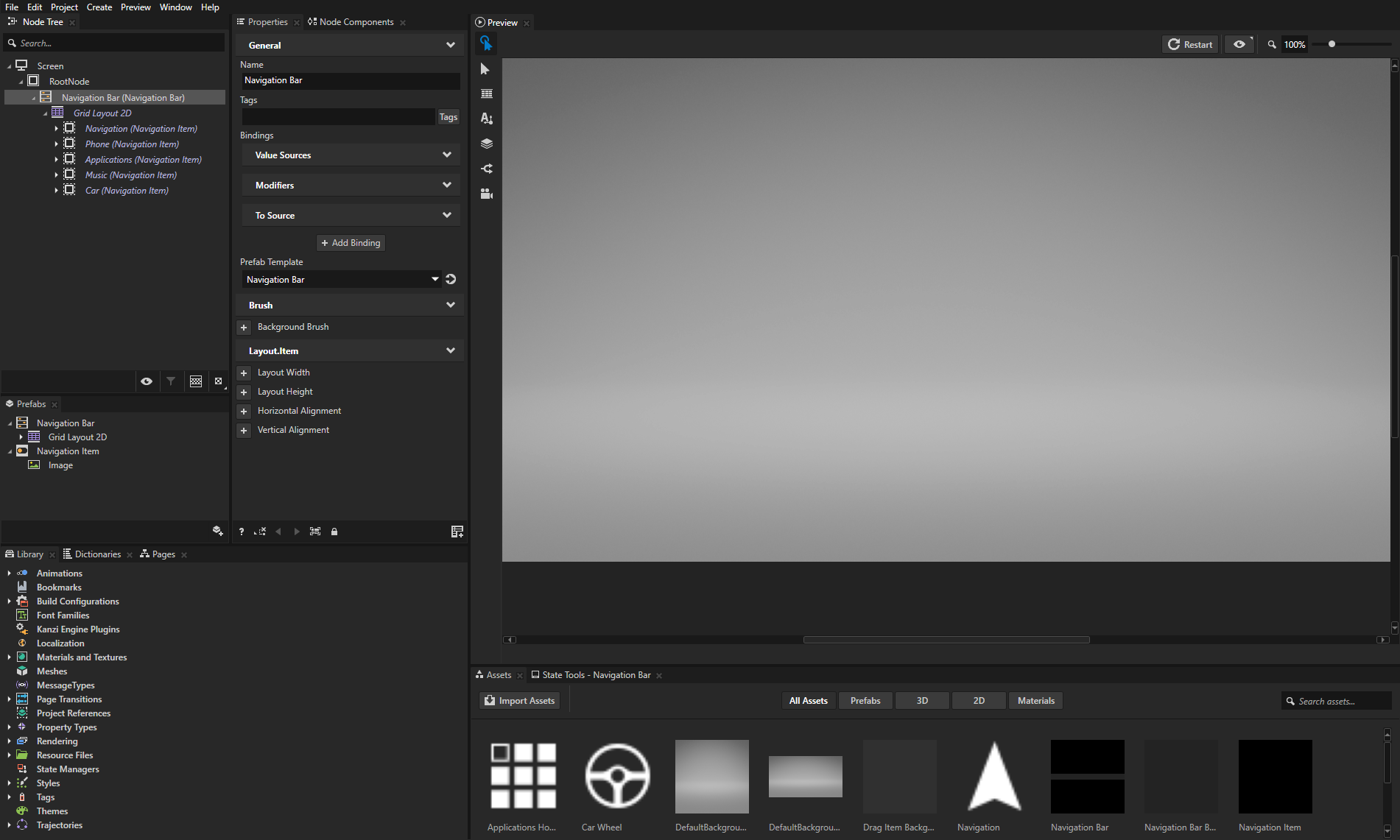
Navigation Bar プレハブ。
プレハブは、Toggle Button Group 2D ノードであり、Toggle Button 2D ノードを含む Grid Layout 2D ノードを持っています。ボタンは Navigation Item プレハブを使用します。
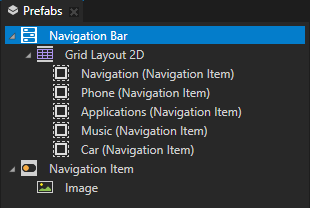
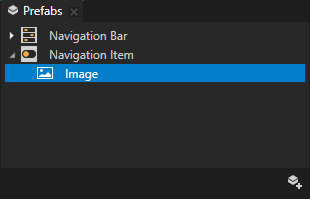
Navigation Item プレハブ。
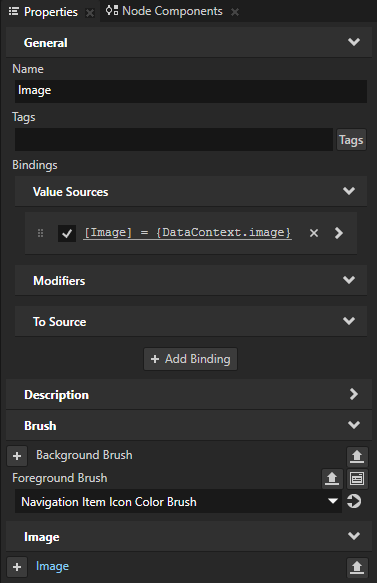
Navigation Item > Image ノードでは、Image プロパティがデータオブジェクトにバインドされており、このチュートリアルで作成するデータオブジェクトを使用して各ボタンのアイコンを設定します。
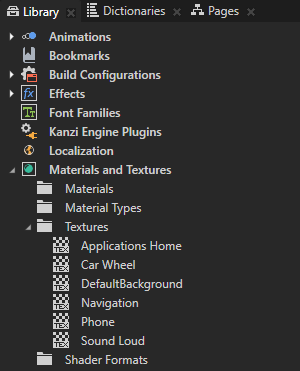
Navigation Item ノードのアイコンを含むテクスチャ。
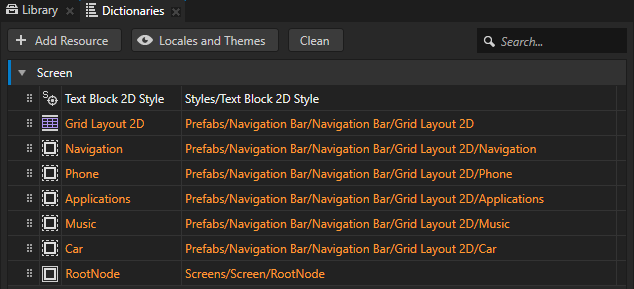
Screen ノードのリソースディクショナリには、Grid Layout 2D ノード、RootNode ノード、およびボタンノードを指すエイリアスが含まれています。
これらのエイリアスは、Kanzi Engine APIを使用してノードにアクセスするための便利な方法を提供します。
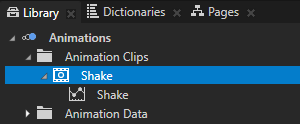
Shake は Animation Clip です。
ユーザーがそのノードをドラッグしているときに、ノードを揺らすためにアニメーションを使用します。
ユーザーがドラッグするボタンのビジュアライゼーションを作成する
このセクションでは、ユーザーがドラッグしているボタンを視覚化するために使用するプレハブを作成します。ボタンを新しい位置にドラッグする代わりに、ドラッグされたボタンのように見えるこのプレハブのインスタンスを移動します。ユーザーがドラッグアンドドロップのジェスチャーを終了したとき、Grid Layout 2D ノード内のボタンの位置を設定する代わりに、ボタンアイコンを設定するデータオブジェクトの順序を設定します。
ユーザーがドラッグするボタンのビジュアライゼーションを作成するには:
Kanzi Studio Quick Start ウィンドウで Projects をクリックし、Tutorials タブを選択します。Drag and drop チュートリアルの横にある Open をクリックし、Start project を選択します。
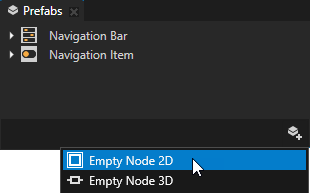
Prefabs で
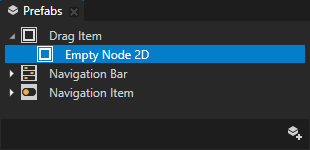
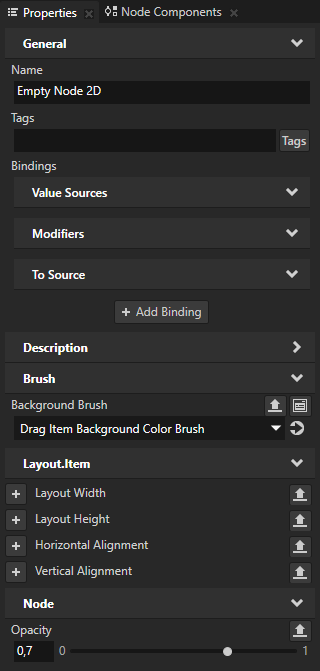
 をクリックし、Empty Node 2D を選択して、Drag Item と名付け、その中に Empty Node 2D ノードを作成し、Properties で追加して設定します。
Background Brush から Drag Item Background Color Brush へ
この方法で、プレハブの背景色をナビゲーションバーよりも明るく設定します。
Opacity から 0,7 へ
この方法で、プレハブを部分的に透明にします。
ユーザーがボタンをドラッグすると、Drag Item プレハブのインスタンスをドラッグするようにドラッグアンドドロップを実装します。
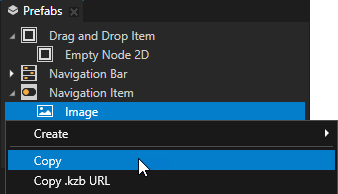
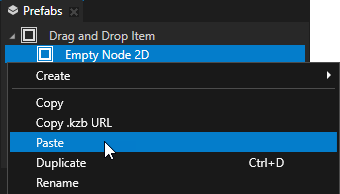
Prefabs > Navigation Item で、Image ノードを右クリックして Copy を選択し、次に Empty Node 2D ノードを右クリックして Paste を選択します。
Image ノードを Drag Item プレハブにコピーするのは、ユーザーがドラッグしているノードのビジュアライゼーションを Navigation Item ノードと同じに見せたいからです。
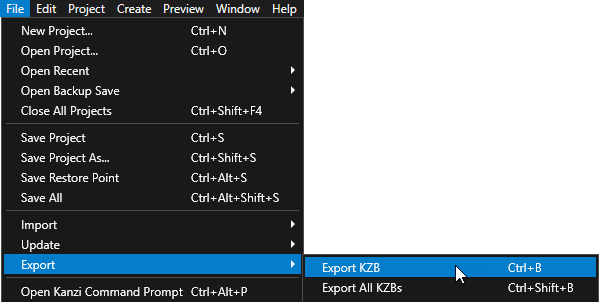
File > Export > Export KZB を選択します。
Kanzi Studio は、Kanzi Studio プロジェクトから kzb ファイルと構成ファイルを作成します。Kanzi Studio は、エクスポートされたファイルを
<ProjectName>/Application/binディレクトリ、または Project > Properties の Binary Export Directory プロパティで設定した場所に保存します。kzb ファイルには、ローカライゼーションテーブルでロケールパックとしてマークしたリソースを除き、Kanzi Studio プロジェクトのすべてのノードとリソースが含まれています。Visual Studioから Kanzi アプリケーションを実行すると、アプリケーションはkzbファイルと構成ファイルを読み込みます。
ボタンのアイコンを設定します
このセクションでは、ボタンのアイコンを設定するために使用するデータオブジェクトを作成します。
ボタンのアイコンを設定するには、以下のようにします。
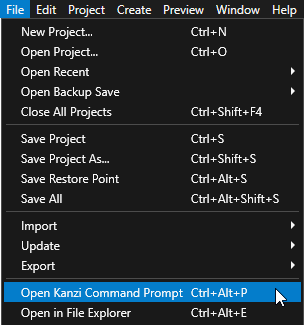
Kanzi Studio で、File > Open Kanzi Command Prompt を選択します。
Kanzi Command Prompt は、Kanzi 環境変数が設定された Windows コマンドプロンプトを開き、Kanzi のバージョンに対して Kanzi Command Prompt を開きます。
Kanzi Command Prompt を使用すると、絶対パスを使用したり環境変数を設定したりせずに、Kanzi のユーティリティや、Gradle、CMake などのビルドツールにアクセスできます。
ヒント
Kanzi Command Prompt は、Rightware ディレクトリの Windows スタートメニューで見つけることができます。
Kanzi のバージョンが複数インストールされている場合は、そのコマンドプロンプトで作業したい Kanzi のバージョンに対応する Kanzi Command Prompt を起動するようにしてください。
<KanziWorkspace>/Tutorials/Drag and drop/Start/Applicationディレクトリ内の Kanzi Command Prompt で、チュートリアルアプリケーション用の Visual Studio ソリューションを生成するスクリプトを実行します。generate_cmake_vs2022_solution.bat
このスクリプトは、
<KanziWorkspace>/Tutorials/Drag and drop/Start/Application/build_vs2022ディレクトリにアプリケーション用の Visual Studio ソリューションを生成します。Visual Studioで
<KanziWorkspace>/Tutorials/Drag and drop/Start/Application/build_vs<Version>/Drag_and_drop_start.slnVisual Studioソリューションを開きます。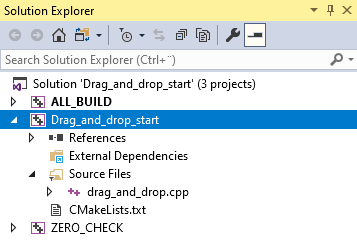
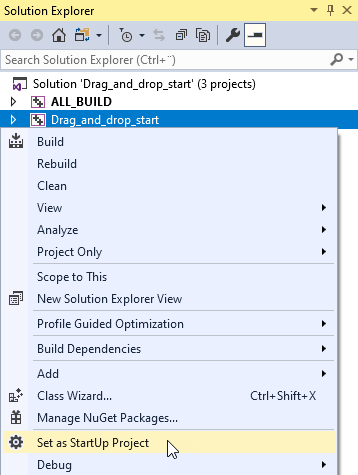
Visual Studioのソリューションエクスプローラーで、Drag_and_drop_start プロジェクトを右クリックし、Set as StartUp Project を選択します。
drag_and_drop.cppファイルのApplication::onProjectLoaded関数内で、データオブジェクトを作成し、データコンテキストを設定します。void onProjectLoaded() override { Domain* domain = getDomain(); // Create a data object named Root. m_rootData = DataObject::create(domain, "Root"); // Create data objects and add them to the Root data object. // Add to each of the data objects a string data object which contains the kzb URL of a texture. // In the Kanzi Studio project you can find the textures in the Library > Materials and Textures > Textures. DataObjectSharedPtr item0 = DataObject::create(domain, "item0"); m_rootData->addChild(item0); item0->addChild(DataObjectString::create(domain, "image", "kzb://drag_and_drop/Textures/Navigation")); DataObjectSharedPtr item1 = DataObject::create(domain, "item1"); m_rootData->addChild(item1); item1->addChild(DataObjectString::create(domain, "image", "kzb://drag_and_drop/Textures/Phone")); DataObjectSharedPtr item2 = DataObject::create(domain, "item2"); m_rootData->addChild(item2); item2->addChild(DataObjectString::create(domain, "image", "kzb://drag_and_drop/Textures/Applications Home")); DataObjectSharedPtr item3 = DataObject::create(domain, "item3"); m_rootData->addChild(item3); item3->addChild(DataObjectString::create(domain, "image", "kzb://drag_and_drop/Textures/Sound Loud")); DataObjectSharedPtr item4 = DataObject::create(domain, "item4"); m_rootData->addChild(item4); item4->addChild(DataObjectString::create(domain, "image", "kzb://drag_and_drop/Textures/Car Wheel")); // Get the Screen node. ScreenSharedPtr screen = getScreen(); // Set the Data Context property of the Screen node to the Root data object. // By setting the Data Context property you tell your application from which data source it receives data. screen->setProperty(DataContext::DataContextProperty, m_rootData); } private: // Define a member variable for the Root data object. DataObjectSharedPtr m_rootData;
DragAndDropクラスのプライベートセクションに、アイコンをボタンに割り当てる関数を作成します。private: // To assign correct icons to the buttons, set the Data Context property for each button. void updateItems() { // Create an iterator that iterates through the data objects in the Root data object. DataObject::ChildConstIterator dataIt = m_rootData->beginChildren(), endDataIt = m_rootData->endChildren(); // Create an iterator that iterates through the buttons which are // child nodes of the Navigation Bar > Grid Layout 2D node. Node2D::ChildConstIterator nodeIt = m_grid->beginChildren(); // Set the Data Context property of each button node to the correct data object. for (; dataIt != endDataIt; dataIt++, nodeIt++) { Node2DSharedPtr itemNode = *nodeIt; DataObjectSharedPtr itemData = *dataIt; itemNode->setProperty(DataContext::DataContextProperty, itemData); } } // Define a member variable for the Grid Layout 2D node. GridLayout2DSharedPtr m_grid; ...
Application::onProjectLoaded関数の最後でupdateItems()関数を呼び出します。void onProjectLoaded() override { ... // Get the parent Grid Layout 2D node of the node that the user is dragging. m_grid = screen->lookupNode<GridLayout2D>("#Grid Layout 2D"); updateItems(); }
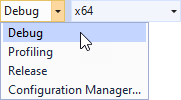
使用したいソリューション構成を選択し、アプリケーションを実行します。
開発中は、Debug 構成を選択します。製品版を作成する準備ができたら、Release 構成を選択します。
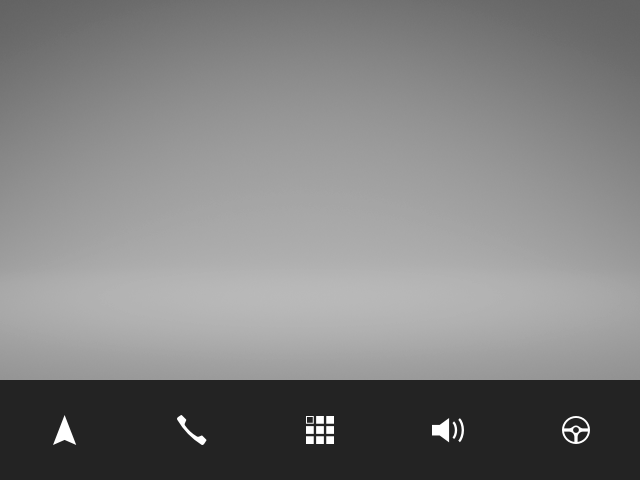
Kanzi は、作成したデータオブジェクトを使用してボタンにアイコンを割り当てます。
関連項目
プレハブについて詳しく知るには、ノードプレハブの使用 を参照してください。
データソースについて詳しくは、データソース (Data Sources) を参照してください。
Kanzi でのエイリアスについて詳しく知るには、エイリアスの使用 をご覧ください。