Kanzi Engine の機能を拡張する
Kanzi Engine プラグインを使用すると、Kanzi Engine の機能を拡張し、Kanzi Studio が作成したカスタムコンテンツをどのように表示するかを設定できます。
独自のノードとプロパティタイプを作成します。カスタムノードとプロパティタイプの作成 を参照してください。
Kanzi Studio のユーザーがトリガーまたはアクションとして使用できる独自のメッセージタイプを作成します。カスタムメッセージタイプの作成 を参照してください。
Kanzi プロジェクト内の任意のノードに機能を追加するために、ユーザーが使用できる独自のノードコンポーネントを作成します。カスタムノードコンポーネントの作成 を参照してください。
Kanzi Studio が Kanzi Engine プラグインで作成するプロパティタイプをどのように表示するかを設定します。カスタムプロパティタイプの設定 を参照してください。
ノードをベースにするノードで定義されている任意のプロパティタイプのデフォルト値を設定します。プロパティタイプのデフォルト値を設定する を参照してください。
作成するノードタイプのアイコンを設定します。ノードタイプのアイコンを設定する を参照してください。
カスタムノードとプロパティタイプの作成
Kanzi Engine プラグインでは、カスタムプロパティタイプを持つカスタムノードを作成できます。Kanzi Studio がこれらのノードをどのように表示し、ユーザーがどのように操作できるかを設定できます。
カスタムプロパティタイプを持つカスタムノードを作成するには:
カスタムノードに関する情報を Kanzi Studio に渡すには、ノードを記述するメタデータを宣言します。
Kanzi Engine プラグインプロジェクトの hpp ファイルで、メタクラス定義の後にメタデータを返す関数を宣言します。
...
KZ_METACLASS_END()

static kanzi::PropertyTypeEditorInfoSharedPtr makeEditorInfo();
...
Kanzi Engine プラグインプロジェクトの cpp ファイルで、カスタムノードのメタデータを作成します。
例えば、ツールチップを作成し、自動的に追加され頻繁に使用されるプロパティを設定するには、次のコードスニペットを追加します。
PropertyTypeEditorInfoSharedPtr MyPlugin::makeEditorInfo()
{
    return PropertyTypeEditorInfoSharedPtr(
        KZ_DECLARE_EDITOR_METADATA(
            // Set the name that you want to use for your node in Kanzi Studio.
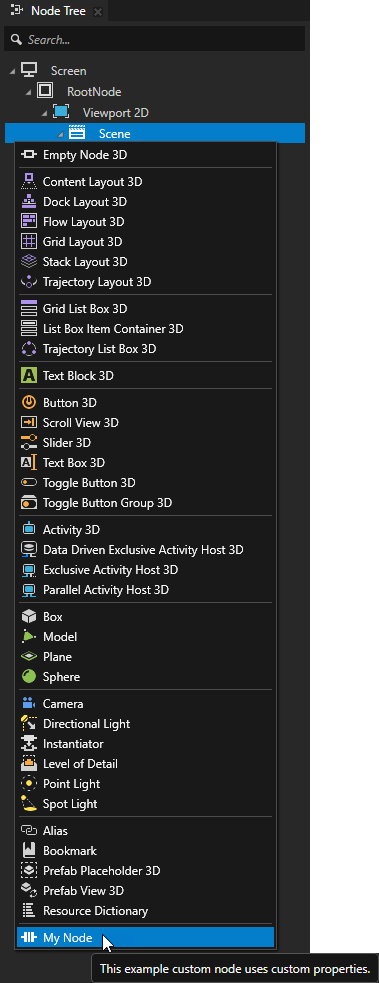
            metadata.displayName = "My Node";
            // Set the tooltip that you want to use in the Kanzi Studio Create menu.
            metadata.tooltip = "This example custom node uses custom properties.";
            // Add the Horizontal Alignment and Vertical Alignment properties to the node.
            metadata["AutomaticallyAddedProperties"] = "Node.HorizontalAlignment, Node.VerticalAlignment";
            // Add the State Manager property as a frequently used property which users can add by clicking next to the property name.
            metadata["FrequentlyAddedProperties"] = "Node.StateManager";
            // Let the user add the Focusable property using the Add Property context menu or the context tab of the Add Properties window.
            metadata["ContextProperties"] = "Node.Focusable";
        ));
}
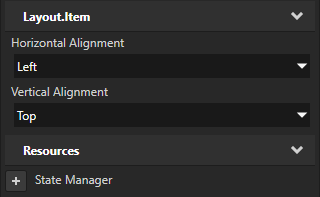
カスタムプロパティタイプとそのメタデータを作成します。
例:
Kanzi Engine プラグインプロジェクトの hpp ファイルで、置き換えてください。
KZ_METACLASS_BEGIN(MyPlugin, Node3D, "CustomComponentType")
KZ_METACLASS_END()
以下に置き換えます。
// String property
static kanzi::PropertyType<kanzi::string> StringProperty;
// String reference to a node
static kanzi::PropertyType<kanzi::string> NodeRefByStringProperty;
// String reference to a prefab
static kanzi::PropertyType<kanzi::string> PrefabRefByStringProperty;
// Shared pointer reference to a prefab
static kanzi::PropertyType<kanzi::ResourceSharedPtr> PrefabRefBySharedPtrProperty;
// Shared pointer reference to a material
static kanzi::PropertyType<kanzi::ResourceSharedPtr> MaterialRefBySharedPtrProperty;

KZ_METACLASS_BEGIN(MyPlugin, Node3D, "MyNode")
    // Add the property types to the class metadata.
    KZ_METACLASS_PROPERTY_TYPE(StringProperty)
    KZ_METACLASS_PROPERTY_TYPE(NodeRefByStringProperty)
    KZ_METACLASS_PROPERTY_TYPE(PrefabRefByStringProperty)
    KZ_METACLASS_PROPERTY_TYPE(PrefabRefBySharedPtrProperty)
    KZ_METACLASS_PROPERTY_TYPE(MaterialRefBySharedPtrProperty)
KZ_METACLASS_END()
Kanzi Engine プラグインプロジェクトの cpp ファイルで、カスタムプロパティタイプを定義します。各プロパティタイプの定義で、次のパラメータを設定します。
Kanzi Studio のプロパティタイプの完全修飾名。
プロパティタイプのデフォルト値。デフォルトのプロパティ値 と プロパティの優先順位 を参照してください。
プロパティの値を変更した際の影響を示すプロパティタイプ変更フラグ。プロパティタイプ変更フラグ と
PropertyTypeChangeFlagを参照してください。変更フラグを使用しない場合は、引数を
0に設定します。プロパティタイプの値が継承可能かどうか。継承可能なプロパティタイプ を参照してください。
Kanzi Studio のプロパティタイプに関するメタデータ。Kanzi Studio で Kanzi Engine プラグインのカスタムタイプを表示するためのリファレンス を参照してください。
たとえば、前のステップで作成したカスタムプロパティタイプを定義するには、
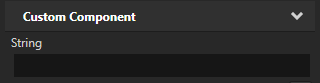
一行テキストエディタを持つ文字列プロパティ:
// Creates a string property.
// This example does not set the editor. If you do not set the editor, Kanzi Studio uses
// the default editor for this property type.
PropertyType<string> MyPlugin::StringProperty(
    kzMakeFixedString("MyPlugin.String"), "", 0, false,
    KZ_DECLARE_EDITOR_METADATA(
        metadata.displayName = "String";
    ));
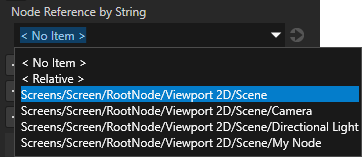
ユーザーがドロップダウンメニューから選択できる3Dノードへの文字列参照:
// Creates a string reference to a node.
PropertyType<string> MyPlugin::NodeRefByStringProperty(
    kzMakeFixedString("MyPlugin.NodeRefByString"), "", 0, false,
    KZ_DECLARE_EDITOR_METADATA(
        metadata.displayName = "Node Reference by String";
        // When you set valueProvider to ProjectObject:Node3D,
        // Kanzi Studio automatically uses the Node 3D selector editor.
        metadata.valueProvider = "ProjectObject:Node3D";
    ));
ユーザーがドロップダウンメニューから選択できるプレハブへの文字列参照:
// Creates a string reference to a prefab resource.
PropertyType<string> MyPlugin::PrefabRefByStringProperty(
    kzMakeFixedString("MyPlugin.PrefabRefByString"), "", 0, false,
    KZ_DECLARE_EDITOR_METADATA(
        metadata.displayName = "Prefab Reference by String";
        // When you set valueProvider to ProjectObject:PrefabTemplate,
        // Kanzi Studio automatically uses the Prefab template selector editor.
        metadata.valueProvider = "ProjectObject:PrefabTemplate";
    ));
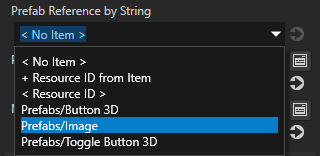
ユーザーがドロップダウンメニューから選択できるプレハブリソースへの共有ポインタ参照:
// Creates a shared pointer reference to a prefab resource.
PropertyType<ResourceSharedPtr> MyPlugin::PrefabRefBySharedPtrProperty(
    kzMakeFixedString("MyPlugin.PrefabRefBySharedPtr"), ResourceSharedPtr(), 0, false,
    KZ_DECLARE_EDITOR_METADATA(
        metadata.displayName = "Prefab Reference by Shared Pointer";
        // When you set valueProvider to ProjectObject:PrefabTemplate,
        // Kanzi Studio automatically uses the Prefab template selector editor.
        metadata.valueProvider = "ProjectObject:PrefabTemplate";
    ));
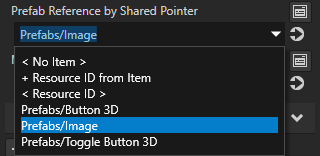
ユーザーがドロップダウンメニューから選択できるマテリアルリソースへの共有ポインタ参照:
// Creates a shared pointer reference to a material resource.
PropertyType<ResourceSharedPtr> MyPlugin::MaterialRefBySharedPtrProperty(
    kzMakeFixedString("MyPlugin.MaterialRefBySharedPtr"), ResourceSharedPtr(), 0, false,
    KZ_DECLARE_EDITOR_METADATA(
        metadata.displayName = "Material Reference by Shared Pointer";
        // When you set valueProvider to ProjectObject:Material,
        // Kanzi Studio automatically uses the Material dropdown editor.
        metadata.valueProvider = "ProjectObject:Material";
    ));
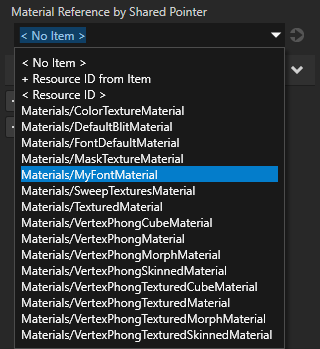
プラグインをビルドしてインストールします。Kanzi Studio プロジェクトに Kanzi Engine プラグインを追加する を参照してください。
Library > Kanzi Engine Plugins の Kanzi Studio でプラグインを選択します。Properties でカスタムプロパティタイプを確認できます。
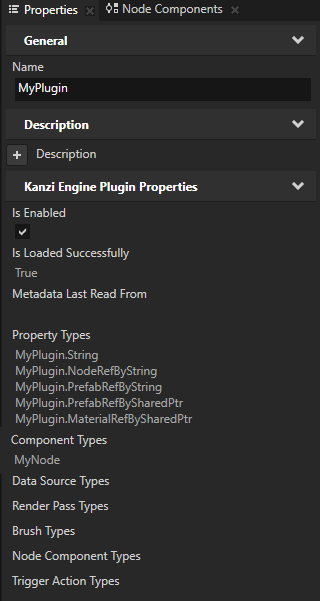
Node Tree で、ノードを選択し、ノード Alt を押しながら右クリック を追加したいノードを選択し、カスタムノードを選択します。
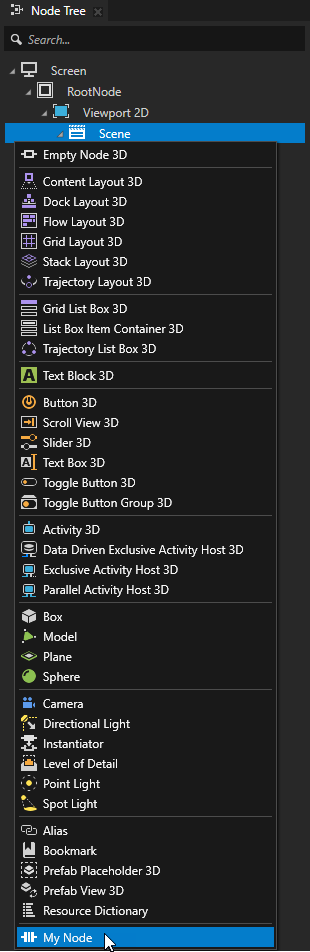
(オプション) 作成するノードタイプのアイコンを設定します。ノードタイプのアイコンを設定する を参照してください。
(オプション) デフォルトで、Kanzi Studio はカスタムプロパティを、プロパティタイプを作成したノードのタイプに頻繁に使用されるプロパティとして追加します。Kanzi Studio がプロパティを提案するノードタイプ、および Kanzi Studio がプロパティを自動的に追加するかユーザーに追加させるかを設定するには、
metadata.host属性を設定します。ホスト を参照してください。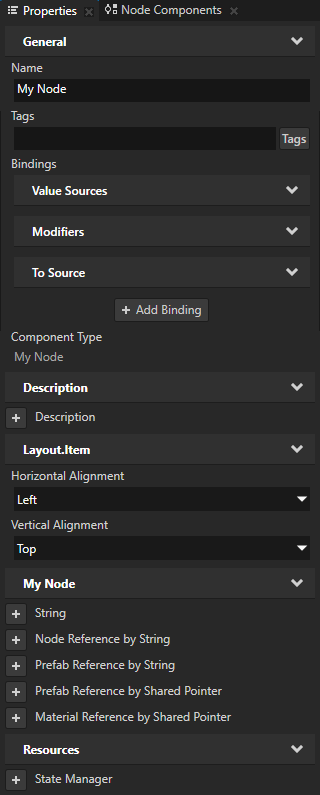
カスタムメッセージタイプの作成
アプリケーションに機能を追加するために使用するカスタムメッセージタイプを作成および設定できます。たとえば、メッセージタイプを使用して、ノードタイプがイベントに反応するようにします。
あなたが定義するすべてのカスタムメッセージタイプに対して、Kanzi Studio はメッセージアクションとメッセージトリガータイプを作成します。これにより、それぞれメッセージタイプをディスパッチし、反応することができます。
Kanzi Connect を使用する場合、アプリケーションが使用する Kanzi Connect サーバーまたはサービスに関する情報を取得するためにカスタムメッセージタイプを使用できます。
カスタムメッセージトリガーの作成
Kanzi Engine プラグインでは、Kanzi Studio がメッセージトリガーとして表示されるカスタムメッセージタイプを作成できます。メッセージタイプを使用すると、特定のイベントが発生したときに通知を購読することができます。
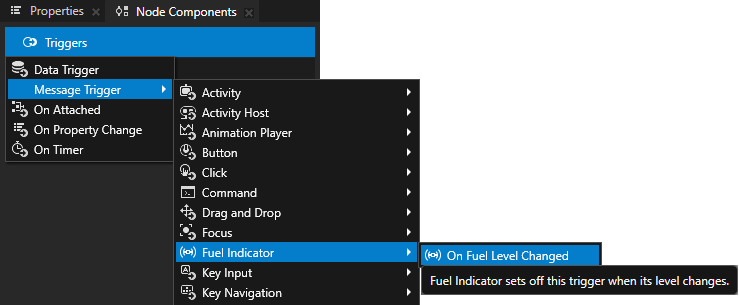
例えば、Kanzi Studio ユーザーが On Fuel Level Changed というメッセージトリガーを追加し、カスタムノード Fuel Indicator の燃料レベルが変化したときに発動するようにするには:
ノードクラス内で、カスタムメッセージタイプを表すクラスを作成し、そのメッセージタイプを定義します。
// Represents message arguments of FuelIndicator.OnFuelLevelChanged message type.
class OnFuelLevelChangedMessageArguments : public MessageArguments
{
public:
    KZ_MESSAGE_ARGUMENTS_METACLASS_BEGIN(OnFuelLevelChangedMessageArguments, MessageArguments, "On Fuel Level Changed Message Arguments")
    KZ_METACLASS_END()
};

// Define the message type of the FuelIndicator.OnFuelLevelChanged message.
static MessageType<OnFuelLevelChangedMessageArguments> OnFuelLevelChangedMessage;
燃料レベルが変化したときにメッセージをディスパッチする関数を作成します。
// Sends a FuelIndicator.OnFuelLevelChanged message.
void onFuelLevelChanged(int fuelLevel)
{
    OnFuelLevelChangedMessageArguments messageArguments;
    dispatchMessage(OnFuelLevelChangedMessage, messageArguments);
}
メッセージのメタデータを宣言します:
MessageType<FuelIndicator::OnFuelLevelChangedMessageArguments> FuelIndicator::OnFuelLevelChangedMessage(
    kzMakeFixedString("Message.FuelIndicator.OnFuelLevelChanged"),
    KZ_DECLARE_EDITOR_METADATA(
        // Set the name of the message the way you want to show it in Kanzi Studio.
        metadata.displayName = "On Fuel Level Changed";
        // Set the tooltip for the message.
        metadata.tooltip = "Fuel Indicator sets off this trigger when its level changes.";
        // Do not show the message in the trigger actions dropdown menu.
        // You show the message as a trigger.
        metadata.sendable = "False";));
カスタムアクションの作成
Kanzi Engine プラグインでは、Kanzi Studio がアクションとして表示するカスタムメッセージタイプを作成できます。
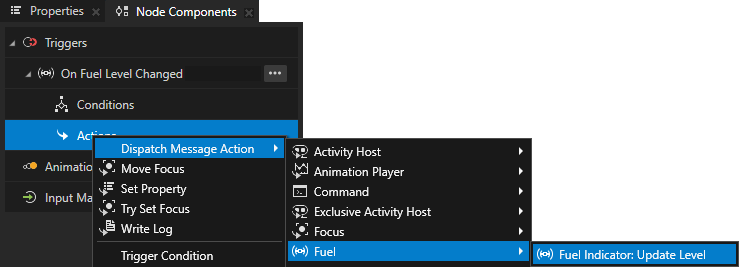
例えば、Kanzi Studio ユーザーがトリガーに Fuel Indicator: Update Level というアクションを追加し、Text Block 3D ノード内のカスタムノード Fuel Indicator のレベルを表示できるようにするには:
Kanzi Engine プラグインプロジェクトの hpp ファイルで、カスタムメッセージタイプを表すクラスを作成し、そのメッセージタイプを定義します。
// Represents the message arguments of the FuelIndicator.UpdateLevel message.
class FuelIndicatorUpdateLevelMessageArguments : public MessageArguments
{
public:

    KZ_MESSAGE_ARGUMENTS_METACLASS_BEGIN(FuelIndicatorUpdateLevelMessageArguments, MessageArguments, "Fuel Indicator Update Level Message Arguments")
        KZ_METACLASS_PROPERTY_TYPE(FuelIndicatorLevelProperty)
    KZ_METACLASS_END()

    // The property type which represents the value of the Fuel Indicator node.
    static PropertyType<int> FuelIndicatorLevelProperty;

    // Returns the value of the Fuel Indicator message argument.
    int getFuelIndicatorLevel()
    {
        return getArgument(FuelIndicatorLevelProperty);
    }

};

// The message type of the FuelIndicator.UpdateLevel message.
static MessageType<FuelIndicatorUpdateLevelMessageArguments> FuelIndicatorUpdateLevelMessage;
Kanzi Engine プラグインプロジェクトの hpp ファイルで、
FuelIndicator.UpdateLevelメッセージのメッセージハンドラを定義します。// The message handler for the FuelIndicator.UpdateLevel message. // Shows the level of the Fuel Indicator in a Text Block 3D node. void fuelIndicatorUpdateLevelHandler(FuelIndicatorUpdateLevelMessageArguments& arguments) { // Get the level of the Fuel Indicator node. m_currentLevel += arguments.getFuelIndicatorLevel(); // Show the level of the Fuel Indicator node in a Text Block 3D node. TextBlock3DSharedPtr textBlock = m_textBlockReference.get(); if (textBlock) { textBlock->setText(to_string(m_currentLevel)); } }
hppファイル内の
Application::initialize関数で、FuelIndicator.UpdateLevelメッセージのメッセージハンドラを登録します。void initialize() { ... // Register the message handler for the FuelIndicator.UpdateLevel message. addMessageHandler(FuelIndicatorUpdateLevelMessage, this, &FuelIndicator::fuelIndicatorUpdateLevelHandler); }
Kanzi Engine プラグインプロジェクトの cpp ファイルで、
FuelIndicator.UpdateLevelメッセージのメタデータを宣言します。Kanzi Studio は、メッセージタイプを、メッセージタイプを宣言する親クラスのメタデータの
displayNameプロパティの値に基づいて、作成コンテキストメニューでグループ化します。この情報は、categoryプロパティを設定することで上書きできます。MessageType<FuelIndicator::FuelIndicatorUpdateLevelMessageArguments> FuelIndicator::FuelIndicatorUpdateLevelMessage( kzMakeFixedString("Message.FuelIndicator.UpdateLevel"), KZ_DECLARE_EDITOR_METADATA( // Set the name of the message the way you want to show it in Kanzi Studio. metadata.displayName = "Fuel Indicator: Update Level"; // Do not show the message as a trigger. // You show the message in the trigger actions dropdown menu. metadata.listenable = "False"; // Set the category to override the name of default context menu item for grouping message actions. metadata.category = "Fuel";));
カスタムノードコンポーネントの作成
カスタムノードコンポーネントは、Kanzi Engine プラグインで実装し、任意のノードにアタッチしてそのノードにカスタム機能を追加するための独立したロジックの一部です。例えば、そのプロパティの値が変わるたびにプロパティの値を Kanzi Log に出力したり、可変速度でアニメーション再生を定義したりすることができます。
例えば、プロパティの値が変更されるたびに、floatプロパティタイプの値を Kanzi の Log に出力する Log Property Value というカスタムノードコンポーネントを作成するには、次のようにします。
Kanzi Engine プラグインプロジェクトの hpp ファイルで、カスタムノードコンポーネントの基底クラスを定義するヘッダーファイルをインクルードします。
#include <kanzi/core.ui/node_component/node_component.hpp>
Kanzi Engine プラグインプロジェクトの hpp ファイルで、カスタムノードコンポーネントを表すクラスを作成し、そのノードコンポーネントを定義します。
class LogPropertyValueComponent;
typedef kanzi::shared_ptr<LogPropertyValueComponent> LogPropertyValueComponentSharedPtr;

// Represents the Log Property Value custom node component.
class LOGPROPERTYVALUECOMPONENT_API LogPropertyValueComponent : public kanzi::NodeComponent
{
public:

    // The property type that sets which property the Log Property Value custom node component logs.
    static kanzi::PropertyType<kanzi::string> LoggedPropertyTypeProperty;

    KZ_METACLASS_BEGIN(LogPropertyValueComponent, NodeComponent, "LogPropertyValueComponent")
        KZ_METACLASS_PROPERTY_TYPE(LoggedPropertyTypeProperty);
    KZ_METACLASS_END()

    static kanzi::PropertyTypeEditorInfoSharedPtr makeEditorInfo();

    // Creates a LogPropertyValueComponent node component instance.
    static LogPropertyValueComponentSharedPtr create(kanzi::Domain* domain, kanzi::string_view name);

protected:

    // The constructor for the LogPropertyValueComponent node component.
    explicit LogPropertyValueComponent(kanzi::Domain* domain, kanzi::string_view name);

    void initialize();

    // You call the attachOverride() function when the Log Property Value custom node component is attached to the node tree.
    // In the attachOverride() function you get the property type that you want to log and add the notification handler
    // which tracks when the value of that property changes.
    void attachOverride() override;

    // You call the detachOverride() function when the Log Property Value custom node component is detached from the node tree.
    // In the detachOverride() function you remove the notification handler which tracks when the value of
    // the property type, which you want to log, changes.
    void detachOverride() override;

...

};
Log Property Value カスタムノードコンポーネントを表すクラスの hpp ファイルで、通知ハンドラとプロパティの値を記録するために使用する関数を実装します。
// Represents the Log Property Value custom node component.
class LOGPROPERTYVALUECOMPONENT_API LogPropertyValueComponent : public kanzi::NodeComponent
{

...

private:

    // The notification handler for the property type that the Log Property Value custom node component logs.
    static void onLoggedPropertyChanged(kanzi::PropertyObject& object, const float& propertyValue,
                                        kanzi::PropertyNotificationReason reason, void* owner);

    // Logs a specific property value.
    void logPropertyValue(const float& propertyValue) const;

    // The property type that the Log Property Value custom node component logs.
    kanzi::AbstractPropertyType m_loggedPropertyType;

...

};
Kanzi Engine プラグインプロジェクトの cpp ファイルに、ノードコンポーネントのインスタンスを作成するコンストラクタと静的
create()関数を追加し、ヘッダーファイルで実装したNodeComponent::attachOverrideおよびNodeComponent::detachOverrideコールバック関数を定義します。// Create a Log Property Value custom node component. LogPropertyValueComponentSharedPtr LogPropertyValueComponent::create(Domain* domain, string_view name) { LogPropertyValueComponentSharedPtr component(new LogPropertyValueComponent(domain, name)); component->initialize(); return component; } LogPropertyValueComponent::LogPropertyValueComponent(Domain* domain, string_view name) : kanzi::NodeComponent(domain, name) { } void LogPropertyValueComponent::initialize() { // Initialize the base class. NodeComponent::initialize(); } void LogPropertyValueComponent::attachOverride() { NodeComponent::attachOverride(); // Get the name of the property type that you want to log. const auto loggedPropertyTypeName = getProperty(LoggedPropertyTypeProperty); if (loggedPropertyTypeName.empty()) { kzLogInfo(KZ_LOG_CATEGORY_GENERIC, ("Use the Logged Property Type property to set which property type you want to log.")); return; } // Get the property type that you want to log and check that it is valid. const auto loggedPropertyType = AbstractPropertyType(getProperty(LoggedPropertyTypeProperty)); if (!loggedPropertyType) { kzLogWarning(KZ_LOG_CATEGORY_GENERIC, ("The custom node component cannot find the property type.")); return; } else if (loggedPropertyType.getDataType() != PropertyDataTypeFloat) { kzLogWarning(KZ_LOG_CATEGORY_GENERIC, ("The custom node component supports property types with float data type.")); return; } // Add the notification handler for the property type that you want to log. const DynamicPropertyType<float> concreteLoggedPropertyType(loggedPropertyType); getNode()->addPropertyNotificationHandler(concreteLoggedPropertyType, &LogPropertyValueComponent::onLoggedPropertyChanged, this); // Store as a member variable the property type that you want to log. m_loggedPropertyType = loggedPropertyType; // Print the initial value of the property type that you want to log. const auto initialPropertyValue = getNode()->getOptionalProperty(concreteLoggedPropertyType); if (initialPropertyValue) { logPropertyValue(*initialPropertyValue); } } void LogPropertyValueComponent::detachOverride() { // Remove the property notification handler for the property that you want to log. if (m_loggedPropertyType) { const DynamicPropertyType<float> concreteLoggedPropertyType(m_loggedPropertyType); getNode()->removePropertyNotificationHandler(concreteLoggedPropertyType, &LogPropertyValueComponent::onLoggedPropertyChanged, this); } NodeComponent::detachOverride(); }
cppファイル内で、hppファイルで実装し、プロパティタイプの値をログに記録するために使用するコールバック関数を定義します。
void LogPropertyValueComponent::onLoggedPropertyChanged(PropertyObject& /*object*/, const float& propertyValue,
                                                        PropertyNotificationReason reason, void* owner)
{
    // Get the component which receives a notification when the value of
    // the property, which you want to log, changes.
    const auto* component = static_cast<LogPropertyValueComponent*>(owner);

    // Kanzi sends a notification each time the value of the property type changes or when that property type is added to a node.
    component->logPropertyValue(propertyValue);
}

// Use the kzLogInfo logging macro to print:
// - The name of the node that has a Log Property Value custom node component
// - The name of the property type that you want to log
// - The value of that property type
void LogPropertyValueComponent::logPropertyValue(const float& propertyValue) const
{
    kzLogInfo(KZ_LOG_CATEGORY_GENERIC, ("{}:{} = {}", getNode()->getName(),
                                        string(m_loggedPropertyType.getName()),
                                        to_string(propertyValue)));
}
cppファイルで Logged Property Type プロパティタイプを初期化し、Kanzi Studio が Log Property Value カスタムノードコンポーネントに使用するメタデータを作成します。
// Declare the metadata for the Logged Property Type property type that you use to set which property
// the Log Property Value custom node component logs.
PropertyType<string> LogPropertyValueComponent::LoggedPropertyTypeProperty(kzMakeFixedString("LogPropertyValueComponent.LoggedPropertyType"), "", 0, false,
    KZ_DECLARE_EDITOR_METADATA
    (
        metadata.displayName = "Logged Property Type";
        metadata.tooltip = "The property type whose value you want the node component to log.";
        metadata.valueProvider = "PropertyType";
    ));

// Create the metadata for the Log Property Value custom node component.
PropertyTypeEditorInfoSharedPtr LogPropertyValueComponent::makeEditorInfo()
{
    return PropertyTypeEditorInfoSharedPtr(
        KZ_DECLARE_EDITOR_METADATA(
            metadata.displayName = "Log Property Value Component";
            metadata.tooltip = "Writes the value of a specified property to Kanzi Log every time that property changes.";
            metadata.category = "Custom Node Components";
        ));
}
<project_name>_module.cppファイルに、Domainクラスの機能を提供するヘッダーを含めます。#include <kanzi/core.ui/domain/domain.hpp>
Kanzi Engine プラグインをビルドしてインストールします。Kanzi Studio プロジェクトに Kanzi Engine プラグインを追加する を参照してください。
Kanzi Studio で:
Node Tree で、ログを取りたいプロパティを持つノードを選択します。
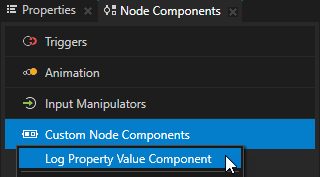
Node Components Alt を押しながら右クリック Custom Node Components で、作成した Log Property Value Component カスタムノードコンポーネントを選択します。
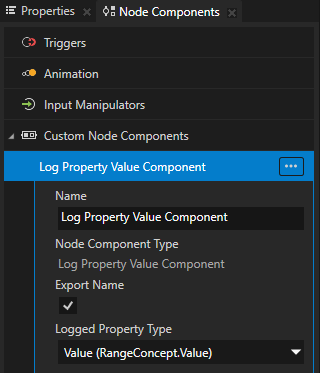
Log Property Value Component で、Logged Property Type プロパティを、Kanzi Log に出力したい値のプロパティタイプに設定します。
Kanzi Studio でそのプロパティの値を変更すると、Kanzi Studio Log ウィンドウでログメッセージを確認できます。

カスタムプロパティタイプの設定
Kanzi Engine プラグインで作成するカスタムプロパティタイプに関する情報を Kanzi Studio に渡すには、これらのプロパティタイプを説明するメタデータを宣言します。
メタデータは、Kanzi Engine プラグインのユーザーが Kanzi Studio でプラグインコンテンツと対話できるようにします。
Kanzi Studio で Kanzi Engine プラグインのカスタムタイプを表示するためのリファレンス を参照してください。
例えば、Kanzi Studio ユーザーがビデオファイルを選択できるようにするために、カスタムプロパティタイプ VideoFileNameProperty のメタデータを作成するには、次のようにします。
PropertyType<string> VideoView2D::VideoFileNameProperty(
    kzMakeFixedString("VideoView2D.VideoFileName"), "video.mp4", 0, false,
    KZ_DECLARE_EDITOR_METADATA(
        // Set the name of the property type the way you want to show it in Kanzi Studio.
        metadata.displayName = "Video Filename";
        // Set the tooltip for the property type.
        metadata.tooltip = "Name of the video file to be played.";
        // Set the category under which this property type is listed in the Properties.
        metadata.category = "Video";
        // Set the editor you want the user to use to edit the value of this property type.
        // BrowseFileTextEditor editor contains a text box with a Browse button next to it.
        metadata.editor = "BrowseFileTextEditor";
        // Set the default value of the property in Kanzi Studio.
        // The Kanzi Engine default value is set in the first line of this example.
        metadata.defaultValue = "video.mp4";
    ));
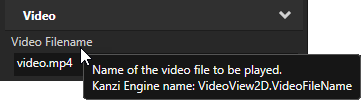
ユーザーが VideoView2D ノードを作成すると、Kanzi Studio はノードのプロパティに Video カテゴリの Video Filename プロパティを追加します。このプロパティには、Browse ボタン、ツールチップ、およびデフォルト値が video.mp4 に設定されたテキストエディタがあります。Properties ウィンドウでプロパティカテゴリを並べ替える を参照してください。
プロパティタイプ名には含めることができません:
プロパティ名の先頭または末尾にあるピリオド (.)
スペース
タブ (Tabs)
スラッシュ (/)
バックスラッシュ ()
ハッシュ (#)
波括弧を開くまたは閉じる ({})
アットサイン (@)
プロパティタイプのデフォルト値を設定する
カスタムノードでは、ノードの基礎となるノードで定義されている任意のプロパティタイプのデフォルト値を設定できます。
例えば、ノードが Node2D クラスを継承している場合、ノードの makeEditorInfo で Node::OpacityProperty プロパティタイプのデフォルト値を 0.44 に設定するには、次のようにします。
PropertyTypeEditorInfoSharedPtr MyNode::makeEditorInfo()
{
    return PropertyTypeEditorInfoSharedPtr(
        KZ_DECLARE_EDITOR_METADATA(
            // Set the default value of the Node.Opacity property to 0.44.
            metadata["override:Node.Opacity:defaultValue"] = "0.44";
            // (Optional) Set how Kanzi Studio suggests the use of this property type.
            // If the "host" value of the property in the base node is:
            // - "auto", you can use "auto" or "fixed"
            // - "context", you can use "auto", "context", "fixed", or "freq"
            // - "fixed", you can use "fixed"
            // - "freq", you can use "auto", "fixed", or "freq"
            // For example, to automatically add the Node.Opacity property
            // when a user adds your node.
            metadata["override:Node.Opacity:host"] = "auto";
        ));
}
ホスト を参照してください。
ノードタイプのアイコンを設定する
ノードタイプのアイコンを設定しない場合、Kanzi Studio はデフォルトのアイコン ( ) を使用します。Kanzi Studio ユーザーが Node Tree 内のノードを視覚的に追跡しやすくするために、ノードに独自のアイコンを設定することができます。
ノードタイプのアイコンを設定するには:
ノードに使用したいアイコンを
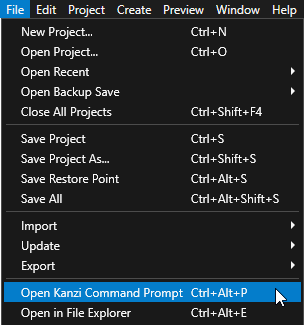
<ProjectName>/Application/src/pluginディレクトリに配置してください。Kanzi Studio で、File > Open Kanzi Command Prompt を選択します。
Kanzi Command Prompt は、Kanzi 環境変数が設定された Windows コマンドプロンプトを開き、Kanzi のバージョンに対して Kanzi Command Prompt を開きます。
Kanzi Command Prompt を使用すると、絶対パスを使用したり環境変数を設定したりせずに、Kanzi のユーティリティや、Gradle、CMake などのビルドツールにアクセスできます。
ヒント
Kanzi Command Prompt は、Rightware ディレクトリの Windows スタートメニューで見つけることができます。
Kanzi のバージョンが複数インストールされている場合は、そのコマンドプロンプトで作業したい Kanzi のバージョンに対応する Kanzi Command Prompt を起動するようにしてください。
<ProjectName>/Applicationディレクトリ内の Kanzi Command Prompt で、アプリケーション用の Visual Studio ソリューションを生成するスクリプトを実行します。generate_cmake_vs2022_solution.bat
このスクリプトは、
<ProjectName>/Application/build_vs2022ディレクトリにアプリケーション用の Visual Studio ソリューションを生成します。Visual Studioで、プロジェクトの
<ProjectName>/Application/build_vs<Version>/<ProjectName>.slnVisual Studioソリューションを開きます。ソリューションエクスプローラーで、
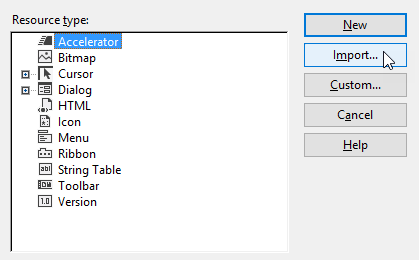
<ProjectName>プロジェクトを右クリックし、追加 > リソースを選択し、インポート... をクリックして、<ProjectName>/Application/src/pluginディレクトリに配置した ico ファイルをインポートします。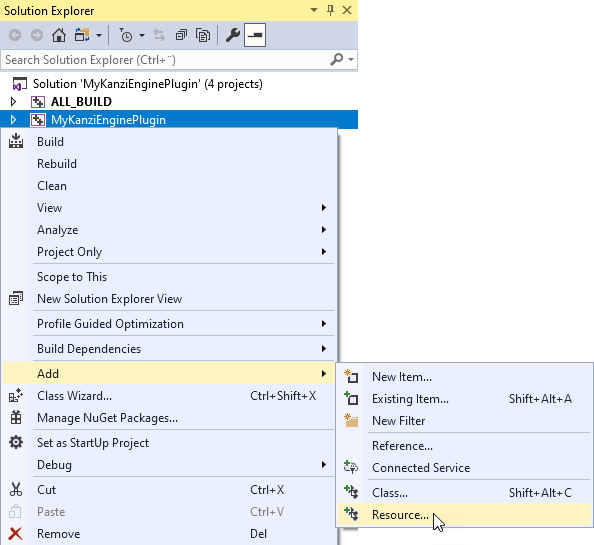
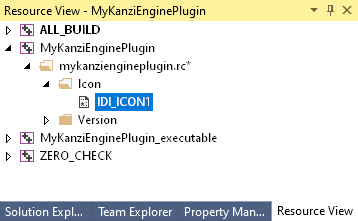
<ProjectName>プロジェクトのソリューションエクスプローラーで、<ProjectName>.rc リソースファイルをダブルクリックして、リソースビューで開きます。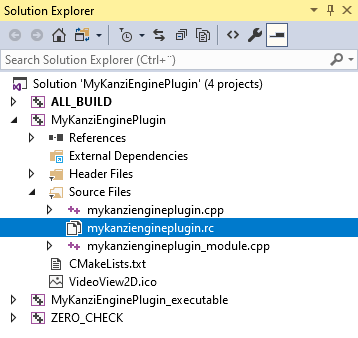
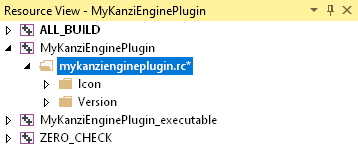
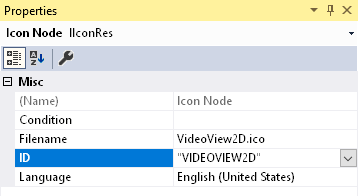
アイコンディレクトリのリソースビューで、インポートしたアイコンを選択し、プロパティでアイコンリソースのIDをノードタイプの名前を大文字で引用符で囲んで設定します。
例えば、ノードタイプが VideoView2D の場合、ID を "VIDEOVIEW2D" に設定します。
Visual Studioでプラグインをビルドし、プラグインのDLLファイルを以前のバージョンのプラグインが配置されているのと同じ場所にコピーします。
Visual Studio は、
<ProjectName>/Application/lib/<PlatformName>/<ConfigurationName>ディレクトリと<ProjectName>/Application/build_vs<Version>/runtime/<ConfigurationName>ディレクトリにプラグイン DLL ファイルをビルドします。Kanzi Studio は
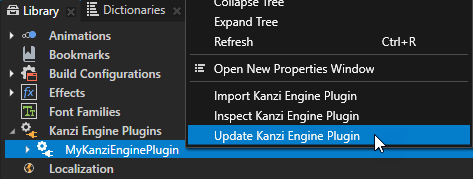
<ProjectName>/Application/libディレクトリ内のプラグインDLLを使用します。Library > Kanzi Engine Plugins の Kanzi Studio で、作成したプラグインを右クリックし、Update Kanzi Engine Plugin を選択します。
Kanzi Studio がプラグインをロードすると、プラグインで定義されたプロパティとクラスの変更が表示されます。
カスタムノードタイプが独自のアイコンを使用する例については、Node2Dプラグインの例 を参照してください。
3Dノードタイプのデバッグビジュアライゼーションを作成する
3Dノードタイプのために、Preview が Analyze モードにあるときに Kanzi Studio で表示されるデバッグビジュアライゼーションを作成できます。デバッグビジュアライゼーションを使用して、プラグインの開発中に役立つ情報をレンダリングします。
3Dノードタイプのデバッグビジュアライゼーションを作成するには、
Preview にレンダリングしたいデバッグビジュアライゼーションを描画する関数を実装します。
Module::registerDebugRenderingFunctions関数を使用して、プラグインモジュール内でデバッグビジュアライゼーションを描画するために使用する関数を登録します。この関数内で、DebugRenderRegistry::addMapping関数を使用して、3Dノードタイプをデバッグビジュアライゼーションを描画する関数にマッピングします。Kanzi Studio でデバッグビジュアライゼーションを表示するには、Preview で
 をクリックして Analyze モードに入り、
 を右クリックして Debug objects を選択します。
デバッグビジュアライゼーションの例については、Node3D プラグインの例 を参照してください。