キーフレームアニメーションの作成
Kanzi では、次のことができるキーフレームアニメーションを作成できます。
ノードの外観と感触を、ノードの外観と感触を定義するプロパティの値を変更することでアニメーション化します。さまざまなプロパティタイプをアニメーション化できます:
フロートプロパティタイプ。例えば、光の強度やマテリアルの色をアニメーション化できます。
ブールプロパティタイプ。例えば、プロパティをタイムラインの値0と1にマッピングする際に、可視性などの値をアニメーション化することができます。
ノードの位置を定義するプロパティの値を変更することで、ノードの位置をアニメーション化します。例えば、位置をアニメーション化することで、アプリケーションの側面からメニューを表示させたり、ユーザーがクリックしたときにボタンをバウンドさせたりすることができます。
このタイプのアニメーションを作成する方法については、こちらで学びます。
キーフレームアニメーションのアニメーションデータを作成する方法は次の通りです。
プロジェクト内のノードのプロパティ値を変更し、それらをアニメーションクリップにドラッグしてアニメーションデータを作成します。これにより、作成中のアニメーションを Preview で視覚的に確認できます。ノードプロパティのためのキーフレームアニメーションの作成 を参照してください。
アニメーションを作成し、アニメーションさせたい特定のターゲットプロパティフィールドを設定し、キーフレームを追加します。この方法は、データ駆動型のアニメーションにより適しています。ターゲットプロパティフィールドのためのキーフレームアニメーションの作成 を参照してください。
Kanzi Engine APIを使用してキーフレームアニメーションを作成するには、Kanzi Engine APIを使用してアニメーションとタイムラインを作成する を参照してください。
ノードプロパティのためのキーフレームアニメーションの作成
ノードプロパティのためのキーフレームアニメーションを作成するには:
Library > Animations > Animation Clips で、キーフレームアニメーションの Animation Clip をダブルクリックします。
Animation Clip Editor が開きます。
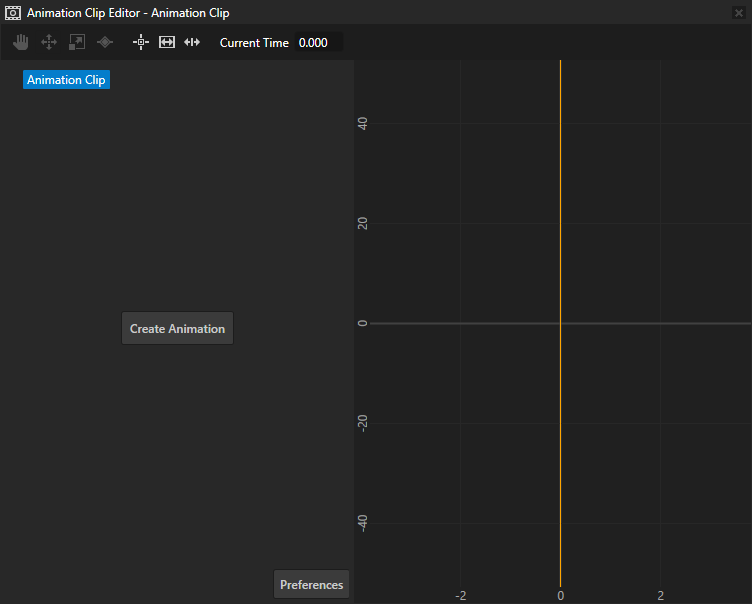
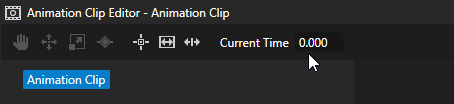
Animation Clip Editor の Current Time に、アニメーションを開始したい時間を入力します。
例えば、アニメーションを開始するトリガーがトリガーされたときにアニメーションを開始するには、0を入力します。アニメーションクリップ (Animation Clip) を編集する を参照してください。
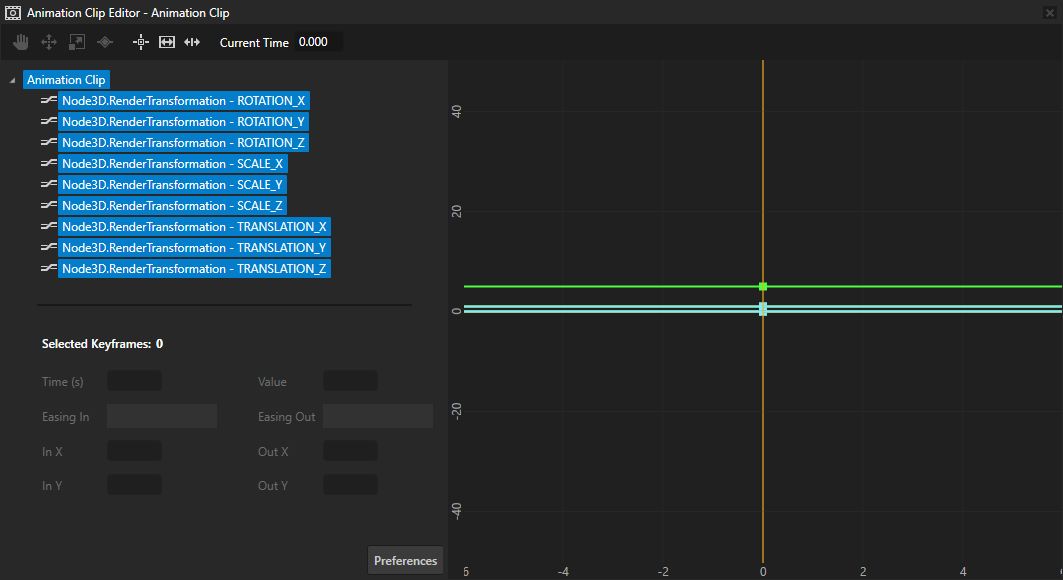
Node Tree で、プロパティ値をアニメーションさせたいノードを選択し、アニメーションさせたいプロパティを Properties から Animation Clip Editor 内の Animation Clip にドラッグします。
Kanzi Studio は、各プロパティおよびプロパティフィールドに対して Animation Data を作成し、Current Time で選択した時点で各プロパティおよびプロパティフィールドにキーフレームを追加します。
例えば、Render Transformation プロパティを追加し、それを Animation Clip Editor にドラッグしてノードの位置をアニメーション化します。
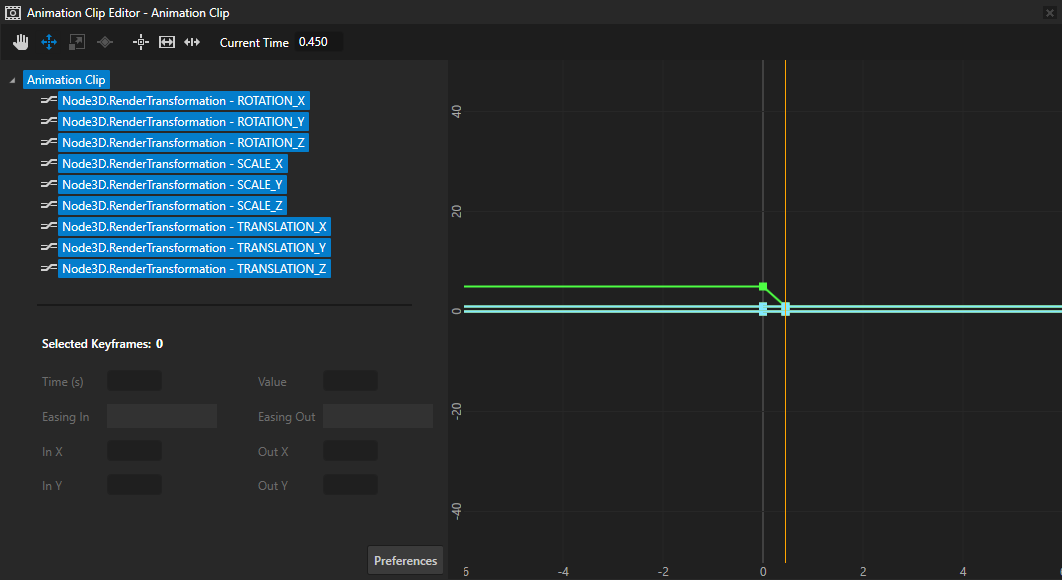
Properties で、アニメーションさせているプロパティの値を変更し、Animation Clip Editor の Current Time に、そのプロパティ値で Kanzi Studio にキーフレームを作成させたい時間を入力して、Properties からプロパティをドラッグします。
例えば、Render Transformation プロパティの Translation プロパティフィールドを変更します。
Kanzi Studio は新しいプロパティ値を Animation Data に追加します。
前の3つのステップを繰り返して、アニメーションにキーフレームを追加したいだけ追加してください。
キーフレームアニメーションの再生と再生制御については、キーフレームアニメーションの使用 を参照してください。
ヒント
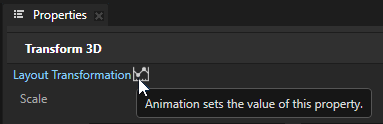
Kanzi Studio の Properties ウィンドウでは、アニメーションを持つプロパティは青色の文字で表示され、その横に Animation アイコン  が表示されます。
複数のオーバーライドソースを持つプロパティは、オレンジ色の文字で表示されます。
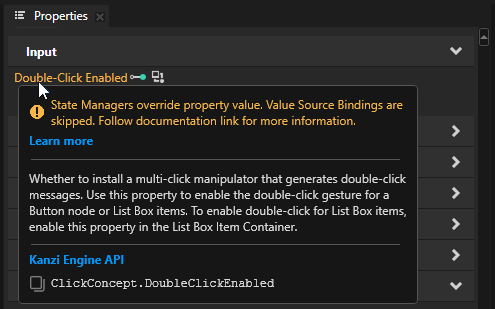
プロパティに複数のオーバーライドソースがある場合、最も優先順位の高いものだけが有効になります。プロパティシステム を参照してください。
ターゲットプロパティフィールドのためのキーフレームアニメーションの作成
ターゲットプロパティフィールドのためのキーフレームアニメーションを作成するには:
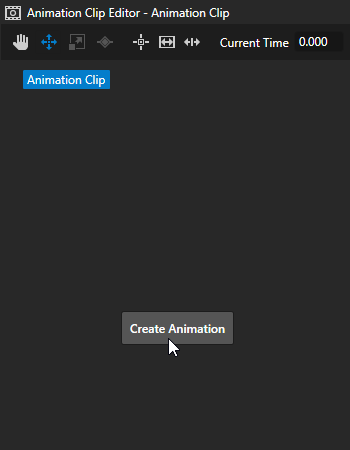
Animation Clip Editor で Create Animation をクリックします。
ヒント
アニメーションには少なくとも 2 つのキーフレームが必要なため、Kanzi Studio は 2 つのキーフレームを含む Animation を自動的に作成します。これらは必要に応じて削除、置換、調整、または追加できます。
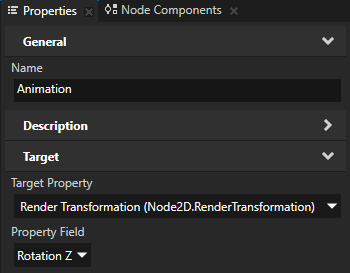
Properties で、アニメーションの Target を設定します。
たとえば、以下を設定します。
Target Property から Node3D.RenderTransformation へ
Property Field から Rotation Z へ
Animation Clip Editor で、Move tool
 を使用してキャンバス領域内のアニメーションを選択します。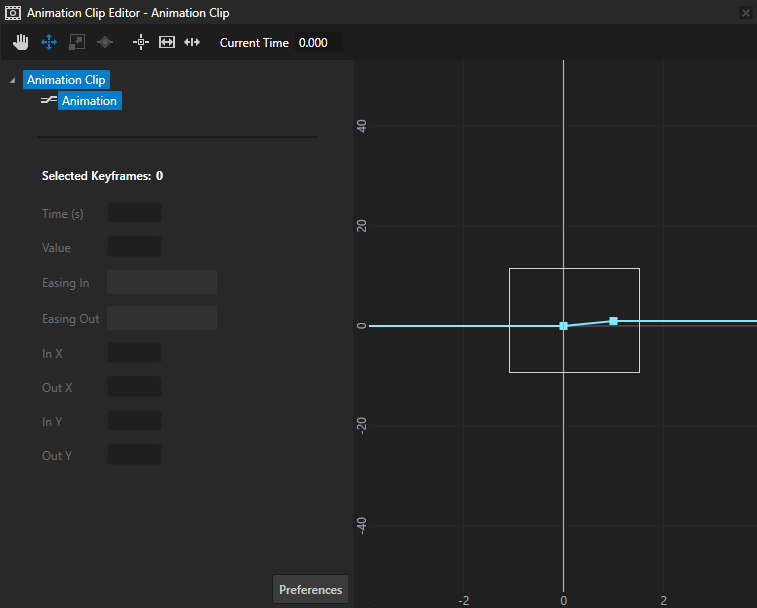
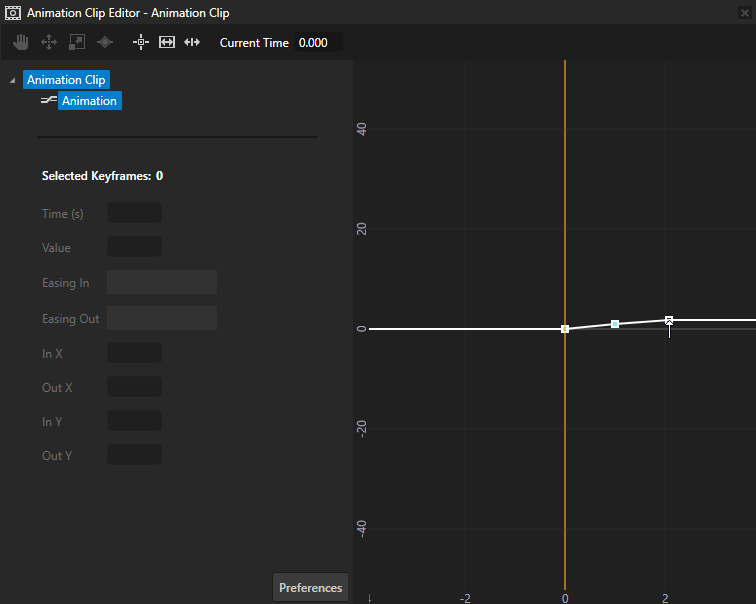
Keyframe tool
 を選択し、アニメーションをクリックしてキーフレームを作成します。
例えば、アニメーションをクリックして 3 つ目のキーフレームを作成します。
Move tool
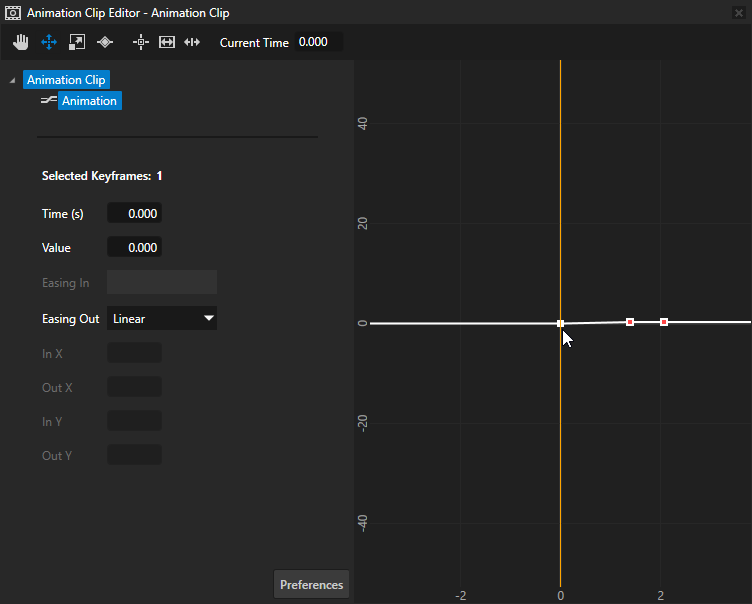
を選択し、最初のキーフレームを選択して設定します:このキーフレームを配置したいアニメーションの開始からの秒数に Time を設定します。
ステップ2で設定した Target Property Field に設定したい値に Value を設定します。
例えば、アニメーション開始時に Node3D.RenderTransformationRotation Z の値を 0 度に設定するには、以下を設定します:
Time を 0 に
Value を 0 に。
作成した各キーフレームに対して、前のステップを繰り返します。
たとえば、以下を設定します。
2番目のキーフレーム:
Time を0.5に
Value を 15 に
これにより、アニメーション開始から 0.5 秒後に Node3D.RenderTransformation Rotation Z の値が 15 度に設定されます。
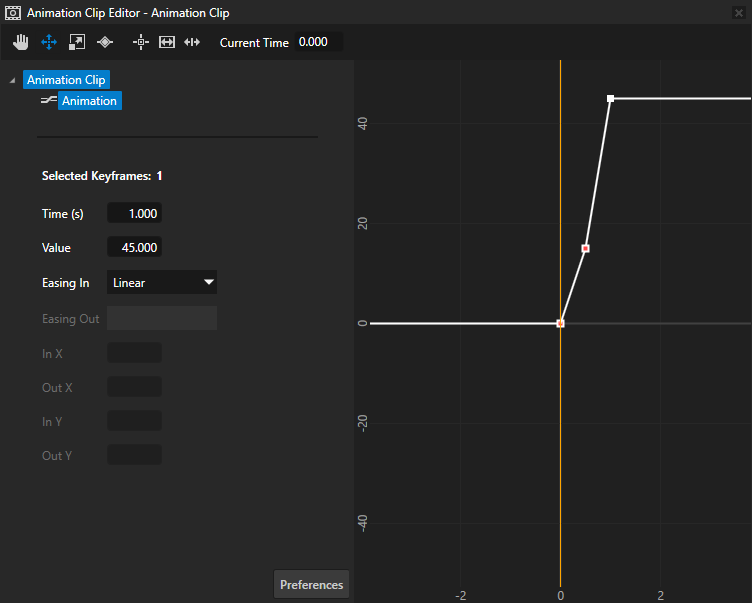
3番目のキーフレーム:
Time を 1 に
Value を 45 に
これにより、アニメーション開始から 1 秒後に Node3D.RenderTransformation Rotation Z の値が 45 度に設定されます。
キーフレームアニメーションの再生と再生制御については、キーフレームアニメーションの使用 を参照してください。
キーフレーム間のイージングファンクションの設定
キーフレーム間のイージングファンクションを設定するには:
Library で、Animation Clip または Animation をダブルクリックします。
アニメーションが Animation Clip Editor で開きます。
Animation Clip Editor で、Move tool
を使用してキーフレームを選択し、イージングファンクションを選択します:例えば、2 つのキーフレームを選択し、Easing を Smooth Step に設定します。
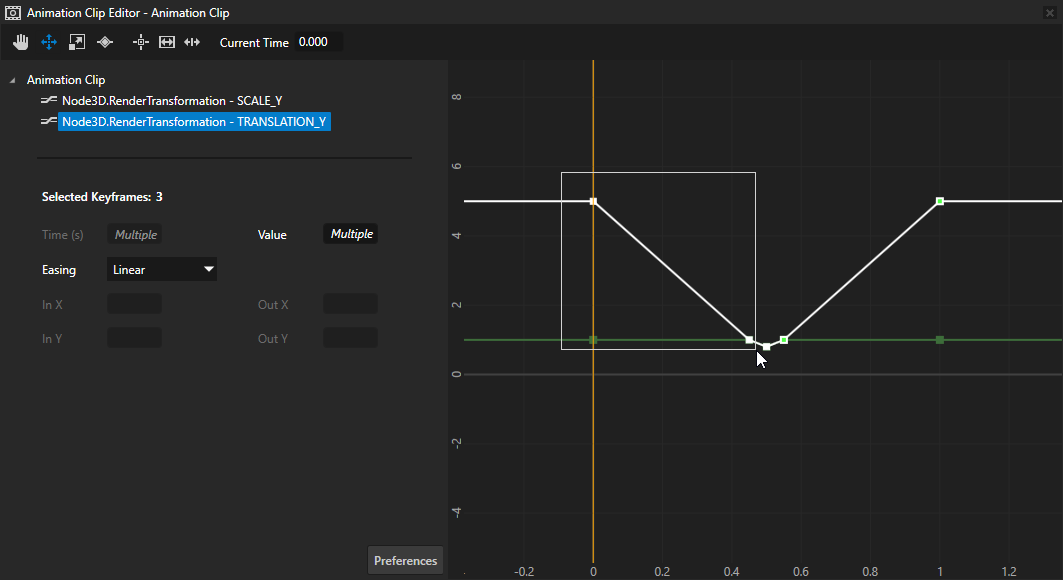
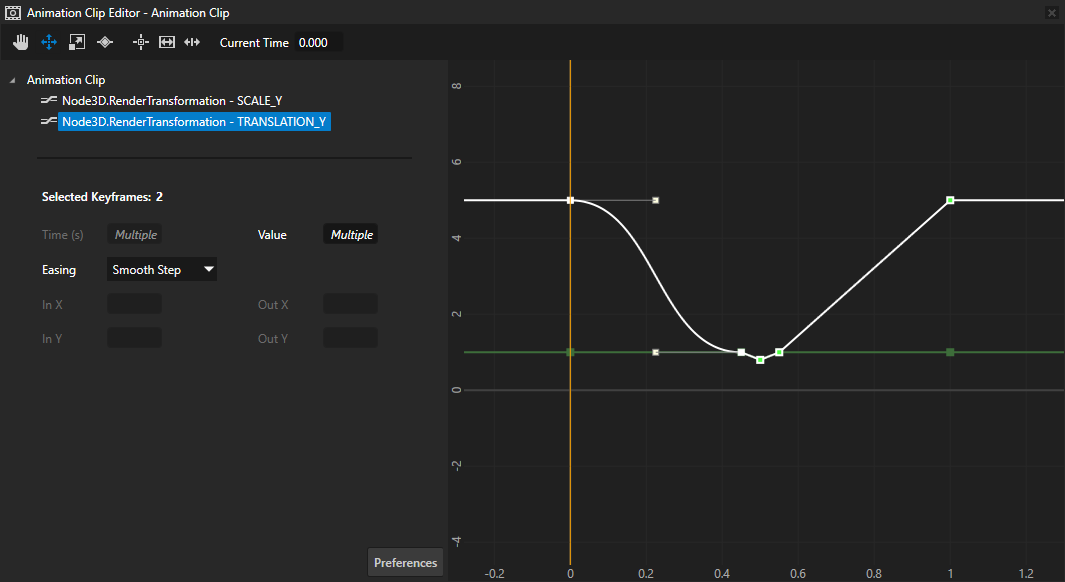
キーフレームの補間値は、以下の方法で微調整できます:
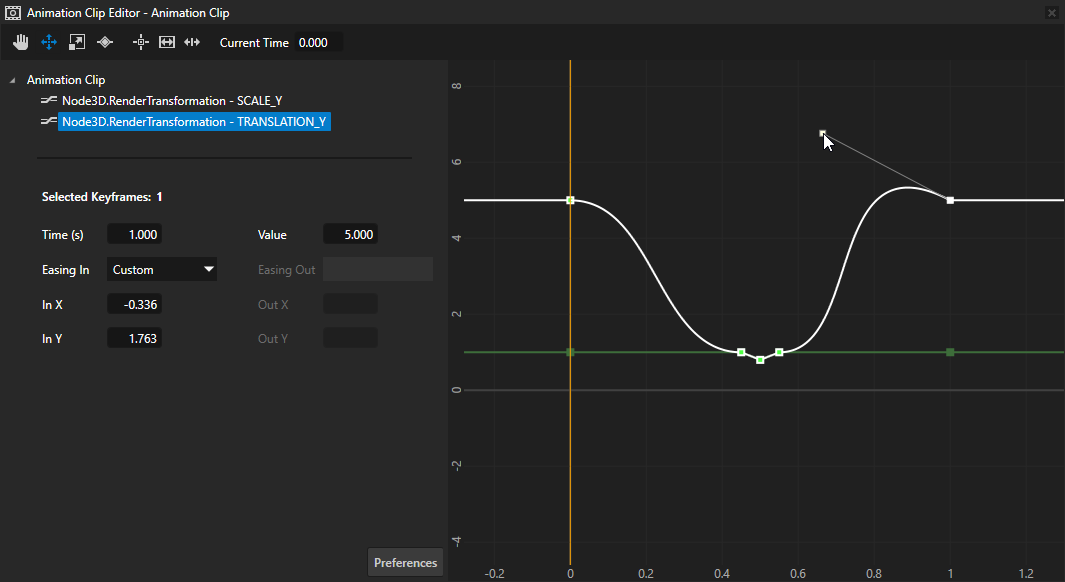
各キーフレームハンドルを個別に調整するには、キーフレームを選択し、そのキーフレームのハンドルをクリックしてドラッグします。
1 つ以上のキーフレームを選択し、キーフレームハンドルのイーズインおよびイーズアウト関数の正確な値を設定します:
In X と Out X のプロパティ値は、キーフレームの Time に対して相対的です。
In Y と Out Y のプロパティ値は、キーフレームの Value に対して相対的です。
APIでキーフレームアニメーションを使用する
キーフレームアニメーションを作成するには、以下のようにします。
// Create a float keyframe animation.
FloatKeyframeAnimationSharedPtr keyframeAnimation = FloatKeyframeAnimation::create(domain);
// Create and add keyframes to the keyframe animation. This keyframe animation contains two linear keyframes.
// Create a linear keyframe at second 0 with the value 0.
keyframeAnimation->addLinearKeyframe(chrono::seconds::zero(), 0.0f);
// Create a linear keyframe at second 1 with the value 100.
keyframeAnimation->addLinearKeyframe(chrono::seconds(1), 100.0f);
キーフレームアニメーションを使用してノード内のプロパティ値をアニメーション化するには:
// Create a property timeline and apply the keyframeAnimation keyframe animation to the Layout Width property
// to animate the width of the current node.
PropertyAnimationTimelineSharedPtr propertyTimeline = PropertyAnimationTimeline::create(domain, ".", Node2D::WidthProperty, keyframeAnimation);
キーフレームアニメーションを使用してノード内のプロパティフィールド値をアニメーション化するには:
// Create a property field animation timeline and apply it to the Render Transformation property of the current node.
PropertyFieldAnimationTimelineSharedPtr propertyFieldTimeline = PropertyFieldAnimationTimeline::create(domain, ".", Node2D::RenderTransformationProperty);
// Rotate the current node by animating the Rotation Z property field of the Render Transformation property
// with the keyframeAnimation keyframe animation.
propertyFieldTimeline->addEntry(PropertyFieldRotationZ, keyframeAnimation);
オブジェクトを横向きの8の字型のパスに沿って移動させるために、ベジエキーフレームを使用するキーフレームアニメーションを作成するには:
// Create two float keyframe animations: one to animate the object on the x axis,
// the other to animate the object on the y axis.
// Create float keyframe animation keyframeAnimationX that uses linear keyframes
// to animate the movement of the object on the x axis.
FloatKeyframeAnimationSharedPtr keyframeAnimationX = FloatKeyframeAnimation::create(domain);
// Create a linear keyframe at second 0 with the value 0.
keyframeAnimationX->addLinearKeyframe(chrono::seconds::zero(), 0.0f);
// Create a linear keyframe at second 4 with the value 4.
// At this keyframe the object reaches the furthest point on the x axis.
keyframeAnimationX->addLinearKeyframe(chrono::seconds(4), 4.0f);
// Create a linear keyframe at second 8 with the value 0.
// At this keyframe the object returns to the same position it had at the first keyframe.
keyframeAnimationX->addLinearKeyframe(chrono::seconds(8), 0.0f);

// Create float keyframe animation keyframeAnimationY that uses Bezier keyframes
// to animate the movement of the object on the y axis.
FloatKeyframeAnimationSharedPtr keyframeAnimationY = FloatKeyframeAnimation::create(domain);
// Create a linear keyframe at second 0 with the value 0. When you use Bezier keyframes,
// you can use any type of keyframe for the first keyframe, because you need this keyframe
// only to provide the information for the starting position.
keyframeAnimationY->addLinearKeyframe(chrono::seconds::zero(), 0.0f);
// Create a Bezier keyframe at second 4 with the value 0 and two control points.
// You use the control points to set the position of the keyframe.
keyframeAnimationY->addBezierKeyframe(chrono::seconds(4), 0.0f, Vector2(0.5f, 4.0f), Vector2(0.5f, -4.0f));
// Create a Bezier keyframe at second 8 with the value 0 and two control points.
// This keyframe uses the same control points, but because the keyframeAnimationX
// animation moves the object on the x axis back to its starting position, this keyframe
// is a mirror image of the previous keyframe.
keyframeAnimationY->addBezierKeyframe(chrono::seconds(8), 0.0f, Vector2(0.5f, 4.0f), Vector2(0.5f, -4.0f));

// Create a property field animation timeline and apply it to the Render Transformation property of the current node.
PropertyFieldAnimationTimelineSharedPtr timeline = PropertyFieldAnimationTimeline::create(domain, ".", Node3D::RenderTransformationProperty);
// Move the current node on the x axis by animating the Translation X property field of the Render Transformation property
// with the keyframeAnimationX keyframe animation.
timeline->addEntry(PropertyFieldTranslationX, keyframeAnimationX);
// Move the current node on the y axis by animating the Translation Y property field of the Render Transformation property
// with the keyframeAnimationY keyframe animation.
timeline->addEntry(PropertyFieldTranslationY, keyframeAnimationY);
タイムラインの種類に関係なくアニメーションを再生するには:
// Create the playback context and the timeline playback for the node defined in the item2d.
SceneGraphTimelinePlaybackContext context(*item2d);
// Create the playback for the timeline defined in the propertyFieldTimeline.
TimelinePlaybackSharedPtr playback = propertyFieldTimeline->createPlayback(context);
// Start the animation.
domain->getRootTimelineClock()->addTimelinePlayback(playback);
詳細については、KeyframeAnimation クラスを参照してください。
APIで補間タイプを使用する方法の詳細については、KeyframeAnimation::BezierKeyframe、KeyframeAnimation::LinearKeyframe、および KeyframeAnimation::StepKeyframe クラスを参照してください。
関連項目
Kanzi Engine APIを使用してアニメーションとタイムラインを作成する