プロパティタイプの値をインクリメントする
プロパティタイプの値を時間の経過とともに、またはフレームごとに増加させるには、Value Accumulator を使用します。キーフレームアニメーションや State Manager でも同様の結果を得られますが、Value Accumulator を使用すると次のことができます。
アプリケーションの実行時にインクリメントのサイズを制御します。
値のインクリメントをループします。
フレーム間の時間間隔に関係なく、フレームごとに 1 回値を増加させる。
たとえば、Value Accumulator を使用して次のことができます:
ストップウォッチを作成します。ストップウォッチの作成 を参照してください。
タイマーを作成します。タイマーの作成 を参照してください。
3Dモデル上でテクスチャを移動します。例えば、動く道路のアニメーションを作成するには、動く道路のアニメーションを作成する を参照してください。
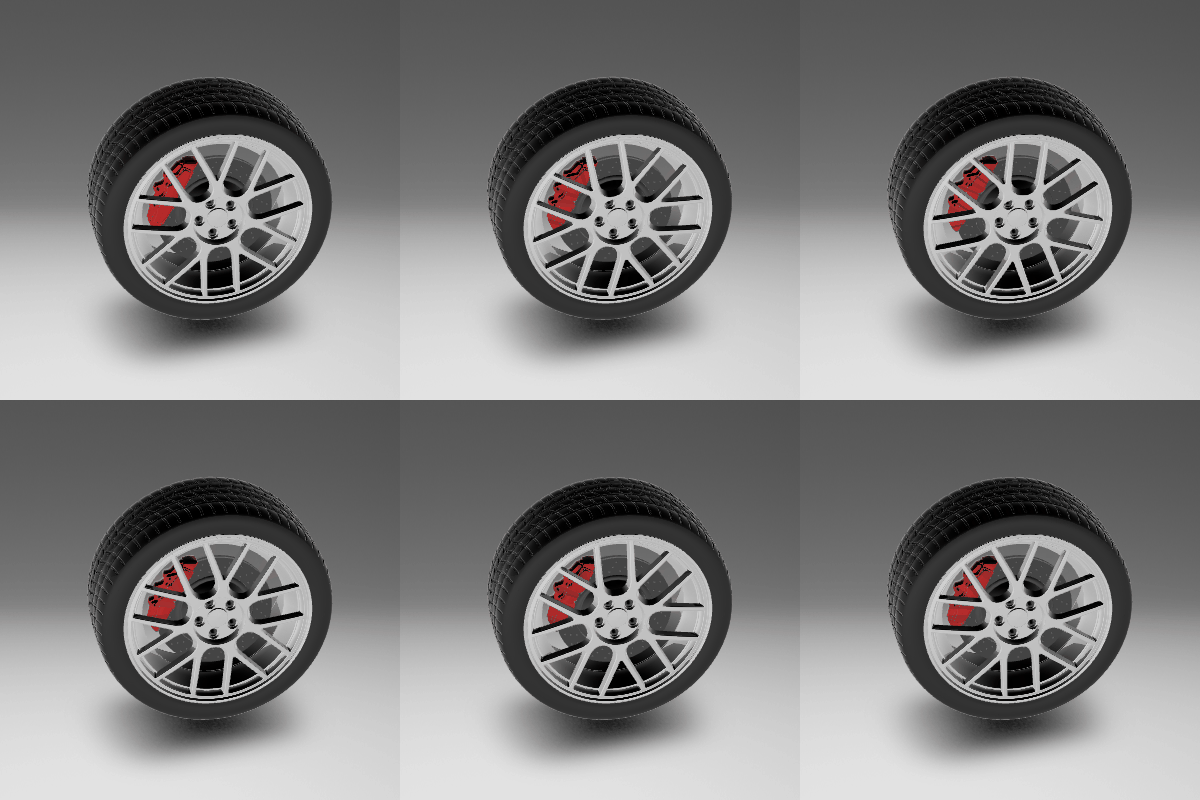
3Dモデルを回転させます。例えば、車輪が回転するアニメーションを作成するには、3Dモデルの回転 を参照してください。
フレームカウンターを作成します。フレームカウンターの作成 を参照してください。
Kanzi には、Float Value Accumulator、Int Value Accumulator、およびValue Accumulatorsの再生を制御するメッセージが含まれています。
データ型が整数でも浮動小数点でもないプロパティの値をインクリメントしたい場合は、これらのデータ型のいずれかである中間プロパティを使用し、データ型を変換するバインディングを作成します。例えば、プロパティの変化する値を Text Block ノードで文字列として表示したい場合は、Text プロパティを中間プロパティの値にバインドし、その中間プロパティをValue Accumulatorでインクリメントします。
ストップウォッチの作成
ストップウォッチを作成するには、整数プロパティタイプの値をインクリメントするために Int Value Accumulator を使用します。
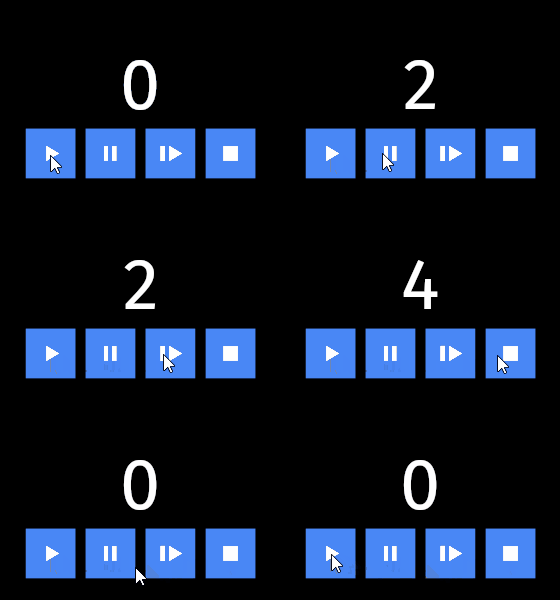
ストップウォッチを作成するには、
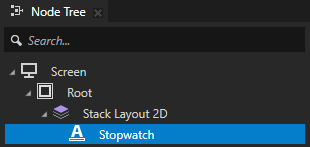
Node Tree でストップウォッチの時間を表示するノードを作成します。
例えば、経過秒数を表示するための Text Block ノードを作成します。
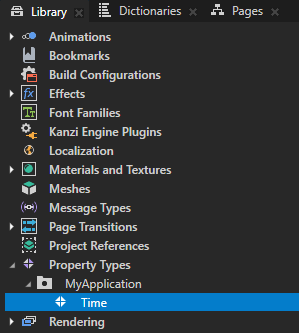
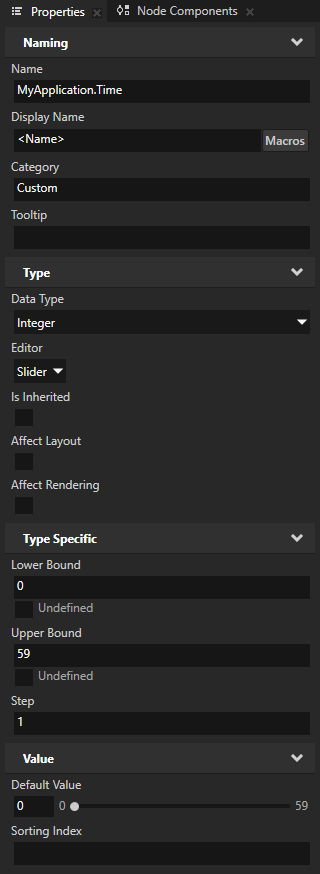
Library > Property Types で、Data Type が Integer であるプロパティタイプを作成し、前のステップで作成したノードにそのプロパティタイプを追加します。
このプロパティタイプは、Int Value Accumulator がインクリメントする中間プロパティとして使用します。この手順の後半で、このプロパティの値を文字列に変換するバインディングを作成し、Text Block ノードがそれを表示できるようにします。
Node Tree でストップウォッチの時間を表示するノードを選択し、Node Components Alt を押しながら右クリック Animation で Int Value Accumulator を選択します。
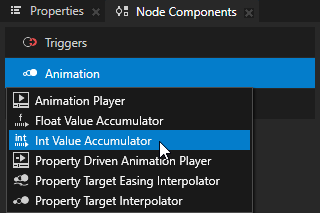
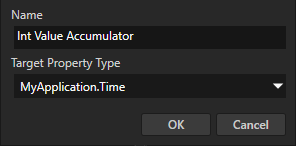
Create Int Value Accumulator ダイアログで、値を増加させたいプロパティに Target Property Type を設定します。
この手順で以前に作成し、このノードに追加した中間プロパティタイプに設定します。
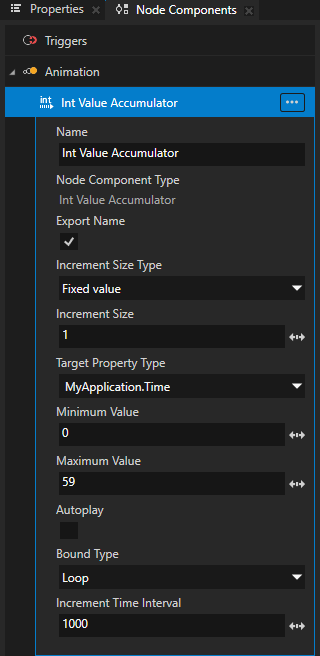
ストップウォッチを作成するためにValue Accumulatorを設定するには、次のようにします:
Increment Time Interval プロパティで設定された時間が経過するたびに、プロパティの値を変更したい値に Increment Size を設定します。
秒を表示するストップウォッチを作成するには、1に設定します。
Minimum Value をバリューアキュムレータが使用する最小値に設定します。
ターゲットプロパティの最終的な値は、プロパティの基本値に、Value Accumulator によって追加された増分の合計を加えたものです。
ストップウォッチを0から開始するには、0に設定します。
Maximum Value をバリューアキュムレータが使用する最高値にします。
ターゲットプロパティの最終的な値は、プロパティの基本値に、Value Accumulator によって追加された増分の合計を加えたものです。
59秒を最大で表示するには、59に設定します。
Autoplay を無効にします。
プロパティの値を手動で制御するために、Value Accumulatorがプロパティの値を変更するタイミングを制御するには、このプロパティを無効にし、Value Accumulatorメッセージを使用してValue Accumulatorを開始、一時停止、再開、および停止します。これらのコントロールは、この手順の後半で追加します。
Bound Type を、Minimum Value プロパティと Maximum Value プロパティで設定されたインクリメントの範囲の限界に達したときに、Value Accumulator がインクリメントをどのように処理するかに設定します。
59秒後にストップウォッチを自動的に再起動するには、Loop に設定します。
Loop に設定されている場合、Value Accumulatorは値が最小値または最大値に達したときに値をラップします。Clamp に設定されている場合、Value Accumulatorは値が最大値に達したときに値を増加させなくなります。
Increment Time Interval にプロパティの値をミリ秒単位でどのくらいの頻度で変更したいかを指定します。
1秒ごとに値を変更するには、1000に設定します。
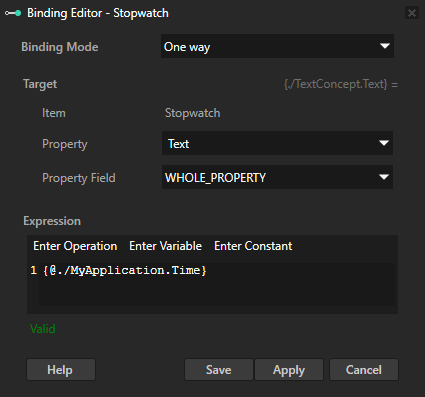
この手順の最初に作成した Text Block ノードを Node Tree で選択し、Properties で + Add Binding をクリックし、Binding Editor で:
Property を Text に設定します。
Properties から作成した中間プロパティタイプを Expression テキストフィールドにドラッグします。
Save をクリックします。
Text プロパティを、その値が Int Value Accumulator によってインクリメントされる中間プロパティタイプにバインドします。このバインディングは整数を文字列に変換し、Text Block ノードが表示できるようにします。
値アキュムレータを制御する:
Node Tree で、Int Value Accumulator を開始するために使用したいトリガーを含むノードを作成します。
例えば、Button 2D ノードを作成し、その Button: Click トリガーを使用します。
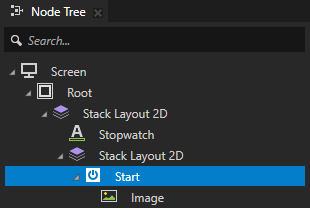
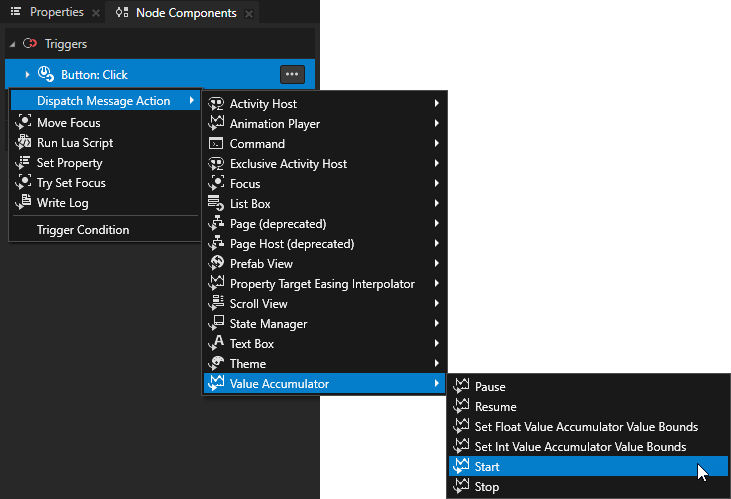
Node Tree で前のステップで作成したノードを選択し、Node Components で Int Value Accumulator Alt を押しながら右クリック Actions を開始するために使用したいトリガーを選択し、Dispatch Message Action > Value Accumulator > Start を選択します。
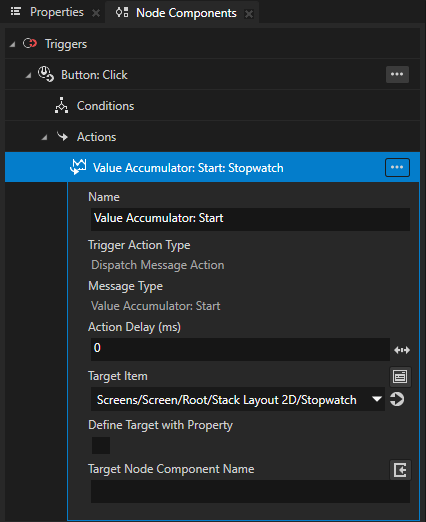
Value Accumulator: Start メッセージで、Target Item プロパティをこの手順の最初に作成した Text Block ノードに設定します。
Int Value Accumulator の一時停止、再開、および停止コントロールを作成します。前のステップを繰り返しますが、これらのメッセージを使用してください。
Pause
Resume
Stop
Value Accumulator メッセージ を参照してください。
タイマーの作成
タイマーを作成するには、整数プロパティタイプの値を減少させるために Int Value Accumulator を使用します。
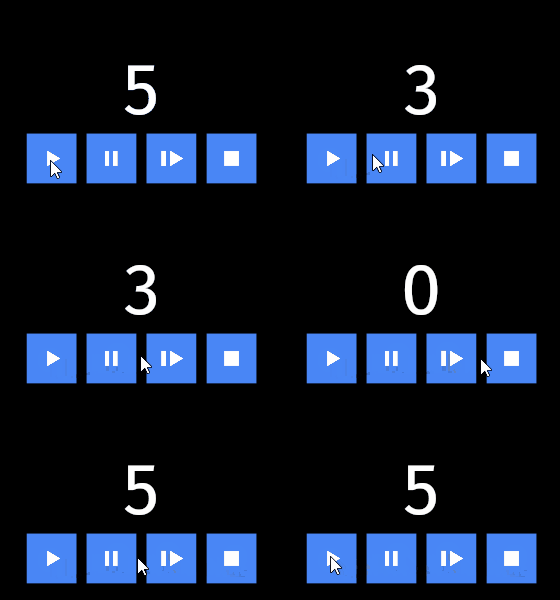
タイマーを作成するには、
ストップウォッチを作成します。ストップウォッチの作成 を参照してください。
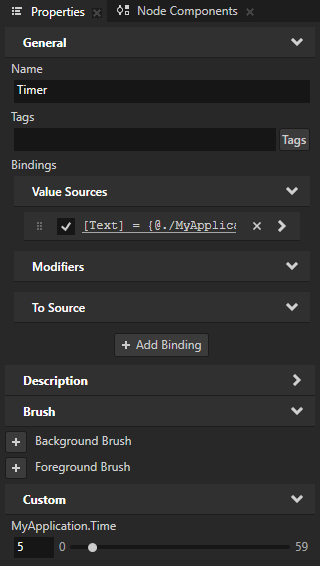
Node Tree で時間を表示する Text Block ノードを選択し、Properties で中間プロパティの値をカウントダウンを開始したい時間に設定します。
たとえば、5秒からカウントダウンするには、値を5に設定します。
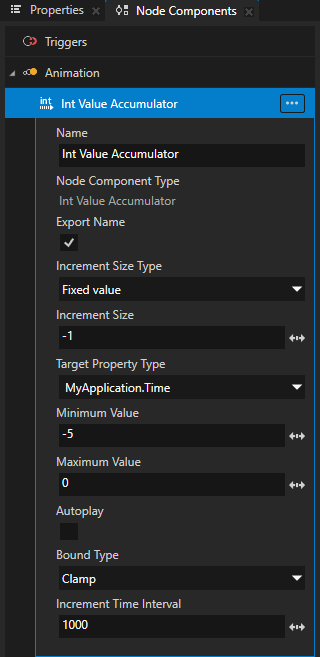
Int Value Accumulator セットの Node Components 内で:
Increment Time Interval プロパティで設定された時間が経過するたびに、プロパティの値を変更したい値に Increment Size を設定します。
タイマーを作成して秒数をカウントダウンするには、-1に設定します。
Minimum Value をバリューアキュムレータが使用する最小値に設定します。
ターゲットプロパティの最終的な値は、プロパティの基本値に、Value Accumulator によって追加された増分の合計を加えたものです。
タイマーを0秒で終了するには、-5に設定します。
Maximum Value をバリューアキュムレータが使用する最高値にします。
ターゲットプロパティの最終的な値は、プロパティの基本値に、Value Accumulator によって追加された増分の合計を加えたものです。
タイマーを5秒で開始するには、0に設定します。
Bound Type を、Minimum Value プロパティと Maximum Value プロパティで設定されたインクリメントの範囲の限界に達したときに、Value Accumulator がインクリメントをどのように処理するかに設定します。
タイマーが0に達したときに停止させるには、Clamp に設定します。
Clamp に設定すると、Value Accumulator は最高値に達したときに値を増加させなくなります。
動く道路のアニメーションを作成する
道路が動くアニメーションを作成するには、Float Value Accumulator を使用して、Plane 上のテクスチャの位置を変更するプロパティフィールドの値をインクリメントします。

動く道路のアニメーションを作成するには:
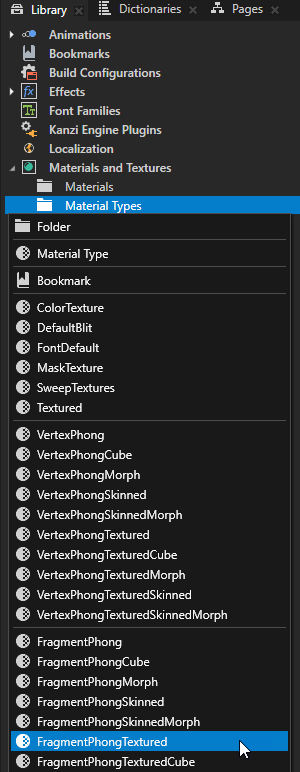
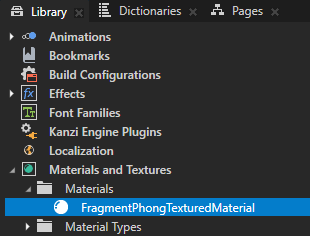
Library > Materials and Textures Alt を押しながら右クリック Material Types で、ジオメトリ上に道路のテクスチャを表示するために使用したいマテリアルを選択します。
例えば、FragmentPhongTextured マテリアルタイプを作成します。
Assets ウィンドウで Import Assets をクリックし、道路として使用したい画像をインポートします。

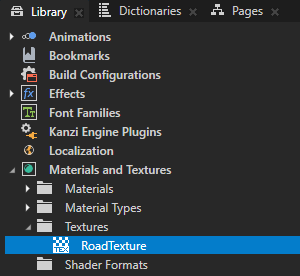
Kanzi Studio は、Library > Materials and Textures > Textures に画像用の Single Texture を作成します。
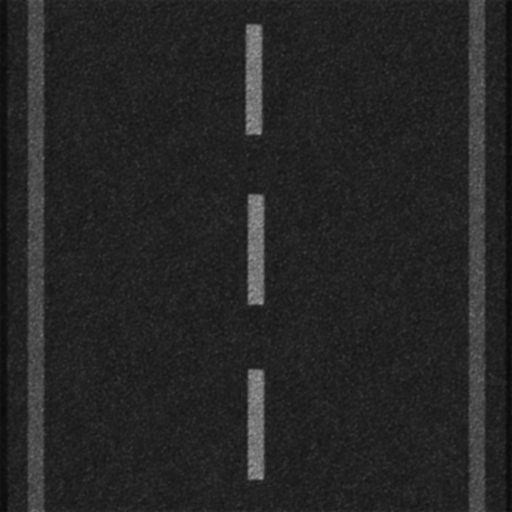
例えば、この画像をインポートします。
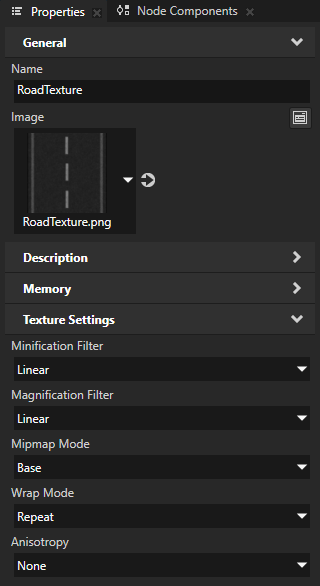
Library > Materials and Textures > Textures でインポートした画像を表示するテクスチャを選択し、Properties で Wrap Mode プロパティを Repeat に設定します。
これにより、テクスチャがジオメトリを覆うようにリピート設定されます。
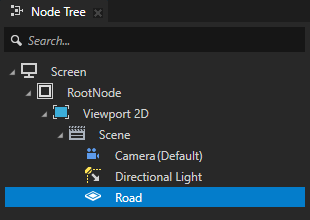
Node Tree で、アニメーションさせたい道路を表すノードを作成します。
例えば、Plane ノードを作成し、それを FragmentPhongTexturedMaterial マテリアルを使用するように設定し、ノード内でマテリアルとジオメトリのプロパティを追加および設定します。
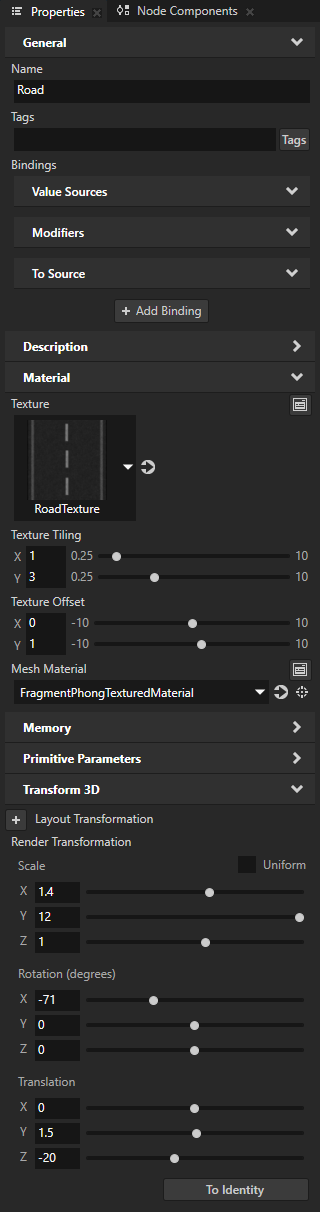
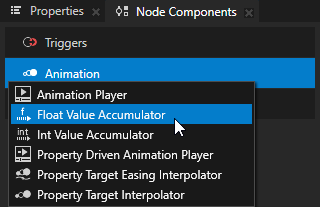
Node Components Alt を押しながら右クリック Animation で、Float Value Accumulator を選択します。
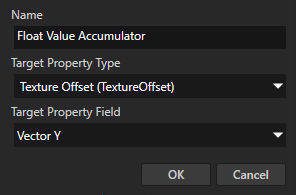
Create Float Value Accumulator ダイアログセットで:
インクリメントしたいプロパティフィールドを持つプロパティに Target Property Type します。
Plane 上のテクスチャを移動するには、Material > Texture Offset プロパティに設定します。
Target Property Type プロパティで選択したプロパティタイプのプロパティフィールドに Target Property Field を設定します。
テクスチャをy軸上で移動するには、Vector Y プロパティフィールドに設定します。
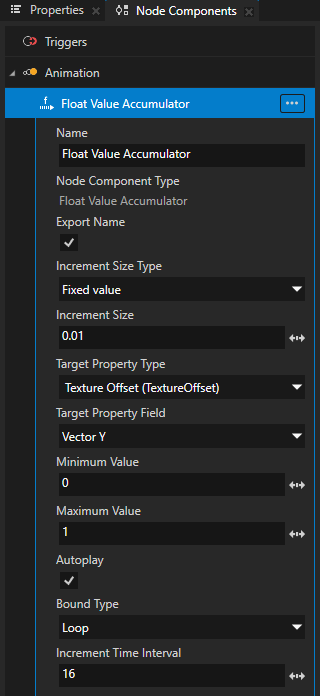
道路が動くアニメーションを作成するために、Value Accumulator を設定します。
Increment Size を、Increment Time Interval プロパティで設定された時間が経過するたびにプロパティフィールドの値を変更したい値に設定します。
テクスチャを Plane 上で移動させるには、0.01に設定します。アニメーションの速度を調整するには、この値を調整してください。
Minimum Value をバリューアキュムレータが使用する最小値に設定します。
ターゲットプロパティの最終的な値は、プロパティの基本値に、Value Accumulator によって追加された増分の合計を加えたものです。
テクスチャの開始位置を Plane 上で設定するには、0に設定します。
Maximum Value をバリューアキュムレータが使用する最高値にします。
ターゲットプロパティの最終的な値は、プロパティの基本値に、Value Accumulator によって追加された増分の合計を加えたものです。
Plane のテクスチャの終了位置を設定するには、1 に設定します。
Bound Type を、Minimum Value プロパティと Maximum Value プロパティで設定されたインクリメントの範囲の限界に達したときに、Value Accumulator がインクリメントをどのように処理するかに設定します。
テクスチャのアニメーションをループさせるには、Loop に設定します。
Loop に設定すると、Value Accumulator は値が最小値または最大値に達したときに値をラップします。
Increment Time Interval にプロパティフィールドの値をミリ秒単位でどのくらいの頻度で変更したいかを指定します。
スムーズなアニメーションのために、Increment Time Interval プロパティの値を低く保ち、Increment Size プロパティの値を調整してアニメーションの速度を調整してください。
たとえば、16 に設定します。
3Dモデルの回転
Float Value Accumulator を使用して3Dモデルを回転させることができます。例えば、回転するホイールのアニメーションを作成する場合です。
3Dモデルを回転させるためにValue Accumulatorを使用するには:
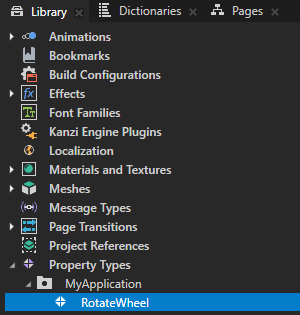
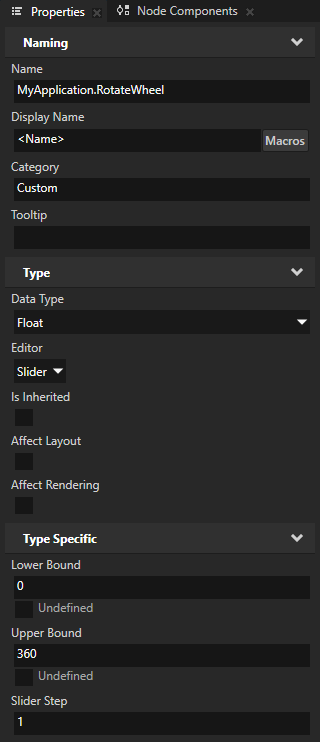
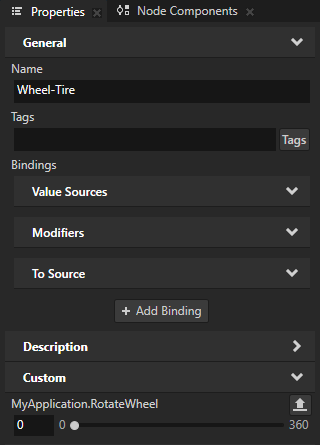
Library > Property Types で、Data Type が Float であるプロパティタイプを作成し、そのプロパティタイプを Value Accumulator で回転させたい 3D ノードに追加します。
このプロパティタイプは、Float Value Accumulator がインクリメントする中間プロパティとして使用します。この手順の後半で、Layout Transformation および Render Transformation の回転プロパティフィールドで使用できるクォータニオンデータ型を使用して回転を作成するバインディングを作成します。
Node Tree で、Value Accumulatorで回転させたい3Dノードを選択し、Node Components Alt を押しながら右クリック Animation で選択し、Float Value Accumulator を選択します。
Create Float Value Accumulator ダイアログで、Target Property Type をこの手順で以前に作成し、このノードに追加したプロパティに設定します。
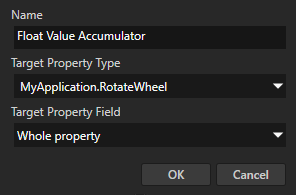
値アキュムレータを構成します。例えば、次のように設定します:
Increment Size を、Increment Time Interval プロパティで設定された時間が経過するたびにプロパティフィールドの値を変更したい値に設定します。
たとえば、-2 に設定します。
Minimum Value をバリューアキュムレータが使用する最小値に設定します。
ターゲットプロパティの最終的な値は、プロパティの基本値に、Value Accumulator によって追加された増分の合計を加えたものです。
たとえば、0 に設定します。
Maximum Value をバリューアキュムレータが使用する最高値にします。
ターゲットプロパティの最終的な値は、プロパティの基本値に、Value Accumulator によって追加された増分の合計を加えたものです。
たとえば、359に設定します。
Bound Type を、Minimum Value プロパティと Maximum Value プロパティで設定されたインクリメントの範囲の限界に達したときに、Value Accumulator がインクリメントをどのように処理するかに設定します。
回転するホイールのアニメーションをループさせるには、Loop に設定します。
Loop に設定すると、Value Accumulator は値が最小値または最大値に達したときに値をラップします。
Increment Time Interval にプロパティフィールドの値をミリ秒単位でどのくらいの頻度で変更したいかを指定します。
スムーズなアニメーションのために、Increment Time Interval プロパティの値を低く保ち、Increment Size プロパティの値を調整してアニメーションの速度を調整してください。
たとえば、16 に設定します。
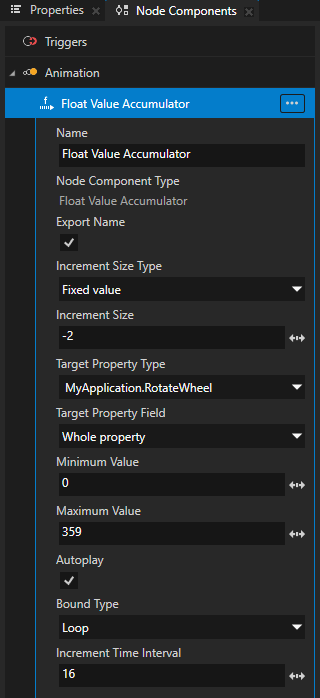
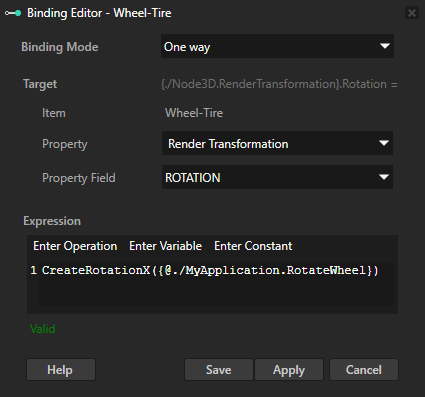
Node Tree で、Float Value Accumulator を追加した3Dノードを選択し、Properties で + Add Binding をクリックし、Binding Editor で設定します。
Property から Render Transformation へ
Property Field から ROTATION へ
Expression で Enter Operation をクリックし、ノードを回転させたい軸の CreateRotation を選択し、Properties から作成した中間プロパティタイプを Expression テキストフィールドにドラッグして、CreateRotation 関数の引数として使用します。
例えば、CreateRotationX 関数を使用してノードをx軸周りに回転させます。
Save をクリックします。
Float Value Accumulator が増分する中間プロパティを使用してx軸の回転を作成し、その回転に Render Transformation プロパティフィールド ROTATION をバインドします。
フレームカウンターの作成
フレームカウンターを作成するには、Increment Mode を Per Frame に設定した Int Value Accumulator を使用します。このモードでは、Value Accumulator はフレーム間に経過した時間に関係なく、フレームごとに 1 回値を増加させます。

フレームカウンターを作成するには、次の手順に従います。
Node Tree でフレーム数を表示するノードを作成します。
例えば、フレーム数を表示するための Text Block ノードを作成します。
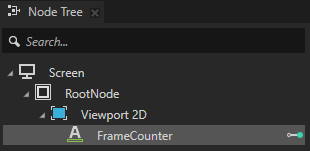
Library > Property Types で、Data Type が Integer であるプロパティタイプを作成し、前のステップで作成したノードにそのプロパティタイプを追加します。
このプロパティタイプは、Int Value Accumulator がインクリメントする中間プロパティとして使用します。この手順の後半で、このプロパティの値を文字列に変換するバインディングを作成し、Text Block ノードがそれを表示できるようにします。
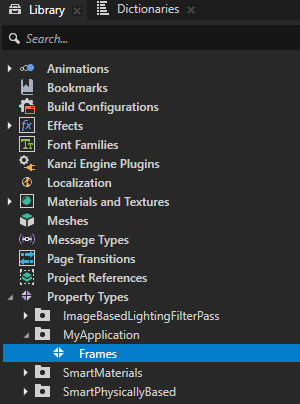
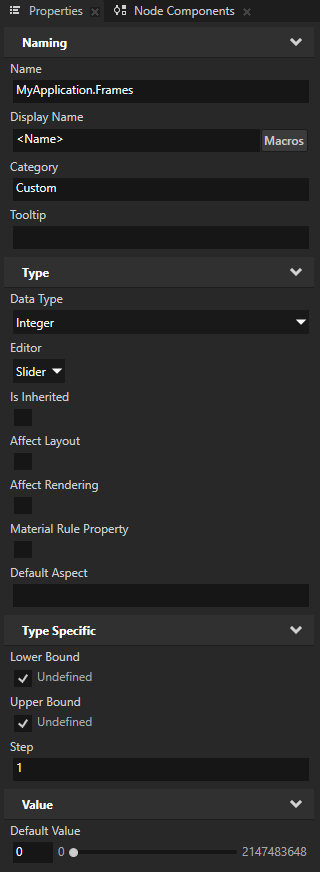
Node Tree でフレーム数を表示するノードを選択し、Node Components Alt を押しながら右クリック Animation で Int Value Accumulator を選択します。
Create Int Value Accumulator ダイアログで、値を増加させたいプロパティに Target Property Type を設定します。
この手順で以前に作成し、このノードに追加した中間プロパティタイプに設定します。
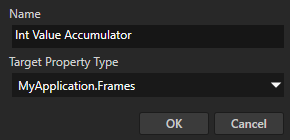
フレームカウンターを作成するために Value Accumulator を設定するには、次のようにします:
Increment Mode を Per Frame に
これにより、Value Accumulator はフレーム間に経過した時間に関係なく、フレームごとに 1 回値を増加させます。このモードでは、Increment Time Interval プロパティは無視されます。
Increment Size に、フレームごとにプロパティの値を変更したい量を設定します。
フレームごとに 1 ずつ増加させるには、1 に設定します。
Minimum Value をバリューアキュムレータが使用する最小値に設定します。
ターゲットプロパティの最終的な値は、プロパティの基本値に、Value Accumulator によって追加された増分の合計を加えたものです。
フレームカウンターを 0 から開始するには、0 に設定します。
Maximum Value をバリューアキュムレータが使用する最高値にします。
ターゲットプロパティの最終的な値は、プロパティの基本値に、Value Accumulator によって追加された増分の合計を加えたものです。
たとえば、1000 フレームまでカウントアップするには、1000 に設定します。
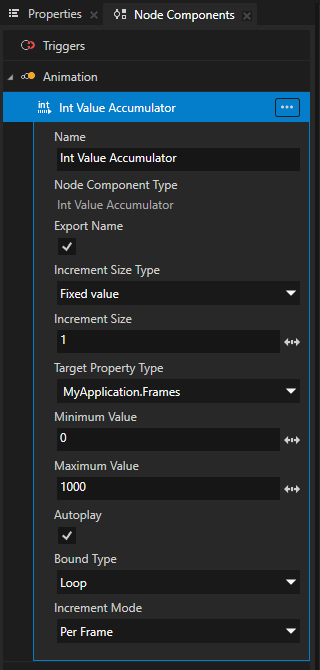
Bound Type を、Minimum Value プロパティと Maximum Value プロパティで設定されたインクリメントの範囲の限界に達したときに、Value Accumulator がインクリメントをどのように処理するかに設定します。
フレームカウンターがマキシマムバリューに達した後に再開させるには、Loop に設定します。
Loop に設定されている場合、Value Accumulatorは値が最小値または最大値に達したときに値をラップします。Clamp に設定されている場合、Value Accumulatorは値が最大値に達したときに値を増加させなくなります。
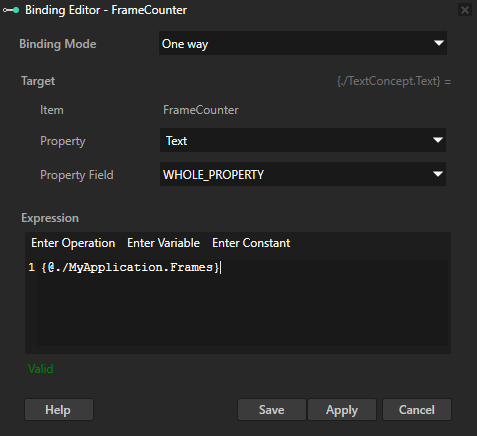
この手順の最初に作成した Text Block ノードを Node Tree で選択し、Properties で + Add Binding をクリックし、Binding Editor で:
Property を Text に設定します。
Properties から作成した中間プロパティタイプを Expression テキストフィールドにドラッグします。
Save をクリックします。
Text プロパティを、その値が Int Value Accumulator によってインクリメントされる中間プロパティタイプにバインドします。このバインディングは整数を文字列に変換し、Text Block ノードが表示できるようにします。
APIでのバリューアキュムレータの使用
Int Value Accumulator を作成するには、
// Create an Int Value Accumulator.
IntValueAccumulatorSharedPtr accumulator = IntValueAccumulator::create(domain, "accumulator");

// Set the property type whose value you want to use to set the size of the increment.
accumulator->setIncrementSizeSource(inputValuePropertyType.getName());

// Set the target property type whose values you want to increment.
accumulator->setTargetPropertyType(targetPropertyType.getName());

// Set the frequency of the increments in milliseconds.
accumulator->setIncrementTimeInterval(1);

// Set the minimum and maximum values that, when added to the value of the target property,
// set the lowest and the highest values that the Value Accumulator uses.
accumulator->setMinimumAccumulatedValue(100);
accumulator->setMaximumAccumulatedValue(800);

// Set how you want the Value Accumulator to handle the value of a property when it reaches
// the lowest or the highest value that is defined by adding the value of the target property
// to the minimum and maximum values.
//
// When set to Loop and the Value Accumulator reaches the target property value added to the
// maximum value, the Value Accumulator sets the property value back to the value defined by
// the target property value added to the minimum value.
accumulator->setBoundType(ValueAccumulatorBase::BoundType::Loop);

/// Add the Value Accumulator to the node.
node->addNodeComponent(accumulator);
Float Value Accumulator を作成するには、
// Create a Float Value Accumulator.
FloatValueAccumulatorSharedPtr accumulator = FloatValueAccumulator::create(domain, "accumulator");

// Set the property type whose value you want to use to set the size of the increment.
accumulator->setIncrementSizeSource(inputValuePropertyType.getName());

// Set the target property type and its property field whose values you want to increment.
accumulator->setTargetPropertyType(targetPropertyType.getName());
accumulator->setTargetPropertyField(PropertyFieldVectorX);

// Set the minimum and maximum values that, when added to the value of the target property,
// set the lowest and the highest values that the Value Accumulator uses.
accumulator->setMinimumAccumulatedValue(0.1f);
accumulator->setMaximumAccumulatedValue(0.8f);

// Set how you want the Value Accumulator to handle the value of a property when it reaches
// the lowest or the highest value that is defined by adding the value of the target property
// to the minimum and maximum values.
//
// When set to Loop and the Value Accumulator reaches the target property value added to the
// maximum value, the Value Accumulator sets the property value back to the value defined by
// the target property value added to the minimum value.
accumulator->setBoundType(ValueAccumulatorBase::BoundType::Loop);

// Add the Value Accumulator to the node.
node->addNodeComponent(accumulator);
Int Value Accumulator でフレームごとの増加モードを使用するには、次のようにします:
// Create an Int Value Accumulator.
auto accumulator = IntValueAccumulator::create(domain, "accumulator");

// Set the property type whose value you want to use to set the size of the increment.
accumulator->setIncrementSizeSource(inputValuePropertyType.getName());

// Set the target property type whose values you want to increment.
accumulator->setTargetPropertyType(targetPropertyType.getName());

// Set the increment mode to PerFrame. In this mode, the Value Accumulator increments the value
// once per frame, ignoring the time delta. This is useful for frame counters.
accumulator->setIncrementMode(ValueAccumulatorBase::IncrementMode::PerFrame);

// Set the minimum and maximum values for the accumulated value.
accumulator->setMinimumAccumulatedValue(0);
accumulator->setMaximumAccumulatedValue(100);

// Set the bound type to Loop so the value wraps around when it reaches the maximum.
accumulator->setBoundType(ValueAccumulatorBase::BoundType::Loop);

// Add the Value Accumulator to the node.
node->addNodeComponent(accumulator);