チュートリアル: リソースを非同期でロードおよびデプロイする
このチュートリアルでは、List Box ノードに表示したいリソースを非同期でロードする方法を学びます。リソースを非同期でロードすると、Kanzi アプリケーションは応答性を保ちます。なぜなら、非同期ロードはユーザーインターフェースをブロックしないからです。ユーザーがリストをスクロールするとき、すべてのアイテムを作業メモリに保持するのではなく、そのアイテムが表示されるときに各アイテムをロードします。このチュートリアルでは、アプリケーションがリソースをロードしている間、プレースホルダーコンテンツを表示するようにアプリケーションを設定します。
以下を行いたい場合に、リソースを非同期でロードします。
List Box ノードで、読み込みに時間がかかるコンテンツを表示しつつ、アプリケーションを応答性のある状態に保ちたい場合があります。例えば、ユーザーが地図をスクロールしたときに地図の一部をオンデマンドで読み込む場合や、アプリケーションの一部が読み込まれている間にローディング画面を表示する場合です。
アプリケーションでコンテンツが必要なときだけそのコンテンツをロードし、アプリケーションで不要になったコンテンツを削除することで、メモリーを節約する。
このチュートリアルでは、リストアイテムジェネレーターを使用してリソースを非同期でロードする方法を示します。単一のプレハブのリソースを非同期でロードするには、Kanzi Studio でトリガーとアクションを使用します。ノードプレハブリソースを非同期でロードする を参照してください。
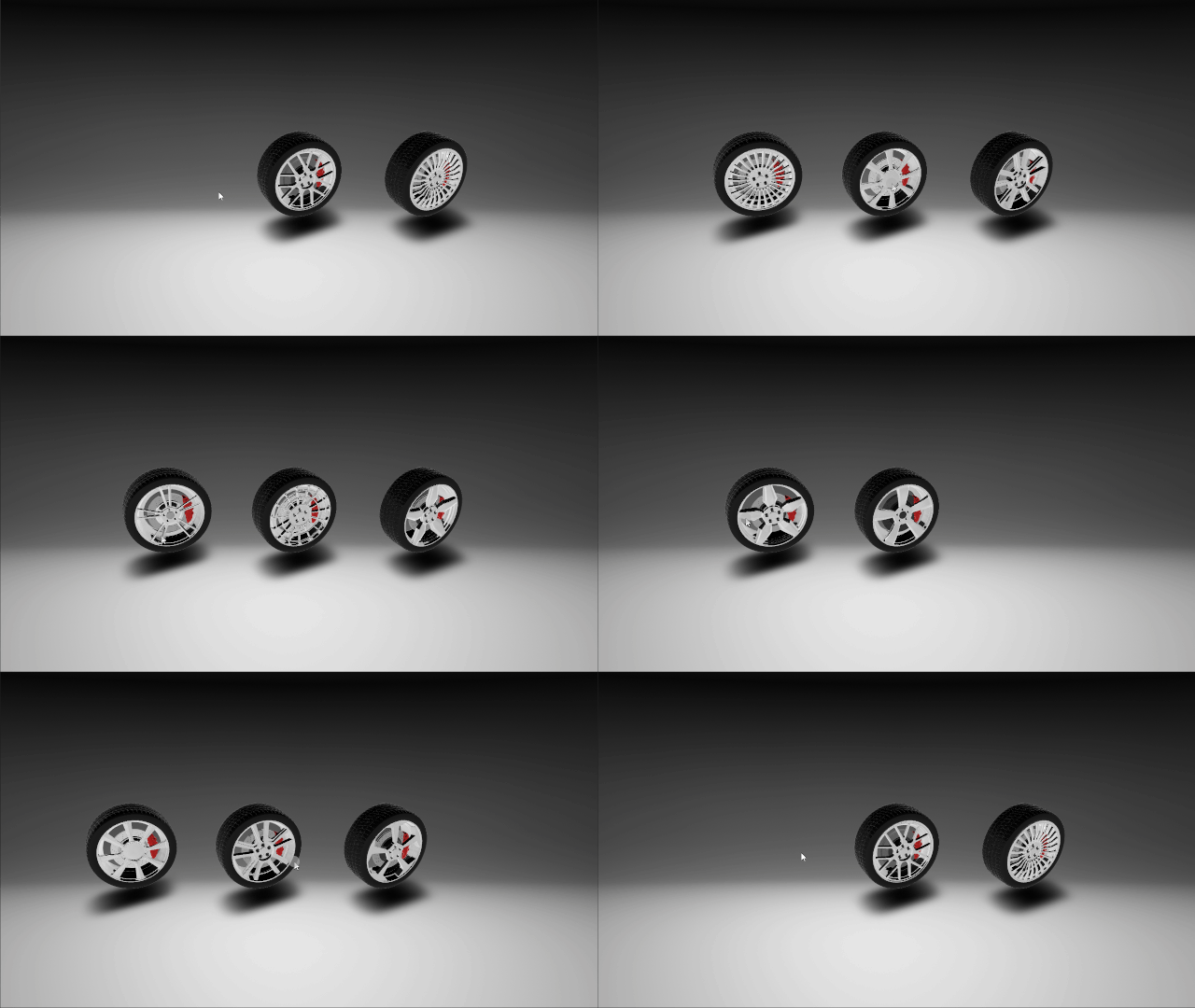
このビデオはチュートリアルの結果を示しています。
チュートリアルを開始する前に、Kanzi 開発環境が設定されていることを確認してください。インストール:
CMake 3.25 以降
最新の更新プログラムが適用された Visual Studio 2022
Android Studio。Kanzi アプリケーションをAndroidにデプロイする を参照してください。
Android Studioを使用して、Kanzi アプリケーションをAndroidデバイスにデプロイします。
このチュートリアルは、Kanzi Studio を扱う基本を理解していることを前提としています。Kanzi に慣れるための最適なエントリーポイントは次のとおりです。
チュートリアルを入手する
チュートリアルを入手するには、Kanzi Studio Quick Start ウィンドウで Projects をクリックし、Tutorials タブを選択します。Loading チュートリアルの横にある  をクリックします。
Kanzi Studio はチュートリアルを <KanziWorkspace>/Tutorials ディレクトリにダウンロードします。以下が含まれています。
<KanziWorkspace>/Tutorials/Loading/Start/Tool_projectディレクトリ内のチュートリアルの開始地点プロジェクト。<KanziWorkspace>/Tutorials/Loading/Completedディレクトリ内の完成済みチュートリアル。
開始プロジェクトの内容
スタートポイントとなるプロジェクトには、このチュートリアルを完了するのに必要なコンテンツが含まれています。
Trajectory List Box 3D ノードは、非同期でロードするアイテムを保持します。
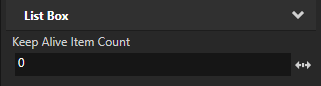
Trajectory List Box 3D ノードの Keep Alive Item Count プロパティは、ノードが作業メモリに保持するアイテムの数を設定します。Keep Alive Item Count プロパティは、ユーザーが Trajectory List Box 3D をスクロールしてそのアイテムが表示されるときに各アイテムをロードするように 0 に設定されています。
例えば、Keep Alive Item Count プロパティの値を5に設定すると、ノードは表示されているアイテムと作業メモリにロードされた次の5つのアイテムを保持します。ユーザーが List Box をスクロールすると、それらのアイテムが表示されるときに、アプリケーションは5番目のアイテムの後のアイテムをロードします。
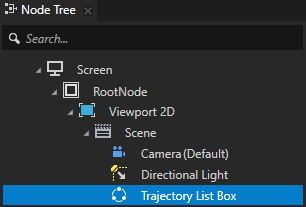
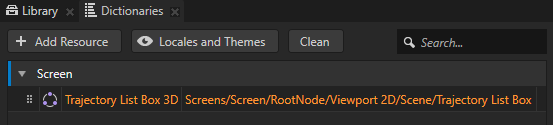
Screen ノードのリソース辞書には、Trajectory List Box 3D ノードのエイリアスが含まれています。エイリアスは、アプリケーションコードからノードにアクセスするための便利な方法を提供します。
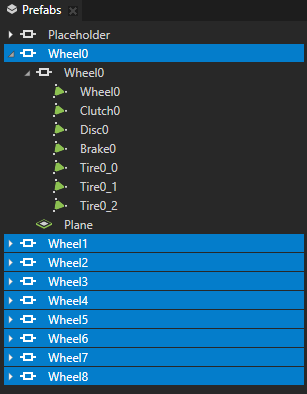
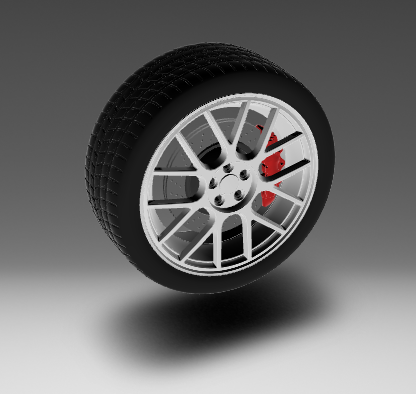
Wheel0 から Wheel8 までのプレハブには、アプリケーションが非同期でロードし、Trajectory List Box 3D ノードに表示する3Dモデルが含まれています。各プレハブは、Trajectory List Box 3D ノードが表示する1つのアイテムを表します。
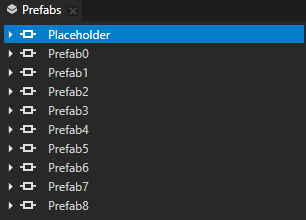
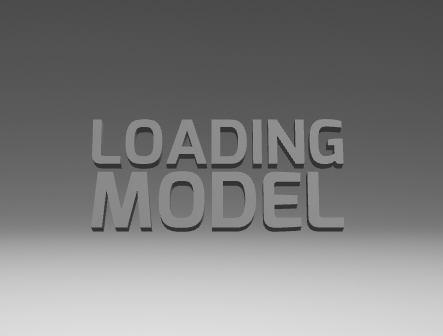
Placeholder プレハブは、アプリケーションがアイテムを非同期でロードしている間に Trajectory List Box 3D ノードが表示するものです。
リストアイテムジェネレータを作成する
このセクションでは、Kanzi Engine APIを使用して、Trajectory List Box 3D ノードにアイテムを提供するリストアイテムジェネレーターを作成します。リストアイテムジェネレーターを使用して、アプリケーションがリストアイテムをどのようにロードし表示するかを定義します。
リストアイテムジェネレータを作成するには、以下のようにします。
Kanzi Studio Quick Start ウィンドウで Projects をクリックし、Tutorials タブを選択します。Loading チュートリアルの横にある Open をクリックし、Start project を選択します。
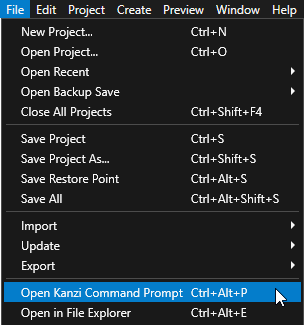
Kanzi Studio で、File > Open Kanzi Command Prompt を選択します。
Kanzi Command Prompt は、Kanzi 環境変数が設定された Windows コマンドプロンプトを開き、Kanzi のバージョンに対して Kanzi Command Prompt を開きます。
Kanzi Command Prompt を使用すると、絶対パスを使用したり環境変数を設定したりせずに、Kanzi のユーティリティや、Gradle、CMake などのビルドツールにアクセスできます。
ヒント
Kanzi Command Prompt は、Rightware ディレクトリの Windows スタートメニューで見つけることができます。
Kanzi のバージョンが複数インストールされている場合は、そのコマンドプロンプトで作業したい Kanzi のバージョンに対応する Kanzi Command Prompt を起動するようにしてください。
<KanziWorkspace>/Tutorials/Loading/Start/Applicationディレクトリ内の Kanzi Command Prompt で、チュートリアルアプリケーション用の Visual Studio ソリューションを生成するスクリプトを実行します。generate_cmake_vs2022_solution.bat
このスクリプトは、
<KanziWorkspace>/Tutorials/Loading/Start/Application/build_vs2022ディレクトリにアプリケーション用の Visual Studio ソリューションを生成します。Visual Studioで、
<KanziWorkspace>/Tutorials/Loading/Start/Application/build_vs<Version>/Loading_start.slnVisual Studioソリューションを開きます。Visual Studioソリューション内で、Loading_start プロジェクトには、このチュートリアルを完了するために必要なテンプレートファイルが含まれています。
custom_item_generator.hppヘッダーファイルでは、リストアイテムジェネレーターのクラスを作成し、そのクラスのコールバック関数を実装します。custom_item_generator.cppファイルでは、custom_item_generator.hppヘッダーファイルで実装する各関数の本体を定義します。Placeholder プレハブを表示しながら、Trajectory List Box 3D をスクロールする際に、Wheel0 から Wheel8 プレハブのリソースを非同期で取得します。loading.cppファイルでは、ここで作成するリストアイテムジェネレーターを使用するように Trajectory List Box 3D ノードを設定します。
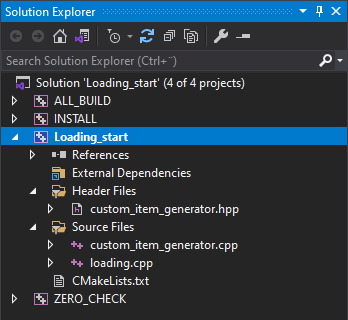
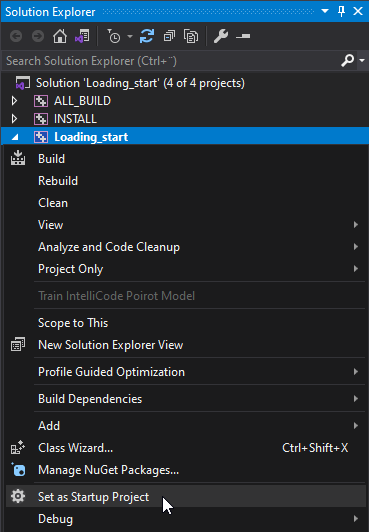
Visual Studioのソリューションエクスプローラーで、Loading_start プロジェクトを右クリックし、Set as Startup Project を選択します。
custom_item_generator.hppヘッダーファイルで、リストアイテムジェネレーターのクラスを作成します。#ifndef CUSTOM_ITEM_GENERATOR_HPP #define CUSTOM_ITEM_GENERATOR_HPP #include <kanzi/kanzi.hpp> using namespace kanzi; // Create a list item generator which you use to asynchronously load the list items for the Trajectory List Box 3D node. class CustomListBoxItemGenerator : public ListBoxItemGenerator3D, public enable_shared_from_this<CustomListBoxItemGenerator> { // Define the struct which holds the information about each list item. struct ItemInfo { // Define the root node of the prefab instance which displays each list item. Node3DSharedPtr m_item; }; // Define the type for the vector which stores both the visible and hidden list items. typedef vector<ItemInfo> ItemInfoVector; }; #endif
CustomListBoxItemGeneratorクラス内で、各リストアイテムの情報を格納するベクターの型を定義した後、リストアイテムジェネレーターの基底クラスが必要とするコールバック関数を実装します。// Create a list item generator which you use to asynchronously load the list items for the Trajectory List Box 3D node. class CustomListBoxItemGenerator : public ListBoxItemGenerator3D, public enable_shared_from_this<CustomListBoxItemGenerator> { ... public: // Constructor for the list item generator. explicit CustomListBoxItemGenerator(Domain* domain); // Implement the callback function which attaches the list item generator to a Trajectory List Box 3D node. void attach(Node3D& node) override; // Implement the callback function which detaches the list item generator from a Trajectory List Box 3D node. void detach(Node3D& node) override; // Implement the callback function which acquires and instantiates the Placeholder prefab. // You show the Placeholder prefab while the application is asynchronously loading the resources for list items. ItemSharedPtr acquireItem(size_t index) override; // Implement the callback function which removes the smart pointer to the item that the Trajectory List Box 3D // returns from the acquireItem() function. In this tutorial you do not define the item management which // releases list items. For example, release list items to unload the resources for items when they // become invisible. void releaseItem(ItemSharedPtr object) override; // Implement the callback function which gets the index of the list item that the Trajectory List Box 3D // node returns from the acquireItem() function. The application uses the index of that list item in // the updateItem() function to replace the Placeholder prefab with the list item. optional<size_t> getItemIndex(ItemSharedPtr object) override; // Implement the callback function which gets the size of a list item to display at the given index. // If you do not set the size of list items, the application uses the size you return from this function. Vector3 getItemSize(size_t index) override; // Implement the callback function which gets the number of items in the list item generator. // If you add or remove an item from the Trajectory List Box 3D node, the application uses the value you return from this function. size_t getCount() override; private: // Implement the callback function that a Trajectory List Box 3D node calls each time // your application finishes loading a prefab. You use this function to replace the // Placeholder prefab with a list item. void updateItem(size_t index, string url); // The Trajectory List Box 3D node to which you attach the list item generator. TrajectoryListBox3D* m_listBox; // The vector which stores both the visible and hidden list items. ItemInfoVector m_items; };
custom_item_generator.cppファイルに、CustomListBoxItemGeneratorクラスのコンストラクタを追加し、ヘッダーファイルで実装したattach()およびdetach()コールバック関数を定義します。CustomListBoxItemGenerator::CustomListBoxItemGenerator(Domain* domain) : ListBoxItemGenerator3D(domain) { } // Define the callback function which attaches the list item generator to a Trajectory List Box 3D node. void CustomListBoxItemGenerator::attach(Node3D& listBox) { // Store a pointer to a Trajectory List Box 3D node. TrajectoryListBox3D* trajectoryListBox = dynamic_cast<TrajectoryListBox3D*>(&listBox); // Check that a Trajectory List Box 3D node exists. if (!trajectoryListBox) { kzThrowException(logic_error("You can attach this item generator only to a Trajectory List Box 3D node.")); } m_listBox = trajectoryListBox; // Set the size of the vector which stores the list items. // You set the size to 9 because there are 9 items in the kzb file of this application. // When the number of list items is dynamic, you can define a data source which // the list item generator uses to provide the list items. When you use a data source // for this purpose, you must synchronize the list item generator with that data source. m_items.resize(9); } // Implement the callback function which detaches the list item generator from a Trajectory List Box 3D node. void CustomListBoxItemGenerator::detach(Node3D&) { // This callback function detaches the list item generator from a Trajectory List Box 3D node. // In this tutorial you do not uninitialize the list item generator. // In your application uninitialize the list item generator when you want to clean up memory. }
custom_item_generator.cppファイル内で、detach()コールバック関数の後に、リストアイテムジェネレーター内のインデックス、サイズ、およびアイテム数を返すコールバック関数を定義します。// Implement the callback function which gets the index of the list item that a Trajectory List Box 3D // node returns from the acquireItem() function. The application uses the index of that list item in // the updateItem() function to replace the Placeholder prefab with the list item. optional<size_t> CustomListBoxItemGenerator::getItemIndex(ItemSharedPtr item) { // Find the index of the next list item. // You get the index by searching the list item container. optional<size_t> itemIndex; for (size_t i = 0; i < m_items.size(); ++i) { ItemInfo& itemInfo = m_items[i]; if (itemInfo.m_item == item) { return i; } } return itemIndex; } // Define the callback function which gets the size of a list item to display at the given index. // If you do not set the size of list items, the application uses the size you return from this function. Vector3 CustomListBoxItemGenerator::getItemSize(size_t /*index*/) { // Set the item size to 0. // In Kanzi Studio in the Trajectory List Box 3D node you set the properties that set the size of items // in the Trajectory List Box 3D node. return Vector3(); } // Define the callback function which gets the number of items in the list item generator. // If you add or remove an item from the Trajectory List Box 3D node, the application uses the value you return from this function. size_t CustomListBoxItemGenerator::getCount() { // Get the number of both visible and hidden list items. return m_items.size(); }
loading.cppファイルで、custom_item_generator.hppヘッダーファイルをインクルードして、そのファイルで実装した関数にアクセスします。#include <kanzi/kanzi.hpp> #include "custom_item_generator.hpp"
loading.cppファイルで、作成したリストアイテムジェネレーターの初期化をLoadingアプリケーションクラスに追加してください。class Loading : public ExampleApplication { ... void onProjectLoaded() override { // Get the Screen node. ScreenSharedPtr screen = getScreen(); // Get the Trajectory List Box 3D node. // The application kzb file contains an alias you use to get the Trajectory List Box 3D node. TrajectoryListBox3DSharedPtr listBox = screen->lookupNode<TrajectoryListBox3D>("#Trajectory List Box 3D"); // Initialize the list item generator and set the Trajectory List Box 3D node to use the functionality // you implement in that list item generator. shared_ptr<CustomListBoxItemGenerator> itemGenerator(new CustomListBoxItemGenerator(getDomain())); listBox->setItemGenerator(itemGenerator); } private: // Create a pointer for the Trajectory List Box 3D node. TrajectoryListBox3DSharedPtr m_listBox; };
リストアイテムを非同期的にロードする
このセクションでは、ユーザーが Trajectory List Box 3D ノードをスクロールする際に、表示される各アイテムのリソースを非同期でロードする方法を学びます。アプリケーションがそのアイテムのリソースをロードするまで、プレースホルダーアイテムを表示するように設定します。
リストアイテムを非同期でロードするには、以下のようにします。
custom_item_generator.cppファイル内で、detach()コールバック関数の後に、acquireItem()関数を定義します。// Define the callback function which acquires and displays the Placeholder prefab for each list item // until the application loads the resources for that item. // The function asynchronously acquires the resources for each list item from a prefab and // calls the updateItem() function to tell the Trajectory List Box 3D node when an item changes. CustomListBoxItemGenerator::ItemSharedPtr CustomListBoxItemGenerator::acquireItem(size_t index) { // If an item already exists, return that item. if (m_items[index].m_item) { return m_items[index].m_item; } // Acquire and instantiate the Placeholder prefab you use as the placeholder for list items that are loading. PrefabTemplateSharedPtr itemPrefabTemplate = m_listBox->acquireResource<PrefabTemplate>(ResourceID("kzb://loading/Prefabs/Placeholder")); Node3DSharedPtr item = itemPrefabTemplate->instantiate<Node3D>("Placeholder"); // Save the Placeholder as the current item in the item container. // You replace the placeholder with the item when application loads that item. m_items[index].m_item = item; // Create the kzb URL for each list item from kzb path and item index. string url = string("kzb://loading/Prefabs/Wheel") + to_string(index); // Acquire the prefab for the list item. PrefabTemplateSharedPtr prefab = m_listBox->acquireResource<PrefabTemplate>(ResourceID(url)); // Start asynchronously loading resources for a prefab. ResourceManager::UrlContainer urls; collectResourceUrls(*prefab, urls); m_listBox->getResourceManager()->acquireResourcesAsync(urls, bind(&CustomListBoxItemGenerator::updateItem, this, index, url)); return item; } // Implement the callback function which removes the smart pointer to the item that the Trajectory List Box 3D // returns from the acquireItem() function. // In this tutorial you do not define item management where you release the list item. void CustomListBoxItemGenerator::releaseItem(ItemSharedPtr item) { // In this tutorial the list item generator does not implement any caching or complex item management. // You leave this function empty because the shared_ptr destructor releases the list item. // For example, you can release the list item to unload the resources for that item each time that item becomes invisible. }
custom_item_generator.cppファイルで、updateItem()関数を定義し、Placeholder プレハブをリストアイテムに置き換え、acquireItem()関数を呼び出すたびに List Box にアイテムが変更されたことを通知します。// Define the callback function that a Trajectory List Box 3D node calls each time // the application finishes loading the resources for a prefab. // You use this function to replace the Placeholder prefab with a list item. void CustomListBoxItemGenerator::updateItem(size_t index, string url) { // Get the prefab that finishes loading and replace the Placeholder with the next item. PrefabTemplateSharedPtr prefab = m_listBox->acquireResource<PrefabTemplate>(ResourceID(url)); Node3DSharedPtr item = prefab->instantiate<Node3D>("item"); m_items[index].m_item = item; // Notify the Trajectory List Box 3D node that the list item changed. // The Trajectory List Box 3D calls the acquireItem() function which returns the next item. m_listBox->notifyItemReplaced(index); }
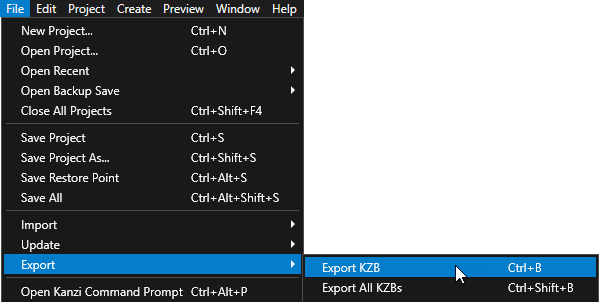
Kanzi Studio で、File > Export > Export KZB を選択します。
Kanzi Studio は、Kanzi Studio プロジェクトから kzb ファイルと構成ファイルを作成します。Kanzi Studio は、エクスポートされたファイルを
<ProjectName>/Application/binディレクトリ、または Project > Properties の Binary Export Directory プロパティで設定した場所に保存します。kzb ファイルには、ローカライゼーションテーブルでロケールパックとしてマークしたリソースを除き、Kanzi Studio プロジェクトのすべてのノードとリソースが含まれています。Visual Studioから Kanzi アプリケーションを実行すると、アプリケーションはkzbファイルと構成ファイルを読み込みます。
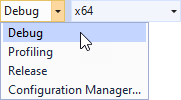
使用したいソリューション構成を選択し、アプリケーションを実行します。
開発中は、Debug 構成を選択します。製品版を作成する準備ができたら、Release 構成を選択します。
アプリケーションを実行して Trajectory List Box 3D をスクロールすると、アプリケーションは各リストアイテムのリソースを非同期で読み込む間、Placeholder プレハブを表示します。
次の作業
このチュートリアルでは、ユーザーがその List Box をスクロールしたときに List Box ノードに表示したいリソースを非同期でロードする方法を学びました。これで、あなたは次のことができます:
List Box ノードを使用して、データソースからデータを受け取る連絡先リストを作成する方法を学びます。チュートリアル: Grid List Box を使用して連絡先リストを作成する を参照してください。
Kanzi でデータソースを定義し、データソースから Kanzi アプリケーションのデータを取得する方法を学びます。チュートリアル: データソースからアプリケーションデータを取得する を参照してください。