ステップ3 - エクスポートしてAPIを使用し、アプリケーションのテーマを設定する
このチュートリアルのこのステップでは、ベイクされたテーマ(Car variant テーマグループで定義)と非ベイクされたテーマ(Cluster theme テーマグループで定義)の両方のkzbファイルをエクスポートし、Kanzi Engine APIを使用して、アプリケーション内でユーザーが非ベイクされたテーマを変更できるようにします。
kzbファイルをエクスポート (Export kzb files)
このセクションでは、まず Kanzi Studio プロジェクトでプロジェクト内のテーマをどのようにエクスポートするかを設定し、その後テーマをエクスポートします。
このセクションでは、Cluster theme テーマグループで定義したテーマを、Car variant テーマグループで定義したテーマと共にテーマパックとしてエクスポートする方法を示します。
Theme リソースパックは、選択された Theme のリソースのみを含む kzb ファイルです。
ターゲットデバイスのストレージまたはメモリが制限されているが、追加のkzbファイルをロードせずに実行時にアプリケーションのテーマを変更したい場合は、このアプローチを使用します。
例えば、このアプローチを使用すると、1つの Kanzi Studio プロジェクトから2つの車のバリアント(Gasoline と Hybrid)用のアプリケーションを作成でき、それぞれに2つのテーマ(Classic と Modern)があり、アプリケーション内で切り替えることができます。
これは、プロジェクトからテーマをエクスポートする方法の一つのアプローチに過ぎません。あなたの製品とターゲットハードウェアに最も適したアプローチを見つけるには、Themes のエクスポート を参照してください。
kzbファイルをエクスポートするには:
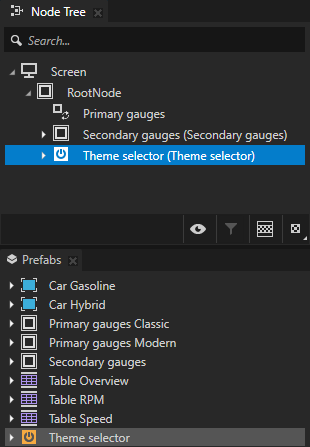
Prefabs から Theme selector プレハブを Node Tree にドラッグし、RootNode ノードにドロップします。
次のセクションでは、Kanzi Engine APIを使用して、ユーザーがアプリケーションのテーマを変更できるボタンを作成します。
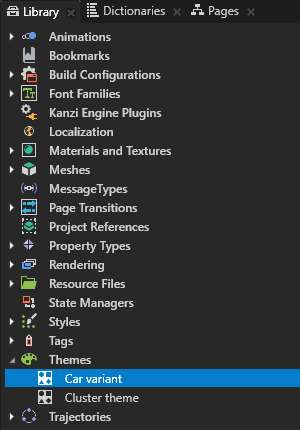
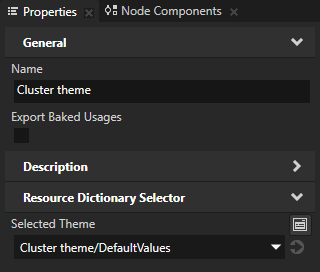
Library > Themes で Car variant テーマグループを選択し、Properties で設定します:
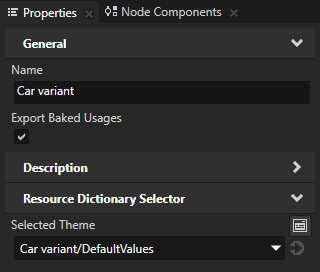
Export Baked Usages を有効にします。
Export Baked Usages プロパティを有効にすると、このテーマグループ内のテーマからリソースをベイクすることができます。
Selected Theme から Car variant/DefaultValues へ。この設定で kzb ファイルをエクスポートすると、Kanzi Studio はそのテーマグループのデフォルト値に設定されたリソースをメインの kzb ファイルで使用するように設定します。
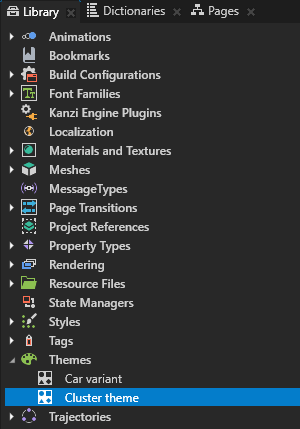
Library > Themes で、Cluster theme テーマグループを選択し、Properties で Selected Theme プロパティを Cluster theme/DefaultValues に設定します。
Library > Themes で、Cluster theme テーマグループをダブルクリックして Theme Editor で開き、Classic と Modern テーマの横にある
 をクリックします。
この方法で、テーマリソースをエクスポートするためにテーマをマークします。
Theme リソースのエクスポートを有効にすると、Theme 列の
アイコンが青色に変わり、 と Kanzi Studio がその Theme で使用されているリソースをエクスポートします。
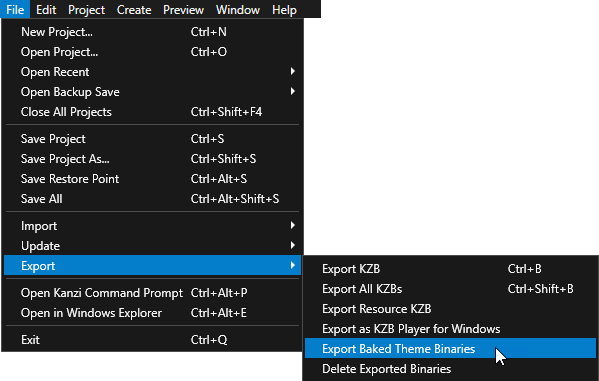
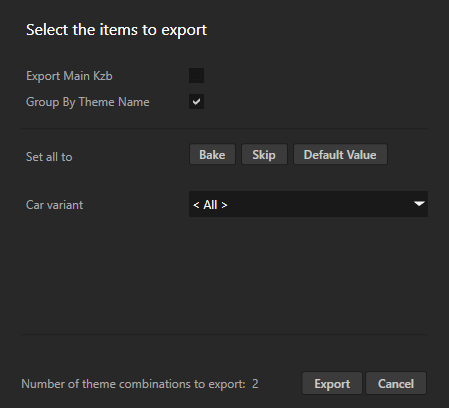
File > Export > Export Baked Theme Binaries を選択し、Themes and Locales to Bake on Export ウィンドウで Export Main Kzb 設定を無効にします。
Themes and Locales to Bake on Export ウィンドウでは、Car variant テーマグループ内のどのベイクされたテーマをエクスポートするかを選択できます。
Export をクリックします。
Kanzi Studio が作成します。
Car variant テーマグループの各テーマに対して1つのkzbファイルを作成し、kzbファイルを
<KanziWorkspace>/Tutorials/Theming/Start/Application/bin/<ThemeGroupName>=<BakedThemeName>ディレクトリにエクスポートします。このkzbファイルには、アプリケーションノードツリーと、複数のテーマで使用されるすべてのリソース(共通リソース)が含まれています。
Cluster theme テーマグループの各テーマに対して1つのkzbファイルを作成し、各
<KanziWorkspace>/Tutorials/Theming/Start/Application/bin/<ThemeGroupName>=<BakedThemeName>ディレクトリ内のTheme_packsディレクトリにファイルを保存します。Kanzi Studio は、テーマパックkzbファイルの名前にテーマ名を使用します。これらの各kzbファイルには、そのテーマで使用されるリソースのみが含まれており、共通のリソース(Car variant kzbファイルに保存されているもの)は含まれていません。
テキストエディタで:
Application/bin/Car variant=Gasoline/theming.kzb.cfgを開いて、変更します。theming.kzb
終点
Car variant=Gasoline/theming.kzb
Application/bin/Car variant=Hybrid/theming.kzb.cfgを開いて、変更します。theming.kzb
終点
Car variant=Hybrid/theming.kzb
クラスターのテーマを変更するコードを追加する
このセクションでは、Classic テーマでアプリケーションを開始するためのアプリケーションコードを追加し、Cluster theme テーマグループで作成した2つのテーマを切り替えるために、Theme selector Button 2D ノードに追加するメッセージハンドラを作成します。
クラスターのテーマを変更するコードを追加するには:
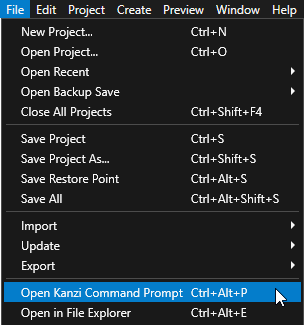
Kanzi Studio で、File > Open Kanzi Command Prompt を選択します。
Kanzi Command Prompt は、Kanzi 環境変数が設定された Windows コマンドプロンプトを開き、Kanzi のバージョンに対して Kanzi Command Prompt を開きます。
Kanzi Command Prompt を使用すると、絶対パスを使用したり環境変数を設定したりせずに、Kanzi のユーティリティや、Gradle、CMake などのビルドツールにアクセスできます。
ヒント
Kanzi Command Prompt は、Rightware ディレクトリの Windows スタートメニューで見つけることができます。
Kanzi のバージョンが複数インストールされている場合は、そのコマンドプロンプトで作業したい Kanzi のバージョンに対応する Kanzi Command Prompt を起動するようにしてください。
<KanziWorkspace>/Tutorials/Theming/Start/Applicationディレクトリ内の Kanzi Command Prompt で、チュートリアルアプリケーション用の Visual Studio ソリューションを生成するスクリプトを実行します。generate_cmake_vs2022_solution.bat
このスクリプトは、
<KanziWorkspace>/Tutorials/Theming/Start/Application/build_vs2022ディレクトリにアプリケーション用の Visual Studio ソリューションを生成します。Visual Studioで
<KanziWorkspace>/Tutorials/Theming/Start/Application/build_vs<Version>/Theming_start.slnVisual Studioソリューションを開きます。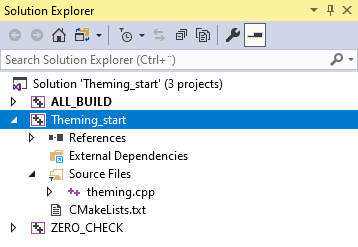
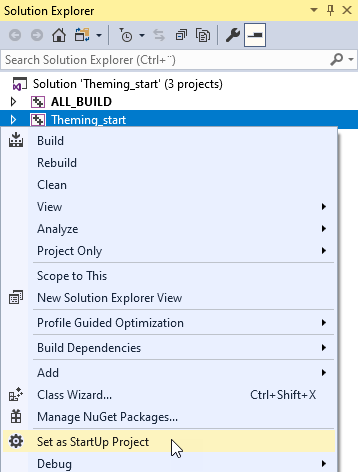
Visual Studioのソリューションエクスプローラーで、Theming_start プロジェクトを右クリックし、Set as StartUp Project を選択します。
Themingクラスのtheming.cppファイルに以下を作成します。テーマ名とkzbファイルのURLを定義する構造体、およびアプリケーションテーマの名前とkzbファイルのURLを格納するために使用するベクター。
現在アクティブなテーマを追跡するために使用する変数。
アプリケーションの起動時にロードしたいベイクされたテーマを設定するために使用する定数文字列。
class Theming : public ExampleApplication
{
    // Structure describing a theme.
    struct ThemeDescriptor
    {
        explicit ThemeDescriptor(const string& name, const string& url):
            m_name(name),
            m_url(url)
        {
        }

        // The name of the theme.
        string m_name;
        // The kzb file URL of the theme.
        string m_url;
    };

    // Collection of all theme descriptions.
    vector<ThemeDescriptor> m_themes;

    // The index of the currently active theme.
    int m_activeThemeIndex;

    // The name of the baked theme to load.
    static const string m_carVariant;

...

}
Themingクラスの後、前のステップで作成したm_carVariant変数を使用して、アプリケーションの起動時にロードしたい車のバリアントを設定します。// Select which baked theme to use. // To start the application for the Hybrid car variant, set to 0. // To start the application for the Gasoline car variant, set to 1. #if 1 const string Theming::m_carVariant = "Gasoline"; #else const string Theming::m_carVariant = "Hybrid"; #endif
Application::onConfigure関数では、Kanzi Studio が kzb ファイルをエクスポートする際に作成する .kzb.cfg ファイルを使用して、前のステップで設定できるベイクされたテーマでアプリケーションをロードします。void onConfigure(ApplicationProperties& configuration) override { configuration.binaryName = "./Car variant=" + m_carVariant + "/theming.kzb.cfg"; configuration.defaultWindowProperties.width = 1920; configuration.defaultWindowProperties.height = 720; }
Application::onProjectLoaded関数内でvoid onProjectLoaded() override { // Add names and URLs for all themes. m_themes.push_back(ThemeDescriptor("Classic", "kzb://theming/Themes/Cluster theme/Classic")); m_themes.push_back(ThemeDescriptor("Modern", "kzb://theming/Themes/Cluster theme/Modern")); // Load metadata from all kzb files which contain theme resources. ResourceManager* resourceManager = getResourceManager(); resourceManager->addKzbFile("./Car variant=" + m_carVariant + "/Theme_packs/Cluster theme=Classic.kzb"); resourceManager->addKzbFile("./Car variant=" + m_carVariant + "/Theme_packs/Cluster theme=Modern.kzb"); // Activate the first theme at application startup. m_activeThemeIndex = -1; changeToNextTheme(); }
Application::onProjectLoaded関数の後に、アプリケーション内で次のテーマをアクティブにするために使用する関数を作成します。// Activates the next theme. void changeToNextTheme() { // Get the Text Block 2D node in the Theme selector Button 2D node so that you can change the text to show the name of the next theme. Button2DSharedPtr themeSelectorButton = getRoot()->lookupNode<Button2D>("Theme selector"); TextBlock2DSharedPtr selectorThemeTextBlock = themeSelectorButton->lookupNode<TextBlock2D>("#Next theme name"); // Get the descriptors for the next theme and the theme following the next theme. const int nextThemeIndex = (m_activeThemeIndex + 1) % m_themes.size(); const int followingThemeIndex = (m_activeThemeIndex + 2) % m_themes.size(); const ThemeDescriptor& nextTheme = m_themes.at(nextThemeIndex); const ThemeDescriptor& followingTheme = m_themes.at(followingThemeIndex); // Set the name of the following theme. selectorThemeTextBlock->setText(followingTheme.m_name); // Set the application theme to the next theme. getScreen()->activateTheme(nextTheme.m_url); m_activeThemeIndex = nextThemeIndex; }
Themingクラス内で、Application::onProjectLoaded関数の後にonChangeThemeButtonClickedイベントハンドラを作成し、アプリケーション内でユーザーが Theme selector ボタンをクリックしたときにアプリケーションがどのように反応するかを定義します。// This message handler defines how the application reacts when the user clicks the Theme selector button in the application. void onChangeThemeButtonClicked(ButtonConcept::ClickedMessageArguments& /* messageArguments */) { changeToNextTheme(); }
Application::onProjectLoaded関数内でテーマ kzb ファイルからメタデータを読み込んだ後、前のステップで作成したメッセージハンドラを Theme selector ノードに追加します。void onProjectLoaded() override { ... // Register the message handler for the Button: Click message used by the Theme selector node. Button2DSharedPtr themeSelectorButton = getRoot()->lookupNode<Button2D>("Theme selector"); themeSelectorButton->addMessageHandler(ButtonConcept::ClickedMessage, bind(&Theming::onChangeThemeButtonClicked, this, placeholders::_1)); ... }
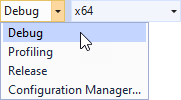
使用したいソリューション構成を選択し、アプリケーションを実行します。
開発中は、Debug 構成を選択します。製品版を作成する準備ができたら、Release 構成を選択します。
アプリケーションで Theme selector ボタンをクリックすると、Cluster theme テーマグループで定義した Classic と Modern のクラスターのテーマを切り替えます。
次の作業
このチュートリアルでは、Kanzi アプリケーションのテーマを設定して、同じアプリケーションの異なる外観を作成する方法と、単一の Kanzi Studio プロジェクトを使用して製品の複数のバリアントを作成する方法を学びました。このチュートリアルをさらに進めるために、追加のクラスターのテーマや車のバリアントのアセットを作成することができます。また、次のこともできます。
Kanzi アプリケーションのテーマ作成に関するすべての詳細を確認してください。アプリケーションのテーマ設定 を参照してください。
Kanzi Data Sources を使用して、ユーザーインターフェースをアプリケーションデータから分離する方法を学びます。チュートリアル: データソースからアプリケーションデータを取得する を参照してください。
アプリケーションをローカライズする方法を学びます。チュートリアル: アプリケーションをローカライズする を参照してください。
関連項目
Kanzi アプリケーションのテーマの作成方法について詳しくは、アプリケーションのテーマ設定 を参照してください。
Kanzi Studio プロジェクトからテーマをエクスポートするためのさまざまなオプションについて詳しく学ぶには、Themes のエクスポート を参照してください。
スタイルの作成と使用方法について学ぶには、スタイルを使用する を参照してください。
Kanzi アプリケーションでステートマネージャーを使用する方法について詳しくは、ステートマネージャー (State Managers) を使用する場合 を参照してください。
Prefab Placeholder ノードと Prefab View ノードについて、またそれらの使用方法について詳しくは、ノードプレハブの使用 を参照してください。