チュートリアル: C++コードビハインドでアクティビティをプログラムする
このチュートリアルでは、Code Behind ワークフローを使用してアクティビティをプログラムする方法を学びます。Code Behind は、タイプではなく Activity ノードのインスタンスにコードを関連付けるワークフローです。
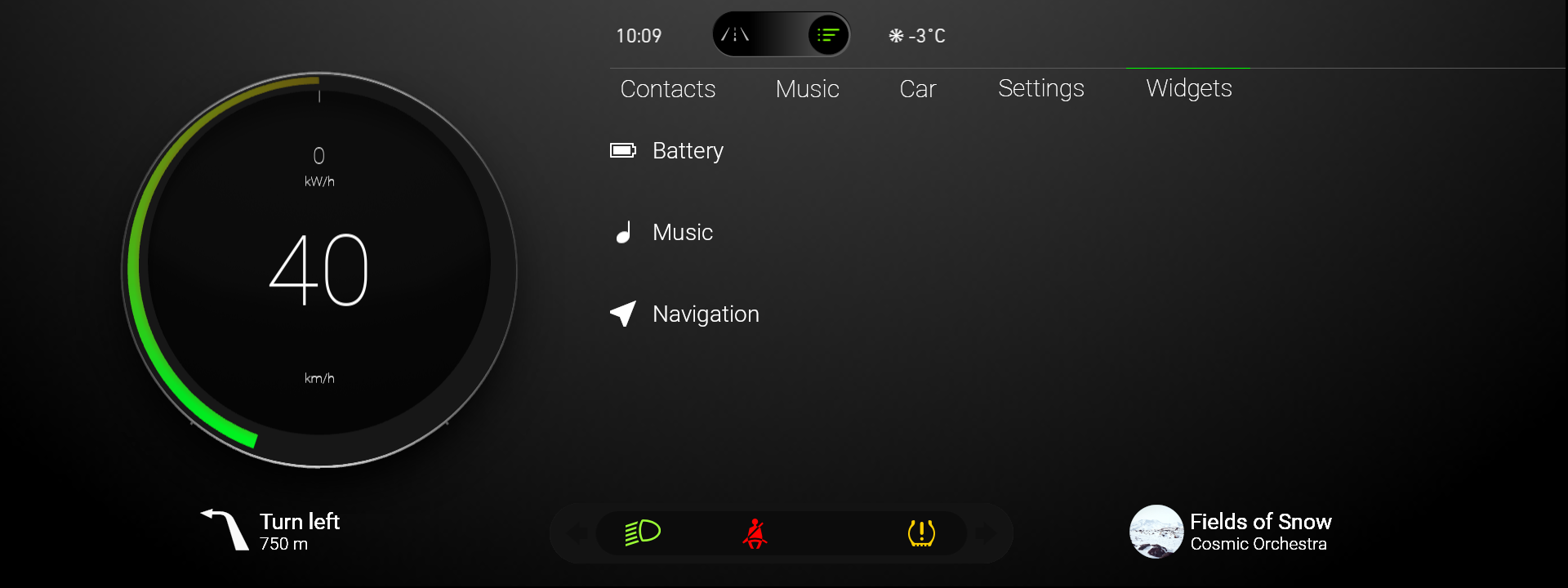
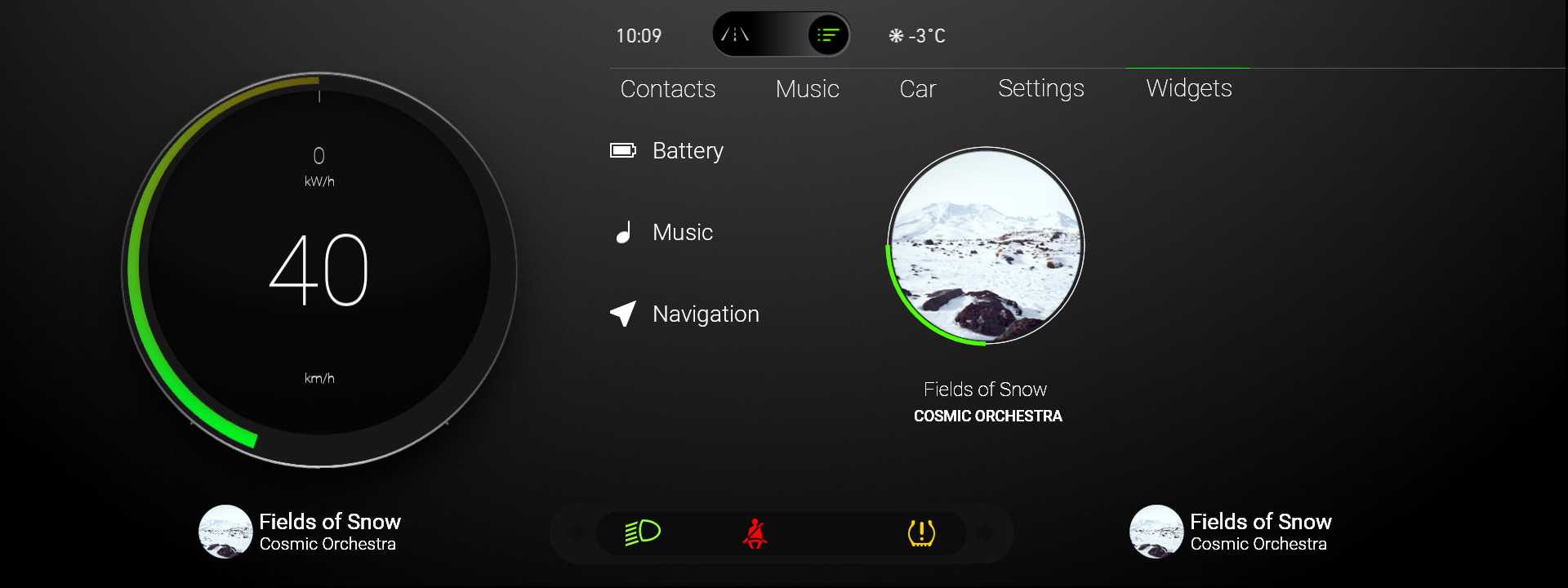
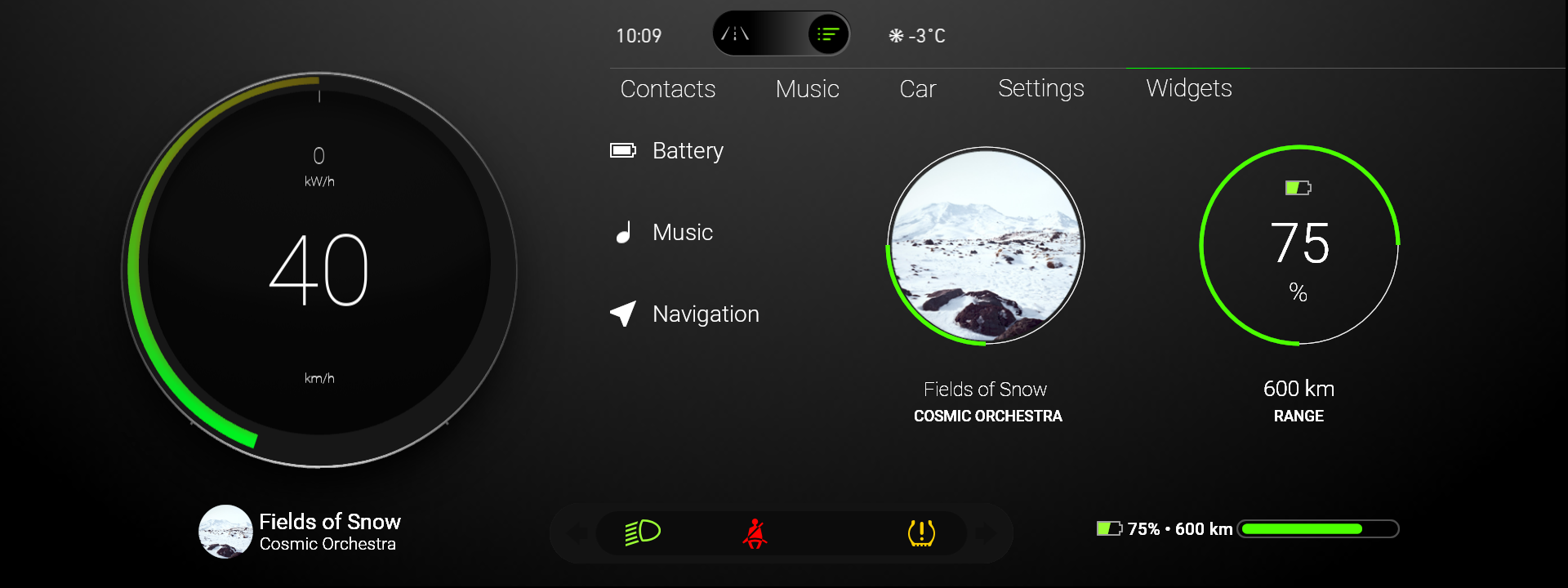
このチュートリアルでは、C++ Code Behind を使用して、ユーザーがウィジェットのリストからウィジェットをドラッグアンドドロップすることで、使用したいウィジェットを選択できるようにします。
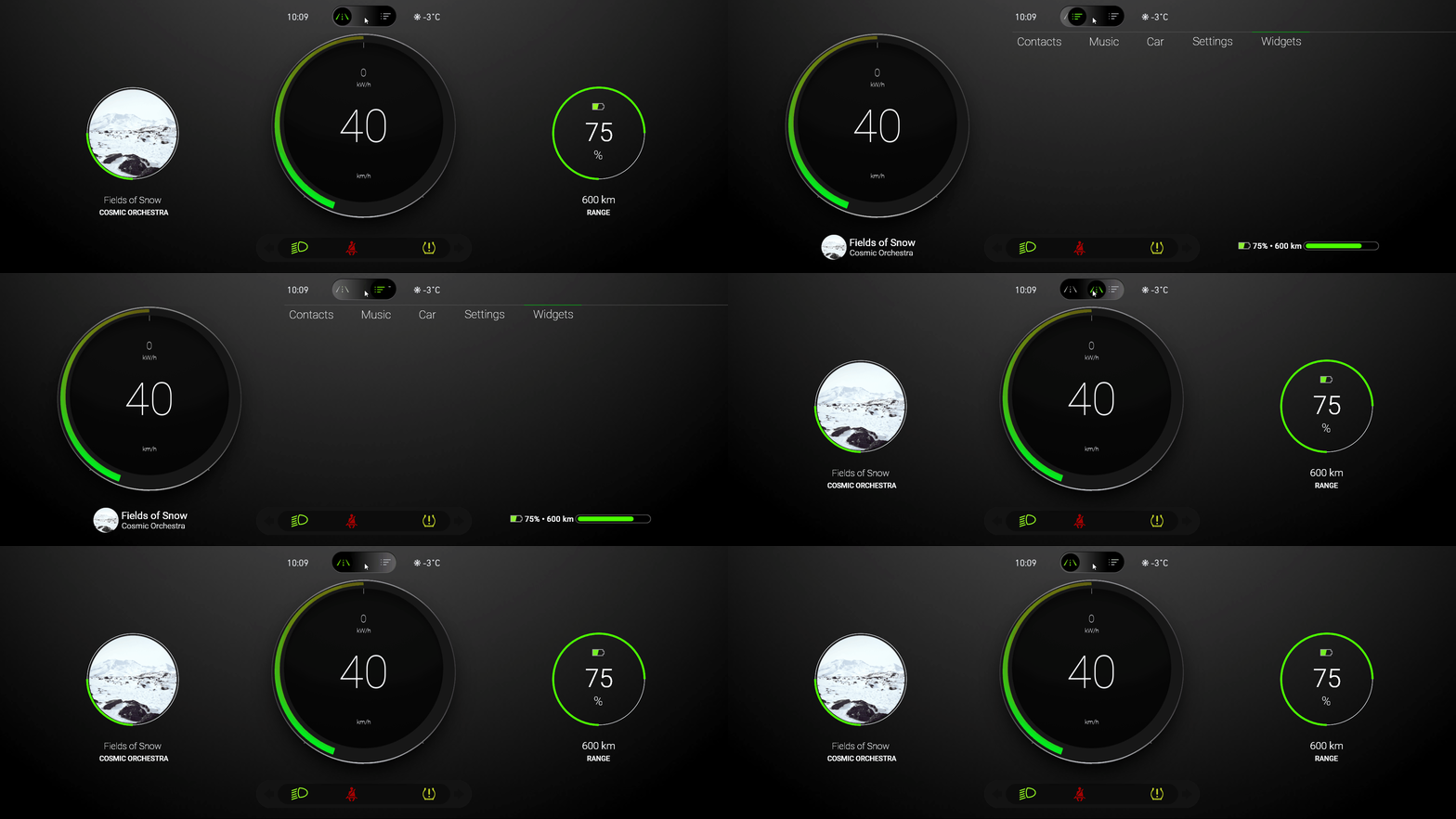
このビデオはチュートリアルの結果を示しています。
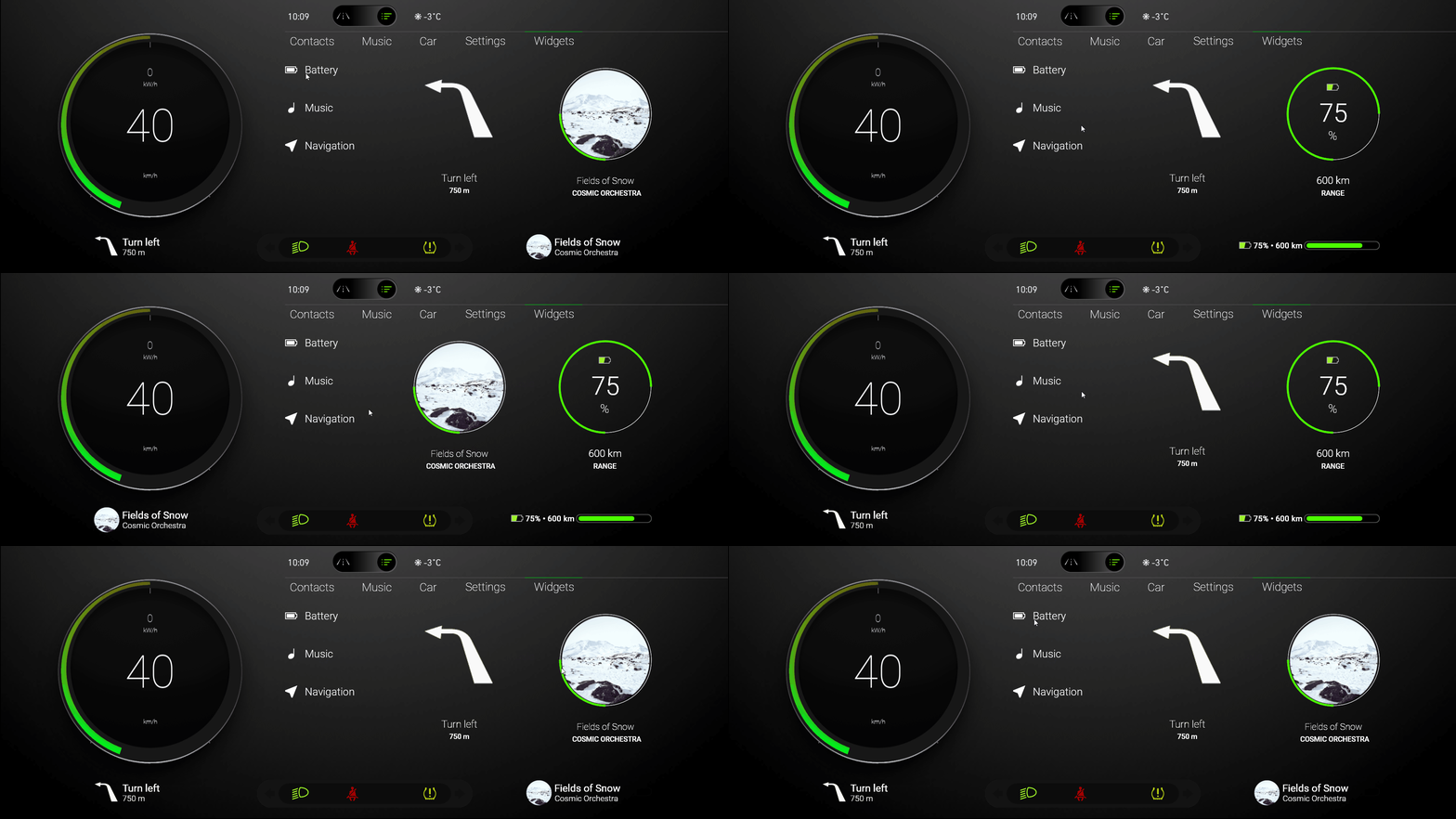
このチュートリアルを始める前に、Kanzi 開発環境が設定されていることを確認してください。Kanzi Engine API を使用してアプリケーションロジックを開発するには、以下が必要です。
CMake 3.25 以降
最新の更新プログラムが適用された Visual Studio 2022
このチュートリアルは、Kanzi アクティビティシステムを使用する基本を理解していることを前提としています。そのための最適なエントリーポイントは、次のチュートリアルです。
チュートリアルを入手する
チュートリアルを入手するには、Kanzi Studio Quick Start ウィンドウで Projects をクリックし、Tutorials タブを選択します。Program Activities チュートリアルの横にある  をクリックします。
Kanzi Studio はチュートリアルを <KanziWorkspace>/Tutorials ディレクトリにダウンロードします。以下が含まれています。
<KanziWorkspace>/Tutorials/Program Activities/Start/Tool_projectディレクトリにあるチュートリアルの開始地点のプロジェクト。このプロジェクトの内容と、このようなプロジェクトの作成方法については、チュートリアル: アプリケーションUIを制御する を参照してください。
<KanziWorkspace>/Tutorials/Program Activities/Completedディレクトリにある完成したチュートリアル。
開始プロジェクトの内容
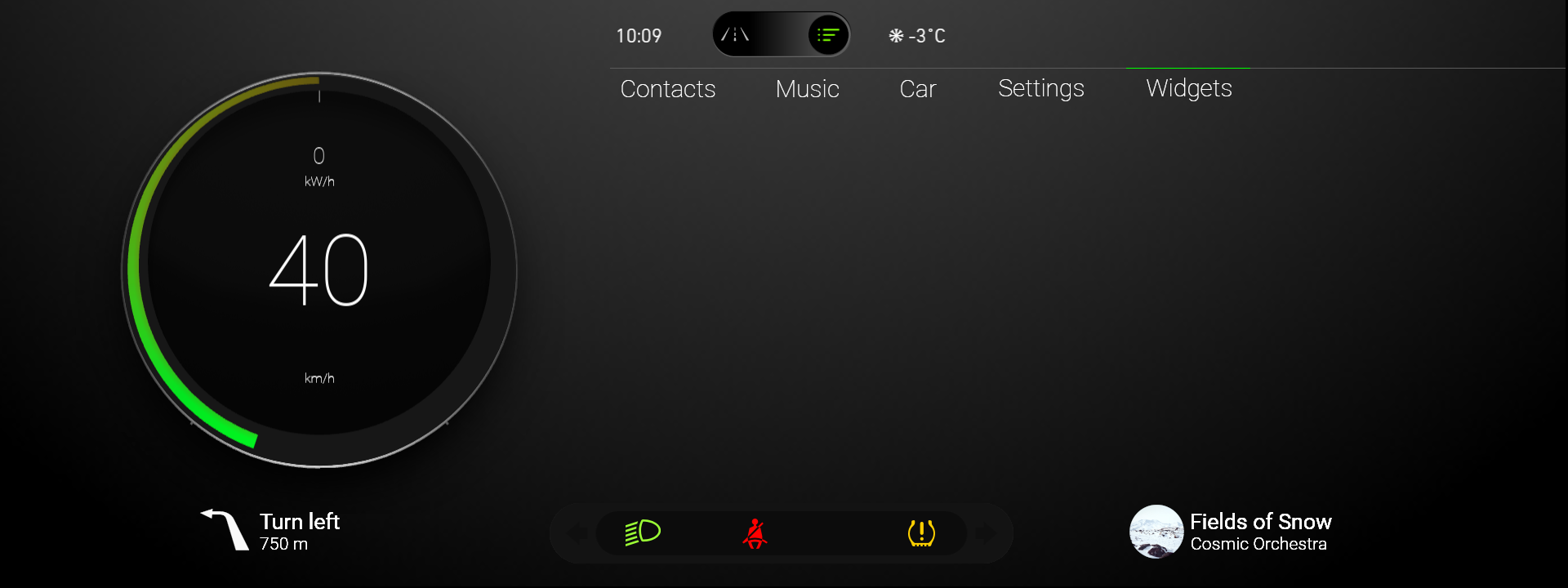
スタートポイントとなるプロジェクトには、このチュートリアルを完了するのに必要なコンテンツが含まれています。
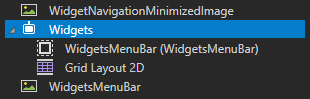
Widgets アクティビティプレハブには、アプリケーション内のウィジェットパネルのモックアップが含まれています。このアクティビティでは、C++ コードビハインドを使用してドラッグアンドドロップ機能を作成します。アクティビティは、コンテンツをレイアウトするために Grid Layout 2D を使用します。
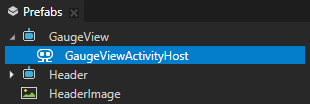
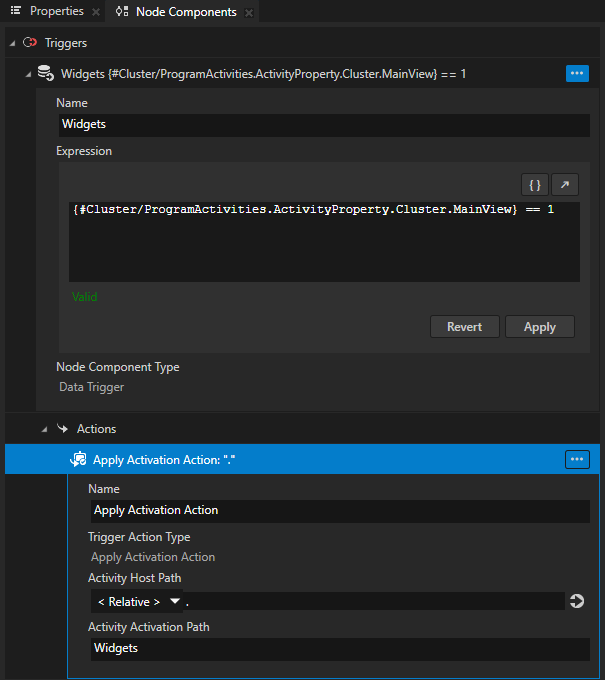
GaugeView > GaugeViewActivityHost には、Cluster アクティビティホストが Browse モードにあるときに Widgets アクティビティをアクティブに保つ適用アクティベーションアクションを含むデータトリガーがあります。
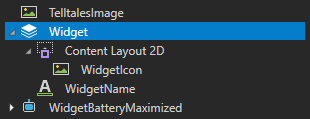
Widgets アクティビティ内のウィジェットリストの各ウィジェットのテンプレートとして使用する Widget プレハブ。WidgetIcon のウィジェット画像と WidgetName のウィジェット名は、Widgets データソースで設定されます。
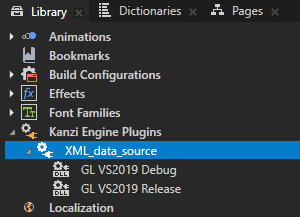
XML_data_source は、Kanzi アプリケーションのデータソースとしてXMLを使用するための限定的なサポートを提供する Kanzi Engine プラグインです。
この Kanzi Engine データソースプラグインを使用して、XMLデータソースからデータを取得し、それを使用してウィジェットのリストを表示します。
このプラグインと独自のデータソースの定義方法について詳しくは、チュートリアル: データソースからアプリケーションデータを取得する を参照してください。
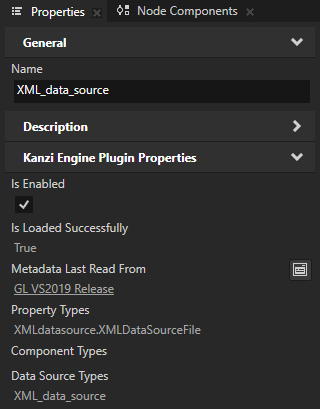
Widgets データソースは、各ウィジェットを説明するために
Application/bin/Widgets.xmlを使用します。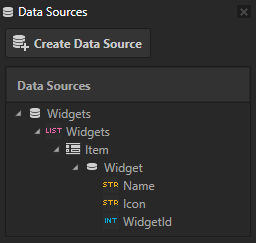
<Widgets type="list">
    <items>
        <Widget>
            <Name type="string">Battery</Name>
            <Icon type="string">file://./WidgetIconBattery.png</Icon>
            <WidgetId type="int">0</WidgetId>
        </Widget>
        <Widget>
            <Name type="string">Music</Name>
            <Icon type="string">file://./WidgetIconMusic.png</Icon>
            <WidgetId type="int">1</WidgetId>
        </Widget>
        <Widget>
            <Name type="string">Navigation</Name>
            <Icon type="string">file://./WidgetIconNavigation.png</Icon>
            <WidgetId type="int">2</WidgetId>
        </Widget>
    </items>
</Widgets>
Application/bin/WidgetIcon<WidgetName>.pngは、Widgets アクティビティのリスト内の各ウィジェットを表すために使用するアイコンです。これらの画像は、アプリケーションコードからアクセスできるようにApplication/binディレクトリにあります。Application/bin/Widgets.xmlでは、Icon要素がこれらの画像へのパスを含んでいるため、アプリケーションで使用できます。
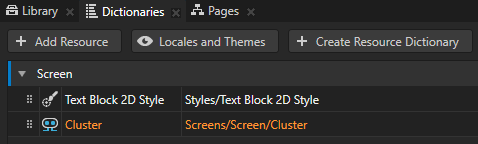
Screen ノードのリソースディクショナリには、Cluster パラレルアクティビティホストを指すエイリアスが含まれています。このエイリアスを使用して、C++ コードビハインドアプリケーションコードからそのアクティビティホストにアクセスします。
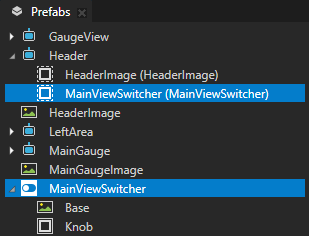
Header アクティビティには、Drive と Browse のアプリケーションモードを切り替えることができる Toggle Button ノードが含まれています。
ウィジェット選択エリアのコンテンツを作成する
このセクションでは、アプリケーション内のウィジェット選択エリアのコンテンツとアクティビティシステム構造を作成します。
ウィジェット選択エリアのコンテンツを作成するには:
Kanzi Studio Quick Start ウィンドウで Projects をクリックし、Tutorials タブを選択します。Program Activities チュートリアルの横にある Open をクリックし、Start project を選択します。
Activity Browser で、Cluster を選択し、サイドパネルで MainView プロパティを Browse に設定します。
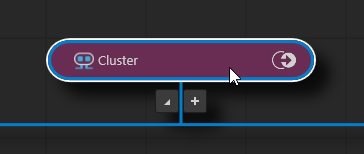
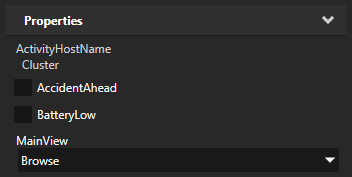
GaugeView > GaugeViewActivityHost にはデータトリガーがあり、MainView コントローラープロパティの値が Browse に設定されると、その子アクティビティ Widgets がアクティブになります。
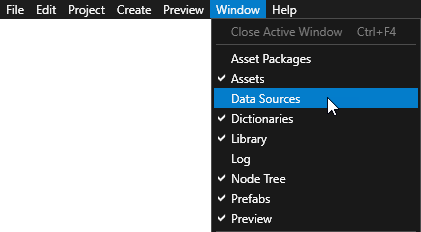
Window メインメニューで、Data Sources を選択します。
Data Sources ウィンドウを使用して、プロジェクト内のデータソースを作成、設定、削除し、データソースからデータオブジェクトをプロジェクト内のノードやリソースに接続します。
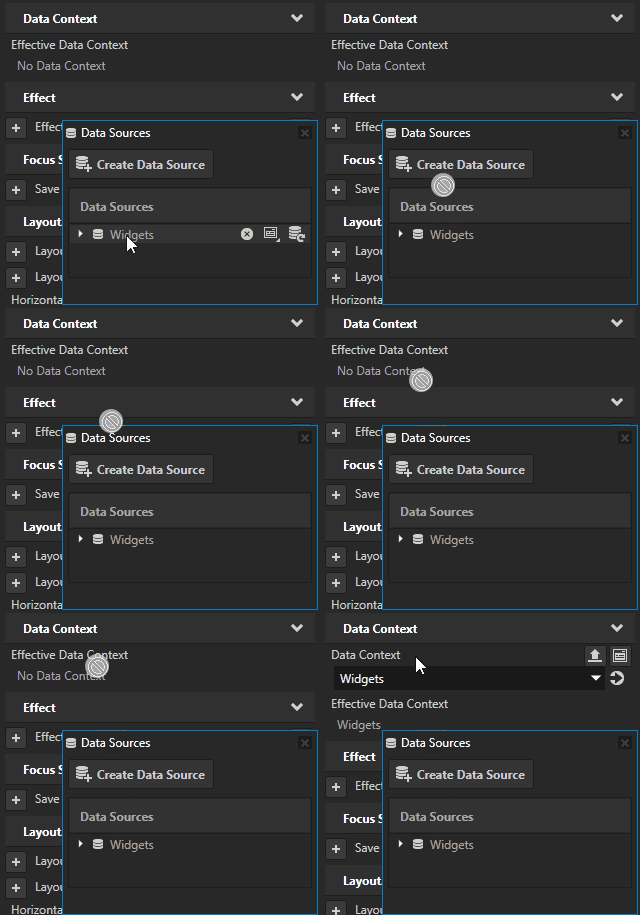
Prefabs で、Widgets を選択します。Data Sources から、Widgets データソースを Properties にドラッグし、Effective Data Context プロパティにドロップします。
この方法で、ウィジェットのコンテンツを定義するデータソースを設定します。
Widgets > Grid Layout 2D の Prefabs で、Grid List Box 2D ノードを作成し、WidgetsList と名付けます。
このグリッドリストボックスを使用して、Widgets アクティビティに利用可能なウィジェットのリストを表示します。ウィジェットのリストは、
Widgets.xmlで定義されたウィジェットデータソースから取得されます。チュートリアルの次のセクションでは、Widgets アクティビティに C++ コードビハインド機能を追加する際に、ユーザーがこのリストからウィジェットをドラッグして、左または右のエリアウィジェットにドロップできるようにします。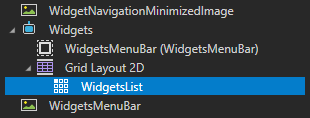
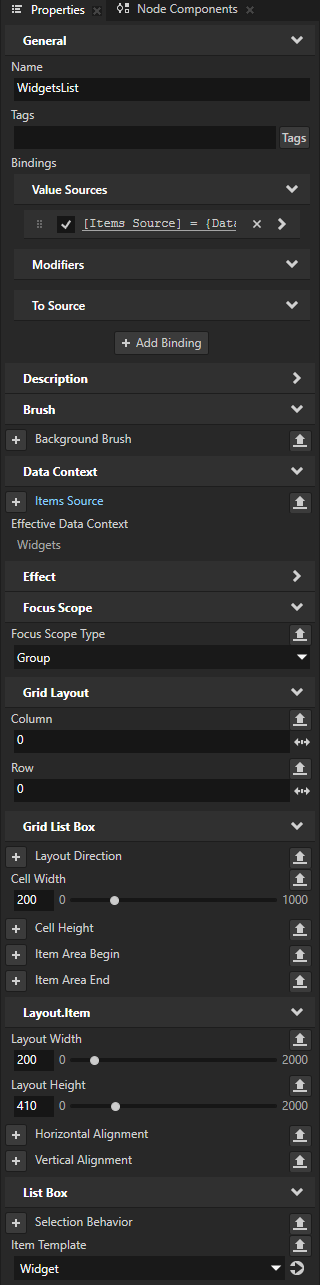
Prefabs で、WidgetsList ノードを選択します。Properties で、追加して設定します。
Grid Layout > Column を 0 に
Grid Layout > Row を 0 に
Cell Width を200に
Layout Width を200に
Layout Height を 410 に
Item Template から Widget へ
Item Template プロパティを使用して、Grid List Box ノードがリスト内のアイテムに使用するプレハブテンプレートを設定します。
Data Sources から、Widgets > Widgets リストデータオブジェクトを Items Source プロパティにドラッグします。
この方法で、Grid List Box 2D を設定して、
Application/bin/Widgets.xmlファイルで定義されているウィジェットをリストします。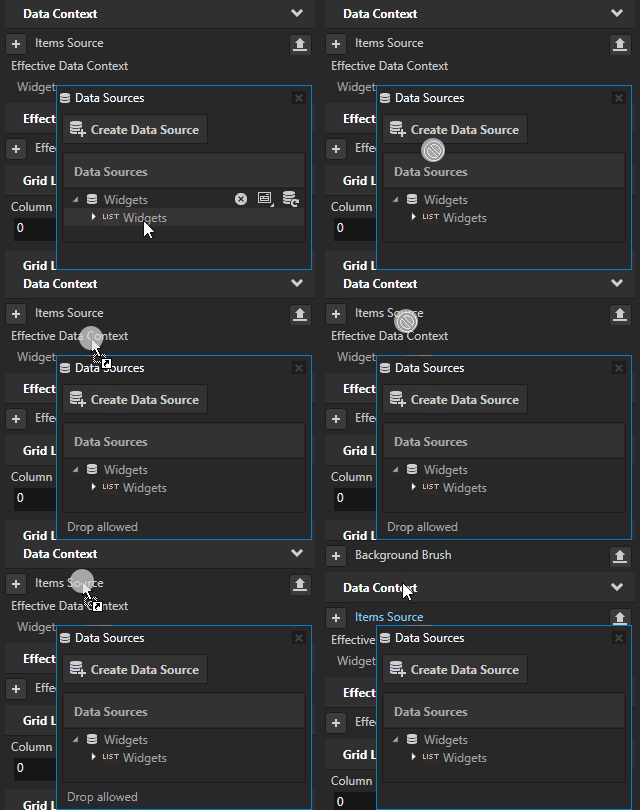
左エリアウィジェットの選択のための構造を作成します。
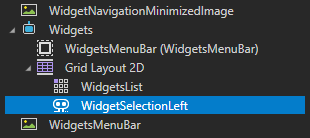
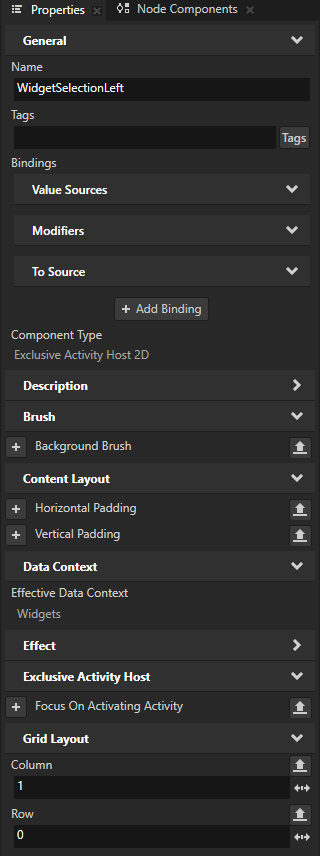
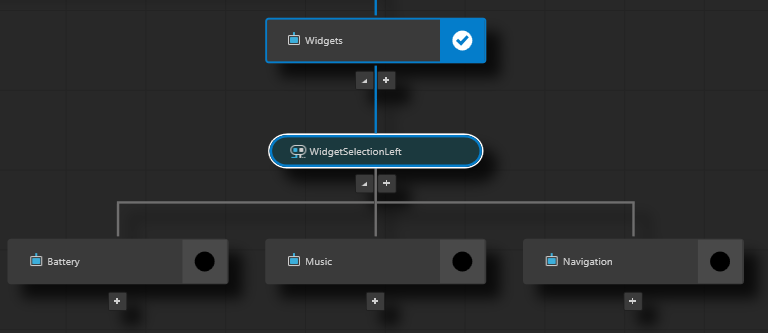
Prefabs の Alt を押しながら右クリック Widgets > Grid Layout 2D で、Exclusive Activity Host 2D を選択し、WidgetSelectionLeft と名付けます。Properties で、追加して設定します:
Grid Layout > Column を 1 に
Grid Layout > Row を 0 に
このエクスクルーシブアクティビティホストを使用して、ユーザーが左側のエリアに選択したウィジェットを表示します。
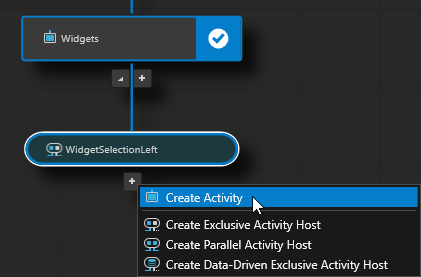
WidgetSelectionLeft の Activity Browser で、
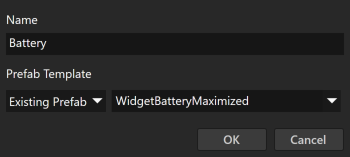
 をクリックし、Create Activity を選択し、各ウィジェットのアクティビティを作成します。各ウィジェットアクティビティには、そのウィジェットが最大化されたときのプレハブを使用します。
Battery アクティビティには WidgetBatteryMaximized プレハブを使用します。
Music アクティビティには WidgetMusicMaximized プレハブを使用します。
Navigation アクティビティには、WidgetNavigationMaximized プレハブを使用します。
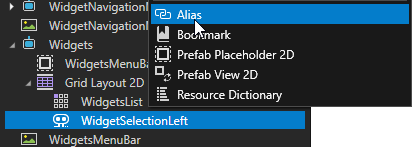
Prefabs の中で、Alt を押しながら右クリック Widgets > Grid Layout 2D > WidgetSelectionLeft を選択し、Alias を選択します。
Kanzi Studio は、Widgets プレハブのリソースディクショナリ内に、WidgetSelectionLeft エクスクルーシブアクティビティホストを指すエイリアスを作成します。このエイリアスを使用して、C++ コードビハインドからこのエクスクルーシブアクティビティホストにアクセスします。

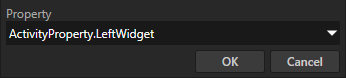
Activity Browser で、WidgetSelectionLeft のエクスクルーシブアクティビティホストを選択します。Controller Property のサイドパネルで、
 をクリックし、Property を選択し、Property を ActivityProperty.LeftWidget プロパティタイプに設定します。
このプロパティタイプは、C++ Code Behind アプリケーションコードで使用して、WidgetSelectionLeft にユーザーがドロップしたアクティビティをアクティブにします。Enumeration Options の ActivityProperty.LeftWidget プロパティでは、各ウィジェットの Value が
Application/bin/Widgets.xmlデータソースのWidgetId要素と一致している必要があることに注意してください。このチュートリアルの開始ポイントプロジェクトでは、このプロパティタイプを使用して、クラスターの左エリアにあるウィジェットを最大化および最小化の両方で設定します。ここでは、同じプロパティタイプを使用して、ユーザーが Widget アクティビティの左ウィジェットエリアにウィジェットをドロップしたときに、アプリケーションがアプリケーション内の最大化および最小化されたウィジェットの両方に変更を適用するようにします。
Cluster パラレルアクティビティホストは、ActivityProperty.LeftWidget プロパティの値を設定します。
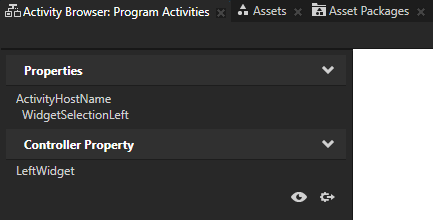
ヒント
Activity Browser でどのアクティビティホストがコントローラープロパティの値を設定しているかを確認するには、Exclusive Activity Host を選択し、サイドパネルで
 をクリックします。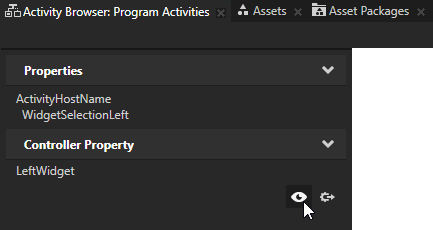
右側エリアウィジェットの選択のための構造を作成します。
Prefabs で、WidgetSelectionLeft アクティビティホストを右クリックし、Duplicate を選択します。
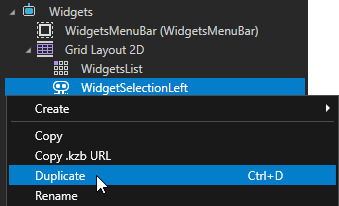
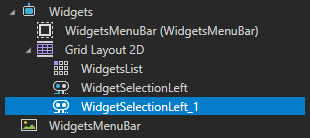
複製されたアクティビティホストを選択し、F2 を押して、名前を WidgetSelectionRight に変更します。
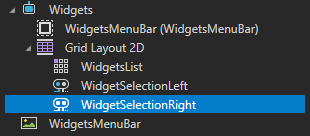
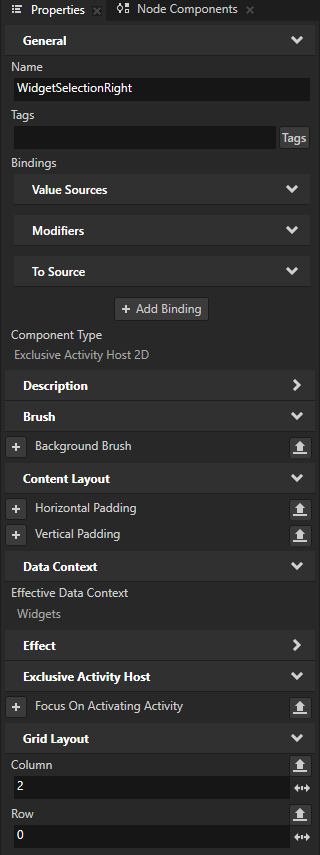
Properties で、Column プロパティを2に設定します。
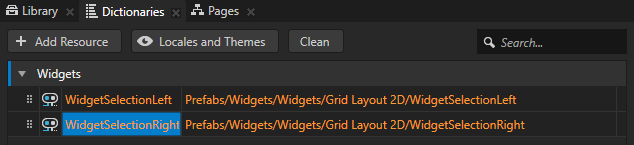
Prefabs の中で、Alt を押しながら右クリック Widgets > Grid Layout 2D > WidgetSelectionRight を選択し、Alias を選択します。
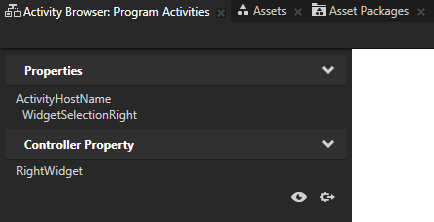
Activity Browser で、WidgetSelectionRight アクティビティホストを選択します。Controller Property のサイドパネルで、
をクリックし、Property を選択し、Property を ActivityProperty.RightWidget プロパティタイプに設定します。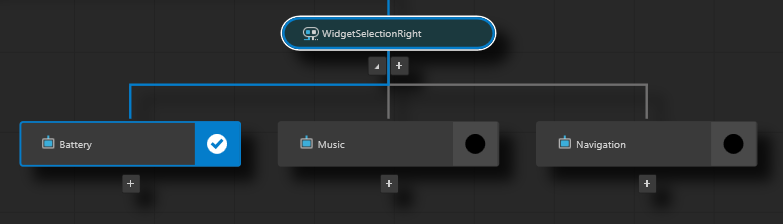
C++コードビハインドを追加し、機能を作成する
このセクションでは、Widgets アクティビティにC++コードビハインドを追加し、Kanzi Engine APIを使用して、ウィジェットアクティビティ内でウィジェットをドラッグすることにより、クラスターの左側および右側のエリアに表示したいウィジェットをユーザーが選択できるドラッグアンドドロップ機能を作成します。
C++コードビハインドを追加して機能を作成するには、
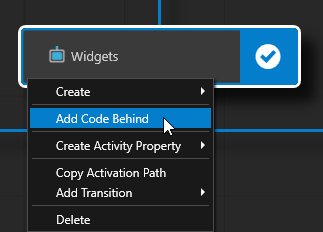
Activity Browser で、Widgets アクティビティを右クリックし、Add Code Behind を選択して、Kanzi Studio が Widgets アクティビティにC++ Code Behindプロジェクトを作成して追加するのを待ちます。
C++ Code Behind を Activity ノードに追加すると、Kanzi Studio:
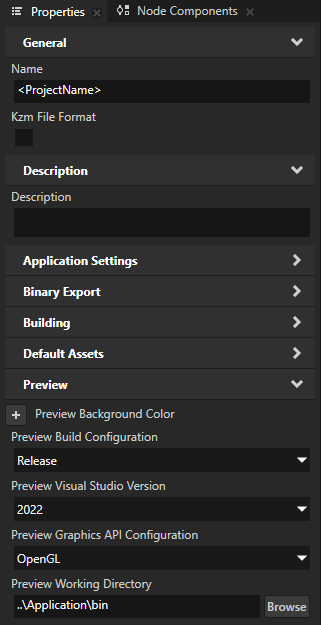
<KanziWorkspace>/Templates/Code_behind_templateから C++ Code Behind テンプレートをコピーします。<ProjectName>/Tool_project/CodeBehindディレクトリで、Activity のための Visual Studio ソリューションとプロジェクトを作成し、そこに C++ Code Behind を追加します。プロジェクトを、プロジェクトプロパティで設定した Preview ビルド構成およびVisual Studioバージョン用にコンパイルします。
Kanzi Studio プロジェクトに、C++ Code Behind Visual Studio プロジェクトで定義された機能を含む DLL ファイルを Kanzi Engine プラグインとしてインポートします。
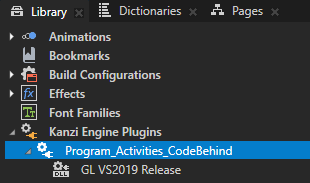
Preview を再起動します。
Preview が開始されると、Activity Browser で C++ Code Behind を含むアクティビティは
 アイコンを含み、サイドパネルには C++ Code Behind で定義されたコマンドが表示されます。
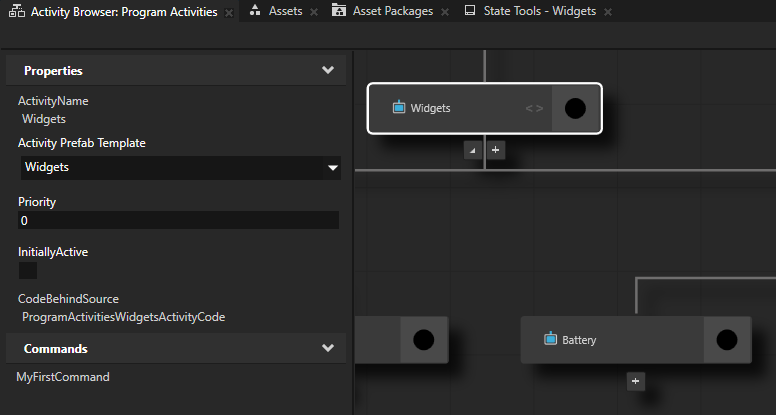
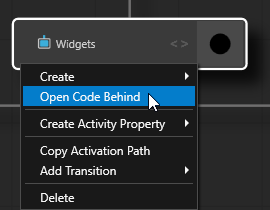
Activity Browser で、Widgets アクティビティを右クリックし、Open Code Behind を選択します。
Kanzi Studio は、Visual Studio で C++ Code Behind プロジェクトを開きます。
Visual Studio の
program_activities_widgets_activity_code.hpp内の Program_Activities_CodeBehind > Header Files に追加します:このチュートリアルの機能を実装するために必要な Kanzi ヘッダーファイル:
#include <kanzi/core.ui/data/data_context.hpp>
#include <kanzi/core.ui/input/drag_and_drop_manipulator.hpp>
#include <kanzi/core.ui/node/node2d.hpp>
ヘッダーのインクルードの後に、intの動的プロパティタイプを保持するオプションのタイプの定義を追加します。
/// Optional type for the int custom property types.
using OptionalIntDynamicPropertyType = kanzi::OptionalDynamicPropertyType<int>;
protectedセクションに、アタッチおよびデタッチのオーバーライド関数と、kanzi::DragAndDropManipulatorのコールバック関数を追加します。protected: ... /// NodeComponent::attachOverride implementation. void attachOverride() override; /// NodeComponent::detachOverride implementation. void detachOverride() override; /// Message handler for the DragAndDropManipulator::StartedMessage. /// \param args The DragAndDropManipulator::StartedMessage arguments. void onDragStarted(kanzi::DragAndDropManipulator::StartedMessageArguments& args); /// Message handler for the DragAndDropManipulator::MovedMessage. /// \param args The DragAndDropManipulator::MovedMessage arguments. void onDragMoved(kanzi::DragAndDropManipulator::MovedMessageArguments& args); /// Message handler for the DragAndDropManipulator::FinishedMessage. /// \param args The DragAndDropManipulator::FinishedMessage arguments. void onDragFinished(kanzi::DragAndDropManipulator::FinishedMessageArguments& args); /// Updates the position of the dragged widget. /// \param dragPosition The new position of the dragged widget. /// \param dragWorldTransform The world transform matrix of the dragged widget. void updateDragAndDrop(kanzi::Vector2 dragPosition, kanzi::Matrix3x3 dragWorldTransform);
privateセクションを作成し、次のメンバーを追加します。private: /// The dragged widget node. kanzi::Node2DSharedPtr m_draggedWidget = nullptr; /// The point from which the user started dragging the node, /// relative to the origin (by default the top-left corner) of the node. kanzi::Vector2 m_dragGrabOffset; /// The data context object of the dragged widget that the user starts to drag. kanzi::DataObjectSharedPtr m_draggedDataContext = nullptr; /// Token for the DragAndDropManipulator::StartedMessage. kanzi::Node::MessageSubscriptionToken m_started; /// Token for the DragAndDropManipulator::MovedMessage. kanzi::Node::MessageSubscriptionToken m_moved; /// Token for the DragAndDropManipulator::FinishedMessage. kanzi::Node::MessageSubscriptionToken m_finished; /// Custom property types for storing the widget names. OptionalIntDynamicPropertyType m_leftWidgetPropertyType; OptionalIntDynamicPropertyType m_rightWidgetPropertyType;
program_activities_widgets_activity_code.cppの Program_Activities_CodeBehind > Source Files で、次を追加します。このチュートリアルのドラッグアンドドロップ機能を実装するために必要な Kanzi ヘッダーファイル:
#include <kanzi/core.ui/data/data_context.hpp>
#include <kanzi/core.ui/data/data_object.hpp>
#include <kanzi/core.ui/input/drag_and_drop_manipulator.hpp>

#include <kanzi/ui/node/concept/list_box/default_list_box_item_container_generator.hpp>
#include <kanzi/ui/node/concept/list_box/list_box_item_container_generator.hpp>
#include <kanzi/ui/node/grid_list_box2d.hpp>
カスタムリストボックスアイテムジェネレーターを作成し、リストボックスの生成された各アイテムに
DragAndDropManipulatorを追加します。namespace { ... // The custom item generator that adds a DragAndDropManipulator to every generated item of a list box. class CustomItemContainerGenerator : public DefaultListBoxItemContainerGenerator<ListBoxItemContainerGenerator2D> { using BaseClass = DefaultListBoxItemContainerGenerator<ListBoxItemContainerGenerator2D>; public: explicit CustomItemContainerGenerator(Domain* domain) : BaseClass(domain) { } ListBoxItemContainerGenerator2D::ItemContainerSharedPtr acquireItemContainer(string_view name) override { auto manipulator = DragAndDropManipulator::create(getDomain()); manipulator->setPressDuration(chrono::milliseconds(100u)); auto itemContainer = BaseClass::acquireItemContainer(name); itemContainer->addInputManipulator(manipulator); return itemContainer; } }; }
前のステップで作成した
WidgetsListグリッドリストボックスのカスタムリストボックスジェネレーターを使用するには、既存のProgramActivitiesWidgetsActivityCode::onActive()関数を置き換えてください。// When the Widgets Activity is activated, use the custom item generator CustomItemContainerGenerator to // add a DragAndDropManipulator to every generated item of the WidgetsList Grid List Box. void ProgramActivitiesWidgetsActivityCode::onStatusChange(kanzi::ActivityConcept::Status status) { switch (status) { case ActivityConcept::Status::Activating: kzLogInfo(KZ_LOG_CATEGORY_GENERIC, ("'{}' Code Behind: Activity is activating.", getNode()->getName())); break; case ActivityConcept::Status::Active: { auto listbox = getNode()->lookupNode<GridListBox2D>("Grid Layout 2D/WidgetsList"); if (!listbox) { kzLogWarning(KZ_LOG_CATEGORY_GENERIC, ("'{}' Code Behind: Could not find the WidgetsList list box.", getNode()->getName())); } else { auto generator = make_shared<CustomItemContainerGenerator>(getDomain()); listbox->setItemContainerGenerator(generator); } break; } case ActivityConcept::Status::Deactivating: kzLogInfo(KZ_LOG_CATEGORY_GENERIC, ("'{}' Code Behind: Activity is deactivating.", getNode()->getName())); break; case ActivityConcept::Status::Inactive: kzLogInfo(KZ_LOG_CATEGORY_GENERIC, ("'{}' Code Behind: Activity is inactive.", getNode()->getName())); break; default: kzLogWarning(KZ_LOG_CATEGORY_GENERIC, ("'{}' Code Behind: Undefined state.", getNode()->getName())); break; } }
ドラッグされたウィジェットを初期化するには、既存の
ProgramActivitiesWidgetsActivityCode::initialize()関数を置き換えてください。// To show the dragged widget from drag start till drag end, instantiate the Widget prefab. // The visibility of dragged widget is handled in the DragAndDropManipulator message handlers. void ProgramActivitiesWidgetsActivityCode::initialize() { // Get the reference to the dragged widget prefab. auto dragItemPrefab = getDomain()->getResourceManager()->acquireResource<PrefabTemplate>("kzb://program_activities/Prefabs/Widget"); kzAssert(dragItemPrefab); // Instantiate the dragged widget prefab. m_draggedWidget = dragItemPrefab->instantiate<Node2D>("Dragged widget"); // Get the custom property types that you created in Kanzi Studio to store the widget name. m_leftWidgetPropertyType = DynamicPropertyType<int>::tryCreate("ActivityProperty.LeftWidget"); m_rightWidgetPropertyType = DynamicPropertyType<int>::tryCreate("ActivityProperty.RightWidget"); }
ProgramActivitiesWidgetsActivityCode::attachOverride()とProgramActivitiesWidgetsActivityCode::detachOverride()関数を使用して、ドラッグメッセージのハンドラーを追加します。// After the Widget Activity is attached to the Node Tree, // add the DragAndDropManipulator message handlers. void ProgramActivitiesWidgetsActivityCode::attachOverride() { ActivityCodeBehind::attachOverride(); m_started = getNode()->addMessageFilter(DragAndDropManipulator::StartedMessage, this, &ProgramActivitiesWidgetsActivityCode::onDragStarted); m_moved = getNode()->addMessageFilter(DragAndDropManipulator::MovedMessage, this, &ProgramActivitiesWidgetsActivityCode::onDragMoved); m_finished = getNode()->addMessageFilter(DragAndDropManipulator::FinishedMessage, this, &ProgramActivitiesWidgetsActivityCode::onDragFinished); } // Remove the DragAndDropManipulator message handlers // before detaching the Widget Activity from the Node Tree. void ProgramActivitiesWidgetsActivityCode::detachOverride() { if (m_started.isValid()) { getNode()->removeMessageHandler(m_started); } if (m_moved.isValid()) { getNode()->removeMessageHandler(m_moved); } if (m_finished.isValid()) { getNode()->removeMessageHandler(m_finished); } ActivityCodeBehind::detachOverride(); }
ドラッグメッセージのハンドラを作成します。
// When the drag has started, render the instantiated Widget prefab.
void ProgramActivitiesWidgetsActivityCode::onDragStarted(DragAndDropManipulator::StartedMessageArguments& messageArguments)
{
    auto rootHost = getNode()->lookupNode<Node2D>("#Cluster");
    kzAssert(rootHost);

    rootHost->addChild(m_draggedWidget);

    // Get the dragged widget from the message arguments.
    auto dragSourceItem = dynamic_pointer_cast<ListBoxItemContainer2D>(messageArguments.getSource());
    kzAssert(dragSourceItem);

    // Set the size of the dragged widget to be the same as the size of the widget that the user starts to drag.
    auto dragSourceItemSize = dragSourceItem->getActualSize();
    m_draggedWidget->setSize(dragSourceItemSize.getX(), dragSourceItemSize.getY());

    // Set the dragged widget to have the same Data Context as the widget that the user starts to drag.
    auto item = dragSourceItem->getItem();
    kzAssert(item);
    m_draggedDataContext = dynamic_pointer_cast<DataObject>(item->getProperty(DataContext::DataContextProperty));
    kzAssert(m_draggedDataContext);
    m_draggedWidget->setProperty(DataContext::DataContextProperty, m_draggedDataContext);

    // Save the point from which the user started dragging the node,
    // relative to the origin (by default the top-left corner) of the node.
    m_dragGrabOffset = messageArguments.getPoint();

    // To compensate for the screen offset, offset the layout origin of the dragged widget.
    const auto screen = dynamic_cast<Screen*>(rootHost->getParent());
    kzAssert(screen);
    auto screenSRT = SRTValue2D::createTranslation(screen->getWorldTransform().getTranslation() * -1.0f);
    m_draggedWidget->setLayoutTransformation(screenSRT);

    // Move the dragged widget to the correct position.
    updateDragAndDrop(messageArguments.getPoint(), dragSourceItem->getWorldTransform());

    // Make the dragged widget visible.
    m_draggedWidget->setVisible(true);
}

// Update the position of the rendered Widget, with respect to the cursor position.
void ProgramActivitiesWidgetsActivityCode::onDragMoved(DragAndDropManipulator::MovedMessageArguments& messageArguments)
{
    // Get the dragged widget from the message arguments.
    auto dragSourceItem = dynamic_pointer_cast<Node2D>(messageArguments.getSource());
    kzAssert(dragSourceItem);

    // Move the dragged widget to the correct position.
    updateDragAndDrop(messageArguments.getPoint(), dragSourceItem->getWorldTransform());
}

// When the drag is finished, hide the rendered Widget,
// and if the drop point was over the children of either the WidgetSelectionLeft or WidgetSelectionRight Activity Host,
// update the controller property of the respective Activity Host to show the dropped widget.
void ProgramActivitiesWidgetsActivityCode::onDragFinished(DragAndDropManipulator::FinishedMessageArguments& messageArguments)
{
    auto rootHost = getNode()->lookupNode<Node2D>("#Cluster");
    if (!rootHost)
    {
        kzLogWarning(KZ_LOG_CATEGORY_GENERIC, ("Widgets CodeBehind: Failed to find the Cluster Activity Host node."));
    }

    rootHost->removeChild(*m_draggedWidget);

    // Hide the dragged widget.
    m_draggedWidget->setVisible(false);

    // Clear the pointer to the data context object.
    m_draggedDataContext.reset();

    // Get the position of the drag pointer.
    const auto dragPosition = messageArguments.getPoint();

    // Calculate the global position of the drag pointer.
    auto dragSourceItem = dynamic_pointer_cast<Node2D>(messageArguments.getSource());
    kzAssert(dragSourceItem);

    const auto dragWorldTransform = dragSourceItem->getWorldTransform();
    const auto globalDragPosition = dragWorldTransform * dragPosition;

    // Get the drop point node.
    auto hitTestNode = rootHost->hitTest(globalDragPosition);
    if (!hitTestNode)
    {
        return;
    }

    // From the dragged widget, get the widget ID from the data source.
    // Use this widget ID to set the controller property of the WidgetSelectionLeft or WidgetSelectionRight Activity Host.
    auto draggedData = dynamic_pointer_cast<DataContext>(m_draggedWidget->getProperty(DataContext::DataContextProperty));
    kzAssert(draggedData);
    auto nameData = dynamic_pointer_cast<DataObject>(draggedData->lookupDataContext("Widget.WidgetId"));
    kzAssert(nameData);

    const auto nameIndex = get<int>(nameData->readVariant());

    auto leftArea = dragSourceItem->lookupNode<Node>("#WidgetSelectionLeft");
    auto rightArea = dragSourceItem->lookupNode<Node>("#WidgetSelectionRight");

    // Check whether the drop point node is a child of WidgetSelectionLeft or WidgetSelectionRight Activity Host.
    if (leftArea && isAncestorOf(*hitTestNode, *leftArea))
    {
        kzLogDebug(("Widgets CodeBehind: Dropped the dragged widget to the left widget Activity."));

        // Set the controller property of the WidgetSelectionLeft Activity Host to show the dropped widget.
        // Note that controller property of the WidgetSelectionLeft Activity Host is set on the Cluster root Activity Host.
        rootHost->setProperty(*m_leftWidgetPropertyType, nameIndex);
    }
    else if (rightArea && isAncestorOf(*hitTestNode, *rightArea))
    {
        kzLogDebug(("Widgets CodeBehind: Dropped the dragged widget to the right widget Activity."));

        // Set the controller property of the WidgetSelectionRight Activity Host to show the dropped widget.
        // Note that controller property of the WidgetSelectionLeft Activity Host is set on the Cluster root Activity Host.
        rootHost->setProperty(*m_rightWidgetPropertyType, nameIndex);
    }
}

// Helper method to update the render position of the dragged Widgets prefab.
void ProgramActivitiesWidgetsActivityCode::updateDragAndDrop(Vector2 dragPosition, Matrix3x3 dragWorldTransform)
{
    // Calculate the local drag anchor that is the top-left corner of the dragged widget that the user is dragging.
    const auto localDragAnchor = dragPosition - m_dragGrabOffset;

    // Calculate the global drag anchor.
    const auto globalDragAnchor = dragWorldTransform * localDragAnchor;

    // The structure that you use to describe the Render Transformation property of the dragged widget.
    SRTValue2D transform;
    // Set the Render Transformation property Translation property field to the global drag anchor.
    transform.setTranslation(globalDragAnchor);

    // Move the dragged widget for the amount of the dragged distance.
    m_draggedWidget->setRenderTransformation(transform);
}
Kanzi Studio で、Preview を再起動します。
プレビューを再起動すると、Kanzi Studio は C++ Code Behind コードを再構築し、更新されたコードを使用します。
Activity Browser で、Cluster の MainView プロパティを Browse に設定すると、リストからウィジェットをドラッグして左または右のウィジェットにドロップし、クラスターで使用したいウィジェットを設定できます。
次の作業
このチュートリアルでは、Code Behind ワークフローを使用してアクティビティをプログラムする方法を学びました。C++ Code Behind を使用して、ウィジェットのリストからウィジェットをドラッグアンドドロップすることで、ユーザーがウィジェットを選択できるようにしました。
次に行えること:
データソースの定義方法を学びます。チュートリアル: データソースからアプリケーションデータを取得する を参照してください。
List Box の使い方を学びます。チュートリアル: Grid List Box を使用して連絡先リストを作成する を参照してください。
関連項目
Code Behind ワークフローの詳細については、コードビハインドを使用したプログラミングアクティビティ を参照してください。
Activity システムについて詳しく知るには、アクティビティ をご覧ください。
Data Sources について詳しく知るには、データソース (Data Sources) をご覧ください。
Grid List Box ノードについて詳しく知るには、Grid List Box ノードを使用する を参照してください。
バインディングの使用方法について詳しくは、バインディングの使用 および バインディング式リファレンス を参照してください。