Kanzi Studio コマンドプラグインの作成
Kanzi Studio プラグインは Kanzi Studio の機能を拡張し、Kanzi Studio で実行されます。
たとえば、Kanzi Studio の機能を拡張して、次のことができます:
Kanzi Studio で手動で行うと時間がかかる、またはエラーが発生しやすいタスクを自動化します。
Kanzi Studio からコンテンツをインポートおよびエクスポートし、Kanzi Studio がサポートしていない形式のローカライゼーションテーブルなどを使用します。
Kanzi Studio でのプロジェクト作業をサポートするビジュアライゼーションツールなど、詳細を抽象化しワークフローをスピードアップするエディターを作成します。
Kanzi Studio プラグインを次のいずれかの方法で提示できます。
プラグインユーザーインターフェースを含む Kanzi Studio ウィンドウ内で。
ユーザーが Kanzi Studio メインメニューまたはコンテキストメニューから実行できるコマンドとして、ユーザーインターフェースなしでプラグインを実行します。
このトピックでは、Kanzi Studio コマンドプラグインの作成方法について説明します。Kanzi Studio ウィンドウプラグインの作成方法については、Kanzi Studio ウィンドウプラグインの作成 を参照してください。
Kanzi Studio プラグインAPIは、.NETフレームワークアセンブリとして提供されます。<KanziInstallation>/Studio/Bin/PluginInterface.dll で見つけることができます。Kanzi Studio プラグインAPIは、Kanzi Studio のデータとコマンドへのアクセスを提供します。異なるバージョンの Kanzi Studio で Kanzi Studio プラグインを使用したい場合は、そのプラグインを使用したい各バージョンの Kanzi Studio から PluginInterface.dll を使用してプラグインをビルドしてください。
Kanzi Studio コマンドプラグインを開発するには:
Kanzi Studio プラグインのベースを作成します。Kanzi Studio コマンドプラグインのベースを作成する を参照してください。
Kanzi Studio プラグインをビルドして実行します。Kanzi Studio プラグインのビルドと実行 を参照してください。
Kanzi Studio プラグインに機能を追加します。Kanzi Studio コマンドプラグインに機能を追加する と Kanzi Studio コマンドプラグインに複数のコマンドを追加する を参照してください。
Kanzi Studio プラグインをデバッグします。Kanzi Studio プラグインのデバッグ を参照してください。
Kanzi Studio プラグイン API の詳細情報については、次を参照してください。
Kanzi Studio コマンドプラグインのベースを作成する
Kanzi Studio コマンドプラグインは、コマンドとして実行され、ユーザーインターフェースを持たないプラグインです。たとえば、プロジェクト内のノードツリー全体または選択された部分に対してコマンドを実行するために、コマンドプラグインを使用します。
ここでは、Kanzi Studio コマンドプラグインの基盤を作成し、その後 Kanzi Studio の機能を拡張する機能を追加します。
Kanzi Studio コマンドプラグインを作成するには:
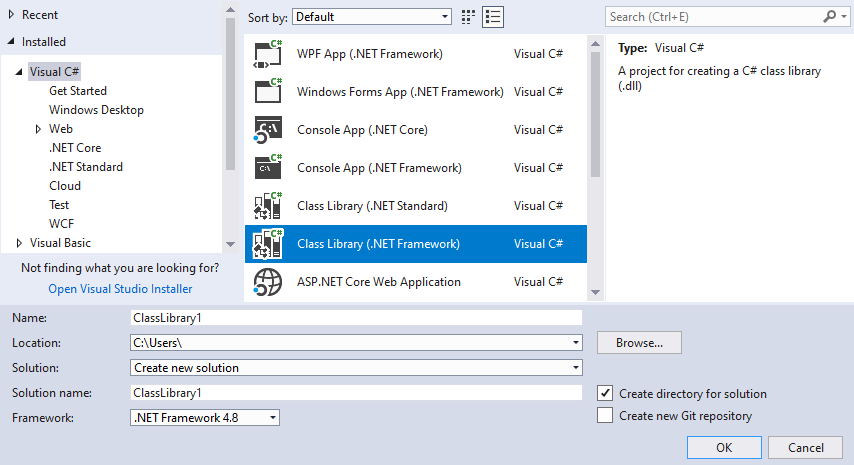
Visual Studioで、File > New > Projectを選択し、Visual C# Class Libraryを作成します。
ソリューションエクスプローラーでプロジェクト名を右クリックし、追加 > 参照を選択し、次のファイルへの参照を追加します:
アセンブリを選択し、.NET Framework をターゲットとするフレームワークに移動し、次の参照を追加します:
System.ComponentModel.Composition。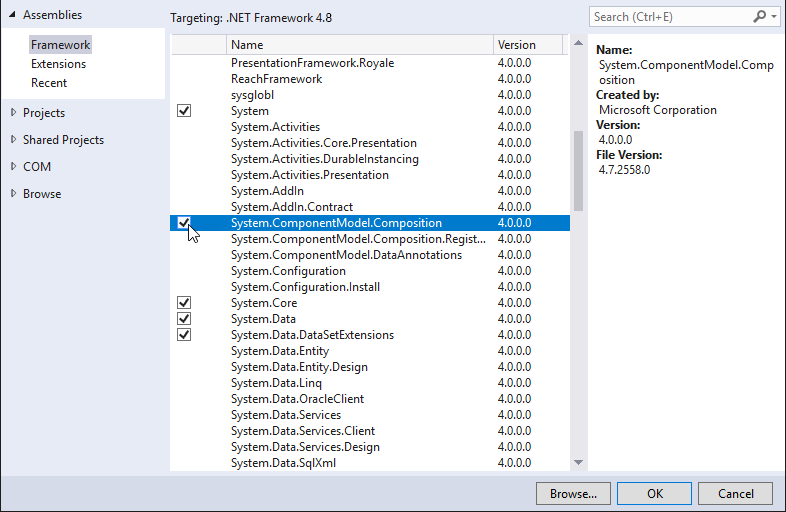
Browse... をクリックし、
<KanziInstallation>/Studio/Bin/PluginInterface.dllファイルへの参照を追加します。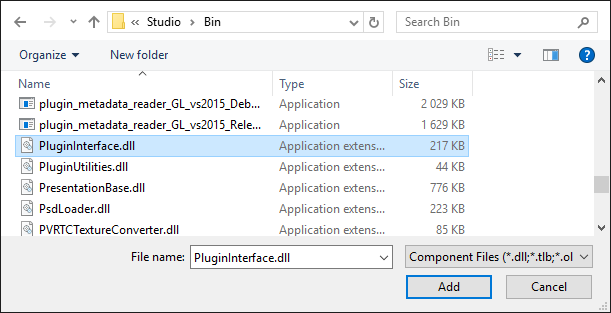
Solution Explorer でプロジェクト名を右クリックし、Properties を選択し、次の操作を行います。
Application タブで、Target framework を .NET Framework 4.8 に設定します。
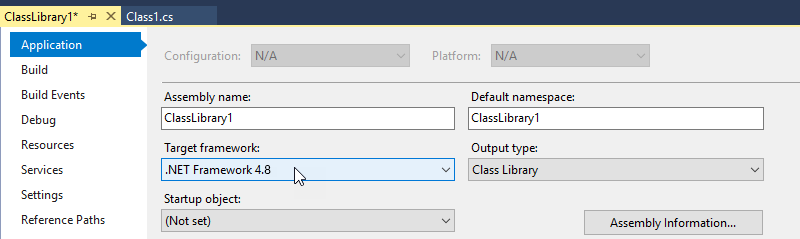
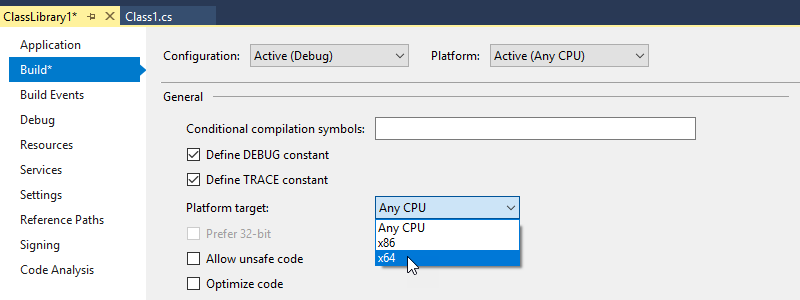
Build タブで Platform target を x64 に設定します。
Class1.csファイルを開き、System.ComponentModel.Compositionと Kanzi Studio プラグイン API の using ディレクティブを追加します。using System.ComponentModel.Composition; using Rightware.Kanzi.Studio.PluginInterface;
PluginCommandインターフェースを実装するコマンドクラスの定義の前に、エクスポート属性を使用して Kanzi Studio に .dll がプラグインであることを伝えます。この例では、Class1クラスでプラグインコマンドを実装します。[Export(typeof(PluginContent))]Class1クラスをPluginCommandインターフェースを実装するように設定し、Class1クラスで実装します。Kanzi はこのクラスを使用してプラグインコマンドを作成します。以下の文字列を見つけます。
public class Class1
終点
public class Class1 : PluginCommand
PluginCommandインターフェースを実装します。例えば、PluginCommandの上にカーソルを置き、 をクリックし、インターフェースを実装を選択します。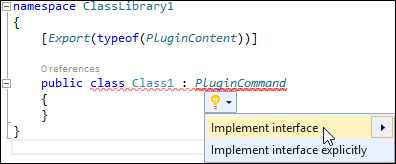
すべての関数で、この行を実行したいコードに置き換えてください。
throw new NotImplementedException();
プラグインがすべての内部例外を処理し、それらが Kanzi Studio インターフェースに到達しないようにしてください。
たとえば、
Class1クラスの関数を次のように設定します。CommandPlacement関数を使用して、プラグインのメニュー名を設定し、プラグインを起動するコマンドを表示したい場所を指定します。プラグインをメインメニューに表示するには、
ContextMenuPlacement.NONEを使用します。ノードやリソースから呼び出されるコンテキストメニュー、およびメインメニューにプラグインを表示するには、
ContextMenuPlacement.PROJECT_ITEMを使用します。
public CommandPlacement CommandPlacement
{
    get
    {
        return new CommandPlacement("myPluginMenu", ContextMenuPlacement.NONE, false, null);
    }
}
ヒント
プラグインをメインメニューおよびコンテキストメニューから非表示にするには、
CommandPlacement関数をnullを返すように設定します。例えば、Kanzi Studio コマンドを実行するスクリプトを使用してのみプラグインコマンドを実行したい場合にプラグインを非表示にします。Kanzi Studio タスクの自動化 を参照してください。public CommandPlacement CommandPlacement { get { return null; } }
PluginContent.Name関数を使用して、プラグインの内部名を設定します。Kanzi はプラグインの内部名を使用するため、プラグインの表示名を追加の変更なしで変更できます。public string Name { get { return "Internal plugin name"; } }
PluginContent.DisplayName関数を使用して、プラグインを起動できる Kanzi Studio メニューにプラグイン名を表示します。public string DisplayName { get { return "Plugin display name"; } }
PluginContent.Description関数を使用して、Kanzi Studio プラグインが何をするのかの簡単な説明を設定します。Kanzi Studio は、ユーザーがメニュー内のプラグイン名にマウスポインタを重ねたときに、この説明をツールチップとして表示します。public string Description { get { return "A tooltip with short description of what the plugin does."; } }
CanExecute関数を使用して、ユーザーがプラグインを起動できるかどうか、またどこでプラグインを起動できるかを設定します。falseに設定すると、Kanzi Studio はメインメニューとコンテキストメニューにプラグインを表示しますが、ユーザーはプラグインを起動できません。trueに設定すると、ユーザーはプラグインを起動できます。
Kanzi Studio は、プラグインに
KanziStudioオブジェクトを提供します。KanziStudioオブジェクトはデータアクセスのルートオブジェクトであり、現在のプロジェクト、利用可能なコマンド、グローバルなアンドゥとリドゥ、プロジェクトのオープンとクローズに関連するイベントを提供します。例えば、Kanzi Studio プロジェクトが開いているときにのみコマンドを有効にするには、これを使用します。
private KanziStudio studio;
public bool CanExecute(PluginCommandParameter parameter)
{
    return this.studio != null && this.studio.ActiveProject != null;
}
Execute関数に、プラグインで実行したいコードを追加します。例えば、プラグインを実行したときに Kanzi Studio の Log ウィンドウに「Hello world!」を表示するためにこれを使用します。public void Execute(PluginCommandParameter parameter) { studio.Log("Hello world!"); }
PluginContent.Initialize関数を使用して、studioをメンバー変数に配置します。public void Initialize(KanziStudio studio) { this.studio = studio; }
プラグインをビルドして実行します。Kanzi Studio プラグインのビルドと実行 を参照してください。
ここでは、Kanzi Studio プラグインの基本構造を作成しただけで、Kanzi Studio Log ウィンドウにメッセージを表示するだけです。プラグインにそれ以上の機能を持たせるには、Execute 関数に実行したいコードを追加してください。Kanzi Studio コマンドプラグインに機能を追加する と Kanzi Studio コマンドプラグインに複数のコマンドを追加する を参照してください。
Kanzi Studio プラグインをさらに開発するには、Kanzi Studio プラグイン API の概要 と Kanzi Studio プラグインAPIリファレンス を参照してください。
Kanzi Studio プラグインのビルドと実行
Kanzi Studio プラグインをビルドして実行するには、
Visual Studio で、Build > Build Solution を選択して、プラグイン .dll をビルドします。

Kanzi Studio プラグインの DLL ファイルを
%ProgramData%\Rightware\<KanziVersion>\pluginsディレクトリにコピーします。%ProgramData%\Rightware\<KanziVersion>にpluginsディレクトリが存在しない場合は、作成してください。ヒント
ファイルエクスプローラーで、Kanzi Studio プラグイン DLL ファイルからショートカットを作成し、そのショートカットを
%ProgramData%\Rightware\<KanziVersion>\pluginsディレクトリに移動します。プラグインをビルドすると、OutputウィンドウでVisual StudioがプラグインのDLLファイルを保存した場所を確認できます。
ヒント
プラグインに依存 DLL がある場合は、プラグインマニフェストを使用してエントリポイントを宣言します。Kanzi Studio プラグインのインストール を参照してください。
Kanzi Studio を開く。
Kanzi Studio は
pluginsディレクトリ内のプラグインをロードし、それらをメインメニューまたはノードやリソースから呼び出されるコンテキストメニューに追加します。Kanzi Studio でプラグインメインメニューを選択し、プラグインを選択するか、Node Tree のノードを右クリックしてプラグインの名前を選択し、プラグインを実行します。
Kanzi Studio コマンドプラグインに機能を追加する
Kanzi Studio コマンドプラグインのベースを作成した後、プラグインに機能を追加して有用な動作をさせます。ここでは、子ノードを持たないすべての Empty Node ノードを削除するプラグインを作成します。
Kanzi Studio プラグインを使用して、子ノードのない Empty Node ノードを削除するには:
Kanzi Studio コマンドプラグインのベースを作成します。Kanzi Studio コマンドプラグインのベースを作成する を参照してください。
Visual Studioで、プラグインのVisual Studioソリューションを開き、
PluginCommandインターフェースを実装しているクラスライブラリファイルを開きます。Execute関数内で、プラグインコマンドを呼び出したときにプラグインが実行するコードを書いてください。例えば、子ノードを持たないすべての Empty Node ノードを削除するプラグインを作成するには、
Execute関数に追加します。// Your plugin executes the content of this function. Place your plugin code here. public void Execute(PluginCommandParameter parameter) { var items = parameter.Items; // Print to the Kanzi Studio Log window. studio.Log("Deleting all Empty Node nodes without child nodes"); // When executing from the main menu, items passes empty value as a parameter. // When executing from the context menu, items passes the selected items as a parameter // (even when multiple items are selected). if (items != null && items.Any()) { // If executed from the context menu, start the function that traverses // the node tree from the node where it is executed. TraverseTree(items); } else { // Check that a project is opened. if (studio != null && studio.ActiveProject!= null && studio.ActiveProject.Screen != null) { // If executed from the main menu, starts the function that traverses // the node tree from the first child of the Screen node. TraverseTree(studio.ActiveProject.Screen.Children); } } } // TraverseTree function traverses the node tree from the node where you launch the plugin. private void TraverseTree(IEnumerable<ProjectItem> items) { foreach (var item in items.ToArray()) { // If the node is an Empty Node 2D or Empty Node 3D and does not have // any child nodes, delete it. if ((item is EmptyNode2D || item is EmptyNode) && !item.Children.Any()) { // Delete the project item using a command. This enables you // to undo the action performed by the plugin. studio.Commands.DeleteProjectItem(new ProjectItem[] { item }); } // Traverse the children of the current node. else if (item.Children.Any()) { TraverseTree(item.Children); } } }
CanExecute関数セット内で、Kanzi Studio でプラグインコマンドをどこでどのように呼び出すことができるかを設定します。public bool CanExecute(PluginCommandParameter parameter) { // Allow running the plugin command from the context menu only when a single node in the scene // graph is selected. Zero items are called when executing the plugin from the main menu, // which sets the plugin to start traversing the node tree from the first child node of // the Screen node. var items = parameter.Items; return items != null && items.Count() <= 1; }
Kanzi Studio で、いくつかの Empty Node ノードを含むプロジェクトを作成します。これには、子ノードを持つものと持たないものがあります。
プラグインをビルドして実行します。Kanzi Studio プラグインのビルドと実行 を参照してください。
コマンドを実行すると、プラグインは、プラグインコマンドを呼び出す場所に応じて、子ノードを持たない Empty Node ノードを削除します。
メインメニューからプラグインコマンドを実行すると、プラグインはプロジェクト全体で子ノードを持たない Empty Node ノードを削除します。

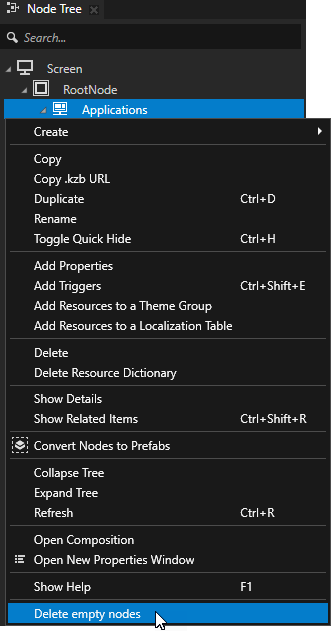
Node Tree でノードを右クリックし、コンテキストメニューからプラグインコマンドを実行すると、選択したノードのコンテキスト内で子ノードを持たない Empty Node ノードがプラグインによって削除されます。
Kanzi Studio プラグインをさらに開発するには、Kanzi Studio プラグイン API の概要 と Kanzi Studio プラグインAPIリファレンス を参照してください。
Kanzi Studio コマンドプラグインに複数のコマンドを追加する
Kanzi Studio コマンドプラグインのベースを作成した後、プラグインに機能を追加します。複数のコマンドを実装する Kanzi Studio コマンドプラグインを作成することができます。ここでは、次のコマンドを持つプラグインを作成します。
Kanzi Studio プロジェクトで無効な kzb URL を Log に出力します。無効な kzb URL のログ記録 を参照してください。
Kanzi Studio プロジェクトから無効な kzb URL を削除します。無効な kzb URL を削除する を参照してください。
プラグインは、アクティブなプロジェクトから、同じプロジェクトまたはロードされた参照プロジェクト内のリソースを指す無効なkzb URLを見つけて削除します。
無効な kzb URL のログ記録
Kanzi Studio プロジェクトで無効な kzb URL をログに記録するには:
Kanzi Studio コマンドプラグインのベースを作成します。Kanzi Studio コマンドプラグインのベースを作成する を参照してください。
例えば、
InvalidKzbUrlFinderという名前の Visual Studio プロジェクトを作成し、ListInvalidKzbUrlsというクラスがPluginCommandインターフェースを実装するようにします。using System.ComponentModel.Composition; using Rightware.Kanzi.Studio.PluginInterface; namespace InvalidKzbUrlFinder { [Export(typeof(PluginContent))] public class ListInvalidKzbUrls : PluginCommand { private KanziStudio studio; public void Initialize(KanziStudio studio) { this.studio = studio; } // Show the plugin command in the Kanzi Studio main menu named Kzb URL Checker. public CommandPlacement CommandPlacement => new CommandPlacement("Kzb URL Checker", ContextMenuPlacement.NONE, false, null); // Set the internal name of the plugin command. This enables you to change the display // name of your command without additional changes to the plugin. public string Name => "LogInvalidKzbUrls"; // Set the command name in the Kanzi Studio main menu. public string DisplayName => "Log Invalid Kzb URLs"; // Set the tooltip for the command. public string Description => "Prints to the Log the invalid kzb URLs in the active project."; public bool CanExecute(PluginCommandParameter parameter) { return studio?.ActiveProject != null; } } }
PluginCommandインターフェースを実装するクラスに、リソースを含むプロジェクトの名前をリソースの kzb URL から取得する関数を追加します。public static Project GetProjectFromKzbUrl(Solution solution, string urlCandidate) { Project result = null; foreach (var project in solution.Projects) { var projectName = project.Name.Replace(" ", "_").ToLowerInvariant(); if (urlCandidate?.StartsWith("kzb://" + projectName) == true) { result = project; break; } } return result; } public Project GetProjectFromKzbUrl(string urlCandidate) { return GetProjectFromKzbUrl(studio.Solution, urlCandidate); }
System.Linq名前空間の using ディレクティブを追加します。次のステップで追加する関数は、LINQの
Enumerable.Whereメソッドを使用します。using System.Linq;
PluginCommandインターフェースを実装するクラスに、kzb URL が既存のリソースを指しているかどうかを確認する関数を追加します。public static bool IsValidKzbUrl(Solution solution, Project project, string kzbUrl) { var result = false; if (GetProjectFromKzbUrl(solution, kzbUrl) == project) { var projectNameInKzbFormat = project.Name.Replace(" ", "_").ToLowerInvariant(); var itemPath = kzbUrl.Substring(("kzb://" + projectNameInKzbFormat + "/").Length); ProjectItem currentItem = project; var parts = itemPath.Split('/').Where(x => !string.IsNullOrEmpty(x)); foreach (var part in parts) { currentItem = currentItem.GetChild(part); if (currentItem == null) { break; } } result = currentItem != null; } return result; }
PluginCommandインターフェースを実装するクラスに、無効な kzb URL を Log に出力する関数を追加します。private int LogKzbUrls(ProjectItem item, int count) { foreach (var projectItem in item.Children) { var properties = projectItem.Properties; foreach (var property in properties) { var propertyValue = projectItem.Get(property); var nodeResource = propertyValue as ResourceReferenceBase; if (nodeResource != null) { var project = GetProjectFromKzbUrl(nodeResource.ResourceID); if (project != null && !IsValidKzbUrl(studio.Solution, project, nodeResource.ResourceID)) { studio.Log($"Invalid kzb URL \"{nodeResource}\" found in the \"{property.DisplayName}\" property of \"{projectItem.Path ?? projectItem.Name}\"."); count++; } } } count = LogKzbUrls(projectItem, count); } return count; }
PluginCommandインターフェースを実装するクラスのExecute関数内で、プラグインコマンドを呼び出したときにプラグインが実行するコードを書いてください。public void Execute(PluginCommandParameter parameter) { studio.Log("Finding invalid kzb URLs..."); // Call the function that prints the invalid kzb URLs to the Log. var count = LogKzbUrls(studio.ActiveProject, 0); studio.Log($"This project contains {count} invalid kzb URLs."); }
プラグインをビルドして実行します。Kanzi Studio プラグインのビルドと実行 を参照してください。
コマンドを実行すると、プラグインは Log に無効なkzb URLを出力し、各kzb URLに対して無効なkzb URLを使用しているノードとプロパティを表示します。


無効な kzb URL を削除する
Kanzi Studio プロジェクトから無効な kzb URL を削除するには:
無効な kzb URL を記録する Kanzi Studio プラグインを実装します。無効な kzb URL のログ記録 を参照してください。
Visual Studioで、プラグインプロジェクトに新しいクラスを追加し、そのクラスが
PluginCommandインターフェースを実装するように設定します。例えば、
RemoveInvalidKzbUrlsという名前のクラスを追加します。using System.ComponentModel.Composition; using Rightware.Kanzi.Studio.PluginInterface; namespace InvalidKzbUrlFinder { [Export(typeof(PluginContent))] class RemoveInvalidKzbUrls : PluginCommand { private KanziStudio studio; public void Initialize(KanziStudio studio) { this.studio = studio; } // Show the plugin command in the Kanzi Studio main menu named Kzb URL Checker. public CommandPlacement CommandPlacement => new CommandPlacement("Kzb URL Checker", ContextMenuPlacement.NONE, false, null); // Set the internal name of the plugin command. This enables you to change the display // name of your command without additional changes to the plugin. public string Name => "RemoveInvalidKzbUrls"; // Set the command name in the Kanzi Studio main menu. public string DisplayName => "Remove Invalid Kzb URLs"; // Set the tooltip for the command. public string Description => "Removes the invalid kzb URLs from the active project."; public bool CanExecute(PluginCommandParameter parameter) { return studio?.ActiveProject != null; } public void Execute(PluginCommandParameter parameter) { throw new NotImplementedException(); } } }
前のステップで追加したクラス内に、無効なkzb URLを削除する関数を作成します。
private int RemoveKzbUrls(ProjectItem item, int currentCount)
{
    foreach (var projectItem in item.Children)
    {
        var properties = projectItem.Properties;

        foreach (var property in properties)
        {
            var propertyValue = projectItem.Get(property);
            var nodeResource = propertyValue as ResourceReferenceBase;
            if (nodeResource != null)
            {
                var project = ListInvalidKzbUrls.GetProjectFromKzbUrl(studio.Solution, nodeResource.ResourceID);
                if (project != null &&
                    !ListInvalidKzbUrls.IsValidKzbUrl(studio.Solution, project, nodeResource.ResourceID))
                {
                    projectItem.Set(property.Name, null);
                    currentCount++;
                }
            }
        }

        currentCount = RemoveKzbUrls(projectItem, currentCount);
    }

    return currentCount;
}
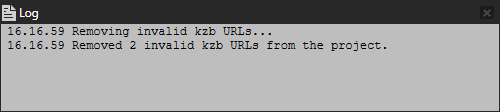
Execute関数内で、プラグインコマンドを呼び出したときにプラグインが実行するコードを書いてください。public void Execute(PluginCommandParameter parameter) { studio.Log("Removing invalid kzb URLs..."); // Call the function that removes the invalid kzb URLs. var removedCount = RemoveKzbUrls(studio.ActiveProject, 0); studio.Log($"Removed {removedCount} invalid kzb URLs from the project."); }
プラグインをビルドして実行します。Kanzi Studio プラグインのビルドと実行 を参照してください。
コマンドを実行すると、プラグインは無効な kzb URL を削除します。

Kanzi Studio プラグインをさらに開発するには、Kanzi Studio プラグイン API の概要 と Kanzi Studio プラグインAPIリファレンス を参照してください。