使用图块图集
图块图集是包含多个较小图像的图像。
使用图块图集来提高应用程序的帧率,方法是减少应用程序在运行时必须进行的纹理切换次数。
您可以通过完成 教程:创建集群指示器 来学习如何使用图块图集。
要使用图块图集:
在第三方应用程序中创建一个图块图集。创建图块图集时请记住:
图块图集越小越好。
将图像尽可能紧密地打包在一个图块图集中。
图块图集可以包含不同大小的图像。
在 Kanzi Studio 中的 Assets 中,单击 Import Assets 并导入图块图集。
例如,保存并导入此图块图集。


导入并配置材料,使您能够设置要绘制的图块图集的哪一部分:
下载 TileAtlas 材质类型。
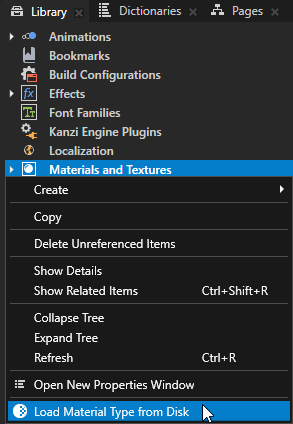
在 Kanzi Studio 的 Library 中右键单击 Materials and Textures,选择 Load Material Type From Disk,然后导入 TileAtlas 材质类型。
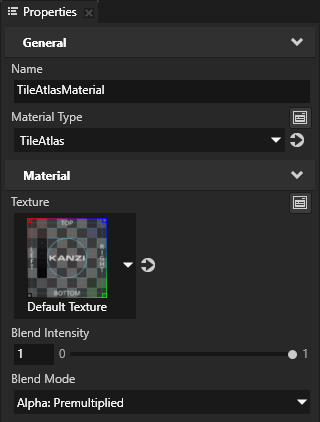
在 Library > Materials and Textures > Materials 中选择 TileAtlasMaterial 材质,并在 Properties 中将 Blend Mode 属性设置为 Alpha: Premultiplied。
这种材质类型的片段着色器需要预乘 alpha,以便它可以将源片段与目标帧缓冲区进行混合。
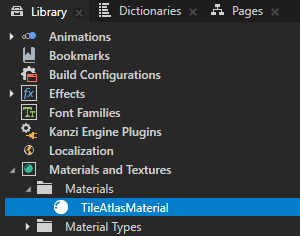
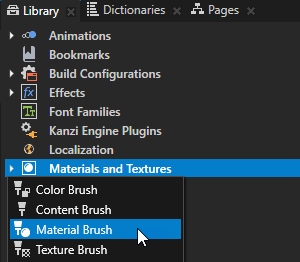
在 Library 按 Alt 并右键单击 Materials and Textures 中,选择 Material Brush,并在 Properties 中将 Material 属性设置为 TileAtlasMaterial 材质。
您使用此画笔从图块图集绘制图像。
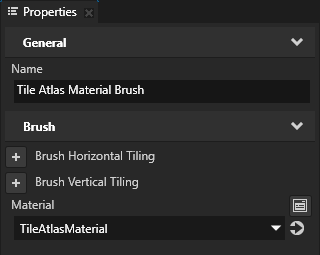
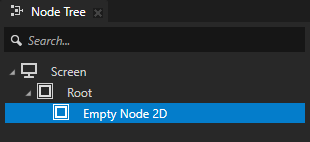
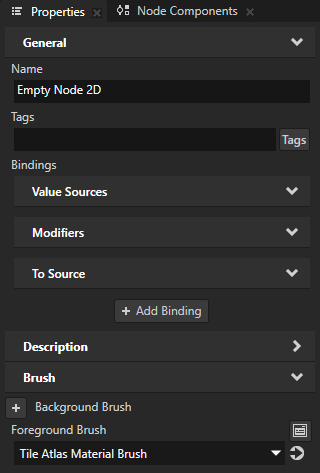
在 Node Tree 中创建或选择一个您想用来显示图块图集中的图像的节点,在 Properties 中添加 Foreground Brush 属性,并将其设置为您创建的 Material Brush。
例如,创建一个 Empty Node 2D 节点。
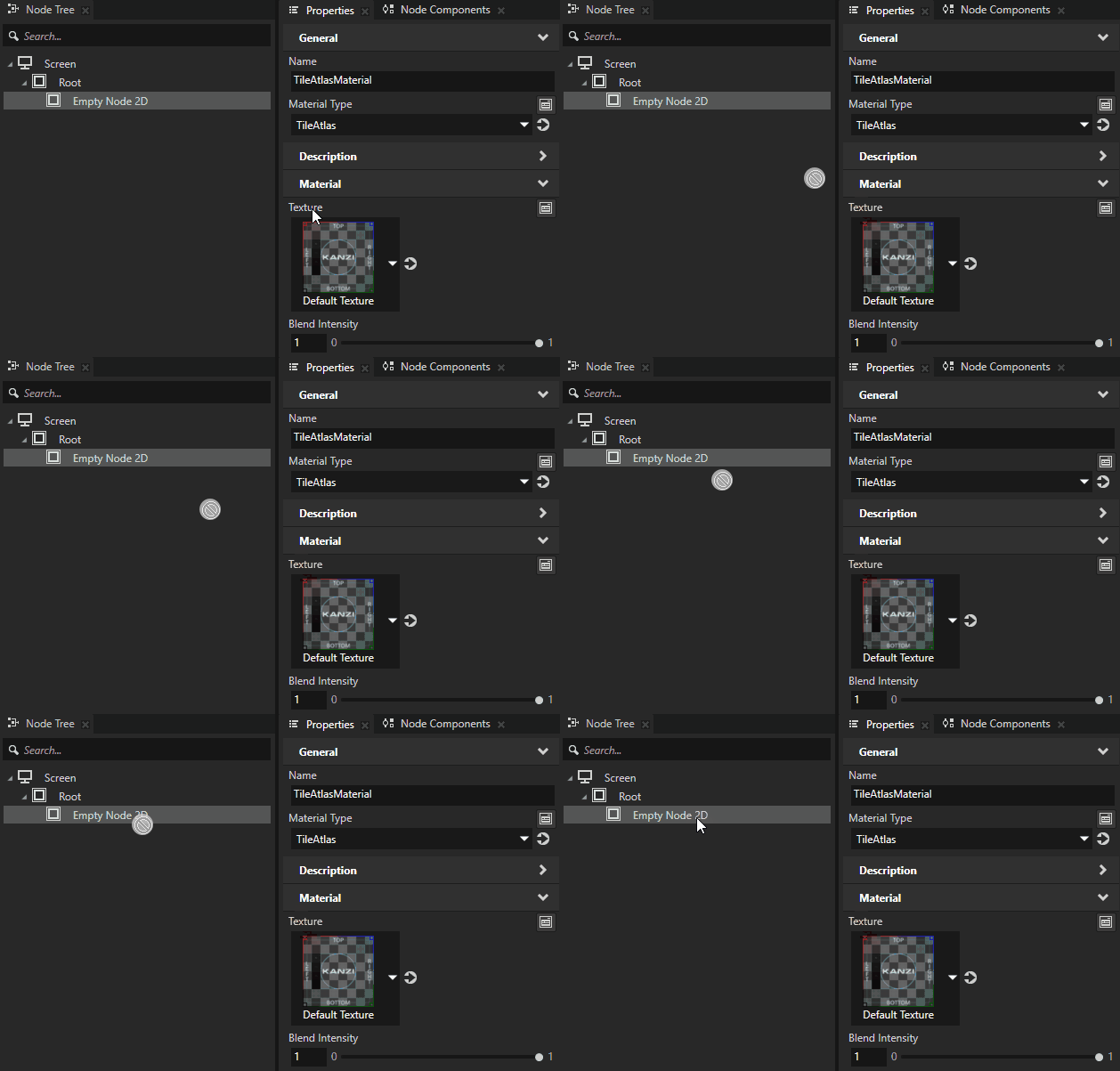
在 Library > Materials and Textures > Materials 中,选择 TileAtlasMaterial 材质,并从 Properties 将这些属性拖到您创建的节点:
Texture
OffsetInTileAtlas
PrimaryColor
SecondaryColor
TileAtlasSize
UseSecondaryColor
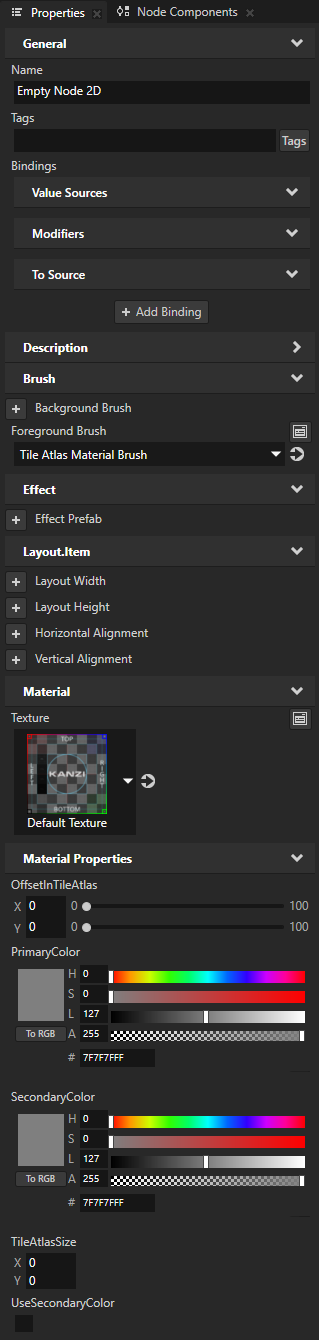
在 Node Tree 中选择您创建的节点并设置这些属性:
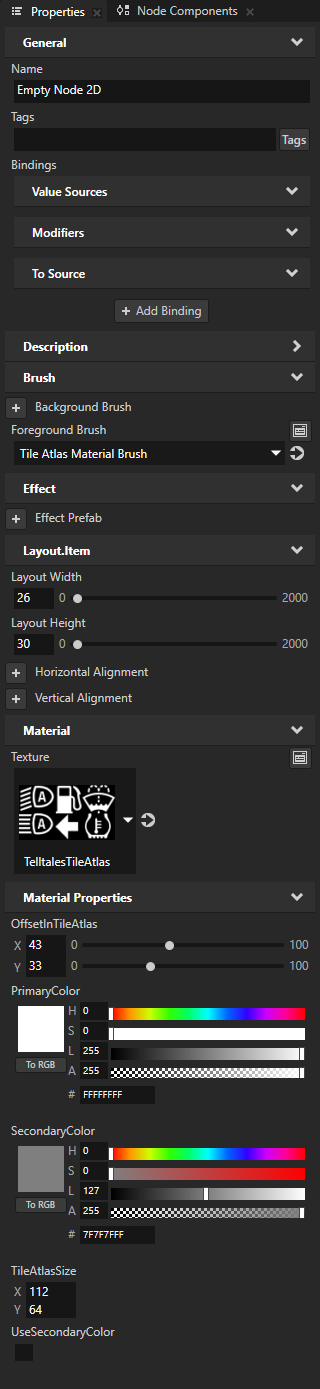
将 Layout Width 设置为您要使用的图块图集中的图像宽度,将 Layout Height 设置为高度。
在图像编辑工具中测量每个图像的大小。TileAtlasMaterial 材质的着色器从这些属性中获取图像的大小。
例如,要绘制
 ,请设置:
,请设置:Layout Width 到 26。
Layout Height 到 30
图像 (Image)
Layout Width
Layout Height

41
31

32
33

38
33

41
31
26
30

30
30
将 Texture 到您要使用的图块图集。
例如,将属性设置为 TelltalesTileAtlas 纹理。
OffsetInTileAtlas 属性 X 和 Y 属性字段到图块图集中您要在此节点中显示的图像左上角的像素距离。
例如,要绘制
,请设置:X 到 43
Y 到 33
图像 (Image)
X
Y
0
0
42
0
74
0
0
31
43
33
77
33
将 TileAtlasSize 属性 X 属性字段设置为您要使用的图块图集的宽度,将 Y 属性字段设置为高度。
例如,如果您使用 TelltalesTileAtlas 纹理,请设置:
X 到 112。
Y 到 64
将 PrimaryColor 设置为您想要用于绘制图像的主要颜色。
例如,将颜色设置为白色。
将 (可选) SecondaryColor 为您想要用于绘制图像的辅助颜色。
要使用辅助颜色,请将 UseSecondaryColor 属性设置为启用。当您想为该图像的第二种状态使用不同的颜色时,使用这些属性。
例如,要应用您在 SecondaryColor 属性中设置的颜色,可以使用 State Manager 来设置 UseSecondaryColor 属性的值。
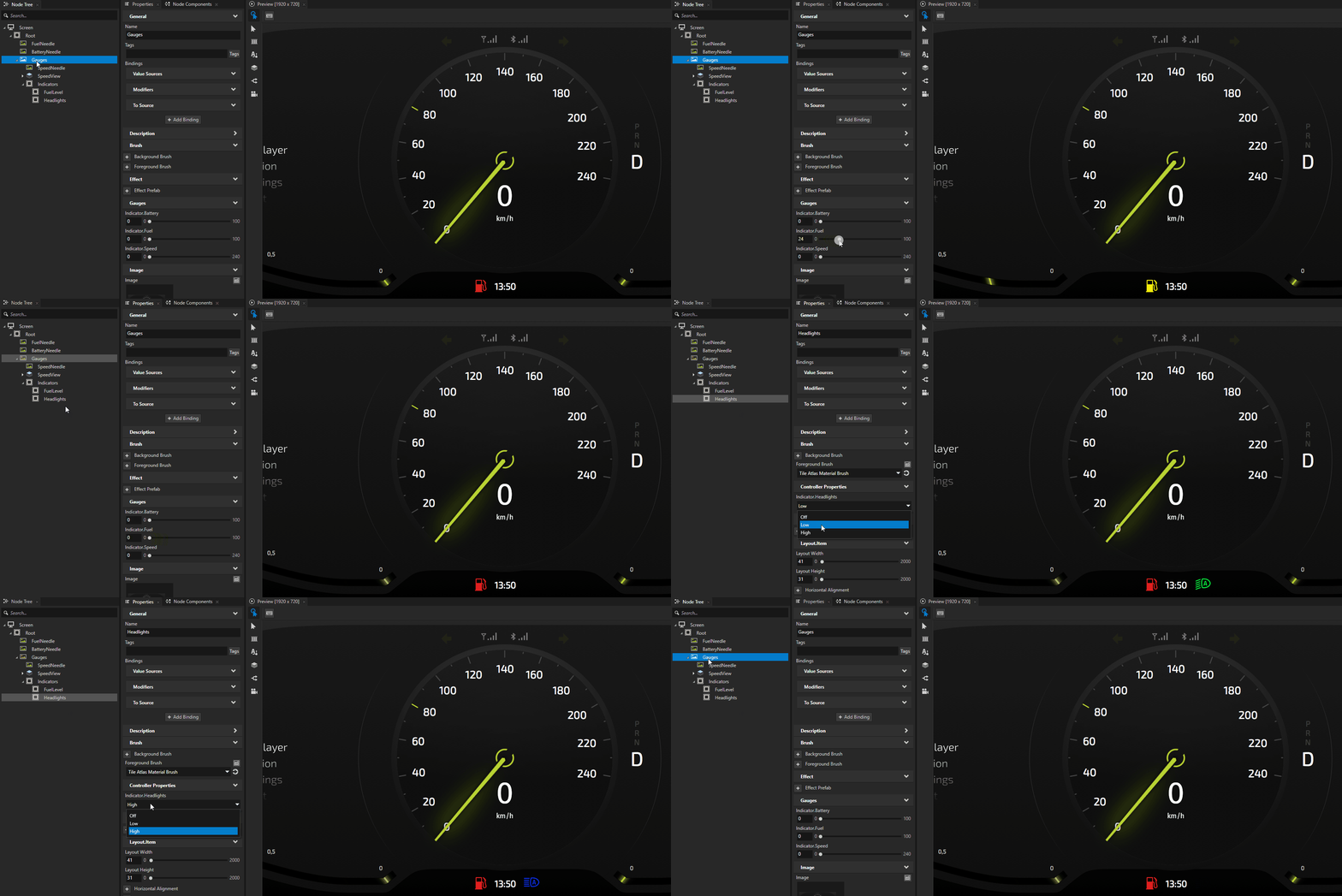
小技巧
您可以使用图块图集为指示器的不同状态显示不同的图像。创建一个 State Manager,并在每个状态中设置在状态之间变化的属性,例如 OffsetInTileAtlas 和 PrimaryColor。请参阅 教程:创建集群指示器。