步骤 3 - 微调 bloom 效果
在此步骤中,您首先将您在上一步中为泛光效果创建的渲染通道转换为可以重复使用和多次应用的渲染通道预设。然后,您创建多个泛光效果通道。为了使效果扩散到更广的区域并看起来更逼真,您需要调整每个通道中模糊的设置和泛光的强度。
重用应用 bloom 效果的渲染通道
在本节中,您将转换创建泛光效果第一遍的渲染通道,将其转换为使用 Render Pass View 实例化的渲染通道预设。
要重用将应用 bloom 效果的渲染通道:
创建并实例化应用一次泛光效果的渲染通道预设:
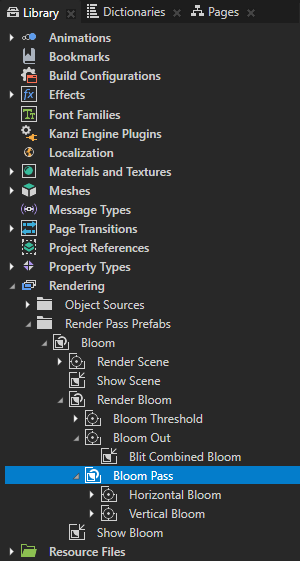
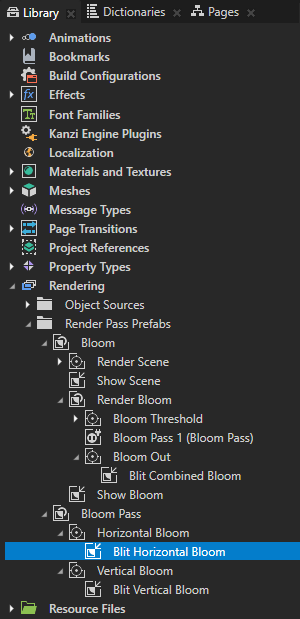
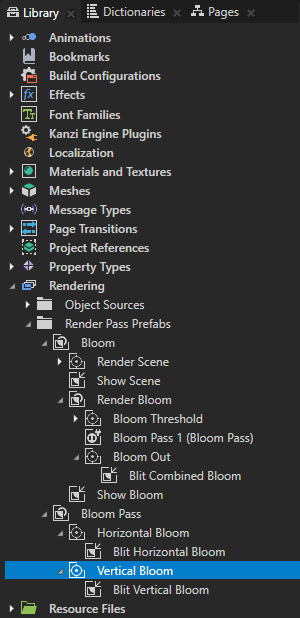
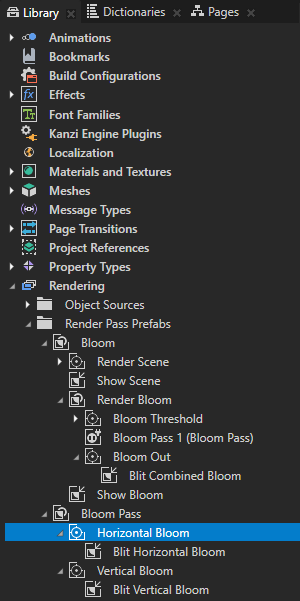
在 Library > Rendering > Render Pass Prefabs > Bloom > Render Bloom 中,创建一个 Group 渲染通道,并将其命名为 Bloom Pass。将 Horizontal Bloom 和 Vertical Bloom 渲染通道拖到 Bloom Pass 渲染通道中。
使用 Bloom Pass 渲染通道来对应用一次泛光效果的渲染通道进行分组。
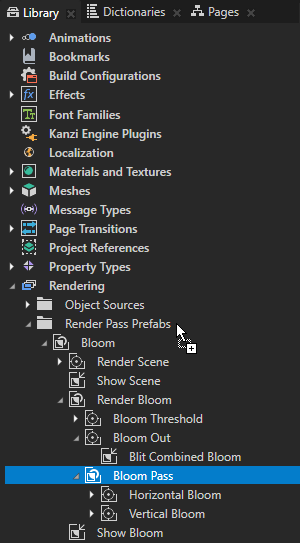
在 Library 中,将 Bloom Pass 渲染通道拖到 Render Pass Prefabs 文件夹。
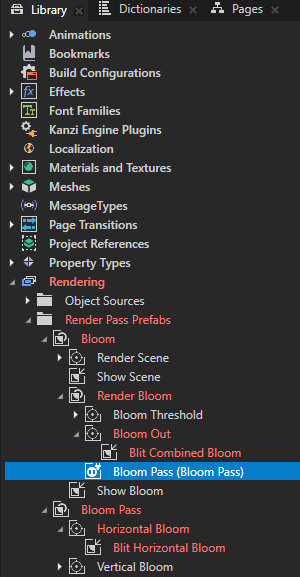
通过这种方式,您可以将 Bloom Pass 渲染通道转换为渲染通道预设。Kanzi Studio 在 Render Bloom 渲染通道中创建一个名为 Bloom Pass 的 Render Pass View,它实例化 Bloom Pass 渲染通道预设。
在 Library > Rendering > Render Pass Prefabs 中,所有顶级项目都是渲染通道预设,您可以使用 Render Pass View 实例化它们。
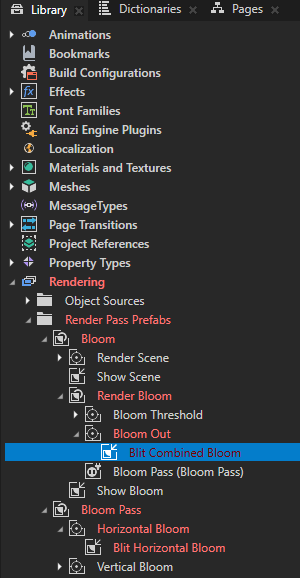
Kanzi Studio 将包含无效绑定的渲染通道标记为无效。这些绑定无效是因为它们绑定了不再在同一渲染通道预设中的渲染通道属性。
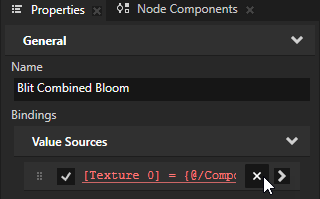
在 Library 中,在 Bloom 渲染通道预设中,选择 Blit Combined Bloom 渲染通道。在 Properties 中,在无效绑定旁边,点击
 以移除该绑定。
您无法将 Blit Combined Bloom 渲染通道的 Texture 0 属性绑定到 Vertical Bloom 渲染通道的结果纹理,该纹理位于不同的渲染通道预设中。
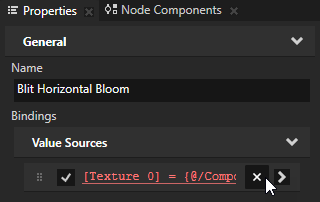
在 Library 中,在 Bloom Pass 渲染通道预设中,选择 Blit Horizontal Bloom 渲染通道。在 Properties 中,在无效绑定旁边,点击
以移除该绑定。您无法将 Blit Horizontal Bloom 渲染通道的 Texture 0 属性绑定到不同渲染通道预设中的 Bloom Threshold 渲染通道的结果纹理。
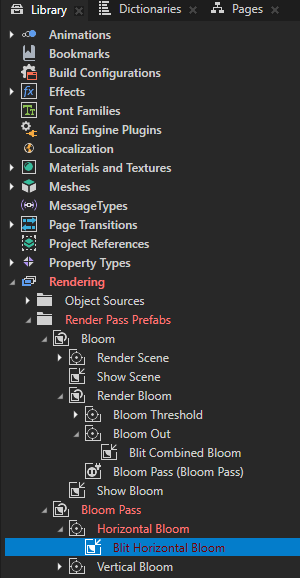
在 Library 中,在 Bloom 渲染通道预设中,将 Bloom Pass Render Pass View 重命名为 Bloom Pass 1,并将其拖到 Bloom Out 渲染通道上方。
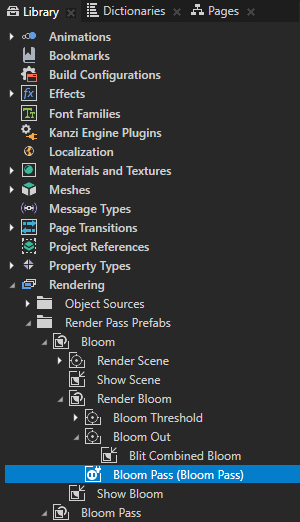
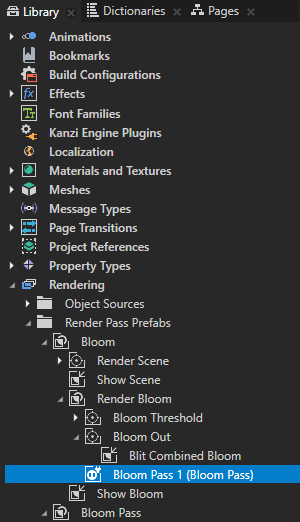
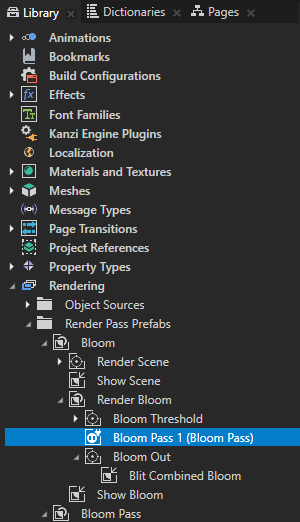
设置 Bloom Pass 1 作为输入和输出的纹理:
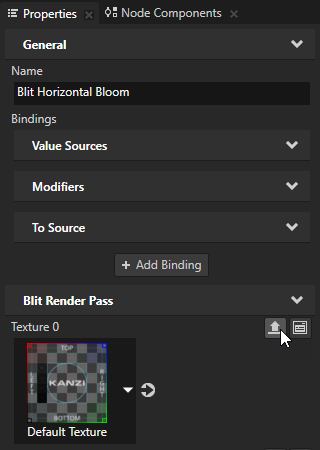
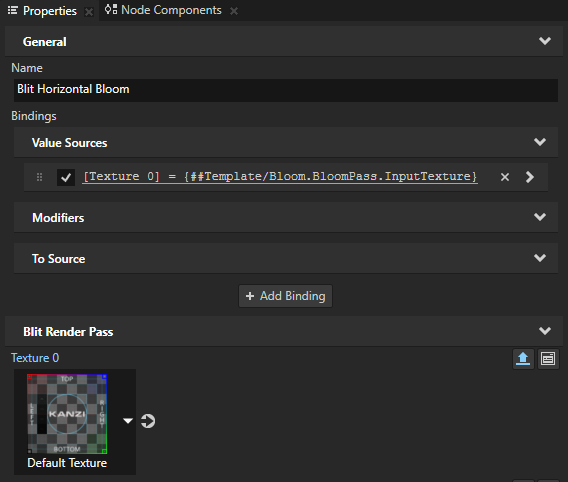
在 Library 中,在 Bloom Pass 渲染通道预设中,选择 Blit Horizontal Bloom 渲染通道。在 Properties 中,在 Texture 0 属性旁边点击
 。在 Publish Property 对话框中,将属性类型命名为 Bloom.BloomPass.InputTexture,并点击 OK。
Kanzi Studio:
从 Texture 0 属性创建一个名为 Bloom.BloomPass.InputTexture 的自定义属性。
将 Bloom.BloomPass.InputTexture 属性添加到 Bloom Pass 渲染通道预设的根,并在 Blit Horizontal Bloom 渲染通道中创建一个
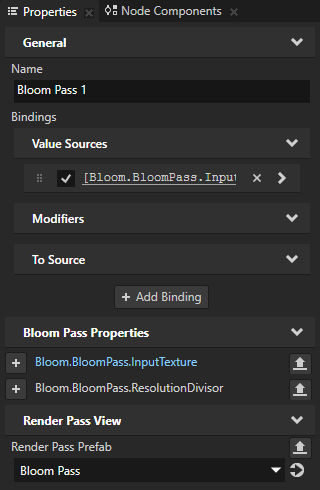
#Template绑定到渲染通道预设根中的属性。在 Bloom Pass 1 渲染通道视图中,将 Bloom.BloomPass.InputTexture 属性显示为常用属性,该视图实例化了 Bloom Pass 渲染通道预设。
您现在可以使用 Bloom.BloomPass.InputTexture 属性类型将 Blit Horizontal Bloom 渲染通道的 Texture 0 属性在每个实例化 Bloom Pass 渲染通道预设的 Render Pass View 中设置为不同的值。
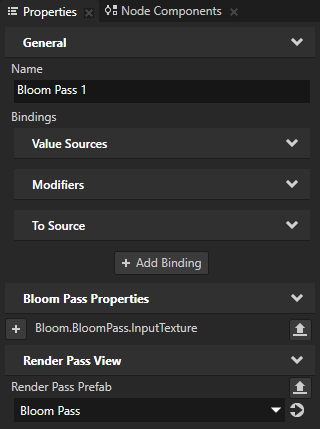
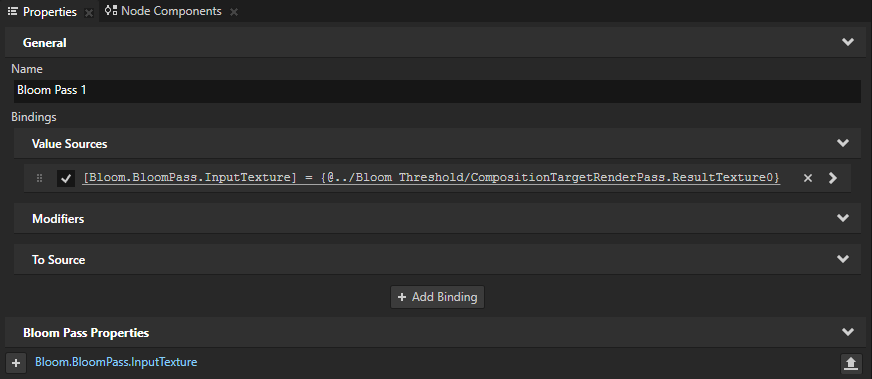
在 Library 中,在 Bloom 渲染通道预设中,选择 Bloom Pass 1 Render Pass View。从 Library 中,将 Bloom Threshold 渲染通道拖到 Properties 窗口,并将其放在 Bloom Pass 1 的 Bloom.BloomPass.InputTexture 属性上。
您将 Bloom Pass 1 Render Pass View 设置为将 Bloom Threshold 渲染过程的结果纹理作为其输入。
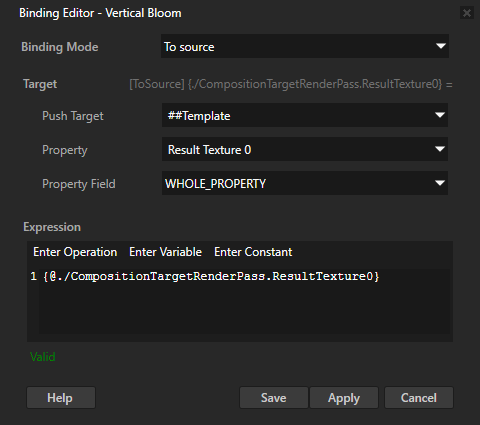
在 Library 中,在 Bloom Pass 渲染通道预设中,选择 Vertical Bloom 渲染通道。在 Properties 中,点击 + Add Binding,并在 Binding Editor 中,设置:
Binding Mode 到 To source
Kanzi Studio 自动将 Push Target 属性设置为 ##Template。这会将此绑定设置的属性值推送到渲染通道预设根。
Property 设置为 [Existing Properties] > Result Texture 0
Expression 到
{@./CompositionTargetRenderPass.ResultTexture0}
单击 Save。
此绑定将 Vertical Bloom 渲染通道的 Result Texture 0 属性的值推送到 Bloom Pass 渲染通道预设的根。Vertical Bloom 渲染通道的 Result Texture 0 属性现在在每个实例化 Bloom Pass 渲染通道预设的 Render Pass View 中可用。
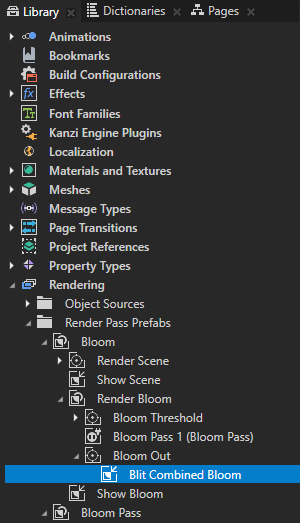
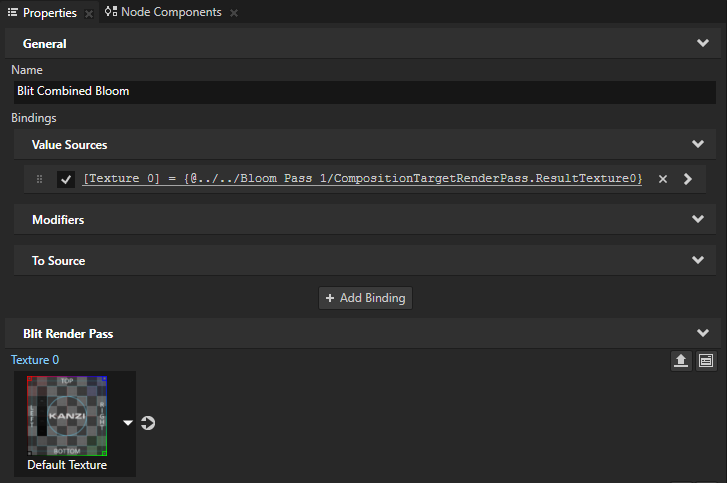
在 Library 中,在 Bloom 渲染通道预设中,选择 Blit Combined Bloom 渲染通道。从 Library 中,将 Bloom Pass 1 Render Pass View 拖到 Properties 窗口,并将其放在 Blit Combined Bloom 渲染通道的 Texture 0 属性上。
您将 Blit Combined Bloom 渲染通道设置为在屏幕上绘制 Bloom Pass 1 Render Pass View 的结果纹理。这是 Bloom Pass > Vertical Bloom 渲染通道的结果纹理,您在上一步中已在 Bloom Pass 1 Render Pass View 中提供。
确保在每个实例化 Bloom Pass 渲染通道预设的 Render Pass View 中,使合成目标的分辨率可自定义:
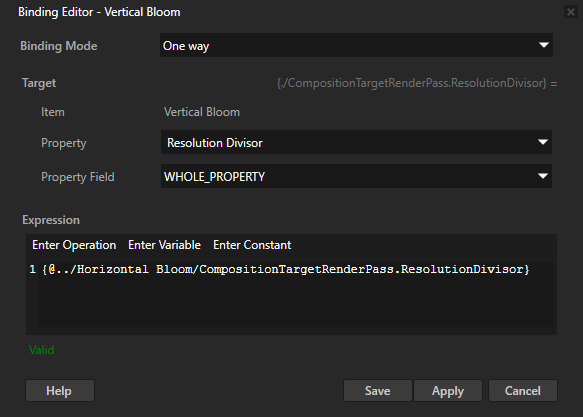
在 Library 中,在 Bloom Pass 渲染通道预设中,选择 Vertical Bloom 渲染通道。在 Properties 中,点击 + Add Binding,并在 Binding Editor 中,设置:
Property 设置为 [Existing Properties] > Resolution Divisor
Expression 到
{@../Horizontal Bloom/CompositionTargetRenderPass.ResolutionDivisor}
单击 Save。
您将 Vertical Bloom 渲染通道的 Resolution Divisor 属性绑定到 Horizontal Bloom 渲染通道的 Resolution Divisor 属性。通过此绑定,确保 Resolution Divisor 属性的值在 Horizontal Bloom 和 Vertical Bloom 渲染通道中始终相同。
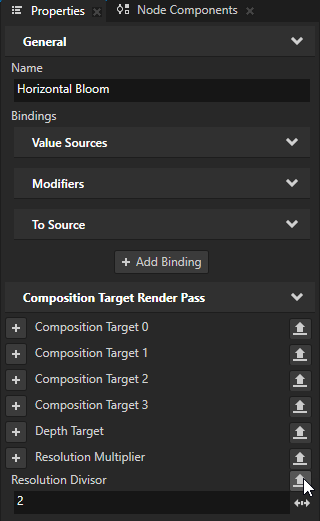
在 Library 中,选择 Horizontal Bloom 渲染通道。在 Properties 中,Resolution Divisor 属性旁边,点击
。在 Publish Property 对话框中,点击 OK。您现在可以使用 Bloom.BloomPass.ResolutionDivisor 属性类型将 Blit Horizontal Bloom 渲染通道的 Resolution Divisor 属性在每个实例化 Bloom Pass 渲染通道预设的 Render Pass View 中设置为不同的值。
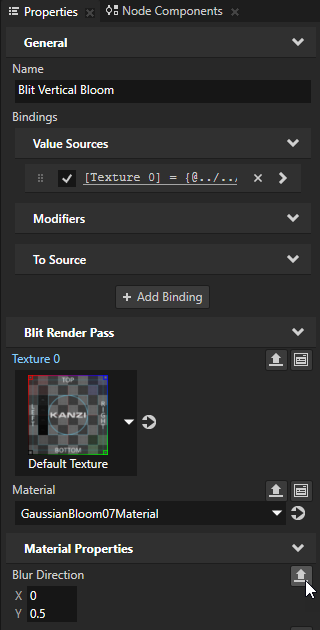
在 Library 中,选择 Blit Vertical Bloom 渲染通道。在 Properties 中,在 Blur Direction 属性旁边,点击
。在 Publish Property 对话框中,将属性类型命名为 Bloom.BloomPass.VerticalBlurDirection,然后点击 OK。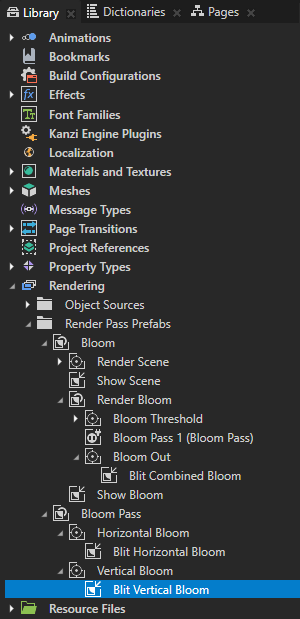
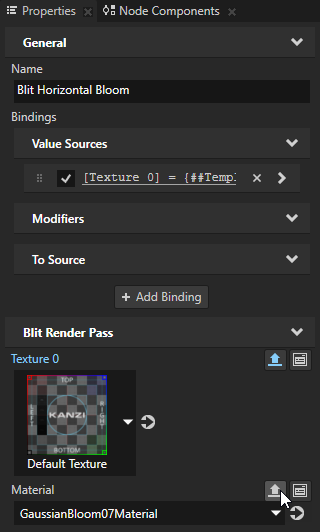
使 Blit Horizontal Bloom 和 Blit Vertical Bloom 渲染通道用于绘制纹理的材质在每个实例化 Bloom Pass 渲染通道预设的 Render Pass View 中可自定义:
在 Library 中,选择 Blit Horizontal Bloom 渲染通道。在 Properties 中,Material 属性旁边,点击
。在 Publish Property 对话框中,点击 OK。
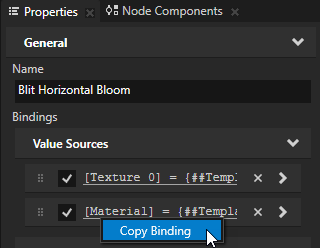
在 Properties 中,右键单击绑定 Material 属性的绑定,然后选择 Copy Binding。
在 Library 中,选择 Blit Vertical Bloom 渲染通道。在 Properties 中,右键单击 Bindings,然后选择 Paste Binding(s)。
小技巧
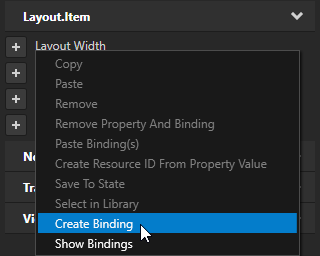
要在多个节点中创建相同的绑定,请在 Node Tree 中选择这些节点,然后在 Properties 中点击 + Add Binding,或者右键单击某个属性并选择 Create Binding。
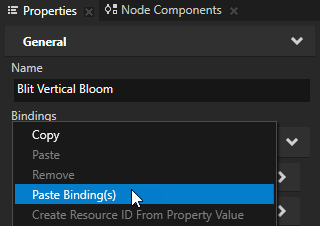
重复上一步两次,以便在每个实例化 Bloom Pass 渲染通道预设的 Render Pass View 中使这些属性可自定义:
Blur Radius
Intensity
Kanzi Studio now shows the properties, which you made customizable, as frequently used properties in the Bloom Pass 1 Render Pass View, which instantiates the Bloom Pass render pass prefab.
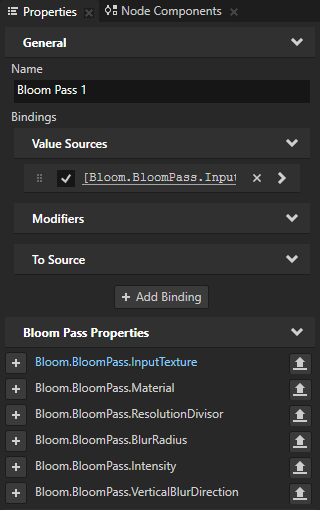
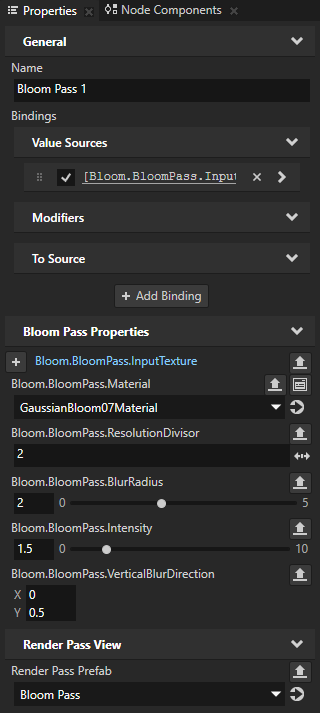
在 Library 中,选择 Bloom Pass 1 Render Pass View。在 Properties 中,添加并设置:
Bloom.BloomPass.Material 到 GaussianBloom07Material
Bloom.BloomPass.ResolutionDivisor 到 2
Bloom.BloomPass.BlurRadius 到 2
Bloom.BloomPass.Intensity 到 1.5。
将 Bloom.BloomPass.VerticalBlurDirection 属性 Y 属性字段设置为 0.5。
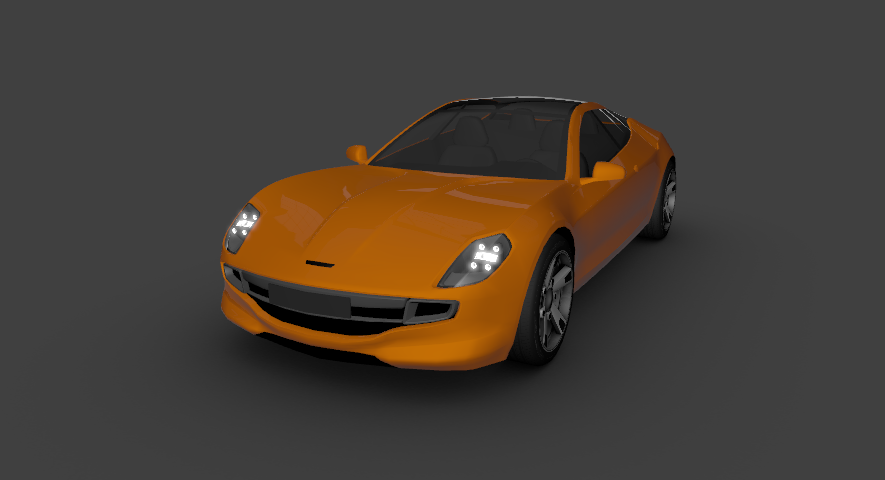
Preview 现在显示了泛光效果的第一遍。
调整泛光效果的广度和强度
在本节中,您将创建多次的泛光效果。您使用 Render Pass View 多次实例化 Bloom Pass 渲染通道预设,并自定义每个实例以调整泛光效果的扩散和强度。
要调整泛光效果的扩散和强度:
在 Library 中,将 Bloom Pass 1 Render Pass View 复制三次。将副本命名为 Bloom Pass 2、Bloom Pass 3 和 Bloom Pass 4,并将它们拖到 Bloom Out 渲染通道上方。
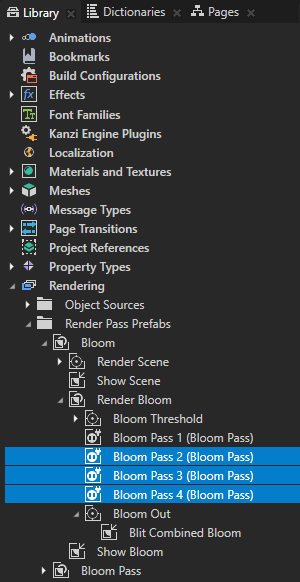
将 Blit Combined Bloom 渲染通道设置为绘制光晕效果的所有四个通道的组合结果:
在 Library 中,选择 Bloom Out > Blit Combined Bloom 渲染通道。在 Properties 中,添加 Blit 渲染通道 > Texture 1、Texture 2 和 Texture 3 属性。
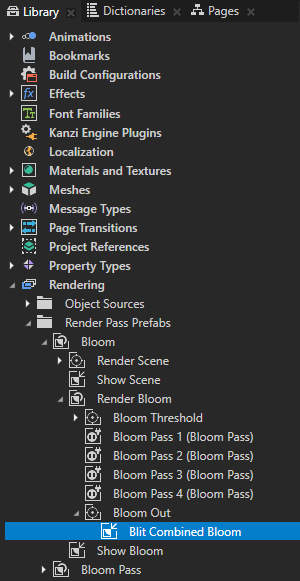
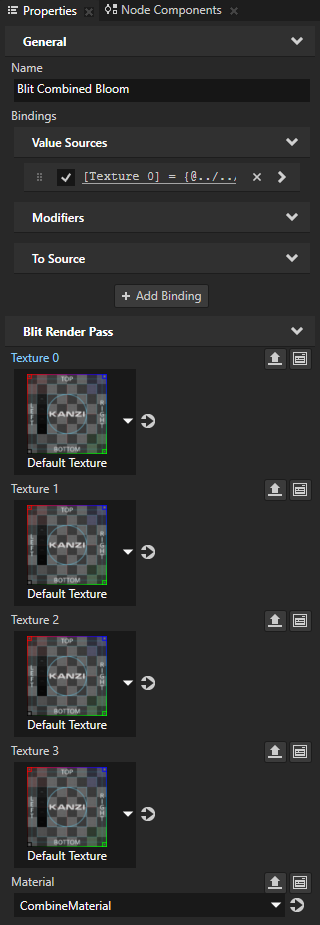
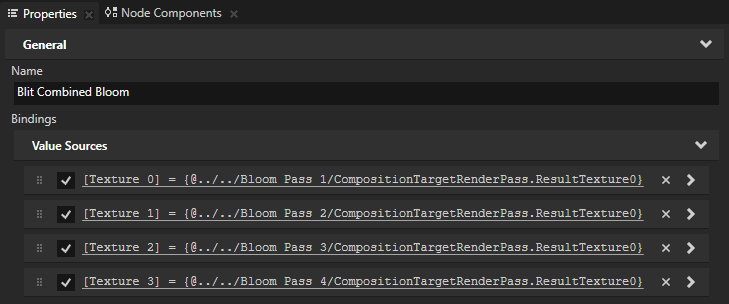
从 Library 拖动到 Properties 窗口,然后释放:
Texture 1 属性上的 Bloom Pass 2
Texture 2 属性上的 Bloom Pass 3
Texture 3 属性上的 Bloom Pass 4
通过这种方式,您可以将 Blit Combined Bloom 渲染通道设置为使用 CombineMaterial 材质绘制 Bloom Pass 1、Bloom Pass 2、Bloom Pass 3 和 Bloom Pass 4 的结果纹理。
对于每次的泛光效果,将上一次的结果纹理设置为输入纹理:
在 Library 中,选择 Bloom Pass 2 渲染通道视图。从 Library 中,将 Bloom Pass 1 渲染通道视图拖到 Properties 窗口,并将其放在 Bloom Pass 2 渲染通道视图的 Bloom.BloomPass.InputTexture 属性上。
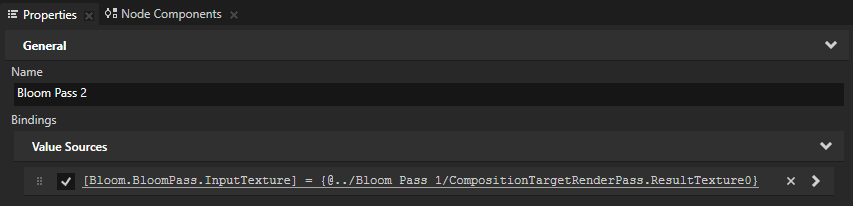
重复上一步骤两次:
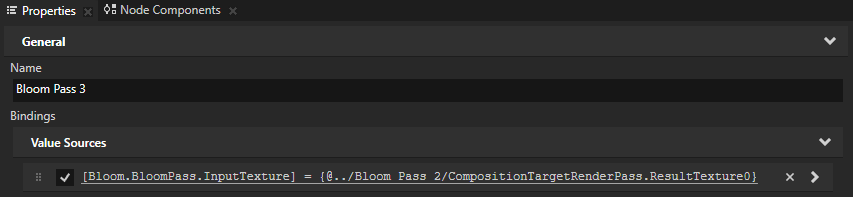
对于 Bloom Pass 3,使用 Bloom Pass 2 的结果纹理。
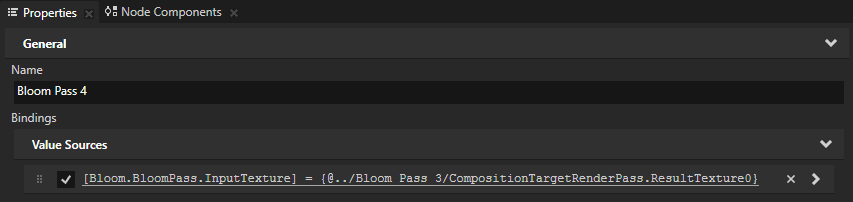
对于 Bloom Pass 4,使用 Bloom Pass 3 的结果纹理。
从
<KanziWorkspace>/Tutorials/Bloom/Assets/GaussianBloom09_13_15Material.kzexport加载材质。GaussianBloom09Material、GaussianBloom13Material 和 GaussianBloom15Material 材质使用 9、13 和 15 像素的内核大小提供方向性高斯模糊效果。为了优化性能,使用较小的内核大小。
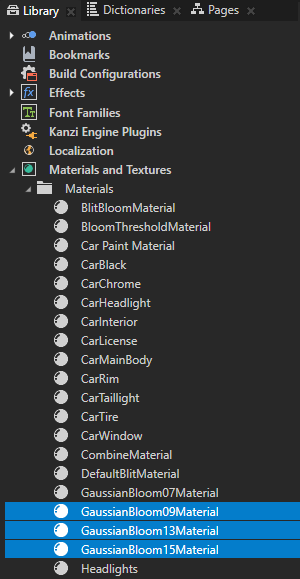
要调整泛光效果的扩散和强度,请自定义每个实例化 Bloom Pass 的 Render Pass View:
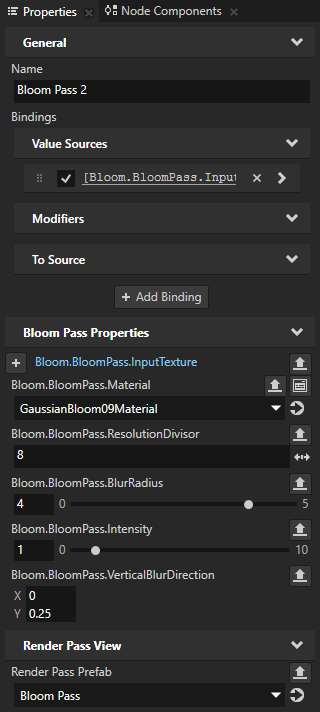
在 Library 中,选择 Bloom Pass 2 Render Pass View。在 Properties 中,设置:
Bloom.BloomPass.Material 到 GaussianBloom09Material
Bloom.BloomPass.ResolutionDivisor 到 8
您在每次应用 bloom 效果时降低合成目标的分辨率,使效果扩散到更广的区域。
Bloom.BloomPass.BlurRadius 到 4
Bloom.BloomPass.Intensity 到 1
将 Bloom.BloomPass.VerticalBlurDirection 属性 Y 属性字段设置为 0.25。
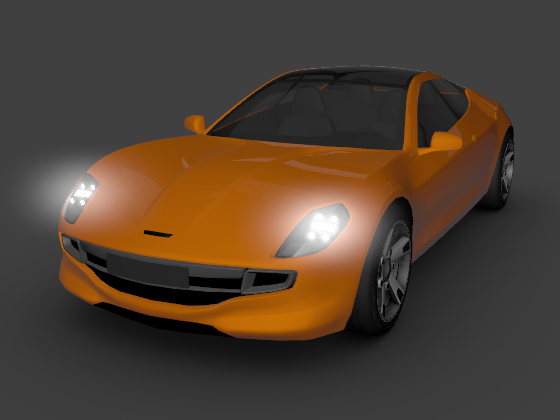
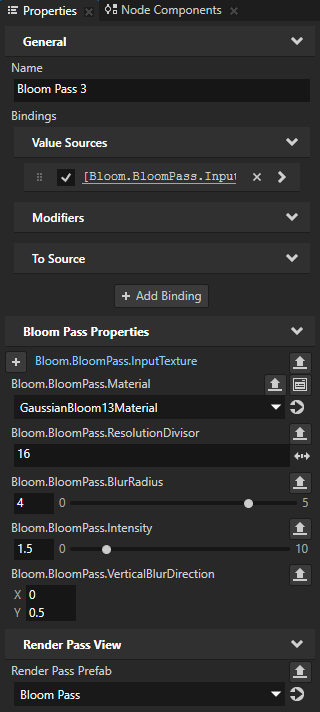
在 Library 中,选择 Bloom Pass 3 Render Pass View。在 Properties 中,设置:
Bloom.BloomPass.Material 到 GaussianBloom13Material
Bloom.BloomPass.ResolutionDivisor 到 16
Bloom.BloomPass.BlurRadius 到 4
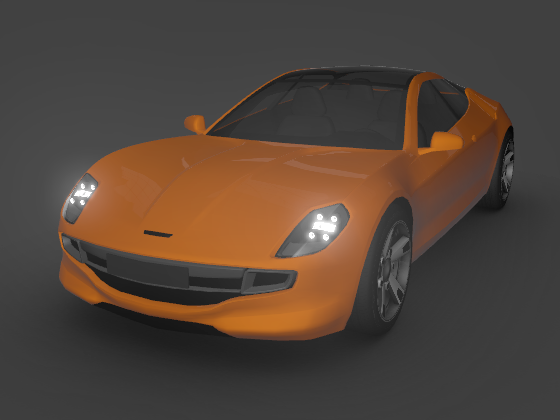
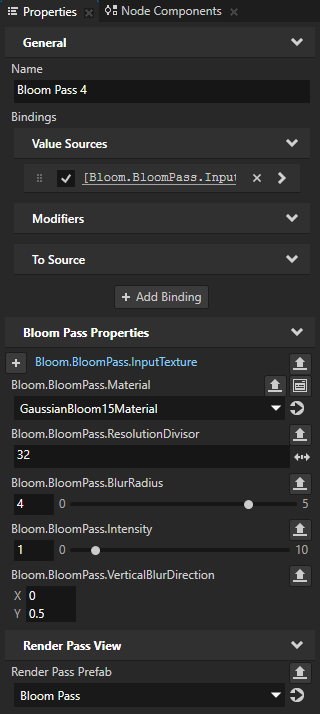
在 Library 中,选择 Bloom Pass 4 渲染通道视图。在 Properties 中,设置:
Bloom.BloomPass.Material 到 GaussianBloom15Material
Bloom.BloomPass.ResolutionDivisor 到 32
Bloom.BloomPass.BlurRadius 到 4
Bloom.BloomPass.Intensity 到 1
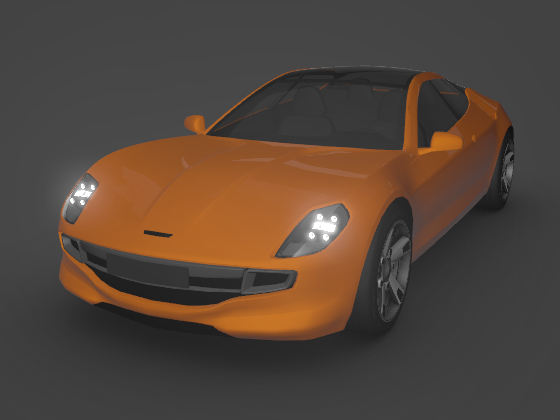
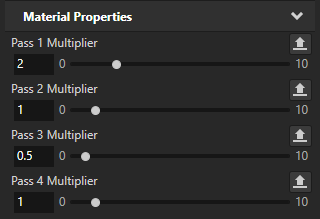
在 Library 中,选择 Bloom Out > Blit Combined Bloom 渲染通道。在 Properties 中,添加并设置这些 Material Properties:
Pass 1 Multiplier 到 2
Pass 2 Multiplier 到 1
将 Pass 3 Multiplier 调整为 0.5。
Pass 4 Multiplier 到 1
使用这些属性为 Bloom Pass 1、Bloom Pass 2、Bloom Pass 3 和 Bloom Pass 4 设置权重,其结果纹理由 Blit Combined Bloom 渲染。您可以尝试不同的乘数值,以查看每次泛光效果的处理如何影响最终结果。
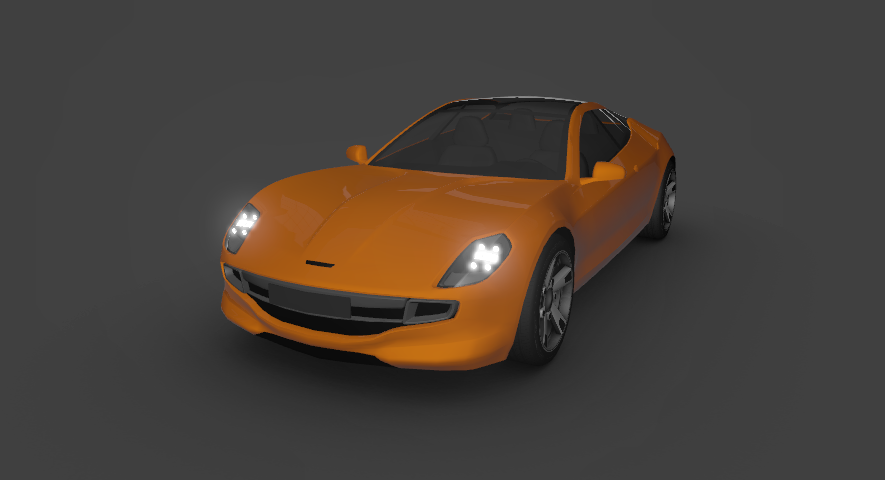
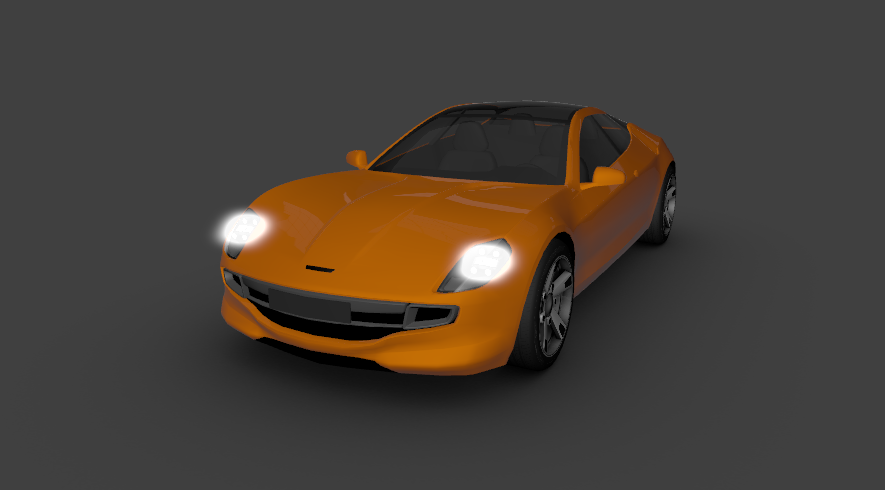
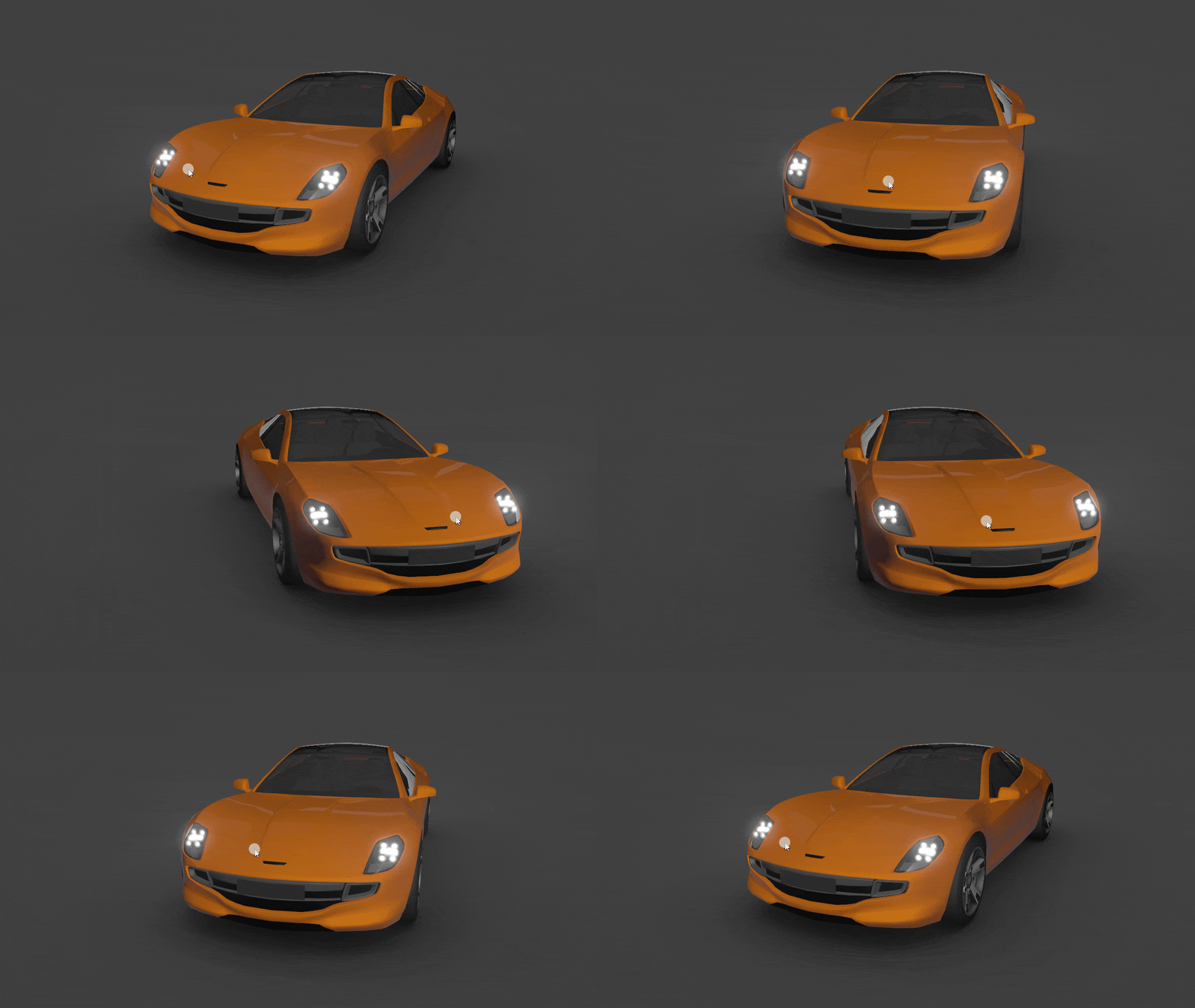
在 Preview 中,点击并拖动汽车以查看当汽车旋转时泛光效果的外观。
接下来该做什么?
在本教程中,您学习了如何使用渲染通道和着色器将 bloom 效果应用于 3D 内容。
现在您可以:
了解如何将模板应用于3D内容,以便 Kanzi 仅渲染内容的选定区域。请参阅 教程:将模板应用于 3D 内容。
学习如何在您的 Kanzi 应用程序中使用滑动手势旋转 3D 模型。请参阅 教程:旋转 3D 模型。
了解如何使用 Blur Effect 2D 效果对 2D 节点的内容应用高斯模糊效果。请参阅 教程:创建高斯模糊效果。
另请参阅
要了解有关 Kanzi 中渲染通道的更多信息,请参阅 渲染 (Rendering)。