Kanzi Studio 插件 API 概述
您可以在这里找到 Kanzi Studio 插件 API 的概述。
Kanzi Studio 插件扩展了 Kanzi Studio 的功能,并在 Kanzi Studio 中运行。
Kanzi Studio 命令插件是您作为命令执行且没有用户界面的插件。例如,使用命令插件在项目中节点树的整个或选定部分上执行命令。
请参阅 Kanzi Studio 插件 和 创建 Kanzi Studio 命令插件。
在创建插件的基础后,使用此概述和 Kanzi Studio 插件 API 参考为您的插件添加功能,以便它执行有用的操作。请参阅 为 Kanzi Studio 命令插件创建基础 和 Kanzi Studio 插件 API 参考。
Kanzi Studio 数据模型
Kanzi Studio 项目是一个项目节点的层次结构。每个节点都有一组属性,并且可以有一组子节点或项目。不同类型的项目项目,如节点、模型、纹理和动画都有其自身的特性。例如,纹理指定纹理中使用的图像和过滤。要更改项目中的数据,Kanzi Studio 使用命令。例如,设置属性的值或创建新项目。
Kanzi Studio 为插件提供 KanziStudio 对象。KanziStudio 对象是数据访问的根对象,提供当前项目、可用命令、全局撤销和重做,以及与项目打开和关闭相关的事件。
您可以使用当前项目节点访问项目中的节点、资源和属性。使用库来处理不同类型的节点,并使用工厂来创建新的项目节点和资源。节点提供对属性、子节点和项目的访问,以及对当前节点和后代的更改和事件的访问。
在所有函数中,使用您要执行的代码替换这一行:
throw new NotImplementedException();
确保将插件处理所有内部异常,不让它们传递到 Kanzi Studio 接口。
Kanzi Studio
使用 studio 对象访问 Kanzi Studio 接口。例如,当您想要向 Log 窗口写入消息、从用户获取输入、撤销和重做项目中的更改等时,请使用它。
获取用户输入
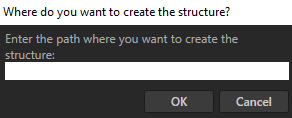
使用 KanziStudio.GetUserInput 显示一个对话框,提示用户提供输入。例如,您可以使用 KanziStudio.GetUserInput 获取一个节点的路径,在该节点上您希望插件开始执行其命令。
要显示提示用户提供输入的对话框:
在您的插件的 Visual Studio 解决方案中,打开实现
PluginCommand接口的类库文件,并在Execute函数中使用KanziStudio.GetUserInput显示带有消息的对话框。public void Execute(PluginCommandParameter parameter) { studio.GetUserInput("Where do you want to create the structure?", "Enter the path where you want to create the structure:"); }
当您运行插件时,它会提示用户提供输入。
向 Kanzi Studio Log 窗口写入消息
要向 Kanzi Studio Log 窗口写入消息:
在您的插件的 Visual Studio 解决方案中,打开实现
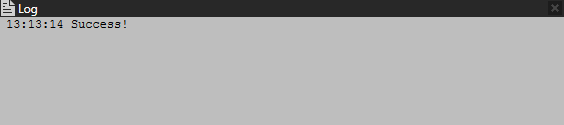
PluginCommand接口的类库文件,并在Execute函数中使用KanziStudio.Log写入 Log 窗口。public void Execute(PluginCommandParameter parameter) { studio.Log("Success!"); }
当您运行插件时,它会将 Success! 打印到 Kanzi Studio Log 窗口。
显示包含消息的对话框
当您想显示带有消息的对话框时,使用 KanziStudio.ShowMessageBox。
例如,要显示包含标题和消息的模态对话框:
在您的插件的 Visual Studio 解决方案中,打开实现
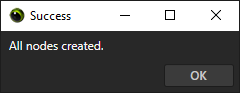
PluginCommand接口的类库文件,并在Execute函数中使用 ShowMessageBox 显示带有标题和消息的模态对话框。public void Execute(PluginCommandParameter parameter) { studio.ShowMessageBox("All nodes created.", "Success", true); }
当您运行插件时,它会在 Kanzi Studio 中显示对话框。
创建节点
例如,要创建一个带有 Kanzi Studio 插件的 Empty Node 2D 节点:
在插件的 Visual Studio 解决方案中,打开实现
PluginCommand接口的类库文件,并创建一个创建 Empty Node 2D 节点的函数。private ProjectItem CreateEmptyNode2D(ProjectItem parentNode) { // Create an Empty Node 2D node. You use the Project as a factory. // The first parameter defines the name of the node. Use the GenerateUniqueChildName // function, because the names of sibling nodes must be unique. // The second parameter defines the location of the parent node of the Empty Node 2D // node that you create. You pass this parameter to the CreateEmptyNode2D function // when you call it. var emptyNode2D = studio.ActiveProject.CreateProjectItem<EmptyNode2D>( parentNode.GenerateUniqueChildName("Empty Node 2D"), parentNode); // Make the Empty Node 2D 300 pixels high by setting its Layout Height property. emptyNode2D.Set(Properties.NodeHeight, 300.0f); // Make the Empty Node 2D 400 pixels wide by setting its Layout Width property. emptyNode2D.Set(Properties.NodeWidth, 400.0f); return emptyNode2D; }
在
Execute函数中调用您在上一步中创建的函数。在Execute函数中添加您希望插件运行的代码。public void Execute(PluginCommandParameter parameter) { // Get the RootNode node in the node tree. This is the parent node of the Empty Node 2D // node that this plugin creates. var rootNode = studio.ActiveProject.GetProjectItem("Screens/Screen/RootNode"); // Call the function that creates an Empty Node 2D node. The function takes a parameter // to set where the plugin creates the Empty Node 2D node. CreateEmptyNode2D(rootNode); }
构建并运行插件。请参阅 构建和运行 Kanzi Studio 插件。
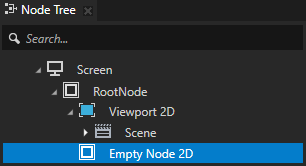
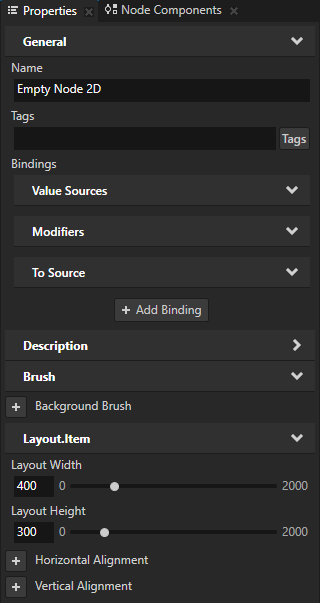
运行插件时,它将在 Screen > RootNode 节点中创建一个高 300 像素、宽 400 像素的 Empty Node 2D 节点。插件将该 Empty Node 2D 节点命名为 Empty Node 2D。您可以扩展此示例:创建一个 Color Brush,并将 Empty Node 2D 节点的 Background Brush 属性设置为该 Color Brush,以此设置该节点的背景颜色。请参阅 创建资源。
创建资源
例如,要使用 Kanzi Studio 插件创建一个 Color Brush 资源:
在插件的 Visual Studio 解决方案中,在 Solution Explorer 中右键点击工程名称,选择添加 > 参考 (Add > Reference),并将参考添加到
PresentationCore程序集中。Kanzi Studio 插件使用此程序集来定义您在 Color Brush 中使用的颜色。
在 Visual Studio 中,打开实现
PluginCommand接口的类库文件,并在WindowsMedia命名空间中添加System.Windows.Media的 using 指令,以防止与 KanziPluginInterface命名空间发生冲突。using WindowsMedia = System.Windows.Media;
在相同的类库文件中,定义创建 Color Brush 的函数。
private Brush CreateColorBrush(WindowsMedia.Color color)
{
    // Get the Brushes library in the Library > Materials and Textures which stores all the
    // brushes in a Kanzi Studio project.
    var brushLibrary = studio.ActiveProject.BrushLibrary;
    // Set the name of the Color Brush to be ColorBrush_ followed by
    // the hexadecimal ARGB values of the color in which you create the Color Brush.
    var brushName = "ColorBrush_" + color;
    // Check whether a brush with this name already exists in the Brushes library. If yes,
    // return that brush.
    var colorBrush = brushLibrary.GetChild(brushName) as Brush;

    // If a brush with the same name does not already exist create a new Color Brush.
    if (colorBrush == null)
    {
        // Create a Color Brush.
        // The first parameter defines the name of the resource.
        // Use the GenerateUniqueChildName function, because the names of resources in the
        // same library must be unique.
        // The second parameter defines in which library to create the brush.
        // The third parameter defines the type of the brush.
        colorBrush = studio.ActiveProject.CreateBrush(
            brushLibrary.GenerateUniqueChildName(brushName),
            brushLibrary,
            BrushTypeEnum.COLOR);
        // Set the color of the Color Brush to the color you pass to the CreateColorBrush
        // function when you call it.
        colorBrush.Set(colorBrush.PropertyTypes.ColorBrushColor, color);
    }

    return colorBrush;
}
在
Execute函数中定义 Color Brush 的颜色,并调用您在上一步中创建的函数。在
Execute函数中添加您希望插件运行的代码。public void Execute(PluginCommandParameter parameter) { // Define the color for the Color Brush as red. Use values in range from 0 to 255. var myColor = WindowsMedia.Color.FromArgb(255, 255, 0, 0); // Call the function that creates a Color Brush. // The function takes a parameter to set the color of the Color Brush. CreateColorBrush(myColor); }
构建并运行插件。请参阅 构建和运行 Kanzi Studio 插件。
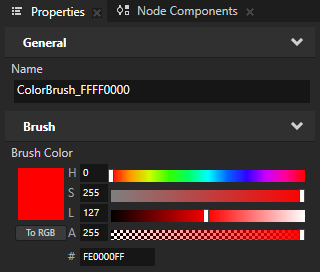
当您运行插件时,它会在 Library > Materials and Textures > Brushes 中创建一个您在
myColor变量中定义颜色的 Color Brush。插件将该 Color Brush 命名为 ColorBrush_<HexadecimalColorCode>。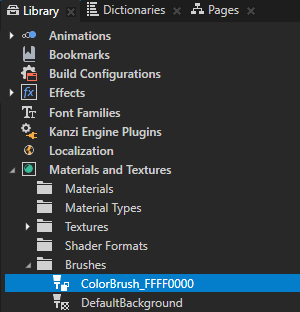
创建节点组件
例如,要使用 Click 触发器和 Click Manipulator 输入操控组件来创建一个可点击的节点:
在您的插件的 Visual Studio 解决方案中,打开实现
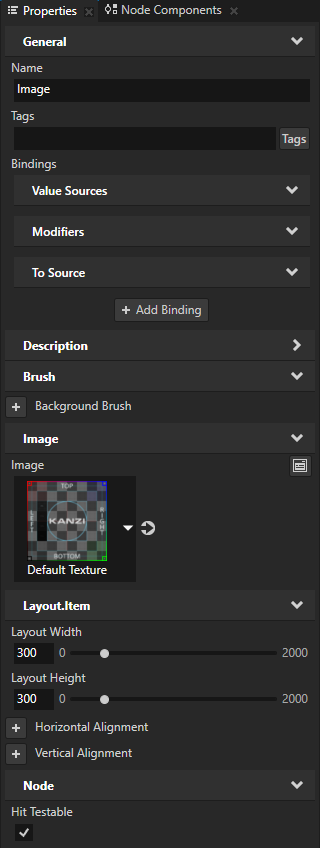
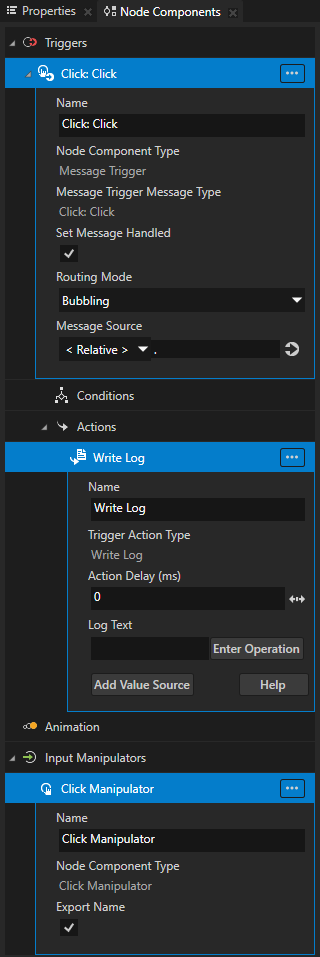
PluginCommand接口的类库文件,并创建一个函数,该函数创建一个可点击的 Image 节点,并向该节点添加一个带有 Write Log 动作的 Click 触发器。private ProjectItem CreateClickableImage(ProjectItem parentNode) { // Create an Image node. You use the Project as a factory. // The first parameter defines the name of the node. Use the GenerateUniqueChildName // function, because the names of sibling nodes must be unique. // The second parameter defines the parent node of the Image node that you create. // You pass this parameter to the CreateClickableImage function when you call it. var image = studio.ActiveProject.CreateProjectItem<Image2D>( parentNode.GenerateUniqueChildName("Image"), parentNode); // Make the Image node 300 pixels high and wide, by setting its Layout Height and // Layout Width properties. image.Set(Properties.NodeHeight, 300.0f); image.Set(Properties.NodeWidth, 300.0f); // To enable the click gesture for a node: // - Add and enable the Hit Testable property. // - Add to the node the Click Manipulator input manipulator component. // In the Image node add and enable the Hit Testable property. image.Set(Properties.NodeHitTestable, true); // Get the Click Manipulator node component type. var clickManipulatorType = studio.ActiveProject.NodeComponentTypeLibrary.GetItemByName(NodeComponentTypeNames.ClickManipulatorComponent); // In the Image node create a Click Manipulator input manipulator component. image.CreateNodeComponent(image.GenerateUniqueChildName("Click Manipulator"), clickManipulatorType); // In the Image node create a Message Trigger. var clickTrigger = image.CreateTrigger( studio.ActiveProject.NodeComponentTypeLibrary.GetItemByName(NodeComponentTypeNames.MessageTrigger)); // In the Message Trigger set the Message Trigger Message Type property to Click. clickTrigger.Set(Properties.TriggerMessageType, studio.ActiveProject.MessageTypeLibrary.GetItemByName(MessageTypeNames.MessageClick)); // In the Click Message Trigger create a Write Log action. var writeLogAction = clickTrigger.CreateAction( studio.ActiveProject.TriggerActionTypeLibrary.GetItemByName(ActionTypeNames.WriteLogAction)); // In the Write Log action set Log Text to "Image clicked". // This is the message that the Write Log action writes to the Log window. writeLogAction.Set(Properties.WriteLogActionLogText, "Image clicked"); return image; }
在
Execute函数中调用您在上一步中创建的函数。在
Execute函数中添加您希望插件运行的代码。public void Execute(PluginCommandParameter parameter) { // Get the RootNode node in the node tree. // This is the parent node of the Image node that this plugin creates. var rootNode = studio.ActiveProject.GetProjectItem("Screens/Screen/RootNode"); // Call the function that creates and configures the Image node and adds to the node // the Click Manipulator and the Click trigger with a Write Log action. The function // takes a parameter to set where the plugin creates the Image node. CreateClickableImage(rootNode); }
构建并运行插件。请参阅 构建和运行 Kanzi Studio 插件。
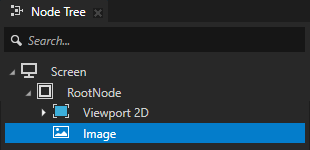
运行插件时,它将在 Screen > RootNode 节点中创建并配置 Image 节点,并向该节点添加:
Click Manipulator 输入操控组件
Click 触发与 Write Log 操作。
当您单击 Preview 中的 Image 节点时,您触发了触发器,并且您使用插件创建的操作将消息写入 Log 窗口。
打开文件
要使用 Kanzi Studio 插件打开文件:
在插件的 Visual Studio 解决方案中,在 Solution Explorer 中右键点击工程名称,选择添加 > 参考 (Add > Reference),并将参考添加到
PresentationFramework程序集中。Kanzi Studio 插件使用此程序集打开标准 Windows 对话框,提示您打开文件。
在 Visual Studio 中,打开实现
PluginCommand接口的类库文件,并创建打开标准 Windows 对话框的函数。您使用此对话框来选择要让插件打开的计算机上的文件。private static string GetFile() { // Configure the Open File dialog box to show files with the .xml extension var dialog = new Microsoft.Win32.OpenFileDialog(); dialog.DefaultExt = ".xml"; dialog.Filter = "XML files (*.xml)|*.xml"; // Open the Open File dialog box var result = dialog.ShowDialog(); var fileName = (result == true) ? dialog.FileName : null; return fileName; }
在
Execute函数中调用您在上一步中创建的函数。在
Execute函数中添加您希望插件运行的代码。public void Execute(PluginCommandParameter parameter) { // Call the function that opens the standard Windows dialog box where you can // select a file that you want to open with your plugin. var fileName = GetFile(); // Add your code here to correctly load the file format of your file. // For example, C# includes XML libraries that you can use to load and parse XML files, // or you can create your own parser for the file format that you want to load. }
构建并运行插件。请参阅 构建和运行 Kanzi Studio 插件。
当运行该插件时,它会打开标准 Windows 对话框,您可以在该对话框中选择想要使用插件打开计算机上的哪个文件。