步骤 1 - 准备内容
在教程的这一步,您首先创建可视化用户拖动项的预设件,然后设置各项的纹理。
获取教程
要获取该教程,请在 Kanzi Studio 的 Quick Start 窗口中点击 Projects 并选择 Tutorials 选项卡。在 Drag and drop 教程旁边,点击  。
。
Kanzi Studio 会将教程下载到 <KanziWorkspace>/Tutorials 目录。您可以找到:
位于
<KanziWorkspace>/Tutorials/Drag and drop/Start/Tool_project目录中的教程起点工程。位于
<KanziWorkspace>/Tutorials/Drag and drop/Completed目录中的已完成教程。
起始项目的内容
起点工程包含您完成本教程所需的内容:
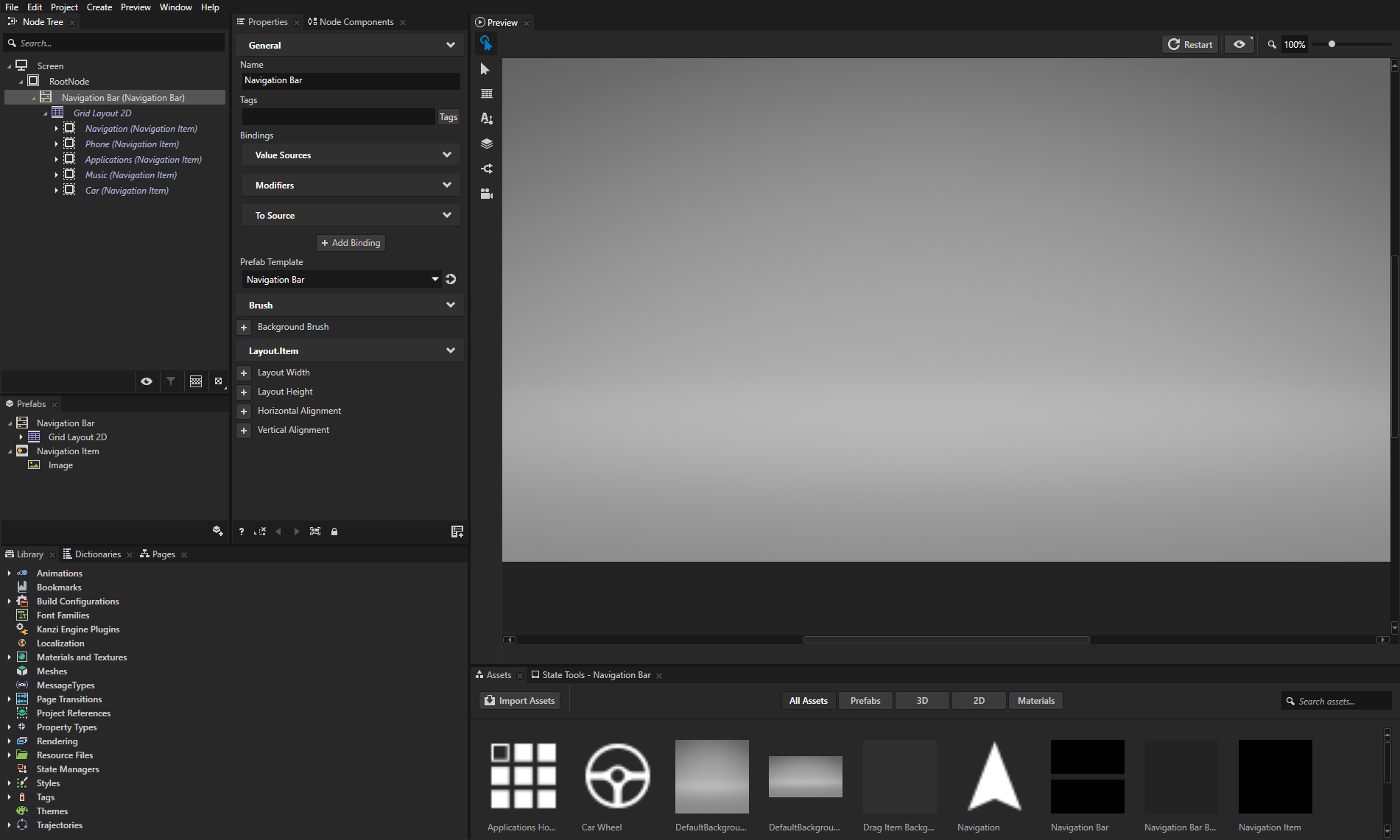
Navigation Bar 预设。
该预设是一个 Toggle Button Group 2D 节点,其中包含一个包含 Toggle Button 2D 节点的 Grid Layout 2D 节点。按钮使用 Navigation Item 预设。
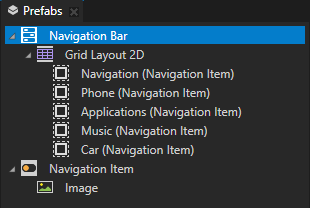
Navigation Item 预设。
在 Navigation Item > Image 节点中,Image 属性绑定到您在本教程中创建的数据对象,以设置每个按钮的图标。
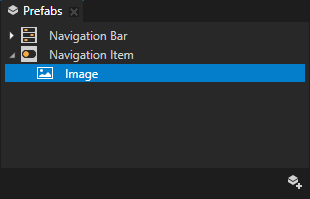
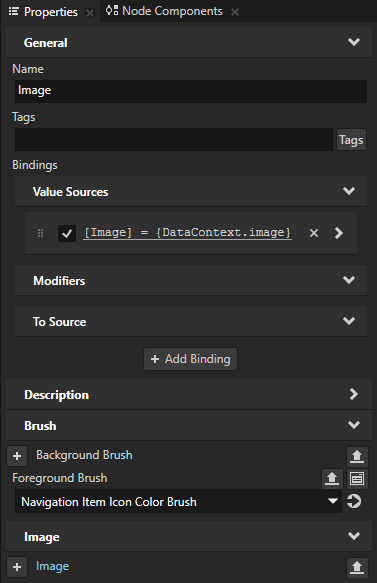
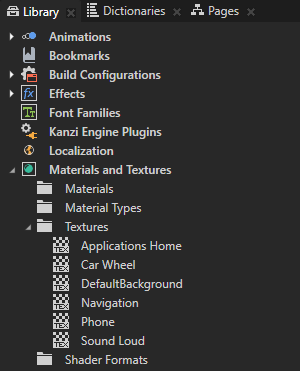
包含 Navigation Item 节点图标的纹理。
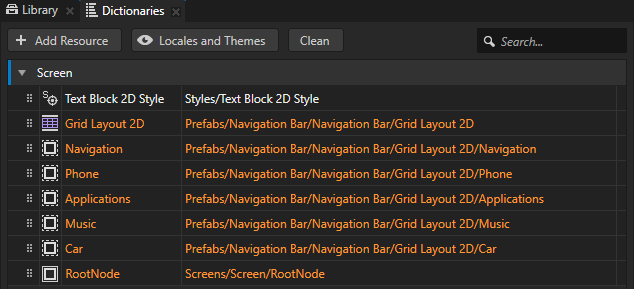
Screen 节点的资源字典包含指向 Grid Layout 2D、RootNode 和按钮节点的别名。
这些别名为使用 Kanzi Engine API 访问节点提供了一种便捷的方法。
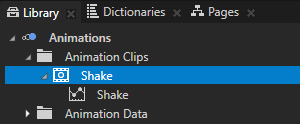
Shake Animation Clip。
当用户拖动节点时,使用动画晃动该节点。
为用户拖动的按钮创建可视化效果
在本节中,您将创建一个预设,用于可视化用户正在拖动的按钮。您不是将按钮拖动到新位置,而是移动一个看起来像被拖动按钮的预设实例。当用户结束拖放手势时,您不是在 Grid Layout 2D 节点中设置按钮的位置,而是设置用于设置按钮图标的数据对象的顺序。
要为用户拖动的按钮创建可视化效果:
在 Kanzi Studio 的 Quick Start 窗口中,点击 Projects 并选择 Tutorials 选项卡。在 Drag and drop 教程旁边,点击 Open 并选择 Start project。
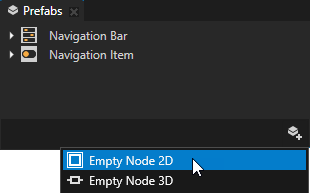
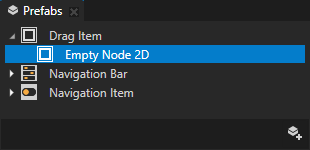
在 Prefabs 中,点击
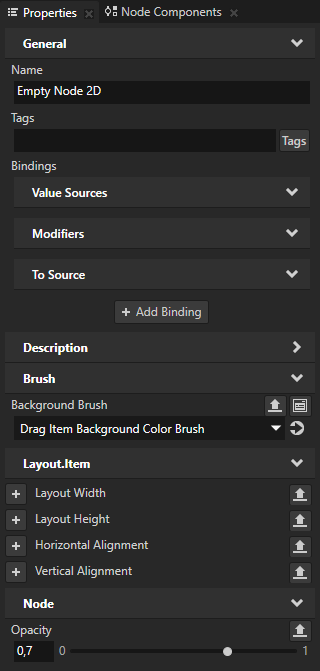
 ,选择 Empty Node 2D,将其命名为 Drag Item,在其中创建一个 Empty Node 2D 节点,并在 Properties 中添加并设置:
Background Brush 到 Drag Item Background Color Brush
这样可将预设件的背景颜色设置为比导航栏更浅。
Opacity 到 0,7
这样可将预设件设为部分透明。
实现拖放操作,以便在用户拖动按钮时拖动 Drag Item 预设的一个实例。
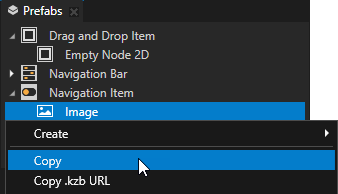
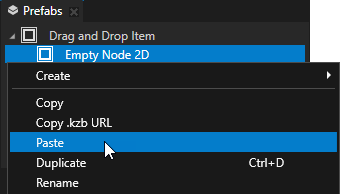
在 Prefabs > Navigation Item 中,右键单击 Image 节点并选择 Copy,然后右键单击 Empty Node 2D 节点并选择 Paste。
您将 Image 节点复制到 Drag Item 预设,因为您希望用户正在拖动的节点的可视化看起来与 Navigation Item 节点相同。
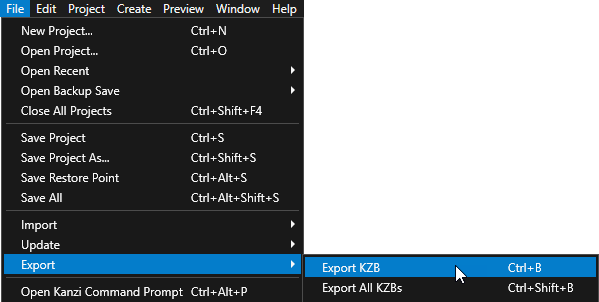
选择 File > Export > Export KZB。
Kanzi Studio creates the kzb file and configuration files from your Kanzi Studio project. Kanzi Studio stores the exported files in the
<ProjectName>/Application/bindirectory or the location that you set in Project > Properties in the Binary Export Directory property. The kzb file contains all nodes and resources from your Kanzi Studio project, except the resources that you mark in a localization table as locale packs.当您从 Visual Studio 运行您的 Kanzi 应用程序时,您的应用程序会加载 kzb 文件和配置文件。
设置按钮的图标
在本节中,您将创建用于设置按钮图标的数据对象。
要设置按钮的图标:
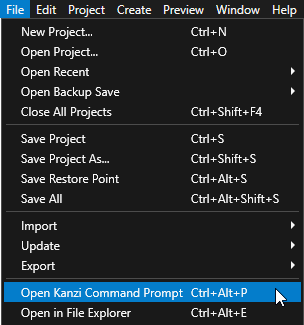
在 Kanzi Studio 中,选择 File > Open Kanzi Command Prompt。
Kanzi Command Prompt 打开 Windows 命令提示符,并为您打开 Kanzi Command Prompt 的 Kanzi 版本设置 Kanzi 环境变量。
使用 Kanzi Command Prompt 访问 Kanzi 实用工具和构建工具(例如 Gradle 和 CMake),而无需使用绝对路径或设置环境变量。
小技巧
您可以在 Windows 开始菜单的 Rightware 目录中找到 Kanzi Command Prompt。
当您安装了多个版本的 Kanzi 时,确保将您要在该命令提示符下使用的 Kanzi 版本的 Kanzi Command Prompt 启动。
在
<KanziWorkspace>/Tutorials/Drag and drop/Start/Application目录中的 Kanzi Command Prompt 中运行生成教程应用程序的 Visual Studio 解决方案的脚本。generate_cmake_vs2022_solution.bat
此脚本会在
<KanziWorkspace>/Tutorials/Drag and drop/Start/Application/build_vs2022目录中为应用程序生成 Visual Studio 解决方案。在 Visual Studio 中打开
<KanziWorkspace>/Tutorials/Drag and drop/Start/Application/build_vs<Version>/Drag_and_drop_start.slnVisual Studio 解决方案。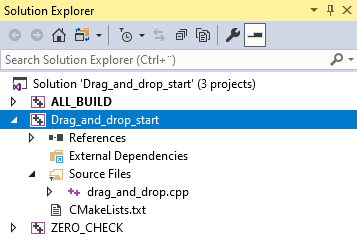
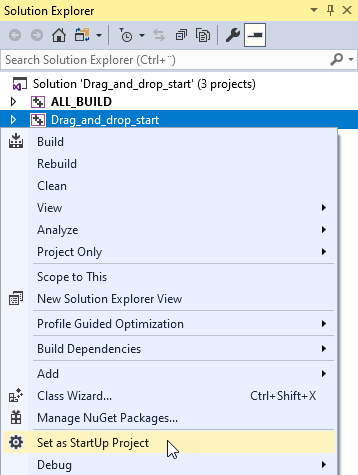
在 Visual Studio 的 Solution Explorer 中,右键点击 Drag_and_drop_start 项目并选择 Set as StartUp Project。
在
drag_and_drop.cpp文件中的Application::onProjectLoaded函数中创建数据对象并设置数据上下文:void onProjectLoaded() override { Domain* domain = getDomain(); // Create a data object named Root. m_rootData = DataObject::create(domain, "Root"); // Create data objects and add them to the Root data object. // Add to each of the data objects a string data object which contains the kzb URL of a texture. // In the Kanzi Studio project you can find the textures in the Library > Materials and Textures > Textures. DataObjectSharedPtr item0 = DataObject::create(domain, "item0"); m_rootData->addChild(item0); item0->addChild(DataObjectString::create(domain, "image", "kzb://drag_and_drop/Textures/Navigation")); DataObjectSharedPtr item1 = DataObject::create(domain, "item1"); m_rootData->addChild(item1); item1->addChild(DataObjectString::create(domain, "image", "kzb://drag_and_drop/Textures/Phone")); DataObjectSharedPtr item2 = DataObject::create(domain, "item2"); m_rootData->addChild(item2); item2->addChild(DataObjectString::create(domain, "image", "kzb://drag_and_drop/Textures/Applications Home")); DataObjectSharedPtr item3 = DataObject::create(domain, "item3"); m_rootData->addChild(item3); item3->addChild(DataObjectString::create(domain, "image", "kzb://drag_and_drop/Textures/Sound Loud")); DataObjectSharedPtr item4 = DataObject::create(domain, "item4"); m_rootData->addChild(item4); item4->addChild(DataObjectString::create(domain, "image", "kzb://drag_and_drop/Textures/Car Wheel")); // Get the Screen node. ScreenSharedPtr screen = getScreen(); // Set the Data Context property of the Screen node to the Root data object. // By setting the Data Context property you tell your application from which data source it receives data. screen->setProperty(DataContext::DataContextProperty, m_rootData); } private: // Define a member variable for the Root data object. DataObjectSharedPtr m_rootData;
在
DragAndDrop类的私有部分中创建一个函数,将图标分配给按钮:private: // To assign correct icons to the buttons, set the Data Context property for each button. void updateItems() { // Create an iterator that iterates through the data objects in the Root data object. DataObject::ChildConstIterator dataIt = m_rootData->beginChildren(), endDataIt = m_rootData->endChildren(); // Create an iterator that iterates through the buttons which are // child nodes of the Navigation Bar > Grid Layout 2D node. Node2D::ChildConstIterator nodeIt = m_grid->beginChildren(); // Set the Data Context property of each button node to the correct data object. for (; dataIt != endDataIt; dataIt++, nodeIt++) { Node2DSharedPtr itemNode = *nodeIt; DataObjectSharedPtr itemData = *dataIt; itemNode->setProperty(DataContext::DataContextProperty, itemData); } } // Define a member variable for the Grid Layout 2D node. GridLayout2DSharedPtr m_grid; ...
在
Application::onProjectLoaded函数的末尾调用updateItems()函数:void onProjectLoaded() override { ... // Get the parent Grid Layout 2D node of the node that the user is dragging. m_grid = screen->lookupNode<GridLayout2D>("#Grid Layout 2D"); updateItems(); }
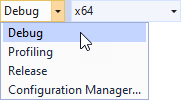
选择您要使用的解决方案配置并运行您的应用程序。
在开发期间,选择 Debug 配置。当您准备好创建生产版本时,选择 Release 配置。
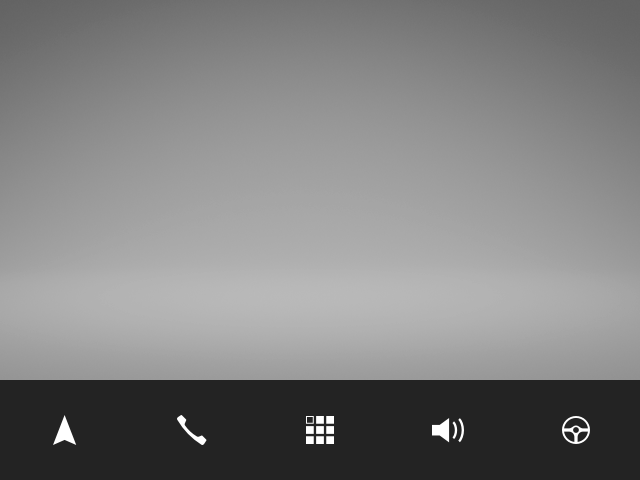
Kanzi 使用您创建的数据对象将图标分配给按钮。
另请参阅
要了解有关预设的更多信息,请参阅 使用节点预设。
要了解有关数据源的更多信息,请参阅 数据源 (Data Sources)。
要了解有关 Kanzi 中别名的更多信息,请参阅 使用别名。