创建关键帧动画
在 Kanzi 中,您可以创建关键帧动画,这些动画:
更改用于定义节点外观和感觉的那些属性的值,以动画化节点的外观和感觉。您可以动画化不同的属性类型:
浮点属性类型。例如,您可以为光强度或材料颜色设置动画。
布尔属性类型。例如,您可以在将属性映射到时间轴值 0 和 1 时,动画化诸如可见性之类的值。
通过更改定义节点位置的属性值来动画化节点的位置。例如,通过动画化位置,您可以使菜单从应用程序的一侧出现,或者在用户点击按钮时使按钮弹跳。
您可以在这里学习如何创建这种类型的动画。
您可以通过以下方式为关键帧动画创建动画数据:
修改项目中节点的属性值,并将它们拖动到动画剪辑中以创建动画数据。通过这种方式,您可以在创建动画时在 Preview 中直观地检查动画。请参阅 为节点属性创建关键帧动画。
创建一个动画,设置您想要动画化的特定目标属性字段,并添加关键帧。此方法更适合数据驱动的动画。请参阅 为目标属性字段创建关键帧动画。
要使用 Kanzi Engine API 创建关键帧动画,请参阅 使用 Kanzi Engine API 创建动画和时间轴。。
为节点属性创建关键帧动画
要为节点属性创建关键帧动画:
在 Library > Animations > Animation Clips 中,双击关键帧动画的 Animation Clip。
Animation Clip Editor 打开。
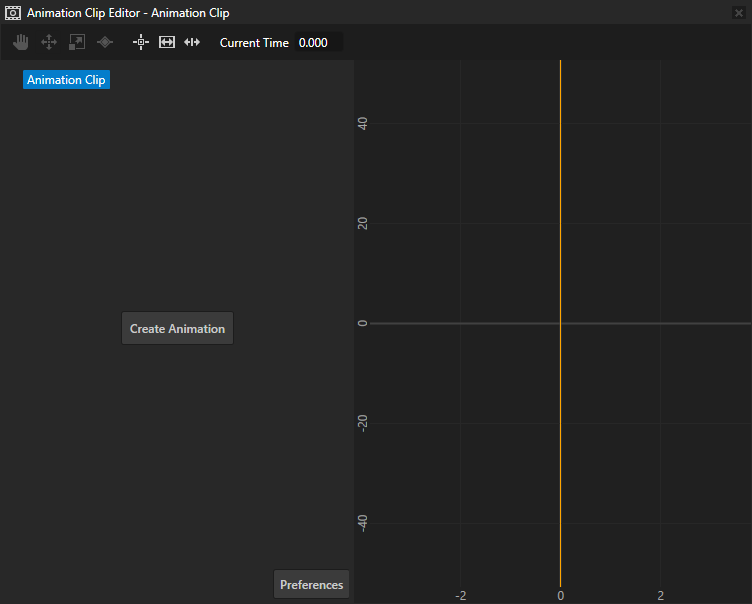
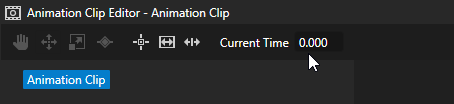
在 Animation Clip Editor 的 Current Time 中,输入您希望动画开始的时间。
例如,输入 0 将在用于启动动画化过程的触发器被触发时开始执行动画化。请参阅 编辑动画剪辑。
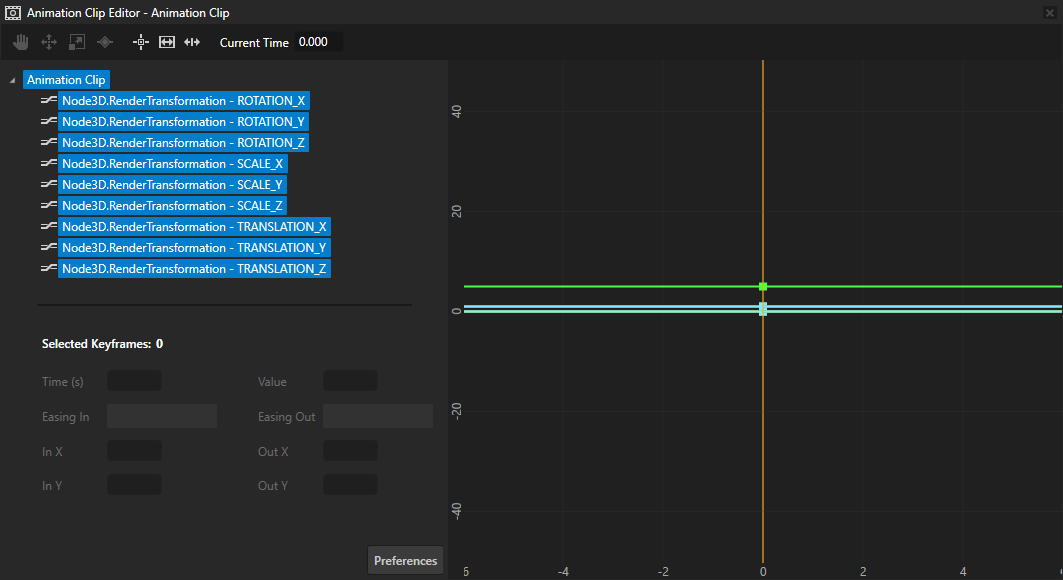
在 Node Tree 中,选择要动画化其属性值的节点,然后将 Properties 中要动画化的属性拖到 Animation Clip Editor 中的 Animation Clip。
Kanzi Studio 为每个属性和属性字段创建 Animation Data,并在您在 Current Time 中选择的时间为每个属性和属性字段添加一个关键帧。
例如,添加 Render Transformation 属性并将其拖动到 Animation Clip Editor 以动画化节点的位置。
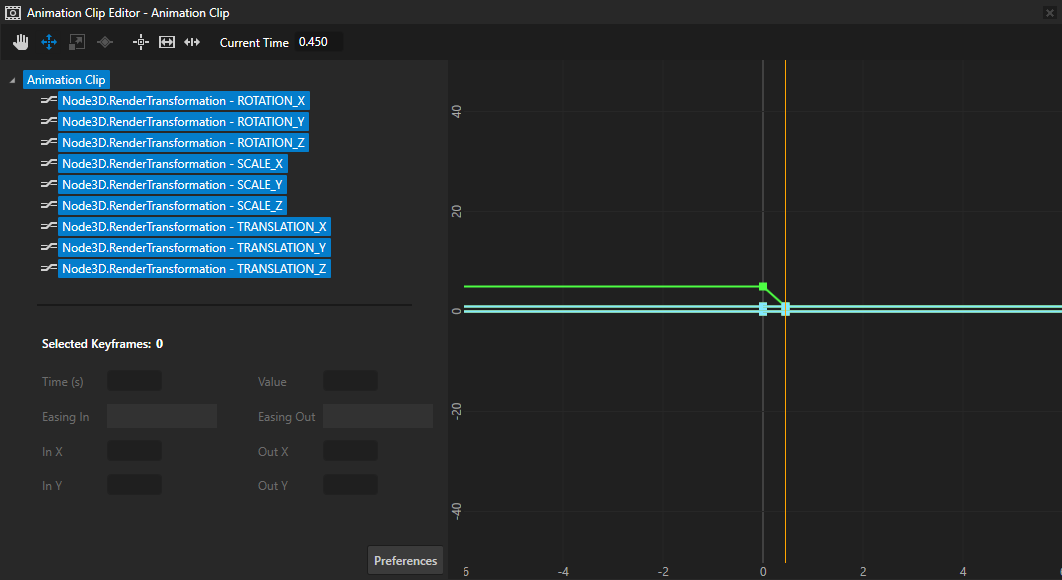
在 Properties 中,更改您正在动画化的属性的值,在 Animation Clip Editor 的 Current Time 中输入您希望 Kanzi Studio 使用该属性值创建关键帧的时间,然后从 Properties 中拖动该属性。
例如,更改 Render Transformation 属性的 Translation 属性字段。
Kanzi Studio 将新属性值添加到 Animation Data。
根据需要不限次重复执行上述三步,从而将关键帧添加到动画中。
要播放关键帧动画和控制回放,请参阅 使用关键帧动画。
小技巧
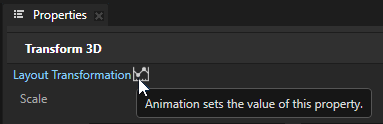
在 Kanzi Studio 的 Properties 窗口中,带有动画的属性以蓝色字体标记,并且旁边带有 Animation 图标  :
:
橙色字体标记具有多个覆盖源的属性:
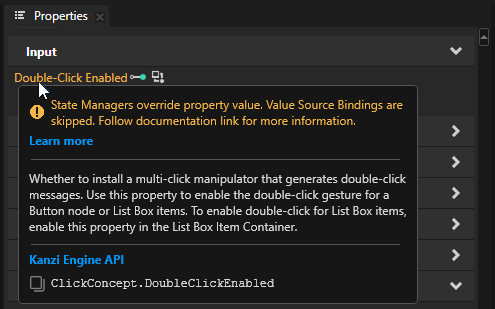
如果一个属性有多个覆盖源,只有优先级最高的那个会生效。请参阅 属性系统。
为目标属性字段创建关键帧动画
要为目标属性字段创建关键帧动画:
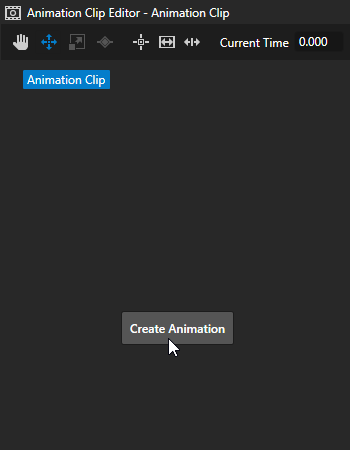
在 Animation Clip Editor 中,点击 Create Animation。
小技巧
Kanzi Studio 会自动创建一个包含两个关键帧的 Animation,因为任何动画都至少需要两个关键帧。您可以根据需要移除、替换、调整这些关键帧或添加更多关键帧。
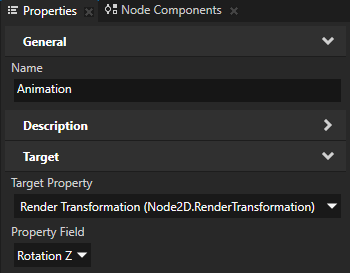
在 Properties 中,设置动画的 Target。
例如,设置:
Target Property 到 Node3D.RenderTransformation
Property Field 到 Rotation Z
在 Animation Clip Editor 中,使用 Move tool
 在画布区域中选择动画。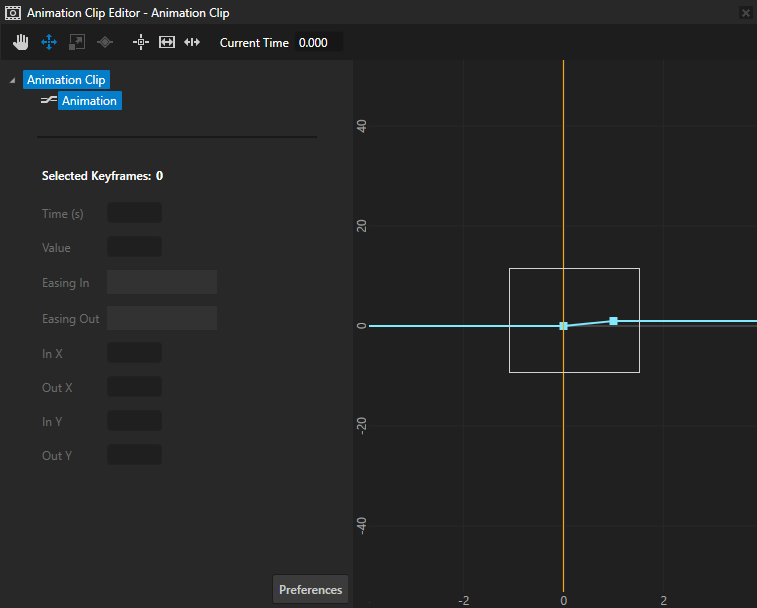
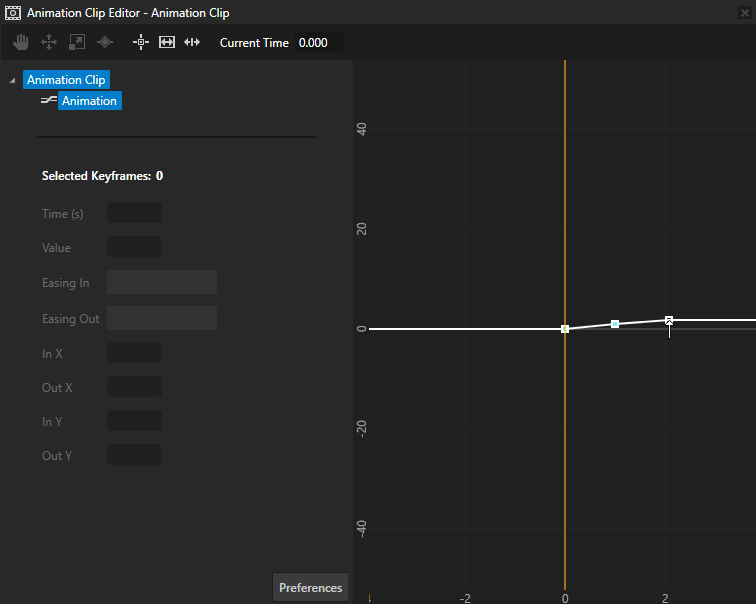
选择 Keyframe tool
 并单击动画以创建关键帧。
例如,单击动画以创建第三个关键帧。
选择 Move tool
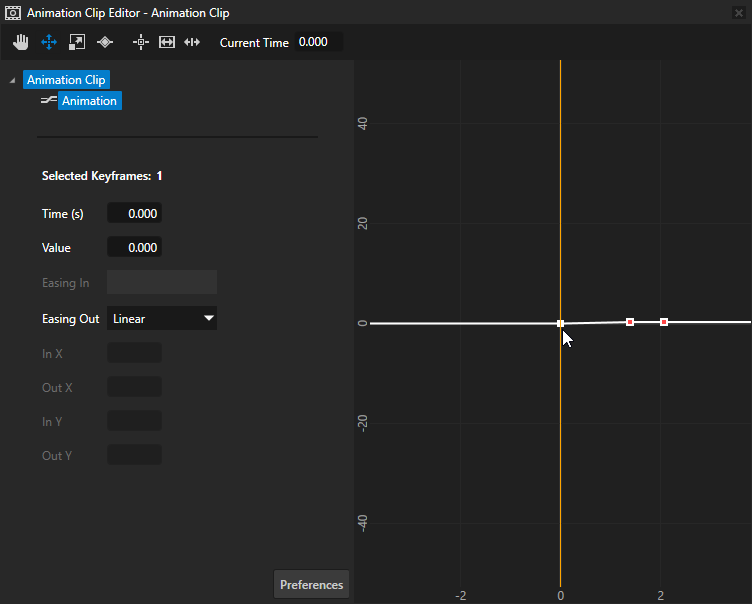
,选择第一个关键帧并设置:当您想要放置此关键帧时,Time 为从动画开始到该关键帧的秒数。
将 Value 设置为您在步骤 2 中设置的 Target Property Field 的值。
例如,要在动画开始时将 Node3D.RenderTransformationRotation Z 的值设置为 0 度,请将:
将 Time 设为 0。
Value 设置为 0。
为您创建的每个关键帧重复上一步骤。
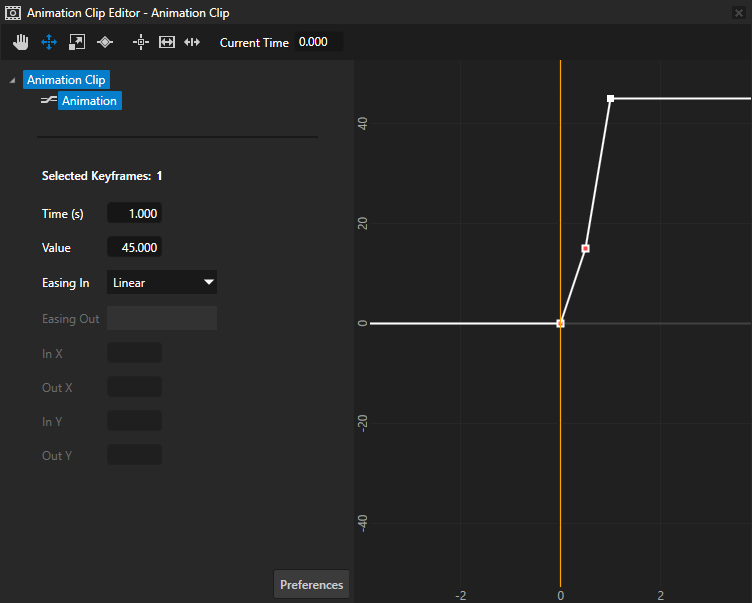
例如,设置:
第二个关键帧:
Time 到 0.5
Value 设置为 15
这会在动画开始 0.5 秒后将 Node3D.RenderTransformation Rotation Z 的值设置为 15 度。
第三个关键帧:
Time 到 1
Value 设置为 45
这会在动画开始 1 秒后将 Node3D.RenderTransformation Rotation Z 的值设置为 45 度。
要播放关键帧动画和控制回放,请参阅 使用关键帧动画。
设置关键帧之间的缓动函数
要设置关键帧之间的缓动函数:
在 Library 中,双击 Animation Clip 或 Animation。
动画在 Animation Clip Editor 中打开。
在 Animation Clip Editor 中,使用 Move tool
选择关键帧,然后选择缓动函数:例如,选择两个关键帧,并将 Easing 设置为 Smooth Step。
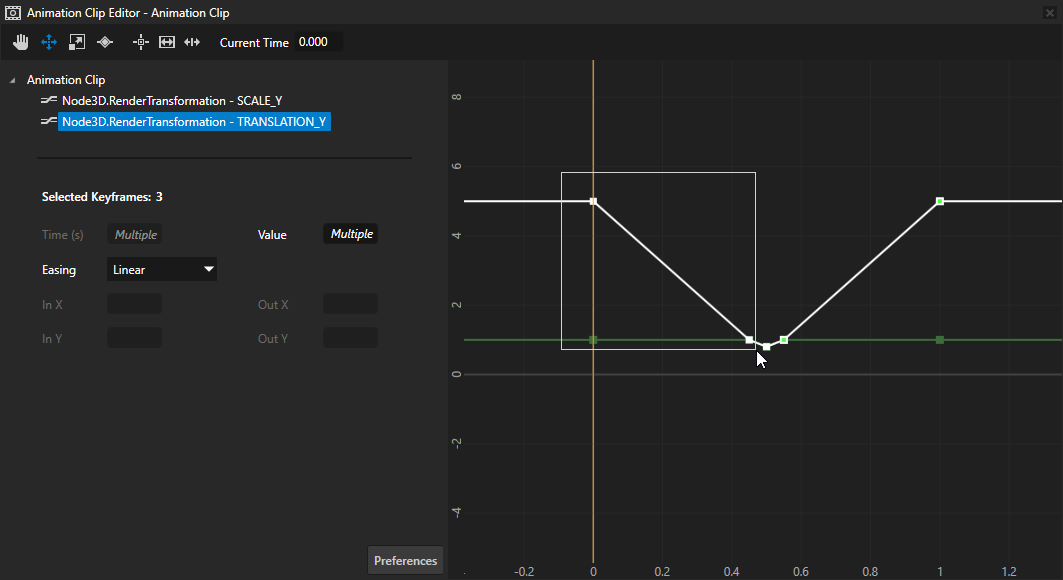
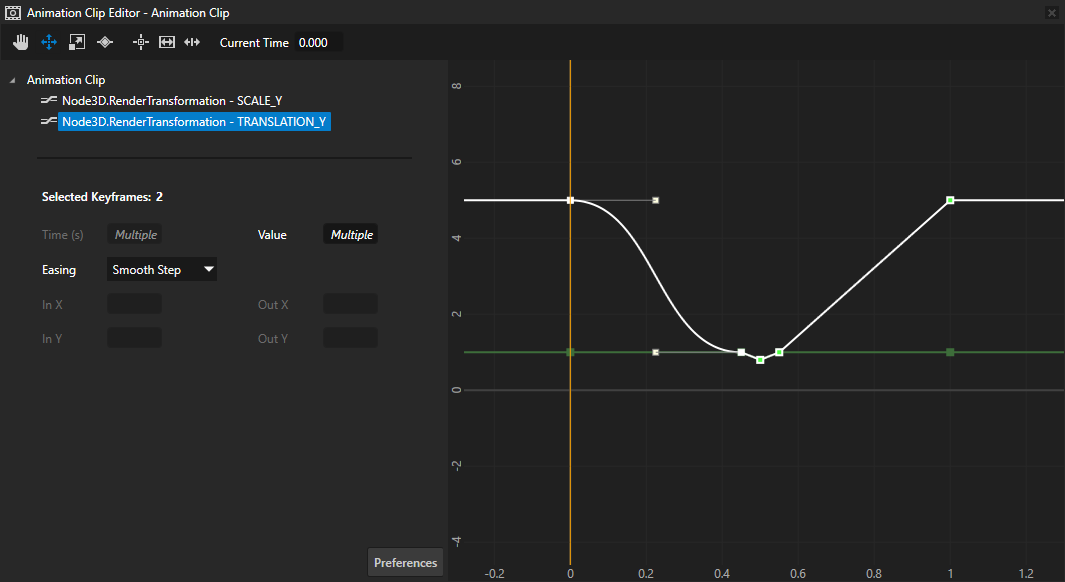
通过以下方式微调关键帧的插值:
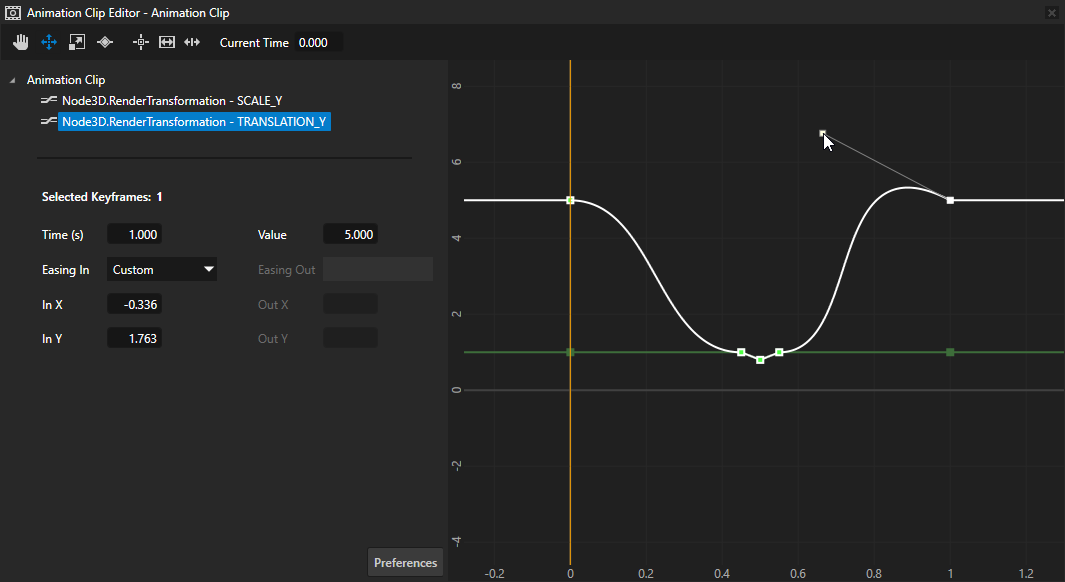
要单独调整每个关键帧的手柄,请选择一个关键帧,然后点击并拖动该关键帧的手柄。
选择一个或多个关键帧,并为关键帧手柄的缓入和缓出函数设置精确值:
In X 和 Out X 属性值是相对于关键帧的 Time。
In Y 和 Out Y 属性值是相对于关键帧的 Value。
在 API 中使用关键帧动画
要创建关键帧动画:
// Create a float keyframe animation.
FloatKeyframeAnimationSharedPtr keyframeAnimation = FloatKeyframeAnimation::create(domain);
// Create and add keyframes to the keyframe animation. This keyframe animation contains two linear keyframes.
// Create a linear keyframe at second 0 with the value 0.
keyframeAnimation->addLinearKeyframe(chrono::seconds::zero(), 0.0f);
// Create a linear keyframe at second 1 with the value 100.
keyframeAnimation->addLinearKeyframe(chrono::seconds(1), 100.0f);
要使用关键帧动画动画化节点中的某个属性值:
// Create a property timeline and apply the keyframeAnimation keyframe animation to the Layout Width property
// to animate the width of the current node.
PropertyAnimationTimelineSharedPtr propertyTimeline = PropertyAnimationTimeline::create(domain, ".", Node2D::WidthProperty, keyframeAnimation);
要使用关键帧动画动画化节点中的某个属性字段值:
// Create a property field animation timeline and apply it to the Render Transformation property of the current node.
PropertyFieldAnimationTimelineSharedPtr propertyFieldTimeline = PropertyFieldAnimationTimeline::create(domain, ".", Node2D::RenderTransformationProperty);
// Rotate the current node by animating the Rotation Z property field of the Render Transformation property
// with the keyframeAnimation keyframe animation.
propertyFieldTimeline->addEntry(PropertyFieldRotationZ, keyframeAnimation);
要创建一个使用贝塞尔曲线关键帧在 8 字形路径上移动对象的关键帧动画:
// Create two float keyframe animations: one to animate the object on the x axis,
// the other to animate the object on the y axis.
// Create float keyframe animation keyframeAnimationX that uses linear keyframes
// to animate the movement of the object on the x axis.
FloatKeyframeAnimationSharedPtr keyframeAnimationX = FloatKeyframeAnimation::create(domain);
// Create a linear keyframe at second 0 with the value 0.
keyframeAnimationX->addLinearKeyframe(chrono::seconds::zero(), 0.0f);
// Create a linear keyframe at second 4 with the value 4.
// At this keyframe the object reaches the furthest point on the x axis.
keyframeAnimationX->addLinearKeyframe(chrono::seconds(4), 4.0f);
// Create a linear keyframe at second 8 with the value 0.
// At this keyframe the object returns to the same position it had at the first keyframe.
keyframeAnimationX->addLinearKeyframe(chrono::seconds(8), 0.0f);

// Create float keyframe animation keyframeAnimationY that uses Bezier keyframes
// to animate the movement of the object on the y axis.
FloatKeyframeAnimationSharedPtr keyframeAnimationY = FloatKeyframeAnimation::create(domain);
// Create a linear keyframe at second 0 with the value 0. When you use Bezier keyframes,
// you can use any type of keyframe for the first keyframe, because you need this keyframe
// only to provide the information for the starting position.
keyframeAnimationY->addLinearKeyframe(chrono::seconds::zero(), 0.0f);
// Create a Bezier keyframe at second 4 with the value 0 and two control points.
// You use the control points to set the position of the keyframe.
keyframeAnimationY->addBezierKeyframe(chrono::seconds(4), 0.0f, Vector2(0.5f, 4.0f), Vector2(0.5f, -4.0f));
// Create a Bezier keyframe at second 8 with the value 0 and two control points.
// This keyframe uses the same control points, but because the keyframeAnimationX
// animation moves the object on the x axis back to its starting position, this keyframe
// is a mirror image of the previous keyframe.
keyframeAnimationY->addBezierKeyframe(chrono::seconds(8), 0.0f, Vector2(0.5f, 4.0f), Vector2(0.5f, -4.0f));

// Create a property field animation timeline and apply it to the Render Transformation property of the current node.
PropertyFieldAnimationTimelineSharedPtr timeline = PropertyFieldAnimationTimeline::create(domain, ".", Node3D::RenderTransformationProperty);
// Move the current node on the x axis by animating the Translation X property field of the Render Transformation property
// with the keyframeAnimationX keyframe animation.
timeline->addEntry(PropertyFieldTranslationX, keyframeAnimationX);
// Move the current node on the y axis by animating the Translation Y property field of the Render Transformation property
// with the keyframeAnimationY keyframe animation.
timeline->addEntry(PropertyFieldTranslationY, keyframeAnimationY);
要播放动画而不管时间线类型如何:
// Create the playback context and the timeline playback for the node defined in the item2d.
SceneGraphTimelinePlaybackContext context(*item2d);
// Create the playback for the timeline defined in the propertyFieldTimeline.
TimelinePlaybackSharedPtr playback = propertyFieldTimeline->createPlayback(context);
// Start the animation.
domain->getRootTimelineClock()->addTimelinePlayback(playback);
有关详细信息,请参阅 KeyframeAnimation 类。
有关如何在 API 中使用插值类型的详细信息,请参阅 KeyframeAnimation::BezierKeyframe、KeyframeAnimation::LinearKeyframe 和 KeyframeAnimation::StepKeyframe 类。