优化片段着色器
根据底层 GPU 架构,对于每个绘制调用,GPU 可以并行执行很多阶段的渲染工作,例如顶点处理、片段处理和内存读取。绘制调用会等待 Kanzi 完成所有片段的处理。如果片段着色器的执行速度比顶点着色器或其他阶段慢,则其他阶段需要等待片段着色器执行完成。
您可以通过以下方法优化片段着色器:
降低片段着色器的精度。请参阅 降低片段着色器的精度。
使用顶点着色器计算需要保持不变并只需要计算几次的值。请参阅 将像素计算切换到顶点计算。
降低片段着色器的精度
如果片段着色是性能瓶颈,您可以将着色器的精度从完整的32位浮点数降低到16位浮点数。许多GPU在您降低精度时支持双倍速率的操作。
要降低片段着色器的精度:
在 Library 中,选择 Resource Files > Shaders 并打开您想要降低精度的片段着色器。
Shader Source Editor 打开。
使用适当的精度限定符声明变量:
精度限定符
范围
数据类型 (Data Type)
使用示例
lowp\[(-2,2)\]8 位十进制。
现代 GPU 没有固定点着色器单元,并将其映射为 16 位浮点。当您不确定选择哪种精度时,优先选择
mediump而不是lowp。RGB 数据中的颜色范围为 [0..1],强度范围为 [0..1]。
mediump\[(-2^{15},2^{15})\]16 位浮点数,具有 1 位符号位、5 位指数位和 10 位尾数位。
一些 GPU 将其映射为 32 位浮点。
颜色、法线、纹理、对象空间中的位置。
highp\[(-2^{128},2^{128})\]32 位浮点数,1 位符号位,8 位指数位,23 位尾数位。
矩阵、大纹理、世界空间中的位置。
例如,对于片段着色器,使用此代码:
#version 310 es

// lowp and mediump often double the performance compared to highp.
precision lowp float;

uniform sampler2D Texture;
uniform lowp float BlendIntensity;
in mediump vec2 vTexCoord;
layout(location = 0) out lowp vec4 fragColor;

void main()
{
    vec4 color = texture(Texture, vTexCoord);
    fragColor = color * BlendIntensity;
}
请勿使用此代码:
#version 310 es

// Default to highp for everything.
precision highp float;
uniform sampler2D Texture;
uniform float BlendIntensity;
in vec2 vTexCoord;
layout(location = 0) out vec4 fragColor;

void main()
{
    vec4 color = texture(Texture, vTexCoord);
    fragColor = color * BlendIntensity;
}
将像素计算切换到顶点计算
顶点着色器执行诸如获取顶点和计算变换等操作。Kanzi 每个顶点执行一次顶点着色器。
片段着色器执行诸如获取纹理数据的操作。Kanzi 每像素执行一次片段着色器。
因为场景通常包含的像素比顶点多,所以片段着色器的执行频率高于顶点着色器。出于这个原因,建议尽可能在顶点着色器中执行计算,并将结果传递给片段着色器。
使用顶点着色器计算:
保持不变的值或 Kanzi 仅计算几次的值。
照明计算可以在不损失太多质量的情况下在顶点之间插值结果。
例如:在 Kanzi 默认 VertexPhong 材质类型中,顶点着色器执行光照计算。这些材质类型比 FragmentPhong 材质类型提供更高的性能,后者的片段着色器执行光照计算。
在此示例中,您创建了一种简单的材质类型,该类型在顶点着色器中计算材质的颜色。
要将计算从像素移动到顶点:
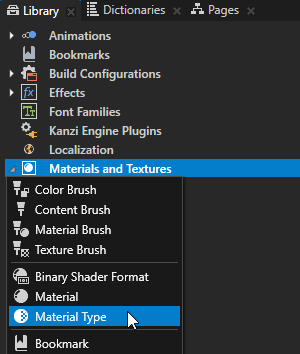
在 Library 中,按 Alt 并右键单击 Materials and Textures,并选择 Material Type。
Kanzi Studio 创建了一种材质类型和一种使用该材质类型的材质。
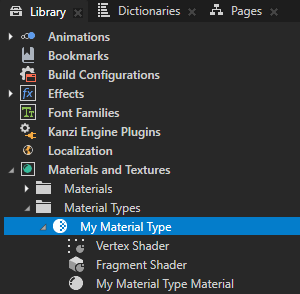
在您创建的材料类型中:
将 Vertex Shader 的内容替换为以下代码:
#version 310 es

in vec3 kzPosition;
uniform highp mat4 kzProjectionCameraWorldMatrix;
uniform lowp float counter;

out lowp vec4 vColor;

void main()
{
   precision mediump float;

   // Kanzi performs the trigonometric operations only for each vertex.
   // For example, for a quad, which consists of two triangles that each
   // have three vertices, that is six times.
   vColor = vec4(cos(counter), sin(counter), 1, 1);

   gl_Position = kzProjectionCameraWorldMatrix * vec4(kzPosition.xyz, 1.0);
}
将 Fragment Shader 的内容替换为以下代码:
#version 310 es

in lowp vec4 vColor;
layout(location = 0) out lowp vec4 fragColor;

void main()
{
    precision lowp float;

    // For each fragment, Kanzi applies a constant interpolated assignment with the
    // same, lowp, precision. On most GPUs, this does not take longer than one cycle.
    fragColor = vColor;
}
请勿将此代码用于顶点着色器:
#version 310 es

in vec3 kzPosition;
uniform highp mat4 kzProjectionCameraWorldMatrix;

void main()
{
    precision mediump float;

    // The vertex shader outputs the position and leaves the color calculation to the
    // fragment shader. This is not a good idea when the number of fragments exceeds
    // the number of vertices.
    gl_Position = kzProjectionCameraWorldMatrix * vec4(kzPosition.xyz, 1.0);
}
请勿将此代码用于片段着色器:
#version 310 es

uniform lowp float counter;
layout(location = 0) out lowp vec4 fragColor;

void main()
{
   precision lowp float;

   // For each written fragment, Kanzi executes the trigonometric functions cos()
   // and sin(). Trigonometric functions are expensive. Depending on the GPU, they
   // can require several GPU cycles per fragment. The outcome is the same as when
   // you store the result in a varying.
   fragColor = vec4(cos(counter), sin(counter), 1, 1);
}
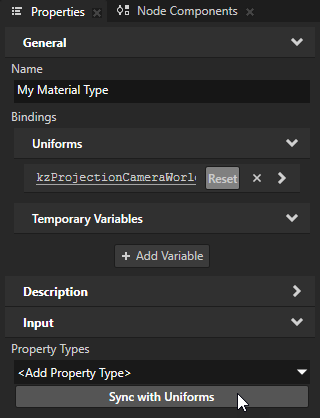
在 Library 中,选择您创建的材质类型。在 Properties 中,单击 Sync with Uniforms,并创建 counter 属性类型。
通过这种方式,您将 counter 属性添加到使用此材料类型的材料中。
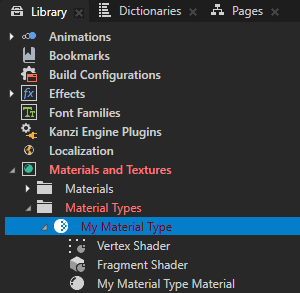
在 Node Tree 或 Prefabs 中,选择一个 3D 节点并将其设置为使用您创建的材质。
例如:在 Node Tree 中,创建一个 Plane 节点。在 Properties 中,将 Mesh Material 属性设置为您创建的材质。
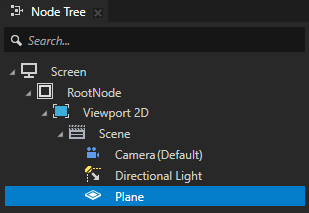
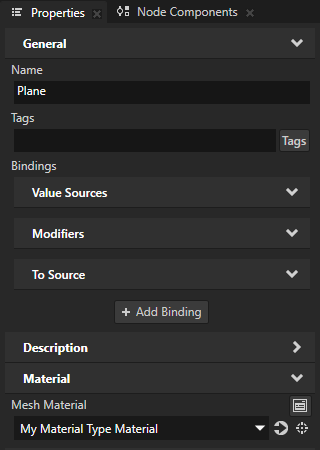

使用值累加器随着时间的推移增加 counter 属性的值:
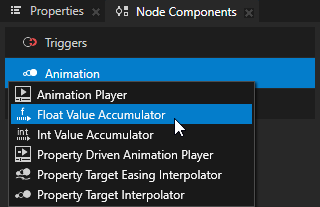
在 Node Components 中,按 Alt 并右键单击 Animation,并选择 Float Value Accumulator。
在 Create Float Value Accumulator 对话框中,将 Target Property Type 设置为 Material Properties > counter 属性类型。
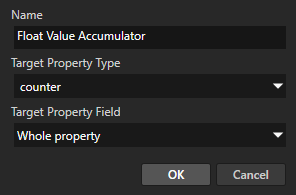
配置 Float Value Accumulator。
例如,设置:
将 Increment Size 调整为 0.1。
Maximum Value 到 6.283。
Increment Time Interval 到 150。
通过这种方式,您将 counter 属性的值设置为每150毫秒改变0.2,直到达到6.283的值,即大约为 \(2 * pi\)。默认情况下,值累加器在达到最大值时会将值包裹。
要了解有关使用 Value Accumulators 的更多信息,请参阅 增加属性类型的值。。
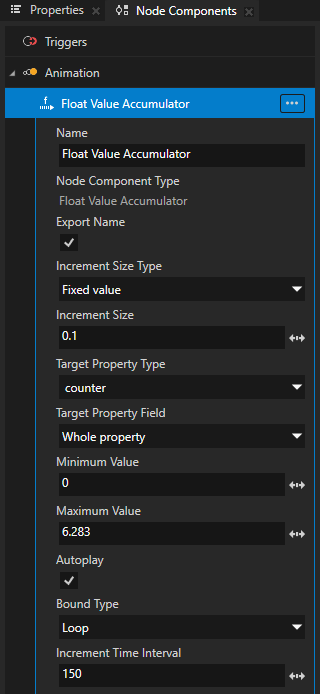
Value Accumulator 动画处理节点的颜色,其材质使用 counter 属性来控制材质的颜色。