步骤 1 - 插值指南针刻度盘的旋转
在本教程的此步骤中,您使用 Property Target Interpolator 来插值指南针刻度盘的旋转,从当前方向到目标方向随时间变化。
获取教程
要获取该教程,请在 Kanzi Studio Quick Start 窗口中点击 Projects 并选择 Tutorials 选项卡。在 Interpolate 教程旁边,点击  。
。
Kanzi Studio 会将教程下载到 <KanziWorkspace>/Tutorials 目录。您可以找到:
位于
<KanziWorkspace>/Tutorials/Interpolate/Start/Tool_project目录中的教程起点工程。位于
<KanziWorkspace>/Tutorials/Interpolate/Completed目录中的已完成教程。
本教程依赖于数据源教程中的插件。
要获取数据源教程,请在 Kanzi Studio Quick Start 窗口中点击 Projects 并选择 Tutorials 选项卡。在 Data sources 教程旁边,点击 。
Kanzi Studio 会将教程下载到 <KanziWorkspace>/Tutorials 目录。
起始项目的内容
起点工程包含您完成本教程所需的内容:
RootNode 节点包含数据上下文和绑定以接收指南针目的地和行驶方向,以及一个状态机。
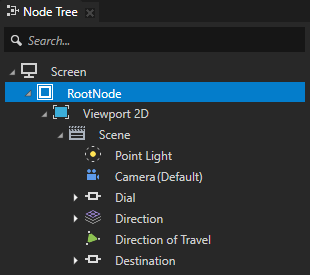
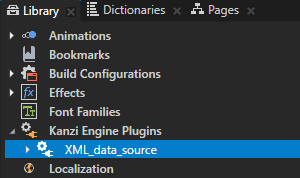
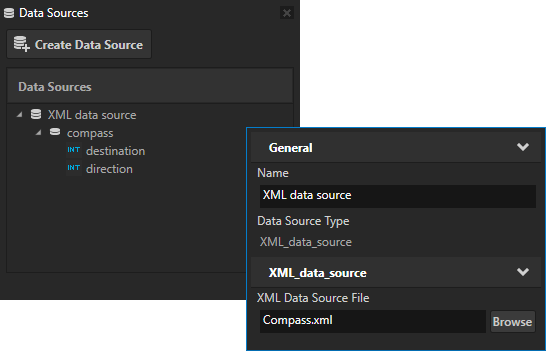
数据上下文。该项目使用 XML_data_source 插件从 XML 数据源获取数据。
在文本编辑器中打开
<ProjectName>/Application/bin/Compass.xml文件,并更改 destination 或 direction XML 元素中的值。当您保存文件时,XML_data_source 插件会更新项目中的数据对象,并在 Kanzi Studio Preview 中显示更新后的值。要在 Data Sources 窗口中查看更新后的值,请在 Data Sources 窗口中点击 XML data source 旁边的 。
。Kanzi Studio 重新加载该数据源的数据,并更新数据对象及其值。
通过此设置,指南针刻度盘根据其从数据源接收到的值旋转。然而,这种变化是瞬时的,没有动画效果。在本教程中,您使用 Property Target Interpolator 来动画化指南针刻度盘从当前方向到目标方向的旋转。
要查看 Data Sources 窗口,在 Kanzi Studio 主菜单中选择 Window > Data Sources。
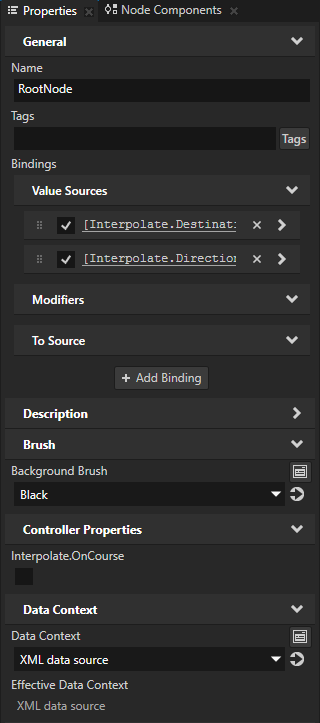
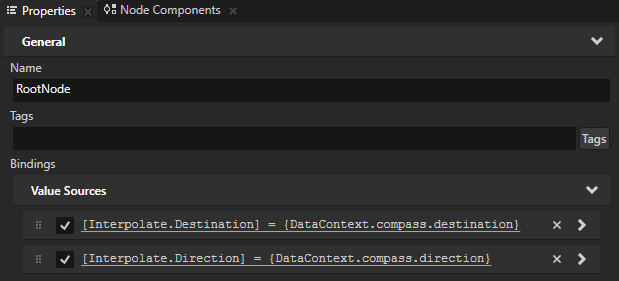
绑定。RootNode 节点有以下绑定:
Interpolate.Destination 属性绑定到
Compass.xml文件中 destination XML 元素的值。Interpolate.Direction 属性绑定到
Compass.xml文件中 direction XML 元素的值。
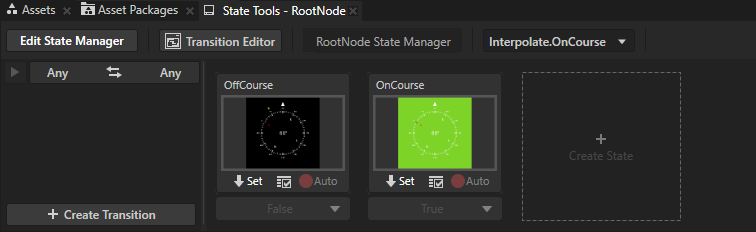
状态机。RootNode State Manager 设置 RootNode 节点的背景颜色。它使用 Interpolate.OnCourse 自定义控制器属性来实现这一点。该状态机有两个状态:
Interpolate.OnCourse 属性的值设为 false 时,OffCourse 状态将 RootNode 节点的背景设为黑色。
Interpolate.OnCourse 属性的值设为 true 时,OnCourse 状态将 RootNode 节点的背景设为绿色。
使用本教程第 2 步中的状态机设置指南针背景颜色。
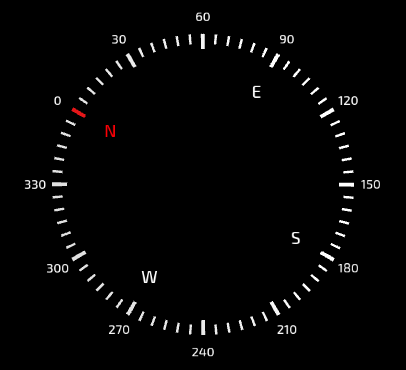
Dial 节点将组成罗盘刻度盘的元素进行分组。
Degrees 节点包含以 30 度间隔显示度数的节点。
Cardinal Points 节点包含显示方位点的节点。
Ticks 节点显示刻度线。
Dial 节点具有到 RootNode 节点中的 Interpolate.Direction 属性的绑定,根据
Compass.xml文件中的 direction XML 元素的值旋转节点。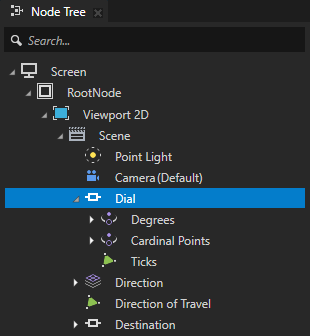
Direction 节点包含指南针中心显示的当前行进方向(以度为单位)。
Value 节点的 Text 属性绑定到 RootNode 中的 Interpolate.Direction 属性的值,该属性从
Compass.xml文件中的 direction XML 元素获取值。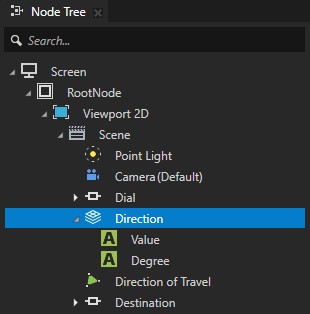

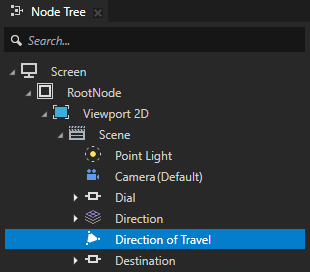
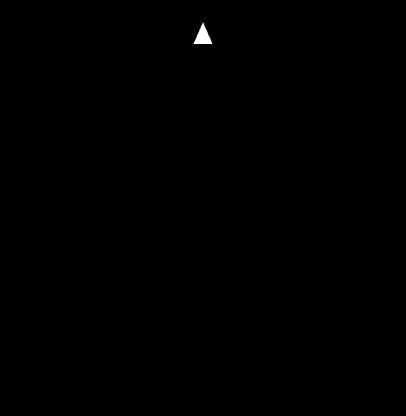
Direction of Travel 节点包含指示当前行进方向的箭头,始终指向上方。
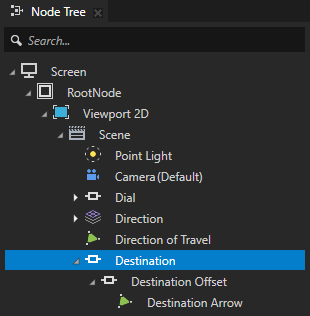
Destination 节点包含显示当前目的地的节点:
Destination 节点具有根据 RootNode 节点的 Interpolate.Direction 属性的值旋转节点的绑定。
Destination Offset 节点具有根据 RootNode 节点中的 Interpolate.Destination 属性的值旋转节点的绑定。
Destination Arrow 节点包含指示当前目的地的绿色箭头。
Destination 和 Destination Offset 节点中的绑定共同使 Destination Arrow 节点根据
Compass.xml文件中 destination 和 direction XML 元素中的值围绕罗盘刻度旋转。

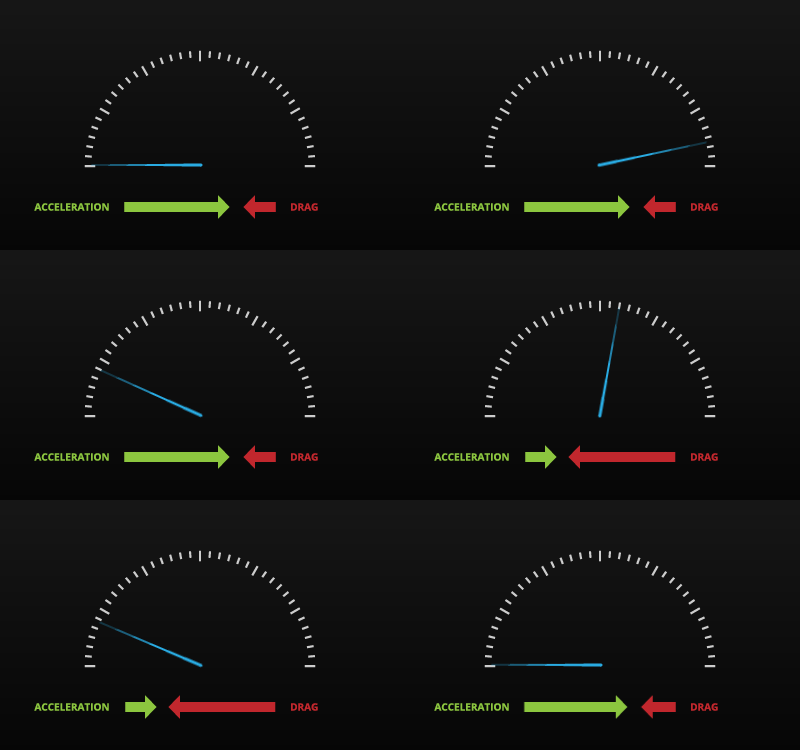
插值指南针表盘的旋转
在本节中,您将学习动画化指南针表盘的旋转,以便当行驶方向改变时,Property Target Interpolator 随时间将当前值插值到目标值。
Property Target Interpolator 模拟了一个永不超调的弹簧阻尼系统的行为。您使用 Acceleration 属性来设置弹簧移动物体的力,并使用 Drag 属性来设置阻尼系数。Acceleration 属性的值越大,属性达到其新值的速度越快。Drag 属性的值越大,最大插值速度越低。
要插值指南针表盘的旋转:
在 Kanzi Studio Quick Start 窗口中,点击 Projects 并选择 Tutorials 选项卡。在 Interpolate 教程旁边,点击 Open 并选择 Start project。
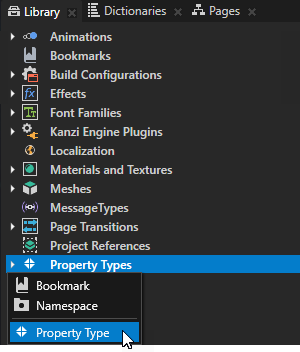
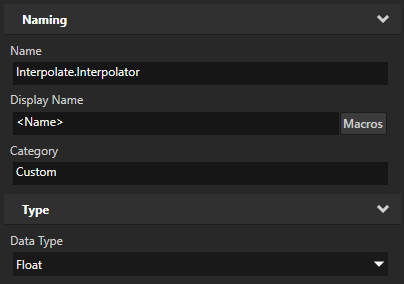
在 Library 按 Alt 并右键单击 Property Types 中,选择 Property Type,并在 New Property Type 窗口中设置:
Name 到 Interpolate.Interpolator
Data Type 到 Float
您创建 Interpolate.Interpolator 属性类型是因为您想要插值数据类型为整数的 Interpolate.Direction 属性。要插值数据类型不是浮点数的属性,您需要创建一个浮点属性类型,并将您想要插值的属性绑定到您创建的浮点属性。
将 Dial 节点的旋转绑定到您在上一步中创建的属性:
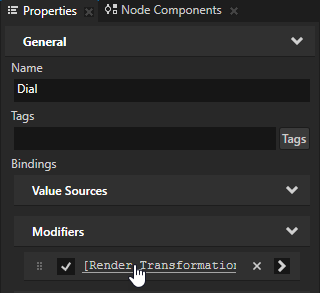
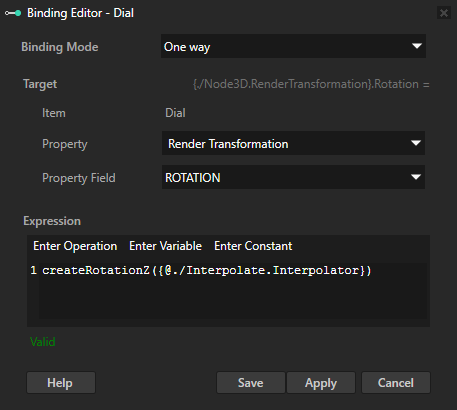
在 Node Tree 中选择 Dial 节点,在 Properties 中在 Bindings 中单击现有绑定进行编辑,并在 Binding Editor 中将 Expression 设置为:
createRotationZ({@./Interpolate.Interpolator})单击 Save。
您使用此绑定根据 Interpolate.Interpolator 属性的值旋转 Dial 节点。
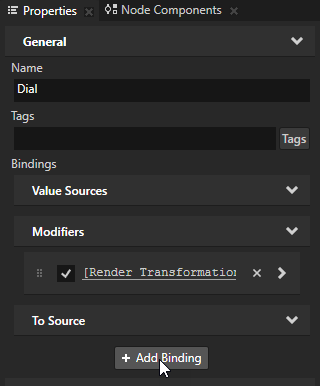
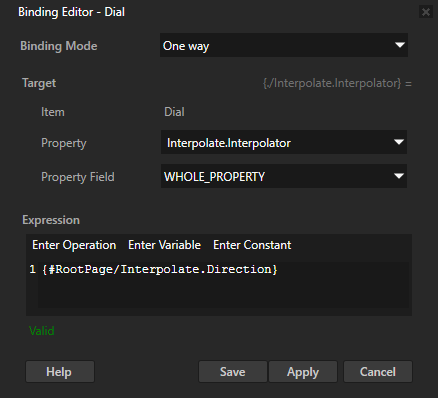
在 Properties 中,单击 + Add Binding,并在 Binding Editor 中设置:
Property 到 Interpolate.Interpolator
Expression 到
{#RootPage/Interpolate.Direction}
单击 Save。
将 Interpolate.Interpolator 属性绑定到用于控制旋转的 RootNode 节点中的 Interpolate.Direction 属性。
将 Property Target Interpolator 添加到您想要插值其旋转的节点:
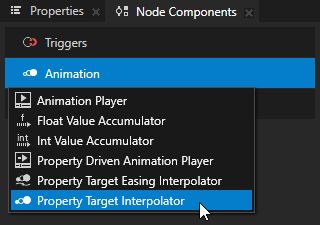
在 Node Tree 中选择 Dial 节点,在 Node Components 按 Alt 并右键单击 Animation 中,选择 Property Target Interpolator。
使用 Property Target Interpolator 将 Interpolate.Interpolator 属性的值随时间插值到目标值。您在上一步中创建的绑定将此更改应用于 Dial 节点的旋转。
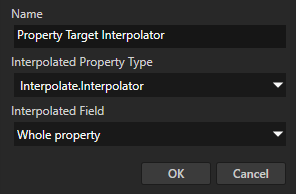
在 Create Property Target Interpolator 对话框中,将 Interpolated Property Type 设置为 Interpolate.Interpolator。
要设置插值行为,请在您创建的 Property Target Interpolator 中设置:
Acceleration 到 5
Drag 到 2
Property Target Interpolator 模拟了一个永不超调的弹簧阻尼系统的行为。您使用 Acceleration 属性来设置弹簧移动物体的力,并使用 Drag 属性来设置阻尼系数。Acceleration 属性的值越大,属性达到其新值的速度越快。Drag 属性的值越大,最大插值速度越低。
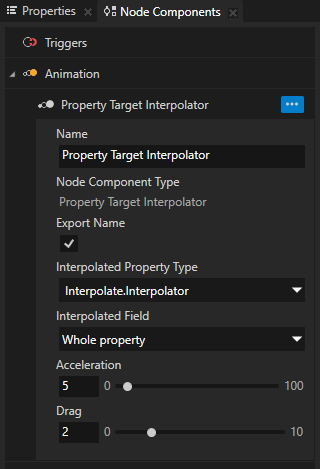
现在,当您更改 <ProjectName>/Application/bin/Compass.xml 中 direction XML 元素的值并保存文件时,Property Target Interpolator 会随时间将指南针刻度的旋转插值到目标值。
小技巧
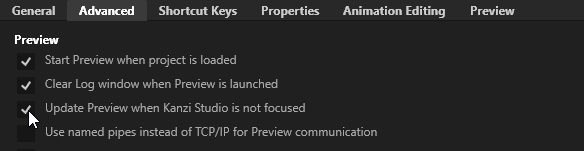
默认情况下,Preview 仅在 Kanzi Studio 窗口聚焦时更新内容。要在 Kanzi Studio 窗口未聚焦时查看 Kanzi Studio 项目的更改,请在 Kanzi Studio 中选择 Edit > User Preferences,并在 Advanced 选项卡中启用 Update Preview when Kanzi Studio is not focused 设置。