步骤 1 - 平移地图
使用 Pan Manipulator 使用户能够在您的 Kanzi 应用程序中移动节点。
Pan Manipulator 是您可以用来在 Kanzi 应用程序中为节点添加手势识别的输入操控器之一。
平移手势跟踪在设备屏幕上移动的指针的位置,以计算节点移动的量。
在 Kanzi Studio 中,您可以使用 Pan Manipulator 组件将平移操控器安装到节点,并控制该平移操控器的行为。
在教程的这一步中,使用 Pan Manipulator 组件和平移操纵器移动地图。
获取教程
要获取该教程,请在 Kanzi Studio Quick Start 窗口中点击 Projects,然后选择 Tutorials 选项卡。在 Pan zoom tap 教程旁边,点击  。
。
Kanzi Studio 会将教程下载到 <KanziWorkspace>/Tutorials 目录。您可以找到:
位于
<KanziWorkspace>/Tutorials/Pan zoom tap/Start/Tool_project目录中的教程起点工程。位于
<KanziWorkspace>/Tutorials/Pan zoom tap/Completed目录中的已完成教程。
起始项目的内容
起点工程包含您完成本教程所需的内容:
Map 节点包含一张地图的图像。
Map 节点对齐到其父节点的中心,并且 Map 节点的 Render Transformation Origin 属性设置为 Map 节点的中心。当您旋转一个节点时,它会围绕其原点旋转。
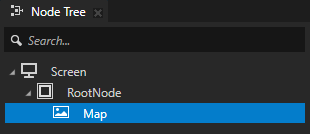
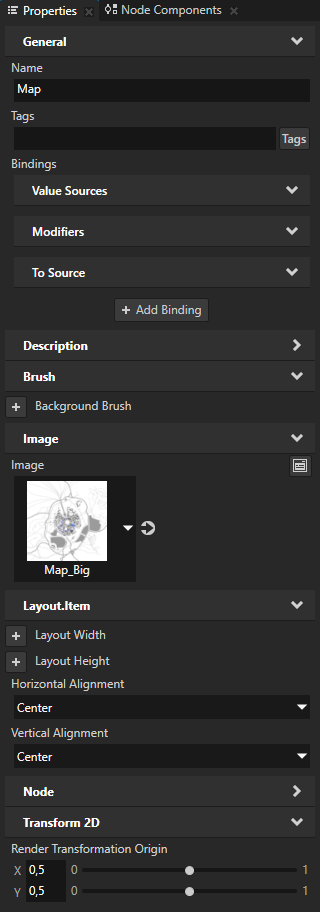
Screen 节点的资源字典包含一个指向 Map 节点的别名。
此别名为使用 Kanzi Engine API 访问 Map 节点提供了一种便捷的方法。

Pin 预设包含一个图钉图标的图像。
设置 Render Transformation Origin 属性,以便当您旋转图钉图标时,它围绕其尖端旋转。
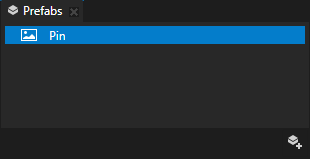
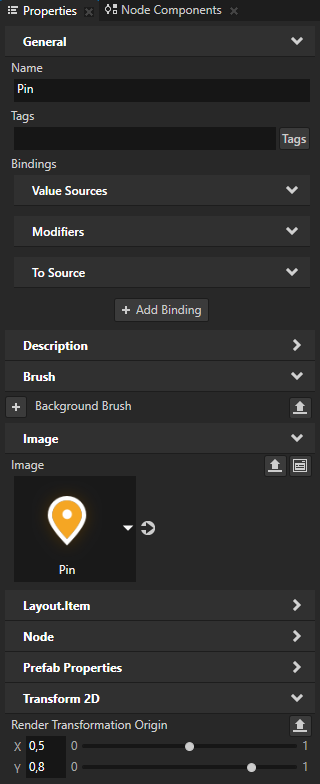
平移地图
这一节中,您创建并使用 Pan Manipulator 组件和平移操纵器,并在用户将指针放到地图上并移动指针时使用平移操纵器移动地图。
要平移地图:
在 Kanzi Studio Quick Start 窗口中点击 Projects,然后选择 Tutorials 选项卡。在 Pan zoom tap 教程旁边,点击 Open 并选择 Start project。
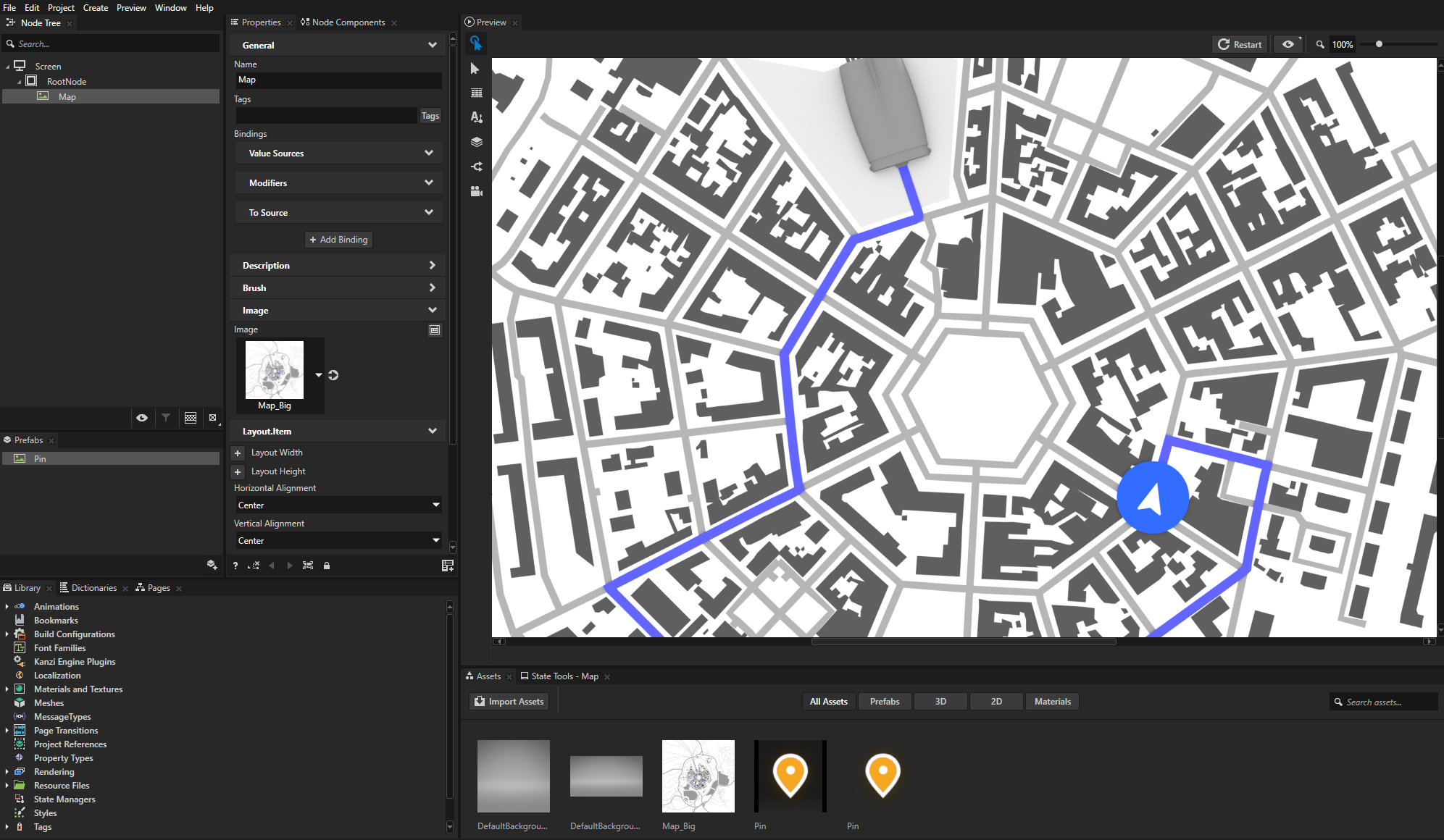
在 Node Tree 中选择 Map 节点,在 Properties 中添加 Input > Hit Testable 属性,并启用它。
当您启用属性时,用户能选取节点。
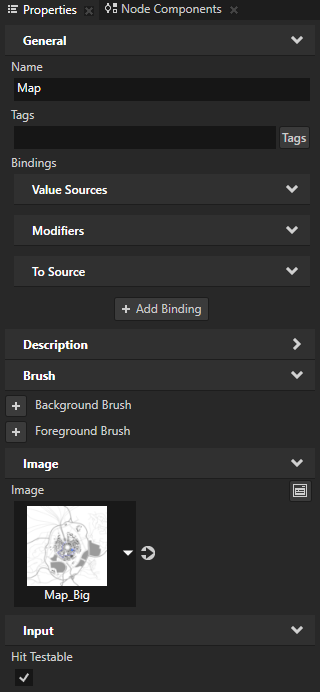
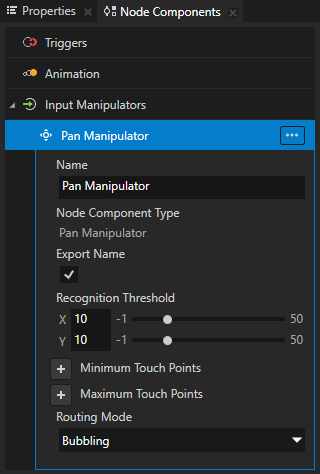
在 Node Components 按 Alt 并右键单击 Input Manipulators 中,选择 Pan Manipulator。
通过这种方式,您可以使 Map 节点对平移手势作出反应。
通过向节点添加 Pan Manipulator 组件,您可以在该节点上安装
PanManipulator。在此过程的后期,您将添加应用程序代码,以定义如何响应平移手势。
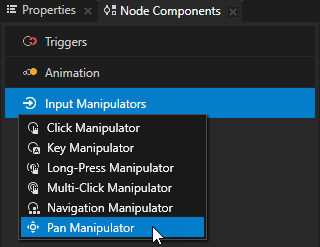
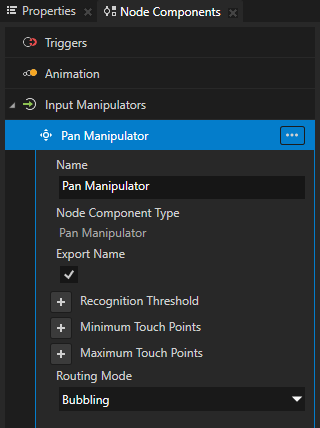
在 Pan Manipulator 中,将 Recognition Threshold 属性 X 和 Y 属性字段设置为 10。
Recognition Threshold 设置在水平和垂直轴上指针必须移动的像素阈值,然后 Kanzi 才能将其识别为平移手势。
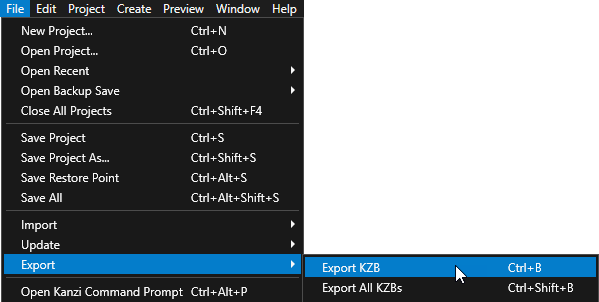
选择 File > Export > Export KZB。
Kanzi Studio creates the kzb file and configuration files from your Kanzi Studio project. Kanzi Studio stores the exported files in the
<ProjectName>/Application/bindirectory or the location that you set in Project > Properties in the Binary Export Directory property. The kzb file contains all nodes and resources from your Kanzi Studio project, except the resources that you mark in a localization table as locale packs.当您从 Visual Studio 运行您的 Kanzi 应用程序时,您的应用程序会加载 kzb 文件和配置文件。
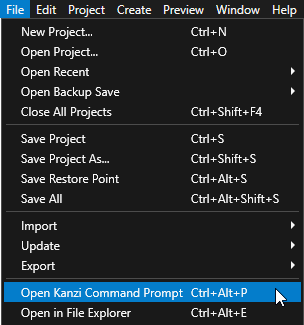
在 Kanzi Studio 中,选择 File > Open Kanzi Command Prompt。
Kanzi Command Prompt 打开 Windows 命令提示符,并为您打开 Kanzi Command Prompt 的 Kanzi 版本设置 Kanzi 环境变量。
使用 Kanzi Command Prompt 访问 Kanzi 实用工具和构建工具(例如 Gradle 和 CMake),而无需使用绝对路径或设置环境变量。
小技巧
您可以在 Windows 开始菜单的 Rightware 目录中找到 Kanzi Command Prompt。
当您安装了多个版本的 Kanzi 时,确保将您要在该命令提示符下使用的 Kanzi 版本的 Kanzi Command Prompt 启动。
在
<KanziWorkspace>/Tutorials/Pan zoom tap/Start/Application目录中的 Kanzi Command Prompt 中运行生成教程应用程序的 Visual Studio 解决方案的脚本。generate_cmake_vs2022_solution.bat
该脚本会在
<KanziWorkspace>/Tutorials/Pan zoom tap/Start/Application/build_vs2022目录中为应用程序生成 Visual Studio 解决方案。在 Visual Studio 中打开
<KanziWorkspace>/Tutorials/Pan zoom tap/Start/Application/build_vs<Version>/Pan_zoom_tap_start.slnVisual Studio 解决方案。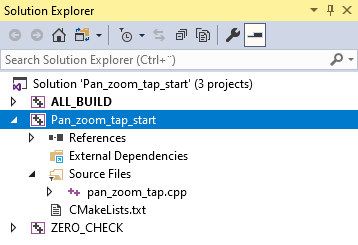
在 Visual Studio 的 Solution Explorer 中,右键点击 Pan_zoom_tap_start 项目并选择 Set as StartUp Project。
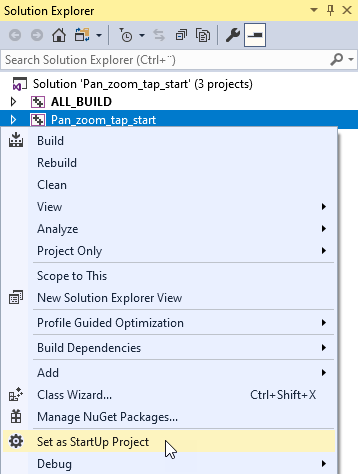
在 Visual Studio 中打开
pan_zoom_tap.cpp文件,并添加定义应用程序如何响应平移手势的代码:在
PanZoomTap类中,在公共部分之后,定义PanManipulator::MovedMessage消息的处理程序:private: // Define the handler for the PanManipulator::MovedMessage message from 2D nodes // that have an input manipulator which generates pan messages. // This handler translates a 2D node for the amount of the pan gesture. void onPanMoved(PanManipulator::MovedMessageArguments& messageArguments) { // Get from the message arguments the node that the user pans. Node2DSharedPtr mapNode = dynamic_pointer_cast<Node2D>(messageArguments.getSource()); // Get the distance in pixels for which the pan progressed // since the last message in the pan gesture sequence. Vector2 translationDelta = messageArguments.getDelta(); // Get the Render Transformation property of the Map node. SRTValue2D mapNodeSRT = mapNode->getRenderTransformation(); // Get the current translation of the Map node. Vector2 translation = mapNodeSRT.getTranslation(); // Apply the translation from the pan message. Vector2 translationTarget = translation + translationDelta; // Get the parent node of the Map node. Node2D* containerNode = dynamic_cast<Node2D*>(mapNode->getParent()); // Get the size of the parent node. Vector2 containerSize = containerNode->getActualSize(); // Get the Render Transformation property Scale property field of the Map node. Vector2 mapScale = mapNodeSRT.getScale(); // Calculate the scaled size of the Map node. Vector2 mapSizeScaled = componentWiseMultiply(mapNode->getActualSize(), mapScale); // Do not pan outside the boundaries of the Map node. // When calculating the boundaries, take into account the current scale of the map. if (mapScale.getX() >= 1.0f) { translationTarget = componentWiseMax(componentWiseMin(translationTarget, (mapSizeScaled - containerSize) / 2), (containerSize - mapSizeScaled) / 2); } else if (mapScale.getX() < 1.0f) { translationTarget = componentWiseMin(componentWiseMax(translationTarget, (containerSize - mapSizeScaled) / 2), (mapSizeScaled - containerSize) / 2); } // Set the new translation. mapNodeSRT.setTranslation(translationTarget); // Apply the new transform to the Map node. mapNode->setRenderTransformation(mapNodeSRT); }
在
Application::onProjectLoaded函数中,订阅 Map 节点上PanManipulator操控器的消息:void onProjectLoaded() override { // Pointer to the domain. Domain* domain = getDomain(); // Get the Screen node. ScreenSharedPtr screen = getScreen(); // Get the Map node using its alias. Node2DSharedPtr mapNode = screen->lookupNode<Node2D>("#Map"); // Subscribe to the PanManipulator::MovedMessage message at the Map node. // The PanManipulator generates this message when the user moves the pointer on the horizontal or // vertical axis more than the recognition threshold and when the pointer moves between updates. mapNode->addMessageHandler(PanManipulator::MovedMessage, bind(&PanZoomTap::onPanMoved, this, placeholders::_1)); }
选择您要使用的解决方案配置并运行您的应用程序。
在开发期间,选择 Debug 配置。当您准备好创建生产版本时,选择 Release 配置。
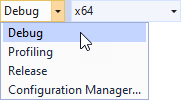
在应用程序中点击并拖动地图,以进行平移。
另请参阅
要了解有关在 Kanzi 中处理用户输入的更多信息,请参阅 处理用户输入。
要详细了解平移操纵器,请参阅 使用 Pan Manipulator。
要了解有关 Kanzi 中别名的更多信息,请参阅 使用别名。