Node3D 插件示例
示例展示了如何创建自定义 3D 节点以及如何在 Kanzi Studio 中使用这些节点。
获取示例
要获取该示例,请在 Kanzi Studio Quick Start 窗口中点击 Projects,然后选择 Examples 选项卡。在 Node3D_plugin 示例旁边,点击  。
。
Kanzi Studio 会将该示例下载到 <KanziWorkspace>/Examples/Node3D_plugin 目录。
示例内容
该示例包含:
一个定义自定义节点的 Kanzi Engine 插件。
一个 Kanzi Studio 项目,使用 Kanzi Engine 插件在 Kanzi Studio Preview 中应用自定义节点中定义的行为。
要了解如何创建 Kanzi Engine 插件,请参阅 创建 Kanzi Engine 插件。
创建自定义节点
该示例具有以下自定义节点:
Knob 通过发送有关旋钮当前旋转角度的消息来响应用户输入。旋钮根据从用户输入检测到的平移手势生成自己的消息。这些消息类型在 Kanzi Studio 的旋钮处被拦截:
通过直接将参数传送给 Z 旋转角度特性,将旋钮的旋转角度转发给旋钮的外部可视化。
生成应用程序事件(也称为消息)并将其传送给下拉列表节点,以处理离散水平更新。
Spinner 通过更新 Text Block 节点的 Text 属性来对消息做出反应,以显示来自旋钮的值。Spinner 从外部接收消息,并根据其自身定义的行为对这些消息做出反应。
Kanzi Studio 从插件 DLL 中读取有关自定义节点使用的消息和属性类型的信息。
Kanzi Engine 通过从插件中调用具有此签名的函数来注册插件:
extern "C"
{
    __declspec(dllexport) Module* createModule(uint32_t kanziVersionMajor, uint32_t kanziVersionMinor);
}
旋钮和微调器节点在 Module::getMetaclassesOverride 函数中注册,该函数定义在您创建的模块中,并且由 createModule() 函数返回。
要注册 Spinner 节点,Spinner 必须包含一个元类。通过使用 metaclass.hpp::KZ_METACLASS_BEGIN,您可以定义一个自定义节点,并在其中声明:
基类 (
Node3D)唯一 ID (
"Spinner")它使用的消息 (
SpinnerUpdateLevelMessage)它使用的属性类 (
TextBlockProperty)
在 spinner.hpp 文件中,Spinner 节点的元数据声明如下所示:
KZ_METACLASS_BEGIN(Spinner, Node3D, "Spinner")
    KZ_METACLASS_MESSAGE_TYPE(SpinnerUpdateLevelMessage)
    KZ_METACLASS_PROPERTY_TYPE(TextBlockProperty)
KZ_METACLASS_END()
在此示例中,在 spinner.cpp 文件中,Spinner 通过指定使用 SpinnerUpdateLevelMessageArguments 来创建其消息类型 SpinnerUpdateLevelMessage:
MessageType<Spinner::SpinnerUpdateLevelMessageArguments> Spinner::SpinnerUpdateLevelMessage(
    kzMakeFixedString("Message.Spinner.UpdateLevel"),
    KZ_DECLARE_EDITOR_METADATA(
        // Set the name of the message the way it is shown in Kanzi Studio.
        metadata.displayName = "Update Level";
        // Set the tooltip for the message.
        metadata.tooltip = "Updates the Spinner level and outputs the level to a text block.";
        // Do not show the message as a trigger.
        // Do this when you want to show a message in Kanzi Studio as an action.
        metadata.listenable = "False";
    ));
要注册 SpinnerUpdateLevelMessage 的消息参数,SpinnerUpdateLevelMessageArguments 必须包含定义消息参数的元类。通过使用 metaclass.hpp::KZ_MESSAGE_ARGUMENTS_METACLASS_BEGIN,您可以定义自定义消息的参数,并在其中声明:
基类 (
MessageArguments)唯一 ID (
"Spinner Update Level Message Arguments")属性类型 (
SpinnerLevelAlterationProperty)
KZ_MESSAGE_ARGUMENTS_METACLASS_BEGIN(SpinnerUpdateLevelMessageArguments, MessageArguments, "Spinner Update Level Message Arguments")
    KZ_METACLASS_PROPERTY_TYPE(SpinnerLevelAlterationProperty)
KZ_METACLASS_END()
为自定义 3D 节点创建调试可视化
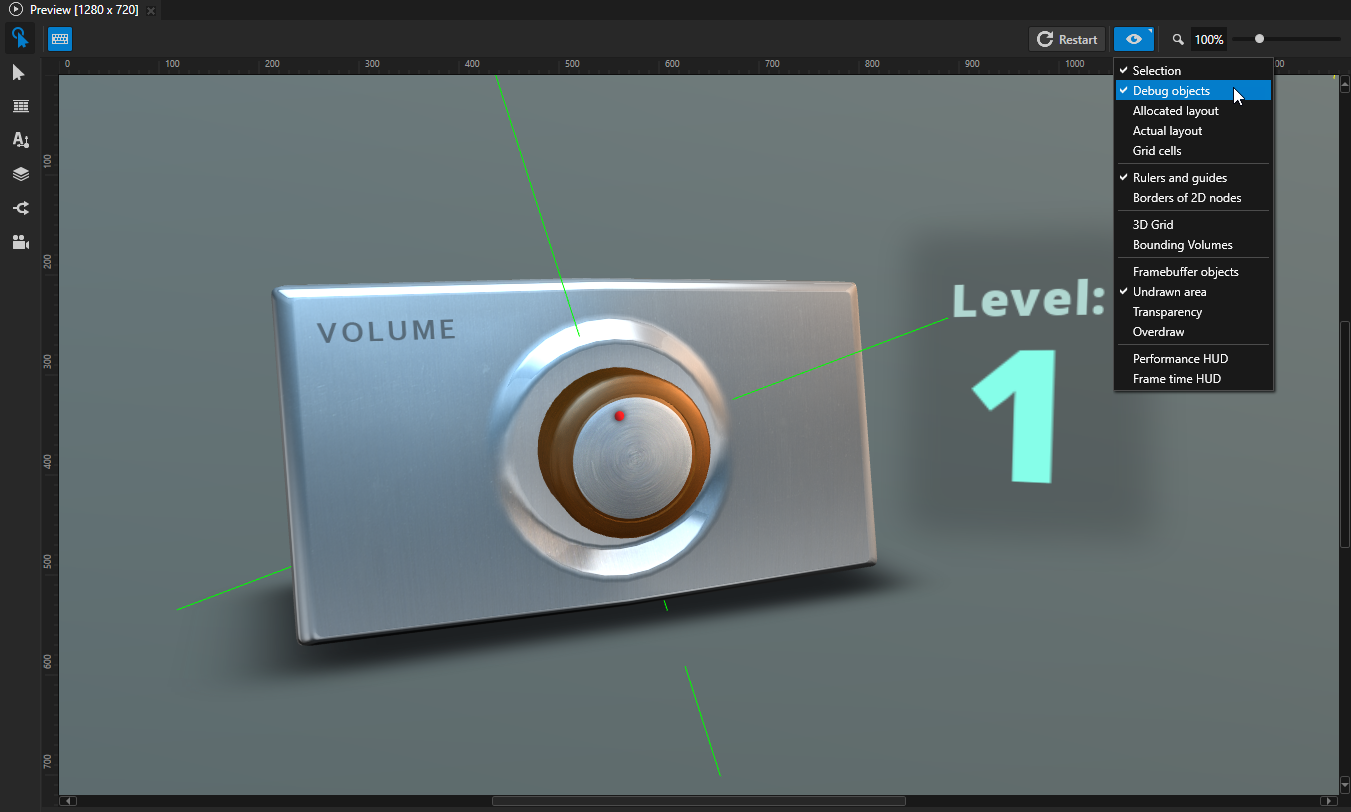
对于您的自定义3D节点,您可以创建在 Kanzi Studio 中可见的调试可视化,当 Preview 处于 Analyze 模式时。使用这些可视化来渲染在开发插件时有帮助的信息。
Node3D 插件示例为 Knob 节点创建了一个调试可视化:
在
knob.cpp文件中,drawKnobDebug函数绘制了一个调试可视化,其中包括从旋钮中心延伸到不同方向的四条线。// Renders a debug visualization of the Knob. void drawKnobDebug(Renderer3D& renderer, NodeSharedPtr object) { // This example of a debug visualization draws four green lines that extend from the // origin of the Knob node to different directions. When you rotate the Knob, the // visualization rotates. const ColorRGBA color(0.0f, 1.0f, 0.0f); auto knobNode = dynamic_pointer_cast<Knob>(object); if (!knobNode) { return; } MaterialSharedPtr material = Material::acquireDebugMaterialSolid(*renderer.getResourceManager()); if (!renderer.applyColorMaterial(knobNode.get(), *material, color)) { return; } Matrix4x4 worldTransformation = knobNode->getFinalTransformation(); span<float> floatBuffer = renderer.getFloatBuffer(); const float radius = 5.0f; const unsigned int lineCount = 4; kzAssert(!floatBuffer.empty()); float* dataIt = floatBuffer.data(); // Get the rotation angle of the knob. float rotation = knobNode->getRotation(); auto rotationTransform = Matrix4x4::createZRotationInRadians(rotation); // Knob visualization. Renderer3D::addVertexToFloatArray(rotationTransform * Vector3(0.1f, 0.0f, 0.0f), dataIt); Renderer3D::addVertexToFloatArray(rotationTransform * Vector3(radius, 0.0f, 0.0f), dataIt); Renderer3D::addVertexToFloatArray(rotationTransform * Vector3(-0.1f, 0.0f, 0.0f), dataIt); Renderer3D::addVertexToFloatArray(rotationTransform * Vector3(-radius, 0.0f, 0.0f), dataIt); Renderer3D::addVertexToFloatArray(rotationTransform * Vector3(0.0f, 0.1f, 0.0f), dataIt); Renderer3D::addVertexToFloatArray(rotationTransform * Vector3(0.0f, radius, 0.0f), dataIt); Renderer3D::addVertexToFloatArray(rotationTransform * Vector3(0.0f, -0.1f, 0.0f), dataIt); Renderer3D::addVertexToFloatArray(rotationTransform * Vector3(0.0f, -radius, 0.0f), dataIt); renderer.drawLineList(floatBuffer.data(), lineCount, worldTransformation, *material); }
在
node3d_plugin_module.cpp文件中,Module::registerDebugRenderingFunctions函数注册插件模块的调试渲染函数。它使用DebugRenderRegistry::addMapping函数将 Knob 类与绘制可视化的drawKnobDebug函数关联。// Registers the debug visualization function. void Node3DPluginModule::registerDebugRenderingFunctions(DebugRenderRegistry& registry) { // Add a mapping from the Knob class to the function that you use to render a // debug visualization of the knob and its rotation. registry.addMapping(Knob::getStaticMetaclass(), drawKnobDebug); }
要在 Kanzi Studio 中查看调试可视化效果,在 Preview 中单击  以进入 Analyze 模式,右键单击
  ,然后选择 Debug objects。当您在 Preview 中旋转旋钮时,可视化效果会旋转。
运行示例
要运行示例:
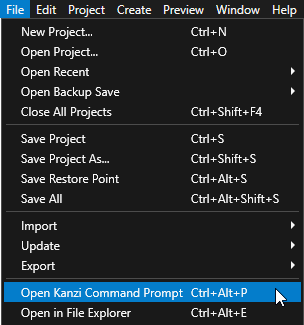
在 Kanzi Studio 中,选择 File > Open Kanzi Command Prompt。
Kanzi Command Prompt 打开 Windows 命令提示符,并为您打开 Kanzi Command Prompt 的 Kanzi 版本设置 Kanzi 环境变量。
使用 Kanzi Command Prompt 访问 Kanzi 实用工具和构建工具(例如 Gradle 和 CMake),而无需使用绝对路径或设置环境变量。
小技巧
您可以在 Windows 开始菜单的 Rightware 目录中找到 Kanzi Command Prompt。
当您安装了多个版本的 Kanzi 时,确保将您要在该命令提示符下使用的 Kanzi 版本的 Kanzi Command Prompt 启动。
在
<KanziWorkspace>/Examples/Node3D_plugin/Application目录中的 Kanzi Command Prompt 中运行生成示例应用程序的 Visual Studio 解决方案的脚本。generate_cmake_vs2022_solution.bat
该脚本会在
<KanziWorkspace>/Examples/Node3D_plugin/Application/build_vs2022目录中为应用程序生成 Visual Studio 解决方案。在 Visual Studio 中打开
<KanziWorkspace>/Examples/Node3D_plugin/Application/build_vs<Version>/Node3D_plugin.slnVisual Studio 解决方案。在 Visual Studio 的 Solution Explorer 中,右键点击
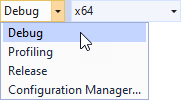
Node3D_plugin_executable项目并选择 Set as StartUp Project。选择您要使用的解决方案配置并运行您的应用程序。
在开发期间,选择 Debug 配置。当您准备好创建生产版本时,选择 Release 配置。