将模板应用于 3D 内容
使用渲染通道和模具缓冲区将模具应用到 3D 内容,使 Kanzi 仅渲染内容的选定区域。
模板缓冲区是当前帧缓冲区中的一幅图像,您可以使用它来控制 Kanzi 渲染哪些像素。您可以使用渲染通道根据模板缓冲区的值丢弃或渲染内容中的特定像素。通过这种方式,您可以将渲染区域限制为用作模板的节点的形状。节点的形状就像模板中的间隙,决定了内容的哪些部分是可见的。
要将模具应用至 3D 内容并仅渲染模板定义的区域:
创建您要用作模具的节点。例如:
导入您要将其形状用作模具的网格。请参阅 使用网格。
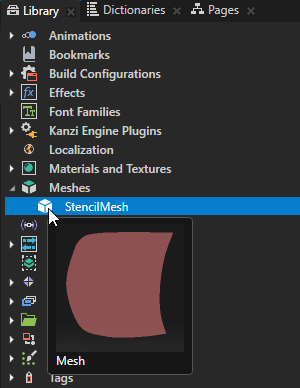
创建一个 Model 节点,将其命名为 Stencil,并在 Properties 中将 Mesh 属性设置为您导入的网格。
创建您要对其应用模具的 3D 节点。
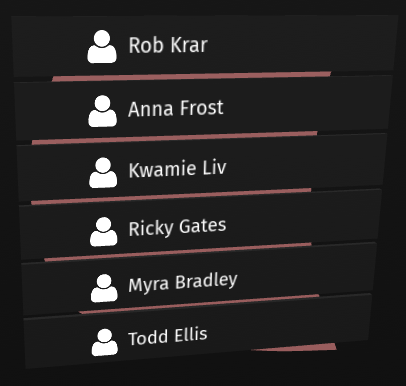
例如,创建一个 Grid List Box 3D 节点,显示联系人列表。
缩放并定位您创建的节点,以便您要用作模具的节点画出区域,在其中显示您要应用模具的节点。
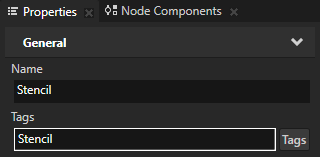
标记您要用作模具的节点。请参阅 标记节点。
例如,将 Stencil 节点标记为标签 Stencil。
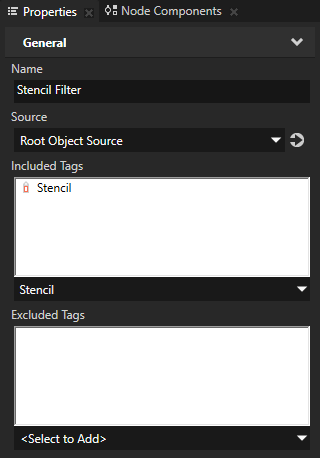
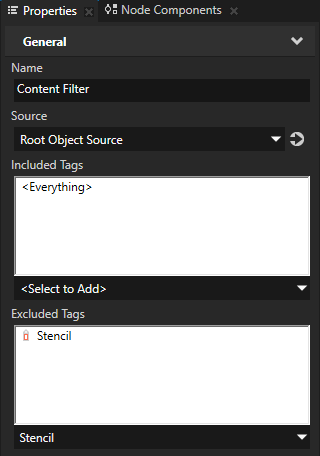
创建一个 Tag Filter 资源,该资源选择 Stencil 节点,以及另一个 Tag Filter 资源,该资源选择除 Stencil 节点之外的所有节点。请参阅 使用 Tag Filter。
例如,创建这些 Tag Filter 资源:
Stencil Filter 和在 Properties 中向 Included Tags 添加 Stencil 标签。
Content Filter 并在 Properties 中向 Excluded Tags 添加 Stencil 标签。
应用模具:
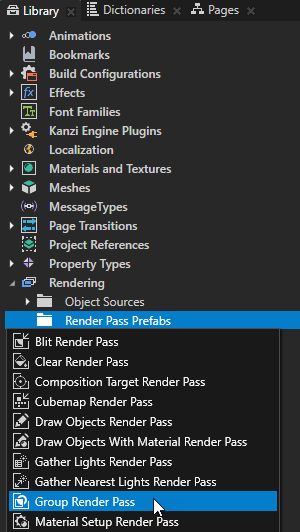
在 Library > Rendering 按 Alt 并右键单击 Render Pass Prefabs 中,选择 Group 渲染通道,并将其命名为 Stencil 渲染通道。
使用 Group 渲染通道收集将模具应用到内容的渲染通道。
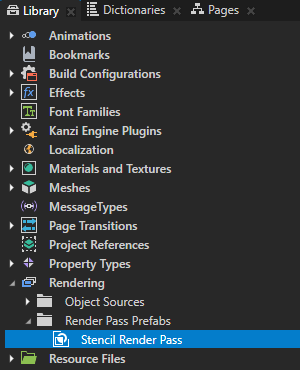
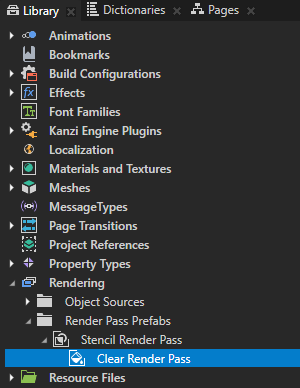
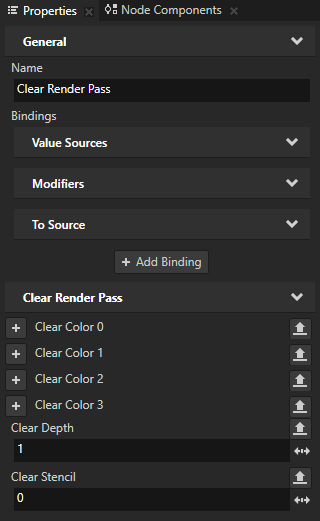
在 Library > Rendering > Render Pass Prefabs > Stencil 渲染通道中创建一个 Clear 渲染通道,在 Properties 中添加 Clear Stencil 属性,并将其设置为 0。通过这种方式,您可以将值 0 写入模具缓冲区中的所有像素,从而清除模具缓冲区。在此过程的后续步骤中,您将使用模具缓冲区把渲染区域限制为 Stencil 节点的形状。
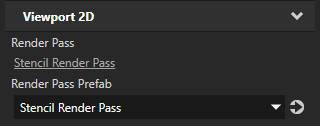
在 Node Tree 中,选择包含 Stencil 节点以及您要对其应用模板的节点的 Viewport 2D 节点,并在 Properties 中将 Render Pass Prefab 属性设置为 Stencil 渲染通道。
通过这种方式,您可以设置 Kanzi 使用 Stencil 渲染通道渲染 Viewport 2D 节点。
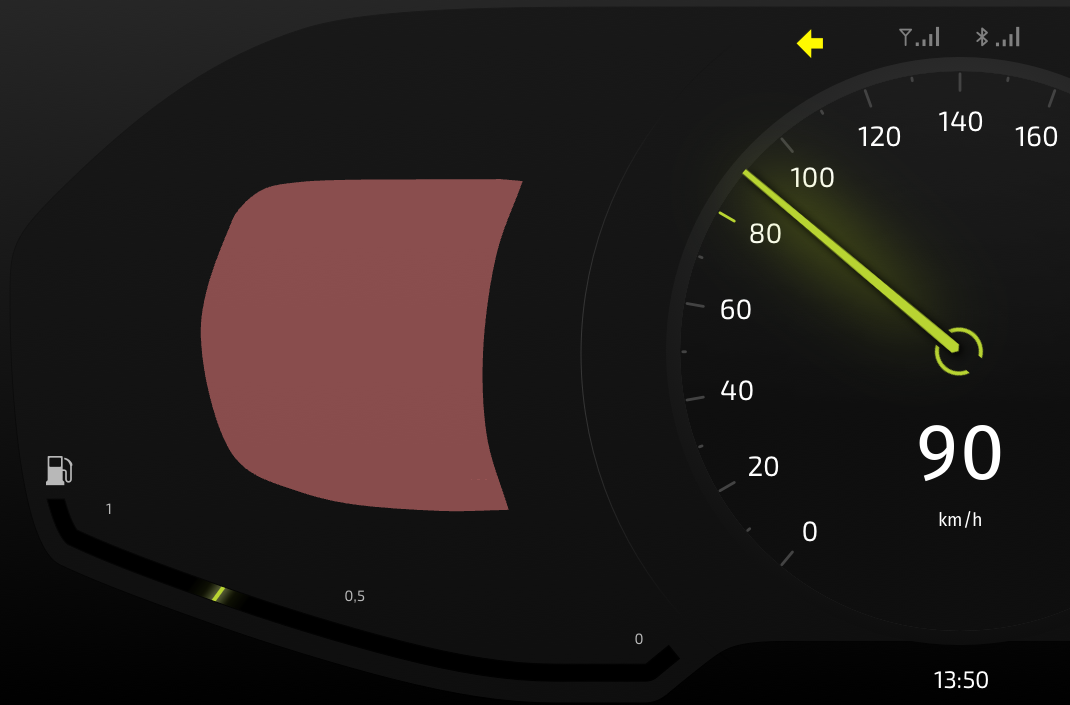
Stencil 渲染通道还没有在屏幕上绘制任何内容。
向模具缓冲区写入 Stencil 节点的形状:
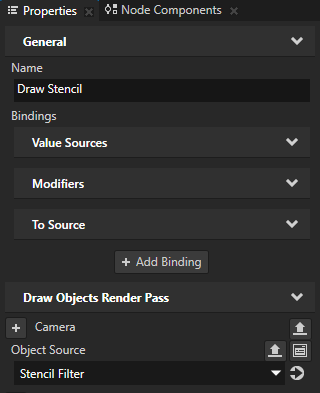
在 Library > Rendering > Render Pass Prefabs > Stencil 渲染通道中创建一个 Draw Objects 渲染通道,将其命名为 Draw Stencil,在 Properties 中添加 Object Source 属性,并将其设置为 Stencil Filter Tag Filter。
使用 Object Source 属性仅将您希望 Draw Objects 渲染通道渲染的节点传递给该渲染通道。
在这里,您将 Stencil 渲染通道设置为仅渲染 Stencil 节点。
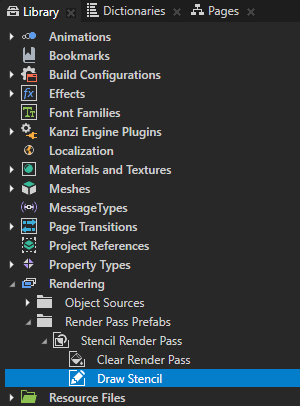
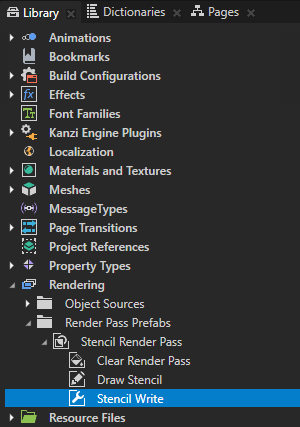
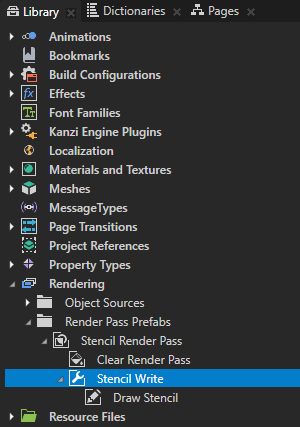
在 Library > Rendering > Render Pass Prefabs > Stencil 渲染通道中创建一个 Pipeline State 渲染通道,将其命名为 Stencil Write,并将 Draw Stencil 渲染通道拖到 Stencil Write 渲染通道上。
使用渲染通道写入至模具缓冲区。
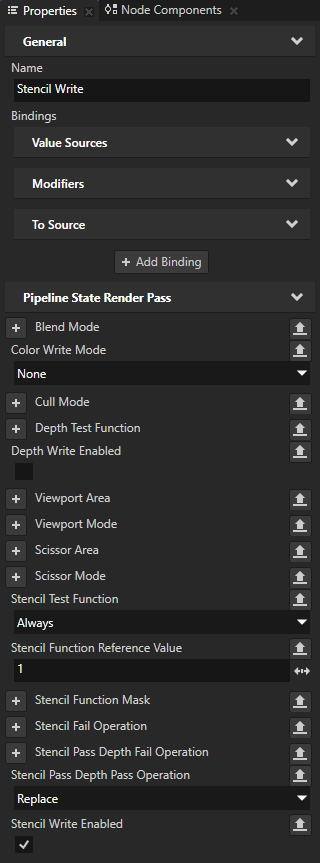
在 Library > Rendering > Render Pass Prefabs > Stencil 渲染通道中选择 Stencil Write,并在 Properties 中添加并设置:
Color Write Mode 到 None
这样即可使 Stencil 节点不可见。
Stencil Test Function 到 Always
您使用此属性控制模具测试以何种方式将模具参考值与模具缓冲区中的值进行比较。您将属性设置为 Always 以始终通过测试。
通过这种方式,您可以使 Draw Stencil 渲染通道将 Stencil 节点写入模板缓冲区。
请参阅 模具测试函数。
Stencil Function Reference Value 到 1
通过将 Stencil Function Reference Value 设置为 1,您可以使 Draw Stencil 渲染通道以值 1 写入模板缓冲区。
Stencil Pass Depth Pass Operation 到 Replace
您将模板缓冲区中的当前值替换为 Stencil Function Reference Value 属性的值。
请参阅 模具操作。
将 Stencil Write Enabled 设置为 enabled。
您将值 1 写入模板缓冲区中 Stencil 节点的形状,并在其他地方保留值 0。
渲染要应用模具的节点。
例如:
在 Library > Rendering > Render Pass Prefabs > Stencil 渲染通道中创建一个 Gather Lights 渲染通道。
使用此渲染通道在使用 Stencil 渲染通道预设件的 Viewport 2D 节点中收集照亮联系人列表的 Light 节点。
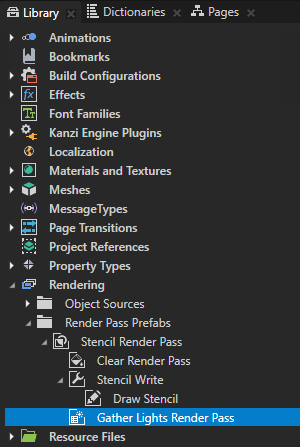
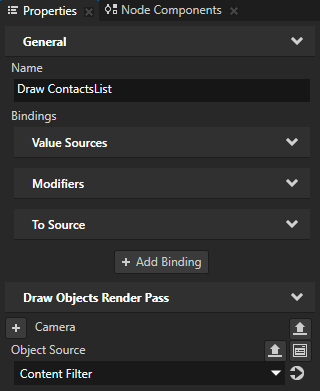
在 Library > Rendering > Render Pass Prefabs > Stencil 渲染通道 > Gather Lights 渲染通道中创建 Draw Objects 渲染通道,将其命名为 Draw ContactsList,在 Properties 中添加 Object Source 属性,并将其设置为 Content FilterTag Filter。
Kanzi 现在渲染 Viewport 2D 中的所有节点,但不包括 Stencil 节点。Kanzi 不渲染 Stencil 节点,因为 Content Filter 排除了带有 Stencil 标签的节点。
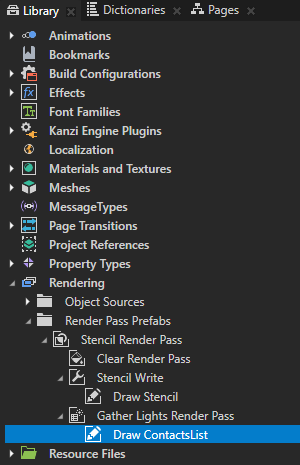
在 Library > Rendering > Render Pass Prefabs > Stencil 渲染通道中创建一个 Pipeline State 渲染通道,将其命名为 Stencil Test,并将 Gather Lights 渲染通道拖到 Stencil Test 渲染通道上。
在下一步中,您使用 Stencil Test 渲染通道来将 Draw ContactsList 渲染通道的渲染限制在您在此过程的早期写入模板缓冲区的区域。
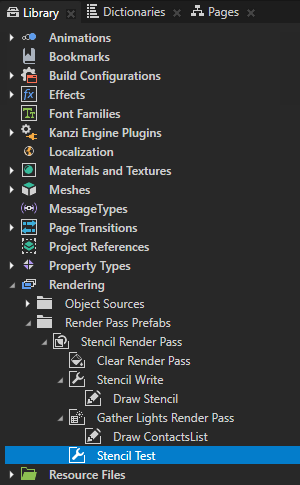
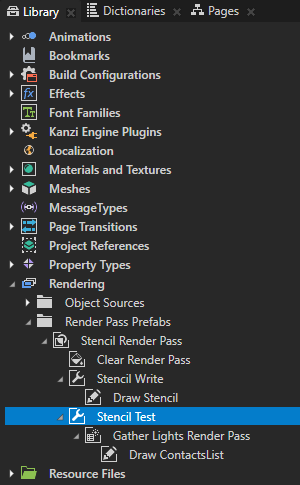
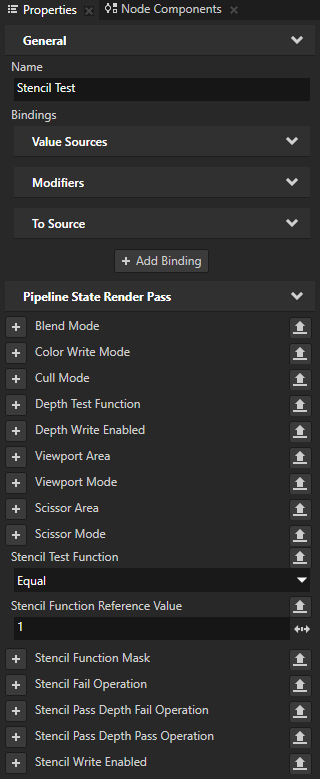
在 Library > Rendering > Render Pass Prefabs > Stencil 渲染通道中选择 Stencil Test,并在 Properties 中添加并设置:
Stencil Test Function 到 Equal
Stencil Function Reference Value 到 1
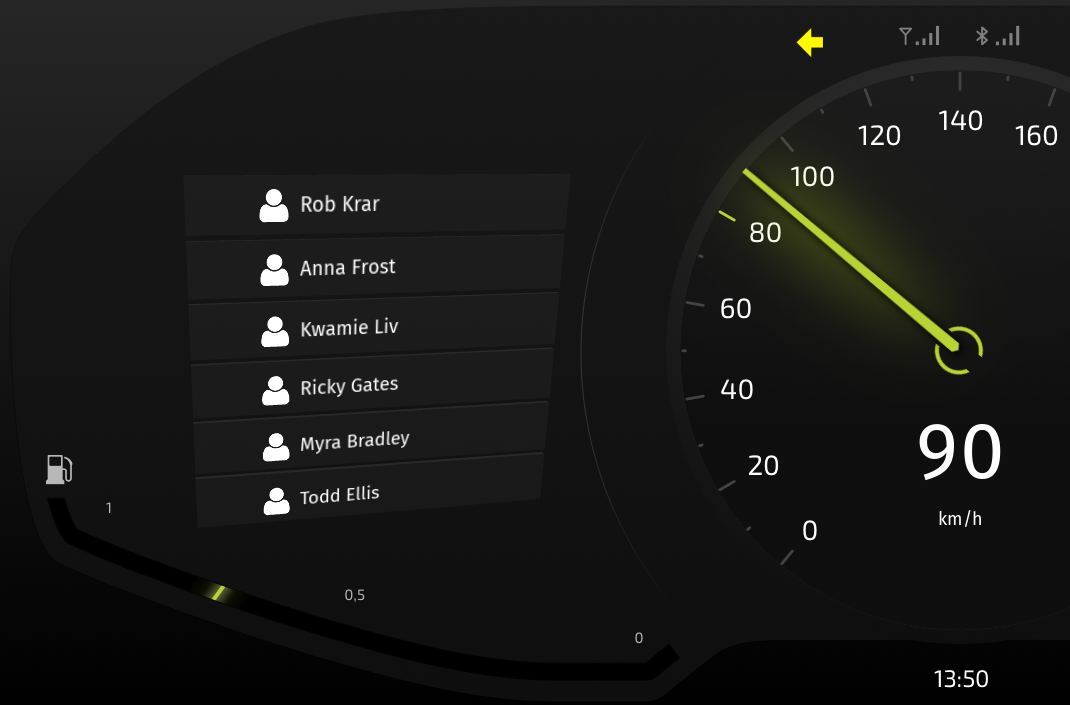
通过这种方式,您将 ContactsList 节点的渲染区域限制为具有模板值 1 的像素,从而使渲染过程仅绘制与 Stencil 节点重叠的 ContactsList 节点的部分。
模具测试函数
使用 Stencil Test Function 属性将 Stencil Function Reference Value 与模板缓冲区中的值进行比较。
您可以使用以下操作:
Stencil Test Function |
描述 (Description) |
|---|---|
始终 (Always) |
总是传递 |
等于 (Equal) |
如果值相等则传递 |
Greater |
如果 Stencil Function Reference Value 大于模板缓冲区中的值,则通过。 |
Greater or Equal |
如果 Stencil Function Reference Value 大于或等于模板缓冲区中的值,则通过。 |
Less |
如果 Stencil Function Reference Value 小于模板缓冲区中的值,则通过。 |
Less or Equal |
如果 Stencil Function Reference Value 小于或等于模板缓冲区中的值,则通过。 |
Never |
总是失败 |
不等于 (Not equal) |
如果 Stencil Function Reference Value 与模板缓冲区中的值不同,则通过。 |
您可以使用 Stencil Function Mask 属性对 Stencil Function Reference Value 和模板缓冲区中的值执行按位与操作,然后将它们与 Stencil Test Function 进行比较。这样,您可以仅修改模板缓冲区中的某些位。默认情况下,当 Stencil Function Mask 设置为 255 时,所有 Stencil Test Function 操作都会读取和写入缓冲区中的所有位。
例如,如果您将 Stencil Function Mask 设置为 2,Kanzi Studio 仅保留模板参考值和模板缓冲区值的第二位。这样,您可以使用模板缓冲区的不同位来遮罩屏幕上的不同元素。
模具操作
使用 Stencil Fail Operation、Stencil Pass Depth Fail Operation 和 Stencil Pass Depth Pass Operation 属性根据模板和深度测试的结果设置模板缓冲区中的值。默认情况下,Kanzi Studio 保持当前值。
您可以使用以下操作:
操作 (Operation) |
描述 (Description) |
|---|---|
Decrease |
如果模具值大于 0,则减去 1。 |
Decrease wrap |
否则与 Decrease 相同,但如果当前值为 0,则将该值设为模具缓冲区的最大可能值,通常为 255。 |
Increase |
如果模具值小于最大值,则增加 1。 |
Increase wrap |
否则与 Increase 相同,但如果超出最大值,则将该值设为 0。 |
Invert |
向该值应用按位反转。 |
Keep |
保留当前值。 |
替换 (Replace) |
将模板值替换为 Stencil Function Reference Value 属性的值。 |
Zero |
将模具值设为 0。 |