应用程序开发
有几种方法可以添加或自定义您的 Kanzi 应用程序行为和功能:
使用配置,您可以为应用程序设置最常见的启动和运行时参数。例如,您可以配置应用程序的分辨率、应用程序使用的kzb文件等。请参阅 配置您的应用程序。
使用后台代码为应用程序中的 UI 元素添加行为。后台代码是在不离开 Kanzi Studio 且不创建解决方案或项目文件的情况下添加功能的最简单方法。您可以在 Preview 中立即观察到在后台代码中实现的行为。请参阅 使用代码隐藏的编程活动。
从
Application类派生一个 C++ 类,该类是所有 Kanzi 应用程序的基类。重写Application类的各种虚函数,以响应应用程序生命周期中的不同时间点,例如初始化和反初始化,以及应用程序启动时、应用程序加载其 UI 内容时等。请参阅 响应应用程序生命周期事件。使用
MainLoopScheduler类,该类将输入处理、动画更新、布局和渲染内容的任务委托给Application类,最后通过重复的控制流更新屏幕。您可以在应用程序的主循环中添加任务,以相对于应用程序主循环的各个阶段添加重复或一次性功能。请参阅 修改主循环逻辑。开发 Kanzi Engine 插件,可以实现可在应用程序之间重用的功能。
配置您的应用程序
使用配置,您可以为应用程序设置最常见的启动和运行时参数。例如,您可以配置应用程序的分辨率、应用程序使用的kzb文件等。
您可以配置您的 Kanzi 应用程序:
在 C++ 应用程序中,重写应用程序类的
Application::onConfigure函数。Kanzi 在应用程序初始化的一部分中调用此函数,先于读取application.cfg和初始化图形子系统。使用此函数配置应用程序属性。在
application.cfg中,通过设置 Kanzi Studio 项目的参数,无需重新编译您的应用程序,甚至无需 C++ 应用程序。
您在 application.cfg 中指定的配置会覆盖您在 Application::onConfigure 中指定的配置。
例如,要在 application.cfg 中设置要加载的 kzb 文件
# Loads the kzb file named my_application.kzb.
BinaryName = "my_application.kzb"
要设置要在 Application::onConfigure 中加载的 kzb 文件。
// Loads the kzb file named my_application.kzb.
configuration.binaryName = "my_application.kzb";
关于您可以为 Kanzi 应用程序使用的所有配置设置列表,请参阅 应用程序配置参考。
响应应用程序生命周期事件
添加启动逻辑
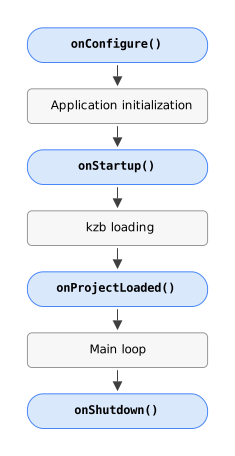
您可以在这些函数中定义应用程序的启动逻辑:
Kanzi 会在启动应用程序后、加载初始 UI 内容之前立即调用一次
Application::onStartup函数。您可以在此处添加需要修改已初始化的 Kanzi 对象的应用程序启动逻辑。Kanzi 会在加载初始 UI 内容后立即调用一次
Application::onProjectLoaded函数。通常,您在此处插入依赖于已加载内容的初始化代码。例如,您可以附加初始消息处理程序或侦听器,用数据填充 UI,等等。
例如,此代码在 Kanzi 加载节点树后将处理程序附加到 Button:
void onProjectLoaded() override
{
    // Get reference to the Screen node.
    ScreenSharedPtr screen = getScreen();
    kzAssert(screen);

    // Look up reference to a button by alias.
    Button2DSharedPtr button = screen->lookupNode<Button2D>("#Button");
    kzAssert(button);

    // Attach a handler to the button.
    button->addMessageHandler(Button2D::ClickedMessage, [this](auto& arguments)
                              {
                                  this->buttonHandler(arguments);
                              });
}
此图显示了启动和关闭逻辑的回调。
观察应用程序状态
您可以观察应用程序状态,以确定应用程序是正在运行、已最小化还是已挂起。
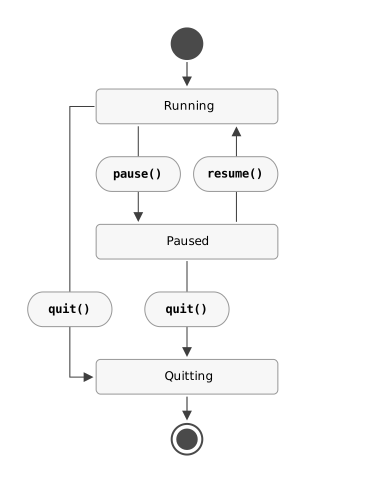
Kanzi 应用程序始终处于以下状态之一:
MainLoopState::Running状态。这是 Kanzi 应用程序的正常操作模式。这是应用程序的初始状态。MainLoopState::Paused状态。平台可以对应用程序在失去焦点或最小化时的行为施加规则。要标记此类状态,平台后端可以将应用程序设置为MainLoopState::Paused状态。在此状态下,Kanzi 停止正常的输入处理和渲染,并等待被放回
MainLoopState::Running状态。此外,应用程序通常会在此状态下停止繁重的工作。MainLoopState::Quitting状态。此状态表示应用程序或平台通过调用MainLoopScheduler::quit请求应用程序退出。在此状态下,应用程序必须避免开始工作,除非该工作与反初始化有关。
此图表展示了 Kanzi 应用程序的状态。
要了解应用程序状态,请调用 MainLoopScheduler::getState。
例如,要防止在应用程序退出时添加任务:
void doSomethingRepeatedly()
{
    doSomething();

    // If a condition is met...
    if (someCondition() &&
        // ...and the application is not quitting...
        getState() != MainLoopState::Quitting)
    {
        // ...add another task to the task dispatcher.
        getDomain()->getTaskDispatcher()->submit([this]()
                                                 {
                                                     this->doSomethingRepeatedly();
                                                 });
    }
}
响应应用程序状态更改
使用这些函数来响应应用程序状态的变化:
函数 |
描述 (Description) |
|---|---|
Kanzi 会在未执行渲染的帧中调用此函数,以确定是否挂起应用程序以及挂起多长时间。默认实现会根据活动动画、计时器和等待部署的资源计算适当的超时时间。 使用此函数自定义应用程序挂起。 |
|
当应用程序主循环进入 |
|
当应用程序主循环从 |
|
Kanzi 会在应用程序反初始化之前立即调用此函数。 |
修改主循环逻辑
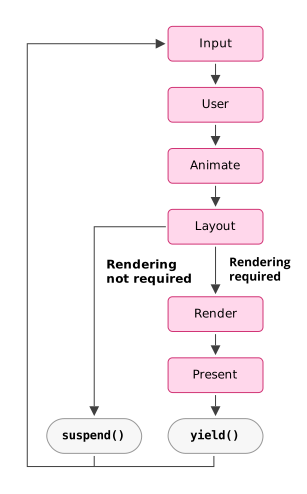
主循环由一系列阶段组成,其中每个阶段由一系列任务组成。任务是任何可调用的项目,包括函数、函数对象和 lambdas。
using Task = function<void(chrono::nanoseconds)>;
public interface Task {
    void handle(Duration lastFrameDuration);
}
interface Task {
    fun handle(lastFrameDuration: Duration?)
}
当 Kanzi 执行任务时,它将最后一帧的持续时间作为参数传递给任务。
这些是 Kanzi 中的默认阶段:
在输入阶段,Kanzi 处理输入事件。
在用户阶段,Kanzi 处理更新逻辑:部署资源,加载 kzb 文件和预设件,并执行您的任务调度程序任务和计时器任务。
在 animate 阶段,Kanzi 会触发活动动画。
在布局阶段,Kanzi 布局节点树。
在渲染阶段,Kanzi 渲染节点树。
在当前阶段,Kanzi 展示了节点树。
此图表展示了 Kanzi 主循环的控制流程。
在应用程序中,您可以在任何主循环调度器阶段中移除、替换或插入任务。请参阅 MainLoopScheduler。
添加重复任务
当您希望 Kanzi 每帧执行一个任务时,可以使用 MainLoopScheduler::appendTask 和 MainLoopScheduler::prependTask 将其添加到主循环的任何阶段,并使用选项 MainLoopScheduler::TaskRecurrence::Recurring。
例如,您可以使用一个重复任务来调用外部库的更新函数:
void onStartup() override
{
    // From the main loop Animate stage, tick an external physics engine.
    getMainLoopScheduler().appendTask(AnimateStage,
                                      kzMakeFixedString("TickPhysics"),
                                      MainLoopScheduler::TaskRecurrence::Recurring,
                                      [this](auto deltaTime)
                                      {
                                          this->getPhysicsEngine()->tick(deltaTime);
                                      });
}
void onStartup()
{
    // From the main loop Animate stage, tick an external physics engine.
    MainLoopScheduler mls = getDomain().getMainLoopScheduler();
    mls.appendTask(MainLoopScheduler.AnimateStage, "TickPhysics", TaskRecurrence.Recurring,
        new MainLoopScheduler.Task() {
            @Override
            public void handle(Duration lastFrameDuration)
            {
                getPhysicsEngine().tick(lastFrameDuration);
            }
        });
}
fun onStartup() {
    // From the main loop Animate stage, tick an external physics engine.
    domain.mainLoopScheduler.appendTask(
        MainLoopScheduler.AnimateStage, "TickPhysics", TaskRecurrence.Recurring
    ) { lastFrameDuration -> getPhysicsEngine().tick(lastFrameDuration) }
}
添加一次性任务
当您希望 Kanzi 仅执行一次任务时,可以使用 MainLoopScheduler::appendTask 和 MainLoopScheduler::prependTask 将其添加到主循环的任何阶段,并使用重复选项 MainLoopScheduler::TaskRecurrence::OneTime。
例如,要在用户按下 Enter 键时捕获输出的屏幕截图:
void onKeyInputEvent(const KeyEvent& keyEvent) override
{
    // First invoke the base class implementation.
    Application::onKeyInputEvent(keyEvent);

    // If the user presses the Enter key:
    if (keyEvent.getKeyUp() == LogicalKey::Enter)
    {
        // Force re-rendering.
        getScreen()->invalidateDraw();

        // Add a post-rendering task to capture the screen output.
        getMainLoopScheduler().appendTask(RenderStage,
                                          kzMakeFixedString("CaptureScreenshot"),
                                          MainLoopScheduler::TaskRecurrence::OneTime,
                                          [this](auto)
                                          {
                                              this->captureScreen();
                                          });
    }
}
@Override
public boolean onKeyUp(int keyCode)
{
    boolean handled = super.onKeyUp(keyCode);

    if (keyCode == KeyEnter)
    {
        // Force re-rendering.
        getScreen().invalidateDraw();

        // Add a post-rendering task to capture the screen output.
        MainLoopScheduler mls = getDomain().getMainLoopScheduler();
        mls.appendTask(MainLoopScheduler.RenderStage, "CaptureScreenshot",
            TaskRecurrence.OneTime, new MainLoopScheduler.Task() {
                @Override
                public void handle(Duration lastFrameDuration)
                {
                    captureScreen();
                }
            });
    }

    return handled;
}
override fun onKeyUp(keyCode: Int): Boolean {
    val handled = super.onKeyUp(keyCode)
    if (keyCode == KeyEnter) {
        // Force re-rendering.
        screen.invalidateDraw()

        // Add a post-rendering task to capture the screen output.
        domain.mainLoopScheduler.appendTask(
            MainLoopScheduler.RenderStage, "CaptureScreenshot",
            TaskRecurrence.OneTime
        ) { captureScreen() }
    }
    return handled
}
重写任务
当您想要修改 Kanzi 用于处理输入、执行布局和渲染内容、更新屏幕以及执行其他重复任务的默认方法时,可以使用 MainLoopScheduler::replaceTask 替换现有任务。
例如,您可以覆盖默认渲染以在代码中应用自定义后处理效果。您可以通过首先使用默认渲染实现将内容渲染到屏幕外纹理,然后使用后处理着色器将该纹理渲染到屏幕上来实现这一点:
// An off-screen texture to hold the rendering result before applying the post-processing effect.
TextureSharedPtr m_offscreenTexture;

// A material that applies a full-screen post-processing effect in the fragment shader.
MaterialSharedPtr m_postProcessMaterial;

/// Brush for rendering the post-processing effect.
MaterialBrushSharedPtr m_brush;

/// Brush renderer for post-processing effect.
BrushRendererPtr m_brushRenderer;

/// Quad geometry for post-processing effect.
GeometrySharedPtr m_geometry;

void onProjectLoaded() override
{
    // Create a framebuffer for off-screen rendering.
    m_offscreenTexture = createOffscreenTexture();

    // Acquire a material for applying a post-processing effect.
    m_postProcessMaterial = createPostProcessMaterial();

    // Construct a brush for the post-processing effect.
    m_brush = MaterialBrush::create(getDomain(), "Effect Brush");

    // Construct a Brush Renderer for the brush.
    m_brushRenderer = m_brush->createBrushRenderer(nullptr);

    // Attach the post-processing material to the brush renderer.
    m_brushRenderer->attachMaterial(m_postProcessMaterial);

    // Get the unit geometry.
    m_geometry = getUnitQuadGeometry(getDomain());

    // Get the token of the default rendering task from the render stage.
    auto& scheduler = getMainLoopScheduler();
    auto tasks = scheduler.getTaskInfo(RenderStage);
    auto itTask = find_if(cbegin(tasks), cend(tasks), [](const auto& taskInfo)
                          {
                              return taskInfo.name == "Render";
                          });
    kzAssert(itTask != cend(tasks));
    auto token = itTask->token;

    // Replace the default rendering task with a custom implementation.
    scheduler.replaceTask(RenderStage,
                          token,
                          [this](auto)
                          {
                              // Set the offscreen texture as the rendering target.
                              this->setRootCompositionTarget(this->m_offscreenTexture);

                              // Render to the off-screen texture using the default rendering logic.
                              this->render();

                              // Revert offscreen texture.
                              this->setRootCompositionTarget(nullptr);

                              // Render the texture to the screen with the post-processing effect applied.
                              this->renderPostProcessed();

                              // Mark the current frame as rendered.
                              this->getMainLoopScheduler().setCurrentFrameRendered();
                          });
}

TextureSharedPtr createOffscreenTexture()
{
    // Get the off-screen texture size from the window size.
    // This assumes that the window size does not change during runtime.
    auto graphicsOutput = getGraphicsOutput();
    auto width = graphicsOutput->getWidth();
    auto height = graphicsOutput->getHeight();

    // Create a render target with color and depth attachments.
    auto createInfo = Texture::CreateInfoRenderTarget(width, height, GraphicsFormatR8G8B8A8_UNORM);
    createInfo.depthStencilFormat = GraphicsFormatD16_UNORM;
    auto texture = Texture::create(getDomain(), createInfo, "Offscreen Texture");
    return texture;
}

MaterialSharedPtr createPostProcessMaterial()
{
    // Acquire a custom post-processing effect.
    // Note that the default textured debug material copies the texture to the screen without any effect.
    return Material::acquireMaterialTextured(*getResourceManager());
}

void renderPostProcessed()
{
    auto& renderer = *getRenderer();
    auto graphicsOutput = getGraphicsOutput();
    auto& compositionStack = renderer.getCompositionStack();

    // Set the active graphics output as the render target.
    compositionStack.pushCompositionActiveGraphicsOutput();
    compositionStack.pushDefaultSettings2D();

    // Set the off-screen texture and other shader inputs for the post-processing material.
    m_postProcessMaterial->setTexture(StandardMaterial::TextureProperty, m_offscreenTexture);

    // Bind the brush renderer.
    m_brushRenderer->bind(renderer);

    // Set a default orthographic projection.
    {
        Matrix4x4 projectionMatrix = Matrix4x4::createOrthogonalProjection(-1.0f, 1.0f, -1.0f, 1.0f, -1.0f, 1.0f);
        Matrix4x4 cameraMatrix;
        cameraMatrix[14] = 0.5f;
        renderer.setMatrix(FixedMatrixProjection, projectionMatrix);
        renderer.setMatrix(FixedMatrixCamera, cameraMatrix);
    }

    // Render the texture as a full-screen quad.
    auto transform = getUnitQuadTargetTransformation(Vector2(-1.0f, -1.0f), Vector2(2.0f, 2.0f));
    m_brushRenderer->draw(renderer, *m_geometry, transform);

    // Remove composition target from the composition stack.
    compositionStack.popSettings();
    compositionStack.popComposition();
}
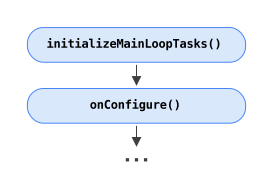
作为单独替换任务的替代方法,您可以通过重写 Application::initializeMainLoopTasks 来重新定义整个主循环。Kanzi 在此函数中附加默认的主循环任务。为了允许复制,其实现有意在头文件中公开。
添加计时器
当您希望 Kanzi 以固定时间间隔执行任务时,可以在主循环的一个阶段之前使用 MainLoopScheduler::prependTimer 添加任务,并在主循环的一个阶段之后使用 MainLoopScheduler::appendTimer。
使用计时器重复选项来执行一次性计时器 (MainLoopScheduler::TaskRecurrence::OneTime) 或重复计时器 (MainLoopScheduler::TaskRecurrence::Recurring)。当一个重复计时器在 Kanzi 主循环的单次迭代中多次到期时,Kanzi 仅执行该计时器一次。
using TimerTask = function<void(chrono::nanoseconds, unsigned int)>;
public interface TimerTask {
    void handle(Duration elapsedDuration, int repeatCount);
}
interface TimerTask {
    fun handle(elapsedDuration: Duration?, repeatCount: Int)
}
当 Kanzi 执行计时器时,它将参数传递为:
经过的持续时间向下舍入为计时器间隔的倍数。
经过的间隔数
例如,使用循环计时器更新时钟上的时间:
void activateClock()
{
    // Add a recurring timer task that updates the clock once every second.
    m_clockTimer = getMainLoopScheduler().appendTimer(UserStage,
                                                      kzMakeFixedString("Clock"),
                                                      MainLoopScheduler::TimerRecurrence::Recurring,
                                                      chrono::seconds(1),
                                                      [this](auto elapsedDuration, auto repeatCount)
                                                      {
                                                          this->updateClock(elapsedDuration * repeatCount);
                                                      });
}

void deactivateClock()
{
    // Remove the clock timer.
    getMainLoopScheduler().removeTimer(m_clockTimer);
}
void activateClock()
{
    MainLoopScheduler mls = getDomain().getMainLoopScheduler();

    // Add a recurring timer task that updates the clock once every second.
    mClockTimer = mls.appendTimer(MainLoopScheduler.UserStage, "Clock",
        TimerRecurrence.Recurring, Duration.ofSeconds(1), new MainLoopScheduler.TimerTask() {
            @Override
            public void handle(Duration elapsedDuration, int repeatCount)
            {
                updateClock(elapsedDuration.multipliedBy(repeatCount));
            }
        });
}

void deactivateClock()
{
    MainLoopScheduler mls = getDomain().getMainLoopScheduler();
    // Remove the clock timer.
    mls.removeTimer(mClockTimer);
}
fun activateClock() {
    // Add a recurring timer task that updates the clock once every second.
    mClocktimer = domain.mainLoopScheduler.appendTimer(
        MainLoopScheduler.UserStage, "Clock",
        TimerRecurrence.Recurring, Duration.ofSeconds(1)
    ) { elapsedDuration, repeatCount -> updateClock(elapsedDuration.multipliedBy(repeatCount.toLong())) }
}

fun deactivateClock() {
    // Remove the clock timer.
    domain.mainLoopScheduler.removeTimer(mClocktimer)
}
在 UI 响应性和资源加载之间取得平衡
包含所有应用程序资源所需的内存可能会超过目标设备上的 RAM 数量。您可以将应用程序分解为多个部分,并定义导航,以便在同一时间仅加载某些部分。
当您的应用程序导航到某个部分时,Kanzi 会收到加载所需资源的请求。您可以告诉 Kanzi 在加载器线程中加载这些资源,而不是在 UI 线程中。这样,您可以在 Kanzi 加载资源时保持应用程序的响应能力。
虽然资源可以在加载线程中加载,但 OpenGL 要求在 UI 线程中部署 GPU 资源,例如纹理、网格和材质,在该线程中资源被复制到 GPU 内存。
Kanzi 将其必须部署的资源保存在队列中,并且默认情况下每帧仅部署一个资源。这样,Kanzi 保持了 UI 的响应性,但可能需要更长的时间来部署应用程序资源。
您可以使用 DeploymentQueueBudget 应用程序配置,并在配置的时间段结束之前每帧加载资源。当您的应用程序必须部署许多小资源时,时间预算大于 0 可以显著减少部署所有资源的时间。
您可以通过重写 Application::progressDeploymentQueueOverride 来定义您自己的部署逻辑。使用您对应用程序资产或其执行环境的了解来修改行为,以在每帧基础上部署不同数量的资源。
例如,当您的应用程序包含大量大型资源时,默认情况下每帧部署一个资源的实现可能会导致帧率不均匀。当您定义自己的部署逻辑时,您可以限制资源的部署:
void progressDeploymentQueueOverride() override
{
    ResourceManager* resourceManager = getResourceManager();

    // Deploy once and check whether any items remain in the queue.
    while (resourceManager->processDeploymentQueueItem() &&
           // Check whether conditions exists to continue deployment.
           shouldContinueDeployment())
    {
    };
}
要了解如何配置部署队列预算,请参阅 DeploymentQueueBudget。
要了解如何设置用于加载资源的线程数,请参阅 LoadingThreadCount。
处理输入
处理全局输入
通常,您使用 UI 控件及其消息来处理输入。在某些情况下,您可能希望处理全局输入。Kanzi 为所有输入事件调用 Application::handleEvents,为键盘事件调用 Application::onKeyInputEvent,为鼠标事件调用 Application::onPointerInputEvent。使用这些函数在您的应用程序中定义事件处理逻辑。确保在重写中调用基类实现。
例如,当您想实现调试模式时。请参阅 添加一次性任务。
禁用输入处理
Kanzi 应用程序默认情况下处理输入。要优化性能,您可以在不需要输入处理的应用程序中禁用它。当您禁用输入时,Kanzi 不会在从平台接收到的输入事件上消耗 CPU 资源。请注意,当您禁用输入处理时,应用程序也无法管理键盘焦点。
要禁用输入处理和按键焦点管理,请重写 Application::setScreenOverride 函数:
// To disable input handling and key focus management, leave the implementation empty.
void setScreenOverride() override
{
}
测量应用程序性能
Kanzi 性能分析系统使您能够测量 Kanzi 应用程序的性能。您可以测量以下内容的性能:
在应用程序启动和运行时,Kanzi Engine 的不同部分。请参阅 测量 Kanzi Engine 的性能。
您的 Kanzi 应用程序代码。请参阅 测量您的应用程序代码的性能。
资源加载和部署。请参阅 测量资源的加载和部署时间。