自动化 Kanzi Studio 任务
您可以通过从命令行界面运行脚本来执行 Kanzi Studio 命令。这使您能够在 Kanzi Studio 或 Kanzi Studio 任务中自动化需要在大量 Kanzi Studio 项目上执行的重复性任务。例如,考虑制作一个脚本来更新您在许多 Kanzi Studio 项目中使用的 Kanzi Engine 插件,或从许多 Kanzi Studio 项目中导出 kzb 文件。
要查看可用命令的完整列表,请参阅 Kanzi Studio command reference。
备注
当 LoadProject 命令打开的工程将某个引用工程存储在另一个工程的工程文件所在目录中时,Kanzi Studio 会在不询问的情况下将该引用工程移出到同级目录,因为它显示的确认提示需要交互式的 Kanzi Studio。此移动会更改磁盘上的目录,并且您无法撤销 (Undo) 该操作。脚本还会在不询问的情况下将其遇到的 kzproj 工程转换为 kzm,这会删除原始 kzproj 文件。请先在 Kanzi Studio 中打开一次此类工程,以便在可以确认的情况下完成这两项操作。请参阅 引用工程的存储位置。
要自动化 Kanzi Studio 任务:
在文本编辑器中创建一个脚本,在其中定义要让 Kanzi Studio 运行的命令。
例如,在这一步添加命令到脚本中,并将脚本保存为
MyScript.txt。打开一个 Kanzi Studio 项目。
# Open the project named MyProject.
LoadProject "C:\KanziWorkspace\Projects\MyProject\Tool_project\MyProject.proj.kzm"
添加命令以自动化 Kanzi Studio 任务。
例如,您可以自动执行以下命令:
导出 kzb 文件。请参阅 使用脚本导出 kzb 文件。
构建用于 Android 的 Kanzi 应用程序。请参阅 使用脚本为 Android 构建 Kanzi 应用程序。
导入和更新 Kanzi Engine 插件。请参阅 使用脚本导入和更新 Kanzi Engine 插件。
创建和更新数据源。请参阅 使用脚本创建和更新数据源。
创建节点。请参阅 使用脚本创建节点。
添加和移除属性,并设置属性值。请参阅 使用脚本编辑属性。
记录无效的项目项。请参阅 用脚本记录无效工程项。
要查看可用命令的完整列表,请参阅 Kanzi Studio command reference。
保存和关闭工程。
# Save the project.
# The second parameter sets whether Kanzi Studio continues working in the directory where you
# opened the project.
# When you save the project to a different location, set the second parameter to false.
# For example,
# SaveProject "C:\KanziWorkspace\Projects\MyOtherProject\Tool_project\MyOtherProject.proj.kzm" false
SaveProject "C:\KanziWorkspace\Projects\MyProject\Tool_project\MyProject.proj.kzm" true

# Close Kanzi Studio.
# To close the project but continue using Kanzi Studio, use CloseProject.
ExitApplication
打开命令行界面,转到
<KanziInstallation>/Studio/Bin目录,并运行带有/Script标志的KanziStudio.exe文件,指向您在上一步中创建的脚本。例如,在命令行界面上,运行
KanziStudio.exe /Script="C:\Users\username\Documents\MyScript.txt"
使用脚本导出 kzb 文件
kzb 文件包含 Kanzi Studio 项目的内容。要运行您的 Kanzi 应用程序,您必须将该应用程序的 Kanzi Studio 项目的内容导出到一个 kzb 文件。
请参阅 使用 kzb 文件。
要使用脚本导出 kzb 文件,请使用 ExportBinary 命令:
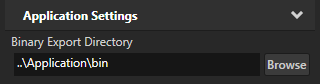
# Export the kzb file to the location set in the Project > Properties in the Binary Export Directory
# property.
# To export the kzb file to another location use:
# ExportBinary "Path\to\directory\MyProjectBinary.kzb"
ExportBinary
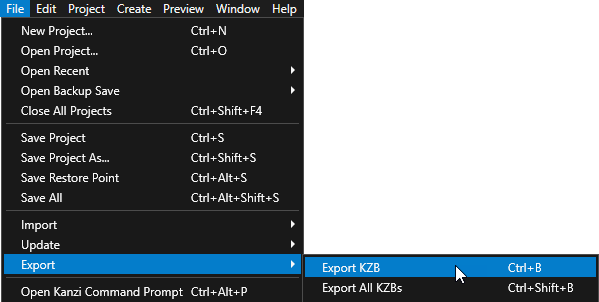
ExportBinary 命令接受以下可选参数:
第一个参数设置 Kanzi Studio 是否将主题和语言环境资源导出到单独的 kzb 文件。默认值为 true。
第二个参数设置 Kanzi Studio 是否导出 kza 文件,该文件是 kzb 文件的 XML 版本。默认值为 false。
例如,要导出主题和地区资源到单独的 kzb 文件和 kza 文件:
# Export the theme and locale resources and the kza file.
ExportBinary true true
使用脚本为 Android 构建 Kanzi 应用程序
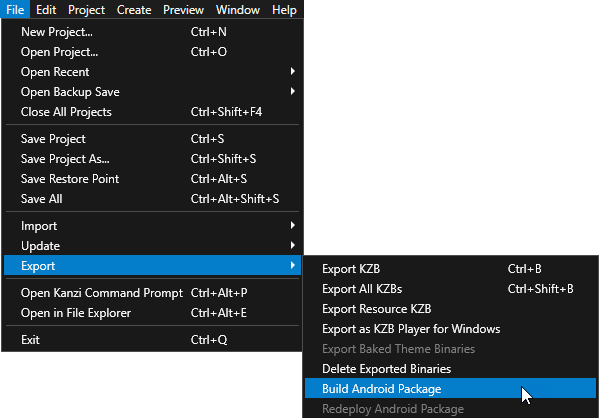
要使用脚本为 Android 构建 Kanzi 应用程序,请使用 ExportApk 命令:
# Before you build an APK file, you can set whether to install the APK file to your
# Android device and launch the application. By default, |k| installs the APK file
# and launches the application.
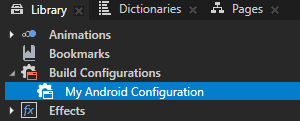
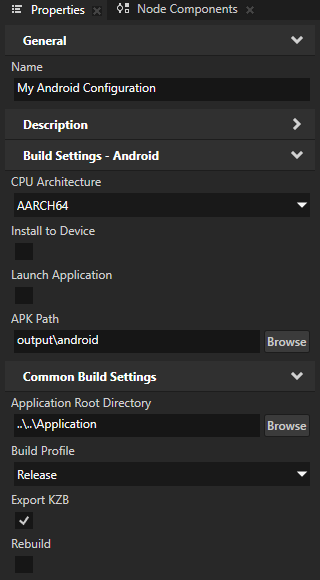
# In My Android Configuration, disable the Install to Device property.
SetProperty "/Resource Files/Build Configurations/My Android Configuration" BuildConfigurationInstallToDevice false
# In My Android Configuration, disable the Launch Application property.
SetProperty "/Resource Files/Build Configurations/My Android Configuration" BuildConfigurationRunApplication false

# Build the APK file using the My Android Configuration build configuration.
# If the project contains images that use texture compression, the second
# parameter sets whether Kanzi Studio compresses these images.
ExportApk "/Resource Files/Build Configurations/My Android Configuration" true
使用脚本导入和更新 Kanzi Engine 插件
Kanzi Engine 插件扩展了 Kanzi Engine 的功能。Kanzi Engine 在目标平台上执行这些插件。
请参阅 Kanzi Engine 插件。
您可以使用脚本导入和更新 Kanzi Engine 插件:
使用脚本导入 Kanzi Engine 插件
当您想在 Kanzi Studio 项目中使用 Kanzi Engine 插件时,您必须将该 Kanzi Engine 插件导入至您的 Kanzi Studio 项目。
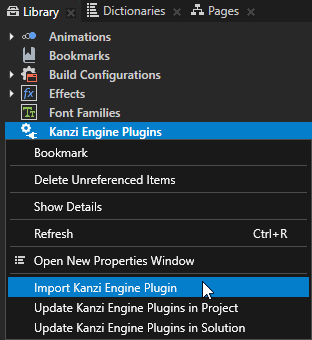
要使用脚本导入 Kanzi Engine 插件,请使用 ImportEnginePlugin 命令:
# Import the Kanzi Engine plugin DLL MyPluginProject\Application\lib\Win64\GL_vs2022_Debug_DLL\MyPluginProject.dll.
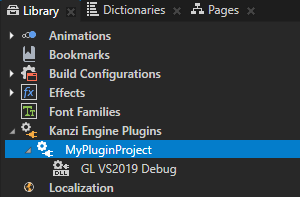
# Kanzi Studio adds to the Library > Kanzi Engine Plugins a reference to the Kanzi Engine plugin DLL that you import.
ImportEnginePlugin "C:\KanziWorkspace\Projects\MyPluginProject\Application\lib\Win64\GL_vs2022_Debug_DLL\MyPluginProject.dll"
使用脚本更新 Kanzi Engine 插件
当您想在 Kanzi Studio 项目中使用不同版本的 Kanzi Engine 插件时,您必须在您的 Kanzi Studio 项目中更新该 Kanzi Engine 插件。
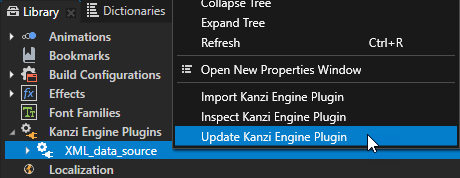
要使用脚本更新 Kanzi Engine 插件,请使用 ImportEnginePlugin 命令:
# Update the XML_data_source Kanzi Engine plugin in the project.
# You leave the first parameter empty because you do not import a new plugin to the project.
ImportEnginePlugin "" "/Kanzi Engine Plugins/XML_data_source"
使用脚本更新项目或解决方案中的所有 Kanzi Engine 插件。
当您想在 Kanzi Studio 项目中使用不同版本的 Kanzi Engine 插件时,您必须在您的 Kanzi Studio 项目中更新该 Kanzi Engine 插件。
您可以使用脚本更新 Kanzi Studio 项目中的所有 Kanzi Engine 插件。如果您的 Kanzi Studio 项目包含项目引用,您可以更新包含该项目和所有引用项目的解决方案中的所有 Kanzi Engine 插件。请参阅 将 Kanzi Studio 项目合并到 Kanzi 应用程序中。。
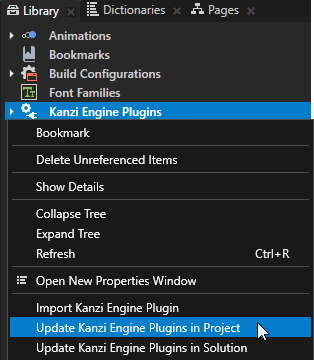
要使用脚本更新项目或解决方案中的所有 Kanzi Engine 插件,请使用 UpdateProjectEnginePlugins 或 UpdateSolutionEnginePlugins 命令:
# Update all the Kanzi Engine plugins in the project.
# To update the Kanzi Engine plugins in that project and all referenced projects use
# UpdateSolutionEnginePlugins.
UpdateProjectEnginePlugins
使用脚本创建和更新数据源
使用数据源将用户界面与应用程序数据分开,并移除 Kanzi Studio 项目与定义 Kanzi 应用程序的应用程序代码之间的依赖关系。
请参阅 数据源 (Data Sources)。
您可以使用脚本创建和更新数据源:
使用脚本创建数据源
当您想在 Kanzi Studio 项目中使用 Kanzi Engine 数据源插件时,必须在您的 Kanzi Studio 项目中创建一个数据源。
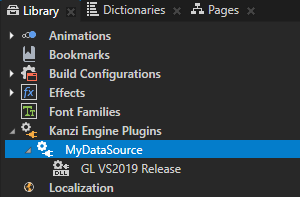
要使用脚本创建数据源,首先导入 Kanzi Engine 数据源插件,然后创建并更新数据源:
# Import the Kanzi Engine data source plugin DLL MyDataSource\Application\lib\Win64\GL_vs2022_Release_DLL\MyDataSource.dll.
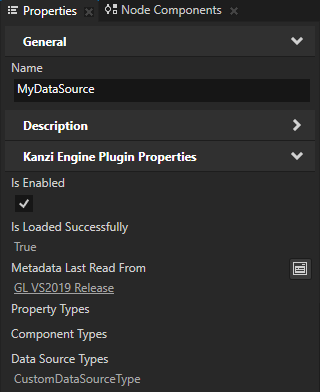
# The MyDataSource plugin defines the CustomDataSourceType data source type.
# Kanzi Studio adds to the Library > Kanzi Engine Plugins a reference to the Kanzi Engine data source plugin DLL that you import.
ImportEnginePlugin "C:\KanziWorkspace\Projects\MyDataSource\Application\lib\Win64\GL_vs2022_Release_DLL\MyDataSource.dll"

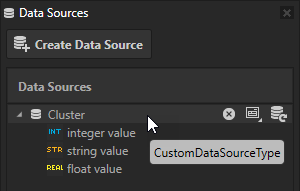
# Create a data source named Cluster of the type CustomDataSourceType.
CreateDataSource "Cluster" "CustomDataSourceType"
# To create data objects from the Cluster data source, update the data source.
UpdateDataSourceContents "/Data Sources/Cluster/"
使用脚本更新数据源
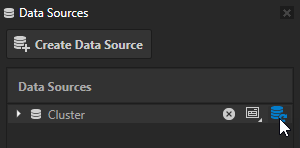
如果定义数据源的 Kanzi Engine 插件未更新您的数据源,您可以使用脚本更新数据源。
要使用脚本更新数据源,请使用 UpdateDataSourceContents 命令:
# Update the Cluster data source in the project.
UpdateDataSourceContents "/Data Sources/Cluster/"
使用脚本更新工程或解决方案中的所有数据源
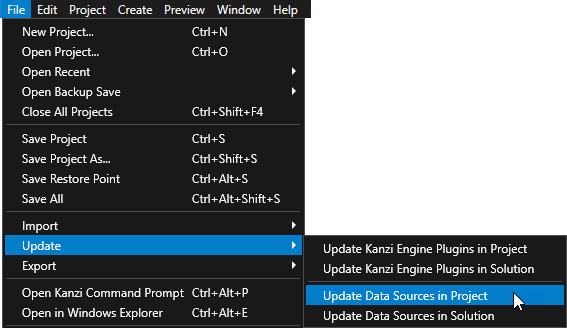
如果定义数据源的 Kanzi Engine 插件未更新您的数据源,您可以使用脚本更新数据源。如果您的 Kanzi Studio 项目包含项目引用,您可以更新解决方案中的所有数据源,其中包括该项目和所有引用的项目。请参阅 将 Kanzi Studio 项目合并到 Kanzi 应用程序中。。
要使用脚本更新项目或解决方案中的所有数据源,请使用 UpdateProjectDataSources 或 UpdateSolutionDataSources 命令:
# Update all data sources in the project.
# To update the data sources in that project and all referenced projects use
# UpdateSolutionDataSources.
UpdateProjectDataSources
使用脚本创建节点
您可以使用脚本创建节点。例如:
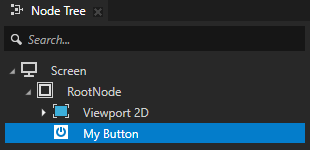
要创建一个 Button 2D 节点,使用 CreateButton2D 命令:
# In the RootNode node, create a Button 2D node named My Button.
# The last parameter sets whether Kanzi Studio selects the node that you created.
CreateButton2D "/Screens/Screen/RootNode" "My Button" true
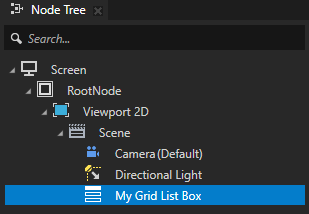
要创建一个 Grid List Box 3D 节点,使用 CreateComponentNode 命令:
# In the RootNode > Viewport 2D > Scene node, create a Grid List Box 3D node named My Grid List Box.
CreateComponentNode "/Screens/Screen/RootNode/Viewport 2D/Scene" "My Grid List Box" Kanzi.GridListBox3D
使用脚本编辑属性
属性提供了指定和检查节点的状态、外观和行为的手段。例如,属性可以定义颜色、指示按钮是否被按下或指定项目的对齐方式。
请参阅 属性类型。
您可以使用脚本编辑属性:
使用脚本添加属性
要使用脚本添加属性,请使用 AddProperty 命令。
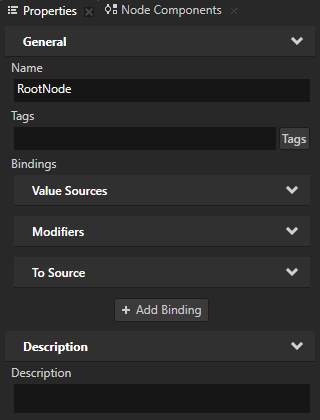
例如,要将 Description 属性添加到 RootNode 节点:
# In the RootNode node, add the Description property.
AddProperty "MyProject/Screens/Screen/RootNode" Description
使用脚本移除属性
要使用脚本删除属性,请使用 RemovePropertyFromItem 命令。
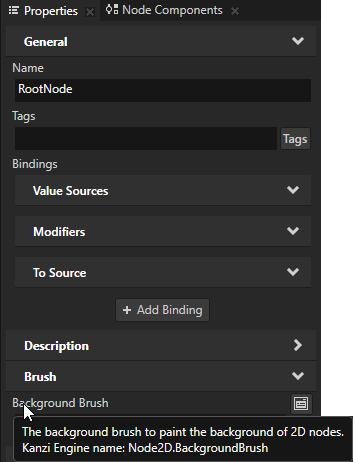
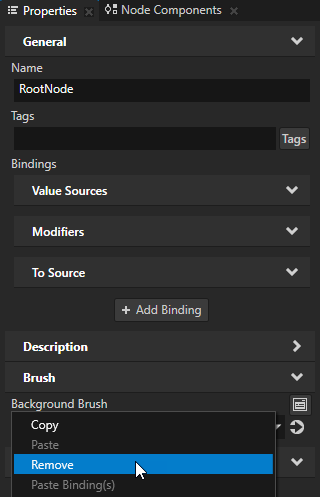
例如,要从 RootNode 节点移除 Background Brush 属性:
# In the RootNode node, remove the Background Brush property.
# Use the Kanzi Engine property name which you see in Kanzi Studio when you hover your
# mouse pointer over the property name.
RemovePropertyFromItem "MyProject/Screens/Screen/RootNode" Node2D.BackgroundBrush
使用脚本设置属性值
要使用脚本设置属性值,请使用 SetProperty 命令。
例如:
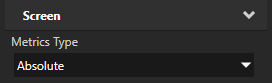
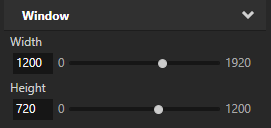
要将 Screen 节点的大小设置为 1200 x 720 像素:
# In the Screen node, set:
# - Metrics Type to Absolute
SetProperty "/Screens/Screen" Window.MetricsType Absolute
# - Width to 1200
SetProperty "/Screens/Screen" WindowAbsoluteWidth 1200
# - Height to 720
SetProperty "/Screens/Screen" WindowAbsoluteHeight 720
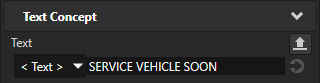
要将 Text Block 节点的 Text 属性设置为一行文本:
# In the RootNode > My Text Block node, set the Text property to SERVICE VEHICLE SOON.
SetProperty "/Screens/Screen/RootNode/My Text Block" TextConcept.Text "SERVICE VEHICLE SOON"
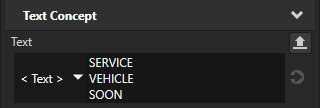
要设置跨多行的属性值,请将该值用三个反引号括起来:
# In the RootNode > My Text Block node, set the Text property to
# SERVICE
# VEHICLE
# SOON
SetProperty "/Screens/Screen/RootNode/My Text Block" TextConcept.Text ```SERVICE
VEHICLE
SOON```
用脚本记录无效工程项
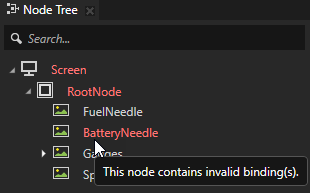
Kanzi Studio 用红色字体标记 Node Tree 和 Library 中的无效项。
例如:
某节点包含无效绑定。
某资源使用不存在的资源,或缺少必备属性。
材质类型在其着色器中的精度不匹配。
一个着色器源文件包含错误。
请参阅 查找无效的项目项。
要使用脚本记录 Kanzi Studio 项目中的无效项目,请使用 PrintDiagnosticReport 命令:
# Print a list of invalid project items to the Log window and the KanziStudio.log file.
PrintDiagnosticReport MyProject
另请参阅
Kanzi Studio command reference