步骤 1 - 渲染汽车和车头灯
在教程的这一步骤中,您将创建需要分别用于渲染汽车和大灯的渲染通道。
获取教程
要获取该教程,请在 Kanzi Studio Quick Start 窗口中点击 Projects,然后选择 Tutorials 选项卡。在 Bloom 教程旁边,点击  。
。
Kanzi Studio 会将教程下载到 <KanziWorkspace>/Tutorials 目录。您可以找到:
教程资产位于
<KanziWorkspace>/Tutorials/Bloom/Assets目录中。教程起点工程位于
<KanziWorkspace>/Tutorials/Bloom/Start目录中。完成的教程位于
<KanziWorkspace>/Tutorials/Bloom/Completed目录中。
渲染场景
在本节中,您将创建渲染通道以渲染整个场景。
要渲染场景:
在 Kanzi Studio Quick Start 窗口中点击 Projects,然后选择 Tutorials 选项卡。在 Bloom 教程旁边,点击 Open 并选择 Start project。
在 Library 中,按 Alt 并右键单击 Rendering,并选择 Compose and Blit Pass。
Compose and Blit Pass 包含一个渲染通道结构,使您能够使用特定材质将 Composition Target 渲染通道或纹理位块传送到屏幕。
Compose and Blit Pass 渲染通道预设包含以下渲染通道:
Composition Target 渲染通道将自身及其后代渲染通道渲染到一个或多个合成目标。
Clear 渲染通道清除当前渲染上下文的部分或全部缓冲区。
默认情况下,Compose and Blit Pass 中的 Clear 渲染通道使用透明黑色清除第一个颜色缓冲区,并使用值 1 清除深度缓冲区。
例如,要使用其他颜色清除第一个颜色缓冲区,请将 Clear Color 0 属性设置为您要用作 Kanzi 渲染到 Composition Target 渲染通道的内容的背景颜色。
Gather Lights 渲染通道收集您设置为使用 Compose and Blit Pass 的 Viewport 2D 节点中的 Light 节点,并将它们传递给其子 Draw Objects 渲染通道。
名为 Draw Objects 的 Draw Objects 渲染通道使您能够设置 Camera 节点来渲染特定的节点列表、过滤这些节点并控制视锥体剔除。默认情况下,Draw Objects 渲染通道使用其最近的祖先 Gather Lights 渲染通道提供的灯光来渲染节点。默认情况下,Draw Objects 渲染通道使用默认的 Camera 节点渲染 Viewport 2D 节点中的所有节点。
Blit 渲染通道使用特定材质将一个或多个单一纹理或立方体贴图纹理位块传送到屏幕。
默认情况下,此 Blit 渲染通道将 Composition Target 渲染通道渲染其内容所用的第一个颜色纹理绘制到屏幕上。
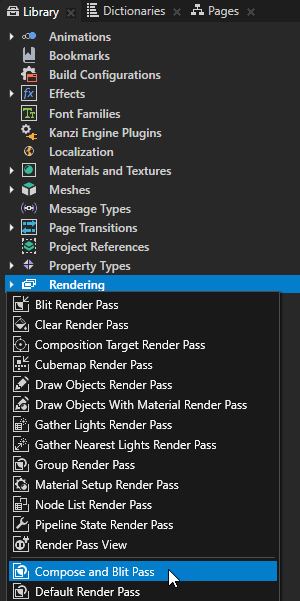
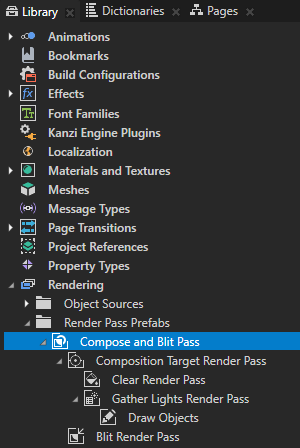
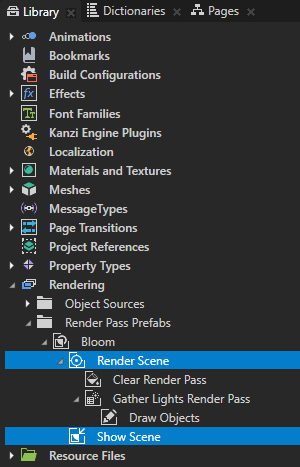
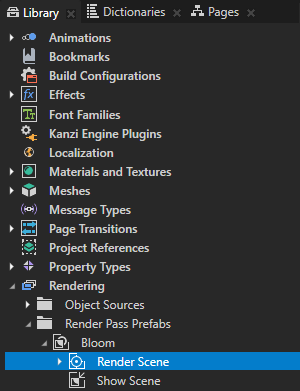
在 Library > Rendering > Render Pass Prefabs 中,选择 Compose and Blit Pass 渲染通道预设,按下 F2 键,并将其重命名为 Bloom。
使用这个渲染通道预设来收集在这个过程中创建的多个渲染通道,合并后会渲染汽车并应用全屏泛光效果到大灯。
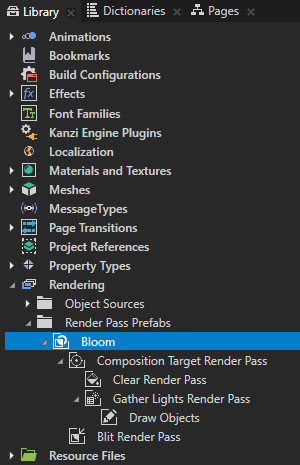
在 Library > Rendering > Render Pass Prefabs > Bloom 渲染通道预设中,重命名:
将 Composition Target 渲染通道重命名为 Render Scene
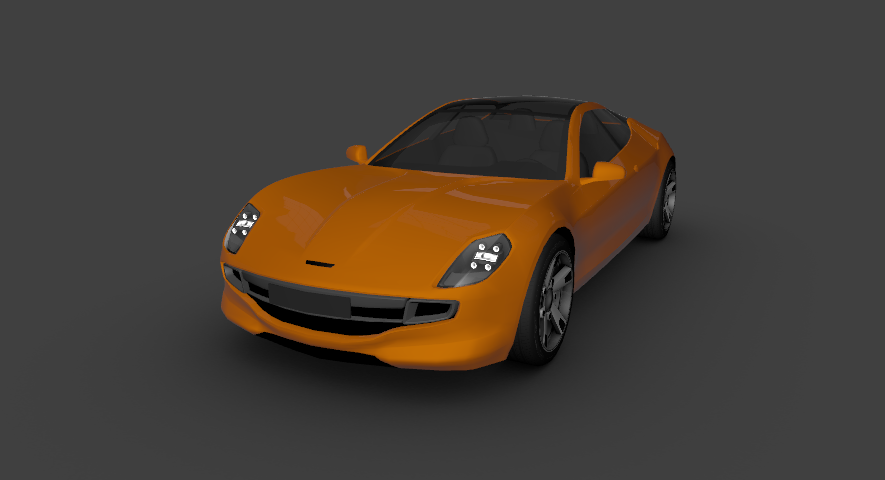
使用此渲染通道将 Viewport 2D 节点 Car 的内容渲染到合成目标,然后将其用作渲染通道的输入,以仅选择前灯。
将 Blit 渲染通道重命名为 Show Scene
您使用此渲染通道在屏幕上绘制 Render Scene 渲染通道,该通道渲染 Viewport 2D 节点 Car 的内容。
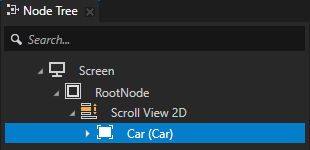
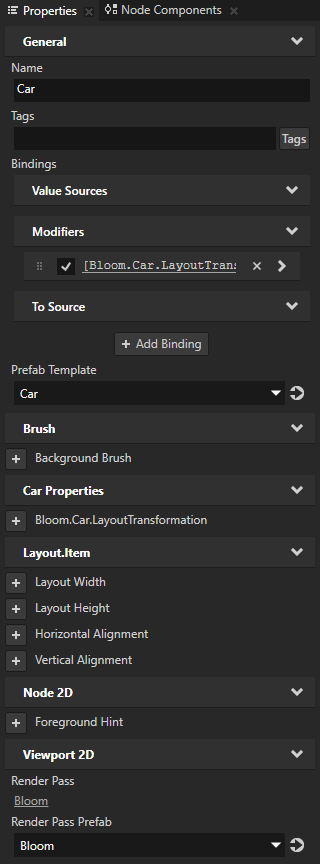
在 Node Tree 中,选择 RootNode > Scroll View 2D > Car 节点。在 Properties 中,添加 Render Pass Prefab 属性,并将其设置为 Bloom。
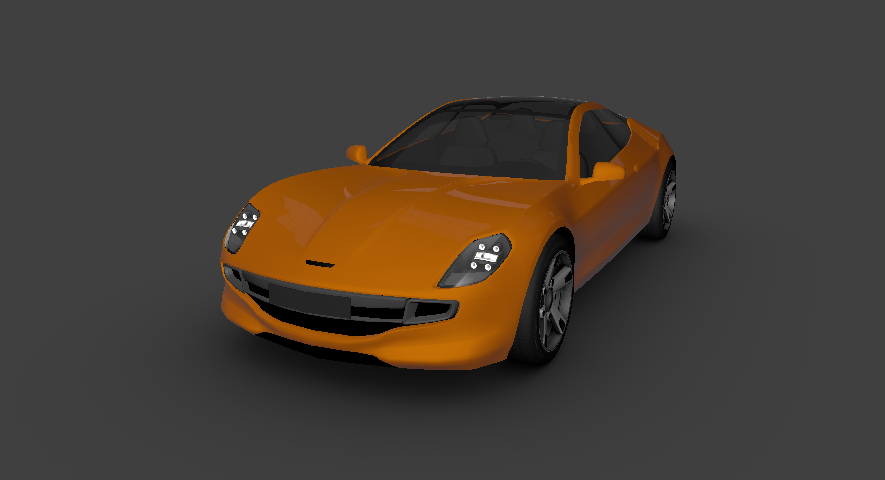
Kanzi Studio 使用 Bloom 渲染通道预设渲染 Viewport 2D 节点 Car。
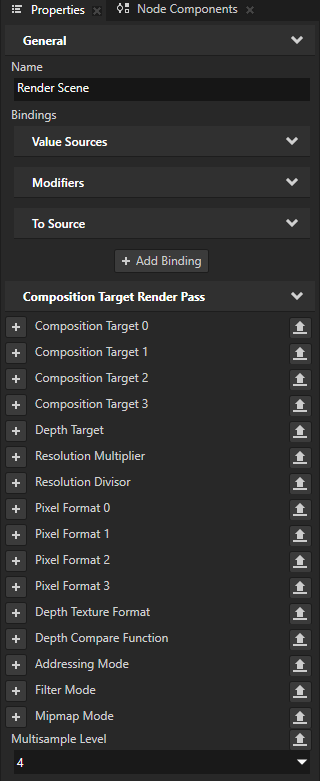
要对汽车应用抗锯齿效果,在 Library 中,选择 Render Scene 渲染通道,在 Properties 中,添加 Multisample Level 属性,并将其设置为您想要使用的抗锯齿采样数。
例如,将其设为 4。
请参阅您要在其上运行 Kanzi 应用程序的设备文档以获取支持的值,因为抗锯齿样本的数量取决于设备。如果将 Multisample Level 属性设置为设备不支持的值,Kanzi Engine 会将该值限制为设备驱动程序支持的最大值。
渲染大灯
在本节中,您将创建渲染通道和材质,以便仅渲染稍后应用了泛光效果的汽车前灯。
要渲染大灯:
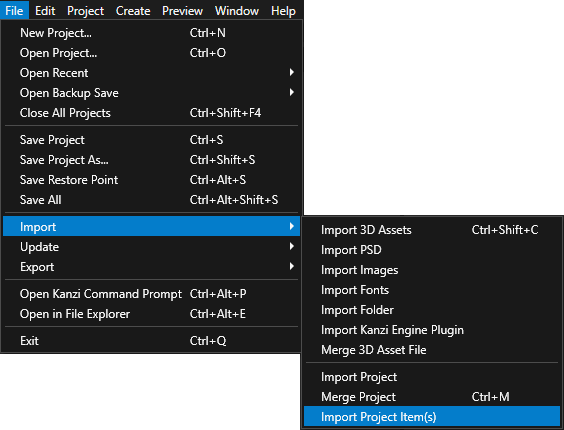
选择 File > Import > Import Project Item(s)。转到
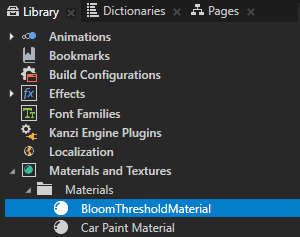
<KanziWorkspace>/Tutorials/Bloom/Assets并选择BloomThresholdMaterial.kzexport文件。Kanzi Studio 添加 BloomThreshold 材质类型和 BloomThresholdMaterial 材质,该材质仅支持渲染比特定阈值更明亮的区域。
BloomThreshold 材质类型的片段着色器:
将小于等于阈值的颜色值映射到 0。
将大于等于阈值的颜色值映射到当颜色值接近 1 时接近 1 的三次方程。
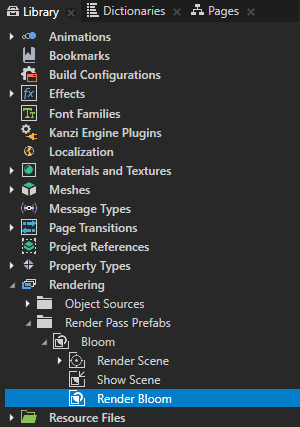
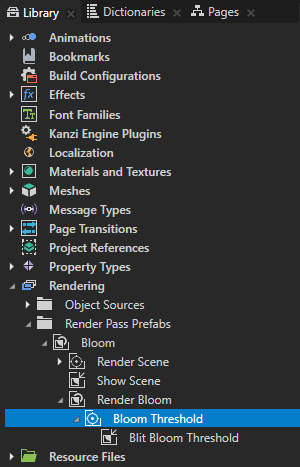
在 Library > Rendering > Render Pass Prefabs > Bloom 渲染通道预设中,创建一个 Group 渲染通道,并将其命名为 Render Bloom。
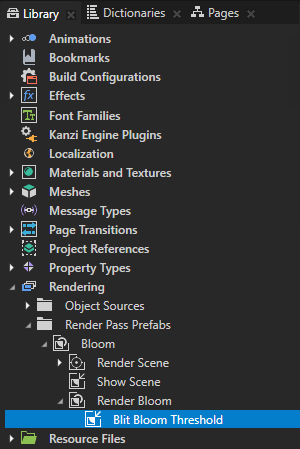
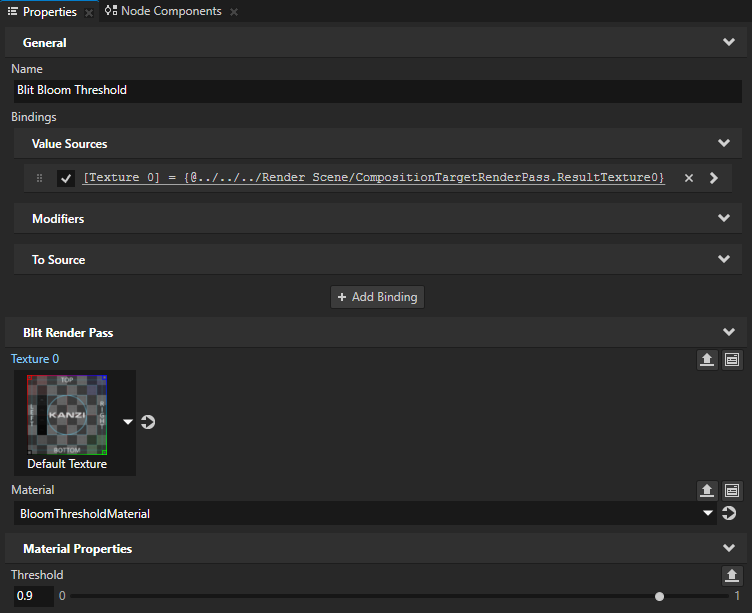
在 Render Bloom 渲染通道中,创建一个 Blit 渲染通道,并将其命名为 Blit Bloom Threshold。从 Library 中将 Render Scene 渲染通道拖到 Properties 窗口,并将其放到 Blit Bloom Threshold 渲染通道的 Texture 0 属性上。
您将 Blit Bloom Threshold 渲染通道设置为将 Render Scene 渲染通道从其渲染的内容创建的纹理绘制到屏幕上。
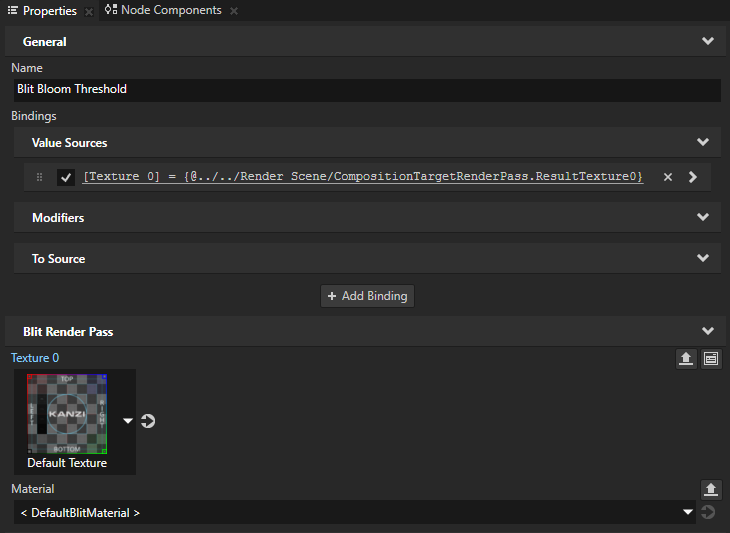
在 Properties 中,添加并设置:
Material 到 BloomThresholdMaterial
Material Properties > Threshold 到 0.9
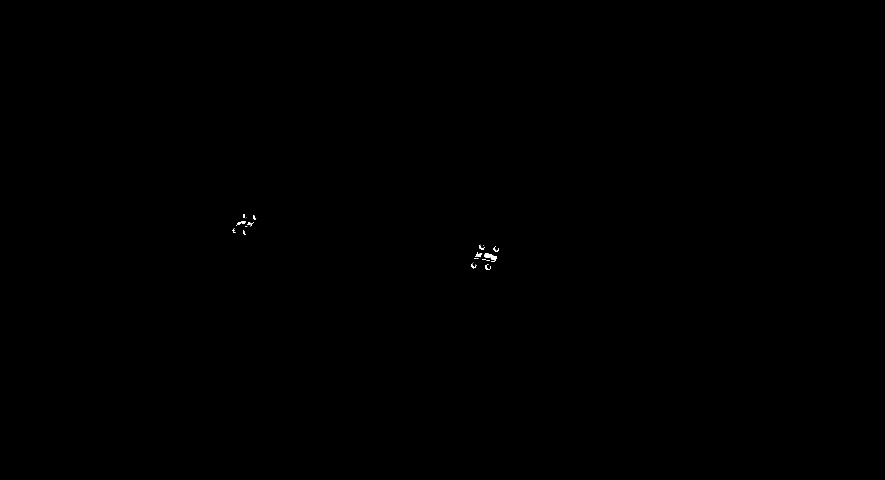
使用此渲染通道仅绘制到屏幕上比 Threshold 属性值更亮的 car 节点的那些区域。稍后,您将对这些区域应用高斯模糊以创建泛光效果。
在 Library 的 Render Bloom 渲染通道中,创建一个 Composition Target 渲染通道,并将其命名为 Bloom Threshold。将 Blit Bloom Threshold 渲染通道拖到 Bloom Threshold 渲染通道中。
使用 Bloom Threshold 渲染通道将 Blit Bloom Threshold 渲染通道渲染到合成目标,稍后将其用作应用泛光效果的渲染通道的输入。因为 Kanzi 将 Blit Bloom Threshold 渲染通道渲染到合成目标,所以 Preview 不会显示它。
另请参阅
要了解有关 Kanzi 中渲染通道的更多信息,请参阅 渲染 (Rendering)。
要详细了解关于材质和材质类型的信息,请参阅 材质类型和材质。