使用 Stack Layout 节点
使用 Stack Layout 节点在选定轴上依次排列节点。
您可以设置方向和起始点,以在 x、y 和 z 轴上排列 Stack Layout 3D 子节点,以及在 x 和 y 轴上排列 Stack Layout 2D 子节点。

创建一个 Stack Layout 节点
要创建 Stack Layout 节点:
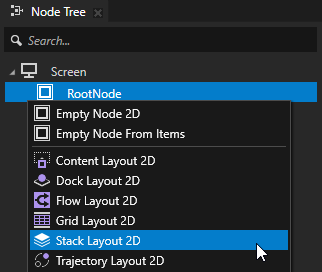
在 Node Tree 按 Alt 并右键单击 中,选择您要创建 Stack Layout 节点的节点,并选择 Stack Layout 3D 或 Stack Layout 2D。
您只能在 3D 节点中创建 3D 节点,例如 Scene 节点,并且只能在 2D 节点中创建 2D 节点。
小技巧
在 Preview 中,选择 Stack Layout 2D tool
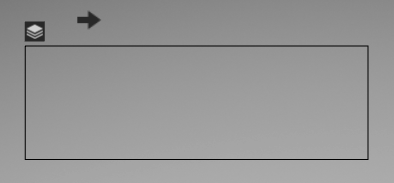
 ,通过在 Preview 中点击并拖动来创建 Stack Layout 2D 节点。Stack Layout 2D 上方的
  显示布局的方向。
创建宽度大于高度的布局时,布局方向在 x 轴上。
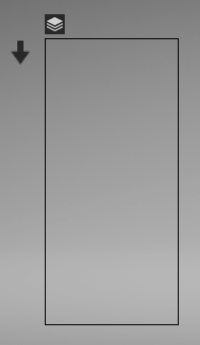
创建高度大于宽度的布局时,布局方向在 y 轴上。
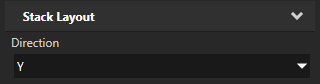
在 Node Tree 中,将子节点添加到您在上一步中创建的布局中。
例如,如果您创建了一个 Stack Layout 3D 节点,请添加几个 Sphere 节点,如果您创建了一个 Stack Layout 2D 节点,请添加几个 Image 节点。
当您添加子节点时,Stack Layout 节点会根据其 Direction 属性定义的轴来定位它们。
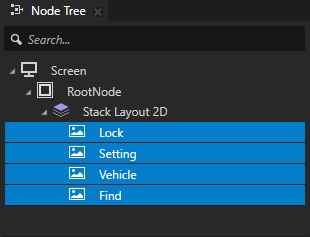
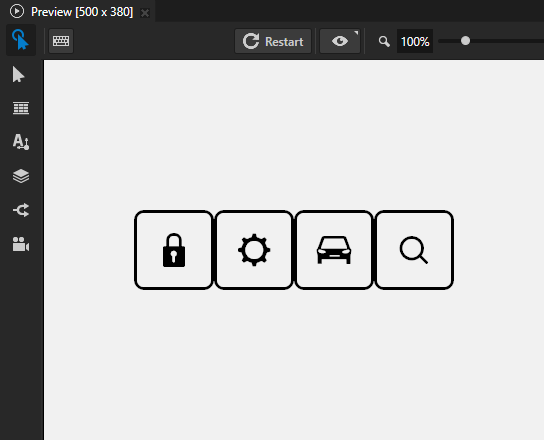
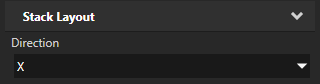
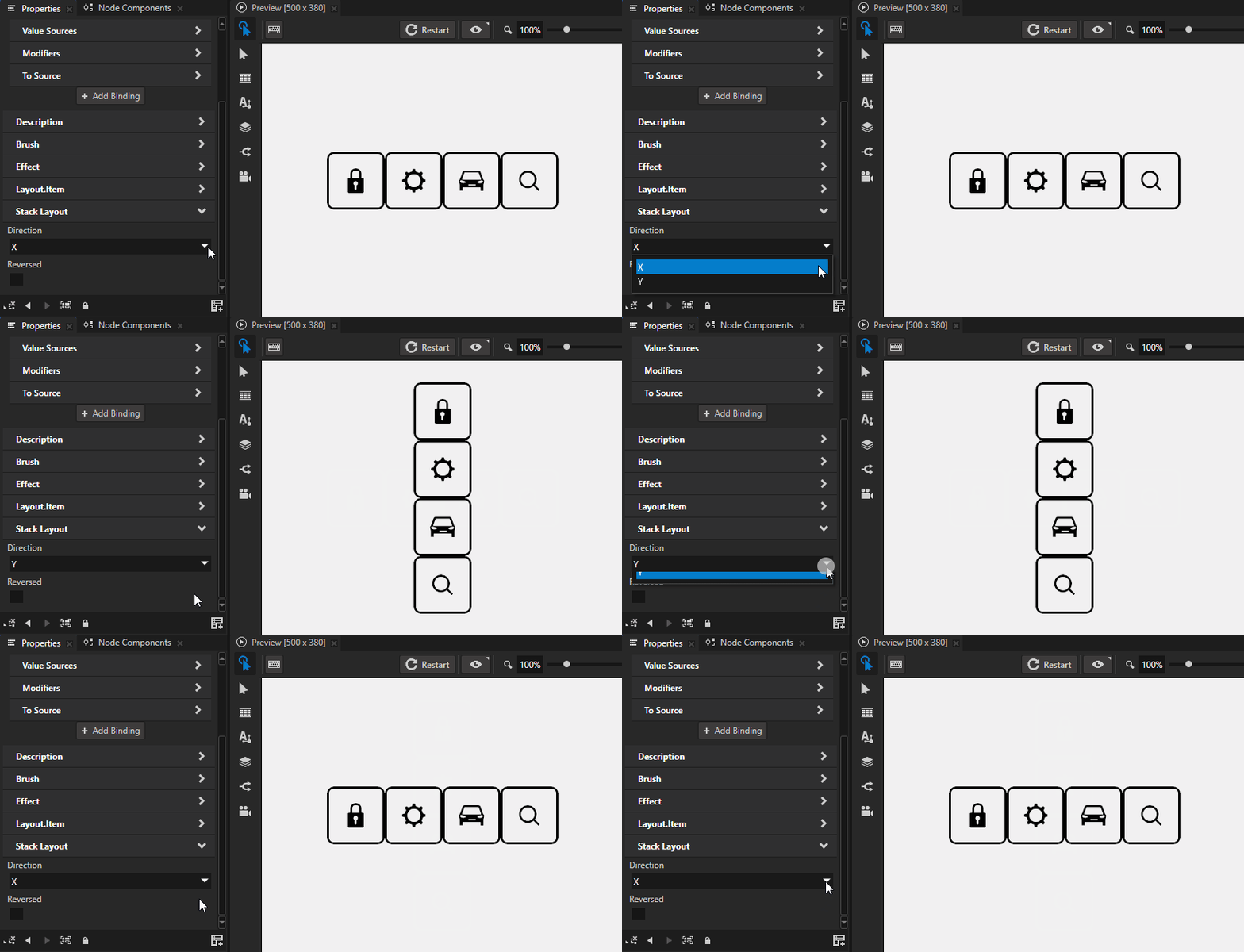
(可选) In the Properties set the Direction property to the axis long which you want the Stack Layout node to arrange its child nodes.
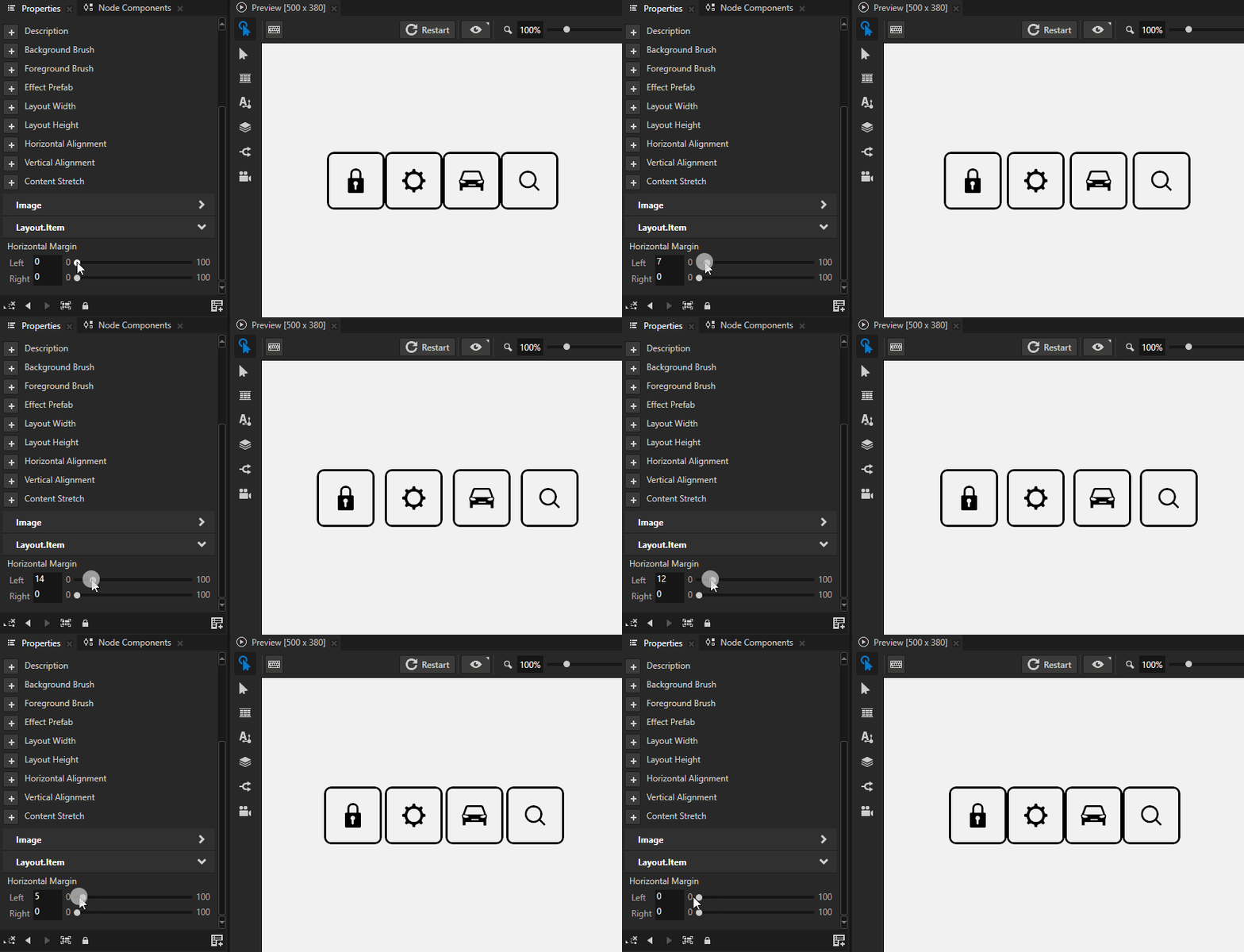
(可选) 要清除布局中子节点周围的区域,在 Node Tree 中选择布局中的子节点,在 Properties 中单击
 ,并添加和设置边距属性:
Depth Margin 用于清除子节点前后区域。
Horizontal Margin 用于清除子节点左右两侧的区域。
Vertical Margin 清除子节点顶部和底部的区域。
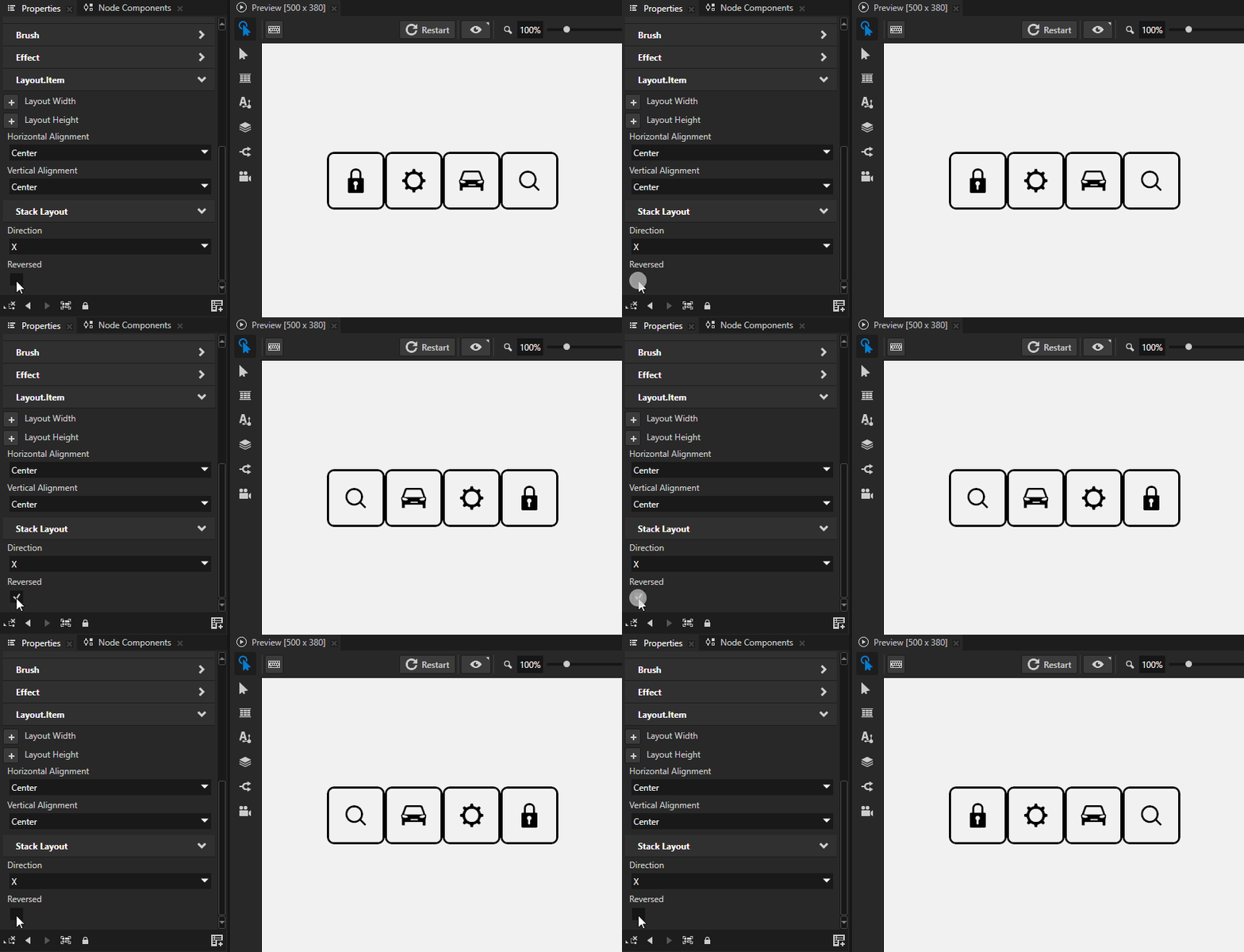
反转 Stack Layout 节点子节点的顺序。
要反转 Stack Layout 节点中子节点的顺序,在 Node Tree 中选择您想要反转子节点顺序的 Stack Layout 节点,并在 Properties 中启用 Reversed 属性。
设置 Stack Layout 2D 节点的外观
要设置 2D 节点的外观:
您可以使用单色、纹理或材质填充 2D 节点。请参阅 调整 2D 节点的外观。



您可以将后期处理效果应用于2D节点。请参阅 2D 节点的效果。




您可以围绕所有三个轴旋转 2D 节点,以创建 3D 透视效果。请参阅 为2D节点创建3D透视效果。

您可以应用自定义渲染到 2D 节点,以创建后处理效果。请参阅 应用自定义渲染到 2D 节点。
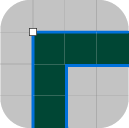
您可以将2D节点渲染为像素完美。请参阅 渲染像素完美的2D节点。
在 API 中使用 Stack Layout 3D 节点
要创建 Stack Layout 3D 节点:
// Create a Stack Layout 3D node named Stack.
StackLayout3DSharedPtr stack = StackLayout3D::create(domain, "Stack");
要控制 Stack Layout 3D 节点的方向:
// Set the Stack Layout 3D node to arrange its items along the x axis.
stack->setDirection(StackLayout3D::DirectionX);
要将项添加到 Stack Layout 3D 节点:
// Stack Layout 3D node arranges its items in the order that you add items.
// Create a Model node and ...
Model3DSharedPtr item1 = Model3D::createBox(domain, "item1", Vector3(1.3f, 1.3f, 1.3f), ThemeRed);
// ... add it to the Stack Layout 3D node.
stack->addChild(item1);
Model3DSharedPtr item2 = Model3D::createSphere(domain, "item2", 0.8f, 30, 30, ThemeGreen);
stack->addChild(item2);
Model3DSharedPtr item3 = Model3D::createBox(domain, "item3", Vector3(1.0f, 1.0f, 1.0f), ThemeBlue);
stack->addChild(item3);
要反向 Stack Layout 3D 节点排列其项的顺序:
// Set the Stack Layout 3D node to arrange its items in the reverse order.
stack->setReversed(true);
有关详细信息,请参阅 StackLayout3D 类。
在 API 中使用 Stack Layout 2D 节点
要创建 Stack Layout 2D 节点:
// Create a Stack Layout 2D node named Stack.
StackLayout2DSharedPtr stack = StackLayout2D::create(domain, "Stack");
要控制 Stack Layout 2D 节点的方向:
// Set the Stack Layout 2D node to arrange its items along the x axis.
stack->setDirection(StackLayout2D::DirectionX);
要将项添加到 Stack Layout 2D 节点:
// Stack Layout 2D arranges its items in the order that you add items.
// Create a 2D node ...
EmptyNode2DSharedPtr item1 = EmptyNode2D::create(domain, "item1", 100.0f, 100.0f, ThemeRed);
// ... and add it to the Stack Layout 2D node.
stack->addChild(item1);
EmptyNode2DSharedPtr item2 = EmptyNode2D::create(domain, "item2", 100.0f, 100.0f, ThemeGreen);
stack->addChild(item2);
EmptyNode2DSharedPtr item3 = EmptyNode2D::create(domain, "item3", 100.0f, 100.0f, ThemeBlue);
stack->addChild(item3);
要反向 Stack Layout 2D 节点排列其项的顺序:
// Set the Stack Layout 2D node to arrange its items in the reverse order.
stack->setReversed(true);
有关详细信息,请参阅 StackLayout2D 类。
Stack Layout 属性类型和消息
有关 Stack Layout 节点的可用属性类型和消息的列表,请参阅 Stack Layout 2D 和 Stack Layout 3D。