步骤 1 - 运行 Lua 脚本
在此步骤中,您将学习如何运行 Lua 脚本和使用 Lua 变量。
获取教程
要获取该教程,请在 Kanzi Studio 的 Quick Start 窗口中点击 Projects 并选择 Tutorials 选项卡。在 Fifteen puzzle 教程旁边,点击  。
。
Kanzi Studio 会将教程下载到 <KanziWorkspace>/Tutorials 目录。您可以找到:
位于
<KanziWorkspace>/Tutorials/Fifteen puzzle/Start目录中的教程起点工程。位于
<KanziWorkspace>/Tutorials/Fifteen puzzle/Completed目录中的已完成教程。
起始项目的内容
起点工程包含您完成本教程所需的内容:
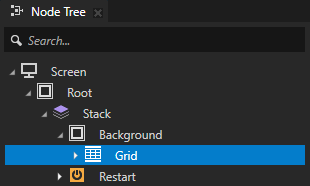
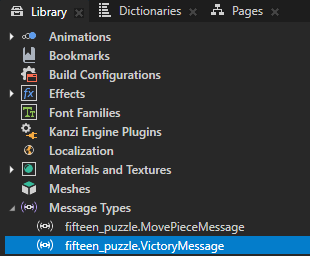
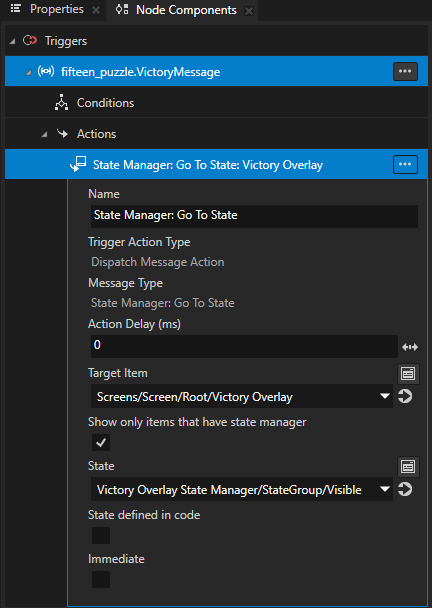
Grid 节点定义了拼图的结构,并与 Background 节点一起定义其外观。Grid 节点包含一个 VictoryMessage 触发器,其中有一个 State Manager: Go To State 动作,该动作将 Victory Overlay State Manager 设置为 Visible 状态,并在用户解决拼图时显示胜利消息。
Restart 节点定义了开始新游戏的按钮外观。Restart 节点包含一个 Button: Click 触发器,带有一个 State Manager: Go To State 动作,该动作将 Victory Overlay State Manager 设置为 Invisible 状态,并在用户解开谜题后点击按钮时移除胜利消息。
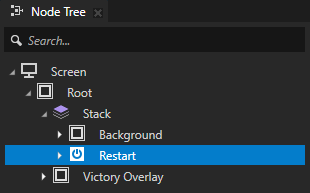
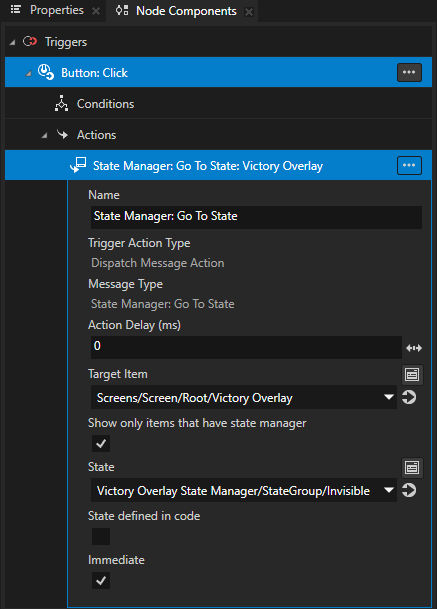
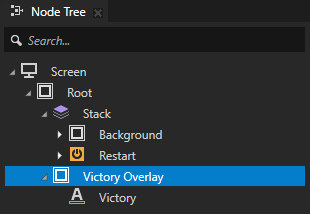
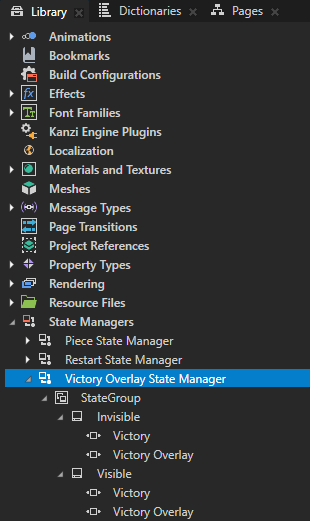
Victory Overlay 节点定义了用户解开谜题时应用程序显示的消息外观。Victory Overlay State Manager 通过 Grid 和 Restart 节点中的触发器和动作设置 Victory Overlay 的可见性。
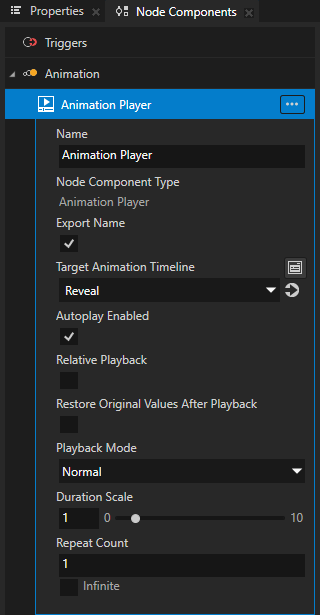
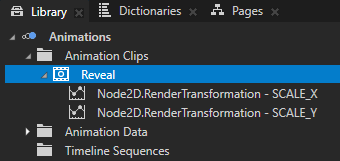
Piece 预设定义了拼图块的外观。Piece 预设包含一个 Animation Player,当用户重新开始拼图时,播放 Reveal 关键帧动画剪辑。
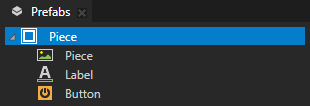
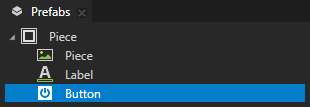
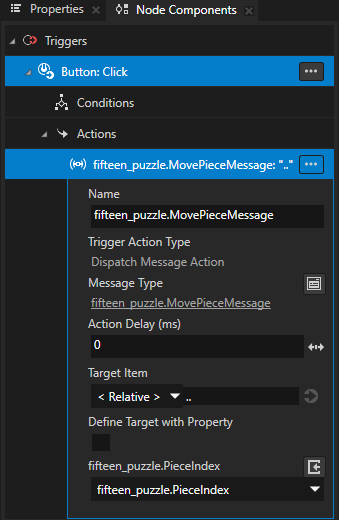
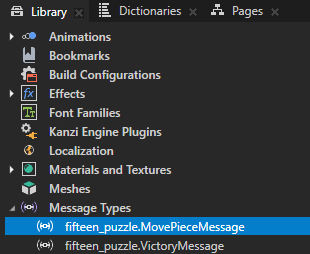
在 Piece 预设中,Button 节点包含一个 Button: Click 触发器,带有一个 MovePieceMessage 动作,脚本使用该动作在网格上移动棋子。
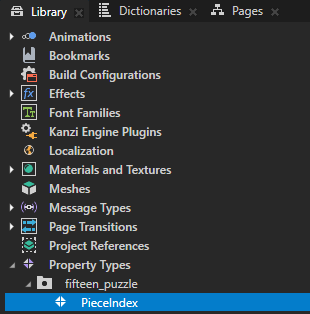
该应用程序使用 PieceIndex 属性类型来显示拼图上的数字。
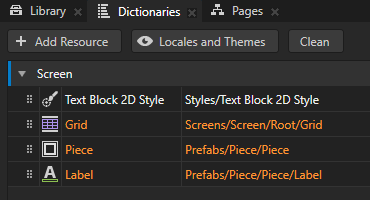
Screen 节点资源字典包含关键节点的别名。
运行 Lua 脚本
要运行 Lua 脚本:
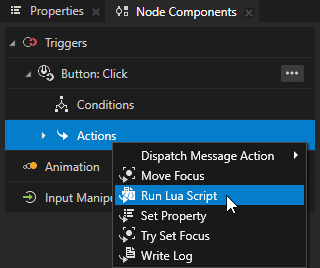
在 Node Tree 中,选择 Root > Stack > Restart 节点。在 Node Components 中,在 Button: Click 触发器中,按 Alt 并右键单击 Actions 并选择 Run Lua Script。
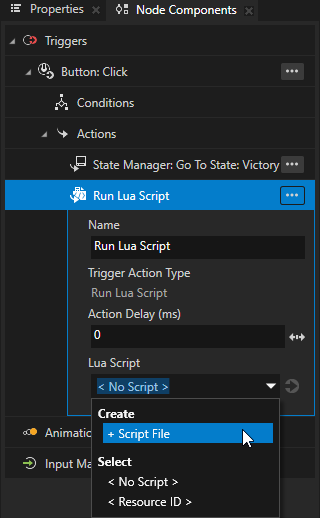
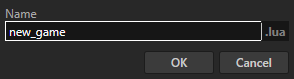
在 Run Lua Script 操作中,在 Lua Script 属性中,选择 + Script File 并将脚本命名为 new_game。
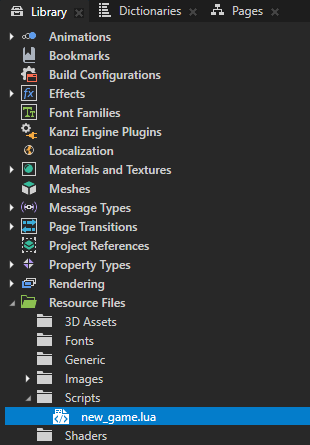
在 Library > Resource Files > Scripts 中,打开脚本文件并添加:
-- Write output to the Log window.
print("Hello world!")
在 Script Editor 中,单击 Save。
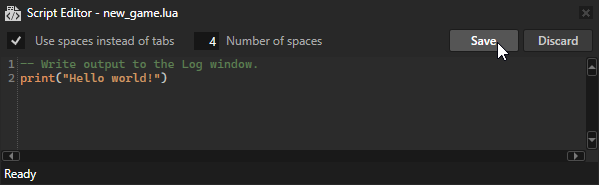
在 Preview 中,当您点击  时,Kanzi 会触发 Restart 节点中的触发器,该触发器执行 Lua 脚本,脚本会将 Hello world! 写入 Log 窗口。
小技巧
要打开 Log 窗口,在主菜单中选择 Window > Log。

使用 Lua 变量
在 Lua 中,您可以声明:
局部变量,仅在声明变量的脚本范围内可访问。
Kanzi 在作用域结束时销毁局部变量。
全局变量,在所有脚本中都可以访问,并且在多次脚本执行中保持持久。
要使用 Lua 变量:
在 Script Editor 中,将 new_game.lua 脚本的内容替换为:
print("Entering new_game.lua")
-- Initialize a local temporary variable x.
-- Variables that you declare locally are accessible only in the scope of this script.
-- Kanzi destroys local variables at the end of the scope.
local x = 0

-- Check whether the global persistent variable y is initialized in an earlier script execution.
if y == nil then
      -- Initialize a persistent global variable y on the first run of this script.
      -- Global variables are shared and accessible in all scripts.
      -- Global variables are persistent across multiple script executions.
      y = 0
end

-- Loop variable i across the values 1, 2, 3, 4, and 5.
-- Variables declared in a for loop are always local.
for i = 1,5 do

   -- Modify the local variable x.
   x = x + 1

   -- Modify the persistent global variable y.
   y = y + 1

   -- Write the variables to the Log window.
   print(string.format("%d: x = %d, y = %d", i, x, y))
end
print("Exiting new_game.lua")
保存脚本。
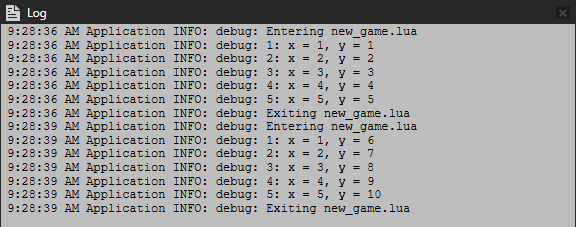
在 Preview 中,当您单击 时,脚本会将输出写入 Log 窗口。当您第二次单击 时,请注意,局部变量 x 的值被重置,而全局变量 y 的值在执行之间保持不变。