创建 Kanzi Studio 窗口插件
Kanzi Studio 插件扩展了 Kanzi Studio 的功能,并在 Kanzi Studio 中运行。
例如,您可以扩展 Kanzi Studio 的功能以:
在 Kanzi Studio 中自动化那些手动执行需要大量时间或容易出错的任务。
从 Kanzi Studio 导入和导出内容,例如 Kanzi Studio 不支持的格式的本地化表。
创建抽象细节并加快工作流程的编辑器,例如支持在 Kanzi Studio 上进行项目工作的可视化工具。
您可以在包含 Kanzi Studio 插件时:
在包含插件用户界面的 Kanzi Studio 窗口中。
作为用户可以从 Kanzi Studio 主菜单或上下文菜单中执行的命令,运行插件时不带用户界面。
本主题介绍如何创建 Kanzi Studio 窗口插件。要了解如何创建 Kanzi Studio 命令插件,请参阅 创建 Kanzi Studio 命令插件。
用于创建 Kanzi Studio 窗口插件的默认 UI 框架是 WPF。然而,您可以使用在 HTML 上运行的框架,使用 WPF 中的 web 浏览器控件,或者通过使用 WPF HwndHost 控件嵌入内容来使用其他框架,该控件将 Win32 窗口作为元素托管在 WPF 内容中。
Kanzi Studio 插件 API 作为 .NET 框架程序集提供。您可以在 <KanziInstallation>/Studio/Bin/PluginInterface.dll 中找到它。Kanzi Studio 插件 API 提供对 Kanzi Studio 中数据和命令的访问。当您想要在不同版本的 Kanzi Studio 中使用 Kanzi Studio 插件时,请使用您希望使用该插件的每个版本的 Kanzi Studio 中的 PluginInterface.dll 构建该插件。
要开发一个 Kanzi Studio 窗口插件:
为 Kanzi Studio 窗口插件创建基础。请参阅 为 Kanzi Studio 窗口插件创建基础。
构建并运行您的 Kanzi Studio 插件。请参阅 构建和运行 Kanzi Studio 插件。
向您的 Kanzi Studio 插件添加功能。请参阅 向您的 Kanzi Studio 窗口插件添加功能。。
在您的 Kanzi Studio 窗口插件中对项目更改进行分组,以便撤销和重做。请参阅 在您的 Kanzi Studio 窗口插件中分组项目更改。。
调试您的 Kanzi Studio 插件。请参阅 调试 Kanzi Studio 插件。
要查找有关 Kanzi Studio 插件 API 的详细信息,请参阅:
为 Kanzi Studio 窗口插件创建基础
Kanzi Studio 窗口插件是您在 Kanzi Studio 窗口中使用并具有用户界面的插件。例如,使用窗口插件创建编辑器或可视化项目中的内容。
在这里,您为 Kanzi Studio 窗口插件创建基础,然后添加扩展 Kanzi Studio 功能的功能。
要创建 Kanzi Studio 窗口插件:
在 Visual Studio 中选择文件 (File) > 新建(New) > 工程 (Project),并创建 Visual C# 类库。
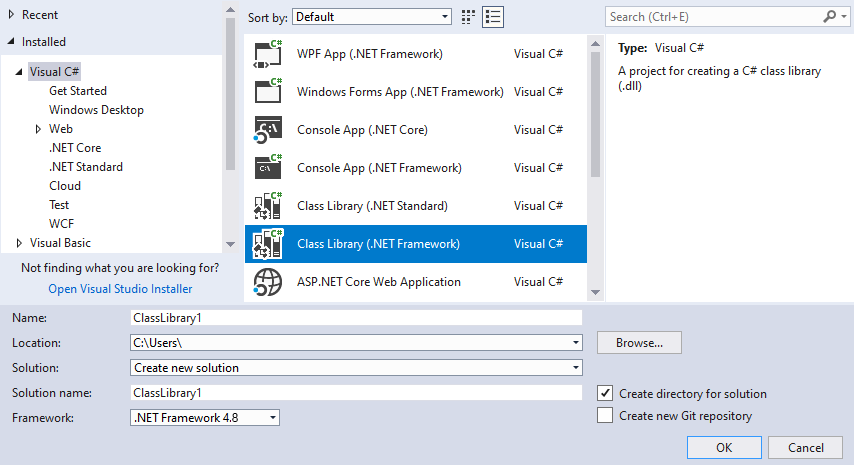
在 Solution Explorer 中,右键点击工程名称,选择添加 (Add) > 参考 (Reference),然后向文件添加参考:
选择程序集 (Assemblies) > 框架 (Framework),定位 .NET 框架 (NET Framework),然后将参考添加到:
System.ComponentModel.CompositionSystem.XAML
单击 Browse… 并将引用添加到
<KanziInstallation>/Studio/Bin/PluginInterface.dll文件。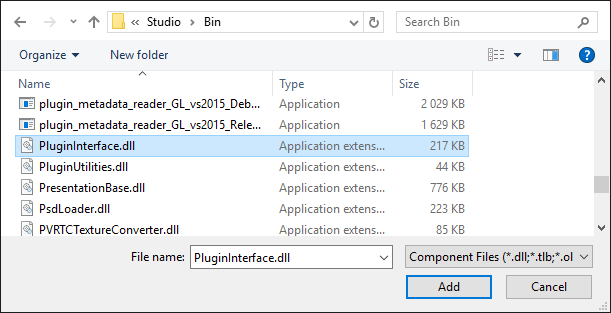
在 Solution Explorer 中右键单击项目名称,选择 Properties,并:
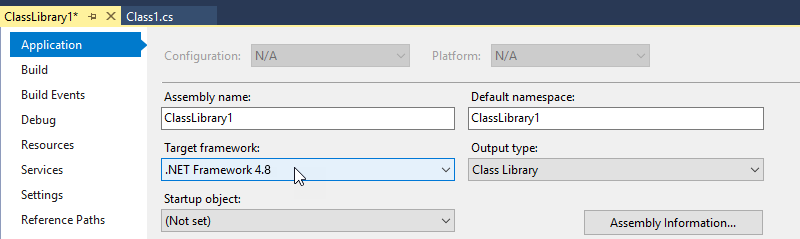
在 Application 选项卡中,将 Target framework 设置为 .NET Framework 4.8。
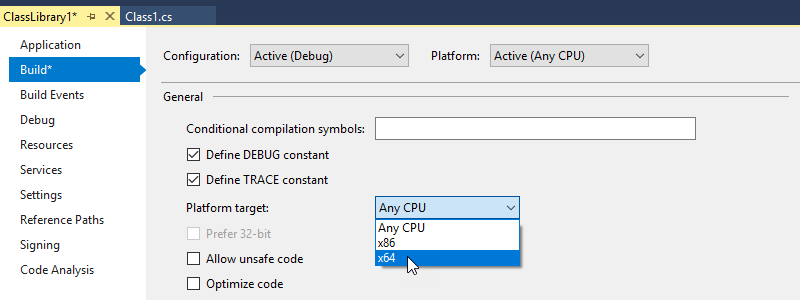
在 Build 选项卡中,将 Platform target 设置为 x64。
在 Solution Explorer 中,右键点击工程名称,选择添加 (Add) > 用户控制 (User Control) 并添加用户控制 (WPF) 项。
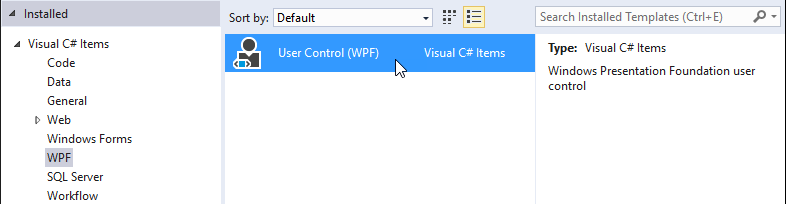
打开
UserControl1.xaml.cs文件,并添加使用 Kanzi Studio 插件 API 的 using 指令:using Rightware.Kanzi.Studio.PluginInterface;
将
UserControl1类设置为实现PluginWindow接口:更改
public partial class UserControl1 : UserControl
至 (To)
public partial class UserControl1 : UserControl, PluginWindow
实现
PluginWindow接口。例如,将鼠标悬停在
PluginWindow上,点击 ,然后选择实现接口。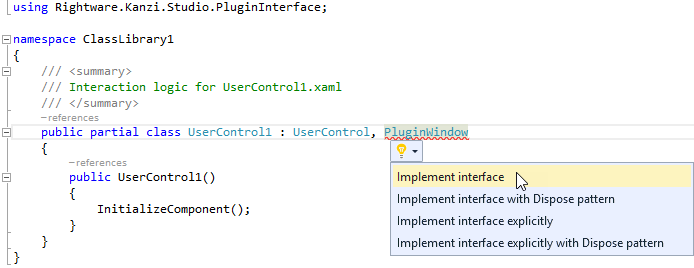
将
KanziStudio接口添加到UserControl1类。KanziStudio接口是使用 Kanzi Studio 插件 API 的入口点。private KanziStudio studio;
在所有函数中,使用您要执行的代码替换这一行:
throw new NotImplementedException();
确保将插件处理所有内部异常,不让它们传递到 Kanzi Studio 接口。
例如,设置
UserControl1类中的函数:将
studio参数添加到UserControl1。这使您能够实例化UserControl1,并在Class1.cs文件中提供studio作为参数。public UserControl1(KanziStudio studio) { this.studio = studio; InitializeComponent(); }
使用
Icon函数设置插件窗口左上角显示的插件窗口图标:返回空字符串以使用 Kanzi Studio 默认插件图标。
public string Icon
{
    get
    {
        return "";
    }
}
使用
SerializeState函数保存插件窗口的状态。关闭插件窗口时,Kanzi Studio 调用此函数。当您再次打开插件窗口时,Kanzi Studio 在创建插件窗口时将相同的状态作为参数传递。当设置为
null时,Kanzi Studio 不会记住窗口的状态。public PluginWindowState SerializeState() { return null; }
使用
Title函数设置您想要显示为插件窗口标题的文本。例如,将其设置为:public string Title { get { return "Plugin title"; } }
使用
Dispose函数在关闭插件窗口时进行清理。例如,您可以在此处释放插件中使用的所有资源,并且如果您的插件订阅了任何事件,请在此处取消订阅这些事件。当用户关闭插件窗口时,Kanzi Studio 调用此函数。由于在本示例中没有需要清理的内容,因此可以将函数留空。
打开
Class1.cs文件,并添加System.ComponentModel.Composition和 Kanzi Studio 插件 API 的 using 指令:using System.ComponentModel.Composition; using Rightware.Kanzi.Studio.PluginInterface;
将
Class1类设置为实现PluginWindowFactory接口,该接口由Class1类实现。Kanzi 使用此类来创建插件。Kanzi Studio 首先获取工厂并定义插件的名称、窗口的大小(如果插件有窗口)以及用户可以从 Kanzi Studio 启动插件的位置。更改
public class Class1
至 (To)
public class Class1 : PluginWindowFactory
实现
PluginWindowFactory接口。例如,将鼠标悬停在
PluginWindowFactory上,点击,然后选择实现接口。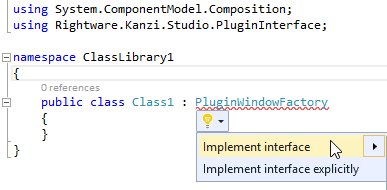
在创建插件所在的类的定义前,标记实现
PluginWindowFactory接口的 factory 类为 Kanzi Studio 的插件内容。这样,Kanzi Studio 就知道 .dll 是一个插件。[Export(typeof(PluginContent))]
在所有函数中,使用您要执行的代码替换这一行:
throw new NotImplementedException();
确保将插件处理所有内部异常,不让它们传递到 Kanzi Studio 接口。
例如,将
Class1类中的函数设置为:使用
CreateWindow函数实例化UserControl1,并提供studio作为参数。您在UserControl1.xaml.cs文件中的UserControl1中添加了studio参数。public PluginWindow CreateWindow(PluginWindowState state) { return new UserControl1(studio); }
使用
DefaultHeight和DefaultWidth函数来设置插件窗口的高度和宽度。 例如,要创建一个 400 x 400 像素的插件窗口,请使用:get { return 400; }
使用
CanExecute函数来设置用户是否可以启动您的插件,以及他们可以在哪里启动您的插件:当设置为
false时,Kanzi Studio 会在主菜单和上下文菜单中显示插件,但用户无法启动该插件。当设置为
true时,用户可以启动插件。
Kanzi Studio 为插件提供
KanziStudio对象。KanziStudio对象是数据访问的根对象,提供当前项目、可用命令、全局撤销和重做,以及与项目打开和关闭相关的事件。例如,仅当打开 Kanzi Studio 项目时使用此命令。
private KanziStudio studio;
public bool CanExecute(PluginCommandParameter parameter)
{
    return this.studio != null && this.studio.ActiveProject != null;
}
使用
CommandPlacement函数设置插件的菜单名称,以及您希望显示启动插件命令的位置:要在主菜单中显示插件,使用
ContextMenuPlacement.NONE。要在从节点和资源调用的上下文菜单和主菜单中显示插件,使用
ContextMenuPlacement.PROJECT_ITEM。
public CommandPlacement CommandPlacement
{
    get
    {
        return new CommandPlacement("myPluginMenu", ContextMenuPlacement.NONE, false, null);
    }
}
使用
PluginContent.Description函数设置您的 Kanzi Studio 插件的简要描述。Kanzi Studio 在用户将鼠标指针悬停在菜单中的插件名称上时,将此描述显示为工具提示。public string Description { get { return "A tooltip with short description of what the plugin does."; } }
使用
PluginContent.DisplayName函数在 Kanzi Studio 菜单中显示插件名称,您可以在此处启动插件。public string DisplayName { get { return "Plugin display name"; } }
使用
PluginContent.Name函数设置插件的内部名称。Kanzi 使用插件的内部名称,这样您可以更改插件的显示名称,而无需对插件进行其他更改。public string Name { get { return "Internal plugin name"; } }
使用
PluginContent.Initialize函数将studio放置到成员变量中。public void Initialize(KanziStudio studio) { this.studio = studio; }
构建并运行插件。请参阅 构建和运行 Kanzi Studio 插件。
在这里,您仅为您的 Kanzi Studio 窗口插件创建了基本结构,该插件只会打开一个空窗口。要使您的插件执行更多操作,请为窗口添加功能。请参阅 向您的 Kanzi Studio 窗口插件添加功能。 和 在您的 Kanzi Studio 窗口插件中分组项目更改。。
要进一步开发您的 Kanzi Studio 插件,请参阅 Kanzi Studio 插件 API 概述 和 Kanzi Studio 插件 API 参考。
构建和运行 Kanzi Studio 插件
要构建和运行一个 Kanzi Studio 插件:
在 Visual Studio 中选择构建 (Build) > 构建解决方案 (Build Solution) 来构建插件 .dll。

将 Kanzi Studio 插件 DLL 文件复制到
%ProgramData%\Rightware\<KanziVersion>\plugins目录。如果
plugins目录在%ProgramData%\Rightware\<KanziVersion>中不存在,请创建它。小技巧
如果插件具有依赖 DLL,请使用插件清单声明入口点。请参阅 安装 Kanzi Studio 插件。
打开 Kanzi Studio。
Kanzi Studio 加载
plugins目录中的插件,并将它们添加到主菜单或从节点和资源调用的上下文菜单中。在 Kanzi Studio 中选择插件主菜单并选择插件,或在 Node Tree 中右键单击一个节点并选择您的插件名称以运行您的插件。
向您的 Kanzi Studio 窗口插件添加功能。
在您为 Kanzi Studio 窗口插件创建基础之后,向您的插件添加功能,以便它可以执行一些有用的操作。在这里,您将创建一个插件,显示当前选定节点或资源的 kzb 文件 URL。
要向您的 Kanzi Studio 窗口插件添加功能:
为您的 Kanzi Studio 窗口插件创建基础。请参阅 为 Kanzi Studio 窗口插件创建基础。
在 Visual Studio 中,打开插件的 Visual Studio 解决方案,然后打开实现
PluginWindow接口的类文件。例如,打开
UserControl1.xaml.cs类文件。在实现
PluginWindow接口的类中,添加您的插件在插件窗口中与插件交互时执行的代码。例如,要创建显示当前选定工程项的 kzb 文件 URL 的插件,请使用:
public partial class UserControl1 : UserControl, PluginWindow
{
    private KanziStudio studio;

    public UserControl1(KanziStudio studio)
    {
        this.studio = studio;
        InitializeComponent();
        // Subscribe to the SelectionChanged event to find out when the selection of a node or a resource changes.
        studio.SelectionChanged += Studio_SelectionChanged;
        // Set the contents of the plugin window.
        Populate();
    }

    // When the currently selected project item changes, set the contents of the plugin window.
    private void Studio_SelectionChanged(object sender, EventArgs e)
    {
        Populate();
    }

    // Set the text in the controls that show the name and kzb file URL of the currently selected project item.
    public void Populate()
    {
        var currentSelection = studio.SelectedItems.FirstOrDefault();
        this.selectionTextBlock.Text = (currentSelection != null) ? currentSelection.Name : "< no project item selected >";
        this.kzbUrlTextBox.Text = (currentSelection != null) ? currentSelection.KzbUrl : " ";
    }

    ...

    // Set the title of the plugin window.
    public string Title
    {
        get
        {
            return "Project item kzb file URL";
        }
    }

    ...

    // Dispose of the resources used by the window.
    public void Dispose()
    {
        if (studio != null)
        {
            this.studio.SelectionChanged -= Studio_SelectionChanged;
        }
    }

    ...

}
在 Visual Studio 中,打开实现窗口插件布局的 XAML 文件,并添加您要在窗口中显示的内容。
例如,打开
UserControl1.xaml文件并替换<Grid> </Grid>
通过
<StackPanel Margin="5">
    <Label Content="Project Item" />
    <TextBlock x:Name="selectionTextBlock" Margin="10,5" />
    <Label Content="kzb file URL" />
    <TextBox x:Name="kzbUrlTextBox" Margin="10,5" IsReadOnly="True" />
</StackPanel>
构建并运行插件。请参阅 构建和运行 Kanzi Studio 插件。
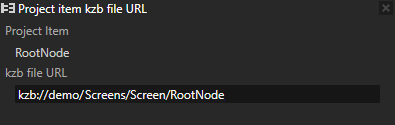
在 Node Tree 中选择一个节点或在 Library 中选择一个资源。插件窗口显示所选项目项的 kzb URL。
在您的 Kanzi Studio 窗口插件中分组项目更改。
在您的 Kanzi Studio 窗口插件中对项目更改进行分组,以使更改显示为对 Kanzi Studio 用户的一个命令。这样,您可以设置撤销和重做命令以影响整个更改组,而不是单个更改。例如,当您的 Kanzi Studio 窗口插件在用户点击按钮时对项目进行一系列修改时,对项目更改进行分组,并且您希望 Kanzi Studio 在用户选择 Edit > Undo 时一次性撤销所有这些修改。
使用批量修改来将您的 Kanzi Studio 窗口插件应用于项目的一系列更改进行分组。使用批量修改时,监听修改事件的对象可以跳过批量修改期间发生的事件,并在批量修改完成时应用所有更改。
要在您的 Kanzi Studio 窗口插件中对项目更改进行分组:
为您的 Kanzi Studio 窗口插件创建基础。请参阅 为 Kanzi Studio 窗口插件创建基础。
在 Visual Studio 中,打开插件的 Visual Studio 解决方案,然后打开实现
PluginWindow接口的类文件。例如,打开
UserControl1.xaml.cs类文件。在实现
PluginWindow接口的类中,添加您的插件在插件窗口中与插件交互时执行的代码。例如,要创建插件来创建水平和垂直参考线网格:
// This function returns true if a guide with a given name already exists.
private bool GuideExists(string guideName)
{
    bool exists = false;
    var guides = studio.ActiveProject.Guides;

    foreach (var guide in guides)
    {
        var name = guide.Get(Properties.Name);
        if (name == guideName)
        {
            exists = true;
        }
    }

    return exists;
}

// This function creates the guides.
private void CreateGuides(int step, int count, bool isVertical)
{
    var guides = studio.ActiveProject.Guides;

    for (int i = 1; i <= count; i++)
    {
        String guideName;
        Vector guidePosition;
        var coordinate = i * step;

        // Set guide position and name.
        if (isVertical)
        {
            guidePosition = new Vector(coordinate, 0);
            guideName = "Guide_V" + Convert.ToString(coordinate);
        }
        else
        {
            guidePosition = new Vector(0, coordinate);
            guideName = "Guide_H" + Convert.ToString(coordinate);
        }

        // Check if a guide with the same name already exists
        bool exists = GuideExists(guideName);
        if (!exists)
        {
            // Create a new guide.
            var guide = studio.ActiveProject.CreateProjectItem<Guide>(guideName, null);
            // Set the position of the guide.
            guide.Set(Properties.GuidePosition, guidePosition);
            // For vertical guides, set the Rotation property.
            if (isVertical)
            {
                guide.Set(Properties.GuideRotation, (float)Math.PI/2);
            }
        }
    }
}
添加代码来调用您在上一步中创建的函数,并将其放在
BeginBatchModification和CommitBatchModification函数之间。例如,要在用户点击按钮时创建一组水平和垂直参考线,使用:
private void Button_Click(object sender, RoutedEventArgs e)
{
    // Distance between horizontal guides
    var horizontalStep = Convert.ToUInt16(hStepInput.Text);
    // Number of horizontal guides
    int horizontalCount = Convert.ToUInt16(hCountInput.Text);

    // Distance between vertical guides
    var verticalStep = Convert.ToUInt16(vStepInput.Text);
    // Number of vertical guides
    int verticalCount = Convert.ToUInt16(vCountInput.Text);

    // Begin a batch modification named Create Guides
    studio.ActiveProject.BeginBatchModification("Create Guides");
    // Call the functions for the code you want to execute inside the batch.
    CreateGuides(horizontalStep, horizontalCount, false);
    CreateGuides(verticalStep, verticalCount, true);
    // Finish the batch modification
    studio.ActiveProject.CommitBatchModification();
}
在 Visual Studio 中,打开实现窗口插件布局的 XAML 文件,并添加您要在窗口中显示的内容和控件。
例如,打开
UserControl1.xaml文件并替换<Grid> </Grid>
通过
<StackPanel HorizontalAlignment="Center">
    <Grid Margin="0,10">
        <Grid.ColumnDefinitions>
            <ColumnDefinition Width="150" />
            <ColumnDefinition Width="45" />
        </Grid.ColumnDefinitions>
        <Grid.RowDefinitions>
            <RowDefinition />
            <RowDefinition />
            <RowDefinition />
            <RowDefinition />
            <RowDefinition />
            <RowDefinition />
        </Grid.RowDefinitions>
        <Label Margin="0,0,0,2" Grid.Column="0" Grid.Row="0" FontWeight="Bold">Horizontal Guides</Label>
        <Label Margin="5,2,0,2" Grid.Column="0" Grid.Row="1">Number of guides</Label>
        <TextBox Margin="0,2" Grid.Column="1" Grid.Row="1" Name="hCountInput" Text="10" />
        <Label Margin="5,2,0,2" Grid.Column="0" Grid.Row="2">Distance between guides</Label>
        <TextBox Margin="0,2" Grid.Column="1" Grid.Row="2" Name="hStepInput" Text="100" />
        <Label Margin="0,10,0,2" Grid.Column="0" Grid.Row="3" FontWeight="Bold">Vertical Guides</Label>
        <Label Margin="5,2,0,2" Grid.Column="0" Grid.Row="4">Number of guides</Label>
        <TextBox Margin="0,2" Grid.Column="1" Grid.Row="4" Name="vCountInput" Text="10" />
        <Label Margin="5,2,2,2" Grid.Column="0" Grid.Row="5">Distance between guides</Label>
        <TextBox Margin="0,2" Grid.Column="1" Grid.Row="5" Name="vStepInput" Text="100" />
    </Grid>

    <Button Padding="5,3" Content="Create Guides" Click="Button_Click" />
</StackPanel>
构建并运行插件。请参阅 构建和运行 Kanzi Studio 插件。
在插件窗口中设置属性,确定要创建的水平和垂直参考线数量及其之间的距离,然后点击 Create Guides 按钮。
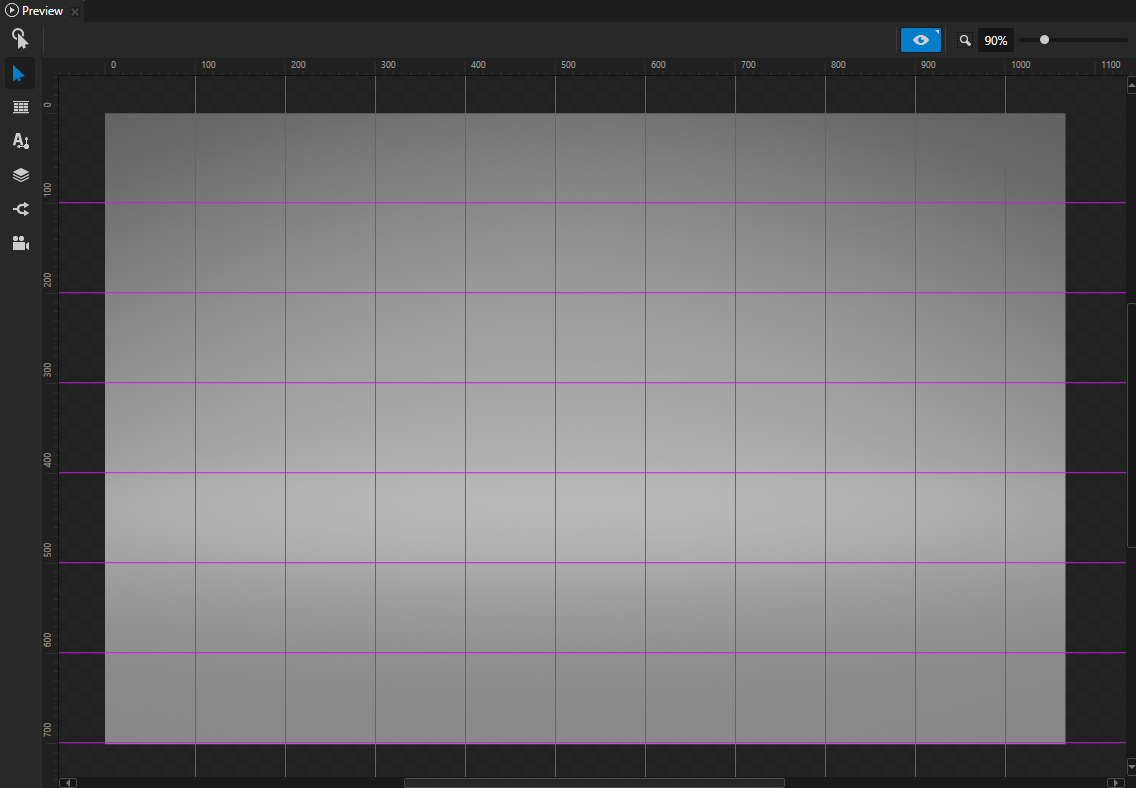
Kanzi Studio 在 Preview 窗口中创建水平和垂直参考线。
小技巧
要在您的 Kanzi Studio 项目中查看指南,请在 Preview 中单击
 以进入 Analyze 模式,右键单击
  ,然后选择 Rulers and guides。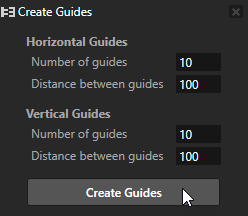
要检查批量修改是否正常,使用 Kanzi Studio Command History。请参阅 使用 Kanzi Studio Command History。