教程:使用 C++ 代码后台编程活动
在本教程中,您将学习如何使用 Code Behind 工作流编写活动程序。Code Behind 是一种工作流,您可以将代码与 Activity 节点的实例而不是类型相关联。
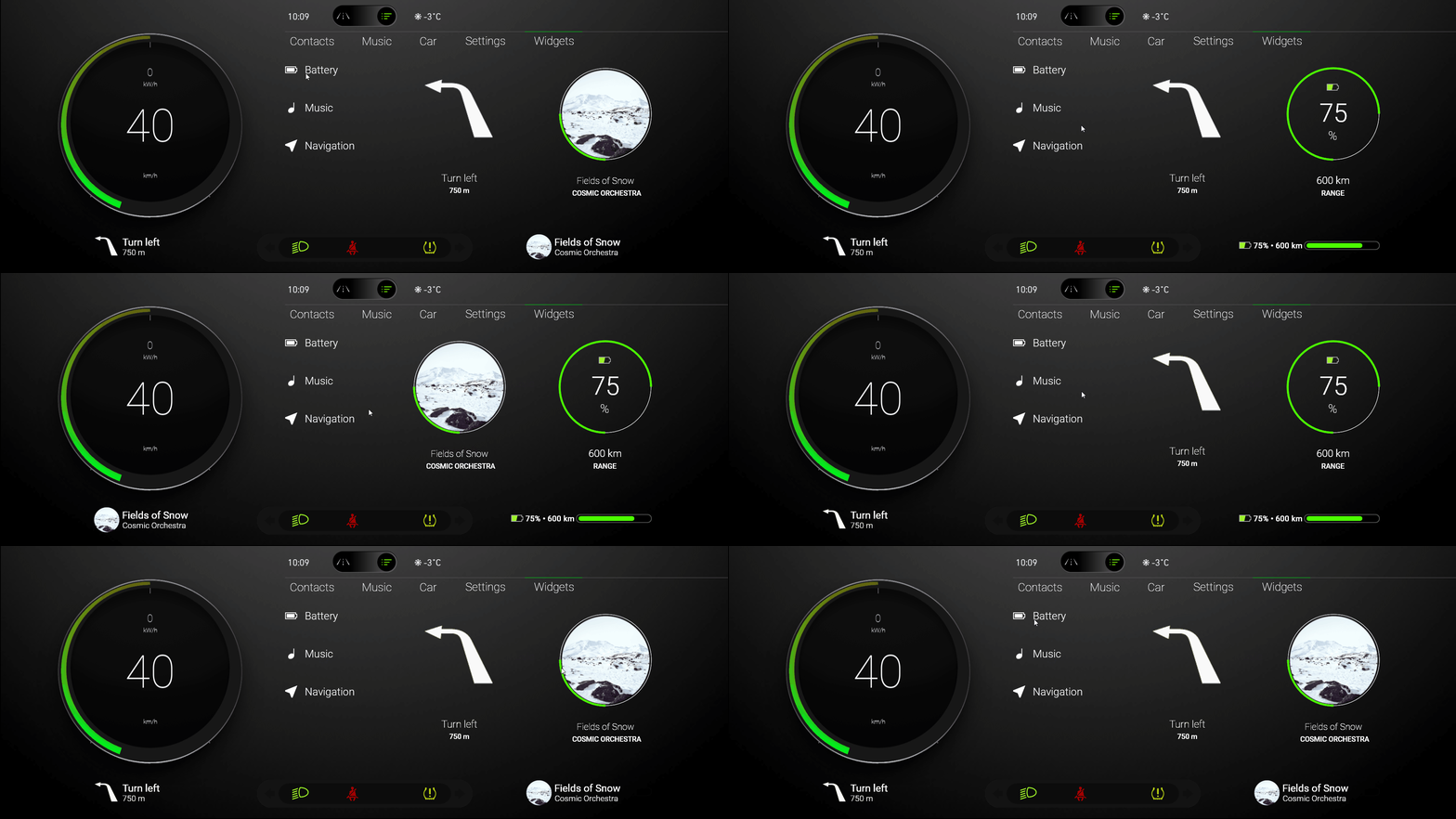
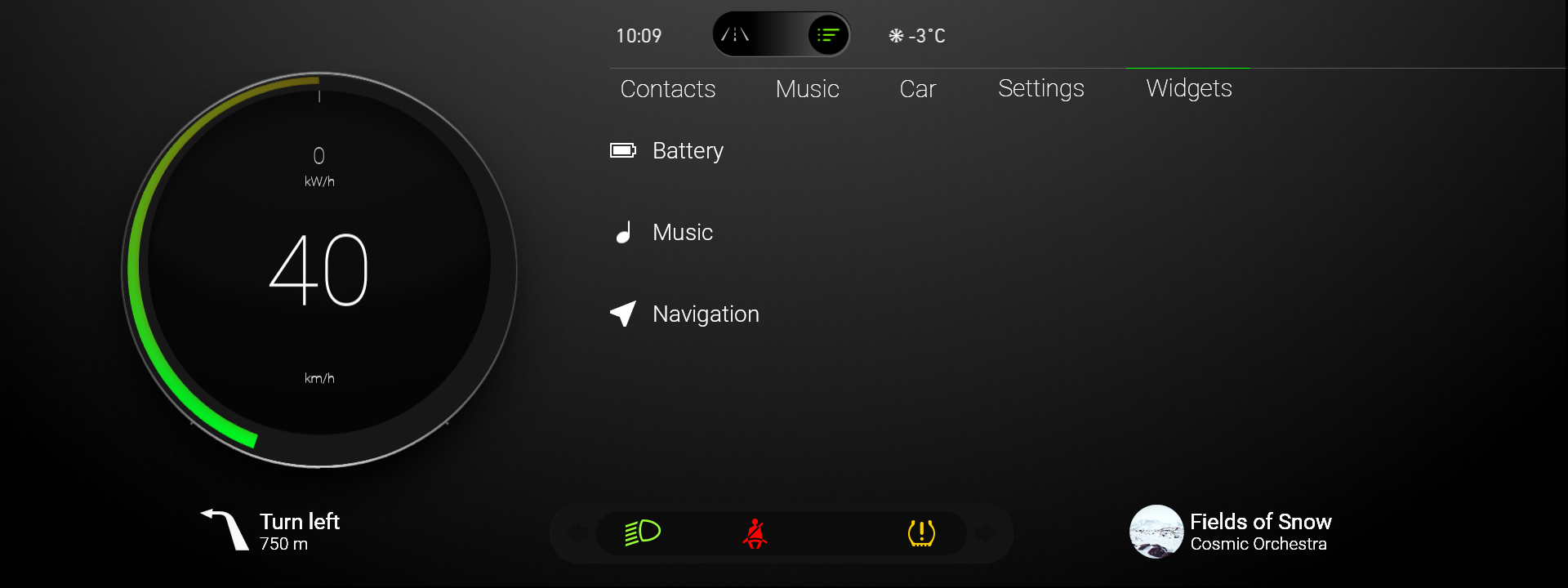
在本教程中,您使用 C++ Code Behind 来使用户能够通过从小部件列表中拖放小部件来选择他们想要使用的小部件。
视频显示教程的结果。
在开始本教程之前,确保将您的 Kanzi 开发环境设置好。要使用 Kanzi Engine API 开发应用程序逻辑,您需要:
CMake 3.25 或更新版本
安装了最新更新的 Visual Studio 2022
本教程假定您了解使用 Kanzi 活动系统的基础知识。最好的入门点是教程:
获取教程
要获取该教程,请在 Kanzi Studio Quick Start 窗口中点击 Projects,然后选择 Tutorials 选项卡。在 Program Activities 教程旁边,点击  。
。
Kanzi Studio 会将教程下载到 <KanziWorkspace>/Tutorials 目录。您可以找到:
位于
<KanziWorkspace>/Tutorials/Program Activities/Start/Tool_project目录中的教程起点工程。要了解此工程的内容以及如何创建此类工程,请参阅 教程:控制应用程序 UI。
位于
<KanziWorkspace>/Tutorials/Program Activities/Completed目录中的已完成教程。
起始项目的内容
起点工程包含您完成本教程所需的内容:
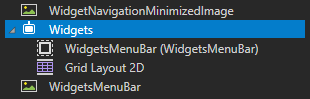
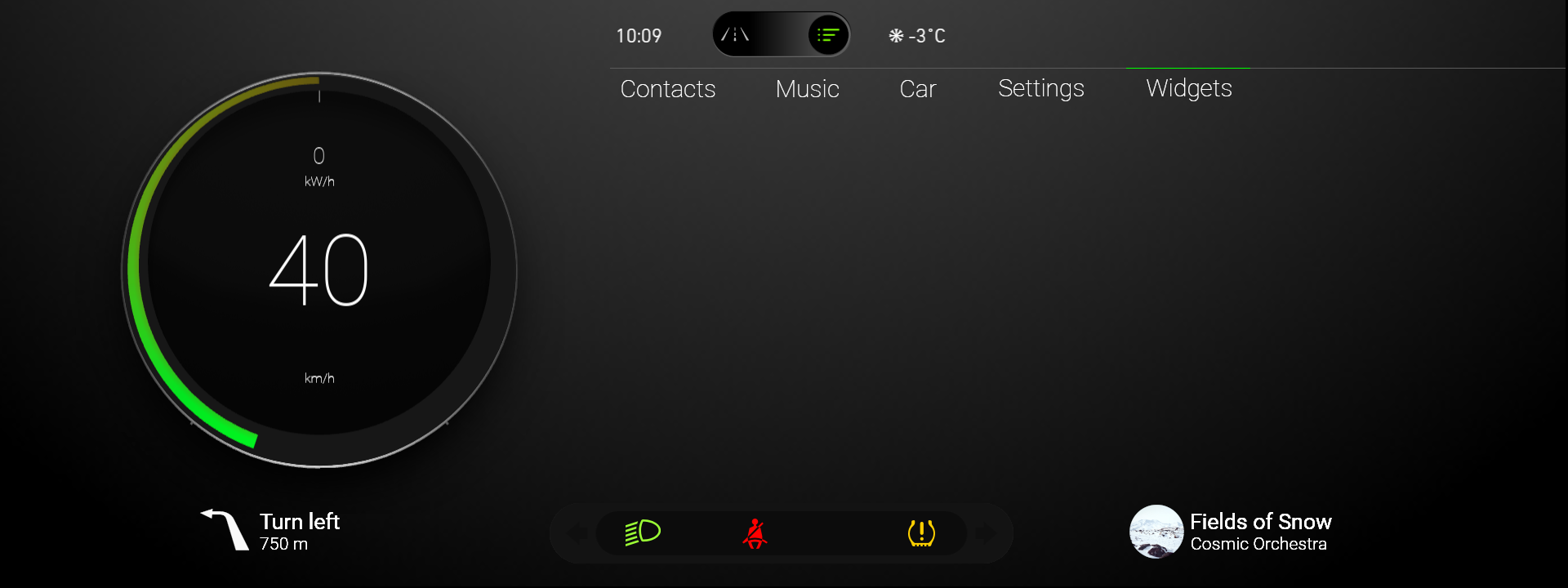
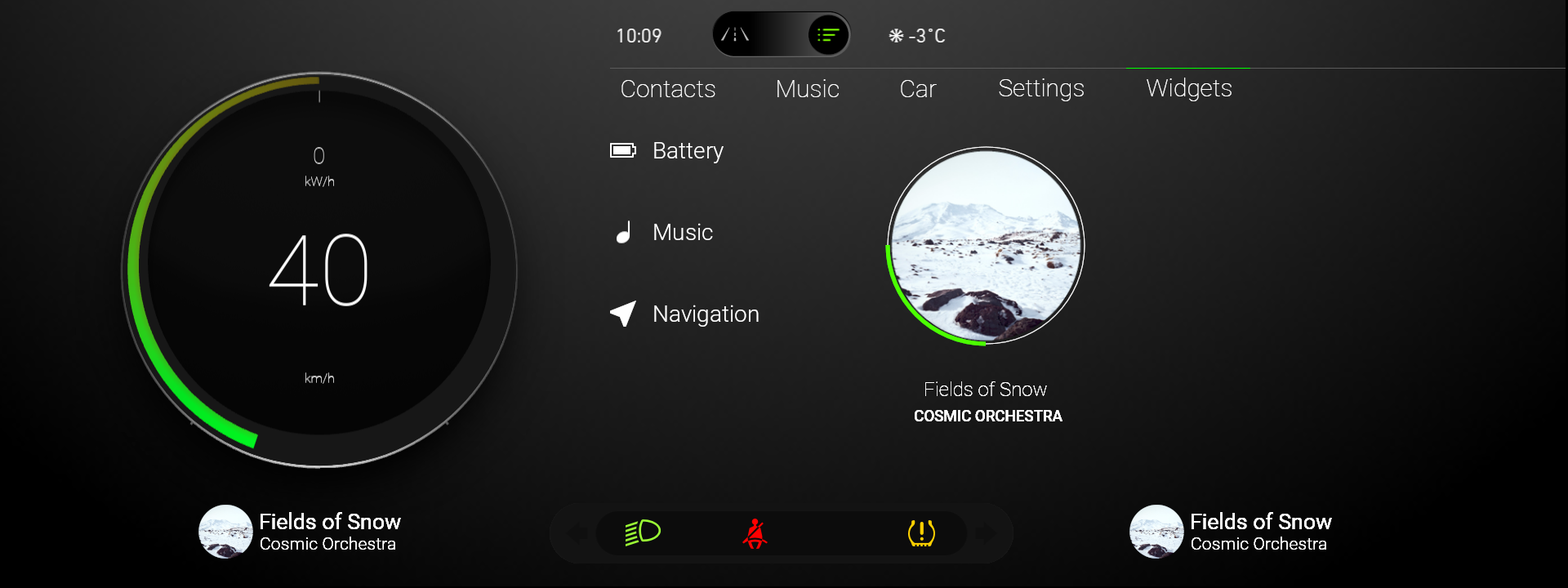
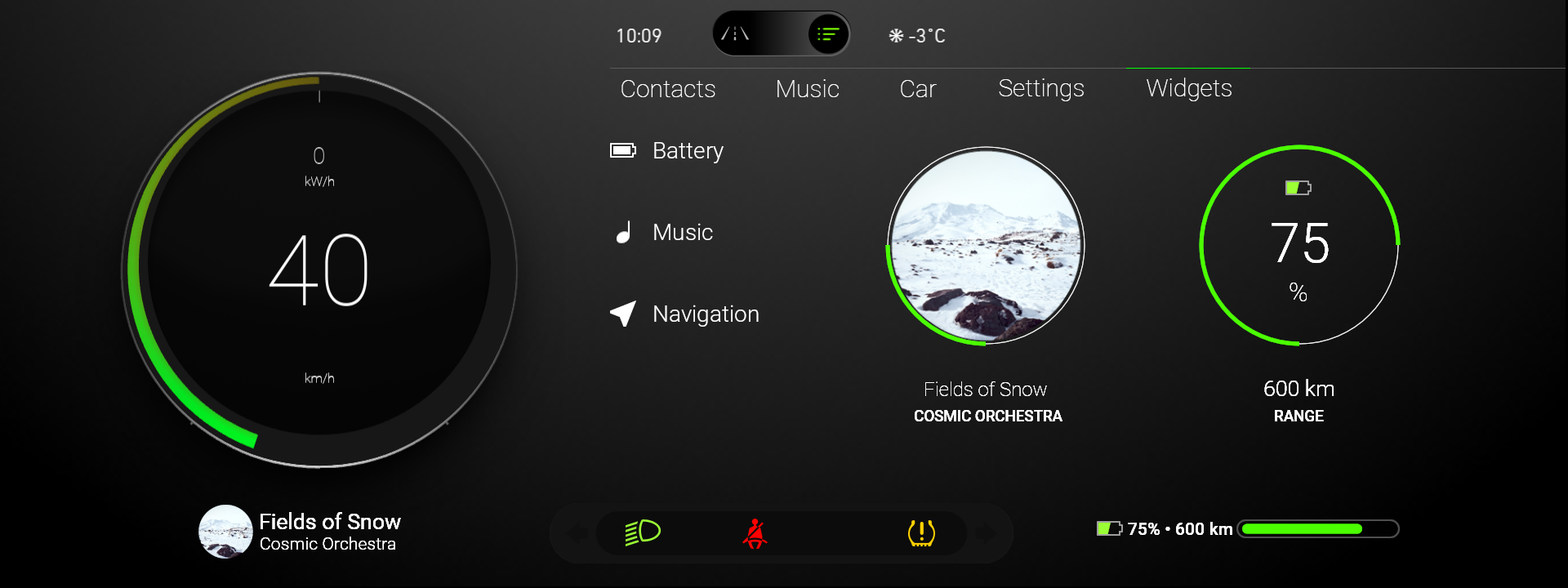
Widgets Activity 预设包含应用程序中 Widgets 面板的模型。在此 Activity 中,您使用 C++ Code Behind 创建拖放功能。该 Activity 使用 Grid Layout 2D 来布局内容。
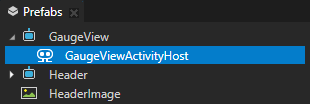
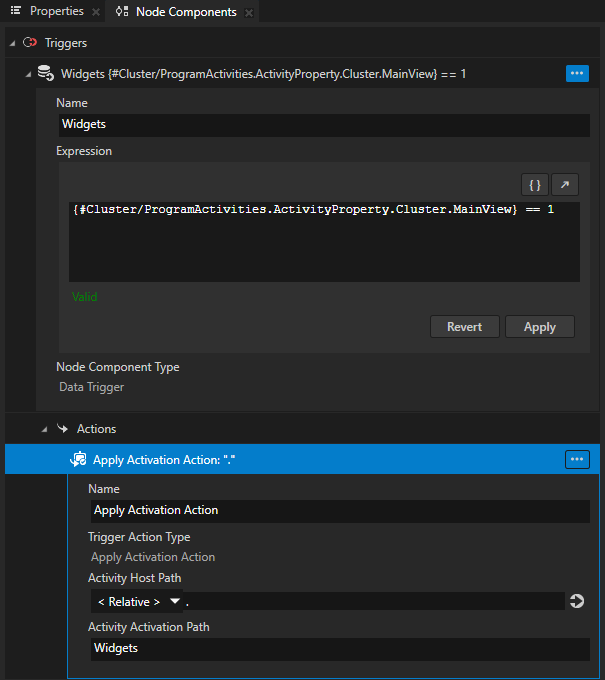
GaugeView > GaugeViewActivityHost 包含一个数据触发器,其中的应用激活操作在 Cluster 活动主机处于 Browse 模式时保持 Widgets 活动处于活动状态。
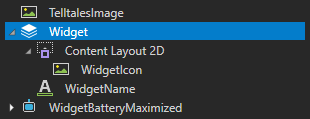
您在 Widgets 活动中用作小部件列表中每个小部件模板的 Widget 预设。WidgetIcon 的小部件图像和 WidgetName 的小部件名称在 Widgets 数据源中设置。
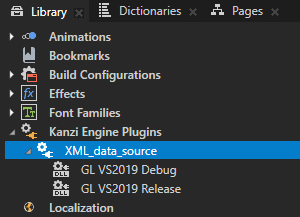
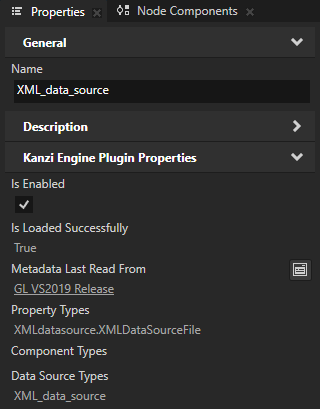
XML_data_source 是一个 Kanzi Engine 插件,它为使用 XML 作为 Kanzi 应用程序的数据源提供了有限的支持。
您使用此 Kanzi Engine 数据源插件从 XML 数据源获取数据,并使用它来显示小部件列表。
要了解有关此插件以及如何定义您自己的数据源的更多信息,请参阅 教程:从数据源获取应用程序数据。
Widgets 数据源使用
Application/bin/Widgets.xml来描述每个小部件。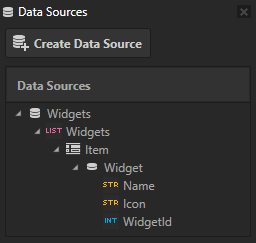
<Widgets type="list">
    <items>
        <Widget>
            <Name type="string">Battery</Name>
            <Icon type="string">file://./WidgetIconBattery.png</Icon>
            <WidgetId type="int">0</WidgetId>
        </Widget>
        <Widget>
            <Name type="string">Music</Name>
            <Icon type="string">file://./WidgetIconMusic.png</Icon>
            <WidgetId type="int">1</WidgetId>
        </Widget>
        <Widget>
            <Name type="string">Navigation</Name>
            <Icon type="string">file://./WidgetIconNavigation.png</Icon>
            <WidgetId type="int">2</WidgetId>
        </Widget>
    </items>
</Widgets>
Application/bin/WidgetIcon<WidgetName>.png是用于在 Widgets 活动中的列表中表示每个小部件的图标。这些图像位于Application/bin目录中,以便您可以从应用程序代码中访问它们。在Application/bin/Widgets.xml中,Icon元素包含这些图像的路径,以便应用程序可以使用它们。
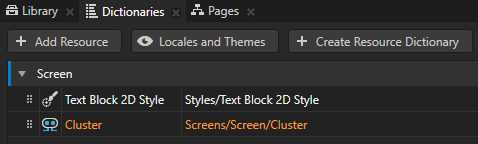
Screen 节点的资源字典包含指向 Cluster Parallel Activity Host 的别名。您使用此别名从 C++ Code Behind 应用程序代码访问该 Activity Host。
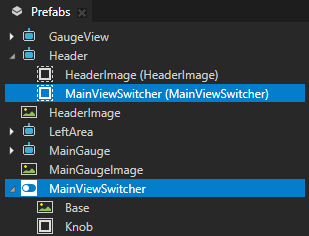
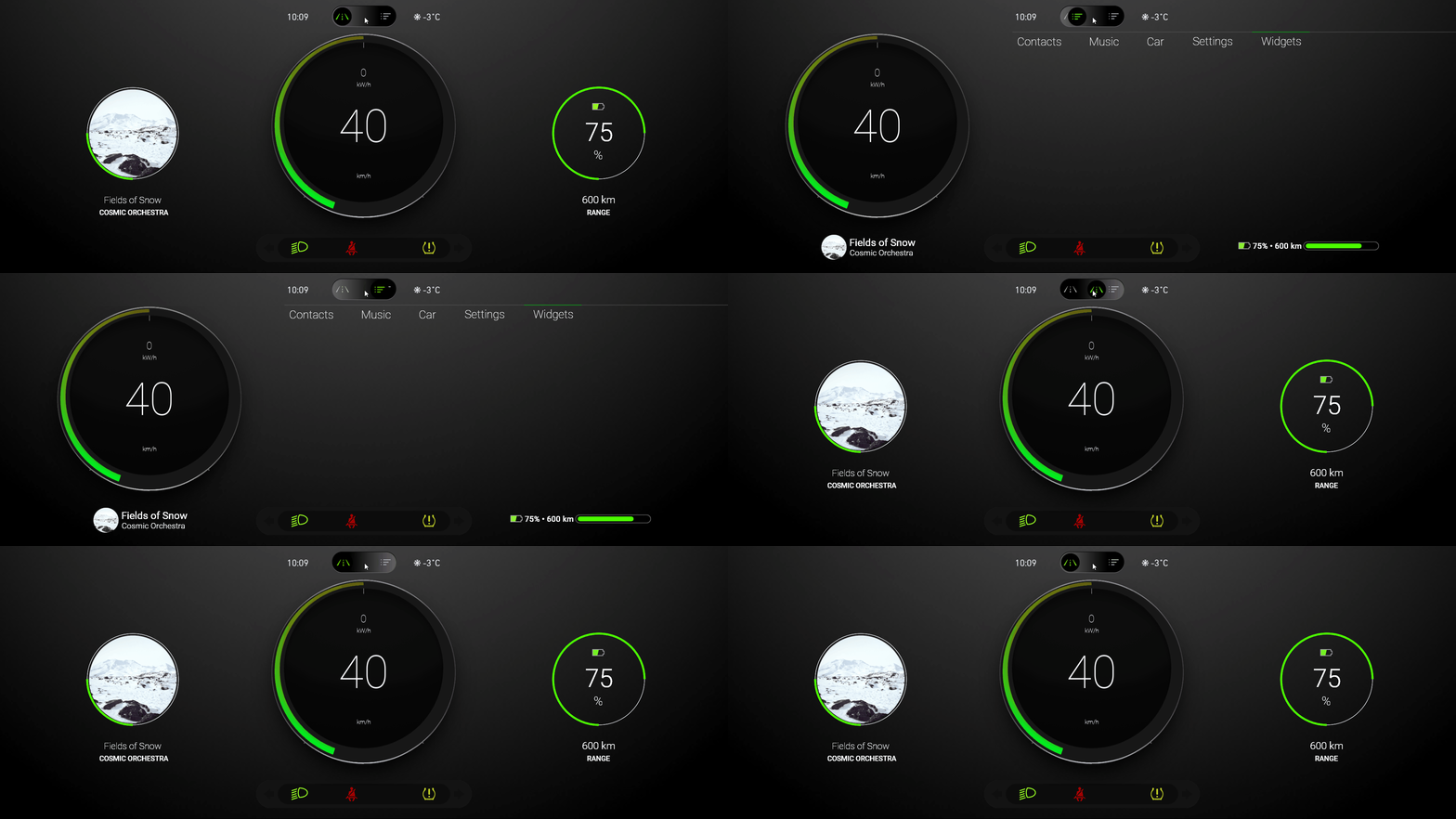
Header 活动包含一个 Toggle Button 节点,使您能够在 Drive 和 Browse 应用模式之间切换。
为小部件选择区域创建内容。
在本节中,您将为应用程序中的小部件选择区域创建内容和活动系统结构。
要为小组件选择区域创建内容:
在 Kanzi Studio Quick Start 窗口中点击 Projects,然后选择 Tutorials 选项卡。在 Program Activities 教程旁边,点击 Open 并选择 Start project。
在 Activity Browser 中,选择 Cluster,并在侧面板中,将 MainView 属性设置为 Browse。
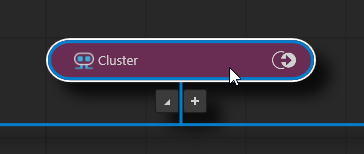
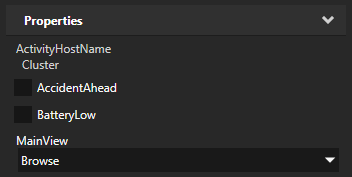
GaugeView > GaugeViewActivityHost 具有一个数据触发器,当 MainView 控制器属性的值设置为 Browse 时,它会激活其子活动 Widgets。
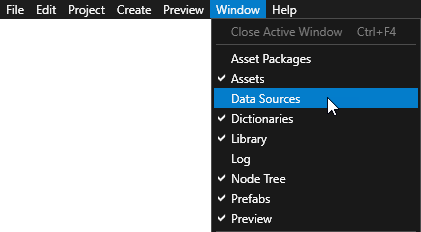
在 Window 主菜单中,选择 Data Sources。
使用 Data Sources 窗口在您的项目中创建、设置和删除数据源,并将数据源中的数据对象连接到项目中的节点和资源。
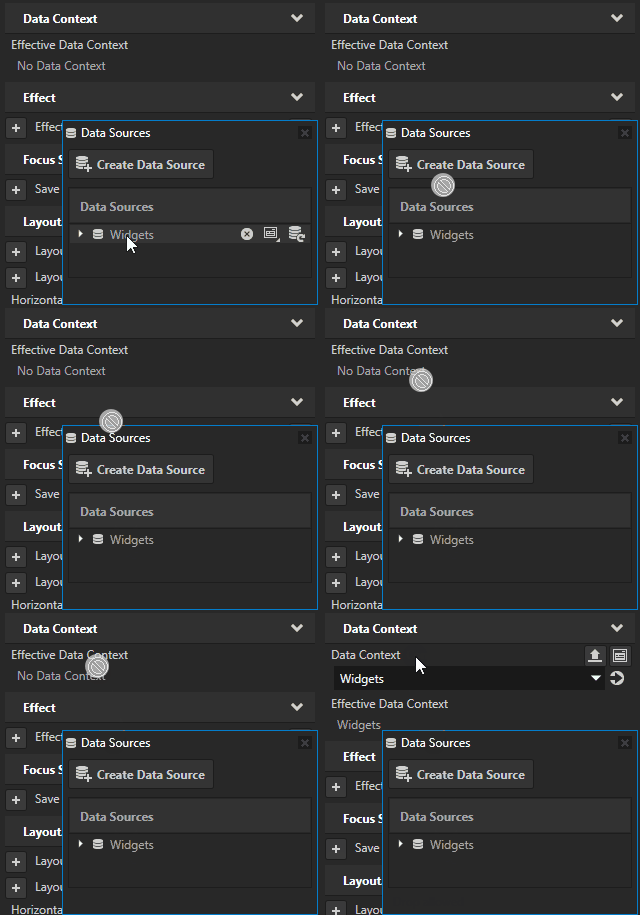
在 Prefabs 中,选择 Widgets。从 Data Sources 中,将 Widgets 数据源拖到 Properties 上,并将其放在 Effective Data Context 属性上。
通过这种方式,您可以设置定义小部件内容的数据源。
在 Widgets > Grid Layout 2D 中的 Prefabs 中,创建一个 Grid List Box 2D 节点并将其命名为 WidgetsList。
您使用此网格列表框在 Widgets 活动中显示可用小部件的列表。小部件列表来自在
Widgets.xml中定义的小部件数据源。在教程的下一部分,当您将 C++ 后端代码功能添加到 Widgets 活动时,您可以让用户从此列表中拖动一个小部件并将其放置到左侧或右侧区域小部件中。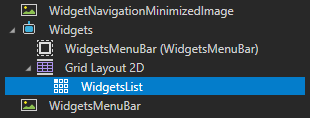
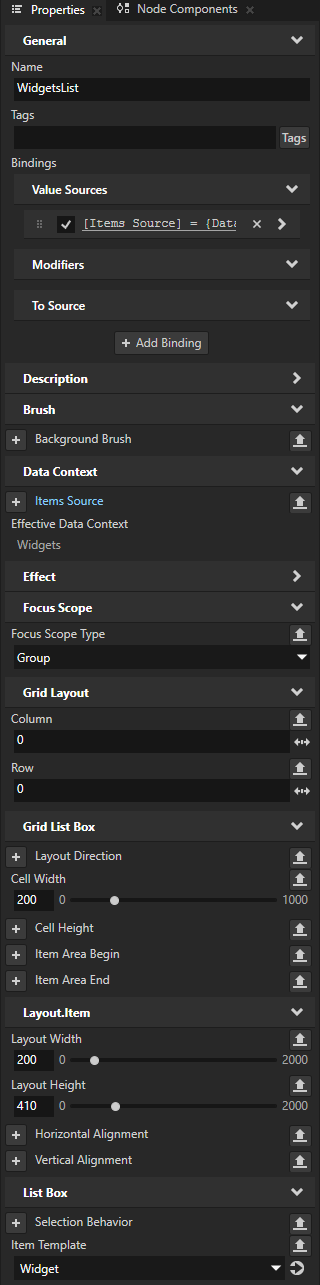
在 Prefabs 中,选择 WidgetsList 节点。在 Properties 中,添加并设置:
Grid Layout > Column 到 0
Grid Layout > Row 到 0
Cell Width 到 200
Layout Width 到 200
Layout Height 到 410。
Item Template 到 Widget
使用 Item Template 属性,您可以设置要为其列表中的项目使用哪个预设模板的 Grid List Box 节点。
从 Data Sources,将 Widgets > Widgets 列表数据对象拖到 Items Source 属性。
通过这种方式,您将 Grid List Box 2D 设置为列出在
Application/bin/Widgets.xml文件中定义的小部件。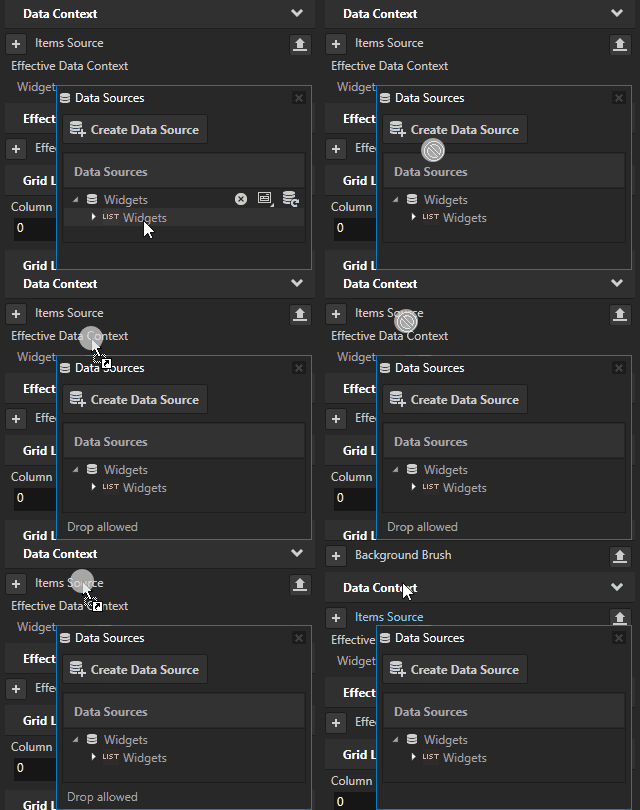
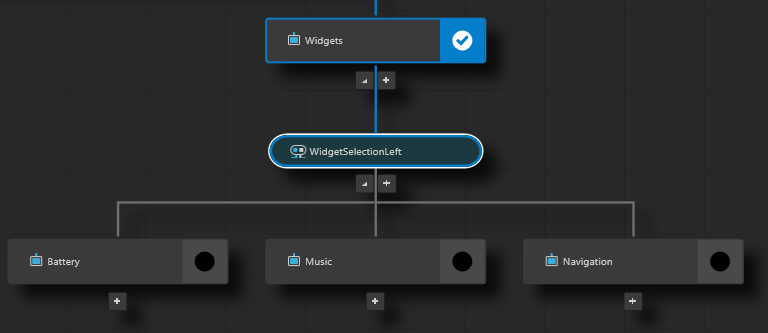
为左侧区域小部件的选择创建结构:
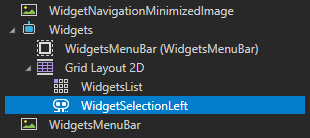
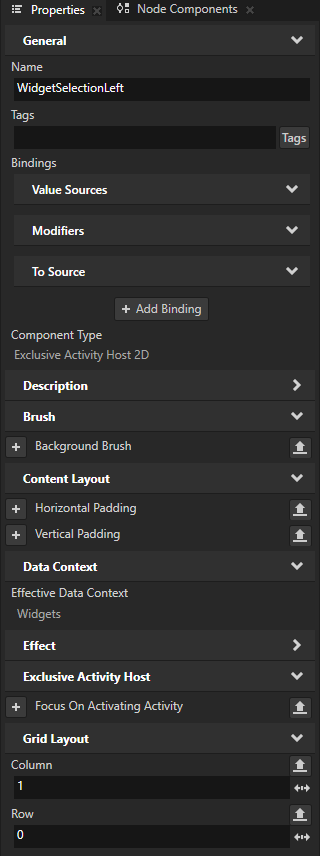
在 Prefabs 中,按 Alt 并右键单击 Widgets > Grid Layout 2D,选择 Exclusive Activity Host 2D 并将其命名为 WidgetSelectionLeft。在 Properties 中,添加并设置:
Grid Layout > Column 到 1
Grid Layout > Row 到 0
使用此 Exclusive Activity Host 显示用户为左侧区域选择的小部件。
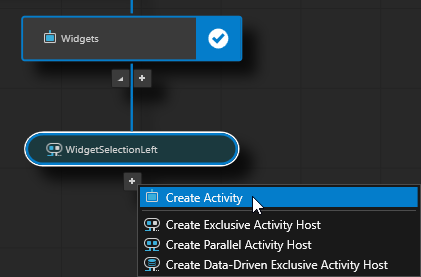
在 WidgetSelectionLeft 中的 Activity Browser 中,单击
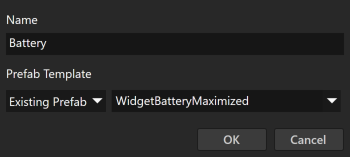
 ,选择 Create Activity,并为每个小部件创建一个活动。对于每个小部件活动,使用该小部件在最大化时的预设:
对于 Battery 活动,使用 WidgetBatteryMaximized 预设。
对于 Music 活动,使用 WidgetMusicMaximized 预设。
对于 Navigation 活动,使用 WidgetNavigationMaximized 预设。
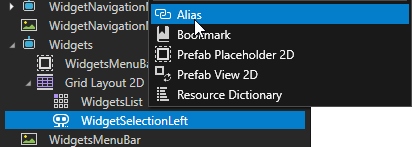
在 Prefabs 中,按 Alt 并右键单击 Widgets > Grid Layout 2D > WidgetSelectionLeft 并选择 Alias。
Kanzi Studio 在 Widgets 预设的资源字典中创建一个指向 WidgetSelectionLeft 独占活动主机的别名。您使用此别名从 C++ Code Behind 访问此独占活动主机。

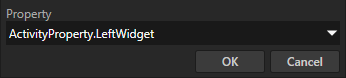
在 Activity Browser 中,选择 WidgetSelectionLeft 独占活动主机。在 Controller Property 的侧面板中,点击
 ,选择 Property,并将 Property 设置为 ActivityProperty.LeftWidget 属性类型。
在 C++ Code Behind 应用程序代码中使用此属性类型,以在 WidgetSelectionLeft 中激活用户放置的 Activity。请注意,在 Enumeration Options 中的 ActivityProperty.LeftWidget 属性中,每个小部件的 Value 必须与
Application/bin/Widgets.xml数据源中的WidgetId元素相匹配。本教程的起始项目使用此属性类型来设置集群左侧区域的小部件,包括最大化和最小化。在这里,您使用相同的属性类型,以便当用户将小部件拖放到 Widget 活动的左侧小部件区域时,应用程序将更改应用于应用程序中最大化和最小化的小部件。
Cluster 并行活动主机设置 ActivityProperty.LeftWidget 属性的值。
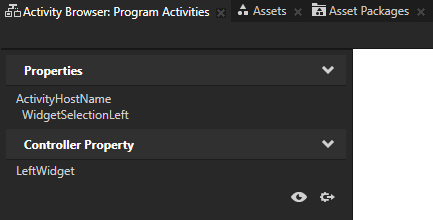
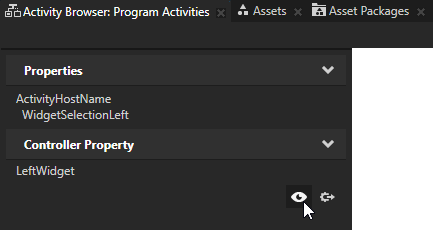
小技巧
要在 Activity Browser 中查看哪个活动主机设置了控制器属性的值,请选择一个 Exclusive Activity Host,并在侧面板中单击
 。
。
为右侧区域小部件的选择创建结构:
在 Prefabs 中,右键单击 WidgetSelectionLeft 活动主机并选择 Duplicate。
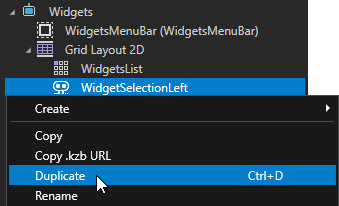
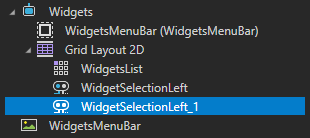
选择重复的 Activity Host,按下 F2,并将其重命名为 WidgetSelectionRight。
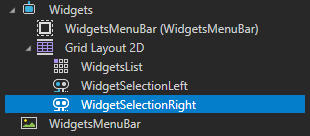
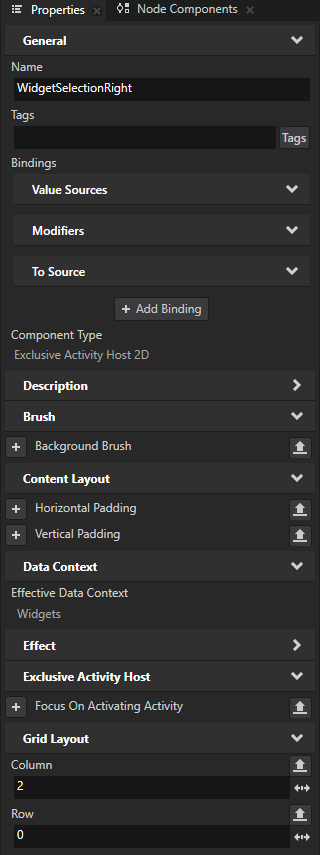
在 Properties 中,将 Column 属性设置为 2。
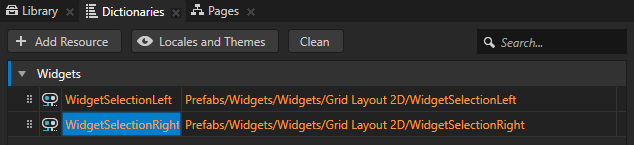
在 Prefabs 中,按 Alt 并右键单击 Widgets > Grid Layout 2D > WidgetSelectionRight 并选择 Alias。
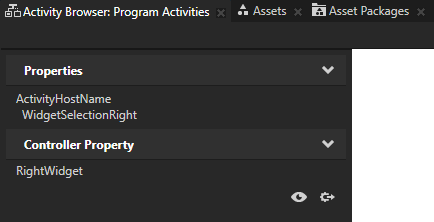
在 Activity Browser 中,选择 WidgetSelectionRight 活动主机。在 Controller Property 的侧面板中,点击
,选择 Property,并将 Property 设置为 ActivityProperty.RightWidget 属性类型。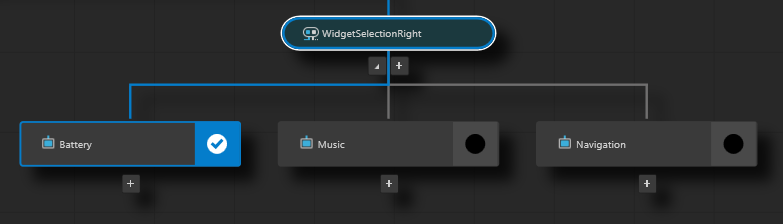
添加 C++ 代码后端并创建功能。
在本节中,您将 C++ 代码添加到 Widgets 活动,并使用 Kanzi Engine API 创建拖放功能,使用户能够通过在 Widgets 活动中拖动小部件来选择他们想要在集群的左侧和右侧区域显示的小部件。
要添加 C++ Code Behind 并创建功能:
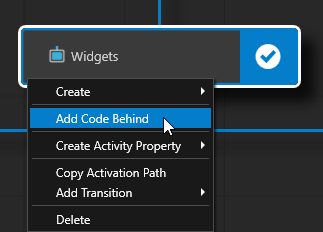
在 Activity Browser 中,右键单击 Widgets 活动,选择 Add Code Behind,并等待 Kanzi Studio 创建并将 C++ Code Behind 项目添加到 Widgets 活动中。
当您将 C++ Code Behind 添加到 Activity 节点时,Kanzi Studio:
从
<KanziWorkspace>/Templates/Code_behind_template复制 C++ Code Behind 模板。在
<ProjectName>/Tool_project/CodeBehind目录中创建一个 Visual Studio 解决方案和项目,用于您添加了 C++ Code Behind 的 Activity。为您在项目属性中设置的 Preview 构建配置和 Visual Studio 版本编译项目。
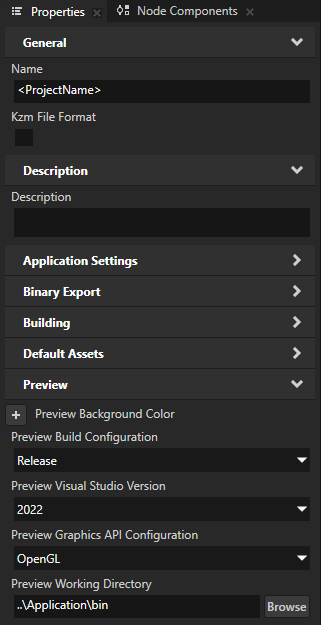
将包含在 C++ Code Behind Visual Studio 项目中定义的功能的 DLL 文件导入到 Kanzi Studio 项目中,作为 Kanzi Engine 插件。
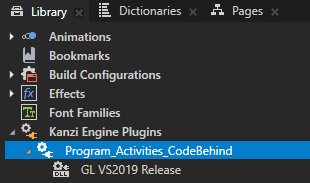
重新启动 Preview。
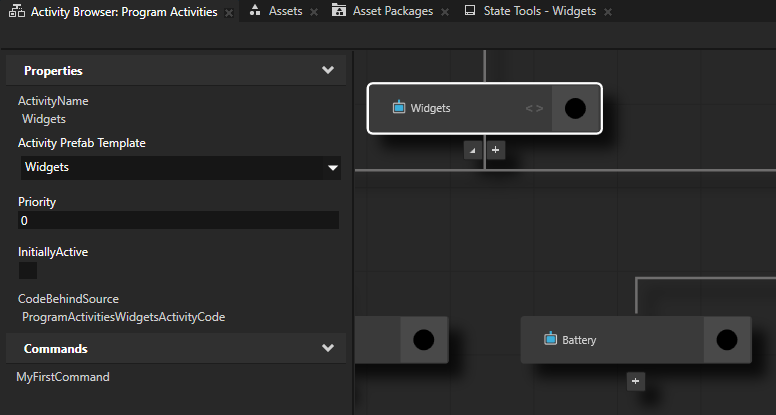
当 Preview 启动时,在 Activity Browser 中,具有 C++ Code Behind 的活动包含
 图标,并且侧面板显示在 C++ Code Behind 中定义的命令。
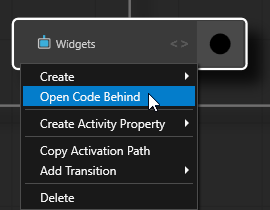
在 Activity Browser 中,右键单击 Widgets 活动并选择 Open Code Behind。
Kanzi Studio 在 Visual Studio 中打开 C++ Code Behind 项目。
在 Visual Studio 中,在
program_activities_widgets_activity_code.hpp的 Program_Activities_CodeBehind > Header Files 中,添加:您需要实现本教程功能的 Kanzi 头文件:
#include <kanzi/core.ui/data/data_context.hpp>
#include <kanzi/core.ui/input/drag_and_drop_manipulator.hpp>
#include <kanzi/core.ui/node/node2d.hpp>
在包含头文件之后,添加保存 int 动态属性类型的可选类型的定义:
/// Optional type for the int custom property types.
using OptionalIntDynamicPropertyType = kanzi::OptionalDynamicPropertyType<int>;
在
protected部分,添加附加和分离重写函数,以及kanzi::DragAndDropManipulator的回调函数:protected: ... /// NodeComponent::attachOverride implementation. void attachOverride() override; /// NodeComponent::detachOverride implementation. void detachOverride() override; /// Message handler for the DragAndDropManipulator::StartedMessage. /// \param args The DragAndDropManipulator::StartedMessage arguments. void onDragStarted(kanzi::DragAndDropManipulator::StartedMessageArguments& args); /// Message handler for the DragAndDropManipulator::MovedMessage. /// \param args The DragAndDropManipulator::MovedMessage arguments. void onDragMoved(kanzi::DragAndDropManipulator::MovedMessageArguments& args); /// Message handler for the DragAndDropManipulator::FinishedMessage. /// \param args The DragAndDropManipulator::FinishedMessage arguments. void onDragFinished(kanzi::DragAndDropManipulator::FinishedMessageArguments& args); /// Updates the position of the dragged widget. /// \param dragPosition The new position of the dragged widget. /// \param dragWorldTransform The world transform matrix of the dragged widget. void updateDragAndDrop(kanzi::Vector2 dragPosition, kanzi::Matrix3x3 dragWorldTransform);
创建
private部分并添加以下成员:private: /// The dragged widget node. kanzi::Node2DSharedPtr m_draggedWidget = nullptr; /// The point from which the user started dragging the node, /// relative to the origin (by default the top-left corner) of the node. kanzi::Vector2 m_dragGrabOffset; /// The data context object of the dragged widget that the user starts to drag. kanzi::DataObjectSharedPtr m_draggedDataContext = nullptr; /// Token for the DragAndDropManipulator::StartedMessage. kanzi::Node::MessageSubscriptionToken m_started; /// Token for the DragAndDropManipulator::MovedMessage. kanzi::Node::MessageSubscriptionToken m_moved; /// Token for the DragAndDropManipulator::FinishedMessage. kanzi::Node::MessageSubscriptionToken m_finished; /// Custom property types for storing the widget names. OptionalIntDynamicPropertyType m_leftWidgetPropertyType; OptionalIntDynamicPropertyType m_rightWidgetPropertyType;
在 Visual Studio 中,在
program_activities_widgets_activity_code.cpp的 Program_Activities_CodeBehind > Source Files 中,添加:您需要实现此教程的拖放功能的 Kanzi 头文件:
#include <kanzi/core.ui/data/data_context.hpp>
#include <kanzi/core.ui/data/data_object.hpp>
#include <kanzi/core.ui/input/drag_and_drop_manipulator.hpp>

#include <kanzi/ui/node/concept/list_box/default_list_box_item_container_generator.hpp>
#include <kanzi/ui/node/concept/list_box/list_box_item_container_generator.hpp>
#include <kanzi/ui/node/grid_list_box2d.hpp>
创建一个自定义列表框项生成器,为列表框的每个生成项添加一个
DragAndDropManipulator。namespace { ... // The custom item generator that adds a DragAndDropManipulator to every generated item of a list box. class CustomItemContainerGenerator : public DefaultListBoxItemContainerGenerator<ListBoxItemContainerGenerator2D> { using BaseClass = DefaultListBoxItemContainerGenerator<ListBoxItemContainerGenerator2D>; public: explicit CustomItemContainerGenerator(Domain* domain) : BaseClass(domain) { } ListBoxItemContainerGenerator2D::ItemContainerSharedPtr acquireItemContainer(string_view name) override { auto manipulator = DragAndDropManipulator::create(getDomain()); manipulator->setPressDuration(chrono::milliseconds(100u)); auto itemContainer = BaseClass::acquireItemContainer(name); itemContainer->addInputManipulator(manipulator); return itemContainer; } }; }
要使用您在上一步中为
WidgetsListGrid List Box 创建的自定义列表框生成器,请将现有的ProgramActivitiesWidgetsActivityCode::onActive()函数替换为// When the Widgets Activity is activated, use the custom item generator CustomItemContainerGenerator to // add a DragAndDropManipulator to every generated item of the WidgetsList Grid List Box. void ProgramActivitiesWidgetsActivityCode::onStatusChange(kanzi::ActivityConcept::Status status) { switch (status) { case ActivityConcept::Status::Activating: kzLogInfo(KZ_LOG_CATEGORY_GENERIC, ("'{}' Code Behind: Activity is activating.", getNode()->getName())); break; case ActivityConcept::Status::Active: { auto listbox = getNode()->lookupNode<GridListBox2D>("Grid Layout 2D/WidgetsList"); if (!listbox) { kzLogWarning(KZ_LOG_CATEGORY_GENERIC, ("'{}' Code Behind: Could not find the WidgetsList list box.", getNode()->getName())); } else { auto generator = make_shared<CustomItemContainerGenerator>(getDomain()); listbox->setItemContainerGenerator(generator); } break; } case ActivityConcept::Status::Deactivating: kzLogInfo(KZ_LOG_CATEGORY_GENERIC, ("'{}' Code Behind: Activity is deactivating.", getNode()->getName())); break; case ActivityConcept::Status::Inactive: kzLogInfo(KZ_LOG_CATEGORY_GENERIC, ("'{}' Code Behind: Activity is inactive.", getNode()->getName())); break; default: kzLogWarning(KZ_LOG_CATEGORY_GENERIC, ("'{}' Code Behind: Undefined state.", getNode()->getName())); break; } }
要初始化拖动的小部件,请将现有的
ProgramActivitiesWidgetsActivityCode::initialize()函数替换为// To show the dragged widget from drag start till drag end, instantiate the Widget prefab. // The visibility of dragged widget is handled in the DragAndDropManipulator message handlers. void ProgramActivitiesWidgetsActivityCode::initialize() { // Get the reference to the dragged widget prefab. auto dragItemPrefab = getDomain()->getResourceManager()->acquireResource<PrefabTemplate>("kzb://program_activities/Prefabs/Widget"); kzAssert(dragItemPrefab); // Instantiate the dragged widget prefab. m_draggedWidget = dragItemPrefab->instantiate<Node2D>("Dragged widget"); // Get the custom property types that you created in Kanzi Studio to store the widget name. m_leftWidgetPropertyType = DynamicPropertyType<int>::tryCreate("ActivityProperty.LeftWidget"); m_rightWidgetPropertyType = DynamicPropertyType<int>::tryCreate("ActivityProperty.RightWidget"); }
使用
ProgramActivitiesWidgetsActivityCode::attachOverride()和ProgramActivitiesWidgetsActivityCode::detachOverride()函数添加拖动消息的处理程序。// After the Widget Activity is attached to the Node Tree, // add the DragAndDropManipulator message handlers. void ProgramActivitiesWidgetsActivityCode::attachOverride() { ActivityCodeBehind::attachOverride(); m_started = getNode()->addMessageFilter(DragAndDropManipulator::StartedMessage, this, &ProgramActivitiesWidgetsActivityCode::onDragStarted); m_moved = getNode()->addMessageFilter(DragAndDropManipulator::MovedMessage, this, &ProgramActivitiesWidgetsActivityCode::onDragMoved); m_finished = getNode()->addMessageFilter(DragAndDropManipulator::FinishedMessage, this, &ProgramActivitiesWidgetsActivityCode::onDragFinished); } // Remove the DragAndDropManipulator message handlers // before detaching the Widget Activity from the Node Tree. void ProgramActivitiesWidgetsActivityCode::detachOverride() { if (m_started.isValid()) { getNode()->removeMessageHandler(m_started); } if (m_moved.isValid()) { getNode()->removeMessageHandler(m_moved); } if (m_finished.isValid()) { getNode()->removeMessageHandler(m_finished); } ActivityCodeBehind::detachOverride(); }
为拖动消息创建处理程序。
// When the drag has started, render the instantiated Widget prefab.
void ProgramActivitiesWidgetsActivityCode::onDragStarted(DragAndDropManipulator::StartedMessageArguments& messageArguments)
{
    auto rootHost = getNode()->lookupNode<Node2D>("#Cluster");
    kzAssert(rootHost);

    rootHost->addChild(m_draggedWidget);

    // Get the dragged widget from the message arguments.
    auto dragSourceItem = dynamic_pointer_cast<ListBoxItemContainer2D>(messageArguments.getSource());
    kzAssert(dragSourceItem);

    // Set the size of the dragged widget to be the same as the size of the widget that the user starts to drag.
    auto dragSourceItemSize = dragSourceItem->getActualSize();
    m_draggedWidget->setSize(dragSourceItemSize.getX(), dragSourceItemSize.getY());

    // Set the dragged widget to have the same Data Context as the widget that the user starts to drag.
    auto item = dragSourceItem->getItem();
    kzAssert(item);
    m_draggedDataContext = dynamic_pointer_cast<DataObject>(item->getProperty(DataContext::DataContextProperty));
    kzAssert(m_draggedDataContext);
    m_draggedWidget->setProperty(DataContext::DataContextProperty, m_draggedDataContext);

    // Save the point from which the user started dragging the node,
    // relative to the origin (by default the top-left corner) of the node.
    m_dragGrabOffset = messageArguments.getPoint();

    // To compensate for the screen offset, offset the layout origin of the dragged widget.
    const auto screen = dynamic_cast<Screen*>(rootHost->getParent());
    kzAssert(screen);
    auto screenSRT = SRTValue2D::createTranslation(screen->getWorldTransform().getTranslation() * -1.0f);
    m_draggedWidget->setLayoutTransformation(screenSRT);

    // Move the dragged widget to the correct position.
    updateDragAndDrop(messageArguments.getPoint(), dragSourceItem->getWorldTransform());

    // Make the dragged widget visible.
    m_draggedWidget->setVisible(true);
}

// Update the position of the rendered Widget, with respect to the cursor position.
void ProgramActivitiesWidgetsActivityCode::onDragMoved(DragAndDropManipulator::MovedMessageArguments& messageArguments)
{
    // Get the dragged widget from the message arguments.
    auto dragSourceItem = dynamic_pointer_cast<Node2D>(messageArguments.getSource());
    kzAssert(dragSourceItem);

    // Move the dragged widget to the correct position.
    updateDragAndDrop(messageArguments.getPoint(), dragSourceItem->getWorldTransform());
}

// When the drag is finished, hide the rendered Widget,
// and if the drop point was over the children of either the WidgetSelectionLeft or WidgetSelectionRight Activity Host,
// update the controller property of the respective Activity Host to show the dropped widget.
void ProgramActivitiesWidgetsActivityCode::onDragFinished(DragAndDropManipulator::FinishedMessageArguments& messageArguments)
{
    auto rootHost = getNode()->lookupNode<Node2D>("#Cluster");
    if (!rootHost)
    {
        kzLogWarning(KZ_LOG_CATEGORY_GENERIC, ("Widgets CodeBehind: Failed to find the Cluster Activity Host node."));
    }

    rootHost->removeChild(*m_draggedWidget);

    // Hide the dragged widget.
    m_draggedWidget->setVisible(false);

    // Clear the pointer to the data context object.
    m_draggedDataContext.reset();

    // Get the position of the drag pointer.
    const auto dragPosition = messageArguments.getPoint();

    // Calculate the global position of the drag pointer.
    auto dragSourceItem = dynamic_pointer_cast<Node2D>(messageArguments.getSource());
    kzAssert(dragSourceItem);

    const auto dragWorldTransform = dragSourceItem->getWorldTransform();
    const auto globalDragPosition = dragWorldTransform * dragPosition;

    // Get the drop point node.
    auto hitTestNode = rootHost->hitTest(globalDragPosition);
    if (!hitTestNode)
    {
        return;
    }

    // From the dragged widget, get the widget ID from the data source.
    // Use this widget ID to set the controller property of the WidgetSelectionLeft or WidgetSelectionRight Activity Host.
    auto draggedData = dynamic_pointer_cast<DataContext>(m_draggedWidget->getProperty(DataContext::DataContextProperty));
    kzAssert(draggedData);
    auto nameData = dynamic_pointer_cast<DataObject>(draggedData->lookupDataContext("Widget.WidgetId"));
    kzAssert(nameData);

    const auto nameIndex = get<int>(nameData->readVariant());

    auto leftArea = dragSourceItem->lookupNode<Node>("#WidgetSelectionLeft");
    auto rightArea = dragSourceItem->lookupNode<Node>("#WidgetSelectionRight");

    // Check whether the drop point node is a child of WidgetSelectionLeft or WidgetSelectionRight Activity Host.
    if (leftArea && isAncestorOf(*hitTestNode, *leftArea))
    {
        kzLogDebug(("Widgets CodeBehind: Dropped the dragged widget to the left widget Activity."));

        // Set the controller property of the WidgetSelectionLeft Activity Host to show the dropped widget.
        // Note that controller property of the WidgetSelectionLeft Activity Host is set on the Cluster root Activity Host.
        rootHost->setProperty(*m_leftWidgetPropertyType, nameIndex);
    }
    else if (rightArea && isAncestorOf(*hitTestNode, *rightArea))
    {
        kzLogDebug(("Widgets CodeBehind: Dropped the dragged widget to the right widget Activity."));

        // Set the controller property of the WidgetSelectionRight Activity Host to show the dropped widget.
        // Note that controller property of the WidgetSelectionLeft Activity Host is set on the Cluster root Activity Host.
        rootHost->setProperty(*m_rightWidgetPropertyType, nameIndex);
    }
}

// Helper method to update the render position of the dragged Widgets prefab.
void ProgramActivitiesWidgetsActivityCode::updateDragAndDrop(Vector2 dragPosition, Matrix3x3 dragWorldTransform)
{
    // Calculate the local drag anchor that is the top-left corner of the dragged widget that the user is dragging.
    const auto localDragAnchor = dragPosition - m_dragGrabOffset;

    // Calculate the global drag anchor.
    const auto globalDragAnchor = dragWorldTransform * localDragAnchor;

    // The structure that you use to describe the Render Transformation property of the dragged widget.
    SRTValue2D transform;
    // Set the Render Transformation property Translation property field to the global drag anchor.
    transform.setTranslation(globalDragAnchor);

    // Move the dragged widget for the amount of the dragged distance.
    m_draggedWidget->setRenderTransformation(transform);
}
在 Kanzi Studio 中,重启 Preview。
当您重新启动预览时,Kanzi Studio 会重建 C++ Code Behind 代码以使用更新的代码。
在 Activity Browser 中,当您在 Cluster 中将 MainView 属性设置为 Browse 时,您可以从列表中拖动一个小部件并将其放在左侧或右侧的小部件上,以设置您想在集群中使用的小部件。
接下来该做什么?
在本教程中,您学习了如何使用 Code Behind 工作流编程活动。您使用 C++ Code Behind 使用户能够通过从小部件列表中拖放小部件来选择小部件。
现在您可以:
学习如何定义数据源。请参阅 教程:从数据源获取应用程序数据。
了解如何使用 List Box。请参阅 教程:使用 Grid List Box 创建联系人列表。。
另请参阅
要了解有关 Code Behind 工作流程的更多信息,请参阅 使用代码隐藏的编程活动。
要了解有关 Activity 系统的更多信息,请参阅 活动。
要了解有关 Data Sources 的更多信息,请参阅 数据源 (Data Sources)。
要了解有关 Grid List Box 节点的更多信息,请参阅 使用 Grid List Box 节点。
要了解有关使用绑定的更多信息,请参阅 使用绑定 和 Bindings expressions 参考。