教程:异步加载和部署资源
在本教程中,您将学习如何异步加载要在 List Box 节点中显示的资源。 当您异步加载资源时,您的 Kanzi 应用程序保持响应,因为异步加载不会阻塞用户界面。 当用户滚动列表时,您在每个项目变得可见时加载该项目,而不是将所有项目保留在工作内存中。 在本教程中,您将设置应用程序以在加载资源时显示占位符内容。
以下情况下,可以异步加载资源:
在 List Box 节点中显示可能需要较长时间加载的内容,但希望保持应用程序响应。例如,当用户滚动地图时按需加载地图的部分,或在应用程序的一部分正在加载时显示加载屏幕。
仅在应用程序需要某内容时才加载,并在不需要时移除相应内容,这样可以节省内存。
本教程展示了如何使用列表项生成器异步加载资源。要为单个预设异步加载资源,在 Kanzi Studio 中使用触发器和动作。请参阅 异步加载节点预设资源。
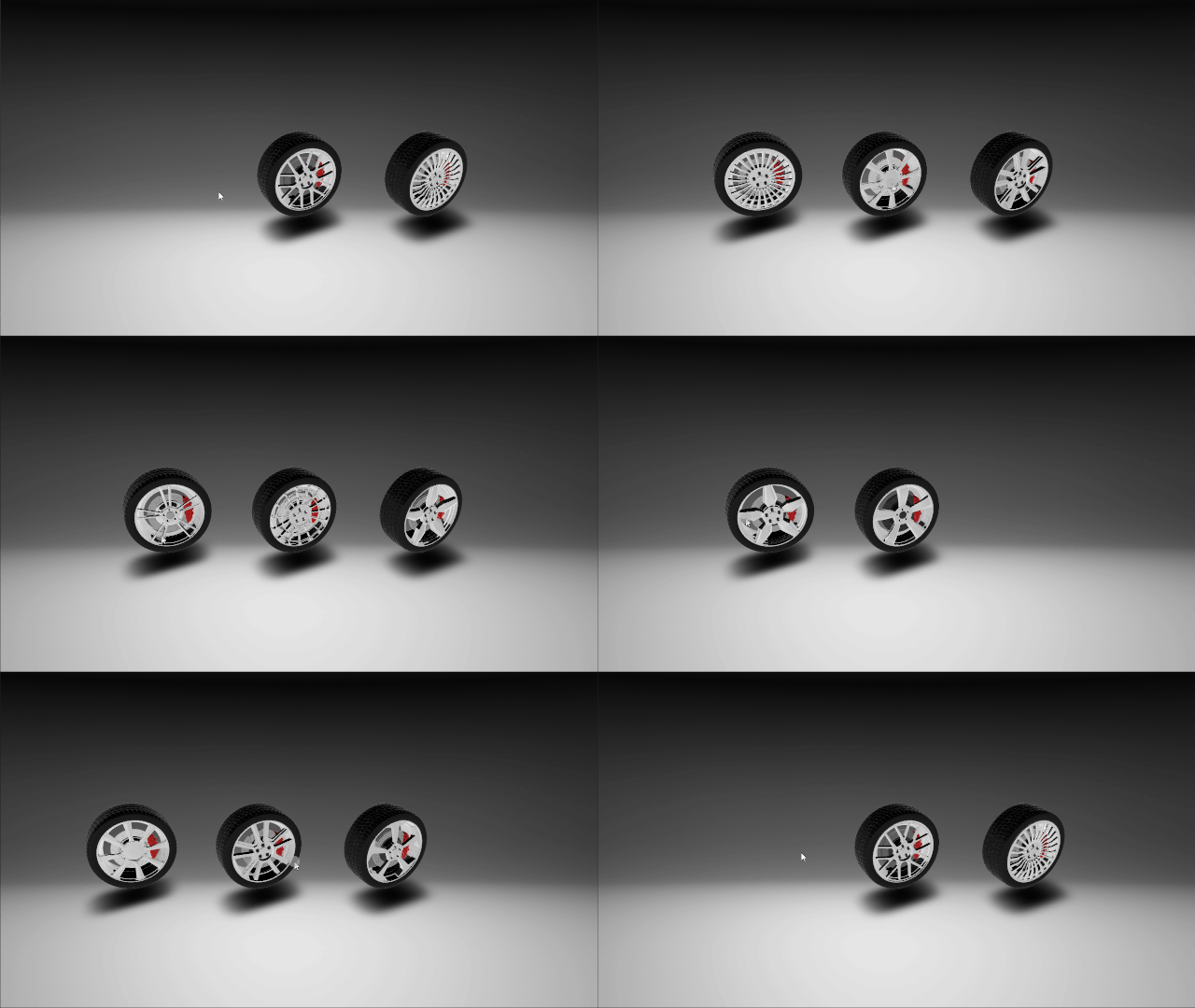
视频显示教程的结果。
开始本教程之前,请确保您已设置好 Kanzi 开发环境。安装:
CMake 3.25 或更新版本
安装了最新更新的 Visual Studio 2022
Android Studio。请参阅 将 Kanzi 应用程序部署到 Android。
您使用 Android Studio 将您的 Kanzi 应用程序部署到 Android 设备。
本教程假定您了解使用 Kanzi Studio 的基础知识。熟悉 Kanzi 的最佳入门点是:
获取教程
要获取该教程,请在 Kanzi Studio 的 Quick Start 窗口中点击 Projects 并选择 Tutorials 选项卡。在 Loading 教程旁点击  。
。
Kanzi Studio 会将教程下载到 <KanziWorkspace>/Tutorials 目录。您可以找到:
位于
<KanziWorkspace>/Tutorials/Loading/Start/Tool_project目录中的教程起点工程。位于
<KanziWorkspace>/Tutorials/Loading/Completed目录中的已完成教程。
起始项目的内容
起点工程包含您完成本教程所需的内容:
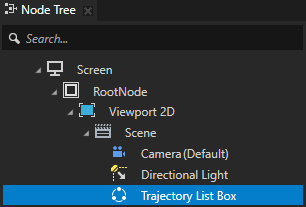
Trajectory List Box 3D 节点保存您异步加载的项目。
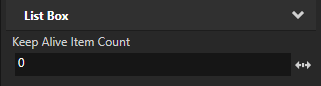
Trajectory List Box 3D 节点的 Keep Alive Item Count 属性设置节点在工作内存中同时保留多少项。将 Keep Alive Item Count 属性设置为 0,以便在用户滚动 Trajectory List Box 3D 并且该项变得可见时加载每个项。
例如,如果将 Keep Alive Item Count 属性的值设置为 5,则节点会在工作内存中保留可见项和接下来的五个项。当用户滚动 List Box 时,应用程序会在这些项变得可见时加载第五个项之后的项。
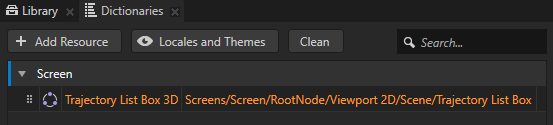
Screen 节点的资源字典包含 Trajectory List Box 3D 节点的别名。别名为从应用程序代码访问节点提供了一种方便的方法。
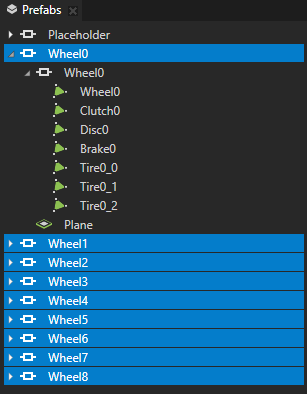
Wheel0 到 Wheel8 预设包含应用程序异步加载并显示在 Trajectory List Box 3D 节点中的 3D 模型。每个预设代表 Trajectory List Box 3D 节点显示的一个项目。

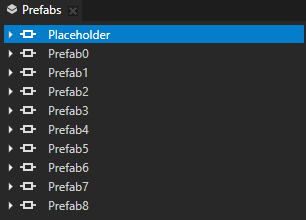
Placeholder 预设是当应用程序异步加载项目时,Trajectory List Box 3D 节点显示的内容。

创建列表项生成器
在本节中,您使用 Kanzi Engine API 创建一个列表项生成器,为 Trajectory List Box 3D 节点提供项。您使用列表项生成器定义应用程序如何加载和显示列表项。
要创建一个列表项生成器:
在 Kanzi Studio 的 Quick Start 窗口中,点击 Projects 并选择 Tutorials 选项卡。在 Loading 教程旁,点击 Open 并选择 Start project。
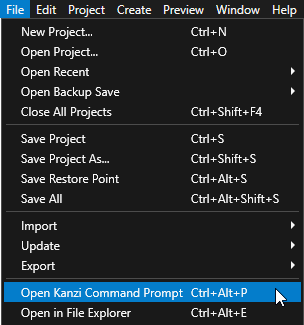
在 Kanzi Studio 中,选择 File > Open Kanzi Command Prompt。
Kanzi Command Prompt 打开 Windows 命令提示符,并为您打开 Kanzi Command Prompt 的 Kanzi 版本设置 Kanzi 环境变量。
使用 Kanzi Command Prompt 访问 Kanzi 实用工具和构建工具(例如 Gradle 和 CMake),而无需使用绝对路径或设置环境变量。
小技巧
您可以在 Windows 开始菜单的 Rightware 目录中找到 Kanzi Command Prompt。
当您安装了多个版本的 Kanzi 时,确保将您要在该命令提示符下使用的 Kanzi 版本的 Kanzi Command Prompt 启动。
在
<KanziWorkspace>/Tutorials/Loading/Start/Application目录中的 Kanzi Command Prompt 中,运行生成教程应用程序的 Visual Studio 解决方案的脚本。generate_cmake_vs2022_solution.bat
此脚本会在
<KanziWorkspace>/Tutorials/Loading/Start/Application/build_vs2022目录中为该应用程序生成 Visual Studio 解决方案。在 Visual Studio 中,打开
<KanziWorkspace>/Tutorials/Loading/Start/Application/build_vs<Version>/Loading_start.slnVisual Studio 解决方案。在 Visual Studio 解决方案中,Loading_start 项目包含您完成本教程所需的模板文件:
在
custom_item_generator.hpp头文件中,您为列表项生成器创建类并实现该类的回调函数。在
custom_item_generator.cpp文件中,您为在custom_item_generator.hpp头文件中实现的每个函数定义主体。您在异步获取 Wheel0 到 Wheel8 预设的资源时显示 Placeholder 预设,同时滚动 Trajectory List Box 3D。在
loading.cpp文件中,您将 Trajectory List Box 3D 节点设置为使用您在此处创建的列表项生成器。
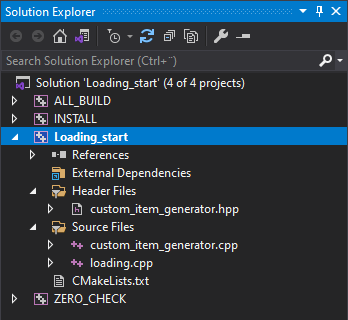
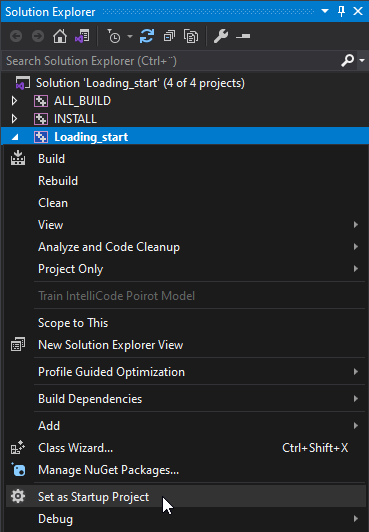
在 Visual Studio 的 Solution Explorer 中,右键点击 Loading_start 项目并选择 Set as Startup Project。
在
custom_item_generator.hpp头文件中,为列表项生成器创建类:#ifndef CUSTOM_ITEM_GENERATOR_HPP #define CUSTOM_ITEM_GENERATOR_HPP #include <kanzi/kanzi.hpp> using namespace kanzi; // Create a list item generator which you use to asynchronously load the list items for the Trajectory List Box 3D node. class CustomListBoxItemGenerator : public ListBoxItemGenerator3D, public enable_shared_from_this<CustomListBoxItemGenerator> { // Define the struct which holds the information about each list item. struct ItemInfo { // Define the root node of the prefab instance which displays each list item. Node3DSharedPtr m_item; }; // Define the type for the vector which stores both the visible and hidden list items. typedef vector<ItemInfo> ItemInfoVector; }; #endif
在
CustomListBoxItemGenerator类中,在您定义用于存储有关每个列表项信息的向量类型之后,实现列表项生成器的基类所需的回调函数:// Create a list item generator which you use to asynchronously load the list items for the Trajectory List Box 3D node. class CustomListBoxItemGenerator : public ListBoxItemGenerator3D, public enable_shared_from_this<CustomListBoxItemGenerator> { ... public: // Constructor for the list item generator. explicit CustomListBoxItemGenerator(Domain* domain); // Implement the callback function which attaches the list item generator to a Trajectory List Box 3D node. void attach(Node3D& node) override; // Implement the callback function which detaches the list item generator from a Trajectory List Box 3D node. void detach(Node3D& node) override; // Implement the callback function which acquires and instantiates the Placeholder prefab. // You show the Placeholder prefab while the application is asynchronously loading the resources for list items. ItemSharedPtr acquireItem(size_t index) override; // Implement the callback function which removes the smart pointer to the item that the Trajectory List Box 3D // returns from the acquireItem() function. In this tutorial you do not define the item management which // releases list items. For example, release list items to unload the resources for items when they // become invisible. void releaseItem(ItemSharedPtr object) override; // Implement the callback function which gets the index of the list item that the Trajectory List Box 3D // node returns from the acquireItem() function. The application uses the index of that list item in // the updateItem() function to replace the Placeholder prefab with the list item. optional<size_t> getItemIndex(ItemSharedPtr object) override; // Implement the callback function which gets the size of a list item to display at the given index. // If you do not set the size of list items, the application uses the size you return from this function. Vector3 getItemSize(size_t index) override; // Implement the callback function which gets the number of items in the list item generator. // If you add or remove an item from the Trajectory List Box 3D node, the application uses the value you return from this function. size_t getCount() override; private: // Implement the callback function that a Trajectory List Box 3D node calls each time // your application finishes loading a prefab. You use this function to replace the // Placeholder prefab with a list item. void updateItem(size_t index, string url); // The Trajectory List Box 3D node to which you attach the list item generator. TrajectoryListBox3D* m_listBox; // The vector which stores both the visible and hidden list items. ItemInfoVector m_items; };
在
custom_item_generator.cpp文件中,添加CustomListBoxItemGenerator类的构造函数,并定义您在头文件中实现的attach()和detach()回调函数:CustomListBoxItemGenerator::CustomListBoxItemGenerator(Domain* domain) : ListBoxItemGenerator3D(domain) { } // Define the callback function which attaches the list item generator to a Trajectory List Box 3D node. void CustomListBoxItemGenerator::attach(Node3D& listBox) { // Store a pointer to a Trajectory List Box 3D node. TrajectoryListBox3D* trajectoryListBox = dynamic_cast<TrajectoryListBox3D*>(&listBox); // Check that a Trajectory List Box 3D node exists. if (!trajectoryListBox) { kzThrowException(logic_error("You can attach this item generator only to a Trajectory List Box 3D node.")); } m_listBox = trajectoryListBox; // Set the size of the vector which stores the list items. // You set the size to 9 because there are 9 items in the kzb file of this application. // When the number of list items is dynamic, you can define a data source which // the list item generator uses to provide the list items. When you use a data source // for this purpose, you must synchronize the list item generator with that data source. m_items.resize(9); } // Implement the callback function which detaches the list item generator from a Trajectory List Box 3D node. void CustomListBoxItemGenerator::detach(Node3D&) { // This callback function detaches the list item generator from a Trajectory List Box 3D node. // In this tutorial you do not uninitialize the list item generator. // In your application uninitialize the list item generator when you want to clean up memory. }
在
custom_item_generator.cpp文件中,在detach()回调函数之后,定义返回索引、大小和列表项生成器中项目数量的回调函数:// Implement the callback function which gets the index of the list item that a Trajectory List Box 3D // node returns from the acquireItem() function. The application uses the index of that list item in // the updateItem() function to replace the Placeholder prefab with the list item. optional<size_t> CustomListBoxItemGenerator::getItemIndex(ItemSharedPtr item) { // Find the index of the next list item. // You get the index by searching the list item container. optional<size_t> itemIndex; for (size_t i = 0; i < m_items.size(); ++i) { ItemInfo& itemInfo = m_items[i]; if (itemInfo.m_item == item) { return i; } } return itemIndex; } // Define the callback function which gets the size of a list item to display at the given index. // If you do not set the size of list items, the application uses the size you return from this function. Vector3 CustomListBoxItemGenerator::getItemSize(size_t /*index*/) { // Set the item size to 0. // In Kanzi Studio in the Trajectory List Box 3D node you set the properties that set the size of items // in the Trajectory List Box 3D node. return Vector3(); } // Define the callback function which gets the number of items in the list item generator. // If you add or remove an item from the Trajectory List Box 3D node, the application uses the value you return from this function. size_t CustomListBoxItemGenerator::getCount() { // Get the number of both visible and hidden list items. return m_items.size(); }
在
loading.cpp文件中,包含custom_item_generator.hpp头文件以访问您在该文件中实现的函数:#include <kanzi/kanzi.hpp> #include "custom_item_generator.hpp"
在
loading.cpp文件中,向Loading应用程序类添加您创建的列表项生成器的初始化:class Loading : public ExampleApplication { ... void onProjectLoaded() override { // Get the Screen node. ScreenSharedPtr screen = getScreen(); // Get the Trajectory List Box 3D node. // The application kzb file contains an alias you use to get the Trajectory List Box 3D node. TrajectoryListBox3DSharedPtr listBox = screen->lookupNode<TrajectoryListBox3D>("#Trajectory List Box 3D"); // Initialize the list item generator and set the Trajectory List Box 3D node to use the functionality // you implement in that list item generator. shared_ptr<CustomListBoxItemGenerator> itemGenerator(new CustomListBoxItemGenerator(getDomain())); listBox->setItemGenerator(itemGenerator); } private: // Create a pointer for the Trajectory List Box 3D node. TrajectoryListBox3DSharedPtr m_listBox; };
异步加载列表项
在本节中,您将学习如何异步加载用户滚动 Trajectory List Box 3D 节点时每个可见项目的资源。您将应用程序设置为显示一个占位符项目,直到应用程序加载该项目的资源。
要异步加载列表项,请执行以下代码:
在
custom_item_generator.cpp文件中,在detach()回调函数之后,定义acquireItem()函数:// Define the callback function which acquires and displays the Placeholder prefab for each list item // until the application loads the resources for that item. // The function asynchronously acquires the resources for each list item from a prefab and // calls the updateItem() function to tell the Trajectory List Box 3D node when an item changes. CustomListBoxItemGenerator::ItemSharedPtr CustomListBoxItemGenerator::acquireItem(size_t index) { // If an item already exists, return that item. if (m_items[index].m_item) { return m_items[index].m_item; } // Acquire and instantiate the Placeholder prefab you use as the placeholder for list items that are loading. PrefabTemplateSharedPtr itemPrefabTemplate = m_listBox->acquireResource<PrefabTemplate>(ResourceID("kzb://loading/Prefabs/Placeholder")); Node3DSharedPtr item = itemPrefabTemplate->instantiate<Node3D>("Placeholder"); // Save the Placeholder as the current item in the item container. // You replace the placeholder with the item when application loads that item. m_items[index].m_item = item; // Create the kzb URL for each list item from kzb path and item index. string url = string("kzb://loading/Prefabs/Wheel") + to_string(index); // Acquire the prefab for the list item. PrefabTemplateSharedPtr prefab = m_listBox->acquireResource<PrefabTemplate>(ResourceID(url)); // Start asynchronously loading resources for a prefab. ResourceManager::UrlContainer urls; collectResourceUrls(*prefab, urls); m_listBox->getResourceManager()->acquireResourcesAsync(urls, bind(&CustomListBoxItemGenerator::updateItem, this, index, url)); return item; } // Implement the callback function which removes the smart pointer to the item that the Trajectory List Box 3D // returns from the acquireItem() function. // In this tutorial you do not define item management where you release the list item. void CustomListBoxItemGenerator::releaseItem(ItemSharedPtr item) { // In this tutorial the list item generator does not implement any caching or complex item management. // You leave this function empty because the shared_ptr destructor releases the list item. // For example, you can release the list item to unload the resources for that item each time that item becomes invisible. }
在
custom_item_generator.cpp文件中,定义updateItem()函数,该函数将 Placeholder 预设替换为列表项,并在每次调用acquireItem()函数时通知 List Box 项目已更改:// Define the callback function that a Trajectory List Box 3D node calls each time // the application finishes loading the resources for a prefab. // You use this function to replace the Placeholder prefab with a list item. void CustomListBoxItemGenerator::updateItem(size_t index, string url) { // Get the prefab that finishes loading and replace the Placeholder with the next item. PrefabTemplateSharedPtr prefab = m_listBox->acquireResource<PrefabTemplate>(ResourceID(url)); Node3DSharedPtr item = prefab->instantiate<Node3D>("item"); m_items[index].m_item = item; // Notify the Trajectory List Box 3D node that the list item changed. // The Trajectory List Box 3D calls the acquireItem() function which returns the next item. m_listBox->notifyItemReplaced(index); }
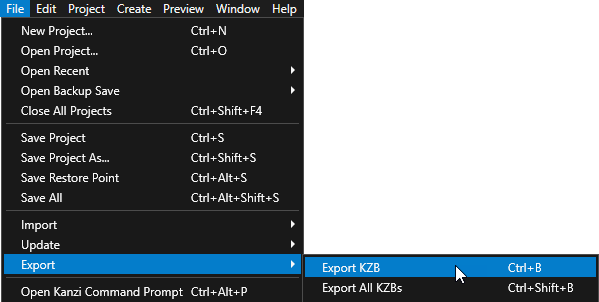
在 Kanzi Studio 中,选择 File > Export > Export KZB。
Kanzi Studio creates the kzb file and configuration files from your Kanzi Studio project. Kanzi Studio stores the exported files in the
<ProjectName>/Application/bindirectory or the location that you set in Project > Properties in the Binary Export Directory property. The kzb file contains all nodes and resources from your Kanzi Studio project, except the resources that you mark in a localization table as locale packs.当您从 Visual Studio 运行您的 Kanzi 应用程序时,您的应用程序会加载 kzb 文件和配置文件。
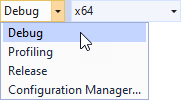
选择您要使用的解决方案配置并运行您的应用程序。
在开发期间,选择 Debug 配置。当您准备好创建生产版本时,选择 Release 配置。
当您运行应用程序并滚动 Trajectory List Box 3D 时,应用程序会显示 Placeholder 预设,同时异步加载每个列表项的资源。
接下来该做什么?
在本教程中,您已学习如何异步加载要在用户滚动该 List Box 时显示在 List Box 节点中的资源。现在您可以:
了解如何使用 List Box 节点创建一个从数据源接收数据的联系人列表。请参阅 教程:使用 Grid List Box 创建联系人列表。。
了解如何在 Kanzi 中定义数据源,并从数据源获取您的 Kanzi 应用程序的数据。请参阅 教程:从数据源获取应用程序数据。