使用 Text Box 节点
使用 Text Box 节点为您的应用程序添加单行文本输入。
使用 Text Box 3D 在三维空间中添加文本输入,使用 Text Box 2D 在二维空间中添加文本输入。
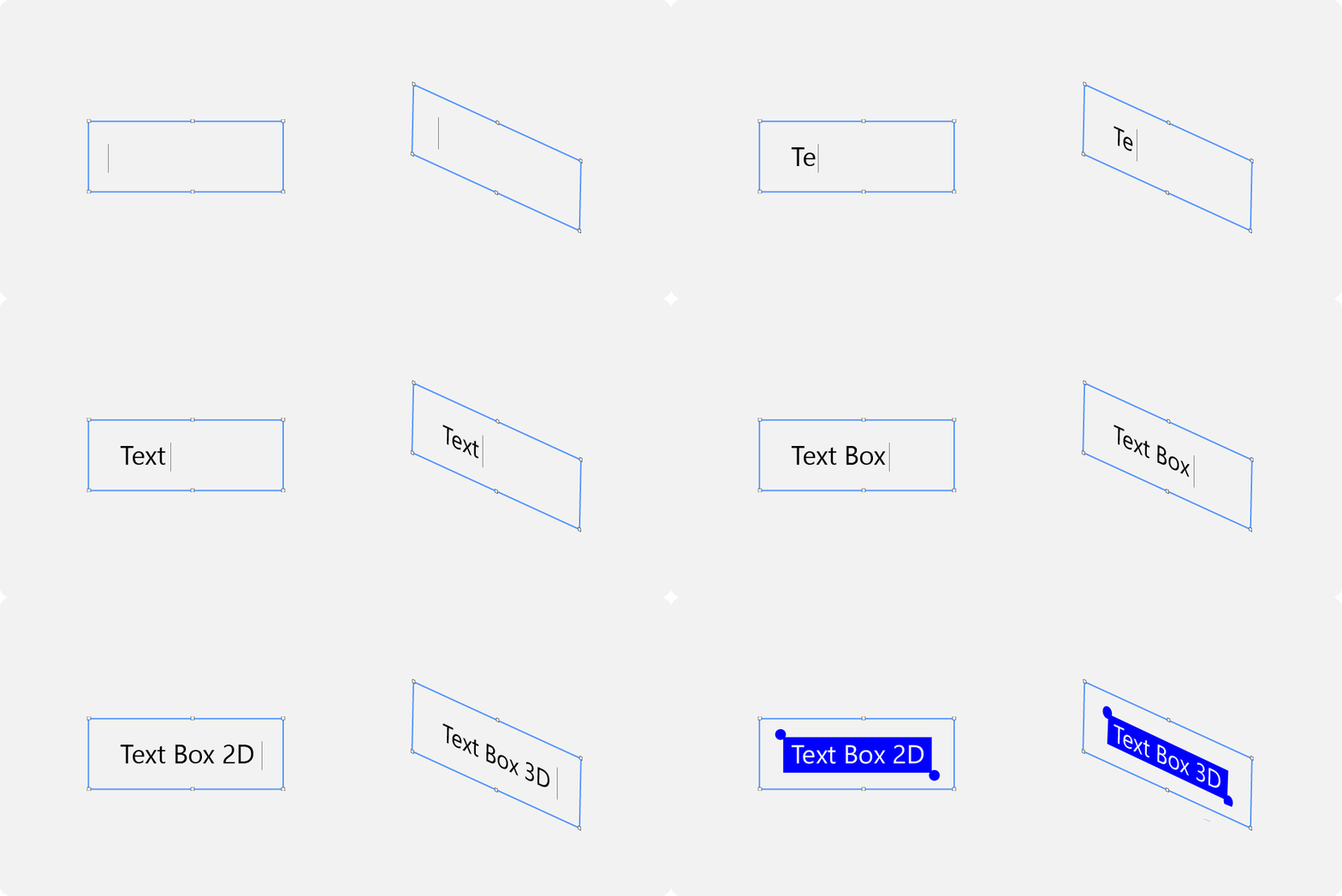
Text Box 节点默认启用了 Focusable 属性,并且可以接收焦点。默认情况下,当 Text Box 节点获得焦点时,该 Text Box 节点处于编辑状态。
当 Text Box 节点处于编辑状态时,要在该文本框中移动光标,您可以使用这些默认键盘键:
← 将光标向后移动一个字符。
→ 将光标向前移动一个字符。
Ctrl ← 将光标移动到光标前的单词边界。
Ctrl → 将光标移动到光标后面的单词边界。
Home 将光标移动到文本内容的开头。
End 将光标移动到文本内容的末尾。
当 Text Box 节点处于编辑状态时,要修改该文本框中的文本选择,您可以使用这些默认键盘键:
Shift ← 将文本选择中的活动光标向后移动一个字符。
Shift Ctrl 将活动光标在文本选择中移动到当前光标位置之前的单词边界。
Shift Home 将文本选择中的活动光标移动到文本内容的开头。
Shift → 将文本选择中的活动光标向前移动一个字符。
Shift Ctrl → 将活动光标在文本选择中移动到当前位置之后的单词边界。
Shift End 将活动光标在文本选择中移动到文本内容的末尾。
Ctrl A 以选择所有文本。
备注
TextBox2D 仅在 Windows 平台上实现。要使用它,您需要在应用程序代码的 registerMetadataOverride 中加入以下代码片段:
#if defined WIN32
    WindowsImeBackend::registerModule(getDomain());
#endif
编辑 Text Box 节点中的文本
默认情况下,Text Box 节点:
当焦点移动到该 Text Box 节点时进入编辑状态。当应用程序用户点击节点或使用焦点链导航将焦点设置到节点时,会发生这种情况。请参阅 焦点。
当焦点从该 Text Box 节点移动到另一个节点时,退出编辑状态。
请参阅 手动控制 Text Box 节点何时处于编辑状态时。
要编辑 Text Box 节点中的文本:
在 Node Tree 按 Alt 并右键单击 中,找到您要向应用程序添加单行文本输入的节点,并选择 Text Box 2D 或 Text Box 3D。
您只能在 3D 节点中创建 3D 节点,例如 Scene 节点,并且只能在 2D 节点中创建 2D 节点。
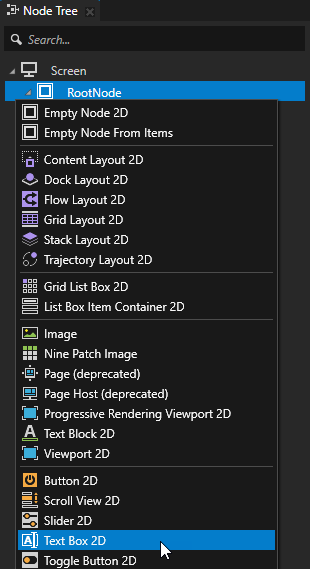
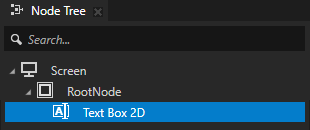
在 Node Tree 中创建一个节点,您可以使用该节点在 Text Box 节点中添加、编辑和删除文本。
例如,创建一个 Button 2D 节点并向其添加内容。
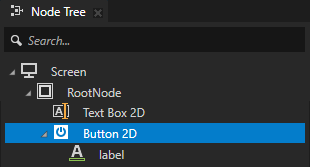
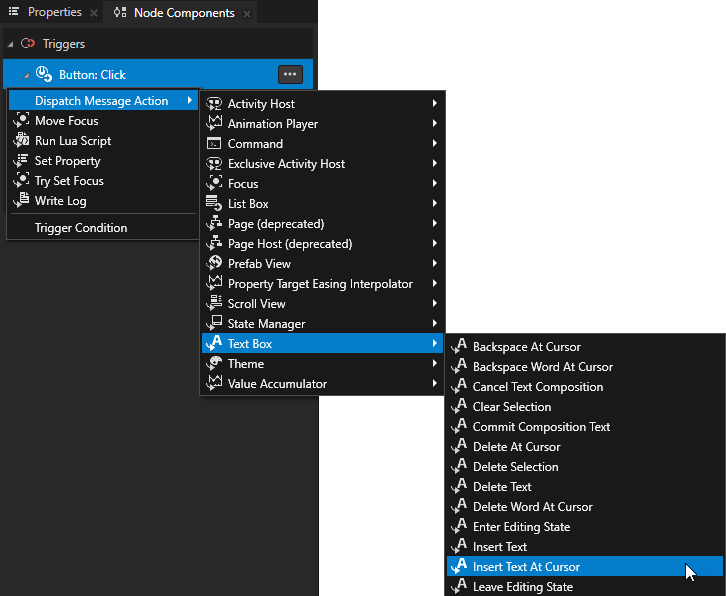
在 Node Tree 中,选择您在上一步中创建的节点,并在 Node Components > Triggers 部分 按 Alt 并右键单击 您要用于添加、编辑或删除文本的触发器,然后选择一个 Text Box 操作。请参阅 文本框操作。
例如:
Insert Text At Cursor
在光标位置插入文本。
在 Insert Text At Cursor 操作中,将 Text 属性的值设置为您要插入的文本。
Delete At Cursor
使用 delete 删除一个字符。
Backspace At Cursor
使用退格键删除字符。
Move Cursor Backward
将光标向后移动一个字符。
Move Cursor Forward
将光标向前移动一个字符。
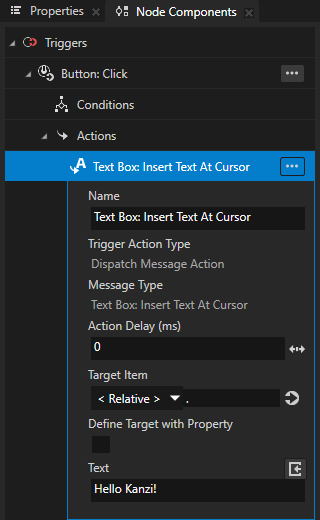
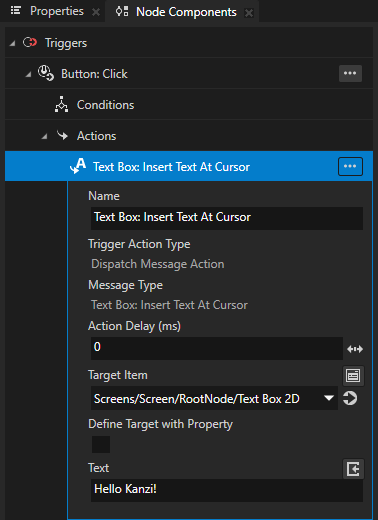
在您在上一步中创建的操作中,将 Target Item 设置为您要编辑文本的 Text Box 节点。
当触发器(您添加了操作的触发器)被触发时,Kanzi 执行编辑 Text Box 节点中文本的操作。
手动控制 Text Box 节点何时处于编辑状态时
当节点处于编辑状态时,应用程序用户可以编辑 Text Box 节点中的文本。一次只能有一个 Text Box 节点处于编辑状态。Text Box 节点总是在以下情况下离开编辑状态:
另一个 Text Box 节点进入编辑状态。
该 Text Box 节点已禁用。请参阅 控制 Text Box 节点是否在使用中。
默认情况下,Text Box 节点:
当焦点移动到该 Text Box 节点时进入编辑状态。当应用程序用户点击节点或使用焦点链导航将焦点设置到节点时,会发生这种情况。请参阅 焦点。
当焦点从该 Text Box 节点移动到另一个节点时,退出编辑状态。
要手动控制 Text Box 节点何时处于编辑状态:
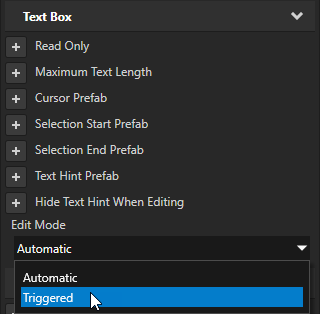
在 Node Tree 中选择一个 Text Box 节点,在 Properties 中添加 Edit Mode 属性,并将其设置为 Triggered。
通过这种方式,您将 Text Box 节点设置为:
当触发器执行 Text Box: Enter Editing State 操作时进入编辑状态。
当以下任一情况发生时,退出编辑状态:
触发器执行 Text Box: Leave Editing State 操作。
另一个 Text Box 节点进入编辑状态。
创建一个触发器,将 Text Box 节点设置为编辑状态。
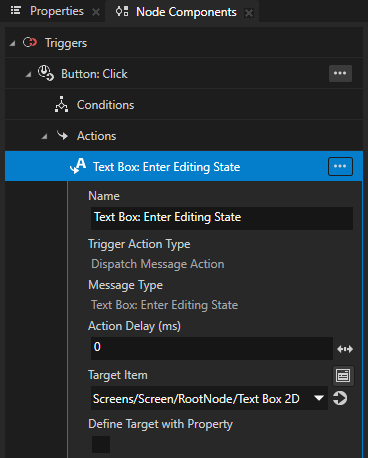
例如:要在应用程序用户单击按钮时将 Text Box 节点设置为编辑状态,在 Node Tree 中创建一个 Button 节点,在 Node Components 中的 Button: Click 触发器中创建一个 Text Box: Enter Editing State 动作,并将 Target Item 设置为您要编辑的 Text Box 节点。
创建一个触发器,将 Text Box 节点设置为退出编辑状态。
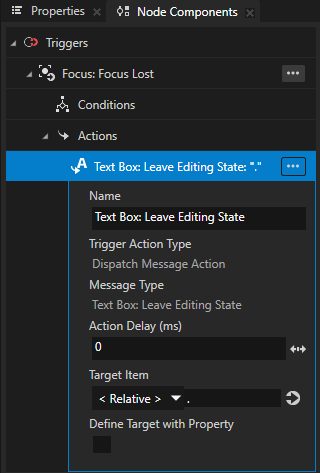
例如,要设置 Text Box 节点在失去焦点时退出编辑状态,在该 Text Box 节点中创建一个 Focus: Focus Lost 触发器来执行 Text Box: Leave Editing State 操作。
限制 Text Box 节点中文本的长度。
在 Text Box 节点中,您可以设置:
Text Box 节点可以显示的文本长度。请参阅 设置 Text Box 节点可以显示的文本长度。。
用户可以在 Text Box 节点中输入的文本长度。请参阅 设置用户可以在 Text Box 节点中输入的文本长度。。
设置 Text Box 节点可以显示的文本长度。
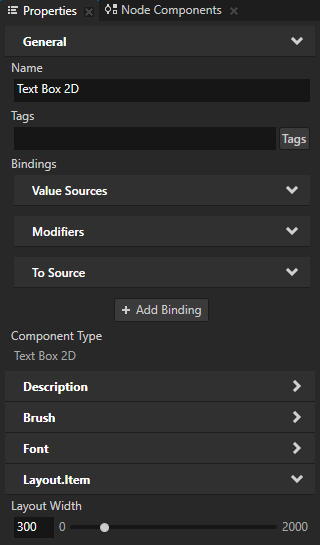
要设置 Text Box 节点一次可以显示的文本长度, 在 Node Tree 中选择该节点,并在 Properties 中设置 Layout Width 属性的值。
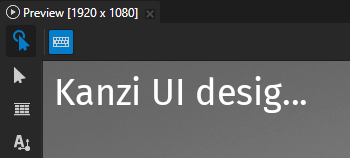
当 Text Box 节点中的文本长度超过该节点的宽度时,在编辑状态下,用户可以通过在该 Text Box 节点中移动光标来滚动文本。
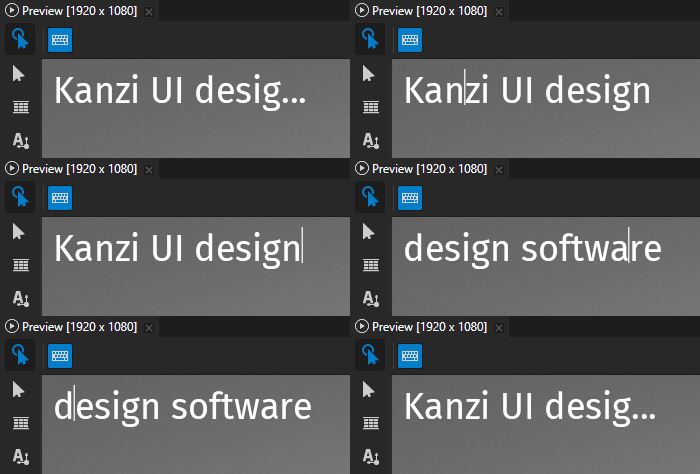
要让 Text Box 节点中文本的长度决定该 Text Box 节点的宽度,请移除 Layout Width 属性。
设置用户可以在 Text Box 节点中输入的文本长度。
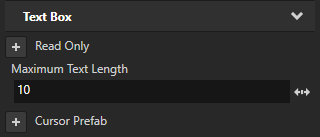
要设置用户可以在 Text Box 节点中输入的文本长度,请在 Node Tree 中选择 Text Box 节点,在 Properties 中添加 Maximum Text Length 属性,并将其设置为您希望限制用户在该 Text Box 节点中输入的 UTF-8 字符数。
在 Text Box 2D 节点中设置文本的颜色
要设置 Text Block 2D 或 Text Box 2D 节点中文本的颜色:
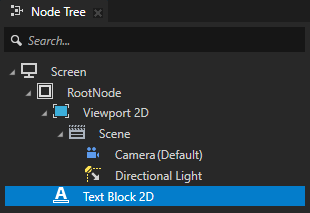
在 Node Tree 中创建或选择一个 Text Block 2D 或 Text Box 2D 节点。
在 Properties 中添加 Foreground Brush 属性。
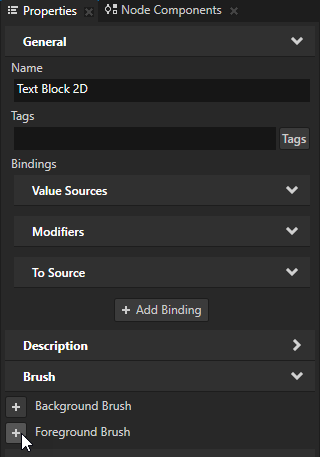
将 Foreground Brush 属性设置为现有的 Color Brush 或选择 + Color Brush,命名画笔,单击属性旁边的
 ,并设置您创建的 Color Brush 的颜色。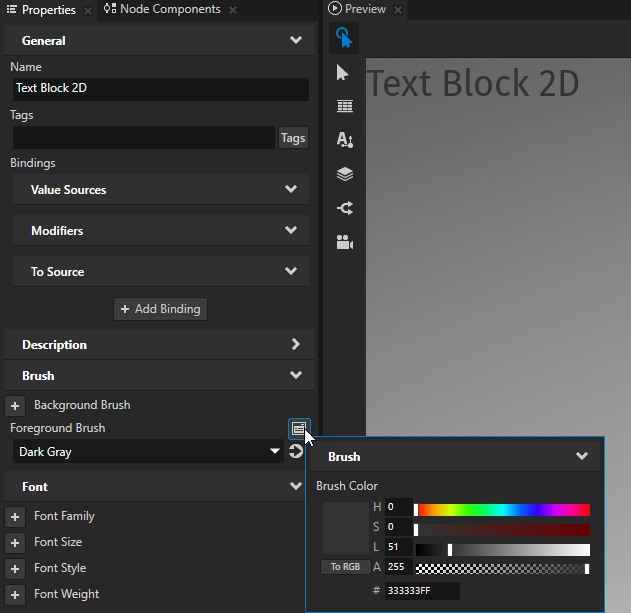
小技巧
要快速编辑画笔,请在 Properties 中,Background Brush 或 Foreground Brush 属性旁边点击
并编辑画笔。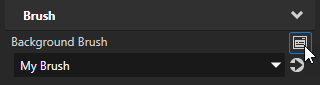
在 Text Box 3D 节点中设置文本的颜色
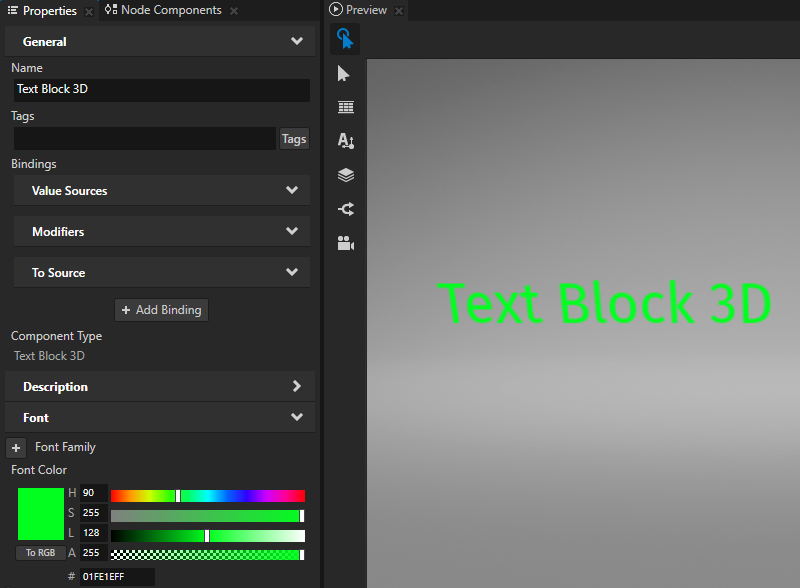
要设置3D文本节点中文字的颜色:
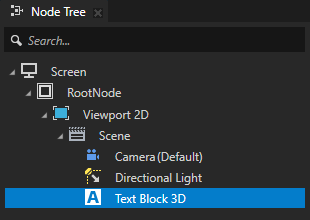
在 Node Tree 中创建或选择一个 Text Block 3D 或 Text Box 3D 节点。
在 Properties 中添加并设置 Font Color 属性。
设置光标的外观
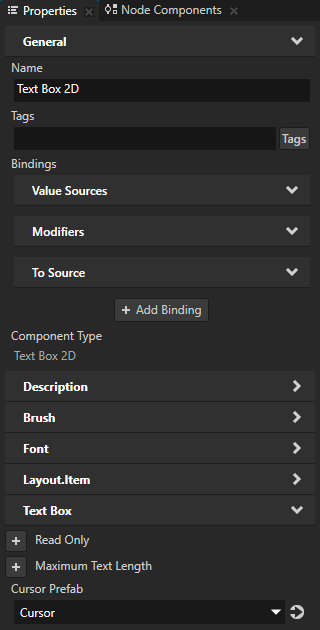
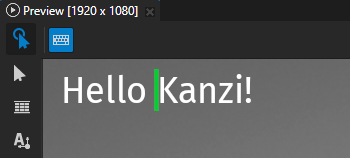
您可以设置 Text Box 光标的外观。要在 Kanzi Studio Preview 中查看 Text Box 节点的光标,请单击该 Text Box 节点。
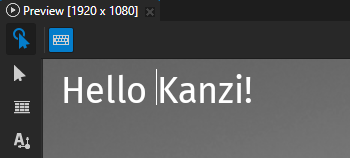
要设置光标的外观:
在 Prefabs 中创建一个您想用作光标的预设。
例如:对于 Text Box 2D 节点,创建一个 Empty Node 2D 节点,并设置其 Background Brush、Layout Width 和 Layout Height 属性。
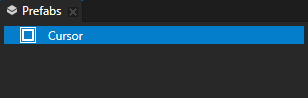
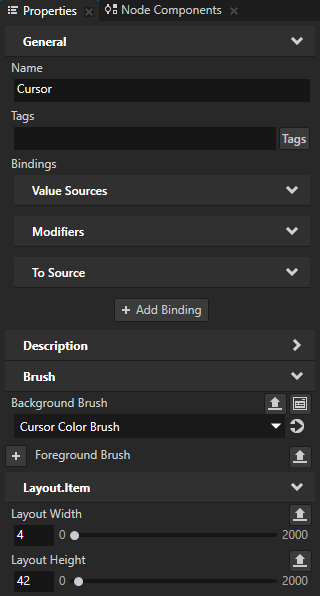
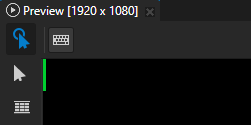
在 Node Tree 中选择一个 Text Box 节点,并在 Properties 中添加并设置 Cursor Prefab 属性为您想用作光标的预设。
Text Box 节点将光标的顶部与 Text Box 节点的顶部对齐。
如果光标不适合 Text Box 2D 节点,请在 Text Box 2D 节点中设置 Horizontal Padding 和 Vertical Padding 属性以调整光标位置的偏移量。
在 Text Box 2D 节点中设置文本选择的外观。
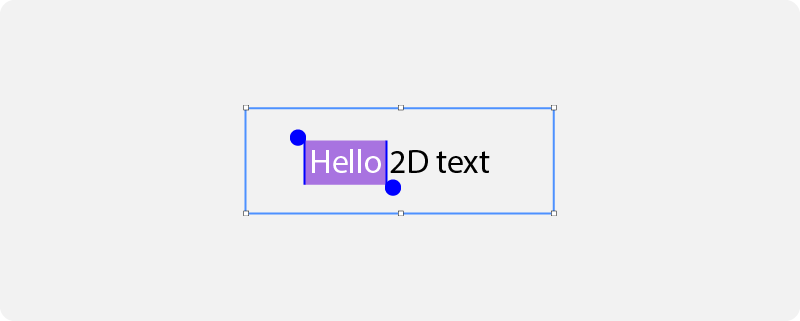
在 Text Box 节点中,您可以设置所选文本的颜色、其背景以及更改所选文本的句柄。
要在 Text Box 节点中选择一个单词,请双击该单词。要修改选择,请拖动所选文本左上角和右下角的句柄。
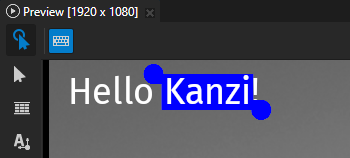
要设置文本选择的外观,在 Node Tree 中选择一个 Text Box 2D 节点,并在 Properties 中添加和设置:
将 Selection Background Brush 到您要用于填充所选文本背景的画笔。 |
|
将 Selection Foreground Brush 到您想要用来填充所选文本的画笔。 |
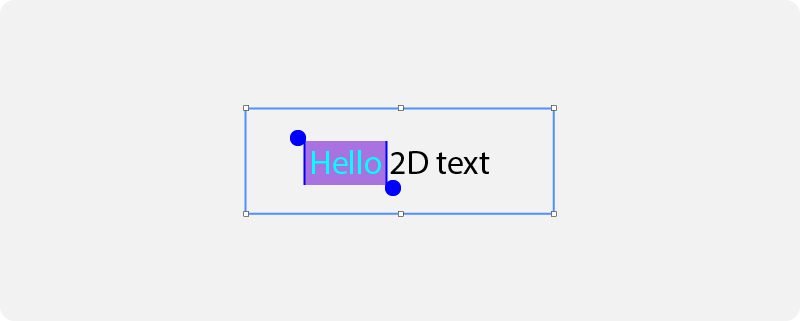
|
将 Selection Start Prefab 到您要用于选择开始时选择句柄的预设。 |
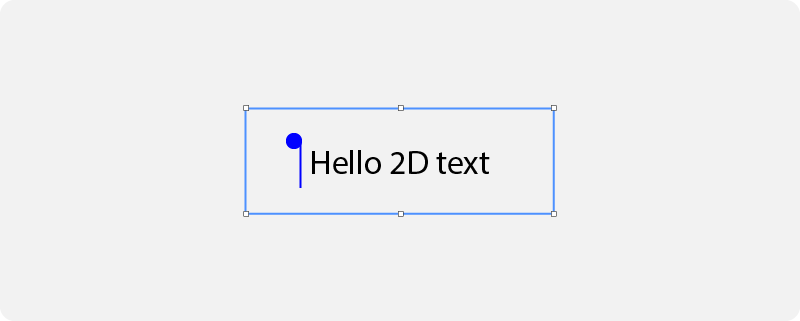
|
将 Selection End Prefab 到您要用于选择结束时选择句柄的预设。 |
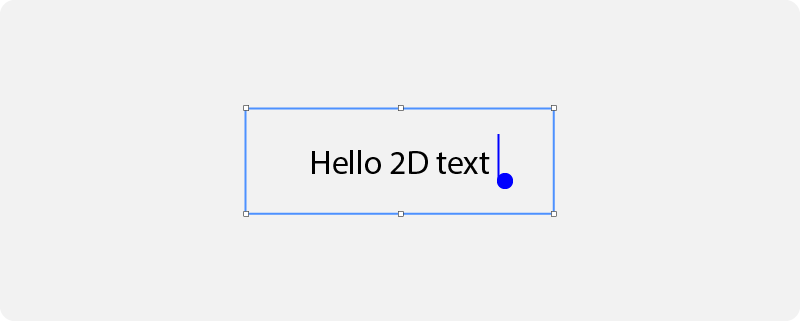
|
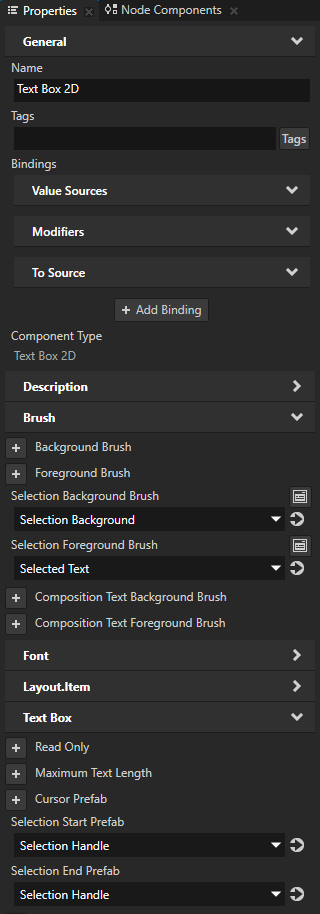
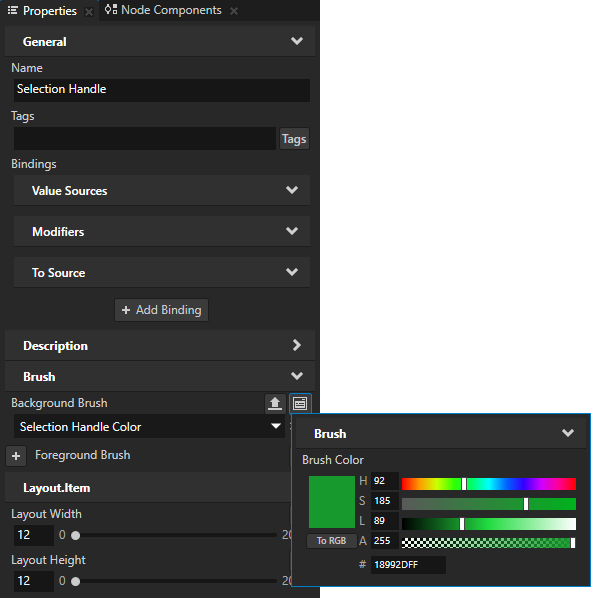
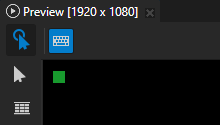
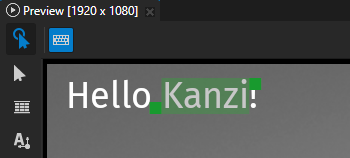
小技巧
如果您用作选择句柄的预设不适合 Text Box 2D 节点,请在 Text Box 2D 节点中将 Horizontal Padding 和 Vertical Padding 属性设置为至少是选择句柄预设宽度和高度的一半。
在 Text Box 3D 节点中设置文本选择的外观。
在 Text Box 节点中,您可以设置所选文本的颜色、其背景以及更改所选文本的句柄。
要在 Text Box 节点中选择一个单词,请双击该单词。要修改选择,请拖动所选文本左上角和右下角的句柄。
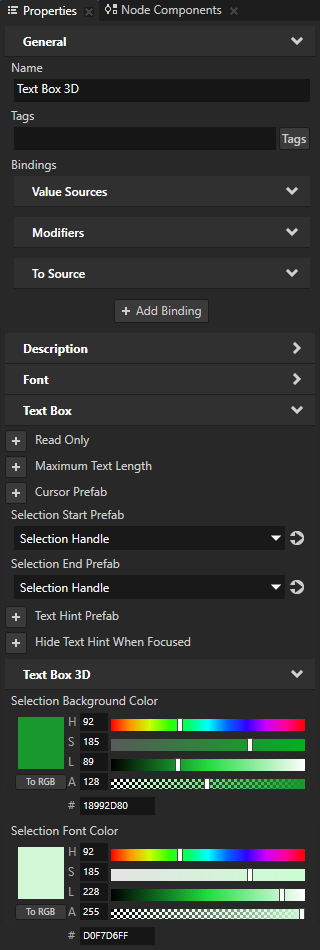
要设置文本选择的外观,在 Node Tree 中选择一个 Text Box 3D 节点,并在 Properties 中添加和设置:
将 Selection Start Prefab 到您要用于选择开始时选择句柄的预设。 |
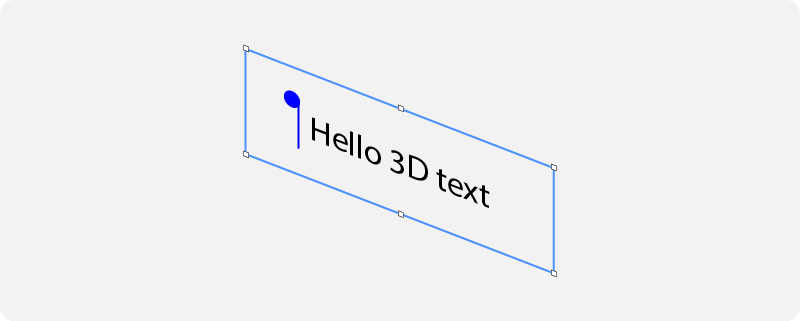
|
将 Selection End Prefab 到您要用于选择结束时选择句柄的预设。 |
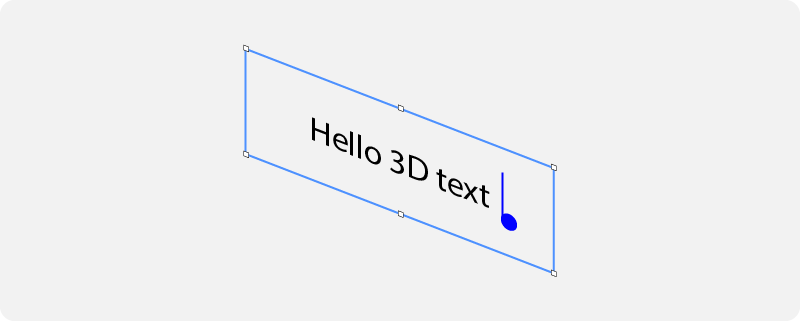
|
将 Selection Background Color 设置为您想要用于填充所选文本背景的颜色。 |
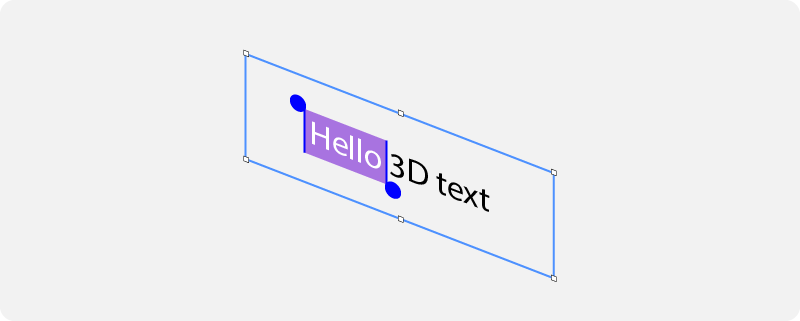
|
将 Selection Font Color 设置为您想要用于填充所选文本的颜色。 |
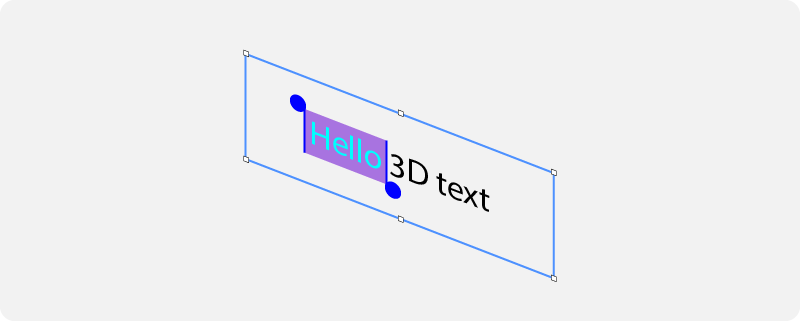
|
在 Text Box 2D 节点中设置组合文本的外观。
合成文本是应用程序用户使用输入法编辑器 (IME) 生成的文本实例。输入法编辑器是一个应用程序,使用户能够使用他们的输入设备输入那些在这些输入设备上本地不可用的字符和符号。
在 Text Box 节点中,您可以设置组合文本及其背景的颜色。
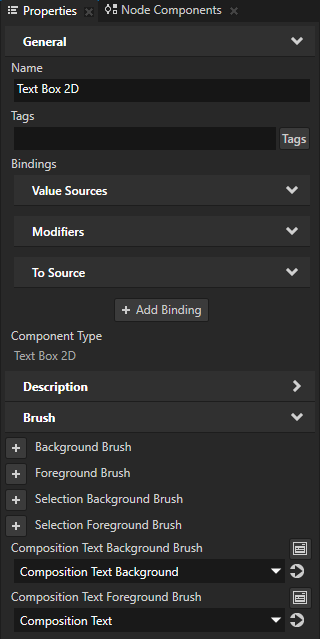
要设置组合文本的外观,在 Node Tree 中选择一个 Text Box 2D 节点,并在 Properties 中添加和设置:
将 Composition Text Background Brush 到您要用于填充合成文本背景的画笔。
将 Composition Text Foreground Brush 到您想要用来填充合成文本的画笔。
在 Text Box 3D 节点中设置组合文本的外观。
合成文本是应用程序用户使用输入法编辑器 (IME) 生成的文本实例。输入法编辑器是一个应用程序,使用户能够使用他们的输入设备输入那些在这些输入设备上本地不可用的字符和符号。
在 Text Box 节点中,您可以设置组合文本及其背景的颜色。
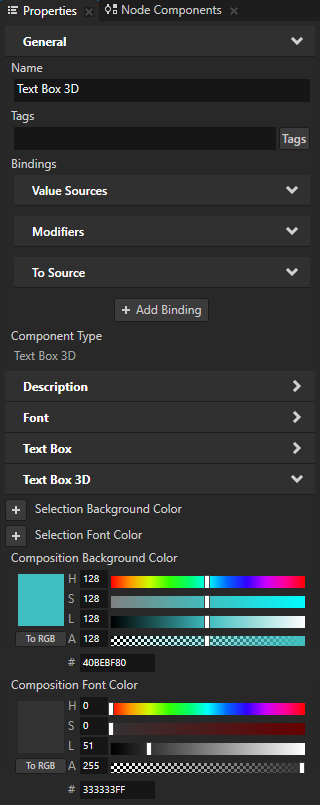
要设置组合文本的外观,在 Node Tree 中选择一个 Text Box 3D 节点,并在 Properties 中添加和设置:
将 Composition Background Color 设置为您想要用来填充组合文本背景的颜色。
将 Composition Font Color 设置为您想要用于填充合成文本的颜色。
显示占位符内容
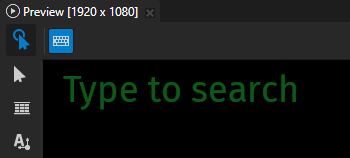
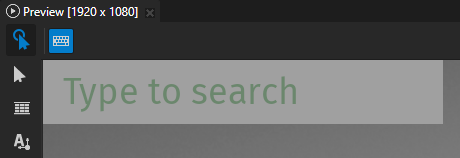
当 Text Box 为空时,您可以设置 Text Box 节点以显示占位符内容。例如,您可以使用此占位符内容来显示文本,告诉用户他们可以在 Text Box 节点中输入什么。
要显示占位符内容:
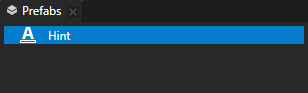
在 Prefabs 中创建一个您想用作占位符内容的预设。
例如,创建一个 Text Block 节点并设置其 Text 属性。
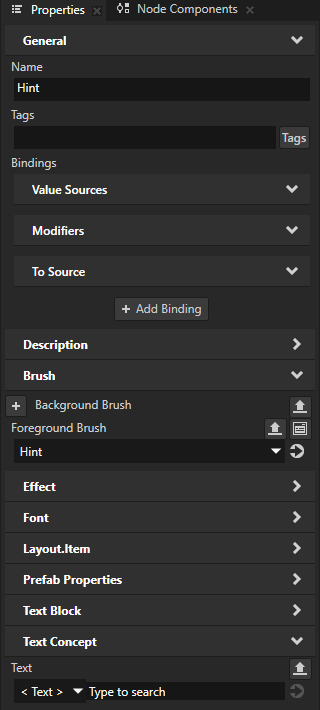
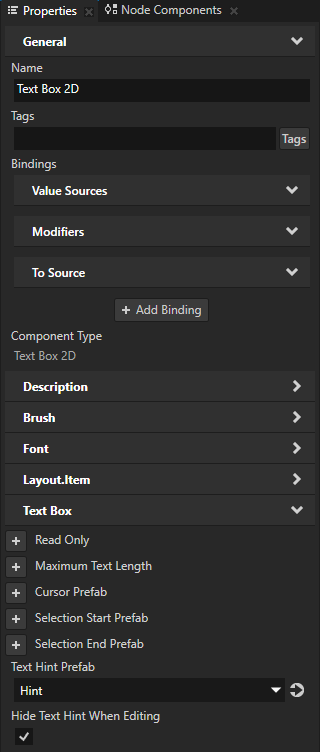
在 Node Tree 中选择一个 Text Box 节点,并在 Properties 中添加和设置:
将 Text Hint Prefab 到您要用作占位符内容的预设。
(可选) Hide Text Hint When Editing 设置为启用,以便在该 Text Box 节点处于编辑状态时隐藏占位符内容。默认情况下,Kanzi 保持占位符内容可见,直到用户在 Text Box 中输入一些文本。
屏蔽密码
您可以在 Text Box 节点中设置如何屏蔽用户输入的密码字符。
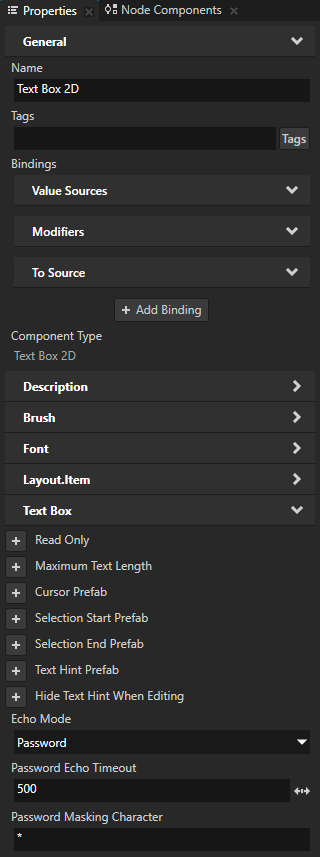
要设置 Kanzi 如何在 Text Box 节点中屏蔽密码,请在 Node Tree 中选择该节点,并在 Properties 中添加和设置:
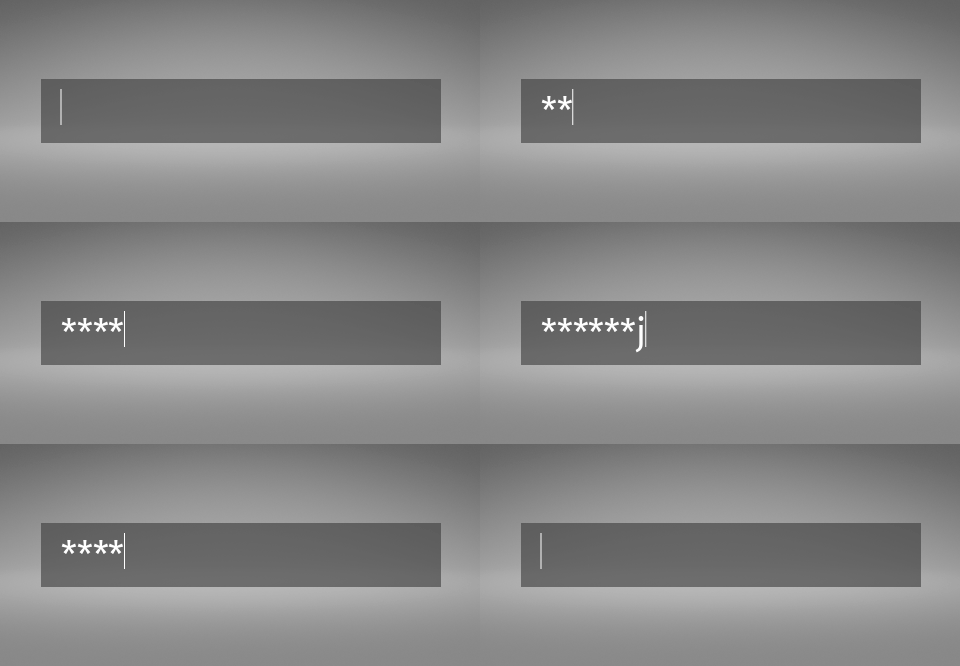
Echo Mode 到 Password 这样,您可以设置 Kanzi 以显示每个字符一段时间,然后用掩码字符将其隐藏。
Password Echo Timeout 为您希望显示每个字符然后隐藏它的时间(以毫秒为单位)。默认情况下,Kanzi 每个字符显示一秒。
Password Masking Character 到您想要隐藏每个密码字符的 UTF-8 字符。默认情况下,Kanzi 使用圆点符号 (•) 掩盖每个字符。
在 Text Box 中设置截断。
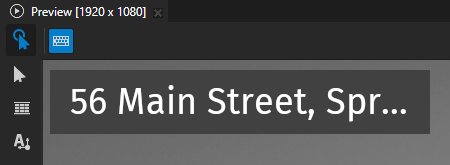
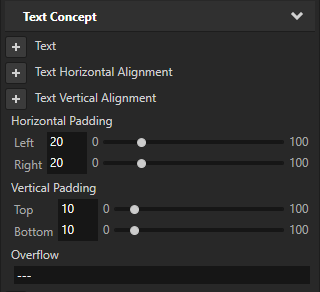
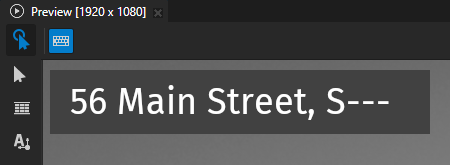
当 Text Box 节点不处于编辑状态时,如果节点中的文本长度超过该节点的宽度,Kanzi 默认情况下用省略号截断文本的末尾部分。当 Text Box 节点处于编辑状态时,Kanzi 不会截断文本。相反,用户可以通过移动光标来滚动文本。
您可以设置:
设置要截断的部分
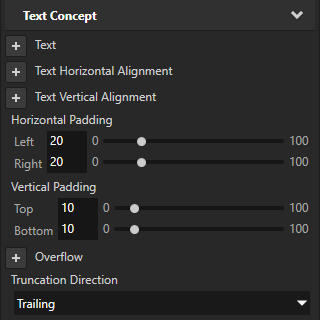
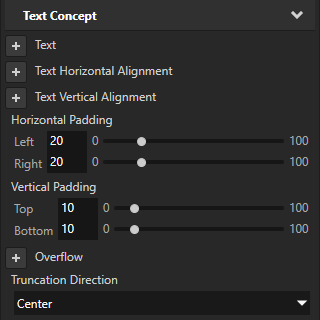
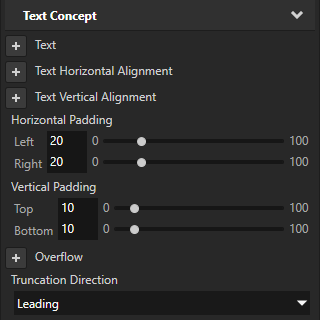
要设置文本的哪一部分被截断,请添加 Text Concept > Truncation Direction 属性并将其设置为:
Trailing 用于截断文本的末尾部分。默认值。
Center 用于截断文本的中间部分。
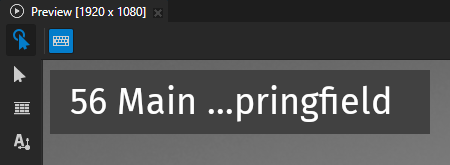
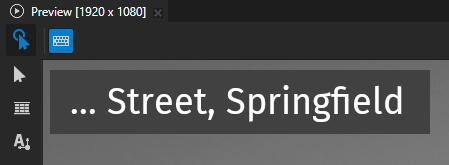
Leading 用于截断文本的开头部分。
设置截断边界
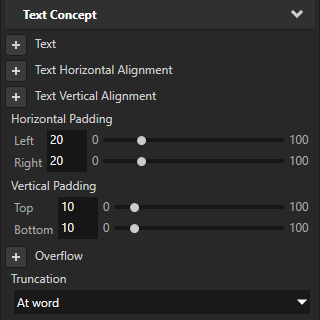
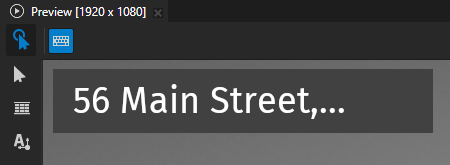
要设置截断边界类型,添加 Text Concept > Truncation 属性并将其设置为:
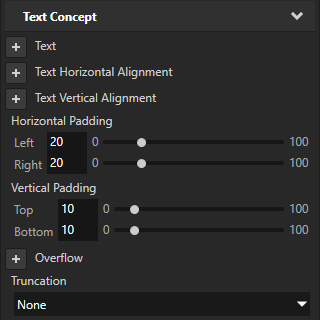
None 禁用文本截断。Kanzi 在节点边界裁剪文本。
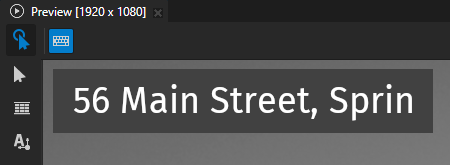
At character 逐字符截断文本。默认值。
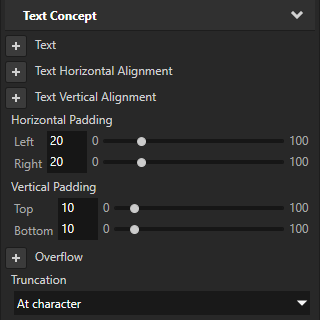
At word 通过整个单词截断文本。
设置指示截断的字符
要设置指示截断的字符,请添加并设置 Overflow 属性。
使用绑定更新 Text Box 节点中的文本。
要使用绑定更新 Text Box 节点中的文本,请使用到源或双向绑定。请参阅 绑定 (Bindings)。
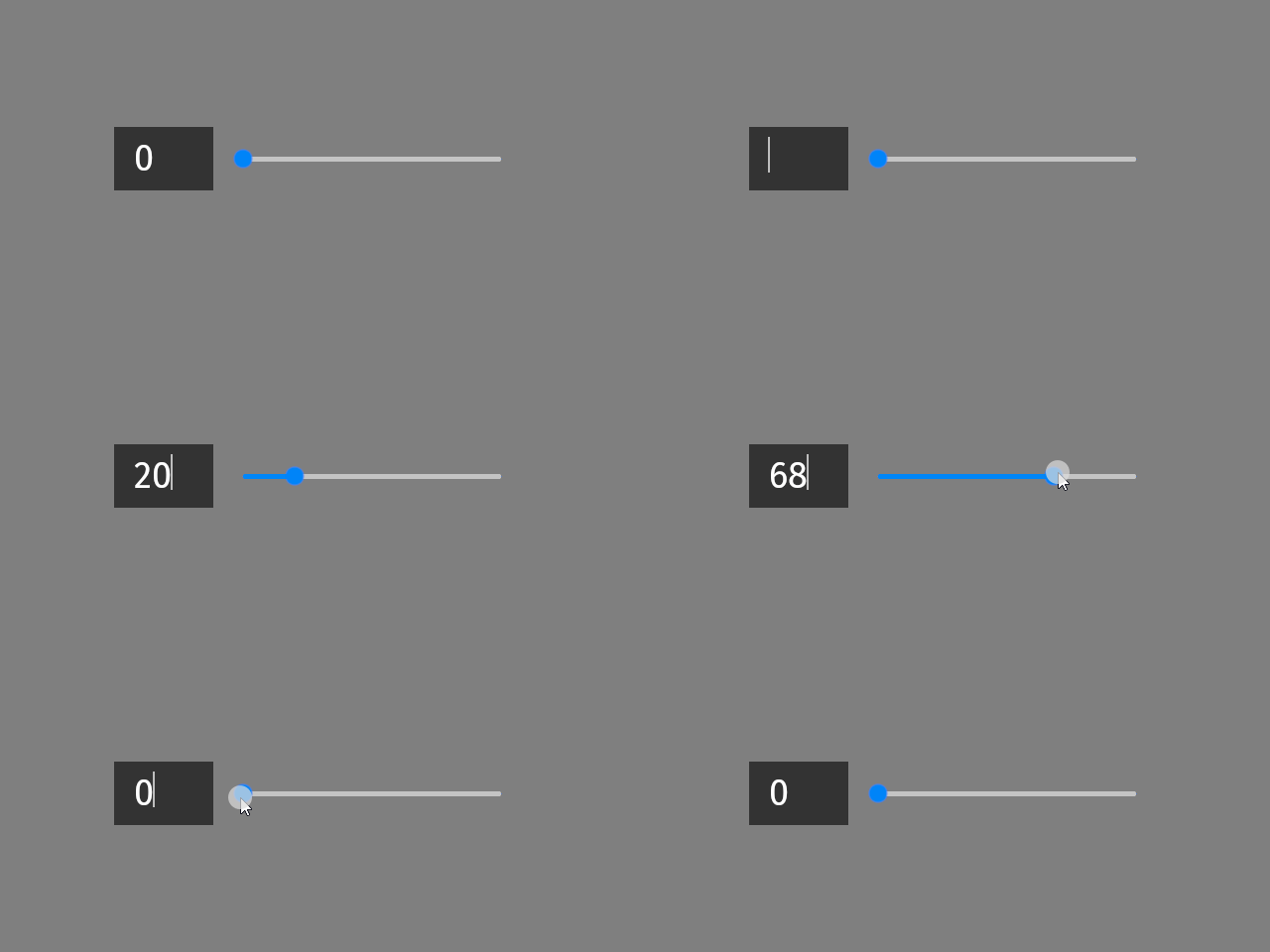
例如,使用双向绑定使用户能够通过在 Text Box 节点中输入文本或使用滑块来编辑数值。
要使用绑定更新 Text Box 节点中的文本:
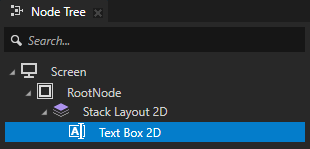
在 Node Tree 或 Prefabs 中,创建一个 Text Box 节点并设置其外观。
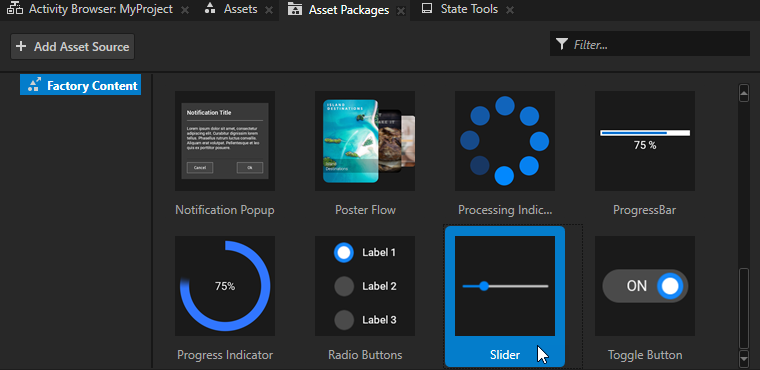
创建一个滑块并设置其最低值和最高值。
Kanzi Factory Content 包含一个您可以使用的2D滑块。请参阅 使用来自 Factory Content 的滑块。。
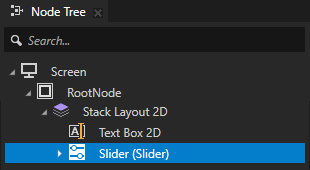
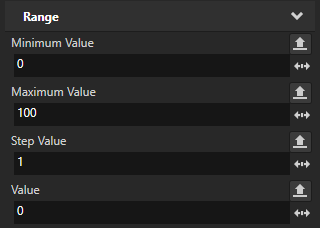
选择您创建的 Text Box 节点。在 Properties 中,单击 + Add Binding,并在 Binding Editor 中设置:
Binding Mode 到 Two way
Property 到 Text Concept > Text
Expression 指向您创建的滑块的 Value 属性:
{@../Slider/RangeConcept.Value}
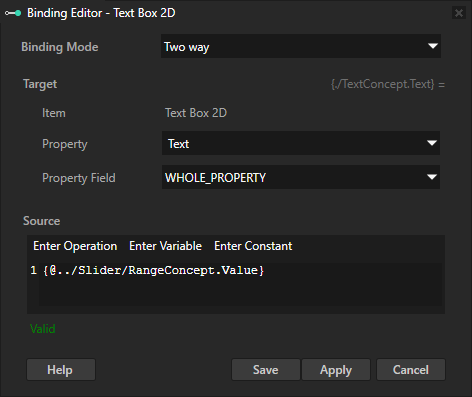
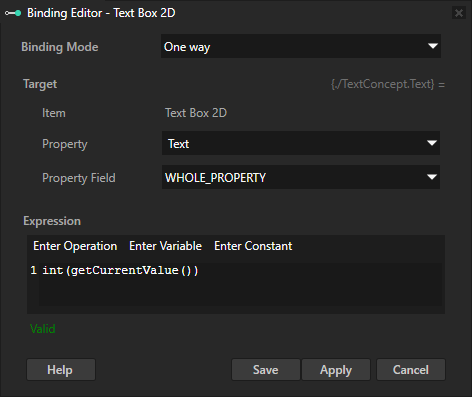
(可选) 创建另一个绑定,并在 Binding Editor 中设置:
Property 到 Text
Expression 到
int(getCurrentValue())
此绑定获取 Text 属性的当前值并将其转换为整数。
现在,在 Preview:
当您移动滑块旋钮时,文本会发生变化。
当您编辑文本时,滑块旋钮会移动。
控制 Text Box 节点是否在使用中
要控制 Text Box 节点是否在使用中,请使用 Input > Enabled 属性。禁用的 Text Box 节点不会对用户输入作出反应。当您禁用 Text Box 节点时,该 Text Box 节点将离开编辑状态,并在禁用时保持在该状态。
当您禁用节点的 Enabled 属性时,您实际上禁用了该节点及其在同一覆盖焦点范围内的子节点。
要观察节点是否有效启用,使用状态管理器或绑定中的 Input > Effectively Enabled 属性。例如,要向用户直观地指示节点是否正在使用,创建一个状态管理器并使用 Effectively Enabled 属性作为其控制器属性。
请参阅 控制节点对输入的反应方式。
设置 Text Box 2D 节点的外观
要设置 2D 节点的外观:
您可以使用单色、纹理或材质填充 2D 节点。请参阅 调整 2D 节点的外观。



您可以将后期处理效果应用于2D节点。请参阅 2D 节点的效果。




您可以围绕所有三个轴旋转 2D 节点,以创建 3D 透视效果。请参阅 为2D节点创建3D透视效果。

您可以应用自定义渲染到 2D 节点,以创建后处理效果。请参阅 应用自定义渲染到 2D 节点。
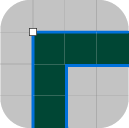
您可以将2D节点渲染为像素完美。请参阅 渲染像素完美的2D节点。
在 API 中使用 Text Box 3D 节点
要创建 Text Box 3D 节点:
// Create a Text Box 3D node named Text Box.
TextBox3DSharedPtr textBoxNode = TextBox3D::create(this->getDomain(), "Text Box");
要在 Text Box 3D 节点中设置初始文本内容:
// Set the initial text content in the Text Box node.
textBoxNode->setText("Initial text that the Text Box contains before editing.");
要设置 Text Box 3D 节点中文本的外观:
// Set the style of the text in the Text Box node:
// Set the font family of the text.
textBoxNode->setFontFamily(fontFamily);
// Set line spacing to 1.5f.
textBoxNode->setLineSpacing(1.5f);
// Set font size to 36.0f.
textBoxNode->setFontSize(36.0f);
// Set the color of the text to blue.
textBoxNode->setFontColor(ThemeBlue);
// Align the text to the right.
textBoxNode->setTextHorizontalAlignment(TextFormat::TextHorizontalAlignmentRight);
// Set font hinting: Render the text in the Text Box node using the hinter of the font engine rasterizer.
textBoxNode->setHintingPreference(FontHintingPreference::AutoHinting);
要在 Text Box 3D 节点中显示占位符内容:
// Set the prefab that shows the placeholder content in the Text Box node.
textBoxNode->setTextHintPrefab(textHintPrefab);
要设置光标在 Text Box 3D 节点中的位置:
// Set the cursor position in the beginning of the text field.
textBoxNode->setCursorPosition(0u);
要设置 Text Box 3D 节点中光标的外观:
// Set the prefab that visualizes the cursor.
textBoxNode->setCursorPrefab(cursorPrefab);
要设置 Text Box 3D 节点中文本选择的外观:
// Set the color of the selected text to orange.
textBoxNode->setSelectionFontColor(ThemeOrange);
// Set the background color of the selected text to gray.
textBoxNode->setSelectionBackgroundColor(ThemeGray);
// Set the prefab that visualizes the selection handle at the beginning of the selection.
textBoxNode->setCursorPrefab(selectionStartPrefab);
// Set the prefab that visualizes the selection handle at the end of the selection.
textBoxNode->setCursorPrefab(selectionEndPrefab);
要设置 Text Box 3D 节点中合成文本的外观:
// Set the color of the composition text to red.
textBoxNode->setSelectionFontColor(ThemeRed);
// Set the background color of the composition text to gray.
textBoxNode->setSelectionBackgroundColor(ThemeGray);
要使 Text Box 3D 节点表现为密码字段:
// Set Kanzi to show each character for a certain amount of time, and then hide it with a masking character.
textBoxNode->setEchoMode(EchoMode::Password);
// Set the UTF-8 character with which you want to hide each password character.
textBoxNode->setPasswordMaskingCharacter("*");
// Set the time in milliseconds that you want to show each character before hiding it.
textBoxNode->setPasswordEchoTimeout(500);
有关详细信息,请参阅 TextBox3D 类。
使用 API 中的 Text Box 2D 节点
要创建 Text Box 2D 节点:
// Create a Text Box 2D node named Text Box.
TextBox2DSharedPtr textBoxNode = TextBox2D::create(this->getDomain(), "Text Box");
要在 Text Box 2D 节点中设置初始文本内容:
// Set the initial text content in the Text Box node.
textBoxNode->setText("Initial text that the Text Box contains before editing.");
要设置 Text Box 2D 节点中文本的外观:
// Set the style of the text in the Text Box node:
// Set the font family of the text.
textBoxNode->setFontFamily(fontFamily);
// Set line spacing to 1.5f.
textBoxNode->setLineSpacing(1.5f);
// Set font size to 36.0f.
textBoxNode->setFontSize(36.0f);
// Set the color of the text.
textBoxNode->setForegroundBrush(textColorBrush);
// Align the text to the right.
textBoxNode->setTextHorizontalAlignment(TextFormat::TextHorizontalAlignmentRight);
// Set font hinting: Render the text in the Text Box node using the hinter of the font engine rasterizer.
textBoxNode->setHintingPreference(FontHintingPreference::AutoHinting);
要在 Text Box 2D 节点中显示占位符内容:
// Set the prefab that shows the placeholder content in the Text Box node.
textBoxNode->setTextHintPrefab(textHintPrefab);
要设置光标在 Text Box 2D 节点中的位置:
// Move the cursor to the beginning of the text field.
textBoxNode->setCursorPosition(0u);
要设置 Text Box 2D 节点中光标的外观:
// Set the prefab that visualizes the cursor.
textBoxNode->setCursorPrefab(cursorPrefab);
要设置 Text Box 2D 节点中文本选择的外观:
// Set the brush that fills the background of the selected text.
textBoxNode->setSelectionBackgroundBrush(selectedTextBackgroundBrush);
// Set the brush that fills the selected text.
textBoxNode->setSelectionForegroundBrush(selectedTextColorBrush);
// Set the prefab that visualizes the selection handle at the beginning of the selection.
textBoxNode->setCursorPrefab(selectionStartPrefab);
// Set the prefab that visualizes the selection handle at the end of the selection.
textBoxNode->setCursorPrefab(selectionEndPrefab);
要设置 Text Box 2D 节点中组合文本的外观:
// Set the brush that fills the background of the composition text.
textBoxNode->setCompositionBackgroundBrush(compositionTextBackgroundBrush);
// // Set the brush that fills the composition text.
textBoxNode->setCompositionForegroundBrush(compositionTextColorBrush);
要使 Text Box 2D 节点表现为密码字段:
// Set Kanzi to show each character for a certain amount of time, and then hide it with a masking character.
textBoxNode->setEchoMode(EchoMode::Password);
// Set the UTF-8 character with which you want to hide each password character.
textBoxNode->setPasswordMaskingCharacter("*");
// Set the time in milliseconds that you want to show each character before hiding it.
textBoxNode->setPasswordEchoTimeout(500);
有关详细信息,请参阅 TextBox2D 类。
Text Box 属性类型和消息。
有关 Text Box 节点的可用属性类型和消息的列表,请参阅 Text Box 2D 和 Text Box 3D。