フラグメントシェーダーの最適化
基盤となる GPU アーキテクチャに応じて、GPU は多数のレンダリングステージ (バーテックス処理、フラグメント処理、各ドロー呼び出しのメモリ並行読み取りなど) を実行できます。ドロー呼び出しは、Kanzi がすべてのフラグメントの処理を完了するまで待機します。フラグメントシェーダーの実行がバーテックスシェーダーや他のステージよりも遅い場合、他のステージはフラグメントシェーダーの実行が完了するのを待つ必要があります。
以下のようにフラグメントシェーダーを最適化できます。
フラグメントシェーダーの精度を減らします。フラグメントシェーダーの精度を減少させる を参照してください。
バーテックスシェーダーを使って、数回だけ計算される固定的な値を計算します。ピクセルからバーテックスに計算を移行する を参照してください。
フラグメントシェーダーの精度を減少させる
フラグメントシェーディングがパフォーマンスのボトルネックである場合、シェーダーの精度をフル32ビット浮動小数点から16ビット浮動小数点に下げることができます。多くのGPUは、精度を下げると倍速での操作をサポートします。
フラグメントシェーダーの精度を減らすには:
Library で、Resource Files > Shaders を選択し、精度を下げたいフラグメントシェーダーを開きます。
Shader Source Editor が開きます。
適切な精度修飾子で変数を宣言します。
精度修飾子
レンジ (Range)
データタイプ (Data Type)
使用例
lowp\[(-2,2)\]8ビット10進数。
最新のGPUには固定小数点シェーダーユニットがなく、これを16ビット浮動小数点にマッピングします。どの精度を選択するか不明な場合は、
lowpよりもmediumpを選択してください。RGBデータの色は範囲 [0..1] で、強度も範囲 [0..1] です。
mediump\[(-2^{15},2^{15})\]1ビットの符号ビット、5ビットの指数、10ビットの仮数を持つ16ビット浮動小数点。
一部のGPUはこれを32ビット浮動小数点にマッピングします。
色、法線、テクスチャ、オブジェクト空間内の位置。
highp\[(-2^{128},2^{128})\]1ビットの符号ビット、8ビットの指数、23ビットの仮数を持つ32ビット浮動小数点。
行列、巨大なテクスチャ、ワールド空間での位置。
たとえば、フラグメントシェーダーには以下のコードを使用します。
uniform sampler2D Texture;
// lowp and mediump often double the performance compared to highp.
uniform lowp float BlendIntensity;
varying mediump vec2 vTexCoord;

void main()
{
    // lowp and mediump often double the performance compared to highp.
    precision lowp float;

    vec4 color = texture2D(Texture, vTexCoord);
    gl_FragColor.rgba = color.rgba * BlendIntensity;
}
以下のコードは使用しないでください。
// Default to highp for everything.
precision highp float;
uniform sampler2D Texture;
uniform float BlendIntensity;
varying vec2 vTexCoord;

void main()
{

    vec4 color = texture2D(Texture, vTexCoord);
    gl_FragColor.rgba = color.rgba * BlendIntensity;
}
ピクセルからバーテックスに計算を移行する
頂点シェーダーは、頂点の取得や変換の計算などの操作を実行します。Kanzi は、頂点ごとに一度頂点シェーダーを実行します。
フラグメントシェーダーは、テクスチャデータの取得などの操作を行います。Kanzi は、ピクセルごとにフラグメントシェーダーを1回実行します。
シーンは通常、頂点よりも多くのピクセルを含むため、フラグメントシェーダーは頂点シェーダーよりも頻繁に実行されます。このため、可能な限り頂点シェーダーで計算を行い、その結果をフラグメントシェーダーに渡すことが推奨されます。
頂点シェーダーを使用して計算します:
Kanzi が数回しか計算しない、または一定のままの値。
頂点間で結果を補間しながら、品質をあまり損なわずに行うライティング計算。
例えば、Kanzi デフォルト VertexPhong マテリアルタイプでは、頂点シェーダーがライティング計算を行います。これらのマテリアルタイプは、フラグメントシェーダーがライティング計算を行う FragmentPhong マテリアルタイプよりも高いパフォーマンスを提供します。
この例では、頂点シェーダーでマテリアルの色を計算するシンプルなマテリアルタイプを作成します。
計算をピクセルから頂点に移動するには:
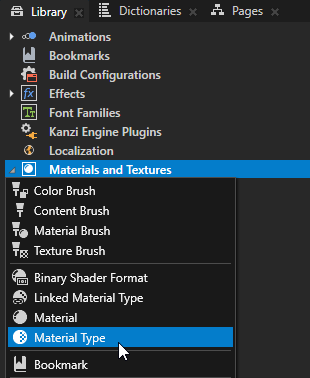
Library で、Alt を押しながら右クリック Materials and Textures を選択し、Material Type を選択します。
Kanzi Studio は、マテリアルタイプとそのマテリアルタイプを使用するマテリアルを作成します。
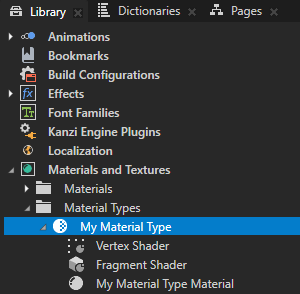
作成したマテリアルタイプで:
Vertex Shader の内容を次のコードに置き換えます。
attribute vec3 kzPosition;
uniform highp mat4 kzProjectionCameraWorldMatrix;
uniform lowp float counter;

varying lowp vec4 vColor;

void main()
{
   precision mediump float;

   // Kanzi performs the trigonometric operations only for each vertex.
   // For example, for a quad, which consists of two triangles that each
   // have three vertices, that is six times.
   vColor = vec4(cos(counter), sin(counter), 1, 1);

   gl_Position = kzProjectionCameraWorldMatrix * vec4(kzPosition.xyz, 1.0);
}
Fragment Shader の内容を次のコードに置き換えます。
varying lowp vec4 vColor;

void main()
{
    precision lowp float;

    // For each fragment, Kanzi applies a constant interpolated assignment with the
    // same, lowp, precision. On most GPUs, this does not take longer than one cycle.
    gl_FragColor.rgba = vColor;
}
このコードを頂点シェーダーには使用しないでください。
attribute vec3 kzPosition;
uniform highp mat4 kzProjectionCameraWorldMatrix;

void main()
{
    precision mediump float;

    // The vertex shader outputs the position and leaves the color calculation to the
    // fragment shader. This is not a good idea when the number of fragments exceeds
    // the number of vertices.
    gl_Position = kzProjectionCameraWorldMatrix * vec4(kzPosition.xyz, 1.0);
}
このコードをフラグメントシェーダーに使用しないでください。
uniform lowp float counter;

void main()
{
   precision lowp float;

   // For each written fragment, Kanzi executes the trigonometric functions cos()
   // and sin(). Trigonometric functions are expensive. Depending on the GPU, they
   // can require several GPU cycles per fragment. The outcome is the same as when
   // you store the result in a varying.
   gl_FragColor.rgba = vec4(cos(counter), sin(counter), 1, 1);
}
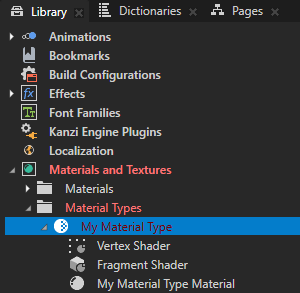
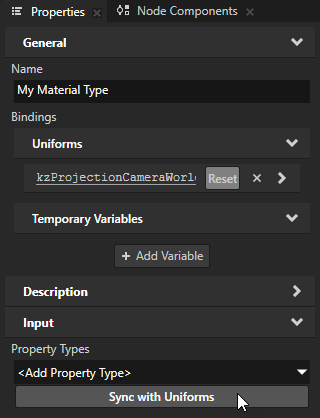
Library で、作成したマテリアルタイプを選択します。Properties で、Sync with Uniforms をクリックし、counter プロパティタイプを作成します。
この方法で、このマテリアルタイプを使用するマテリアルに counter プロパティを追加します。
Node Tree または Prefabs で、3Dノードを選択し、作成したマテリアルを使用するように設定します。
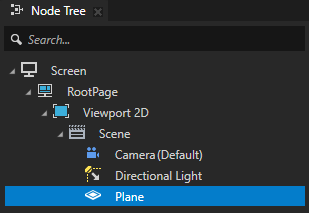
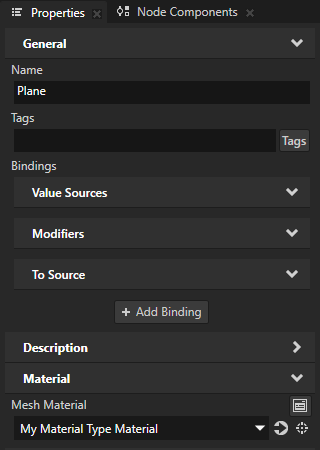
例えば、Node Tree で、Plane ノードを作成します。Properties で、作成したマテリアルに Mesh Material プロパティを設定します。
counter プロパティの値を時間とともに増加させるために、バリューアキュムレータを使用します。
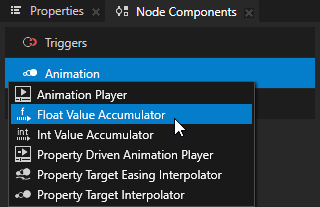
Node Components で、Alt を押しながら右クリック Animation を選択し、Float Value Accumulator を選択します。
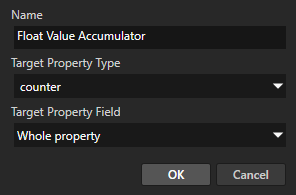
Create Float Value Accumulator ダイアログで、Target Property Type を Material Properties > counter プロパティタイプに設定します。
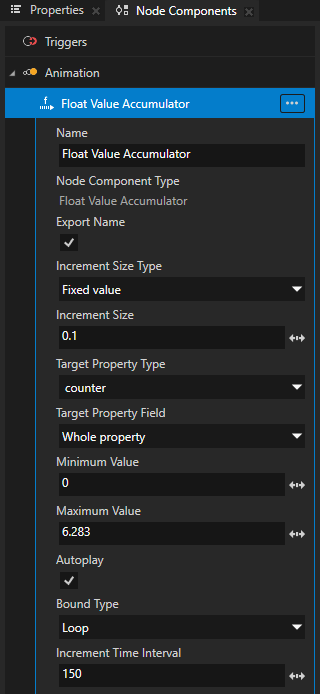
Float Value Accumulator を構成します。
たとえば、以下を設定します。
Increment Size を 0.1 に
Maximum Value を 6.283 に
Increment Time Interval から150まで
この方法で、counter プロパティの値を150ミリ秒ごとに0.2ずつ変化させ、6.283、つまりおおよそ \(2 * pi\) に達するまで続けます。デフォルトで、Value Accumulator は最大値に達したときに値をラップします。
Value Accumulatorsの使用方法について詳しくは、プロパティタイプの値をインクリメントする をご覧ください。
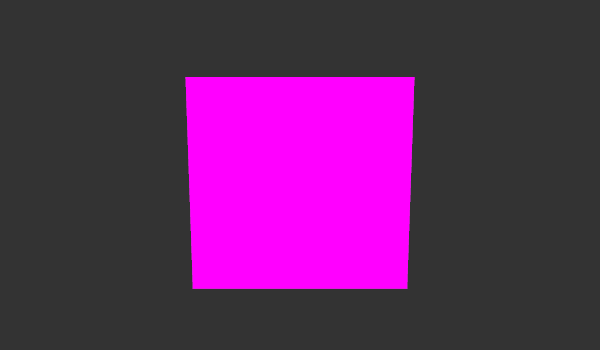
値アキュムレータは、マテリアルの色を制御するために counter プロパティを使用するノードの色をアニメーション化します。