ステップ3 - ピンをドロップするには長押しします
Kanzi アプリケーションでユーザーがノードを長押しできるようにするには、Long-Press Manipulator を使用します。
この方法により、Long-Press Manipulator で設定した時間だけユーザーがノード上でポインタを押し続けたときに、アプリケーションが反応するようにできます。
Kanzi Studio では、Long-Press Manipulator コンポーネントを使用してノードにロングプレスマニピュレータをインストールし、そのロングプレスマニピュレータの動作を制御できます。
このステップでは、Long-Press Manipulator コンポーネントとロングプレスマニピュレータを使用して、ユーザーが地図を長押しすることでピンをドロップできるようにします。例えば、この方法でユーザーが地図上の興味のある地点をマークできるようにすることができます。
ピンをドロップする
このセクションでは、Long-Press Manipulator コンポーネントとロングプレスマニピュレータを作成して使用し、ユーザーが地図を長押ししたときにピンを地図上にドロップします。
ピンをドロップするには:
Kanzi Studio の Node Tree で Map ノードを選択し、Node Components > Input Manipulators セクションで Long-Press Manipulator コンポーネントを作成し、Long Press Duration プロパティを400に設定します。
この方法で、Map ノードに長押しマニピュレータをインストールします。これにより、ユーザーが Map ノードを400ミリ秒間押したときに長押しジェスチャーを認識します。
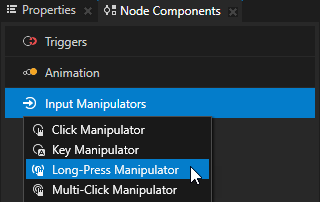
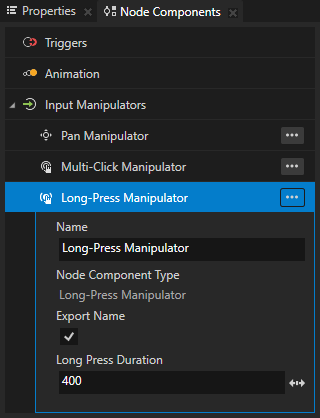
File > Export > Export KZB を選択します。
Visual Studioの
Application::onProjectLoaded関数で、Map ノードを取得した後、入力マニピュレータメッセージを購読する前に、Map ノードの子として Pin プレハブをインスタンス化します。void onProjectLoaded() override { ... // Get the reference to the prefab template Pin which shows the pin icon. ResourceManager* resourceManager = domain->getResourceManager(); PrefabTemplateSharedPtr pinPrefabTemplate = resourceManager->acquireResource<PrefabTemplate>("kzb://pan_zoom_tap/Prefabs/Pin"); // Instantiate the Pin prefab. m_pin = pinPrefabTemplate->instantiate<Node2D>("Pin"); // Add to the Map node the instance of the Pin prefab you created. mapNode->addChild(m_pin); // Disable the Visible property of the Pin prefab instance. // You enable the Visible property when the user drops a pin. m_pin->setVisible(false); ... } private: ... // Define a member variable for the Pin prefab instance. Node2DSharedPtr m_pin; };
PanZoomTapクラスのプライベートセクションで、長押しメッセージのハンドラーを定義します。// Define the handler for the LongPressManipulator::LongPressMessage message from the nodes // that have an input manipulator which generates the long-press message. void onLongPress(LongPressManipulator::LongPressMessageArguments& messageArguments) { // Get from the message arguments the node that the user long-presses. Node2DSharedPtr mapNode = dynamic_pointer_cast<Node2D>(messageArguments.getSource()); // Get the point where the user long-pressed. Vector2 pointerPosition = messageArguments.getPoint(); // Create a render transformation that contains the translation to the point where the user long-pressed. SRTValue2D pinSRT = SRTValue2D::createTranslation(pointerPosition); // Position the tip of the pin where the user long-pressed. pinSRT.setTranslation(pinSRT.getTranslation() - Vector2(m_pin->getActualWidth() * 0.5f, m_pin->getActualHeight() * 0.8f)); // Apply the transformation to the Pin prefab instance. m_pin->setRenderTransformation(pinSRT); // Enable the Visible property of the Pin prefab instance. m_pin->setVisible(true); }
Application::onProjectLoaded関数で、Map ノードの長押しメッセージを購読します。void onProjectLoaded() override { ... // Subscribe to the LongPressManipulator::LongPressMessage message at the Map node. // The LongPressManipulator manipulator generates this message when the user presses the node // for the amount of milliseconds you set in the LongPressManipulator::setPressDuration function. mapNode->addMessageHandler(LongPressManipulator::LongPressMessage, bind(&PanZoomTap::onLongPress, this, placeholders::_1)); }
アプリケーションをビルドして実行します。
アプリケーション内で、マップ上の任意の場所を長押ししてピンをドロップします。
ドロップされたピンのサイズと向きを保持する
ユーザーが地図をズームおよび回転させると、ドロップされたピンのサイズが変わり、地図と一緒に回転します。これは、ピンを表示する Pin プレハブを Map ノードの子としてインスタンス化したためです。このセクションでは、ピンのサイズと向きを一定に保つためのコードを追加します。
ドロップされたピンのサイズと向きを保持するには、
PanZoomTapクラスのプライベートセクションに、Map ノードのスケールと回転に基づいてドロップされたピンのスケールと回転を更新する関数を作成します。// Update the scale and rotation of the Pin prefab instance. void updatePinScaleAndRotation(SRTValue2D mapSRT, SRTValue2D pinSRT) { // Set the rotation to be the negative of the rotation of the Map node. pinSRT.setRotation(-mapSRT.getRotation()); // Set the scale to be the inverse of the scale of the Map node. pinSRT.setScale(componentWiseDivide(Vector2(1.0f, 1.0f), mapSRT.getScale())); // Apply the render transformation to the Pin prefab instance. m_pin->setRenderTransformation(pinSRT); }
前のセクションで追加した
onLongPress関数では、まず Map ノードのレンダートランスフォーメーションを取得し、その後updatePinScaleAndRotation関数を呼び出します。この方法では、Map ノードのズームレベルや回転に関係なく、Pin のサイズと向きを同じに保つことができます。
リプレイス (Replace)
// Apply the transformation to the Pin prefab instance.
m_pin->setRenderTransformation(pinSRT);
以下に置き換えます。
// Get the Render Transformation property of the Map node.
SRTValue2D mapSRT = mapNode->getRenderTransformation();

// Update the scale and position of the Pin prefab instance.
updatePinScaleAndRotation(mapSRT, pinSRT);
このチュートリアルのステップ2で作成した
onPinchMoved関数の最後に、ユーザーが地図をズームおよび回転させたときにドロップされたピンのスケールと回転を更新します。void onPinchMoved(PinchManipulator::MovedMessageArguments& messageArguments) { ... // Get the Render Transformation property of the Pin prefab instance. SRTValue2D pinSRT = m_pin->getRenderTransformation(); // Update the scale and position of the Pin prefab instance. updatePinScaleAndRotation(*mapWorldSRT, pinSRT); }
このチュートリアルのステップ2で作成した
onNodeDoubleTapped関数の最後に、ユーザーが地図をダブルタップしたときにドロップされたピンのスケールと回転をリセットします。void onNodeDoubleTapped(MultiClickManipulator::MultiClickMessageArguments& messageArguments) { ... // Reset the rotation and scale of the Pin prefab instance. SRTValue2D pinSRT = m_pin->getRenderTransformation(); pinSRT = SRTValue2D(Vector2(1.0f, 1.0f), 0, pinSRT.getTranslation()); m_pin->setRenderTransformation(pinSRT); }
アプリケーションをビルドして、Androidデバイスにデプロイします。
マップをズームおよび回転すると、ドロップしたピンはそのサイズと向きを維持します。
次の作業
このチュートリアルでは、Kanzi ジェスチャーコンポーネントと入力マニピュレータを使用して、地図上でパン、ズーム、回転、位置のリセット、ピンのドロップを有効にする方法を学びました。これで、次のことができます:
ナビゲーションバー内のボタンを並べ替えるために、ドラッグアンドドロップマニピュレータの使用方法を学びます。チュートリアル: ドラッグアンドドロップ を参照してください。
Kanzi Engine API を使用して、Kanzi Studio で作成した kzb ファイルからノードやリソースにアクセスし、Kanzi ノードのプロパティ値を取得および設定し、カスタムプロパティタイプを使用し、プレハブをインスタンス化し、アニメーションをロードして再生し、kzb ファイルからリソースをロードし、Kanzi メッセージを使用してイベントを定義し、完成したアプリケーションを Android デバイスにデプロイする方法を学びます。チュートリアル: Kanzi Engine API の高度な使用法 を参照してください。
関連項目
長押しマニピュレータについて詳しくは、Long-Press Manipulator を使用する をご覧ください。
Kanzi アプリケーションを異なるプラットフォームにデプロイする方法を学ぶには、Kanzi アプリケーションのデプロイ を参照してください。