バインディング式リファレンス
ここでは、ノード、レンダーパス、マテリアルタイプ、スタイル、ステートマネージャーのバインディングに追加できるバインディング式のリファレンスを見つけることができます。レンダリング、マテリアルタイプとマテリアル、スタイルを使用する、そして ステートマネージャー (State Manager) を参照してください。
青色タイプはバインディングによってコントロールされるプロパティにマークを付けます。
プロパティにバインディングを作成すると、そのバインディングから得られる値が Properties で設定したプロパティの値を上書きします。
バインディングの作成時には以下の点に留意してください。
同様のデータ型へのバインディングのみが有効です。例えば、色には色、ベクトル2にはベクトル2といったようにバインドできます。型キャスト を参照してください。
バインディングは最後の式の値を受け入れます。代入、単項演算または 2 項演算、あるいは単なる定数値または変数自体のどれであっても、その値です。
バインディングでは、4 つの基本型である整数、浮動小数、論理値、文字列の間で文字列をキャストできます。
整数、浮動小数点数、ブール値間のキャストは暗黙的であり、値を使用するプロパティの型に依存します。文字列へのキャストおよび文字列からのキャストは明示的です。
バインディングの使用 と バインディングのトラブルシューティング を参照してください。
構文
() (括弧)
複数の式やパラメータをグループとしてまとめて括弧で囲み、実行順序を制御します。
# Containing expressions: calculate the modulo of two values
mod(23, 27)
# Grouping expressions: first add 2 and 4, then divide the result by 3,
# and return 2
A = (2 + 4) / 3
# First add the FOV property to the Render Transformation Scale X property field,
# then divide the result of the multiplication by 2
({../Camera/Fov} + {../Box/RenderTransformation}.scaleX) / 2
演算子
= (代入)
変数に値を代入します。
構文 |
|
||||
パラメーター |
|
||||
例 |
# Assigns the value 2.0 to the variable A.
A = 2.0
# Assigns the value 4.0 to the variable B.
B = 4.0
|
?(条件付き)
条件演算子は3つの入力パラメータを取ります。最初のパラメータ (condition) がtrueと評価される場合、演算子は2番目のパラメータ (expression1) を評価し、その値を返します。最初のパラメータがfalseと評価される場合、演算子は3番目のパラメータ (expression2) を評価し、その値を返します。
構文 |
|
||||||
パラメーター |
|
||||||
リターン |
パラメータと同じ型 |
||||||
例 |
# Returns the value of A.
A = 2.0
B = 4.0
(A < B) ? A : B
|
算術演算子
+ (加算)
2 つ以上の値を足し合わせるか、複数の文字列を 1 つに連結します。
構文 |
|
||||
パラメーター |
加算演算子を使用する場合、次の点に注意してください:
|
||||
リターン |
|
||||
例 |
A = 2.0
B = 4

# Returns 6.0
A + B
A = "Hello "
B = "Kanzi!"

# Returns "Hello Kanzi!"
A + B
A = 3
B = true

# Returns 4
A + B
A = Vector2(0.5, 0.5)
B = 0.1

# Returns Vector2(0.6, 0.6)
A + B
|
- (減算)
最初のパラメータの値から 2 番目のパラメータの値を減算します。否定演算子として、値を -1 で乗算した結果と同等の結果を返します。
構文 |
|
||||
パラメーター |
減算演算子を使用する場合、次の点に注意してください:
|
||||
リターン |
|
||||
例 |
A = 2.0
B = 4

# Returns -2.0
A - B
A = Vector2(0.5, 0.5)
B = 0.1

# Returns Vector2(0.4, 0.4)
A - B
|
* (乗算)
複数のパラメータの値を掛け合わせます。
構文 |
|
||||
パラメーター |
乗算演算子を使用する場合、次の点に注意してください。
|
||||
リターン |
|
||||
例 |
A = 2.0
B = 4

# Returns 8.0
A * B
A = 3
B = true

# Returns 3
A * B
A = Vector2(0.5, 0.5)
B = Vector2(0.2, 0.4)

# Returns Vector2(0.1, 0.2)
A * B
|
/ (除算)
最初のパラメータの値を 2 番目のパラメータの値で割ります。
構文 |
|
||||
パラメーター |
除算演算子を使用する際は、次の点に注意してください:
|
||||
リターン |
|
||||
例 |
A = 2.0
B = 4

# Returns 0.5
A / B
A = Vector2(0.5, 0.5)
B = Vector2(0.2, 0.4)

# Returns Vector2(2.5, 1.25)
A / B
|
リレーショナル演算子
== (等しい)
2つの値が等しいかどうかをチェックします。
構文 |
|
||||
パラメーター |
|
||||
リターン |
Boolean |
||||
例 |
A = 2.0
B = 4.0

# Returns false
A == B
|
!=(等しくない)
2つの値が等しくないかどうかをチェックします。
構文 |
|
||||
パラメーター |
|
||||
リターン |
Boolean |
||||
例 |
A = 2.0
B = 4.0

# Returns true
A != B
|
> (より大きい)
最初のパラメータの値が2番目のパラメータの値より大きいかどうかを確認します。2つの文字列の場合、最初の文字列がアルファベット順で2番目の文字列の後に来るかどうかを確認します。
構文 |
|
||||
パラメーター |
|
||||
リターン |
Boolean |
||||
例 |
A = 2.0
B = 4.0

# Returns false
A > B
# Returns true
"Rob Krar" > "Anna Frost"
|
< (より小さい)
最初のパラメータの値が2番目のパラメータの値より小さいかどうかを確認します。2つの文字列の場合、最初の文字列がアルファベット順で2番目の文字列の前に来るかどうかを確認します。
構文 |
|
||||
パラメーター |
|
||||
リターン |
Boolean |
||||
例 |
A = 2.0
B = 4.0

# Returns true
A < B
# Returns false
"Rob Krar" < "Anna Frost"
|
>= (以上)
最初のパラメータの値が2番目のパラメータの値以上であるかどうかを確認します。
構文 |
|
||||
パラメーター |
|
||||
リターン |
Boolean |
||||
例 |
A = 2.0
B = 4.0

# Returns false
A >= B
|
<=(以下)
最初のパラメータの値が2番目のパラメータの値より小さいか、または等しいかを確認します。
構文 |
|
||||
パラメーター |
|
||||
リターン |
Boolean |
||||
例 |
A = 2.0
B = 4.0

# Returns true
A <= B
|
論理演算子
&&(論理AND)
2つの式を比較します:
両方の式がtrueと評価される場合、trueを返します。
一方または両方の式がfalseと評価される場合、falseを返します。
構文 |
|
||||
パラメーター |
|
||||
リターン |
Boolean |
||||
例 |
A = 2.0
B = 4.0

# Returns false
A < B && B < 1
|
|| (論理 OR)
2つの式を比較します:
一方または両方の式がtrueと評価される場合、trueを返します。
両方の式がfalseと評価される場合、falseを返します。
構文 |
|
||||
パラメーター |
|
||||
リターン |
Boolean |
||||
例 |
A = 2.0
B = 4.0

# Returns true
A < B || B < 1
|
! (論理NOT)
式のブール値を反転します。
式が偽と評価される場合、trueを返します。
式がtrueと評価される場合、falseを返します。
構文 |
|
||
パラメーター |
|
||
リターン |
Boolean |
||
例 |
A = 2.0
B = 4.0

# Returns true
!(A > B)
|
ビット演算子
~ (ビット単位のNOT)
整数の2進数表現のビットを反転します:
0であるビットは1になります。
1であるビットは0になります。
整数 \(x\) に対するビット単位のNOT演算は \(-(x + 1)\) を返します。
この操作は、負の整数を表現するために補数バイナリを使用します。バイナリ数の最初のビットは符号ビットです。
最初のビットが0の場合、数値は正です。
最初のビットが1の場合、数値は負です。
構文 |
|
||
パラメーター |
|
||
リターン |
int |
||
例 |
# Binary: 01010
A = 10

# Returns -11 (binary signed two's complement: 10101)
~A
# Binary signed two's complement: 10110
A = -10

# Returns 9 (binary: 01001)
~A
|
& (ビット単位のAND)
2つの整数のバイナリ表現の対応するビットの各ペアに対して論理AND演算を実行します。
両方のビットが1の場合、結果の2進数表現のビットは1になります。
一方または両方のビットが0の場合、結果の2進数表現のビットは0です。
X |
Y |
X & Y |
|---|---|---|
0 |
0 |
0 |
0 |
1 |
0 |
1 |
0 |
0 |
1 |
1 |
1 |
この操作は、負の整数を表現するために補数バイナリを使用します。バイナリ数の最初のビットは符号ビットです。
最初のビットが0の場合、数値は正です。
最初のビットが1の場合、数値は負です。
構文 |
|
||||
パラメーター |
|
||||
リターン |
int |
||||
例 |
# Binary: 1010
A = 10
# Binary: 1100
B = 12

# Returns 8 (binary: 1000)
A & B
# Binary signed two's complement: 10110
A = -10
# Binary: 01100
B = 12

# Returns 4 (binary: 00100)
A & B
|
| (ビット単位の OR)
2つの整数のバイナリ表現の対応するビットの各ペアに対して論理OR演算を実行します。
1つまたは両方のビットが1の場合、結果の2進数表現のビットは1になります。
両方のビットが0の場合、結果の2進数表現のビットは0です。
X |
Y |
X | Y |
|---|---|---|
0 |
0 |
0 |
0 |
1 |
1 |
1 |
0 |
1 |
1 |
1 |
1 |
この操作は、負の整数を表現するために補数バイナリを使用します。バイナリ数の最初のビットは符号ビットです。
最初のビットが0の場合、数値は正です。
最初のビットが1の場合、数値は負です。
構文 |
|
||||
パラメーター |
|
||||
リターン |
int |
||||
例 |
# Binary: 1010
A = 10
# Binary: 1100
B = 12

# Returns 14 (binary: 1110)
A | B
# Binary signed two's complement: 10110
A = -10
# Binary: 01100
B = 12

# Returns -2 (binary signed two's complement: 11110)
A | B
|
^ (ビット単位のXOR)
2つの整数のバイナリ表現の対応するビットの各ペアに対して、論理排他的論理和 (XOR) 演算を実行します。
ビットが異なる場合、結果の2進数表現のビットは1になります。
ビットが同じ場合、結果の2進数表現のビットは0になります。
X |
Y |
X ^ Y |
|---|---|---|
0 |
0 |
0 |
0 |
1 |
1 |
1 |
0 |
1 |
1 |
1 |
0 |
この操作は、負の整数を表現するために補数バイナリを使用します。バイナリ数の最初のビットは符号ビットです。
最初のビットが0の場合、数値は正です。
最初のビットが1の場合、数値は負です。
構文 |
|
||||
パラメーター |
|
||||
リターン |
int |
||||
例 |
# Binary: 1010
A = 10
# Binary: 1100
B = 12

# Returns 6 (binary: 0110)
A ^ B
# Binary signed two's complement: 10110
A = -10
# Binary: 01100
B = 12

# Returns -6 (binary signed two's complement: 11010)
A ^ B
|
<< (ビット単位の左シフト)
整数の2進数表現を指定されたビット数だけ左に符号拡張シフトを行います。
\(x\) を \(y\) ビット左シフト:
\(x\) の2進数表現に \(y\) の右端の0ビットを追加します。
\(x\) の2進数表現において、最も左の \(y\) ビットを削除します。
これは、\(x\) を \(y\) ビット左にシフトすることが、\(x\) を 2 の \(y\) 乗で乗算することを意味します。
この操作は、負の整数を表現するために補数バイナリを使用します。バイナリ数の最初のビットは符号ビットです。
最初のビットが0の場合、数値は正です。
最初のビットが1の場合、数値は負です。
構文 |
|
||||
パラメーター |
|
||||
リターン |
int |
||||
例 |
# Binary: 0011
value = 3
shift = 2

# Returns 12 (binary: 1100)
value << shift
# Binary signed two's complement: 11101
value = -3
shift = 2

# Returns -12 (binary signed two's complement: 10100)
value << shift
|
>> (ビット単位の右シフト)
整数の2進数表現を、指定されたビット数だけ右に符号拡張シフトを行います。
\(x\) を \(y\) ビット右シフト:
\(x\) の2進数表現において、右端の \(y\) ビットを削除します。
左側に \(y\) を追加し、\(x\) の2進数表現の最左ビットをコピーします。
これは、\(x\) を \(y\) ビット右シフトすることが、\(x\) を 2 の \(y\) 乗で割ることを意味します。
この操作は結果を切り捨てます。
この操作は、負の整数を表現するために補数バイナリを使用します。バイナリ数の最初のビットは符号ビットです。
最初のビットが0の場合、数値は正です。
最初のビットが1の場合、数値は負です。
構文 |
|
||||
パラメーター |
|
||||
リターン |
int |
||||
例 |
# Binary: 1100
value = 12
shift = 2

# Returns 3 (binary: 0011)
value >> shift
# Binary signed two's complement: 10100
value = -12
shift = 2

# Returns -3 (binary signed two's complement: 11101)
value >> shift
|
定数
Color4
Color4() 定数を使用して、色の値を作成します。
浮動小数点またはベクトル4Dプロパティを色の値に変換できます。color4 を参照してください。
色プロパティのプロパティフィールドにアクセスする方法については、色プロパティフィールドのバインディング を参照してください。
色空間間で色の値を変換する方法を学ぶには、カラーファンクション (Color functions) を参照してください。
リニアカラーワークフローでバインディング式に色の値を設定する方法については、カラー プロパティ バインディング を参照してください。
構文 |
|
||||||||
パラメーター |
|
||||||||
リターン |
カラー (Color) |
||||||||
例 |
# Sets the color to white and opaque.
Color4(1, 1, 1, 1)
# Sets the color to white and opaque. Alternative syntax.
Color(1, 1, 1, 1)

# Sets the color to red with 70% transparency.
Color4(1, 0, 0, 0.7)

# Sets the color to red and opaque.
Color4(1, 0, 0, 1)

# Invalid expression, one argument is missing.
Color4(0.1, 1, 0.4)
|
マトリックス3 (Matrix3)
Matrix3() 定数を使用して、3x3のマトリックスを作成します。
以下の操作を行うことができます。
2D変換を3x3行列に変換します。matrix3x3 を参照してください。
3x3行列を2D変換に変換します。extractSRT2D を参照してください。
構文 |
|
||
パラメーター |
|
||
リターン |
マトリックス 3x3 |
||
例 |
# Creates a 3x3 identity matrix.
Matrix3(1, 0, 0,  0, 1, 0,  0, 0, 1)
# Returns a 2D transformation with the Translation X and
# Translation Y property fields set to 100:
# Srt2D(1, 1, 0, 100, 100).
extractSRT2D(Matrix3(1, 0, 0,  0, 1, 0,  100, 100, 1))
|
マトリックス4 (Matrix4)
Matrix4() 定数を使用して、4x4 行列を作成します。
以下の操作を行うことができます。
3D変換を4x4行列に変換します。matrix4x4 を参照してください。
4x4行列を3D変換に変換します。extractSRT3D を参照してください。
構文 |
|
||
パラメーター |
|
||
リターン |
マトリックス 4x4 (Matrix 4x4) |
||
例 |
# Creates a 4x4 identity matrix.
Matrix4(1, 0, 0, 0,  0, 1, 0, 0,  0, 0, 1, 0,  0, 0, 0, 1)
# Returns a 3D transformation with the Rotation X
# property field set to 90, and the Translation X and
# Translation Y property fields set to 2:
# Srt3D(1, 1, 1,  90, 0, 0,  2, 2, 0).
extractSRT3D(Matrix4(1, 0, 0, 0,  0, 0, 1, 0,  0, -1, 0, 0,  2, 2, 0, 1))
|
Srt2D
Srt2D() 定数を使用して、Render Transformation または Layout Transformation プロパティを持つ2Dノードに変換を適用します。Binding Editor では、Property を Layout Transformation または Render Transformation に設定します。
以下の操作を行うことができます。
3x3行列を2D変換に変換します。extractSRT2D を参照してください。
2D変換を3x3行列に変換します。matrix3x3 を参照してください。
2D変換プロパティのプロパティフィールドにアクセスする方法については、変換プロパティフィールドバインディング を参照してください。
構文 |
|
||||||||||
パラメーター |
|
||||||||||
リターン |
SRTトランスフォーメーション2D、バウンドされた2Dノードのスケール、回転、および平行移動の計算されたトランスフォーメーション |
||||||||||
例 |
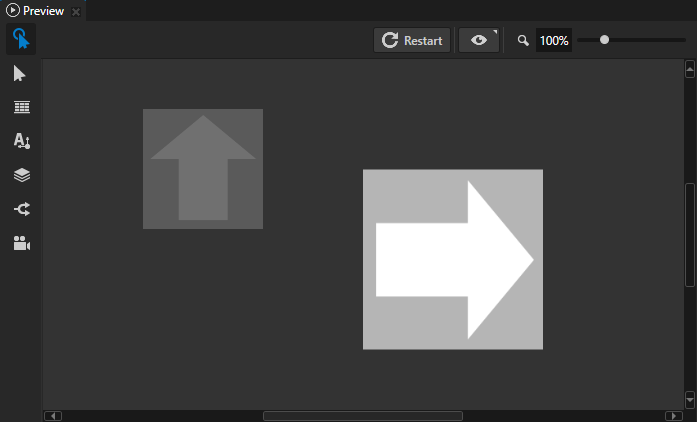
# Applies the transformation to the bound 2D node using the Layout Transformation
# or Render Transformation property, depending on which of these properties you
# set in the Binding Editor:
# - Scales the node to 150% percent on both axes
# - Rotates the node clockwise 90 degrees
# - Translates the node 400 pixels on the x axis, and 60.5 pixels on the y axis.
Srt2D(1.5, 1.5, 90.0, 400.0, 60.5)
|
Srt3D
Srt3D() 定数を使用して、Render Transformation または Layout Transformation プロパティを持つ3Dノードに変換を適用します。Binding Editor では、Property を Layout Transformation または Render Transformation に設定します。
以下の操作を行うことができます。
4x4行列を3D変換に変換します。extractSRT3D を参照してください。
3D変換を4x4行列に変換します。matrix4x4 を参照してください。
3D変換プロパティのプロパティフィールドにアクセスする方法については、変換プロパティフィールドバインディング を参照してください。
構文 |
|
||||||||||||||||||
パラメーター |
|
||||||||||||||||||
リターン |
SRTトランスフォーメーション3D、バウンドされた3Dノードのスケール、回転、および平行移動の計算されたトランスフォーメーション |
||||||||||||||||||
例 |
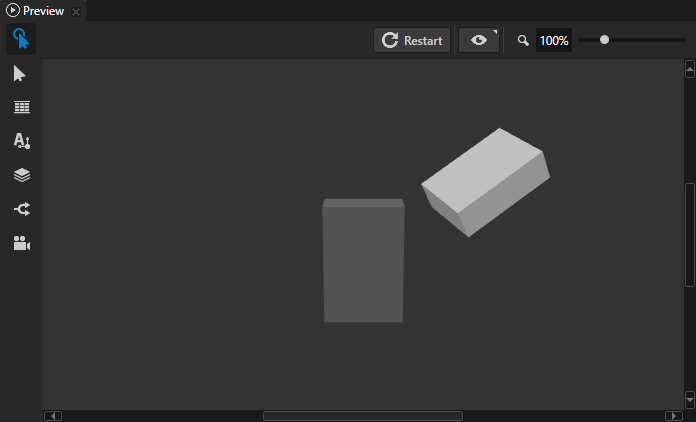
# Applies the transformation to the bound 3D node using the Layout Transformation
# or Render Transformation property, depending on which of these properties you
# set in the Binding Editor:
# - Scales the node to 70% on all axes
# - Rotates the node counter-clockwise 30 degrees on the x axis,
#   60 degrees on the y axis, and 30 degrees on the z axis
# - Translates the node by 2.5 device-independent units on all axes
Srt3D(0.7, 0.7, 0.7,  -30.0, -60.0, -30.0,  2.5, 2.5, 2.5)
|
ベクトル2
Vector2() 定数を使用して、2つのプロパティフィールドを持つベクタープロパティをバインドします。
フロートプロパティをベクトル2Dプロパティに変換できます。vector2 を参照してください。
Vector 2D プロパティのプロパティフィールドにアクセスする方法については、プロパティフィールドのバインディング を参照してください。
構文 |
|
||||
パラメーター |
|
||||
リターン |
ベクトル2D |
||||
例 |
# In the Binding Editor set the Property to a property that uses the Vector 2D
# data type.
# For example, to set in the bound node the Horizontal Margin property:
# - Left property field to 100
# - Right property field to 50
Vector2(100, 50)
|
Vector3
Vector3() 定数を使用して、3つのプロパティフィールドを持つベクタープロパティをバインドします。
浮動小数点プロパティを3Dベクタープロパティに変換できます。vector3 を参照してください。
Vector 3D プロパティのプロパティフィールドにアクセスする方法については、プロパティフィールドのバインディング を参照してください。
構文 |
|
||||||
パラメーター |
|
||||||
リターン |
ベクトル3D |
||||||
例 |
# In the Binding Editor set the Property to a property that uses the Vector 3D
# data type.
# For example, to set in the bound Point Light node the Point Light Attenuation
# property:
# - Constant property field to 1.2
# - Linear property field to 0.01
# - Quadratic property field to 0.02
Vector3(1.2, 0.01, 0.02)
|
Vector4
Vector4() 定数を使用して、4つのプロパティフィールドを持つベクタープロパティをバインドします。
浮動小数点または色プロパティを4Dベクタープロパティに変換できます。vector4 を参照してください。
Vector 4D プロパティのプロパティフィールドにアクセスする方法については、プロパティフィールドのバインディング を参照してください。
構文 |
|
||||||||
パラメーター |
|
||||||||
リターン |
ベクター 4D (Vector 4D) |
||||||||
例 |
# In the Binding Editor set the Property to a property that uses the Vector 4D
# data type.
# For example, to set in the bound Pipeline State Render Pass the Scissor Area
# property:
# - X to 0.2 to set the horizontal offset of the area to 20% of the width of the
#   Viewport 2D
# - Y to 0.1 to set the vertical offset of the area to 10% of the height of the
#   Viewport 2D
# - Width to 0.6 to make the area 60% of the width of the Viewport 2D
# - Height to 0.8 to make the area 80% of the height of the Viewport 2D
Vector4(0.2, 0.1, 0.6, 0.8)
|
型キャスト
bool
値を論理値に変換します。
整数、浮動小数点数、ブール値間のキャストは暗黙的であり、値を使用するプロパティの型に依存します。文字列へのキャストおよび文字列からのキャストは明示的です。
構文 |
|
||
パラメーター |
|
||
リターン |
Boolean |
||
例 |
# Converts the boolean value "True" to integer 1, adds it to the integer 41,
# and assigns the result to the variable A. Returns integer 42.
A = 41 + bool("True")
|
color4
値を色に変換します。floatから変換する場合、float値を色プロパティの赤、緑、青、およびアルファチャンネルに設定します。
色プロパティのプロパティフィールドにアクセスする方法については、色プロパティフィールドのバインディング を参照してください。
色空間間で色の値を変換する方法を学ぶには、カラーファンクション (Color functions) を参照してください。
リニアカラーワークフローでバインディング式に色の値を設定する方法については、カラー プロパティ バインディング を参照してください。
構文 |
|
||
パラメーター |
|
||
リターン |
カラー (Color) |
||
例 |
# Returns Color4(0.5, 0.5, 0.5, 0.5).
# This expression is equivalent to:
# color = Color4(0, 0, 0, 0)
# color.r = 0.5
# color.g = 0.5
# color.b = 0.5
# color.a = 0.5
# sRGBToLinear(color)
color4(0.5)
# Converts the value of the Text property in the Text Box 2D node to a float and
# returns a color where each channel is set to the value of that float.
color4(float({@../Text Box 2D/TextConcept.Text}))
# Converts the value of the MyVector4 property to a color.
color4({@../MyVector4})
|
フロート (Float)
値を浮動小数に変換します。
整数、浮動小数点数、ブール値間のキャストは暗黙的であり、値を使用するプロパティの型に依存します。文字列へのキャストおよび文字列からのキャストは明示的です。
構文 |
|
||
パラメーター |
|
||
リターン |
フロート (Float) |
||
例 |
# Converts the string "5" to a float, adds it to the integer 5,
# and assigns the result to the variable A. Returns float 10.000000.
A = 5 + float("5")
# Implicitly converts boolean value True to float, adds it to the float 5.1,
# and assigns the result to the variable B. Returns float 6.1.
B = 5.1 + True
|
int
値を整数に変換します。
整数、浮動小数点数、ブール値間のキャストは暗黙的であり、値を使用するプロパティの型に依存します。文字列へのキャストおよび文字列からのキャストは明示的です。
構文 |
|
||
パラメーター |
|
||
リターン |
Integer |
||
例 |
# Explicitly converts the string "5" to an integer, adds it to the integer 5,
# and assigns the result to the variable A. Returns integer 10.
A = 5 + float("5")
# Implicitly converts boolean value True to integer, adds it to the integer 5,
# and assigns the result to the variable B. Returns integer 6.
B = 5 + True
# Explicitly converts float 5.5 to an integer, adds it to the integer and
# assigns the result to the variable C. Returns integer 7.
C = 2 + float(5.5)
|
matrix3x3
2D変換を3x3行列に変換します。
構文 |
|
||
パラメーター |
|
||
リターン |
マトリックス 3x3 |
||
例 |
# Converts the Render Transformation property value of a 2D node to a 3x3 matrix.
matrix3x3({@./Node2D.RenderTransformation})
# Returns Matrix3(0, 1, 0,  -1, 0, 0,  200, 50, 1).
matrix3x3(Srt2D(1, 1, 90, 200, 50))
|
matrix4x4
3D変換を4x4行列に変換します。
構文 |
|
||
パラメーター |
|
||
リターン |
マトリックス 4x4 (Matrix 4x4) |
||
例 |
# Converts the Render Transformation property value of a 3D node to a 4x4 matrix.
matrix4x4({@./Node3D.RenderTransformation})
# Returns Matrix4(1, 0, 0, 0,  0, 0, 1, 0,  0, -1, 0, 0,  1, 2, 0, 1).
matrix4x4(Srt3D(1, 1, 1,  90, 0, 0,  1, 2, 0))
|
ストリング (String)
値を文字列に変換します。
整数、浮動小数点数、ブール値間のキャストは暗黙的であり、値を使用するプロパティの型に依存します。文字列へのキャストおよび文字列からのキャストは明示的です。
構文 |
|
||
パラメーター |
|
||
リターン |
ストリング (String) |
||
例 |
# Converts the integer 5 to a string, concatenates it to the string
# "Five is written as ", and assigns the result to the variable A.
# Returns string "Five is written as 5".
A = "Five is written as " + string(5)
# Converts the value of the variable A to a string, concatenates it
# to the string "Number of fingers on two hands is ", and assigns the result
# to the variable B. Returns string "Number of fingers on two hands is 10".
A = 10
B = "Number of fingers on two hands is " + string(A)
|
vector2
浮動小数点数を2つのプロパティフィールドを持つベクタープロパティに変換します。ベクタープロパティの両方のプロパティフィールドに浮動小数点数の値を設定します。
構文 |
|
||
パラメーター |
|
||
リターン |
ベクトル2D |
||
例 |
# Returns Vector2(0.5, 0.5).
vector2(0.5)
# In the Binding Editor set the Property to a property that uses the Vector 2D
# data type.
# For example, to set in the bound 2D node the Horizontal Margin property Left
# and Right property fields to the value of the MyFloat property:
vector2({@../MyFloat})
|
vector3
浮動小数点数を3つのプロパティフィールドを持つベクタープロパティに変換します。ベクタープロパティのすべてのプロパティフィールドに浮動小数点数の値を設定します。
構文 |
|
||
パラメーター |
|
||
リターン |
ベクトル3D |
||
例 |
# Returns Vector3(0.5, 0.5, 0.5).
vector3(0.5)
# In the Binding Editor set the Property to a property that uses the Vector 3D
# data type.
# For example, to set in the bound Point Light node the Point Light Attenuation
# property Constant, Linear, and Quadratic property fields to the value of the
# MyFloat property:
vector3({@../MyFloat})
|
vector4
値を4つのプロパティフィールドを持つベクタープロパティに変換します。floatから変換する場合、float値をベクタープロパティのすべてのプロパティフィールドに設定します。
構文 |
|
||
パラメーター |
|
||
リターン |
ベクター 4D (Vector 4D) |
||
例 |
# Returns Vector4(0.5, 0.5, 0.5, 0.5).
vector4(0.5)
# In the Binding Editor set the Property to a property that uses the Vector 4D
# data type. The binding sets all property fields of the bound property to the
# value of the MyFloat property.
vector4({@../MyFloat})
# In the Binding Editor set the Property to a property that uses the Vector 4D
# data type. The binding sets the bound property to the value of the Brush Color
# property in the same node.
vector4({@./ColorBrush.Color})
|
関数
取得
acquire 関数に渡したリソースIDを参照してリソースを取得します。
リソースIDは、acquire 関数を使用するノード、またはその祖先ノードのいずれかのリソースディクショナリに含まれている必要があります。
リソースがまだアプリケーションメモリにロードされていない場合、
acquire関数がリソースをロードします。リソースIDが定義されていない場合、
acquire関数は空の値を返します。
リソースディクショナリの使用 を参照してください。
例えば、データソースからテキストリソースのリソースIDを取得し、そのテキストリソースをロードし、Text Block ノードにそのテキストリソースの内容を表示するバインディングを作成できます。そのテキストリソースをローカライズすると、Text Block はアプリケーションの現在のロケールに対するリソースの値を自動的に表示します。データソース内のデータを変更すると、バインディング関数はリソースIDが指すリソースを取得し、テキストを更新します。
バインディングを使用してリソースをロードする を参照してください。
構文 |
|
||
パラメーター |
|
||
リターン |
リソース |
||
例 |
# Gets a text resource with a resource ID that you set in a custom property type
# MyCustomProperty whose data type is Text.
# For example, to show in a Text Block node the text to which the resource ID
# in MyCustomProperty points, bind the Text property of that Text Block node
# to this expression.
acquire({@./MyProject.MyCustomProperty})
# Gets a text resource with a resource ID that you set in a data object name
# whose data type is string.
# For example, to show in a Text Block node the text to which the resource ID
# in name points, bind the Text property of that Text Block node to this
# expression.
acquire({DataContext.item.name})
# If the node that has this binding has the key focus, returns a brush with the
# resource ID Focused Brush. Otherwise returns a brush with the resource ID
# Default Brush.
# For example, to visually indicate when a 2D node has focus, bind the Background
# Brush property of that node to this expression.
{@./Node.Focused} ? acquire("Focused Brush") : acquire("Default Brush")
|
Animate
プロパティ値を、Animation Data アイテムで定義する区分関数にバインドします。バインディングで区分的関数を使用する を参照してください。
animate は2つの引数を取ります。1つ目は、Animation Data アイテムをバインドするプロパティであり、2つ目は、バインドされたプロパティの値を設定するために使用したい区分関数を定義する Animation Data アイテムのリソースIDまたはkzb URLです。
リソースIDを使用する場合、バインディングを含むノードがアクセスできるリソースディクショナリに Animation Data アイテムを配置する必要があります。リソースディクショナリの使用 を参照してください。
例えば、Animate 関数を使用して、ゲージの針が0から100の値の間でより速く動くように設定し、100より大きい値では遅く動くようにすることができます。
構文 |
|
||||
パラメーター |
|
||||
例 |
# Uses the Speed property to move along the animation curve
# of the Animation Data item with the resource ID Speed curve.
animate({@./Speed}, "Speed curve")
# Uses the Speed property to move along the animation curve
# of the Animation Data item with the kzb URL Speed curve.
animate({@./Speed}, "kzb://cluster/Animation Data/Speed curve")
# Uses the Speed property to move along the animation curve
# of the Animation Data item with the kzb URL from a variable.
speedCurveUrl = "kzb://cluster/Animation Data/Speed curve"
animate({@./Speed}, speedCurveUrl)
# Uses the Speed property to move along the animation curve
# of the Animation Data item with the kzb URL from a custom string property.
animate({@./Speed}, {@./CustomProperties.SpeedCurveUrl})
|
continueIf
バインディングの実行を続行するかどうかを決定します。
関数に渡す式が
falseと評価される場合、バインディングの実行を停止し、ターゲットプロパティの値を変更しません。関数に渡す式が
trueと評価される場合、バインディングの実行を続行します。
例えば、この関数を使用して、データソースから無効な入力を受け取ったときにバインディングがノードのプロパティを更新しないようにします。
構文 |
|
||
パラメーター |
|
||
例 |
# If the value of the Text property in the Text Box 2D node represents a
# positive number, this binding writes that value to its target property.
# If the value of the Text property does not represent a positive number,
# this binding does not change the value of its target property.
textInput = {@../Text Box 2D/TextConcept.Text}
continueIf(int(textInput) > 0)
textInput
# If the value of the speed data object is a positive integer, this binding
# writes that value to its target property.
# If the value of the speed data object is negative, this binding does
# not change the value of its target property.
continueIf({DataContext.gauges.speed} >= 0)
{DataContext.gauges.speed}
# If the magnitude of the Layout Transformation Scale of the 3D node to which
# you add this binding is less than 5, returns a color value.
# For example, you can bind the Ambient Color property of a 3D node to this
# binding expression.
maxScale = 5

scaleX = {@./Node3D.LayoutTransformation}.scaleX
scaleY = {@./Node3D.LayoutTransformation}.scaleY
scaleZ = {@./Node3D.LayoutTransformation}.scaleZ

scale = sqrt(scaleX * scaleX + scaleY * scaleY + scaleZ * scaleZ)

continueIf(scale < maxScale)

color = linearTosRGB(Color4(0.0, 0.5, 0.8, 1))
color
|
フォーマット (Format)
値を文字列にフォーマットします。例えば、この関数を使用して、Text Block ノードがプロパティ値をどのように表示するかを設定します。プロパティ値の表示形式設定 を参照してください。
構文 |
|
||||
パラメーター |
|
||||
リターン |
ストリング (String) |
||||
例 |
# Inserts the values of the 'Node.Width' and 'Node.Height'
# properties to the format string.
format("The size of this node is: {}x{}", {@./Node.Width}, {@./Node.Height})
# Formats a floating point value to two decimal places.
format("The width of this node is: {:.2}", {@./Node.Width})
# Sets the order of arguments in the format string.
speed = {DataContext.gauges.speed}
battery = {DataContext.gauges.battery}
format("Speed: {1}. Battery: {0}", battery, speed)
|
アクセサ関数
getCurrentValue
バインドしたいプロパティの現在の値を取得します。この関数を使用して、バインドするプロパティの値を変更します。
構文 |
|
リターン |
ターゲットプロパティの現在の値 |
例 |
# Binds a property to half of the current value of that property.
getCurrentValue() * 0.5
# Binds a property field of the property, which you set as the target property
# in the Binding Editor, to the Translation X property field of the same
# property.
# For example, to bind the Render Transformation Translation Y property field
# of a node to the Render Transformation Translation X property field, in the
# Binding Editor set the Property to Render Transformation
# and Property Field to Translation Y.
getCurrentValue().translationX
|
getField
ベクトルまたはマトリックス内の要素を取得します。
構文 |
|
||||
パラメーター |
|
||||
リターン |
float: ベクトルまたは行列内の要素 |
||||
例 |
# Gets the value of the third element in the matrix: 2.0.
myMatrix = Matrix3(0, 1, 2,  3, 4, 5,  6, 7, 8)
getField(myMatrix, 2)
# Gets the value of the second element in the matrix: 1.0.
myVector = Vector4(0, 1, 2, 3)
getField(myVector, 1)
|
setField
ベクトルまたは行列の要素の値を設定します。
構文 |
|
||||||
パラメーター |
|
||||||
例 |
# Sets the value of the sixth element in the matrix to 0.
# After the operation the value of the matrix is (0, 1, 2,  3, 4, 0,  6, 7, 8)
myMatrix = Matrix3(0, 1, 2,  3, 4, 5,  6, 7, 8)
setField(myMatrix, 5, 0)
|
getRow
行列内の行ベクトルを取得します。
構文 |
|
||||
パラメーター |
|
||||
リターン |
Vector3、Vector4: 行列の行 |
||||
例 |
# Gets the value of the third row in the matrix: Vector3(2, 5, 8).
myMatrix = Matrix3(0, 1, 2,  3, 4, 5,  6, 7, 8)
getRow(myMatrix, 2)
|
setRow
行ベクトルを行列に設定します。
構文 |
|
||||||
パラメーター |
|
||||||
例 |
# Sets the value of the third row in the matrix to Vector3(9, 10, 11).
# After the operation the value of the matrix is
#    0,  3,  6,
#    1,  4,  7,
#    9, 10, 11
myMatrix = Matrix3(0, 1, 2,  3, 4, 5,  6, 7, 8)
setRow(myMatrix, 2, Vector3(9, 10, 11))
|
getColumn
行列内の列ベクトルを取得します。
構文 |
|
||||
パラメーター |
|
||||
リターン |
Vector3、Vector4: ベクトルまたは行列の列 |
||||
例 |
# Gets the value of the third column in the matrix: Vector3(6, 7, 8).
myMatrix = Matrix3(0, 1, 2,  3, 4, 5,  6, 7, 8)
getColumn(myMatrix, 2)
|
setColumn
行列に列ベクトルを設定します。
構文 |
|
||||||
パラメーター |
|
||||||
例 |
# Sets the value of the third column in the matrix to Vector3(9, 10, 11).
# After the operation the value of the matrix is
#    0,  3,  9,
#    1,  4, 10,
#    2,  5, 11
myMatrix = Matrix3(0, 1, 2,  3, 4, 5,  6, 7, 8)
setColumn(myMatrix, 2, Vector3(9, 10, 11))
|
数学関数
絶対値 (absolute value)
数値または変数の絶対値を計算します。数値の絶対値は常に正です。
構文 |
|
||
パラメーター |
|
||
リターン |
パラメータ |
||
例 |
# Returns 5.2
abs(-5.2)
|
天井 (ceiling)
パラメータ値と同じかそれよりも大きい、パラメータ値に最も近い整数値を計算します。
構文 |
|
||
パラメーター |
|
||
リターン |
パラメータ |
||
例 |
# Returns 3.0
ceil(2.06)
# Returns 16.0
ceil(15.92)
# Returns -2
ceil(-2.06)
|
クランプ (Clamp)
値を2つの値の間に制約します。clamp は min(max(value, low), high) と同じ値を返します。
構文 |
|
||||||
パラメーター |
|
||||||
リターン |
整数、浮動小数点数、およびブール値間のキャストは暗黙的です。 |
||||||
例 |
# Returns 1.0
clamp(1, 4, 0.5)
# Returns 0.0
clamp(false, 1, -0.5)
# Returns Vector2(1.0, 4.0)
clamp(Vector2(1, 2), Vector2(3, 5), Vector2(0, 4))
# Returns Vector2(3.0, 2.0)
clamp(Vector2(1, 2), 3, Vector2(3, 2))
|
床関数 (Floor)
パラメータ値と同じかそれよりも小さい、パラメータ値に最も近い整数値を計算します。
構文 |
|
||
パラメーター |
|
||
リターン |
パラメータ |
||
例 |
# Returns 0.000000
floor(0.8)
# Returns 1.000000
floor(1.5)
# Returns 15.000000
floor(15.92)
# Returns -12.000000
floor(-11.9)
|
最大 (maximum)
2 つの値のうち大きいほうの値を判別して、その値を返します。
構文 |
|
||||
パラメーター |
|
||||
リターン |
|
||||
例 |
# Returns 5
max(2, 5)
# Returns -2.1
max(-10, -2.1)
# Returns Vector2(3.0, 2.0)
max(Vector2(3.0, 1.0), 2)
|
最小 (minimum)
2 つの値のうち小さいほうの値を判別して、その値を返します。
構文 |
|
||||
パラメーター |
|
||||
リターン |
|
||||
例 |
# Returns 2
min(2, 5)
# Returns -10.0
min(-10, -2.1)
# Returns Vector2(2.0, 1.0)
min(Vector2(3.0, 1.0), 2)
|
mod(モジュロ)
数学モジュロ合同関数を使用して、1 つの値を別の値で除算して残ったモジュロを計算します。
剰余 (remainder) を参照してください。
構文 |
|
||||
パラメーター |
|
||||
リターン |
|
||||
例 |
# Returns 3
mod(13, 5)
# Returns 2
mod(-13, 5)
# Returns Vector2(0.0, 1.0)
mod(Vector2(4.0, 1.0), 2)
|
pow(べき乗)
指数式を計算します。これは、数値を自乗するための効率的な方法です。
構文 |
|
||||
パラメーター |
|
||||
リターン |
|
||||
例 |
# Is equivalent to 2*2*2*2*2 and returns 32
pow(2, 5)
# Returns Vector2(9.0, 4.0)
pow(Vector2(3.0, 2.0), 2)
|
剰余 (remainder)
ある数値を別の数値で除算した余りを計算し、ゼロに近くなるように丸めます。
mod(モジュロ) を参照してください。
構文 |
|
||||
パラメーター |
|
||||
リターン |
|
||||
例 |
# Returns 3
rem(13, 5)
# Returns -3
rem(-13, 5)
# Returns Vector2(2.0, 1.0)
rem(Vector2(5.0, 4.0), 3)
|
丸め (Round)
最も近い整数を計算します。
構文 |
|
||
パラメーター |
|
||
リターン |
パラメータ |
||
例 |
# Returns 1.0
round(0.8)
# Returns 2.0
round(1.5)
# Returns 0.0
round(0.1)
|
サイン
数値または変数の符号値を計算します:
数値が負の場合、結果は -1 です。
数値が0の場合、結果は0です。
数値が正の場合、結果は1です。
構文 |
|
||
パラメーター |
|
||
リターン |
パラメータ |
||
例 |
# Returns -1
sign(-5.2)
# Returns 0
sign(0)
# Returns 1
sign(5.2)
# Returns Vector2(1, -1)
sign(Vector2(10,-10))
|
平方根 (square root)
数値の平方根を計算します。数値の平方根の値は常に正です。
構文 |
|
||
パラメーター |
|
||
リターン |
パラメータと同じ型。int 型の場合を除き、浮動小数を返します。 |
||
例 |
# Returns 5.0
sqrt(25)
|
三角関数
acos(アークコサイン)
値の逆余弦を計算します。
構文 |
|
||
パラメーター |
|
||
リターン |
float: 角度(度単位) |
||
例 |
# Returns 60.0
acos(0.5)
|
asin(アークサイン)
値の逆正弦を計算します。
構文 |
|
||
パラメーター |
|
||
リターン |
float: 角度(度単位) |
||
例 |
# Returns 30.0
asin(0.5)
|
atan(逆正接)
値の逆正接を計算します。
構文 |
|
||
パラメーター |
|
||
リターン |
float: 角度(度単位) |
||
例 |
# Returns 45.0
atan(1)
|
atan2(二引数逆正接)
2つの数値の逆正接を計算します。
構文 |
|
||||
パラメーター |
|
||||
リターン |
float: 角度(度単位) |
||||
例 |
# Returns 26.565050
atan2(1, 2)
|
コサイン (cosine)
角度のコサインを計算します。
構文 |
|
||
パラメーター |
|
||
リターン |
-1..1 の範囲の float |
||
例 |
# Returns 0.866025
cos(30)
|
サイン (sine)
角度のサインを計算します。
構文 |
|
||
パラメーター |
|
||
リターン |
-1..1 の範囲の float |
||
例 |
# Returns 0.5
sin(30)
|
sinc (サインカルディナル)
角度の非正規化サインカルディナルを計算します。
構文 |
|
||
パラメーター |
|
||
リターン |
float:
|
||
例 |
# Returns 0.636620
sinc(90)
|
タンジェント (tangent)
角度の正接を計算します。
構文 |
|
||
パラメーター |
|
||
リターン |
フロート (Float) |
||
例 |
# Returns 0.577350
tan(30)
|
補間関数
リニアステップ
2 つの値の間で線形補間を行います。linearStep は clamp(0, 1, (value - low) / (high - low)) と同じ値を返します。
構文 |
|
||||||
パラメーター |
|
||||||
リターン |
|
||||||
例 |
# Returns 0.0
linearStep(1, 4, 0.5)
# Returns 0.64 (7/11)
linearStep(-3, 8, 4.0)
# Returns Vector2(0.625, 0.75)
linearStep(Vector2(0.0, 0.2), Vector2(0.8, 0.6), 0.5)
|
ミックス (Mix)
2 つの値の間で、重み付けの値を使用して線形補間を行います。Kanzi はこの関数を使用して結果を計算します: value1 * (1 - weight) + value2 * weight。
構文 |
|
||||||
パラメーター |
|
||||||
リターン |
|
||||||
例 |
# Returns 2.5
mix(1, 4, 0.5)
# Returns Vector2(0.4, 0.4)
mix(Vector2(0.0, 0.2), Vector2(0.8, 0.6), 0.5)
# Returns a color property value that is the result of the linear
# interpolation between the values of the Diffuse Color property
# of the Sphere and Box nodes. The expression uses the Value
# property of the Slider node to set the weight.
mix({#Sphere/Diffuse}, {#Box/Diffuse}, {#Slider/RangeConcept.Value})
|
スムーズステップ
low と high の値の間で、value を使用してスムーズなエルミート補間を行います。これは、low < value < high の場合に適用されます。
smoothStep は次の値と同じ値を返します:
t = clamp((value - low) / (high - low), 0.0, 1.0)
t * t * (3.0 - 2.0 * t)
スムーズな遷移を持つしきい値関数が必要な場合は、smoothstep補間を使用してください。
スムーザーステップ を参照してください。
構文 |
|
||||||
パラメーター |
|
||||||
リターン |
|
||||||
例 |
# Returns 0.104
smoothStep(0, 1, 0.2)
# Returns Vector2(0.683594, 0.843750)
smoothStep(Vector2(0.0, 0.2), Vector2(0.8, 0.6), 0.5)
|
スムーザーステップ
low < value < high の場合、value を使用して low と high の間でシグモイドエルミート補間を実行します。
smootherStep は次の値と同じ値を返します:
t = clamp((value - low) / (high - low), 0.0, 1.0)
t * t * t * (t * (t * 6.0 - 15.0) + 10.0)
スムーズな遷移を持つしきい値関数が必要な場合は、smootherstep補間を使用してください。
スムーズステップ を参照してください。
構文 |
|
||||||
パラメーター |
|
||||||
リターン |
|
||||||
例 |
# Returns 0.05792
smootherStep(0, 1, 0.2)
# Returns Vector2(0.724792, 0.896484)
smootherStep(Vector2(0.0, 0.2), Vector2(0.8, 0.6), 0.5)
|
ステップ (Step)
値をしきい値と比較します。
構文 |
|
||||
パラメーター |
|
||||
リターン |
たとえば、floatの場合:
|
||||
例 |
# Returns 1.0
step(2, 5)
# Returns 0.0
step(0.0, -0.1)
# Returns 1.0
step(1.0, 1.0)
|
ベクトル関数
長さ (magnitude)
ベクトルの長さ(または大きさ)を計算します。
構文 |
|
||
パラメーター |
|
||
リターン |
フロート (Float) |
||
例 |
# Returns 1
length(Vector3(1, 0, 0))
# Returns 1.414214
length(Vector2(1, 1))
|
正規化
入力ベクトルと同じ方向を持ち、長さが1である正規化された単位ベクトルを計算します。
構文 |
|
||
パラメーター |
|
||
リターン |
パラメータ |
||
例 |
# Returns Vector3(1, 0, 0)
normalize(Vector3(5, 0, 0))
|
クロス(ベクトル積)
2つのVector3またはVector4値のベクトル積を計算します。
構文 |
|
||||
パラメーター |
Vector4の場合、操作は最後の、つまり |
||||
リターン |
パラメータと同じ型 |
||||
例 |
# Returns Vector3(0, -3, 3)
cross(Vector3(1, 0, 0), Vector3(3, 3, 3))
|
ドット(スカラープロダクト)
同じ長さの2つのベクトルのスカラ積を計算します。
構文 |
|
||||
パラメーター |
|
||||
リターン |
フロート (Float) |
||||
例 |
# Returns 18.0
dot(Vector3(2, 2, 2), Vector3(3, 3, 3))
|
マトリックスと変換関数
CreateRotation
クォータニオンデータ型を使用して、Layout Transformation または Render Transformation プロパティに回転を作成します。クォータニオンデータ型は回転プロパティフィールドに使用されます。CreateRotationX、CreateRotationY、CreateRotationZ、ロテート (Rotate)、RotateX、RotateY、RotateZ を参照してください。
構文 |
|
||||||
パラメーター |
|
||||||
リターン |
四元数 |
||||||
例 |
# Rotates the bound node:
# - 45 degrees clockwise on the X axis
# - 35 degrees clockwise on the Y axis
# - 30 degrees clockwise on the Z axis
createRotation(-45, -35, -30)

|
CreateRotationX
クォータニオンデータ型を使用して、Layout Transformation または Render Transformation プロパティの X 軸に回転を作成します。クォータニオンデータ型は回転プロパティフィールドに使用されます。CreateRotation、CreateRotationY、CreateRotationZ、ロテート (Rotate)、RotateX、RotateY、RotateZ を参照してください。
構文 |
|
||
パラメーター |
|
||
リターン |
四元数 |
||
例 |
# Rotates the bound node 55 degrees clockwise on the X axis.
createRotationX(-55)

|
CreateRotationY
Y軸上の Layout Transformation または Render Transformation プロパティに回転を作成します。クォータニオンデータ型は、回転プロパティフィールドにのみ使用されます。CreateRotation、CreateRotationX、CreateRotationZ、ロテート (Rotate)、RotateX、RotateY、RotateZ を参照してください。
構文 |
|
||
パラメーター |
|
||
リターン |
四元数 |
||
例 |
# Rotates the bound node 55 degrees clockwise on the Y axis.
createRotationY(-55)

|
CreateRotationZ
Z軸上の Layout Transformation または Render Transformation プロパティに回転を作成します。クォータニオンデータ型は、回転プロパティフィールドにのみ使用されます。CreateRotation、CreateRotationX、CreateRotationY、ロテート (Rotate)、RotateX、RotateY、RotateZ を参照してください。
構文 |
|
||
パラメーター |
|
||
リターン |
四元数 |
||
例 |
# Rotates the bound node 55 degrees counterclockwise on the Z axis.
createRotationZ(55)

|
ExtractEulerX
Layout Transformation または Render Transformation プロパティから X オイラー角を抽出します。回転プロパティフィールドには extractEulerX を使用できます。extractEulerX はクォータニオンデータ型の値をパラメータとして受け取り、浮動小数点データを返します。SRT3D プロパティに角度を設定すると、その角度はクォータニオンデータ型で保存されます。extractEulerX 関数はクォータニオンから角度を抽出するため、返されるオイラー角は SRT3D プロパティに元々設定された角度と同じではありません。両方の角度は同じ回転を定義します。ExtractEulerY、ExtractEulerZ、CreateRotation、CreateRotationX、CreateRotationY、ロテート (Rotate)、RotateX、RotateY、RotateZ を参照してください。
構文 |
|
||
パラメーター |
|
||
リターン |
フロート (Float) |
||
例 |
# Extracts the X Euler angle from a rotation property field
# of the Layout Transformation property.
extractEulerX({@./Node3D.LayoutTransformation}.rotation)
# Extracts the X Euler angle from the rotation property field
# of the Layout Transformation property and binds the value
# of the X Euler angle to the Rotation Y property field.
a = extractEulerX({@./Node3D.LayoutTransformation}.rotation)
createRotation(0, a, 0)
|
ExtractEulerY
Layout Transformation または Render Transformation プロパティから Y オイラー角を抽出します。回転プロパティフィールドには extractEulerY を使用できます。extractEulerY はクォータニオンデータ型の値をパラメータとして受け取り、floatデータを返します。
SRT3Dプロパティで角度を設定すると、その角度はクォータニオンデータ型で保存されます。extractEulerX 関数はクォータニオンから角度を抽出するため、返されるオイラー角はSRT3Dプロパティで元々設定された角度と同じではありません。両方の角度は同じ回転を定義します。
ExtractEulerX、ExtractEulerZ、CreateRotation、CreateRotationX、CreateRotationY、ロテート (Rotate)、RotateX、RotateY、RotateZ を参照してください。
構文 |
|
||
パラメーター |
|
||
リターン |
フロート (Float) |
||
例 |
# Extracts the Y Euler angle from a rotation property field
# of the Layout Transformation property.
extractEulerY({@./Node3D.LayoutTransformation}.rotation)
|
ExtractEulerZ
Layout Transformation または Render Transformation プロパティからZオイラー角を抽出します。回転プロパティフィールドには extractEulerZ を使用できます。extractEulerZ はクォータニオンデータ型の値をパラメータとして受け取り、floatデータを返します。
SRT3Dプロパティで角度を設定すると、その角度はクォータニオンデータ型で保存されます。extractEulerX 関数はクォータニオンから角度を抽出するため、返されるオイラー角はSRT3Dプロパティで元々設定された角度と同じではありません。両方の角度は同じ回転を定義します。
ExtractEulerX、ExtractEulerY、CreateRotation、CreateRotationX、CreateRotationY、ロテート (Rotate)、RotateX、RotateY、RotateZ を参照してください。
構文 |
|
||
パラメーター |
|
||
リターン |
フロート (Float) |
||
例 |
# Extracts the Z Euler angle from a rotation property field
# of the Layout Transformation property.
extractEulerZ({@./Node3D.LayoutTransformation}.rotation)
|
extractSRT2D
3x3行列から2D変換を抽出します。
構文 |
|
||
パラメーター |
|
||
リターン |
Srt2D |
||
例 |
# Returns a 2D transformation with the Translation X and
# Translation Y property fields set to 100:
# Srt2D(1, 1, 0, 100, 100).
extractSRT2D(Matrix3(1, 0, 0,  0, 1, 0,  100, 100, 1))
|
extractSRT3D
4x4行列から3D変換を抽出します。
構文 |
|
||
パラメーター |
|
||
リターン |
Srt3D |
||
例 |
# Returns a 3D transformation with the Rotation X
# property field set to 90, and the Translation X and
# Translation Y property fields set to 2:
# Srt3D(1, 1, 1,  90, 0, 0,  2, 2, 0).
extractSRT3D(Matrix4(1, 0, 0, 0,  0, 0, 1, 0,  0, -1, 0, 0,  2, 2, 0, 1))
|
逆
行列またはSRTの逆行列、またはクォータニオンの逆を計算します。Kanzi は、Layout Transformation および Render Transformation プロパティの回転プロパティフィールドにクォータニオンデータ型を使用します。
構文 |
|
||
パラメーター |
|
||
リターン |
|
||
例 |
# Returns Matrix3(0.5, 0.0, 0.0,  0.0, 0.5, 0.0,  0.0, 0.0, 1.0)
inverse(Srt2D(2, 2, 0, 0, 0))
# Returns the inverse matrix of the Render Transformation rotation of
# the Box node.
inverse({@../Box/Node3D.RenderTransformation}.rotation)
|
ロテート (Rotate)
SRT3Dの回転プロパティフィールドを作成します。SRT3Dデータ型は、Layout Transformation および Render Transformation プロパティで使用できます。RotateX、RotateY、RotateZ、CreateRotation、CreateRotationX、CreateRotationY、CreateRotationZ、getCurrentValue を参照してください。
構文 |
|
||||
パラメーター |
|
||||
リターン |
四元数 |
||||
例 |
# Rotates the bound node:
# - 45 degrees counterclockwise on the X axis
# - 35 degrees clockwise on the Y axis
# - 30 degrees clockwise on the Z axis
rotate(getCurrentValue().rotation, Vector3(45, -35, -30))

|
RotateX
X軸上の全体的なSRT3D回転プロパティフィールドを作成します。SRT3Dデータ型は、Layout Transformation および Render Transformation プロパティで使用できます。ロテート (Rotate)、CreateRotation、CreateRotationX、CreateRotationY、CreateRotationZ、getCurrentValue を参照してください。
構文 |
|
||||
パラメーター |
|
||||
リターン |
四元数 |
||||
例 |
# Rotates the bound node 45 degrees clockwise on the X axis.
rotateX(getCurrentValue().rotation, -45)

|
RotateY
Y軸上の完全なSRT3D回転プロパティフィールドを作成します。SRT3Dデータ型は、Layout Transformation および Render Transformation プロパティで使用できます。ロテート (Rotate)、CreateRotation、CreateRotationX、CreateRotationY、CreateRotationZ、getCurrentValue を参照してください。
構文 |
|
||||
パラメーター |
|
||||
リターン |
四元数 |
||||
例 |
# Rotates the bound node 45 degrees clockwise on the Y axis.
rotateY(getCurrentValue().rotation, -45)

|
RotateZ
Z軸上の全体的なSRT3D回転プロパティフィールドを作成します。SRT3Dデータ型は、Layout Transformation および Render Transformation プロパティで使用できます。ロテート (Rotate)、CreateRotation、CreateRotationX、CreateRotationY、CreateRotationZ、getCurrentValue を参照してください。
構文 |
|
||||
パラメーター |
|
||||
リターン |
四元数 |
||||
例 |
# Rotates the bound node 45 degrees counterclockwise on the Z axis.
rotateZ(getCurrentValue().rotation, 45)

|
変換
行列またはSRTを使用してベクトルを変換します。
構文 |
|
||||
パラメーター |
|
||||
リターン |
|
||||
例 |
# Returns Vector3(3.0, -2.0, 2.0)
myMatrix = Matrix4(1, 0, 0, 0,  0, 0, 1, 0,  0, -1, 0, 0,  1, 0, 0, 1)
transform(myMatrix, Vector3(2, 2, 2))
# Returns the transformation of Vector2(2, 2) by the Render Transformation
# property of the node.
transform({@./Node2D.RenderTransformation}, Vector2(2, 2))
# You can bind the 3D transformation of a node to this binding expression.
value = getCurrentValue()
transform = transform(value, Vector3(2, 2, 2))
value.translationX = transform.vectorX
value.translationY = transform.vectorY
value.translationZ = transform.vectorZ
value
例えば、Vector2のSrt2Dによる変換は、\(S\) がスケール、\(R\) が回転、\(T\) が平行移動であるこの方程式に従います。
\[ \begin{align}\begin{aligned}transform(Srt2D(SX, SY, R, TX, TY), Vector2(X, Y))\\\begin{split}= \begin{pmatrix}
SX * (cos(R) * X - sin(R) * Y) + TX\\
SY * (sin(R) * X + cos(R) * Y) + TY
\end{pmatrix}\end{split}\end{aligned}\end{align} \]
これは方程式の行列表現です:
\[\begin{split}\begin{bmatrix}
SX * cos(R) & -SY * sin(R) & TX\\
SY * sin(R) & SY * cos(R) & TY \\
0 & 0 & 1
\end{bmatrix} * \begin{bmatrix}
X\\
Y\\
1
\end{bmatrix}\end{split}\]
|
転置
行列の転置を計算します。
構文 |
|
||
パラメーター |
|
||
リターン |
入力パラメータと同じ型 |
||
例 |
# Returns Matrix3(1, 4, 7,  2, 5, 8,  3, 6, 9)
transpose(Matrix3(1, 2, 3,  4, 5, 6,  7, 8, 9)
|
カラーファンクション (Color functions)
hslToSrgb
HSLカラースペースの値をsRGBカラースペースに変換します。この関数は、色の値のアルファチャンネルを変換しません。
例えば、この関数を使用して、データソースから取得したHSLカラー値をsRGBカラースペースに変換し、その色をノードの Brush Color プロパティに設定します。
構文 |
|
||
パラメーター |
|
||
リターン |
パラメータがVector4の場合、Vector4を返します。パラメータがVector3の場合、Vector3を返します。 |
||
例 |
# Returns Vector3(1, 0, 0))
sourceColor = Vector3(0, 1, 0.5)
rgbVector = hslToSrgb(sourceColor)
rgbVector
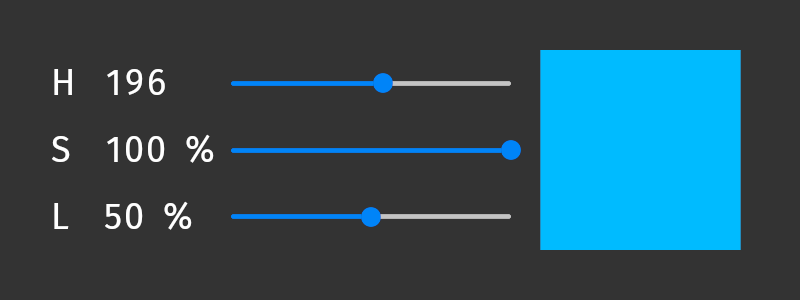
# Interprets the values of three sliders as hue, saturation, and lightness
# values and converts the resulting HSL color through sRGB color space to
# linear color space.
# For example, to fill an Empty Node 2D node with the color, bind the
# Brush Color property of that node to this binding expression.
#
hslVec = Vector4(0, 0, 0, 1)
# Get the hue from the value of a slider whose range is 0 .. 360.
hslVec.x = {@../Hue Slider/RangeConcept.Value} / 360
# Get the saturation from the value of a slider whose range is 0 .. 100.
hslVec.y = {@../Saturation Slider/RangeConcept.Value} / 100
# Get the lightness from the value of a slider whose range is 0 .. 100.
hslVec.z = {@../Lightness Slider/RangeConcept.Value} / 100
# Convert the color from HSL to sRGB color space.
srgbColor = Color4(hslToSrgb(hslVec))
# Convert the color from sRGB to linear color space.
sRGBToLinear(srgbColor)
# Interprets the translation of a 3D node as an HSL color and converts that
# color to sRGB.
# For example, when you bind the Ambient Color property of a 3D node to this
# binding expression, the color changes when you move the node along the 3D
# axes within the range 0 .. 10:
# - Hue changes along the x axis.
# - Saturation increases along the y axis.
# - Lightness increases along the z axis.

x = {@./Node3D.RenderTransformation}.translationX
y = {@./Node3D.RenderTransformation}.translationY
z = {@./Node3D.RenderTransformation}.translationZ

position = Vector3(0, 0, 0)
position.x = abs(x) / 10
position.y = abs(y) / 10
position.z = abs(z) / 10

rgbVector = hslToSrgb(position)

output = Color4(0, 0, 0, 1)
output.r = rgbVector.x
output.g = rgbVector.y
output.b = rgbVector.z

sRGBToLinear(output)
|
linearTosRGB
線形カラー空間からsRGBカラー空間に値を変換します。この関数は、色の値のアルファチャンネルを変換しません。
例えば、sRGBカラーを期待するシェーダーを持つマテリアルタイプのユニフォームバインディングでこの関数を使用します。
構文 |
|
||
パラメーター |
|
||
リターン |
入力パラメータと同じ型 |
||
例 |
# Converts the value of the Diffuse Color property from linear color space to
# sRGB color space.
# When you bind in a material type a color uniform to this binding expression,
# Kanzi writes the color value to the render state and uses it as the value of
# the color uniform when rendering the nodes that use the material type.
linearTosRGB({./Diffuse})
|
premultiplyColor
色のRGBチャンネルの値をアルファチャンネルの値で乗算します。
Color4(color.r * color.a, color.g * color.a, color.b * color.a, color.a)
構文 |
|
||
パラメーター |
|
||
リターン |
入力パラメータと同じ型 |
||
例 |
# Premultiplies the color that you bind to this binding expression.
premultiplyColor(getCurrentValue())
|
srgbToHsl
sRGBカラースペースからHSLカラースペースに値を変換します。この関数は、色の値のアルファチャンネルを変換しません。
例えば、この関数を使用して、Text Block ノード内の色の彩度値を表示します。
HSLカラー値 hslVector のコンポーネントにアクセスするには、次を使用します。
色相の
hslVector.x彩度のための
hslVector.y明度のための
hslVector.z
構文 |
|
||
パラメーター |
|
||
リターン |
パラメータがVector4またはColor4の場合、Vector4を返します。パラメータがVector3の場合、Vector3を返します。 |
||
例 |
# Returns Vector4(0.25, 1, 0.5, 1) which represents the color
# hsla(90, 100%, 50%, 1).
sourceColor = Color4(0.5, 1, 0, 1)
sRGBColor = linearTosRGB(sourceColor)
hslVector = srgbToHsl(sRGBColor)
hslVector
# Converts the value of the Brush Color property in the parent node from linear
# color space to HSL color space and prints the saturation value of the color in
# percentage. For example, you can bind this expression to the Text property of
# a Text Block node.
srgbColor = linearTosRGB({@../ColorBrush.Color})
hslVector = srgbToHsl(srgbColor)
string(int(hslVector.y * 100)) + "%"
|
sRGBToLinear
sRGBカラースペースから線形カラースペースに値を変換します。この関数は、色の値のアルファチャンネルを変換しません。
例えば、この関数を使用して値をリニアカラー空間に変換し、その値を色プロパティの赤、緑、または青のチャンネルに割り当てる前に使用します。
構文 |
|
||
パラメーター |
|
||
リターン |
入力パラメータと同じ型 |
||
例 |
# Returns the RGBA color (0, 192, 64, 255).
# This expression is equivalent to Color4(0, 0.75, 0.25, 1).
color = Color4(0, 0, 0, 1)
color.g = sRGBToLinear(0.75)
color.b = sRGBToLinear(0.25)
color
# Assigns the value of custom property MyFloatPropertyType to the
# red color channel of a color property.
#
# Get the current value of the target color property.
color = getCurrentValue()
# Convert the value of MyFloatPropertyType from sRGB color space to
# linear color space and assign it to the red color channel of the
# color property.
color.r = sRGBToLinear({@./MyFloatPropertyType})
# Return the color.
color
# Converts the value of the Ambient Color property from sRGB color space to
# linear color space.
# When you bind in a material type a color uniform to this binding expression,
# Kanzi writes the color value to the render state and uses it as the value of
# the color uniform when rendering the nodes that use the material type.
sRGBToLinear(getAmbient())
|
範囲関数
範囲プロパティタイプは、値のコレクションを格納します。バインディングで範囲を使用して:
範囲から個々の値を読み取ります。
複数の値を同時に操作します。
配列出力に複数の値を書き込む。
createViewを作成する
範囲を超えたビューを作成します。このビューは入力範囲の値を参照しますが、その長さは制限されています。
同じ range に対して複数のビューを作成できます。ビューを反復処理する際、その反復は入力 range 内の位置を参照します。
ライトユニフォームバインディング を参照してください。
構文 |
|
||||||
パラメーター |
|
||||||
リターン |
入力範囲の値を参照する範囲ですが、その長さは入力 |
||||||
例 |
# This is the default PointLightColor uniform binding in a material type that uses
# lights. The binding creates a view over the range of Point Light nodes in the
# scene and accesses the Point Light Color property of each Point Light node in that
# view. The length of the view is determined by the number of Point Light nodes
# supported by the material type.
pointLightsView = createView<OutputSize>({##RenderPass/DrawObjectsRenderPass.PointLights})
{pointLightsView ... PointLightColor}
# Modify the default PointLightColor uniform binding in a material type that uses
# lights. Set the length of the view over the range of Point Light nodes to the
# value of the MyLengthProperty set in a node that uses the material type that has
# this binding.
# This binding uses the createView(range, length) syntax where length can be
# a variable or constant value.
length = {./MyLengthProperty}
pointLightsView = createView({##RenderPass/DrawObjectsRenderPass.PointLights}, length)
{pointLightsView ... PointLightColor}
# Modify the default PointLightColor uniform binding in a material type that uses
# lights. Set the length of the view over the range of Point Light nodes to 2.
# This binding uses the createView<constantLength>(range) syntax where constantLength
# is a constant value.
pointLightsView = createView<2>({##RenderPass/DrawObjectsRenderPass.PointLights})
{pointLightsView ... PointLightColor}
|
評価する
範囲イテレータをその範囲の評価に変換します。この関数を使用して、範囲プロパティに格納された値のコレクションを順に処理します。
evaluate 関数は範囲イテレータを進め、進む前の範囲イテレータの位置を返します。
範囲イテレータ内の位置に対して、evaluate 関数はイテレータを変更せず、次のイテレーションの位置を返します。
splitString 関数を使用して、評価する範囲イテレータを作成します。
構文 |
|
||
パラメーター |
|
||
リターン |
範囲: 入力範囲の評価 |
||
例 |
# Returns "two".
myRange = splitString("one,two,three", ",")
evaluate(myRange)
string(evaluate(myRange))
# Sets the 2D Render Transformation property Translation property fields
# to the values that the user enters in the Text Box 2D node.
# For example, "100, 50" sets the Render Transformation property:
# - Translation X property field to 100
# - Translation Y property field to 50
renderTransformation = getCurrentValue()
stringRange = splitString({@../Text Box 2D/TextConcept.Text}, ",")
renderTransformation.translationX = float(stringRange)
evaluate(stringRange)
renderTransformation.translationY = float(stringRange)
renderTransformation
# This example is equivalent to the previous example.
renderTransformation = getCurrentValue()
stringRange = splitString({@../Text Box 2D/TextConcept.Text}, ",")
x = evaluate(stringRange)
y = evaluate(stringRange)
renderTransformation.translationX = float(x)
renderTransformation.translationY = float(y)
renderTransformation
|
splitString
テキスト文字列をサブストリングのコレクションに分割し、そのコレクションを範囲イテレータとして返します。この範囲イテレータを使用して、サブストリングのコレクションを順にステップスルーできます。サブストリングを1つずつ返すには、評価する 関数を使用してください。
バインディングを使用してテキストを分割する を参照してください。
構文 |
|
||||
パラメーター |
|
||||
リターン |
レンジ (Range) |
||||
例 |
# Returns "two".
myRange = splitString("one,two,three", ",")
evaluate(myRange)
string(evaluate(myRange))
# Returns "three".
myRange = splitString("one, two, three", ", ")
evaluate(myRange)
evaluate(myRange)
string(myRange)
|
テクスチャ関数 (Texture functions)
テクスチャは、画像を表現するためにレンダリングで使用できるリソースです。テクスチャのプロパティにアクセスするには、テクスチャ関数を使用します。
textureGetAddressingMode
テクスチャのアドレッシングモードを取得します。これは、次のいずれかを使用して設定できます。
テクスチャリソースの Wrap Mode プロパティ。
Composition Target Render Pass レンダーパスの Addressing Mode プロパティ。
例えば、この関数を使用してテクスチャのアドレッシングモードを取得し、そのアドレッシングモードを他のバインディングでの意思決定の入力として使用したい場合に利用します。
構文 |
|
||
パラメーター |
|
||
リターン |
整数:
|
||
例 |
# Gets the addressing mode of a texture resource that you set
# in the custom property type MyTexturePropertyType.
textureGetAddressingMode({./MyTexturePropertyType})
# Gets the addressing mode of the first Result Texture of sibling
# Composition Target Render Pass named Compose.
textureGetAddressingMode({@../Compose/CompositionTargetRenderPass.ResultTexture0})
|
textureGetAnisotropyLevel
テクスチャリソース内の Anisotropy プロパティを使用して設定したテクスチャの異方性レベルを取得します。たとえば、この関数を使用して、他のバインディングでの意思決定の入力としてその異方性レベルを使用したい場合に、テクスチャリソースの異方性レベルを取得します。
構文 |
|
||
パラメーター |
|
||
リターン |
整数:
|
||
例 |
# Gets the anisotropy level of a texture resource that you set in
# the custom property type MyTexturePropertyType.
textureGetAnisotropyLevel({./MyTexturePropertyType})
|
textureGetDepthCompareFunction
Render Target Texture リソースの深度比較関数を取得し、Composition Target Render Pass レンダーパスの結果テクスチャにレンダリングします。たとえば、この関数を使用して、他のバインディングでの意思決定の入力としてその関数を使用したい場合に、テクスチャリソースの深度比較関数を取得します。
構文 |
|
||
パラメーター |
|
||
リターン |
整数:
|
||
例 |
# Gets the depth compare function of a Render Target Texture resource that you set
# in the custom property type MyRenderTargetTexturePropertyType.
textureGetDepthCompareFunction({./MyRenderTargetTexturePropertyType})
# Gets the depth compare function of the Result Depth Texture of sibling
# Composition Target Render Pass named Compose.
textureGetDepthCompareFunction({@../Compose/CompositionTargetRenderPass.ResultDepthTexture})
|
textureGetFilterMode
テクスチャのフィルターモードを取得します。これは、次のいずれかを使用して設定できます。
テクスチャリソースの Minification Filter プロパティ。
Composition Target Render Pass レンダーパスの Filter Mode プロパティ。
例えば、この関数を使用してテクスチャリソースのフィルターモードを取得し、そのフィルターモードを他のバインディングでの意思決定の入力として使用したい場合に利用します。
構文 |
|
||
パラメーター |
|
||
リターン |
整数:
|
||
例 |
# Gets the value of the Minification Filter property of a texture resource that
# you set in the custom property type MyTexturePropertyType.
textureGetFilterMode({./MyTexturePropertyType})
# Gets the filter mode of the first Result Texture of sibling
# Composition Target Render Pass named Compose.
textureGetFilterMode({@../Compose/CompositionTargetRenderPass.ResultTexture0})
|
textureGetHeight
テクスチャの高さを取得します。例えば、この関数を使用して、テクスチャリソースの高さをノードの高さに設定したい場合に使用します。
構文 |
|
||
パラメーター |
|
||
リターン |
Integer 入力パラメータがテクスチャリソースを保持していない場合、-1を返します。 |
||
例 |
# Gets the height of a texture resource that you set in the custom property type
# MyTexturePropertyType.
textureGetHeight({./MyTexturePropertyType})
# Gets the height of the texture shown in the Image node which is a sibling of
# the node to which you add the binding.
textureGetHeight({@../Image/Image2D.Image})
|
textureGetMipmapMode
テクスチャのミップマップモードを取得します。これは、テクスチャリソースの Mipmap Mode プロパティまたは Composition Target Render Pass レンダーパスで設定します。たとえば、この関数を使用して、他のバインディングでの意思決定の入力としてそのミップマップモードを使用したい場合に、テクスチャリソースのミップマップモードを取得します。
構文 |
|
||
パラメーター |
|
||
リターン |
整数:
|
||
例 |
# Gets the mipmap mode of a texture resource that you set in
# the custom property type MyTexturePropertyType.
textureGetMipmapMode({./MyTexturePropertyType})
# Gets the mipmap mode of the first Result Texture of sibling
# Composition Target Render Pass named Compose.
textureGetMipmapMode({@../Compose/CompositionTargetRenderPass.ResultTexture0})
|
textureGetMultisampleLevel
Render Target Texture リソースのマルチサンプルレベルを取得します。たとえば、この関数を使用して、他のバインディングでの意思決定の入力としてそのマルチサンプルレベルを使用したい場合に、レンダーターゲットテクスチャのマルチサンプルレベルを取得します。
ターゲットプラットフォームが暗黙のマルチサンプリングをサポートしている場合にのみ、マルチサンプルレベルは意味があります。Composition Target Render Pass によって使用されるレンダーバッファマルチサンプリングは、Single Texture リソースへのブリット操作の一部としてサンプルを解決するため、結果のテクスチャはマルチサンプリングされません。マルチサンプリングの使用 を参照してください。
構文 |
|
||
パラメーター |
|
||
リターン |
整数:
|
||
例 |
# Gets the multisample level of a Render Target Texture resource that you set in
# the custom property type MyRenderTargetTexturePropertyType.
textureGetMultisampleLevel({./MyRenderTargetTexturePropertyType})
|
textureGetPixelFormat
テクスチャのピクセルフォーマットを取得します。例えば、この関数を使用して、他のバインディングでの意思決定の入力としてそのピクセルフォーマットを使用したい場合に、テクスチャリソースのピクセルフォーマットを取得します。
構文 |
|
||
パラメーター |
|
||
リターン |
Integer 戻り値は、 入力パラメータがテクスチャリソースを保持していない場合、-1を返します。 |
||
例 |
# Gets the pixel format of a texture resource that you set in
# the custom property type MyTexturePropertyType.
textureGetPixelFormat({./MyTexturePropertyType})
# Gets the pixel format of the first Result Texture of sibling
# Composition Target Render Pass named Compose.
textureGetPixelFormat({@../Compose/CompositionTargetRenderPass.ResultTexture0})
|
textureGetSize
テクスチャのサイズを取得します。例えば、ノードのサイズを設定するためにテクスチャリソースのサイズを使用したい場合にこの関数を使用します。
構文 |
|
||
パラメーター |
|
||
リターン |
ベクトル2 入力パラメータがテクスチャリソースを保持していない場合、Vector2(-1.0f, -1.0f) を返します。 |
||
例 |
# Gets the size of a texture resource that you set in the custom property type
# MyTexturePropertyType.
textureGetSize({./MyTexturePropertyType})
|
textureGetWidth
テクスチャの幅を取得します。例えば、この関数を使用して、テクスチャリソースの幅をノードの幅に設定したい場合に使用します。
構文 |
|
||
パラメーター |
|
||
リターン |
Integer 入力パラメータがテクスチャリソースを保持していない場合、-1を返します。 |
||
例 |
# Gets the width of a texture resource that you set in the custom property type
# MyTexturePropertyType.
textureGetWidth({./MyTexturePropertyType})
# Gets the width of the texture shown in the Image node which is a sibling of
# the node to which you add the binding.
textureGetWidth({@../Image/Image2D.Image})
|
一般的なバインディング式
変数
バインディング式では変数を使用できます。
# Assigns the value 1 to the variable 'A', and binds the value of
# the variable to the selected property.
A = 1
# Same as above, but using an alternative syntax.
A = (1)
プロパティのバインディング
プロパティを別のプロパティにバインドするには、波括弧で囲んで次を入力します:
バインドしたいプロパティを含むノードへの相対パス。
スラッシュ。
ソースプロパティの名前。
ヒント
バインディング式でノードへのパスの前に @ 記号を使用すると、Kanzi Studio:
パスが有効かどうかを確認し、パスが有効でない場合は Binding Editor にエラーメッセージを表示します。
ノードツリー内のソースノードとターゲットノード間の位置が変わるたびに、バインディング式のパスを更新します。
@ 記号を使用すると、同じプレハブ内でのみバインディングを作成でき、プレハブ間では作成できません。
Properties から Binding Editor へプロパティ名をドラッグできます。
プロパティ値とプロパティフィールド値では、演算子と括弧を使用できます。
構文 |
|
||||
パラメーター |
|
||||
例 |
# Binds to the Layout Width property of the current node.
{@./Node.Width}
# Binds to the FOV property of the Camera node.
{@../Camera/Fov}
# Same as above, but Kanzi Studio does not track the location of the target node.
{../Camera/Fov}
# Binds to the Vertical Margin property of the Box node.
{@../Box/LayoutVerticalMargin}
# Multiplies the FOV property with the Layout Transformation Scale x
# property field.
{@../Camera/Fov} * {../Box/LayoutTransformation}.scaleX
# Binds each vector of a property to the Render Transformation property
# Translation X and Translation Y property fields of the current node.
# In the Binding Editor set the Target Property to a property that uses the
# Vector2D data type. For example, use the Horizontal Margin property.
x = {@./Node3D.RenderTransformation}.translationX
y = {@./Node3D.RenderTransformation}.translationY
myVector = Vector2(0.0, 0.0)
myVector.vectorX = x
myVector.vectorY = y
myVector
|
プロパティフィールドのバインディング
プロパティをプロパティのプロパティフィールドにバインドするには、次を入力します:
中括弧内: ノードへの相対パス、スラッシュ、プロパティ名。
ピリオド。
プロパティフィールドの名前。
色と変換プロパティには特別なプロパティフィールド名があります。色プロパティフィールドのバインディング と 変換プロパティフィールドバインディング を参照してください。
他のプロパティのプロパティフィールドには、N または VectorN を使用します。ここで、N は X、Y、Z、または W であり、プロパティが Kanzi Studio Properties ウィンドウにリストされる順序を示します。
ディスクリプション (Description) |
プロパティフィールドラベル |
プロパティフィールド |
|---|---|---|
最初のプロパティフィールド |
X |
x、vectorX |
2 番目のプロパティフィールド |
Y |
y、vectorY |
3 番目のプロパティフィールド |
Z |
z、vectorZ |
4 番目のプロパティフィールド |
W |
w、vectorW |
プロパティ値とプロパティフィールド値では、演算子と括弧を使用できます。
同じノード内であるプロパティのプロパティフィールドを別のプロパティフィールドにバインドするには、そのプロパティの値を取得するために getCurrentValue 関数を使用します。
構文 |
|
||||||
パラメーター |
|
||||||
例 |
# Point Light and Spot Light nodes have an attenuation property that
# has three property fields: Constant, Linear, and Quadratic.
# For example, for the Point Light Attenuation:
# To bind to the first property field (Constant)
{@../Light/PointLightAttenuation}.x
# To bind to the second property field (Linear)
{@../Light/PointLightAttenuation}.y
# To bind to the third property field (Quadratic)
{@../Light/PointLightAttenuation}.z
# Binds to the Horizontal Padding property Left property field of the Text node.
{@../Text/TextConcept.HorizontalPadding}.x
# Binds to the Vertical Margin property Bottom property field of the Image node.
{@../Image/Node.VerticalMargin}.vectorX
# Binds to the Vertical Margin property Top property field of the Image node.
{@../Image/Node.VerticalMargin}.vectorY
# Binds to the MyProject.MyProperty property Y property field of the parent node.
{@../MyProject.MyProperty}.y
|
色プロパティフィールドのバインディング
プロパティを色プロパティフィールドにバインドするには、次の名前を使用します:
ディスクリプション (Description) |
プロパティフィールドラベル |
プロパティフィールド |
|---|---|---|
赤色チャンネル値 |
R |
r、colorR |
グリーンカラーチャンネル値 |
G |
g、colorG |
ブルーカラーチャンネル値 |
B |
b、colorB |
アルファチャンネル値 |
A |
a、colorA |
構文 |
|
||||||
パラメーター |
|
||||||
例 |
# Binds to the Point Light Color property R property field
# (value of the red color channel) of the Point Light node.
{@../Point Light/PointLightColor}.r
# Binds to the Brush Color property G property field
# (value of the green color channel) of the parent node.
{@../ColorBrush.Color}.colorG
# Assigns the value of custom property MyFloatPropertyType to the
# red color channel of a color property.
#
# Get the current value of the target color property.
color = getCurrentValue()
# Convert the value of MyFloatPropertyType from sRGB color space to
# linear color space and assign it to the red color channel of the
# color property.
color.r = sRGBToLinear({@./MyFloatPropertyType})
# Return the color.
color
|
変換プロパティフィールドバインディング
プロパティを変換プロパティフィールドにバインドするには、次の名前を使用します。
ディスクリプション (Description) |
プロパティフィールドラベル |
プロパティフィールド |
|---|---|---|
回転関数を使用して設定するX、Y、Z軸周りの3Dノードの回転の値。CreateRotation、CreateRotationX、CreateRotationY、CreateRotationZ、ロテート (Rotate)、RotateX、RotateY、および RotateZ を参照してください。 |
Rotation |
ローテーション (Rotation) |
Z 軸を中心とした2Dノード回転の値 |
Rotation R |
RotationZ |
X 軸に沿ったノードスケール (拡大縮小) の値 |
Scale X |
ScaleX |
Y 軸に沿ったノードスケールの値 |
Scale Y |
ScaleY |
Z 軸に沿ったノードスケールの値 |
Scale Z |
ScaleZ |
X 軸に沿ったノード位置の値 |
Translation X |
x、translationX |
Y 軸に沿ったノード位置の値 |
Translation Y |
y、translationY |
Z 軸に沿ったノード位置の値 |
Translation Z |
z、translationZ |
構文 |
|
||||||
パラメーター |
|
||||||
例 |
# Binds to the Render Transformation property Translation X property field
# of the Image node.
{@../Image/Node2D.RenderTransformation}.x
# Binds to the Layout Transformation property Scale Y property field
# of the Box node.
{../Box/LayoutTransformation}.scaleY
# Multiplies the FOV property of the Camera node with the Render
# Render Transformation property Scale X property field of the
# Box node.
{../Camera/Fov} * {../Box/RenderTransformation}.scaleX
# Binds each vector of a property to the Render Transformation property
# Translation X and Translation Y property fields of the current node.
# In the Binding Editor set the Target Property to a property that uses the
# Vector2D data type. For example, use the Horizontal Margin property.
x = {@./Node3D.RenderTransformation}.translationX
y = {@./Node3D.RenderTransformation}.translationY
myVector = Vector2(0.0, 0.0)
myVector.vectorX = x
myVector.vectorY = y
myVector
# Gets the value of the Translation X property field of the
# transformation property that you bind to this expression.
getCurrentValue().translationX
|
プレハブルートのバインディング
ノードプレハブまたはレンダーパスプレハブは、それぞれ独自のプロパティを持つノードまたはレンダーパスのツリーを含むことができます。プレハブまたはそのインスタンスのいずれかでノードまたはレンダーパスを編集すると、そのプレハブのすべてのインスタンスでそれらのノードまたはレンダーパスが変更されます。ただし、デフォルトのプレハブの値をオーバーライドすることで、プレハブの個々のインスタンスに個別の値を持たせることができます。たとえば、連絡先リストエントリのプレハブを作成する場合、各連絡先リストエントリに異なる名前、番号、および写真を表示したいとします。
プレハブ内のいずれかのノードまたはレンダーパスのプロパティをそのプレハブのインスタンスのルートにバインドするには、バインディング式で中括弧内に ##Template を入力し、スラッシュを続けてバインドしたいプレハブインスタンスのルートのプロパティ名を入力します。
例えば、Button プレハブ内にある Text Block ノードで異なるインスタンスごとに異なるテキストを表示したい場合、##Template バインディング構文を使用します。
ヒント
Kanzi Studio にプレハブルートバインディングを作成させることができます。プレハブ内の任意のノードやレンダーパスプレハブ内の任意のレンダーパスを選択し、Properties でプロパティの横にある  をクリックすると、Kanzi Studio:
そのプロパティからカスタムプロパティを作成します。
そのカスタムプロパティをプレハブに追加し、プレハブの各インスタンスでよく使われるプロパティとしてカスタムプロパティを表示します。
ノードまたはレンダーパスに、プレハブルートのカスタムプロパティへの
##Templateバインディングを作成します。
プレハブのインスタンスをカスタマイズする を参照してください。
構文 |
|
||
パラメーター |
|
||
例 |
# Binds to the MyProject.ContactNameText property in the root of the prefab
# instance.
{##Template/MyProject.ContactNameText}
|
エイリアスのバインディング
プロパティをエイリアスにバインドするには、# 記号の後にエイリアス名を入力し、続けてスラッシュとエイリアスが指すアイテムのプロパティ名を入力します。エイリアスの使用 を参照してください。
構文 |
|
||||
パラメーター |
|
||||
例 |
# Binds to the Layout Width property of the target node of the alias named Grid.
{#Grid/Node.Width}
# Multiplies the FOV property of the target node of the alias named MainCamera
# with the Render Transformation property Scale X property field.
{#MainCamera/Fov} * {../Box/RenderTransformation}.scaleX
|
データソースのバインディング
プロパティまたはプロパティフィールドにデータオブジェクトをバインドするには、DataContext を中括弧で囲み、その後にピリオドを入力し、バインドしたいプロパティまたはプロパティフィールドのデータオブジェクトを続けます。子データオブジェクトにアクセスするには、ピリオドを使用します。
構文 |
|
||
パラメーター |
|
||
例 |
# Binds the property value of the item to the speed data object
# which is a child data object of the gauges data object
# in the data context of the item.
{DataContext.gauges.speed}
# Binds the data context itself. For example, use this if you want to
# use the current data context as the property value.
{DataContext}
|
Grid Layout バインディング
バインディングを使用して Grid Layout ノードの列と行のサイズを設定するには、各値を引用符で囲み、セミコロンで区切って入力します。
行または列のサイズが固定であることを指定するには、浮動小数点数を使用します。これは、Properties の Columns または Rows プロパティの値を Fixed に設定し、この列または行のサイズを定義する場合と同じです。
行または列のサイズが比例することを指定するために、アスタリスクのプレフィックスを追加します。これは、Properties の Columns または Rows プロパティの値を Proportional に設定し、この列または行が占める Grid Layout の割合を定義する場合と同じです。
定義を空のままにして、Grid Layout ノードが行または列のサイズを自動的に設定することを指定します。これは、Properties の Columns または Rows プロパティの値を Automatic に設定する場合と同じです。
構文 |
|
||
パラメーター |
|
||
例 |
# This binding to the Columns property sets the width of each of the three columns
# to a fixed size:
# - The width of the first column is 2.0.
# - The width of the second column is 3.0.
# - The width of the third column is 4.0.
"2.0;3.0;4.0;"
# This binding to the Rows property sets the height of each of the three rows
# to the fixed size 5.0.
"5.0;5.0;5.0;"
# This binding to the Rows property sets the height of the two rows to the height
# of their content.
";;"
# This binding to the Columns property sets the width of the columns in relation
# to the total width of the Grid Layout node:
# - The width of the first column is 1/6 of the width of the Grid Layout node.
# - The width of the second column is 2/6 of the width of the Grid Layout node.
# - The width of the third column is 3/6 of the width of the Grid Layout node.
"*1.0;*2.0;*3.0;"
|
マテリアルタイプバインディング式
マテリアルタイプのバインディングにより、次のことが可能になります。
シェーダーコードを編集せずにシェーダーユニフォームの値を変更します。ユニフォームバインディング を参照してください。
バインディングの結果を一時変数に格納し、他のバインディングで参照できるようにします。一時変数バインディング を参照してください。
ユニフォームバインディング関数
マテリアルタイプでは、頂点シェーダーとフラグメントシェーダーが、そのマテリアルで使用できるユニフォームとプロパティタイプを定義します。特定のマテリアルタイプで3Dノードをレンダリングする際、ユニフォームバインディングにより、Kanzi がレンダーステートに値を書き込み、それらの値をユニフォームとプロパティタイプに使用することができます。
シェーダーユニフォーム と ユニフォームバインディング を参照してください。
メモリ消費を削減し、パフォーマンスを向上させるために、Kanzi は最も一般的なシェーダーユニフォームに対するバインディング関数を提供します。Kanzi は、これらの関数を使用するすべてのバインディングを毎フレーム実行します。
getAmbient
一様なバインディング式で、Ambient Color プロパティの値を取得します。
getAmbient() は、Ambient シェーダーユニフォームのデフォルトバインディングです。
構文 |
|
リターン |
色: Ambient Color プロパティの値。 |
getCameraPosition
一様なバインディング式で、ワールド空間におけるカメラの位置を取得します。
getCameraPosition() は、kzCameraPosition シェーダーユニフォームのデフォルトのバインディングです。
構文 |
|
リターン |
ベクトル3D: ワールド空間におけるカメラの位置。 |
getCameraWorldMatrix
一様バインディング式では、ローカル空間からビュー(カメラ)空間への点または行列を変換するための行列を取得します。
getCameraWorldMatrix() は、kzCameraWorldMatrix シェーダーユニフォームのデフォルトのバインディングです。
kzCameraWorldMatrix ユニフォームは、プレマルチプライ処理された行列 kzCameraMatrix * kzWorldMatrix であり、次のようになります。
kzCameraMatrixはワールド空間からビュー(カメラ)空間に変換します。kzWorldMatrixはローカル空間からワールド空間に変換します。getWorldMatrix を参照してください。
構文 |
|
リターン |
4x4行列: ローカル空間からビュー(カメラ)空間にポイントまたは行列を変換する行列。 |
getNormalMatrix
一様なバインディング式では、オブジェクトの法線をローカル空間からワールド空間に変換するための行列を取得します。
getNormalMatrix() は kzNormalMatrix シェーダーユニフォームのデフォルトのバインディングです。
構文 |
|
リターン |
4x4行列: オブジェクトの法線をローカル空間からワールド空間に変換する行列。 |
getCameraNormalMatrix
一様なバインディング式では、オブジェクトの法線をローカル空間からビュー(カメラ)空間に変換するための行列を取得します。
getCameraNormalMatrix() は kzCameraNormalMatrix シェーダーユニフォームのデフォルトバインディングです。
kzCameraNormalMatrix ユニフォームは、プレマルチプライ処理された行列 kzCameraMatrix * kzNormalMatrix であり、次のようになります。
kzCameraMatrixはワールド空間からビュー(カメラ)空間に変換します。kzNormalMatrixはローカル空間からワールド空間に変換します。getNormalMatrix を参照してください。
構文 |
|
リターン |
4x4行列: オブジェクトの法線をローカル空間からビュー(カメラ)空間に変換する行列。 |
getProjectionCameraWorldMatrix
一様バインディング式では、ローカル空間からスクリーンスペースにポイントまたはマトリックスを変換するためのマトリックスを取得します。
getProjectionCameraWorldMatrix() は、kzProjectionCameraWorldMatrix シェーダーユニフォームのデフォルトのバインディングです。
kzProjectionCameraWorldMatrix ユニフォームは、プレマルチプライ処理された行列 kzProjectionMatrix * kzCameraMatrix * kzWorldMatrix であり、次のようになります。
kzProjectionMatrixはビュー空間からスクリーン空間に変換します。kzCameraMatrixはワールド空間からビュー(カメラ)空間に変換します。kzWorldMatrixはローカル空間からワールド空間に変換します。getWorldMatrix を参照してください。
構文 |
|
リターン |
4x4行列: ローカル空間からスクリーンスペースにポイントまたは行列を変換する行列。 |
getViewPosition
一様なバインディング式において、ビューの方向を計算するために使用できるベクトルを取得します。
getViewPosition() は kzViewPosition シェーダーユニフォームのデフォルトのバインディングです。
kzViewPosition ユニフォームは、kzWorldMatrix * vec4(kzPosition.xyz, 1.0) * kzViewPosition.w - kzViewPosition.xyz としてビュー方向を計算するために使用できる均一な位置ベクトルです。
kzWorldMatrixはポイントをローカル空間からワールド空間に変換します。getWorldMatrix を参照してください。kzViewPosition.wは、ベクトルが空間内の位置 (w==1) であるか、方向 (w==0) であるかを決定します。
構文 |
|
リターン |
4Dベクトル: ビュー方向を計算するために使用できる同次位置ベクトル。 |
getWorldMatrix
一様バインディング式では、ローカル空間からワールド空間へのポイントまたはマトリックスを変換するためのマトリックスを取得します。
getWorldMatrix() は、kzWorldMatrix シェーダーユニフォームのデフォルトのバインディングです。
構文 |
|
リターン |
4x4行列: ローカル空間からワールド空間へポイントまたは行列を変換する行列。 |
マテリアルタイプバインディングにおけるレンダーパスプロパティ
マテリアルタイプバインディング式で、マテリアルタイプを使用してノードを描画するレンダーパス内のプロパティを参照するには、波括弧で入力します:
##RenderPassスラッシュ
バインドしたいレンダーパス内のプロパティの名前
マテリアルタイプバインディング を参照してください。
構文 |
|
||
パラメーター |
|
||
例 |
# Binds to the MyProperty property in a render pass that draws nodes using the
# material type that has this binding.
{##RenderPass/MyProperty}
# This binding to a Matrix 4x4 property returns the inverse matrix of the product
# of the Calculated Projection Matrix and Calculated Camera Matrix properties in
# the Draw Objects Render Pass that draws nodes using the material type that has
# this binding.
projection = {##RenderPass/DrawObjectsRenderPass.ProjectionMatrix}
camera = {##RenderPass/DrawObjectsRenderPass.CameraMatrix}
inverse(projection * camera)
# This binding to a temporary variable property uses the evaluate binding function
# to step through a collection of values stored in the MyColorRange range property
# in the Draw Objects Render Pass that draws nodes using the material type that
# has this binding. The binding modifies the state of the range iterator in the
# render pass.
evaluate({##RenderPass/MyColorRange})
|
ライトユニフォームバインディング
マテリアルタイプでは、頂点シェーダーとフラグメントシェーダーが、そのマテリアルで使用できるユニフォームとプロパティタイプを定義します。特定のマテリアルタイプで3Dノードをレンダリングする際、ユニフォームバインディングにより、Kanzi がレンダーステートに値を書き込み、それらの値をユニフォームとプロパティタイプに使用することができます。
マテリアルタイプの使用 と レンダリング を参照してください。
DirectionalLightColor、SpotLightPosition、PointLightAttenuation などのライトプロパティタイプは、ユニフォーム配列をサポートしています。これにより、同じタイプの複数のライトを使用することができます。ライトプロパティタイプのユニフォーム配列 を参照してください。
ライトプロパティタイプのユニフォームバインディングは、そのプロパティタイプを使用するライトから抽出された値に基づいて、レンダーステートのユニフォーム値を設定します。例えば、PointLightColor プロパティタイプのユニフォームバインディングは、そのバインディングを持つマテリアルタイプを使用する3Dノードを照らすシーン内のすべての Point Light ノードにおける Point Light Color プロパティの個々の値に基づいてレンダー値を設定します。
特定のタイプの各ライトノードにおけるプロパティの値を含む範囲を取得するには、バインディング式で中括弧内に ##RenderPass/DrawObjectsRenderPass.[lightType] を入力し、その後に省略記号とライトノード内のプロパティ名を続けてください。
ライトの範囲に対して累積操作を行うには、... 演算子の後に算術演算子を使用します。
createViewを作成する を参照してください。
構文 |
|
||||
パラメーター |
|
||||
例 |
# This binding adds in each Point Light node the value 0.5 to the value of
# the Point Light Attenuation property Constant property field.
pointLightsView = createView<OutputSize>({##RenderPass/DrawObjectsRenderPass.PointLights})
{pointLightsView ... PointLightAttenuation} + Vector3(0.5, 0.0, 0.0)
# This binding to a light color uniform halves the value of the Directional
# Light Color property in each Directional Light node.
directionalLightsView = createView<OutputSize>({##RenderPass/DrawObjectsRenderPass.DirectionalLights})
{directionalLightsView ... DirectionalLightColor} * 0.5
# This binding to a light color uniform multiplies in each Directional Light node
# the value of the Directional Light Color property by the value of the Opacity
# property and returns the result range.
rangeA = {##RenderPass/DrawObjectsRenderPass.DirectionalLights ... DirectionalLightColor}
rangeB = {##RenderPass/DrawObjectsRenderPass.DirectionalLights ... Node.Opacity}
rangeA * rangeB
# Get the range that contains the value of the Point Light Color property in each
# Point Light node.
rangeA = {##RenderPass/DrawObjectsRenderPass.PointLights ... PointLightColor}
# Get the range that contains the value of the Opacity property in each
# Point Light node.
rangeB = {##RenderPass/DrawObjectsRenderPass.PointLights ... Node.Opacity}
# Multiply the value of the Opacity property in each Point Light node.
totalOpacity = ...* rangeB
# For each Point Light node multiply the value of the Point Light Color property
# by the multiplied opacity.
rangeA * totalOpacity
|
マテリアルタイプバインディングにおける一時変数
マテリアルタイプでは、一時変数バインディングを使用して、バインディングの結果を一時変数に格納することができます。この変数は、同じマテリアルタイプ内の他のバインディングで参照することができます。
一時変数バインディング を参照してください。
マテリアルタイプバインディング式で、同じマテリアルタイプ内の一時変数バインディングの結果を参照するには、波括弧で囲んで入力します:
##Selfスラッシュ
一時変数バインディングのターゲットプロパティの名前
##Self 構文は、マテリアルタイプを使用してノードを描画するレンダーパスで使用されるプロパティのレンダー値を指します。
構文 |
|
||
パラメーター |
|
||
例 |
# Binds to the MyProject.MyProperty property that is the target property
# of a temporary variable binding in the same material type.
{##Self/MyProject.MyProperty}
# This binding to a color property returns the color value obtained from the
# result of a temporary variable binding that targets the MyColorRange range
# property.
colors = splitString(string({##Self/MyColorRange}), " ")
color = Color4(0,0,0,1)
color.r = float(string(evaluate(colors)))
color.g = float(string(evaluate(colors)))
color.b = float(string(evaluate(colors)))
color
|
# (コメント)
コメントを記載するには、各行を番号記号で開始します。コメントでは任意の文字列を使用できます。