Luaを使用して
Kanzi Engine Lua API は、Luaプログラミング言語を使用して Kanzi Engine へのプラットフォームに依存しないインターフェースです。これにより、Kanzi Studio でアプリケーションおよびユーザーインターフェースロジックを作成できます。
kzbファイルをエクスポートする際、Kanzi Studio はLuaスクリプトをkzbファイルに埋め込みます。
注釈
Kanzi Engine Lua API を、Androidのような動的ライブラリのランタイムロードをサポートしないプラットフォームで使用するには、アプリケーションの CMakeLists に kzlua ライブラリへのリンクを追加してください。
if(ANDROID)
   target_link_libraries(Application_Name Kanzi::kzlua)
このトピックでは、Kanzi Engine Lua API の基本についての概要を提供します。完全なAPIリファレンスについては、Kanzi Lua API リファレンス を参照してください。
チュートリアル: Kanzi Engine Lua API の基本的な使用方法 を完了することで、Kanzi Engine Lua API を使用して Kanzi アプリケーションのアプリケーションロジックを開発する方法を学びます。
Kanzi は Lua 5.4 を使用します。https://www.lua.org/manual/5.4/ を参照してください。
Luaスクリプトの実行
Luaスクリプトを実行するには:
Node Tree または Prefabs で、ノードを選択するか作成します。Node Components > Triggers で、Luaスクリプトを実行したい場所にトリガーを作成します。
例えば、Asset Packages から Button アセットを Preview にドラッグし、Prefabs で Button: Click トリガーを使用します。
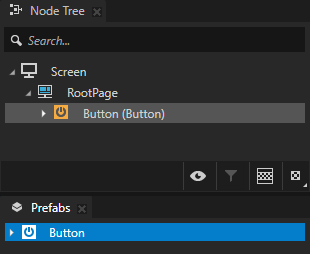
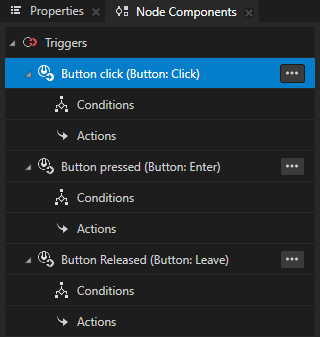
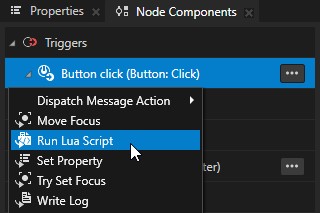
Node Components > Triggers で、Luaスクリプトを実行したいトリガーの Alt を押しながら右クリック を選択し、Run Lua Script を選択します。
例えば、Prefabs で Button を選択します。Node Components で、Alt を押しながら右クリック Button: Click を行い、Run Lua Script を選択します。
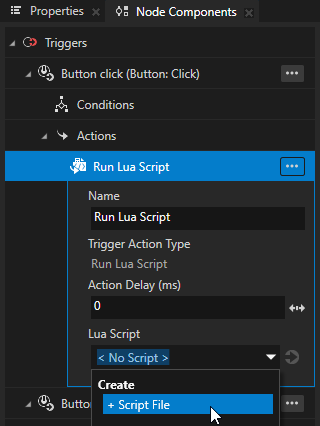
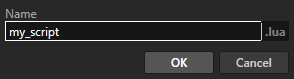
Run Lua Script アクションで Lua Script プロパティを + Script File に設定し、スクリプトに名前を付けます。
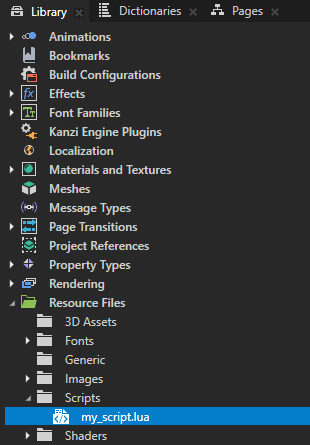
Kanzi Studio は、ライブラリ > リソースファイル > スクリプト で Lua スクリプトを作成します。
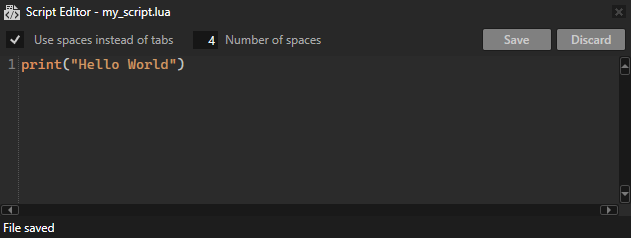
ライブラリ > リソースファイル > スクリプト で、作成したスクリプトをダブルクリックします。Script Editor にLuaコードを追加し、Save をクリックします。
print("Hello world!")
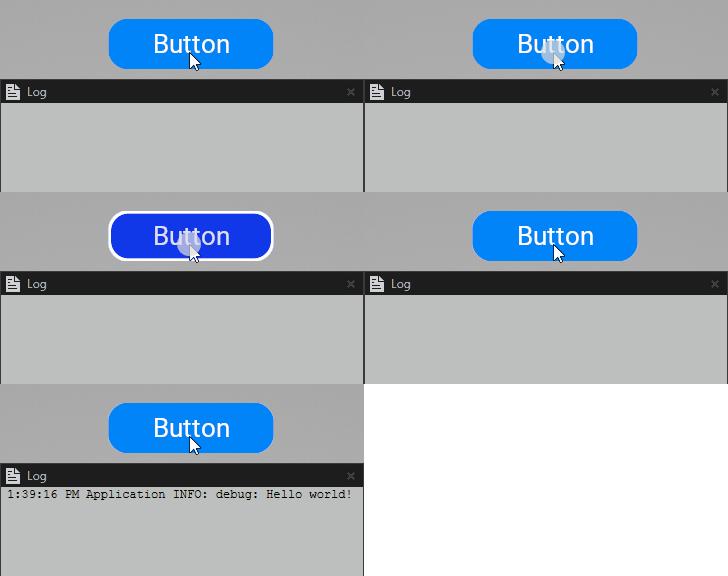
トリガーを設定すると、Run Lua Script アクションが実行され、スクリプト内のコードが実行されます。例えば、ボタンをクリックすると、Luaスクリプトが Hello world! を Log に出力します。
Lua変数の使用
Luaでは、宣言できます:
スクリプト内で変数を宣言した場所のスコープでのみアクセス可能なローカル変数
Kanzi はスコープの終わりでローカル変数を破棄します。
local x = 1
すべてのスクリプトでアクセス可能で、複数のスクリプト実行にわたって持続するグローバル変数
if runCount == nil then
    -- Initialize a persistent global variable `runCount` on the first run of this script.
    runCount = 0
end
runCount = runCount + 1
print("This script has been executed " .. runCount .. " times.")
ノードにアクセスする
トリガーを発動して Run Lua Script アクションを実行すると、そのアクションはトリガーを含むノードへの参照を contextNode 変数に割り当てます。
-- Print the name of the node that executes the script.
local name = contextNode:getProperty(Node.NameProperty)
print(name)
ノードツリーをナビゲートするには、contextNode 変数から始めて、次に lookupNode 関数を使用します。
相対パス
-- To access the parent node.
local parent = contextNode:lookupNode("..")
local parentName = parent:getProperty(Node.NameProperty)
print(parentName)
-- To access a child node with the name "Empty Node 2D".
local child = contextNode:lookupNode("Empty Node 2D")
local childName = child:getProperty(Node.NameProperty)
print(childName)
最も近いリソースディクショナリ内のエイリアス
-- To access a node to which the alias "Home" in the nearest resource dictionary points.
local node = contextNode:lookupNode("#Home")
local nodeName = node:getProperty(Node.NameProperty)
print(nodeName)
ノードのすべての子ノードにアクセスするには、getChild および getChildCount 関数を使用します。
local childCount = contextNode:getChildCount()
for i = 0, childCount - 1 do
    local child = contextNode:getChild(i)
    local name = child:getProperty(Node.NameProperty)
    print(name)
end
プロパティの使用
Kanzi Engine Lua API は、既存のプロパティタイプを操作することができます。ほとんどの Kanzi プロパティタイプは Kanzi Engine Lua API に存在します。
プロパティタイプにアクセスするには、Kanzi Engine の完全な名前を使用します。例えば、Node.OpacityProperty です。Kanzi Lua API リファレンス 内の Kanzi Engine Lua API で利用可能なすべてのプロパティタイプの完全な Kanzi Engine 名を見つけることができます。
組み込みの Kanzi プロパティタイプにアクセスするには:
-- Set property.
contextNode:setProperty(Node.OpacityProperty, 0.5)

-- Get property.
local opacity = contextNode:getProperty(Node.OpacityProperty)
print(opacity)
カスタムプロパティタイプにアクセスするには、プロパティタイプの完全な Kanzi Engine 名を持つ PropertyType のインスタンスを作成します。
-- Find the "MyProject.MyPropertyType" custom property type.
local customPropertyType = PropertyType:new("MyProject.MyPropertyType")
contextNode:setProperty(customPropertyType, "Hello Kanzi!")
プロパティシステム と プロパティタイプを作成する を参照してください。
ヒント
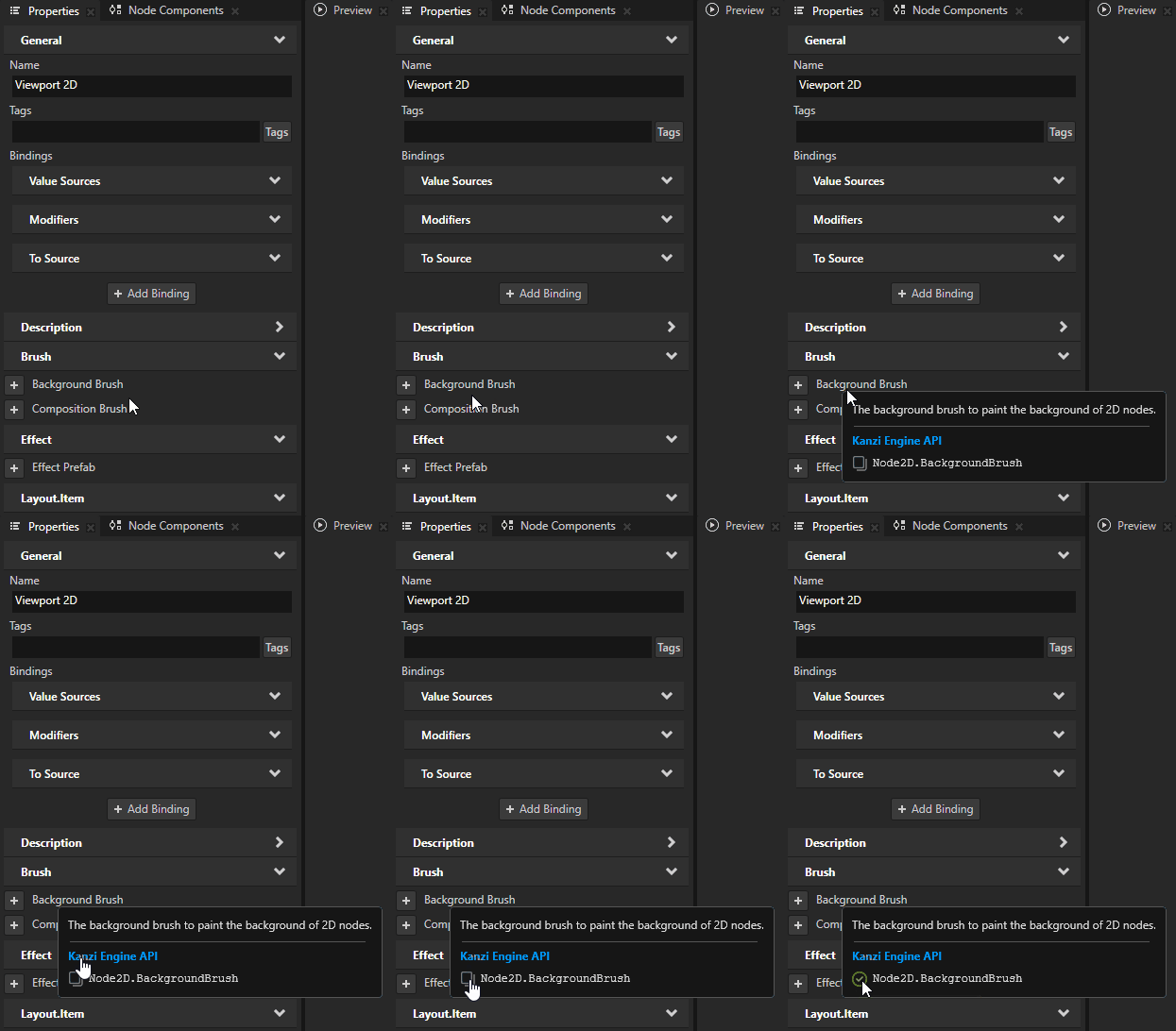
ほとんどの Kanzi プロパティタイプについては、プロパティツールチップに完全な Kanzi Engine 名が表示されます。
ベクトルデータ型の使用
Luaスクリプトでは、これらの Kanzi 数学タイプを値タイプとして使用できます。
ベクトル2
Vector3
Vector4
ColorRGBA
四元数
Matrix3x3
Matrix4x4
SRTValue2D
SRTValue3D
たとえば、以下の操作を行うことができます。
ローカル変数を宣言します。
local a = Vector2(1.4, 0)
local b = Vector3(4.5, -2.3, 0)
local c = Vector4()
local d = ColorRGBA(0,0,0)
local e = Quaternion()
local f = Matrix3x3(Vector2(1,0), Vector2(0,1), Vector2(0,0))
local g = Matrix4x4(Vector3(1,0,0), Vector3(0,1,0), Vector3(0,0,1), Vector3(0,0,0))
local h = SRTValue2D(Vector2(1,1), 0, Vector2(0,0))
local i = SRTValue3D(Vector3(1,1,1), Quaternion(), Vector3(0,0,0))
プロパティ値を割り当てます。
local srt = contextNode:getProperty(Node2D.LayoutTransformationProperty)
srt:setTranslation(Vector2(10, 0))
contextNode:setProperty(Node2D.LayoutTransformationProperty, srt)
すべてのベクター型のフィールドには、ゼロベースのインデックスを使用してアクセスします。
local v = Vector3()
v[0] = -1.1
v[1] = 1.2
v[2] = 2.3
print(string.format("%.2f %.2f %.2f", v[0], v[1], v[2]))
変換を作成するためにヘルパー関数を使用します。
local j = Matrix3x3.createTranslation(Vector2(10,0))
local k = Matrix4x4.createTranslation(Vector3(10,0,0))
local l = SRTValue2D.createTranslation(Vector2(10,0))
local n = SRTValue2D.createRotation(3.1415)
数学的な操作を行います。
local direction = Vector2(10, 10)
local length = direction:length()
local squaredLength = direction:squaredLength()
local normalizedDirection = direction:normalized()
一般的なベクトル操作にはオーバーロードされた演算子を使用します。例えば、2つのベクトルを加算したり、スカラーで乗算したりすることができます。
local position = Vector2(0,0)
local direction = Vector2(10, 0)
local rotation = Matrix3x3.createRotationInDegrees(45.0)
local speed = 2.4
position = position + (rotation * direction):normalized() * speed
ノードの作成と削除
プレハブをインスタンス化するには:
-- Load a prefab at kzb URL.
local prefab = contextNode:tryAcquireResource("kzb://myProject/Prefabs/MyPrefab")
-- Create a node from the prefab.
local node = prefab:instantiate("My Node")
-- Add the node to the node tree.
contextNode:addChild(node)
ノードのすべての子ノードを作成したノードで置き換えるには:
-- Remove all child nodes from the current node.
contextNode:removeAllChildren()

-- Create a Text Block 2D node named "My TextBlock2D",
-- set it to show "Hello", and add it to the current node.
local node = TextBlock2D:create("My TextBlock2D")
node:setProperty(TextBlock2D.TextProperty, "Hello")
contextNode:addChild(node)
ノードプレハブの使用 を参照してください。
メッセージの使用
Kanzi Engine にすでに登録されているすべてのメッセージタイプにアクセスできます。ただし、メッセージタイプを定義することはできません。
組み込みメッセージタイプのメッセージを送信するには:
-- Create an instance of message arguments for a message that you want to send.
local arguments = ExclusiveActivityHost2D.NavigateNextMessageMessage:newMessageArguments()
-- Set the argument values.
arguments:setLoopActivityProperty(true)
-- Send the message.
contextNode:dispatchMessage(ExclusiveActivityHost2D.NavigateNextMessageMessage, arguments)
メッセージタイプに名前でアクセスするには、メッセージタイプの完全な名前を使用して MessageType のインスタンスを作成します。
-- Access a message type and message argument.
local messageType = MessageType:new("ExclusiveActivityHostConcept.NavigateNextMessage")
local propertyType = PropertyType:new("ExclusiveActivityHostConcept.ImplicitActivityChangeRequestMessageArguments.LoopActivity")

-- Send the message.
local arguments = messageType:newMessageArguments()
arguments:setArgument(propertyType, true)
contextNode:dispatchMessage(messageType, arguments)
メッセージの使用 を参照してください。
メッセージの受信
メッセージを受信するためのメッセージハンドラーを設定します。メッセージ引数を受け取るハンドラー関数を作成し、その関数をメッセージハンドラーとして設定します。
メッセージを受信するには:
-- Access a message type and message argument.
local messageType = MessageType:new("MyMessage")
local propertyType = PropertyType:new("MyMessageArgument")

-- Define a message handler.
function myMessageHandler(arguments)
    local value = arguments:getArgument(propertyType)
    print("MyMessage received, argument = " .. value)
end

-- Add the message handler to the current node.
contextNode:addMessageHandler(messageType, myMessageHandler)
関連項目
チュートリアル: Kanzi Engine Lua API の基本的な使用方法