ステップ2 - Kanzi Studio プロジェクトで作成されたコンテンツにアクセスする
このチュートリアルでは、ウィジェットストアを作成し、一つのビューでウィジェットを閲覧および選択し、別のビューでウィジェットを選択してその説明を見ることができます。前のステップの最後でプロジェクトを実行したとき、アプリケーションの背景のみが表示されました。このチュートリアルの前のステップでAPIを使用してロードした Kanzi Studio プロジェクトから作成したkzbファイルには、APIを使用してアプリケーションロジックを作成するために必要なすべてのノードとリソースが含まれています。
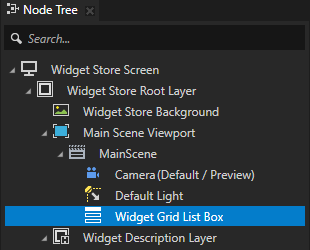
Grid List Box 3D ノードの名前は Widget Grid List Box で、APIを使用してウィジェット表現を動的にロードするノードです。Grid List Box ノードは、表示するアイテムのレイアウトとインタラクションの動作を定義します。
Node Tree ウィンドウの Widget Store Screen > Widget Store Root Layer > Main Scene Viewport > MainScene にあります。
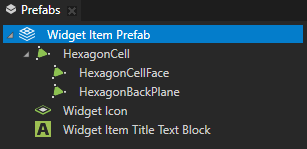
Widget Grid List Box ウィジェットのリストに記載されている各ウィジェットアイテムのプロパティを定義する Widget Item Prefab という名前のプレハブテンプレートです。Widget Grid List Box ノードにウィジェットを追加するには、このプレハブのインスタンスを作成し、各ウィジェットに異なる名前、アイコン、および説明を設定します。
Prefabs ウィンドウで見つけることができます。
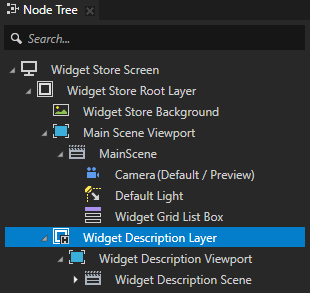
Empty Node 2D ノードの名前 Widget Description Layer は、選択されたウィジェットの説明を表示する説明パネルとして使用されます。このノードは、ユーザーが Widget Grid List Box からウィジェットを選択するまで非表示です。
Widget Store Screen > Widget Store Root Layer の Node Tree ウィンドウで見つけることができます。
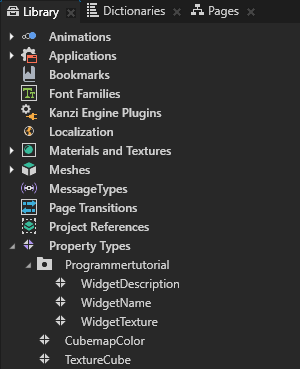
ウィジェットの名前、説明、およびテクスチャを設定するために使用されるカスタムプロパティタイプ。
Kanzi Engine APIを使用してkzbファイルからコンテンツにアクセスするためのエイリアス、およびアニメーションクリップのリソースID。
Dictionaries ウィンドウの Node Tree で選択したノードのリソースディクショナリでエイリアスを確認できます。
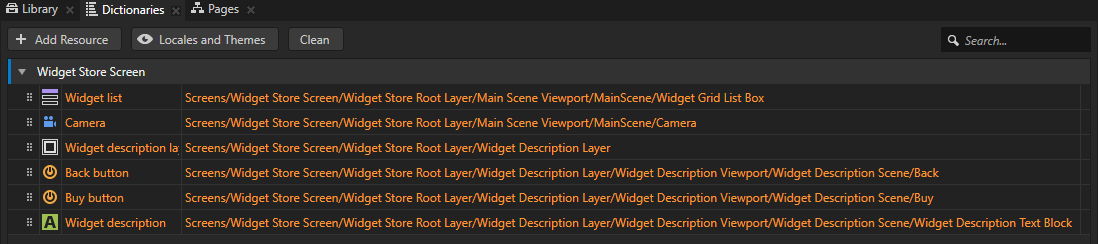
Kanzi Studio プロジェクトから Kanzi Engine API を使用してコンテンツにアクセスするには、
プレハブインスタンスを作成し、それらを Widget Grid List Box ノードに追加するには、プロジェクトからロードしてこれらのアセットにアクセスする必要があります。後でアプリケーションコードでロードされたプロジェクトアセットにアクセスするために、アプリケーションクラスのメンバー変数にアセットを作成して保存します。
private:

    // Grid List Box 3D node which contains the widgets.
    GridListBox3DSharedPtr m_widgetList;

    // The currently selected widget in the Widget Grid List Box node.
    GridListBox3D::ItemSharedPtr m_selectedItem;

    // The camera of the scene.
    CameraSharedPtr m_camera;

    // Transformation target for the camera animation.
    SRTValue3D m_cameraTransformationTarget;

    // Animation clip for animating the camera.
    SRTValue3DAnimationSharedPtr m_cameraAnimation;

    // Timeline playback for animating the camera.
    TimelinePlaybackSharedPtr m_cameraPlayback;

    // Timeline playback for highlighting the item.
    TimelinePlaybackSharedPtr m_widgetHighlightPlayback;

    // Timeline playback for enabling the Back button.
    TimelinePlaybackSharedPtr m_backButtonEnablePlayback;

    // Animation clip item for animating the selected widget.
    SRTValue3DAnimationSharedPtr m_selectedItemAnimation;

    // Description panel that contains the description of the selected
    // widget and the Back button.
    NodeSharedPtr m_widgetDescriptionNode;

    // Animation clip for animating the visibility of the widget description.
    BoolAnimationSharedPtr m_widgetDescriptionVisibilityAnimation;

    // Timeline playback for animating visibility of the widget description.
    TimelinePlaybackSharedPtr m_widgetDescriptionVisibilityPlayback;

    // Text Block 3D node that shows the widget description in the
    // Widget Description Layer node.
    TextBlock3DSharedPtr m_widgetDescriptionTextBlock;

    // Back button on the widget.
    NodeSharedPtr m_backButton;

    // Animation clip for disabling and enabling the Back button.
    BoolAnimationSharedPtr m_backButtonEnableAnimation;

    // User-defined property type for storing the names of widgets.
    OptionalStringDynamicPropertyType m_widgetNamePropertyType;

    // User-defined property type for storing the descriptions for widgets.
    OptionalStringDynamicPropertyType m_widgetDescriptionPropertyType;
ProgrammerTutorialApplicationクラスのApplication::onConfigure関数の後にApplication::onProjectLoaded関数を追加します。Application::onProjectLoadedの中に関数を配置すると、Kanzi がアプリケーションの読み込み後にその関数を呼び出します。protected: // Initializes application when project is loaded. void onProjectLoaded() override { }
kzbファイル内のノードにアクセスするには、まず Screen ノードを取得し、その後、エイリアスまたは相対パスを使用して各ノードを取得する必要があります。
Alias を使用して、Kanzi ノードへの一貫したアクセスを得ることができます。エイリアスを使用して、Kanzi Studio 内および Kanzi Engine API を使用してノードにアクセスすることができます。
Kanzi Studio でアプリケーションを作成する際に、プロジェクトのノードツリー内でノードを移動するため、それらを追跡する最も簡単な方法はエイリアスを使用することです。エイリアスのターゲットノードは、バインディングや Kanzi Engine API を使用して、ハッシュ記号 (
#) に続けてエイリアスの名前を指定することで、プロジェクト内のノードの位置に関係なく取得できます。エイリアスの使用 を参照してください。例えば、このチュートリアルでは、Widget Grid List Box のエイリアスは Widget list と名付けられ、Widget Store Screen ノードのリソース辞書に保存されています。APIでエイリアスを使用して Widget Grid List Box ノードにアクセスするには、#Widget list を使用します。
void onProjectLoaded() override
{
    // Get the Screen node in the kzb file. You use the Screen node to access all the other nodes and resources in the kzb file.
    ScreenSharedPtr screen = getScreen();

    // Access content from the Kanzi Studio project binary.

    // Get the reference to the Widget Grid List Box node to which you add instances
    // of the Widget Item Prefab prefabricated template.
    // You can set to which node the alias points in the Kanzi Studio project.
    m_widgetList = screen->lookupNode<GridListBox3D>("#Widget list");

    // Get the reference to the Camera node. You need the reference to the Camera node
    // so that you can animate it when the user selects a widget.
    m_camera = screen->lookupNode<Camera>("#Camera");

    // Create target transformation for camera animation.
    m_cameraTransformationTarget = SRTValue3D(Vector3(1.0f, 1.0f, 1.0f), Vector3(degreesToRadians(60.0f), degreesToRadians(0.0f), 0.0f), Vector3(-1.5f, 7.0f, -5.0f));

    // Get the reference to the Widget Description Layer node. This node is shown
    // when the user selects a widget and is used as a panel that contains the
    // widget description.
    m_widgetDescriptionNode = screen->lookupNode<Node>("#Widget description layer");

    // Get the reference to the Text Block node in the Widget Description Layer node
    // where the widget description is shown.
    m_widgetDescriptionTextBlock = screen->lookupNode<TextBlock3D>("#Widget description");

    // Get the reference to the reusable prefab (template) for the widget icons.
    // Domain is a collection of all subsystems and contains the Kanzi resource manager. You need to get the resource manager to access the resources in the .kzb file.
    ResourceManager* resourceManager = getDomain()->getResourceManager();
    PrefabTemplateSharedPtr widgetItemPrefabTemplate = resourceManager->acquireResource<PrefabTemplate>("kzb://programmer_tutorial/Prefabs/Widget Item Prefab");


    // Get the reference to the back button in the description layer.
    m_backButton = screen->lookupNode<Node>("#Back button");

    // Create animation clip for disabling and enabling back button.
    m_backButtonEnableAnimation = FromToAnimation<bool, StepEasingFunction>::create(getDomain(), chrono::seconds(1), false, true);

    // Create animation clip for hiding the description layer.
    m_widgetDescriptionVisibilityAnimation = FromToAnimation<bool, StepEasingFunction>::create(getDomain(), chrono::seconds(1), true, false);

    // Create animation clip for animating selected list box item.
    m_selectedItemAnimation = FromToAnimation<SRTValue3D, LinearEasingFunction>::create(getDomain(), chrono::milliseconds(800),
            SRTValue3D(Vector3(1.0f, 1.0f, 1.0f), Vector3(degreesToRadians(0.0f), 0.0f, 0.0f),  Vector3(0.0f, 0.0f, 0.0f)),
            SRTValue3D(Vector3(1.0f, 1.0f, 1.0f), Vector3(degreesToRadians(60.0f), 0.0f, 0.0f), Vector3(0.0f, 0.0f, 1.0f)));
}
このチュートリアルでは、Kanzi Studio プロジェクトで定義されたカスタムプロパティタイプを使用します。これらのカスタムプロパティタイプにアクセスするには、
DynamicPropertyTypeを作成し、Kanzi Studio プロジェクトで使用するのと同じ名前を使用してください。リソースは共有ポインタでラップされ、プロパティはオプショナルでラップされます。
class ProgrammerTutorialApplication: public ExampleApplication
{
...
    // Optional type for the string custom property types.
    using OptionalStringDynamicPropertyType = OptionalDynamicPropertyType<string>;

protected:

    void onProjectLoaded() override
    {
    ...
        // Get the custom property type for storing the widget name. This custom
        // property type is created in the Kanzi Studio project.
        m_widgetNamePropertyType = DynamicPropertyType<string>::tryCreate("Programmertutorial.WidgetName");

        // Get the custom property type for storing the widget description. This custom
        // property type is created in the Kanzi Studio project.
        m_widgetDescriptionPropertyType = DynamicPropertyType<string>::tryCreate("Programmertutorial.WidgetDescription");
    }
    ...
};