ステップ3 - プレハブインスタンスを作成し、ファイルシステムから画像をロードする
このチュートリアルのこのステップでは、Widget Item Prefab プレハブノードへの参照を作成します。このプレハブを使用して、Widget Grid List Box ノード内のウィジェットを表すプレハブインスタンスを作成し、各ウィジェットの名前、アイコン、および説明を設定し、Widget Grid List Box を Widget Item Prefab プレハブインスタンスで埋めます。
プレハブインスタンスを作成し、ファイルシステムから画像をロードするには:
Widget Item Prefab プレハブを取得します。プレハブインスタンスを使用して、Widget Grid List Box ノード内のウィジェットを表示し、ユーザーが選択したときにアニメーションクリップを使用して選択されたウィジェットにフォーカスを当てます。
kzbファイル内のリソースとノードにアクセスするには、リソースIDまたはkzbファイルのURLを使用できます。リソースIDを使用してリソースにアクセスすることが推奨される方法です。リソースにアクセスする際には、取得するリソースのタイプを指定する必要があります。
リソースIDを使用してリソースにアクセスする場合、取得したいリソースのリソースIDを含むリソースディクショナリを持つノードを使用する必要があります。
kzbファイルURLを使用してリソースにアクセスする場合、Kanzi リソースマネージャーを使用する必要があります。
リソースのフルパスを使用する場合、
kzb://で始め、その後にプロジェクト名とリソースの場所を続けてください。
例えば、Prefabs で作成された Widget Item Prefab にアクセスするには、パスを使用します。
kzb://programmer_tutorial/Prefabs/Widget Item Prefab
Kanzi Studio が Kanzi Studio プロジェクトから kzb ファイルをエクスポートするたびに生成する kzb.txt ファイルには、すべてのノードのフルパスが記載されています。このチュートリアルでは、
<KanziWorkspace>/Tutorials/Programmer tutorial/Start/Application/binディレクトリにそのファイルがあります。void onProjectLoaded() override { ... // Get the reference to the reusable prefab template for the widget icons. ResourceManager* resourceManager = getDomain()->getResourceManager(); PrefabTemplateSharedPtr widgetItemPrefabTemplate = resourceManager->acquireResource<PrefabTemplate>("kzb://programmer_tutorial/Prefabs/Widget Item Prefab"); ... }
Kanzi では、リソースが共有されているため、再利用することができます。同じリソースURLにマッピングされる
ResourceManager::acquireResourceへの複数の呼び出しは、同じリソースを返します。Kanzi のリソースは、共有ポインタで参照カウントされています。これらのリソースを継続的に使用するため、共有ポインタをメンバ変数として保存します。アプリケーションが破棄されると、共有ポインタも破棄され、Kanzi が自動的にリソースを解放します。ProgrammerTutorialApplicationクラス内で、ウィジェット名、アイコン、説明を定義するWidgetDescription構造体のコンストラクタを作成し、ウィジェットの数を設定し、ウィジェットの説明の配列を定義します。class ProgrammerTutorialApplication : public ExampleApplication { private: // Struct which contains the widget description. struct WidgetDescription { // Constructor. explicit WidgetDescription(const string& widgetName, const string& iconName, const string& description) : widgetName(widgetName), iconName(iconName), description(description) { } // The name of the widget. string widgetName; // The name of the widget icon file. string iconName; // The description of the widget shown in the description panel. string description; }; // The size of the array and the number of items you add to the array // define how many widgets your application contains. typedef array<WidgetDescription, 14> WidgetDescriptionArray; // Create the array of widget descriptions. static const WidgetDescriptionArray widgetDescriptions; ... };
ProgrammerTutorialApplicationクラスを初期化した後、各配列エントリにウィジェットの名前、画像ファイル名、および説明が含まれるwidgetDescriptions配列を初期化します。// Initialization of the widget description array. const ProgrammerTutorialApplication::WidgetDescriptionArray ProgrammerTutorialApplication::widgetDescriptions = { WidgetDescription("Browser", "Icon001.png", "Browser description"), WidgetDescription("Mail", "Icon002.png", "Mail description"), WidgetDescription("Game", "Icon003.png", "Game description"), WidgetDescription("Time", "Icon004.png", "Time description"), WidgetDescription("Calculator", "Icon005.png", "Calculator description"), WidgetDescription("Camera", "Icon006.png", "Camera description"), WidgetDescription("Movie", "Icon007.png", "Movie description"), WidgetDescription("Calendar", "Icon008.png", "Calendar description"), WidgetDescription("Chat", "Icon009.png", "Chat description"), WidgetDescription("Music", "Icon010.png", "Music player description"), WidgetDescription("Ninja", "Icon011.png", "Ninja description"), WidgetDescription("Splatter", "Icon012.png", "Splatter description"), WidgetDescription("Superstar", "Icon013.png", "Superstar description"), WidgetDescription("Chess", "Icon014.png", "Chess description") };
Application::onProjectLoaded関数内のProgrammerTutorialApplicationクラスで、取得したリソースとノードを保存し、Widget Item Prefab を取得した後、forループを追加して、Widget Grid List Box ノードに Widget Item Prefab プレハブインスタンスのインスタンスを配置します。Grid List Box ノードの水平スクロールは、組み込みの機能であることに注意してください。void onProjectLoaded() override { ... // Populate the widget list. for (WidgetDescriptionArray::const_iterator it = cbegin(widgetDescriptions), end = cend(widgetDescriptions); it != end; ++it) { // Instantiate the Widget Item Prefab prefab. Node3DSharedPtr widgetItem = widgetItemPrefabTemplate->instantiate<Node3D>(it->widgetName); // Add the instance of the Widget Item Prefab prefab to the Widget Grid List Box node. // The Widget Grid List Box takes the ownership of the instance. m_widgetList->addItem(widgetItem); // Apply a translation to all widgets that are in the second row to arrange them // in a honeycomb formation. You arrange the widgets into three rows. // When the Widget Grid List Box arranges its items you tweak the position of the widgets // by applying the render transformation. if (distance(cbegin(widgetDescriptions), it) % 3 == 1) { widgetItem->setRenderTransformation(SRTValue3D::createTranslation(Vector3(2.75f, 0.0f, 0.0f))); } // Apply the texture to the icon by changing the IconTexture resource ID to point // to the image in the file system. The images are located in the working // directory of the application you are running. widgetItem->addResource(ResourceID("IconTexture"), "file://./" + it->iconName); // Set the name and the description for the widget using the same custom property // types you accessed in the previous step of this tutorial. // When you create a prefab in Kanzi Studio, the nodes of which you want // to customize in each instance of the prefab, Kanzi adds to the root of // the prefab the properties you want to edit, and creates a binding to // these properties in the nodes. widgetItem->setProperty(*m_widgetNamePropertyType, it->widgetName); widgetItem->setProperty(*m_widgetDescriptionPropertyType, it->description); } }
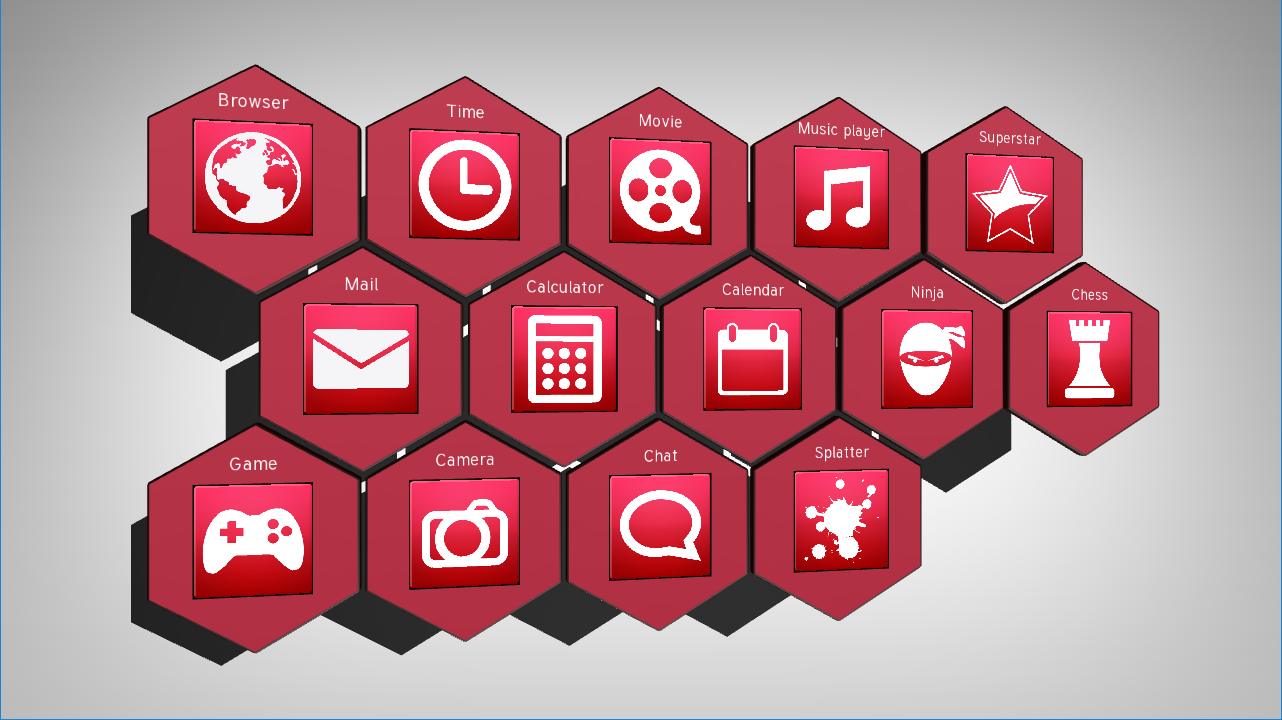
アプリケーションを実行すると、Widget Grid List Box ノード内にインスタンス化され配置された Widget Item Prefab プレハブが表示されます。Widget Grid List Box ノード内の各ウィジェットには名前とアイコンがあり、リストボックスを水平方向にスクロールできます。このチュートリアルの次のステップでは、ユーザーが Widget Grid List Box からウィジェットを選択したときに発生するイベントを実装します。