ステップ2 - Kanzi Engine APIを使用してプロパティ値を設定する
このステップでは、Kanzi Studio に Text Block 2D ノードとそのノードを指すエイリアスを作成します。次に、Kanzi Engine API を使用して、Kanzi アプリケーション内で Text Block 2D ノードによって表示されるコンテンツを定義するプロパティの値を設定します。
Kanzi Engine APIを使用してプロパティ値を設定するには:
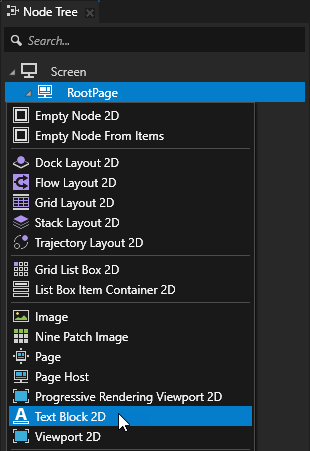
Node Tree で、Alt を押しながら右クリック の RootPage ノードを選択し、Text Block 2D を選択します。
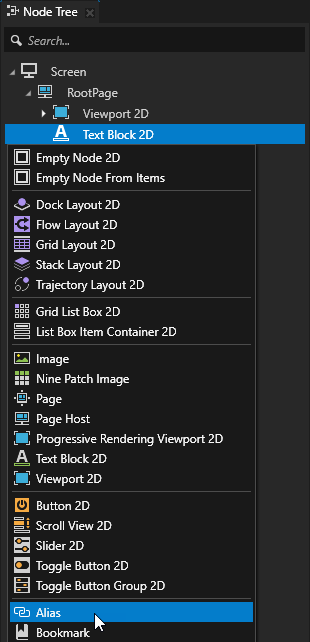
Node Tree で、作成した Text Block 2D ノードを Alt を押しながら右クリック し、Alias を選択します。
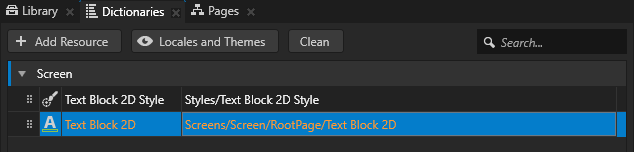
Kanzi Studio は、エイリアスを作成したノードを指すエイリアスを作成し、リソースディクショナリを含む最も近い先祖ノードのリソースディクショナリにそれを追加します。
アプリケーションコードでこのノードにアクセスするには、エイリアスを使用します。
この例では、リソースディクショナリを持つ最も近いノードは Screen ノードです。このプロジェクトのアプリケーションコードでは、エイリアスの名前を使用してその Text Block 2D ノードを見つけて取得します。
ヒント
バインディングまたは Kanzi Engine APIを使用して、ハッシュ記号(
#)に続けてエイリアスの名前を指定することで、プロジェクト内のノードの位置に関係なく、エイリアスターゲットノードを取得できます。ヒント
Dictionaries ウィンドウで、Node Tree で選択されたノードがアクセスできるリソースディクショナリ内のリソースのリストを確認できます。
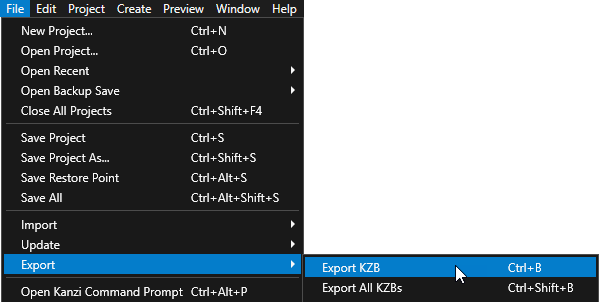
Kanzi Studio で、File > Export > Export KZB を選択します。
Application::onProjectLoaded関数の最初のhello_world.cppに、次を追加します。void onProjectLoaded() override { // Get the Screen node whose resource dictionary contains the alias to the // Text Block 2D node. ScreenSharedPtr screenNode = getScreen(); // Get the Text Block 2D node using the alias that you created in the Kanzi Studio // project. The name of the alias is the same as the node name that you used for // the Text Block 2D node in the Kanzi Studio project with the # sign prefix. TextBlock2DSharedPtr textBlock = screenNode->lookupNode<TextBlock2D>("#Text Block 2D"); // Set the value of the Text Block 2D Text property to Hello world!. textBlock->setText("Hello world!"); ... }
Kanzi アプリケーションを実行すると、
TextConceptImpl::setText関数が Text Block 2D の Text プロパティを Hello world! に設定し、テキストブロックに Hello world! を表示します。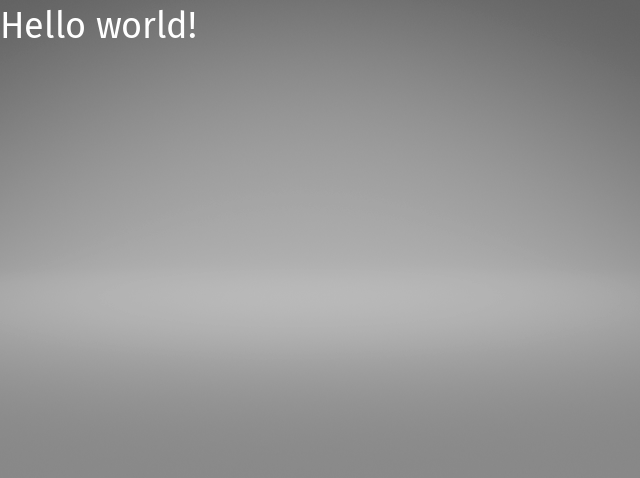
このステップを完了すると、hello_world.cpp はこのようになります。
#include <kanzi/kanzi.hpp>
#include <kanzi/core/log/log.hpp>

// [CodeBehind libs inclusion]. Do not remove this identifier.

#if defined(HELLO_WORLD_CODE_BEHIND_API) && !defined(ANDROID) && !defined(KANZI_CORE_API_IMPORT)
#include <Hello_world_code_behind_module.hpp>
#endif

using namespace kanzi;

class HelloWorld : public ExampleApplication
{
public:

   void onConfigure(ApplicationProperties& configuration) override
   {
      configuration.binaryName = "hello_world.kzb.cfg";
   }

   void onProjectLoaded() override
   {
      // Get the Screen node whose resource dictionary contains the alias to the
      // Text Block 2D node.
      ScreenSharedPtr screenNode = getScreen();
      // Get the Text Block 2D node using the alias that you created in the Kanzi Studio
      // project. The name of the alias is the same as the node name that you used for
      // the Text Block 2D node in the Kanzi Studio project with the # sign prefix.
      TextBlock2DSharedPtr textBlock = screenNode->lookupNode<TextBlock2D>("#Text Block 2D");
      // Set the value of the Text Block 2D Text property to Hello world!.
      textBlock->setText("Hello world!");

      // Prints Hello world! to the Kanzi debug console.
      kzLogInfo(KZ_LOG_CATEGORY_GENERIC, ("Hello world!"));
   }

   void registerMetadataOverride(ObjectFactory& factory) override
   {
      ExampleApplication::registerMetadataOverride(factory);

#if defined(HELLO_WORLD_CODE_BEHIND_API) && !defined(ANDROID) && !defined(KANZI_CORE_API_IMPORT)
      HelloWorldCodeBehindModule::registerModule(getDomain());
#endif

      // [CodeBehind module inclusion]. Do not remove this identifier.
   }
};

Application* createApplication()
{
   return new HelloWorld;
}
次の作業
このチュートリアルでは、Kanzi Studio プロジェクトを C++ アプリケーションで作成し、Kanzi Engine API を使用して Kanzi Studio で作成したノードのプロパティを編集する方法を学びました。Kanzi Engine API の使用方法について詳しくは、以下を参照してください。
関連項目
Kanzi の基本原則について学ぶには、Kanzi の基本事項 を参照してください。
Kanzi Engine APIを使用して作成できるものについて詳しく知るには、Kanzi Engine C++ API リファレンス をご覧ください。
Kanzi がリソースを管理する方法について詳しくは、リソース管理 (Resource management) をご覧ください。
エイリアスの使用について詳しくは、エイリアスの使用 を参照してください。
Kanzi アプリケーションの作成について詳しくは、チュートリアル を参照してください。
Kanzi Studio の機能について詳しく知るには、...を使用する をご覧ください。