プロパティエディタの定義
Kanzi Studio で Kanzi Studio が提供しないプロパティエディタが必要な場合は、独自のプロパティエディタを定義できます。プロパティエディタは Kanzi Studio プラグインとして定義します。
利用可能な Kanzi Studio プロパティエディタのリストについては、Kanzi Engine プラグインで宣言されたプロパティタイプのための Kanzi Studio プロパティエディタ を参照してください。
Kanzi Studio プラグインの作成方法を学ぶには、Kanzi Studio コマンドプラグインの作成 と Kanzi Studio ウィンドウプラグインの作成 を参照してください。
Kanzi Studio プラグイン API の詳細情報については、次を参照してください。
この手順では、ユーザーがファイルを選択できるようにするプロパティエディタを定義する方法を示します。
プロパティエディタを定義するには:
Kanzi Studio の機能を拡張する Kanzi Studio コマンドプラグインのベースを作成します。
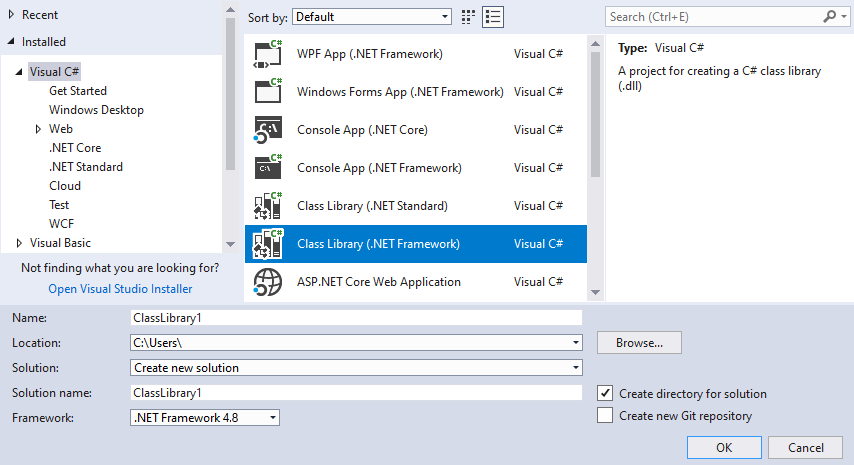
Visual Studioで File > New > Project を選択し、次を選択します:
Visual C# > Class Library (.NET Framework)
Framework から .NET Framework 4.8 へ
OK をクリックします。
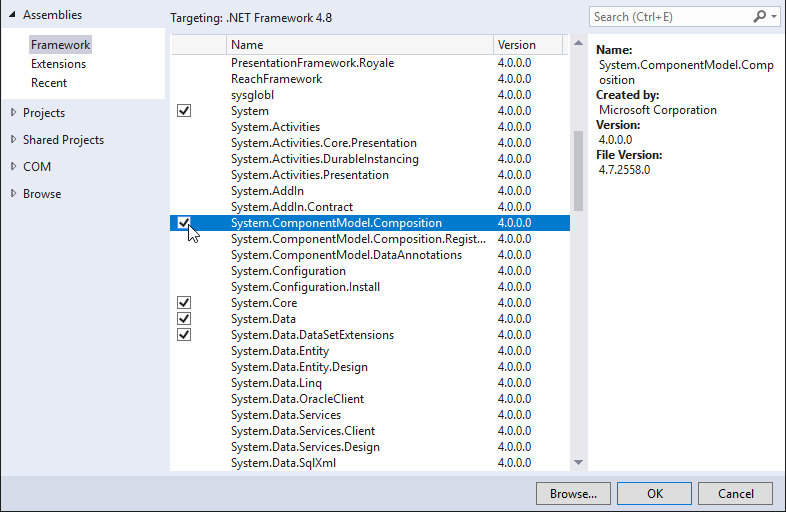
Solution Explorer でプロジェクト名を右クリックし、Add > Reference を選択し、次の参照を追加します。
Assemblies > Framework > System.ComponentModel.Composition を選択します。
Browse... をクリックし、
<KanziInstallation>/Studio/Bin/PluginInterface.dllファイルへの参照を追加します。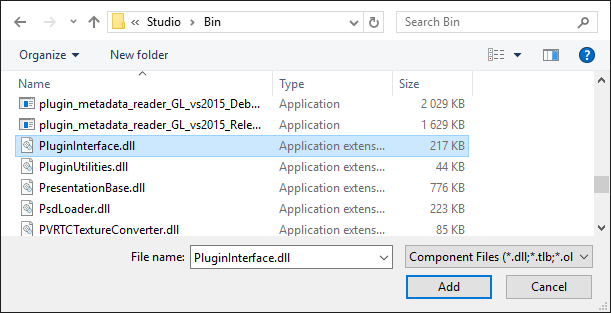
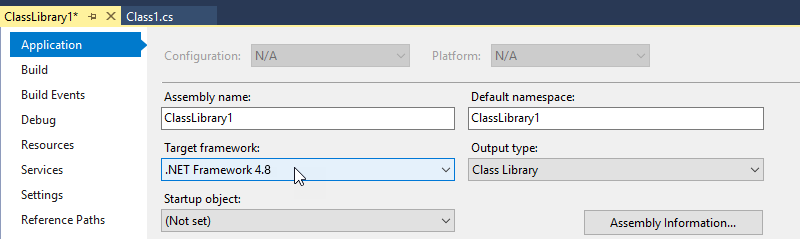
Solution Explorer でプロジェクト名を右クリックし、Properties を選択し、次の操作を行います。
Application タブで、Target framework を .NET Framework 4.8 に設定します。
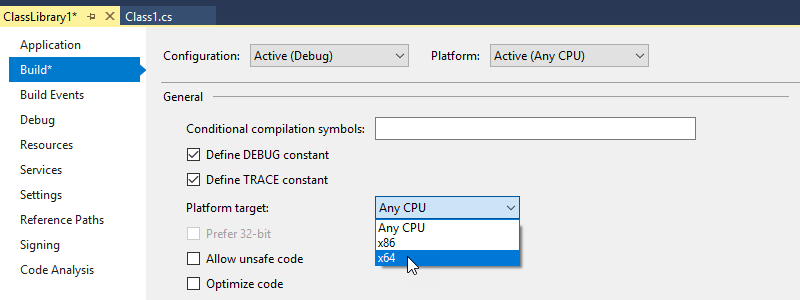
Build タブで Platform target を x64 に設定します。
ViewModelFactoryクラスを使用して、プロパティエディタのロジック層を実装します。ClassLibrary1でクラスを作成し、それにFileSelectorViewModelFactory.csという名前を付け、その内容を次のように置き換えます。using System; using Rightware.Kanzi.Studio.PluginInterface; using Rightware.Kanzi.Studio.PluginInterface.Editors; namespace ClassLibrary1 { // Implement the PluginPropertyValueEditorContextFactory interface to allow Kanzi Studio // to create an instance of the editor ViewModel. For simple editors instead of // implementing your own PluginPropertyValueEditorContext class, you can use the // BasePluginEditorViewModel class that implements the PluginPropertyValueEditorContext // interface. This interface describes how you handle property value changes in // Kanzi Studio. // // If you want to add a more complex logic behind the property editor then it is a good idea // to create a separate ViewModel class that implements PluginPropertyValueEditorContext // or inherits the BasePluginEditorViewModel class. // // For Kanzi Studio to create an instance of the ViewModel, you must implement // the ViewModelFactory. public class FileSelectorViewModelFactory : PluginPropertyValueEditorContextFactory { public PluginPropertyValueEditorContext Create(object initialValue, Action<object> valueSetCallback) { // You can use the BasePluginEditorViewModel that contains the PropertyValue Property // which you can bind to a user control. return new BasePluginEditorViewModel(initialValue, valueSetCallback); } } }
プロパティエディタのプレゼンテーションレイヤーを
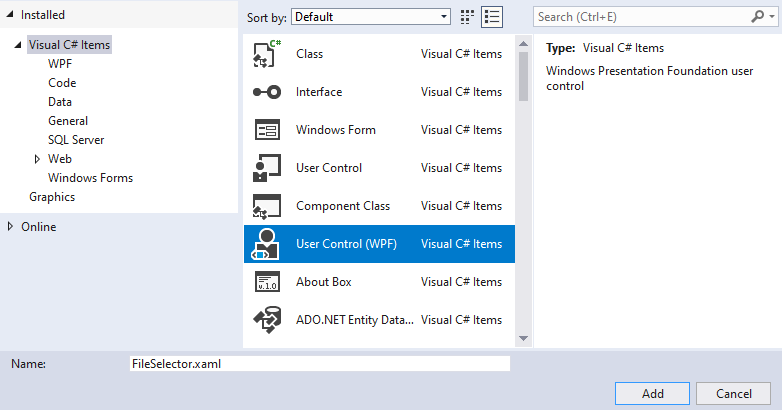
UserControlを使用して実装します。Visual Studioで、Solution Explorer を右クリックし、Add > New Item を選択し、User Control (WPF) ファイルタイプを選択して、FileSelector.xaml と名付けます。
FileSelector.xamlの内容を次のものに置き換えます:<UserControl x:Class="ClassLibrary1.FileSelector" xmlns="http://schemas.microsoft.com/winfx/2006/xaml/presentation" xmlns:x="http://schemas.microsoft.com/winfx/2006/xaml" xmlns:mc="http://schemas.openxmlformats.org/markup-compatibility/2006" xmlns:d="http://schemas.microsoft.com/expression/blend/2008" mc:Ignorable="d" d:DesignHeight="450" d:DesignWidth="800"> <Grid> <Grid.ColumnDefinitions> <ColumnDefinition Width="*"/> <ColumnDefinition Width="30"/> </Grid.ColumnDefinitions> <TextBox Name="tbFileName" Grid.Column="0" Text="{Binding PropertyValue}"/> <Button Grid.Column="1" Click="Button_Click">...</Button> </Grid> </UserControl>
このプロパティエディタには、エディタをレイアウトするために
GridWPFコントロールを使用し、次のものを作成します。ファイル名を入力できるテキストボックス。
TextBoxコントロールのTextプロパティを、編集したいプロパティText="{Binding PropertyValue}"にバインドします。PropertyValueはロジックレイヤーから来ます。この方法で、Kanzi Studio はTextBoxコントロールの変更を追跡します。ファイルを選択するために使用できるボタン。
ファイルを選択できるウィンドウを開くボタンを作成するには、
ButtonのためにClickハンドラーを使用します。
FileSelector.xaml.csの内容を次のように置き換えます:using System.Windows; using System.Windows.Controls; using Microsoft.Win32; namespace ClassLibrary1 { public partial class FileSelector : UserControl { public FileSelector() { InitializeComponent(); } // Define the behavior when the user clicks the button in the file selector editor. private void Button_Click(object sender, RoutedEventArgs e) { // Check that the DataContext has the correct value. if (DataContext is BasePluginEditorViewModel editorContext) { // Open the window where the user can select a file. OpenFileDialog openFileDialog = new OpenFileDialog(); if (openFileDialog.ShowDialog() == true) { // Write the path and file name of the selected file name in the TextBox. editorContext.PropertyValue = openFileDialog.FileName; } } } } }
プロパティエディタを定義する Kanzi Studio プラグインクラスを実装します。
ファイルセレクターエディターを作成するには、
ClassLibrary1クラスにクラスを追加し、それにFileSelectorSettings.csという名前を付け、その内容を次のように置き換えます。using System.ComponentModel.Composition; using System.Windows; using Rightware.Kanzi.Studio.PluginInterface; namespace ClassLibrary1 { // This way you tell Kanzi Studio that this class contains plugin settings. [Export(typeof(PluginContent))] public class FileSelectorSettings : PluginPropertyValueEditorSettings { // Add the property that sets the editor name. Use this name when you set // the value of the editor for a custom property type that you define in // a Kanzi Engine plugin. public string Name => "FileSelectorEditor"; // These properties set the name and a description for the property editor in Kanzi Studio. public string DisplayName => "File selector editor"; public string Description => "Enables you to select a file."; // This way you enable Kanzi Studio to instantiate the UIControl. private DataTemplate dataTemplate; public DataTemplate DataTemplate { get { if (dataTemplate == null) { dataTemplate = new DataTemplate(); dataTemplate.VisualTree = new FrameworkElementFactory(typeof(FileSelector)); } return dataTemplate; } } // This way you allow Kanzi Studio to instantiate the DataContext // for the property editor. public PluginPropertyValueEditorContextFactory PropertyValueEditorContextFactory { get; } = new FileSelectorViewModelFactory(); public void Initialize(KanziStudio studio) { } // Implement the IsCompatibleWith method to define the base data types that // the property editor can work with. public bool IsCompatibleWith(PluginPropertyDataType? propertyDataType) { return propertyDataType == PluginPropertyDataType.STRING; } } }
Kanzi Studio プラグインをビルドして使用の準備をします。
Visual Studioで Build > Build Solution を選択します。

Kanzi Studio プラグインの DLL ファイルを
%ProgramData%\Rightware\<KanziVersion>\pluginsディレクトリにコピーします。%ProgramData%\Rightware\<KanziVersion>にpluginsディレクトリが存在しない場合は、作成してください。ヒント
ファイルエクスプローラーで、Kanzi Studio プラグイン DLL ファイルからショートカットを作成し、そのショートカットを
%ProgramData%\Rightware\<KanziVersion>\pluginsディレクトリに移動します。プラグインをビルドすると、OutputウィンドウでVisual StudioがプラグインのDLLファイルを保存した場所を確認できます。
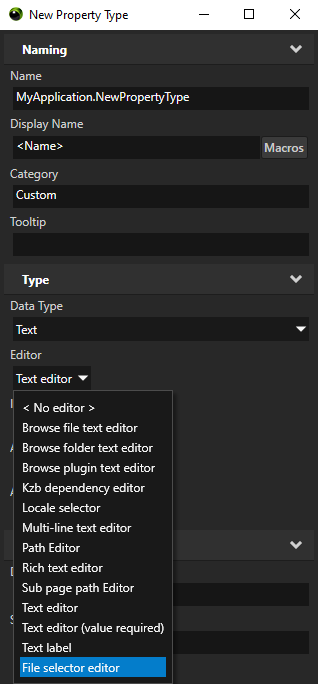
Kanzi Studio を開くか再起動するとき、Library > Property Types の Kanzi Studio プロジェクトで、プロパティタイプを作成または選択し、設定します。
Data Type から Text へ
Editor から File selector editor へ
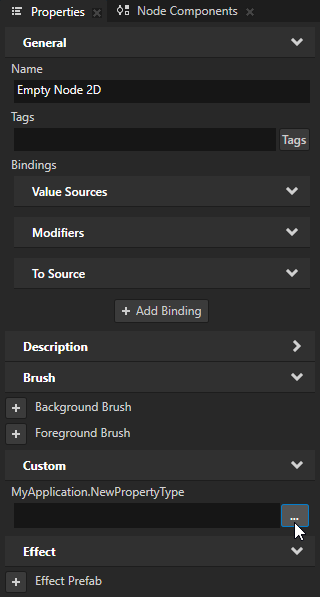
このプロパティタイプをノードに追加する際、Properties で定義したエディタを使用してプロパティタイプの値を設定します。
Kanzi Engine カスタムプロパティタイプでカスタムプロパティエディタを使用する
To use a custom property editor for a custom property type that you define in a Kanzi Engine plugin, in the Kanzi Engine plugin in the property editor metadata declarations for that property type set metadata.editor to the name of the editor that you want to use.
エディタの名前は、プロパティエディタを定義するクラスの Name プロパティで設定されます。
例えば、カスタム File selector editor をプロパティエディタとして設定するには、次のように使用します。
PropertyType<string> VideoView2D::VideoFileNameProperty(kzMakeFixedString("VideoView2D.VideoFileName"), "", 0, false,
                                                     KZ_DECLARE_EDITOR_METADATA
                                                     (
                                                         metadata.editor = "FileSelectorEditor"
                                                         metadata.displayName = "Video Filename";
                                                         metadata.tooltip = "Video file to be played";
                                                         metadata.host = "VideoView2D:freq";
                                                     ));