ステップ1 - マップをパンする
Kanzi アプリケーションでユーザーがノードを移動できるようにするには、Pan Manipulator を使用します。
Pan Manipulator は、Kanzi アプリケーションのノードにジェスチャー認識を追加するために使用できる入力マニピュレーターの1つです。
パンジェスチャは、デバイス画面上で移動するポインタの位置を追跡し、ノードを移動させる量を計算します。
Kanzi Studio では、Pan Manipulator コンポーネントを使用してノードにパンマニピュレータをインストールし、そのパンマニピュレータの動作を制御できます。
このチュートリアルのこのステップでは、Pan Manipulator コンポーネントとパンマニピュレータを使用して、マップの移動を可能にします。
チュートリアルを入手する
チュートリアルを入手するには、Kanzi Studio の Quick Start ウィンドウで Examples をクリックします。Pan zoom tap チュートリアルの横にある  をクリックします。
Kanzi Studio はチュートリアルを <KanziWorkspace>/Tutorials ディレクトリにダウンロードします。以下が含まれています。
<KanziWorkspace>/Tutorials/Pan zoom tap/Start/Tool_projectディレクトリにあるチュートリアルの開始地点のプロジェクト。<KanziWorkspace>/Tutorials/Pan zoom tap/Completedディレクトリにある完成したチュートリアル。
開始プロジェクトの内容
スタートポイントとなるプロジェクトには、このチュートリアルを完了するのに必要なコンテンツが含まれています。
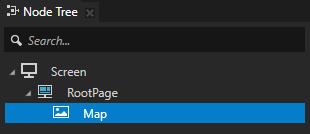
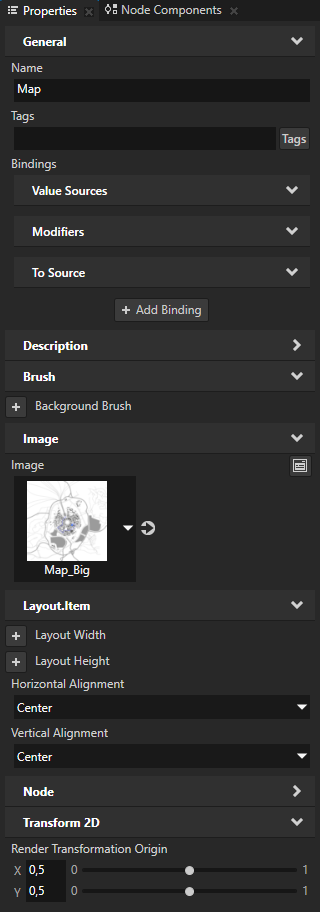
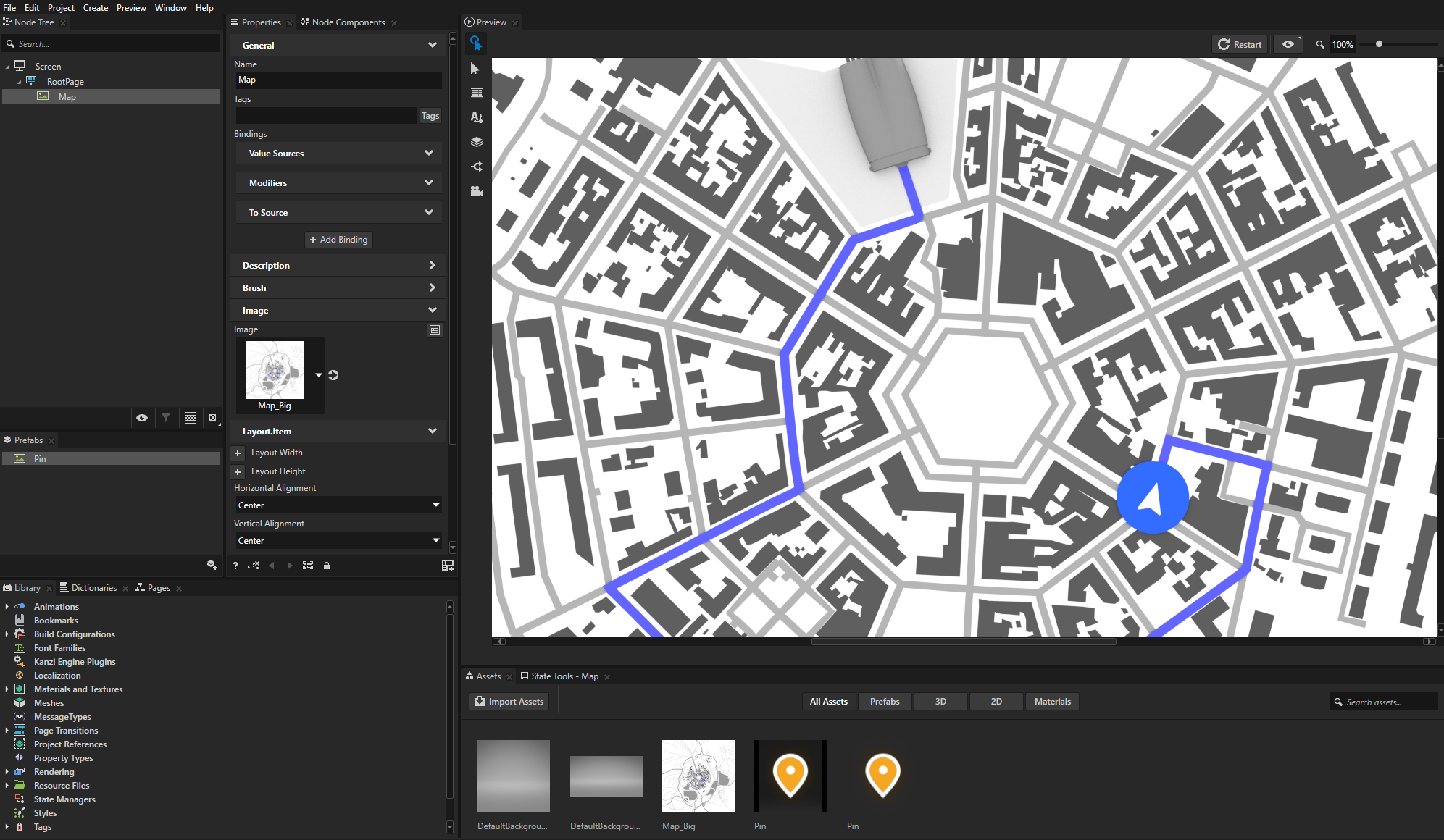
Map ノードには地図の画像が含まれています。
Map ノードは親ノードの中心に配置され、Map ノードの Render Transformation Origin プロパティは Map ノードの中心に設定されます。ノードを回転させると、その原点を中心に回転します。
Screen ノードのリソース辞書には、Map ノードを指すエイリアスが含まれています。
このエイリアスは、Kanzi Engine APIを使用して Map ノードにアクセスするための便利な方法を提供します。

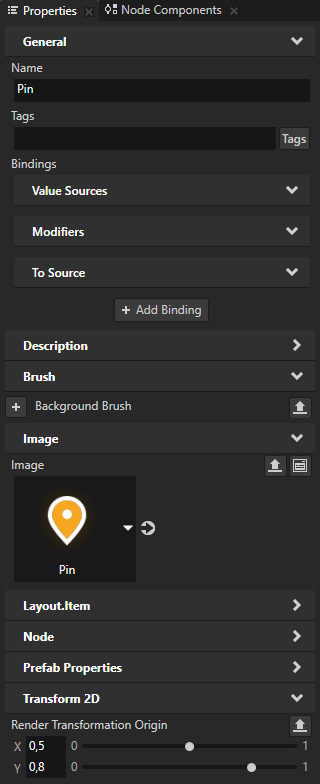
Pin プレハブには、ピンアイコンの画像が含まれています。
Render Transformation Origin プロパティは、ピンアイコンを回転させるときに、その先端を中心に回転するように設定されています。
マップをパンする
このセクションでは、Pan Manipulator コンポーネントとパンマニピュレータを作成して使用し、ユーザーがマップ上にポインターを置いてポインターを移動したときにマップを移動させます。
マップをパンするには:
Kanzi Studio の Quick Start ウィンドウで Examples をクリックします。Pan zoom tap チュートリアルの横にある Open をクリックし、Start project を選択します。
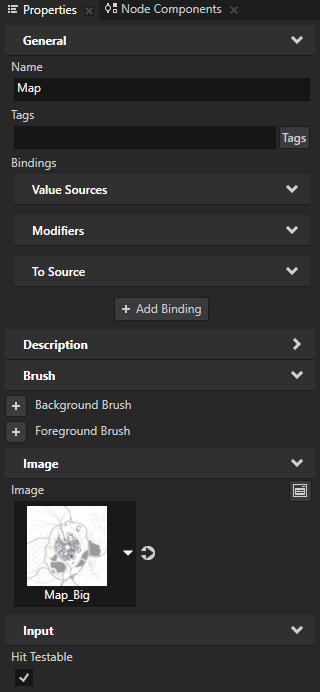
Node Tree で Map ノードを選択し、Properties で Input > Hit Testable プロパティを追加して、有効にします。
このプロパティを有効にすると、ユーザーがノードを選択できるようになります。
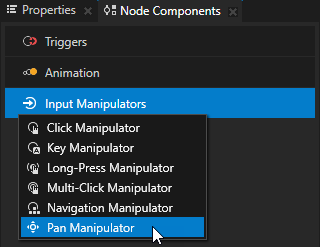
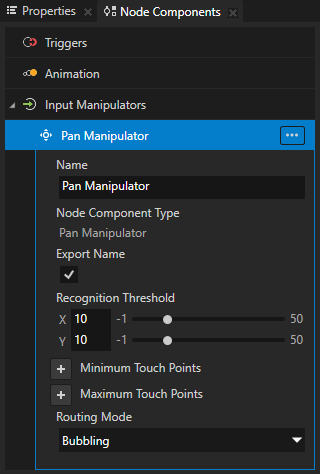
Node Components Alt を押しながら右クリック Input Manipulators で、Pan Manipulator を選択します。
この方法で、Map ノードがパンジェスチャーに反応するようにします。
ノードに Pan Manipulator コンポーネントを追加することで、そのノードに
PanManipulatorをインストールします。この手順の後半で、パンジェスチャーにどのように反応するかを定義するアプリケーションコードを追加します。
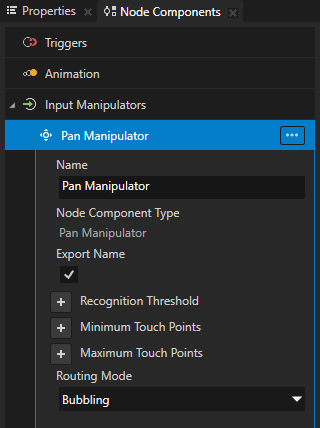
Pan Manipulator で、Recognition Threshold プロパティ X と Y プロパティフィールドを10に設定します。
Recognition Threshold は、Kanzi がパンジェスチャーとして認識する前にポインターが移動しなければならない水平および垂直軸上のピクセル単位のしきい値を設定します。
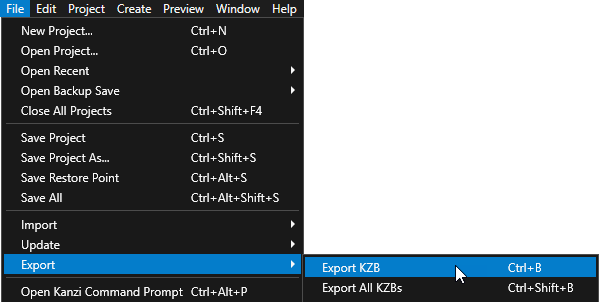
File > Export > Export KZB を選択します。
Kanzi Studio は、Kanzi Studio プロジェクトから kzb ファイルと構成ファイルを作成します。Kanzi Studio は、エクスポートされたファイルを
<ProjectName>/Application/binディレクトリ、または Project > Properties の Binary Export Directory プロパティで設定した場所に保存します。kzb ファイルには、ローカライゼーションテーブルでロケールパックとしてマークしたリソースを除き、Kanzi Studio プロジェクトのすべてのノードとリソースが含まれています。Visual Studioから Kanzi アプリケーションを実行すると、アプリケーションはkzbファイルと構成ファイルを読み込みます。
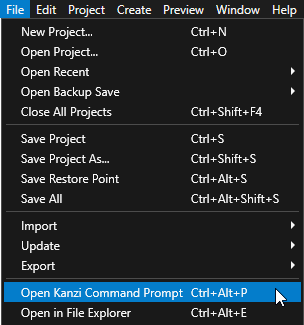
Kanzi Studio で、File > Open Kanzi Command Prompt を選択します。
Kanzi Command Prompt は、Kanzi 環境変数が設定された Windows コマンドプロンプトを開き、Kanzi のバージョンに対して Kanzi Command Prompt を開きます。
Kanzi Command Prompt を使用して、絶対パスや環境変数を設定せずに、Gradle、SCons、CMake などの Kanzi ユーティリティおよびビルドツールにアクセスします。
ヒント
Kanzi Command Prompt は、Rightware ディレクトリの Windows スタートメニューで見つけることができます。
Kanzi のバージョンが複数インストールされている場合は、そのコマンドプロンプトで作業したい Kanzi のバージョンに対応する Kanzi Command Prompt を起動するようにしてください。
<KanziWorkspace>/Tutorials/Pan zoom tap/Start/Applicationディレクトリ内の Kanzi Command Prompt で、チュートリアルアプリケーション用の Visual Studio ソリューションを生成するスクリプトを実行します。たとえば、Visual Studio 2019 を使用している場合は、次のコマンドを実行します。
generate_cmake_vs2019_solution.bat
このスクリプトは、ディレクトリ
<KanziWorkspace>/Tutorials/Pan zoom tap/Start/Application/build_vs2019内のアプリケーション用のVisual Studioソリューションを生成します。Visual Studioで
<KanziWorkspace>/Tutorials/Pan zoom tap/Start/Application/build_vs<Version>/Pan_zoom_tap_start.slnVisual Studioソリューションを開きます。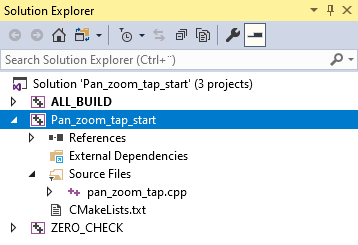
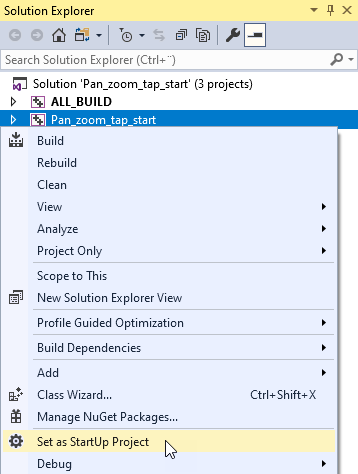
Visual Studioのソリューションエクスプローラーで、Pan_zoom_tap_start プロジェクトを右クリックし、Set as StartUp Project を選択します。
Visual Studioで
pan_zoom_tap.cppファイルを開き、アプリケーションがパンジェスチャーにどのように反応するかを定義するコードを追加します。PanZoomTapクラス内で、パブリックセクションの後に、PanManipulator::MovedMessageメッセージのハンドラーを定義します。private: // Define the handler for the PanManipulator::MovedMessage message from 2D nodes // that have an input manipulator which generates pan messages. // This handler translates a 2D node for the amount of the pan gesture. void onPanMoved(PanManipulator::MovedMessageArguments& messageArguments) { // Get from the message arguments the node that the user pans. Node2DSharedPtr mapNode = dynamic_pointer_cast<Node2D>(messageArguments.getSource()); // Get the distance in pixels for which the pan progressed // since the last message in the pan gesture sequence. Vector2 translationDelta = messageArguments.getDelta(); // Get the Render Transformation property of the Map node. SRTValue2D mapNodeSRT = mapNode->getRenderTransformation(); // Get the current translation of the Map node. Vector2 translation = mapNodeSRT.getTranslation(); // Apply the translation from the pan message. Vector2 translationTarget = translation + translationDelta; // Get the parent node of the Map node. Node2D* containerNode = dynamic_cast<Node2D*>(mapNode->getParent()); // Get the size of the parent node. Vector2 containerSize = containerNode->getActualSize(); // Get the Render Transformation property Scale property field of the Map node. Vector2 mapScale = mapNodeSRT.getScale(); // Calculate the scaled size of the Map node. Vector2 mapSizeScaled = componentWiseMultiply(mapNode->getActualSize(), mapScale); // Do not pan outside the boundaries of the Map node. // When calculating the boundaries, take into account the current scale of the map. if (mapScale.getX() >= 1.0f) { translationTarget = componentWiseMax(componentWiseMin(translationTarget, (mapSizeScaled - containerSize) / 2), (containerSize - mapSizeScaled) / 2); } else if (mapScale.getX() < 1.0f) { translationTarget = componentWiseMin(componentWiseMax(translationTarget, (containerSize - mapSizeScaled) / 2), (mapSizeScaled - containerSize) / 2); } // Set the new translation. mapNodeSRT.setTranslation(translationTarget); // Apply the new transform to the Map node. mapNode->setRenderTransformation(mapNodeSRT); }
Application::onProjectLoaded関数で Map ノードのPanManipulatorマニピュレータのメッセージを購読します。void onProjectLoaded() override { // Pointer to the domain. Domain* domain = getDomain(); // Get the Screen node. ScreenSharedPtr screen = getScreen(); // Get the Map node using its alias. Node2DSharedPtr mapNode = screen->lookupNode<Node2D>("#Map"); // Subscribe to the PanManipulator::MovedMessage message at the Map node. // The PanManipulator generates this message when the user moves the pointer on the horizontal or // vertical axis more than the recognition threshold and when the pointer moves between updates. mapNode->addMessageHandler(PanManipulator::MovedMessage, bind(&PanZoomTap::onPanMoved, this, placeholders::_1)); }
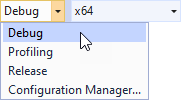
使用したいソリューション構成を選択し、アプリケーションを実行します。
開発中は、Debug 構成を選択します。製品版を作成する準備ができたら、Release 構成を選択します。
アプリケーション内でマップをクリックしてドラッグし、パンします。
関連項目
Kanzi でのユーザー入力の処理について詳しく学ぶには、ユーザー入力の処理 を参照してください。
パンマニピュレータについて詳しく知るには、Pan Manipulator を使用する を参照してください。
Kanzi でのエイリアスについて詳しく知るには、エイリアスの使用 をご覧ください。