Kanzi Studio プラグイン API の概要
ここでは、Kanzi Studio プラグインAPIの概要を見つけることができます。
Kanzi Studio プラグインは Kanzi Studio の機能を拡張し、Kanzi Studio で実行されます。
Kanzi Studio コマンドプラグインは、コマンドとして実行され、ユーザーインターフェースを持たないプラグインです。たとえば、プロジェクト内のノードツリー全体または選択された部分に対してコマンドを実行するために、コマンドプラグインを使用します。
Kanzi Studio プラグイン と Kanzi Studio コマンドプラグインの作成 を参照してください。
プラグインのベースを作成した後、この概要と Kanzi Studio プラグインAPIリファレンスを使用して、プラグインに機能を追加し、有用な動作をさせます。Kanzi Studio コマンドプラグインのベースを作成する と Kanzi Studio プラグインAPIリファレンス を参照してください。
Kanzi Studio データモデル
Kanzi Studio プロジェクトは、プロジェクトノードの階層構造です。各ノードには一連のプロパティがあり、子ノードやアイテムのセットを持つことができます。ノード、モデル、テクスチャ、アニメーションなど、さまざまなタイプのプロジェクトアイテムにはそれぞれ独自の特性があります。例えば、テクスチャはテクスチャで使用される画像とフィルタリングを指定します。プロジェクト内のデータを変更するには、Kanzi Studio がコマンドを使用します。例えば、プロパティに値を設定したり、新しいアイテムを作成したりします。
Kanzi Studio は、プラグインに KanziStudio オブジェクトを提供します。KanziStudio オブジェクトはデータアクセスのルートオブジェクトであり、現在のプロジェクト、利用可能なコマンド、グローバルなアンドゥとリドゥ、プロジェクトのオープンとクローズに関連するイベントを提供します。
プロジェクト内のノード、リソース、およびプロパティには、現在のプロジェクトノードを使用してアクセスできます。異なるタイプのノードにはライブラリを使用し、新しいプロジェクトノードやリソースにはファクトリーを使用します。ノードはプロパティ、チャイルドノードおよびアイテム、現在のノードとその子孫の変更、イベントへのアクセスを提供します。
すべての関数で、この行を実行したいコードに置き換えてください。
throw new NotImplementedException();
プラグインがすべての内部例外を処理し、それらが Kanzi Studio インターフェースに到達しないようにしてください。
Kanzi Studio
studio オブジェクトを使用して、Kanzi Studio インターフェースにアクセスします。例えば、Log ウィンドウにメッセージを書き込むとき、ユーザーからの入力を取得するとき、プロジェクトでの変更を元に戻したりやり直したりするときなどに使用します。
ユーザー入力を取得する
KanziStudio.GetUserInput を使用して、ユーザーに入力を促すダイアログボックスを表示します。例えば、KanziStudio.GetUserInput を使用して、プラグインがコマンドの実行を開始するノードのパスを取得することができます。
ユーザーに入力を求めるダイアログボックスを表示するには:
プラグインのVisual Studioソリューションで、
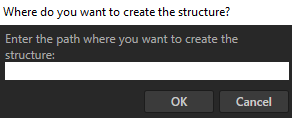
PluginCommandインターフェースを実装するクラスライブラリファイルを開き、Execute関数内でKanziStudio.GetUserInputを使用してメッセージを表示するダイアログボックスを表示します。public void Execute(PluginCommandParameter parameter) { studio.GetUserInput("Where do you want to create the structure?", "Enter the path where you want to create the structure:"); }
プラグインを実行すると、ユーザーに入力を提供するように促します。
Kanzi Studio Log ウィンドウにメッセージを書く
Kanzi Studio Log ウィンドウにメッセージを書くには:
プラグインのVisual Studioソリューションで、
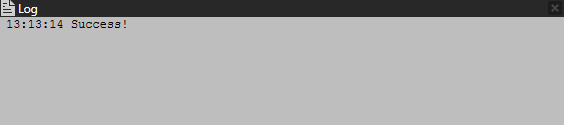
PluginCommandインターフェースを実装するクラスライブラリファイルを開き、Execute関数内でKanziStudio.Logを使用して Log ウィンドウに書き込みます。public void Execute(PluginCommandParameter parameter) { studio.Log("Success!"); }
プラグインを実行すると、Kanzi Studio Log ウィンドウに「Success!」と表示されます。
メッセージを表示するダイアログボックスを表示する
メッセージを表示するダイアログボックスを表示したい場合は、KanziStudio.ShowMessageBox を使用します。
例えば、タイトルとメッセージを持つモーダルダイアログボックスを表示するには:
プラグインのVisual Studioソリューションで、
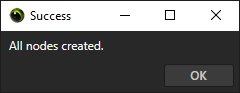
PluginCommandインターフェースを実装するクラスライブラリファイルを開き、Execute関数内でShowMessageBoxを使用して、タイトルとメッセージを持つモーダルダイアログボックスを表示します。public void Execute(PluginCommandParameter parameter) { studio.ShowMessageBox("All nodes created.", "Success", true); }
プラグインを実行すると、Kanzi Studio でダイアログボックスが表示されます。
ノードを作成する
例えば、Kanzi Studio プラグインを使用して Empty Node 2D ノードを作成するには:
プラグインのVisual Studioソリューションで、
PluginCommandインターフェースを実装するクラスライブラリファイルを開き、Empty Node 2D ノードを作成する関数を作成します。private ProjectItem CreateEmptyNode2D(ProjectItem parentNode) { // Create an Empty Node 2D node. You use the Project as a factory. // The first parameter defines the name of the node. Use the GenerateUniqueChildName // function, because the names of sibling nodes must be unique. // The second parameter defines the location of the parent node of the Empty Node 2D // node that you create. You pass this parameter to the CreateEmptyNode2D function // when you call it. var emptyNode2D = studio.ActiveProject.CreateProjectItem<EmptyNode2D>( parentNode.GenerateUniqueChildName("Empty Node 2D"), parentNode); // Make the Empty Node 2D 300 pixels high by setting its Layout Height property. emptyNode2D.Set(Properties.NodeHeight, 300.0f); // Make the Empty Node 2D 400 pixels wide by setting its Layout Width property. emptyNode2D.Set(Properties.NodeWidth, 400.0f); return emptyNode2D; }
Execute関数内で、前のステップで作成した関数を呼び出します。Execute関数に、プラグインで実行したいコードを追加します。public void Execute(PluginCommandParameter parameter) { // Get the RootPage node in the node tree. This is the parent node of the Empty Node 2D // node that this plugin creates. var rootNode = studio.ActiveProject.GetProjectItem("Screens/Screen/RootPage"); // Call the function that creates an Empty Node 2D node. The function takes a parameter // to set where the plugin creates the Empty Node 2D node. CreateEmptyNode2D(rootNode); }
プラグインをビルドして実行します。Kanzi Studio プラグインのビルドと実行 を参照してください。
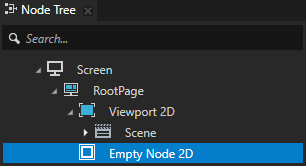
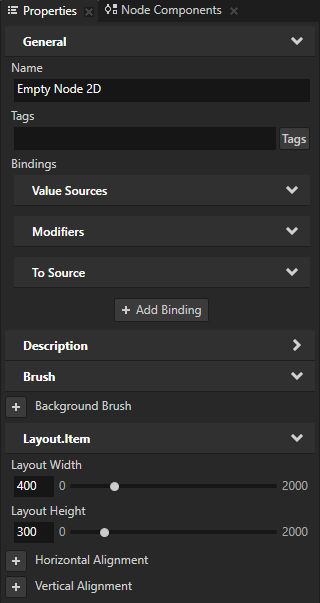
プラグインを実行すると、Screen > RootPage ノードに、300ピクセルの高さと400ピクセルの幅を持つ Empty Node 2D ノードが作成されます。プラグインは Empty Node 2D ノードに Empty Node 2D という名前を付けます。この例を拡張するには、Color Brush を作成し、その Color Brush を Empty Node 2D ノードの背景色を設定するために使用し、その Background Brush プロパティを設定します。リソースの作成 を参照してください。
リソースの作成
例えば、Kanzi Studio プラグインを使用して Color Brush リソースを作成するには:
プラグインのVisual Studioソリューションで、ソリューションエクスプローラー内のプロジェクト名を右クリックし、追加 > 参照を選択し、
PresentationCoreアセンブリへの参照を追加します。Kanzi Studio プラグインは、このアセンブリを使用して、Color Brush で使用する色を定義します。
Visual Studioで
PluginCommandインターフェースを実装するクラスライブラリファイルを開き、KanziPluginInterface名前空間との競合を防ぐために、WindowsMedia名前空間でSystem.Windows.Mediaのusingディレクティブを追加します。using WindowsMedia = System.Windows.Media;
同じクラスライブラリファイル内で、Color Brush を作成する関数を定義します。
private Brush CreateColorBrush(WindowsMedia.Color color)
{
    // Get the Brushes library in the Library > Materials and Textures which stores all the
    // brushes in a Kanzi Studio project.
    var brushLibrary = studio.ActiveProject.BrushLibrary;
    // Set the name of the Color Brush to be ColorBrush_ followed by
    // the hexadecimal ARGB values of the color in which you create the Color Brush.
    var brushName = "ColorBrush_" + color;
    // Check whether a brush with this name already exists in the Brushes library. If yes,
    // return that brush.
    var colorBrush = brushLibrary.GetChild(brushName) as Brush;

    // If a brush with the same name does not already exist create a new Color Brush.
    if (colorBrush == null)
    {
        // Create a Color Brush.
        // The first parameter defines the name of the resource.
        // Use the GenerateUniqueChildName function, because the names of resources in the
        // same library must be unique.
        // The second parameter defines in which library to create the brush.
        // The third parameter defines the type of the brush.
        colorBrush = studio.ActiveProject.CreateBrush(
            brushLibrary.GenerateUniqueChildName(brushName),
            brushLibrary,
            BrushTypeEnum.COLOR);
        // Set the color of the Color Brush to the color you pass to the CreateColorBrush
        // function when you call it.
        colorBrush.Set(colorBrush.PropertyTypes.ColorBrushColor, color);
    }

    return colorBrush;
}
Execute関数内で Color Brush の色を定義し、前のステップで作成した関数を呼び出します。Execute関数に、プラグインで実行したいコードを追加します。public void Execute(PluginCommandParameter parameter) { // Define the color for the Color Brush as red. Use values in range from 0 to 255. var myColor = WindowsMedia.Color.FromArgb(255, 255, 0, 0); // Call the function that creates a Color Brush. // The function takes a parameter to set the color of the Color Brush. CreateColorBrush(myColor); }
プラグインをビルドして実行します。Kanzi Studio プラグインのビルドと実行 を参照してください。
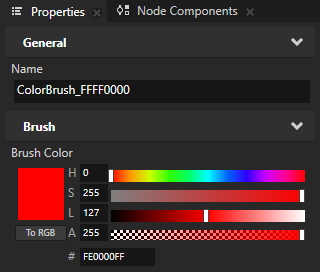
プラグインを実行すると、Library > Materials and Textures > Brushes に、
myColor変数で定義した色の Color Brush が作成されます。プラグインはその Color Brush を ColorBrush_<HexadecimalColorCode> と命名します。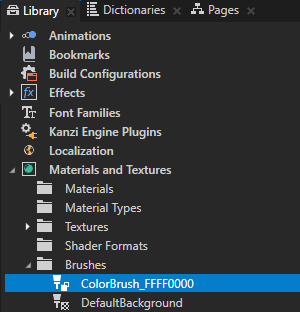
ノードコンポーネントの作成
例えば、Click トリガーと Click Manipulator 入力マニピュレーターコンポーネントを使用してクリック可能なノードを作成するには:
プラグインのVisual Studioソリューションで、
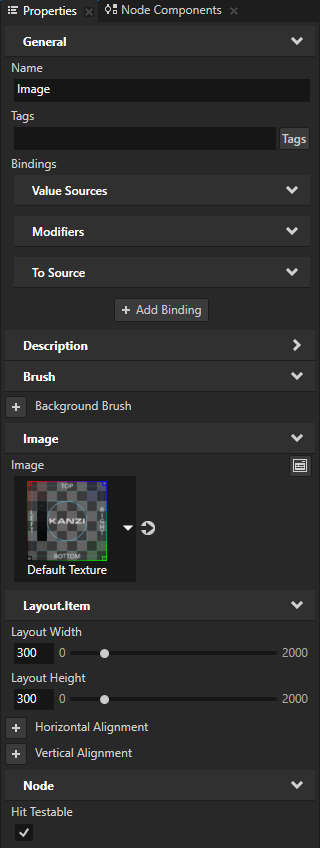
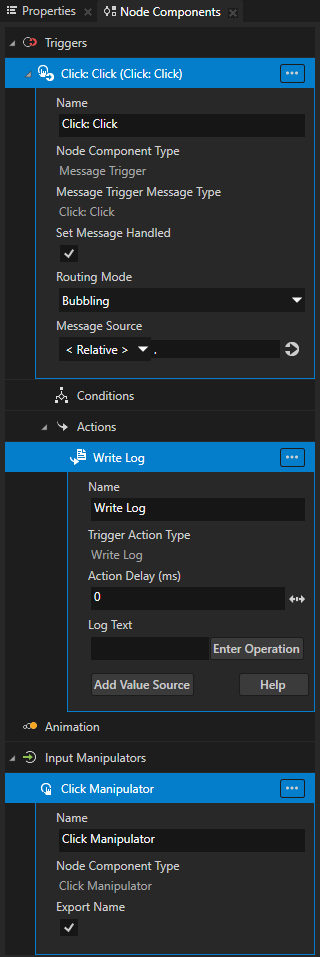
PluginCommandインターフェースを実装するクラスライブラリファイルを開き、クリック可能な Image ノードを作成し、そのノードに Click トリガーと Write Log アクションを追加する関数を作成します。private ProjectItem CreateClickableImage(ProjectItem parentNode) { // Create an Image node. You use the Project as a factory. // The first parameter defines the name of the node. Use the GenerateUniqueChildName // function, because the names of sibling nodes must be unique. // The second parameter defines the parent node of the Image node that you create. // You pass this parameter to the CreateClickableImage function when you call it. var image = studio.ActiveProject.CreateProjectItem<Image2D>( parentNode.GenerateUniqueChildName("Image"), parentNode); // Make the Image node 300 pixels high and wide, by setting its Layout Height and // Layout Width properties. image.Set(Properties.NodeHeight, 300.0f); image.Set(Properties.NodeWidth, 300.0f); // To enable the click gesture for a node: // - Add and enable the Hit Testable property. // - Add to the node the Click Manipulator input manipulator component. // In the Image node add and enable the Hit Testable property. image.Set(Properties.NodeHitTestable, true); // Get the Click Manipulator node component type. var clickManipulatorType = studio.ActiveProject.NodeComponentTypeLibrary.GetItemByName(NodeComponentTypeNames.ClickManipulatorComponent); // In the Image node create a Click Manipulator input manipulator component. image.CreateNodeComponent(image.GenerateUniqueChildName("Click Manipulator"), clickManipulatorType); // In the Image node create a Message Trigger. var clickTrigger = image.CreateTrigger( studio.ActiveProject.NodeComponentTypeLibrary.GetItemByName(NodeComponentTypeNames.MessageTrigger)); // In the Message Trigger set the Message Trigger Message Type property to Click. clickTrigger.Set(Properties.TriggerMessageType, studio.ActiveProject.MessageTypeLibrary.GetItemByName(MessageTypeNames.MessageClick)); // In the Click Message Trigger create a Write Log action. var writeLogAction = clickTrigger.CreateAction( studio.ActiveProject.TriggerActionTypeLibrary.GetItemByName(ActionTypeNames.WriteLogAction)); // In the Write Log action set Log Text to "Image clicked". // This is the message that the Write Log action writes to the Log window. writeLogAction.Set(Properties.WriteLogActionLogText, "Image clicked"); return image; }
Execute関数内で、前のステップで作成した関数を呼び出します。Execute関数に、プラグインで実行したいコードを追加します。public void Execute(PluginCommandParameter parameter) { // Get the RootPage node in the node tree. // This is the parent node of the Image node that this plugin creates. var rootNode = studio.ActiveProject.GetProjectItem("Screens/Screen/RootPage"); // Call the function that creates and configures the Image node and adds to the node // the Click Manipulator and the Click trigger with a Write Log action. The function // takes a parameter to set where the plugin creates the Image node. CreateClickableImage(rootNode); }
プラグインをビルドして実行します。Kanzi Studio プラグインのビルドと実行 を参照してください。
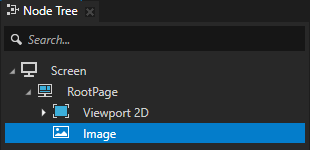
プラグインを実行すると、Screen > RootPage ノードに Image ノードを作成および設定し、そのノードに以下を追加します。
Click Manipulator 入力マニピュレータコンポーネント
Click トリガーを Write Log アクションで
Preview で Image ノードをクリックするとトリガーが発動し、プラグインで作成したアクションが Log ウィンドウにメッセージを書き込みます。
ファイルを開く
Kanzi Studio プラグインでファイルを開くには、
プラグインのVisual Studioソリューションで、ソリューションエクスプローラー内のプロジェクト名を右クリックし、[追加] > [参照] を選択して、
PresentationFrameworkアセンブリへの参照を追加します。Kanzi Studio プラグインは、このアセンブリを使用して、ファイルを開くように促す標準のWindowsダイアログボックスを開きます。
Visual Studioで
PluginCommandインターフェースを実装するクラスライブラリファイルを開き、標準のWindowsダイアログボックスを開く関数を作成します。このダイアログボックスを使用して、プラグインで開きたいコンピュータ上のファイルを選択します。private static string GetFile() { // Configure the Open File dialog box to show files with the .xml extension var dialog = new Microsoft.Win32.OpenFileDialog(); dialog.DefaultExt = ".xml"; dialog.Filter = "XML files (*.xml)|*.xml"; // Open the Open File dialog box var result = dialog.ShowDialog(); var fileName = (result == true) ? dialog.FileName : null; return fileName; }
Execute関数内で、前のステップで作成した関数を呼び出します。Execute関数に、プラグインで実行したいコードを追加します。public void Execute(PluginCommandParameter parameter) { // Call the function that opens the standard Windows dialog box where you can // select a file that you want to open with your plugin. var fileName = GetFile(); // Add your code here to correctly load the file format of your file. // For example, C# includes XML libraries that you can use to load and parse XML files, // or you can create your own parser for the file format that you want to load. }
プラグインをビルドして実行します。Kanzi Studio プラグインのビルドと実行 を参照してください。
プラグインを実行すると、標準のWindowsダイアログボックスが開き、プラグインで開きたいファイルをコンピュータから選択できます。