ステップ5 - 入力メッセージに反応する
このステップでは、Luaスクリプトでメッセージハンドラを使用する方法を学びます。
最初にメッセージハンドラーを宣言し、その後、メッセージハンドラーにピースを移動する機能を追加します。
メッセージハンドラを宣言する
メッセージハンドラを宣言するには:
Kanzi Studio プロジェクトで定義されている MovePieceMessage メッセージタイプを使用します。
スクリプト内で、他の変数の隣に変数を初期化します。
プレビュー で Piece プレハブをクリックすると、ボタン 2D (Button 2D) ノードはこのメッセージを自身に送信します。
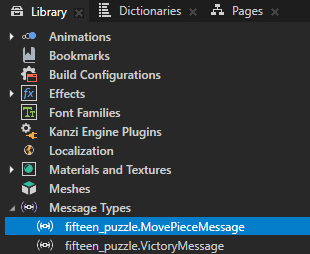
-- Find the "fifteen_puzzle.MovePieceMessage" custom message type.
local MovePieceMessage = MessageType:new("fifteen_puzzle.MovePieceMessage")
createArray関数を定義する前に、MovePieceMessageのメッセージハンドラー関数を定義します。-- Declare a message handler function for the "MovePieceMessage". local function movePieceMessageHandler(args) -- Read the message argument that contains the index of the clicked piece. local index = args:getArgument(PieceIndexProperty) -- Find the clicked node. local piece = grid:getChild(index - 1) -- Read the property values of the clicked node. local row = piece:getProperty(GridLayout2D.RowProperty) local column = piece:getProperty(GridLayout2D.ColumnProperty) print(string.format("Clicked node %d at (%d,%d)", index, row, column)) end
movePieceMessageHandler関数が何かを行うためには、それをノードに追加する必要があります。これを行うには、各ピースを作成する際にaddMessageHandler関数を使用しますが、グリッドに追加する前に行ってください。-- Create the grid child nodes. for i = 1,PieceCount do ... -- Add a message handler for the MovePieceMessage. piece:addMessageHandler(MovePieceMessage, movePieceMessageHandler) -- Add the new node to the grid. grid:addChild(piece) end
スクリプトを保存し、プレビュー で  をクリックしてから任意のピースをクリックすると、スクリプトはクリックしたピースのインデックスと Grid ノード内でのその座標を Log に出力します。

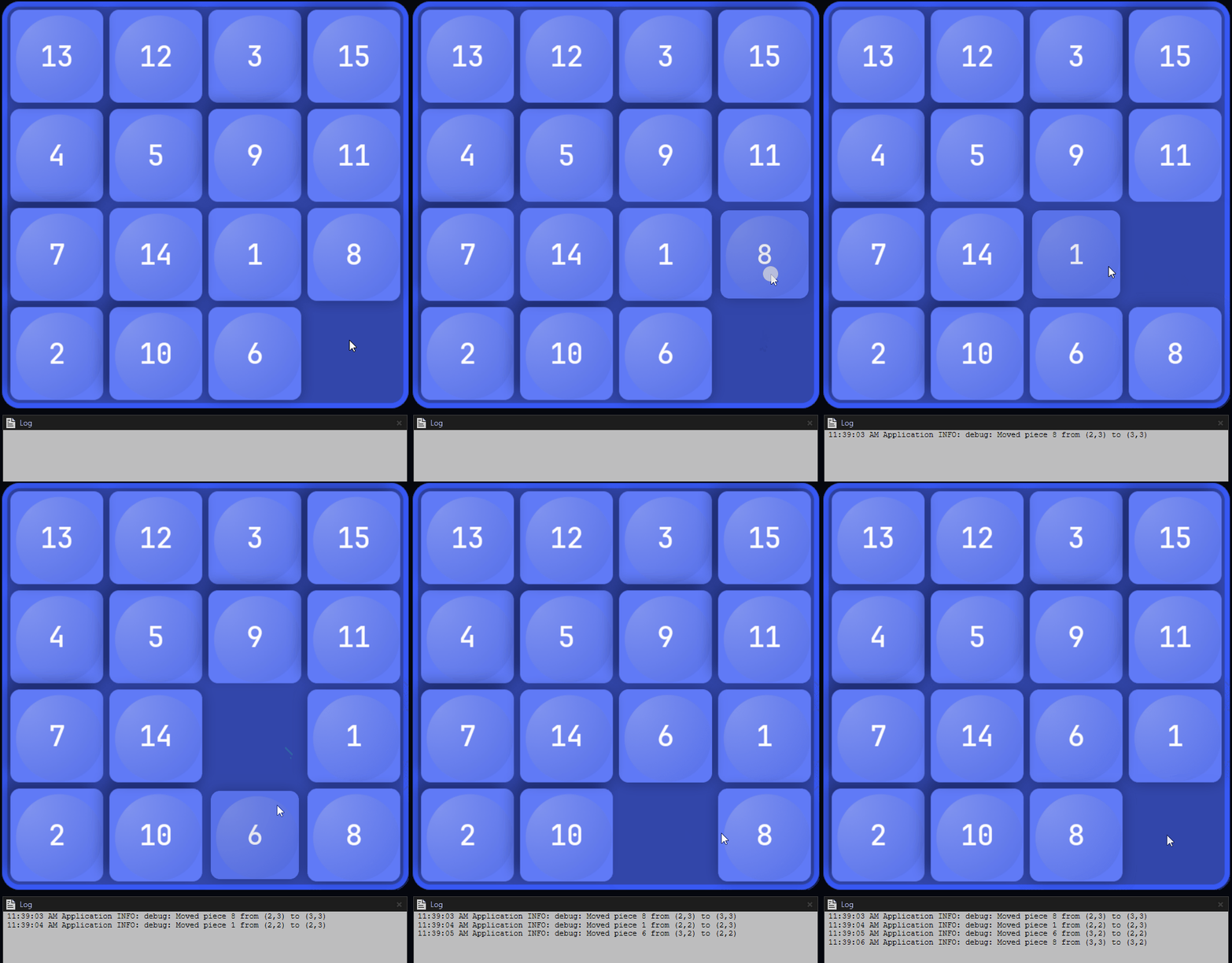
クリックでパズルのピースを移動
スクリプトが終了した後も、メッセージハンドラはスクリプトをさらに編集しても持続することに注意してください。このスクリプトは常に grid:removeAllChildren() で作成されたすべてのノードを削除し、メッセージハンドラも削除します。
クリックでパズルのピースを移動するには:
グリッド内の空きスロットを追跡するための変数を宣言します。
スクリプト内で、他の変数の隣に変数を初期化します。
-- Keep track of the empty slot in the grid.
-- Initially the empty slot is at the bottom right of the grid.
local freeSlotRow = RowCount - 1
local freeSlotColumn = ColumnCount - 1
movePieceMessageHandlerメッセージハンドラを修正して、単に Log に出力するのではなく、クリックされたピースを移動し、その移動を Log に記録するようにします。-- Declare a message handler function for the "MovePiece" message. local function movePieceMessageHandler(args) -- Read the message argument that contains the index of the clicked piece. local index = args:getArgument(PieceIndexProperty) -- Find the node that was clicked. local piece = grid:getChild(index - 1) -- Read the property values of the clicked node. local row = piece:getProperty(GridLayout2D.RowProperty) local column = piece:getProperty(GridLayout2D.ColumnProperty) -- Check whether the piece can be moved. local dy = math.abs(row - freeSlotRow) local dx = math.abs(column - freeSlotColumn) if dx + dy == 1 then print(string.format("Moved piece %d from (%d,%d) to (%d,%d)", index, row, column, freeSlotRow, freeSlotColumn)) -- Move the piece. piece:setProperty(GridLayout2D.RowProperty, freeSlotRow) piece:setProperty(GridLayout2D.ColumnProperty, freeSlotColumn) freeSlotRow = row freeSlotColumn = column end end
スクリプトを保存し、プレビュー で をクリックし、次に空のスロットの隣にある任意のピースをクリックすると、スクリプトは次のようになります。
ピースを移動します。
Log にクリックされたピースのインデックスと、グリッド内の以前の位置と現在の位置の座標を出力します。