イージング関数を使用してプロパティ値を補間する
プロパティのターゲット値を動的に設定し、イージング関数を使用して現在の値をターゲット値に時間をかけて補間したい場合は、Property Target Easing Interpolator を使用します。イージング関数を使用すると、より快適なユーザーエクスペリエンスを提供するリアルなアニメーションを作成できます。
Kanzi で利用可能なイージング関数:
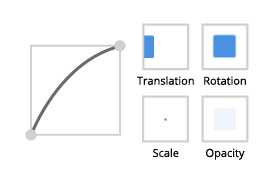
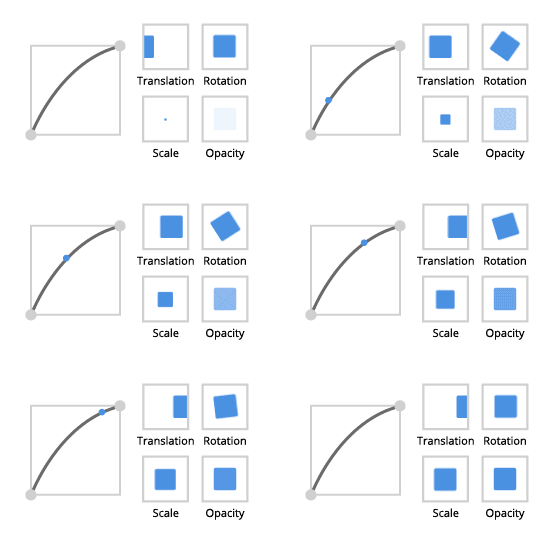
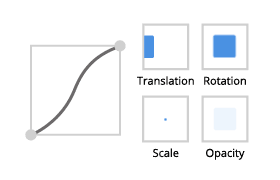
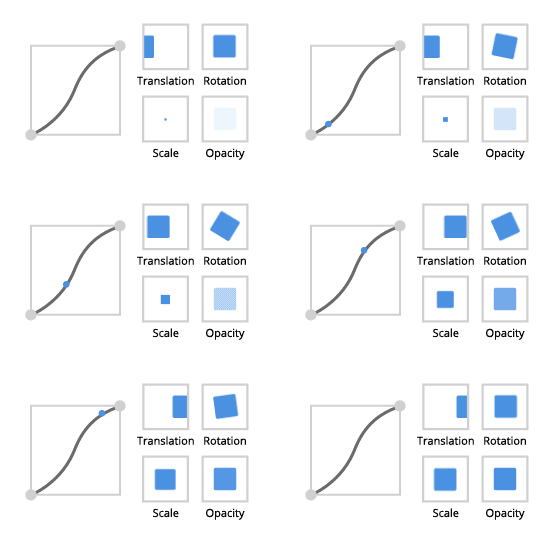
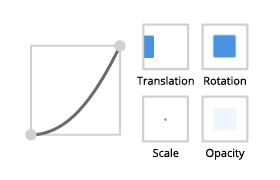
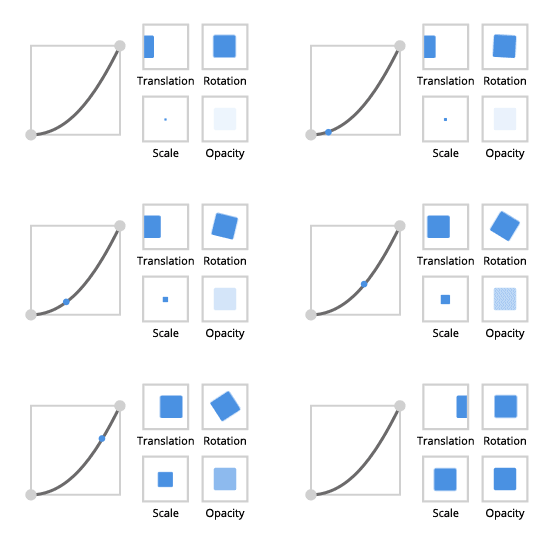
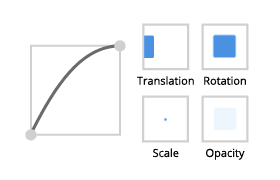
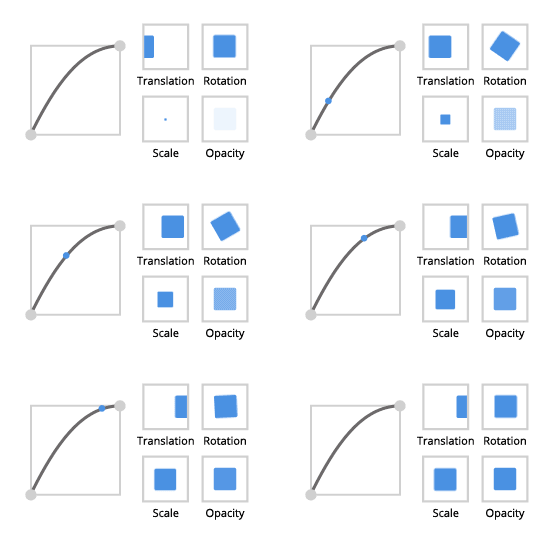
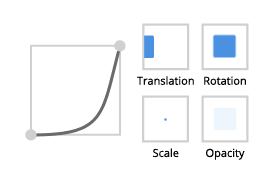
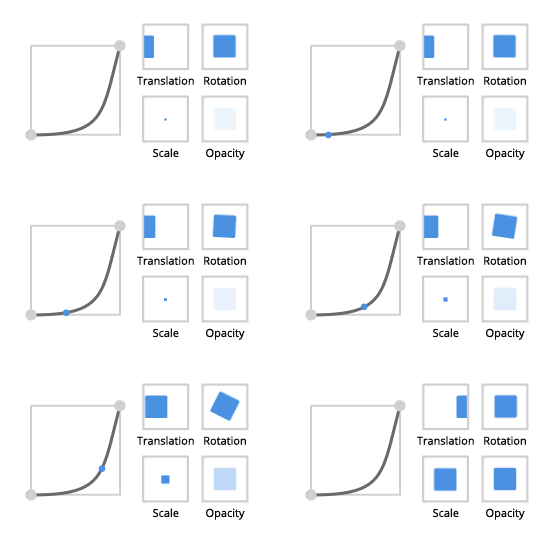
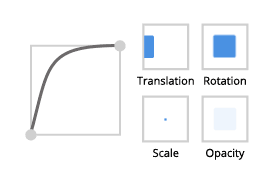
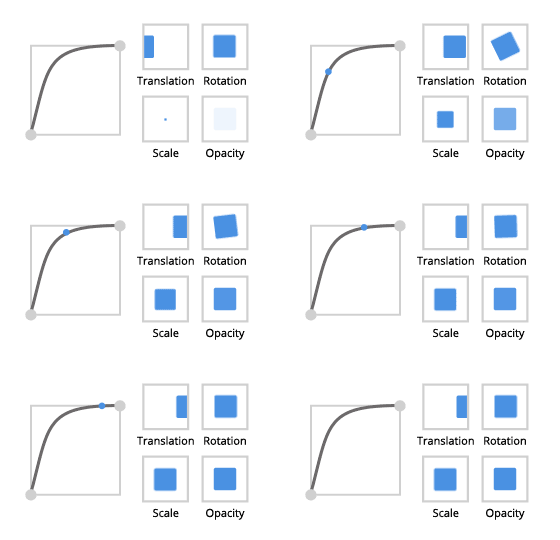
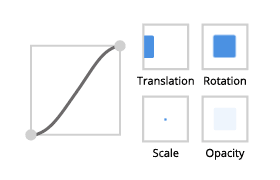
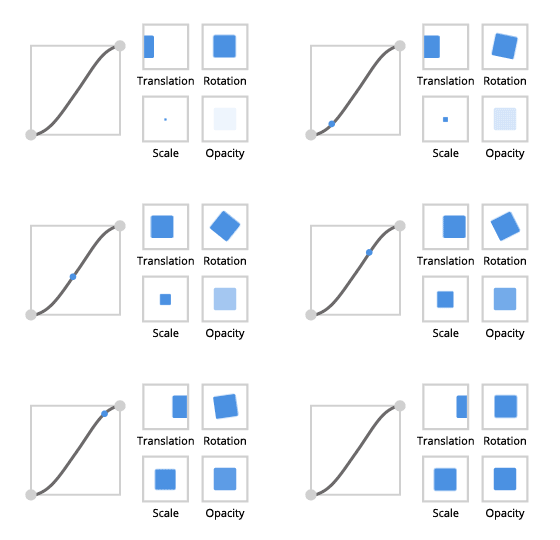
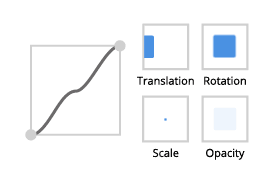
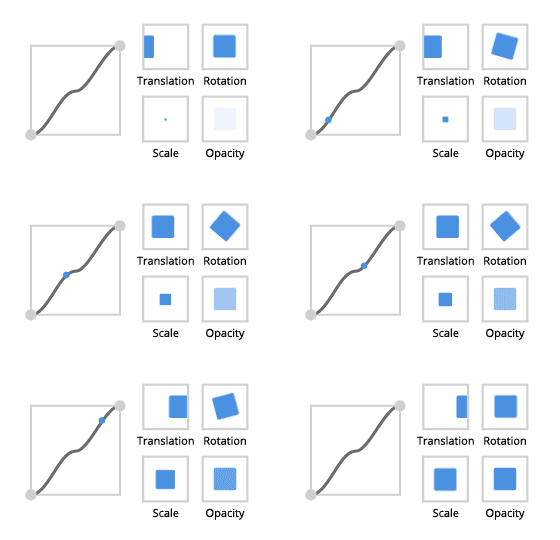
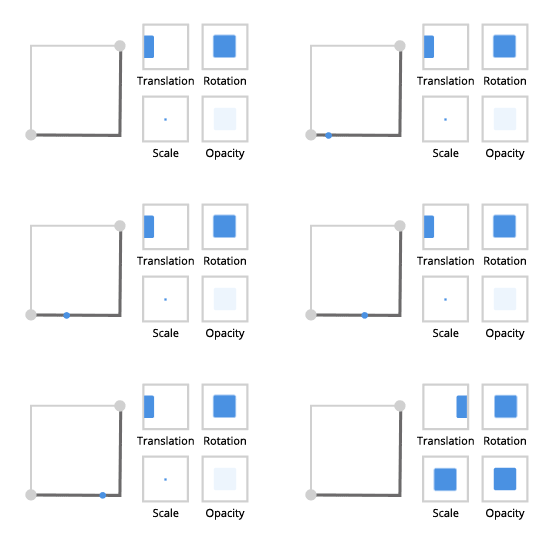
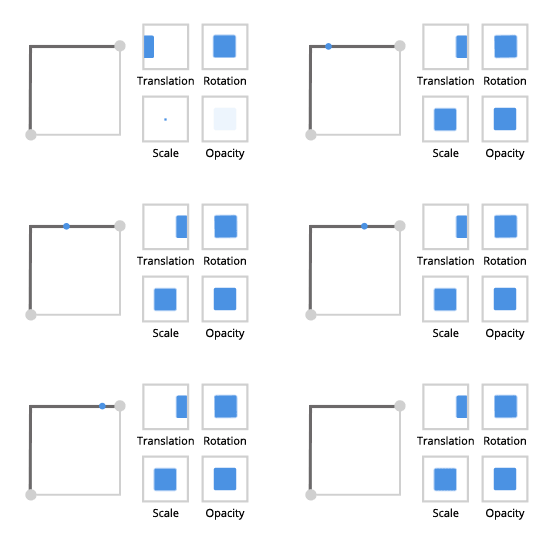
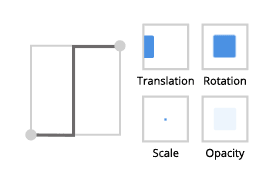
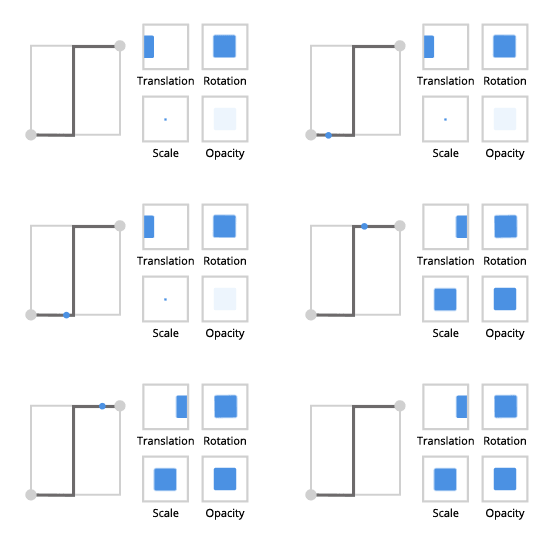
イージング関数の画像にカーソルを合わせると、それが作成するアニメーションのタイプが表示されます。
戻る |
||
イーズイン (Ease in) |
イーズアウト (Ease out) |
イーズインアウト |
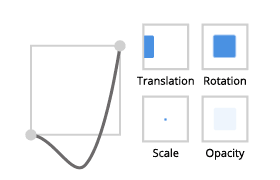
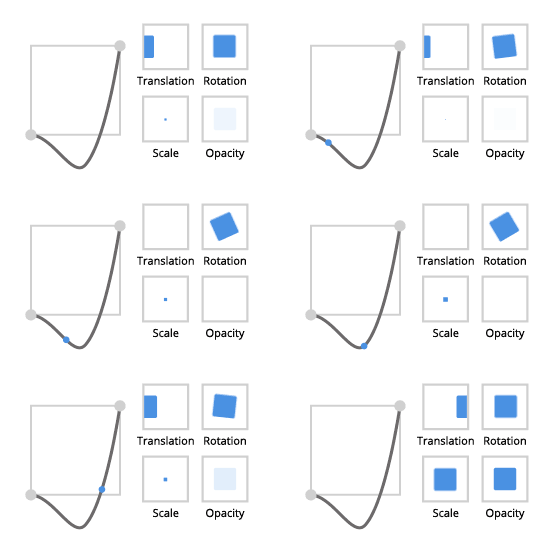
|
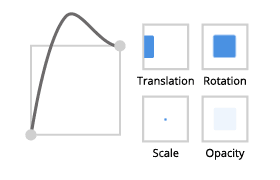
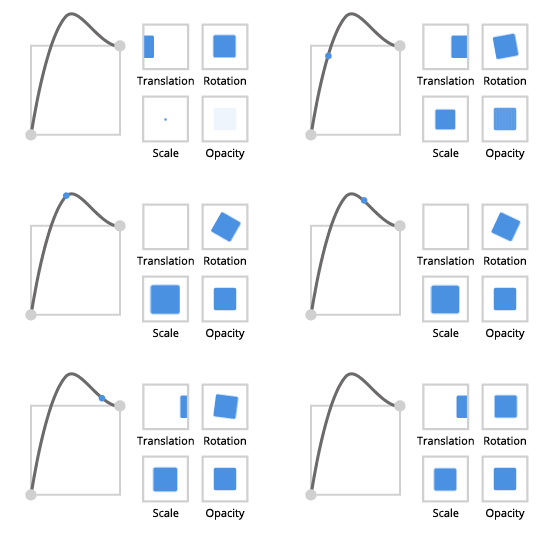
|
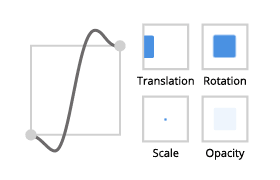
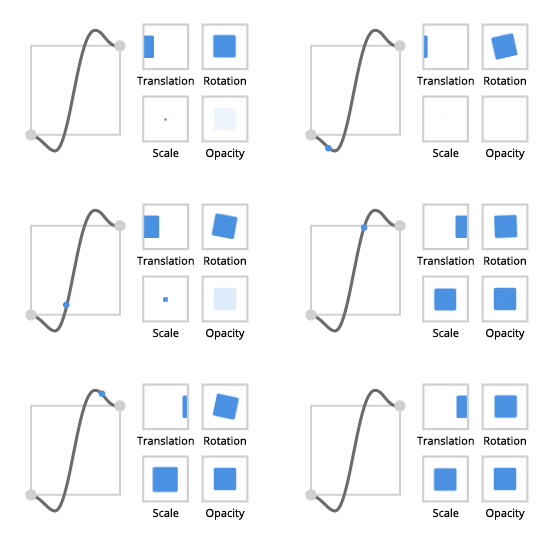
|
バウンス |
||
イーズイン (Ease in) |
イーズアウト (Ease out) |
イーズインアウト |
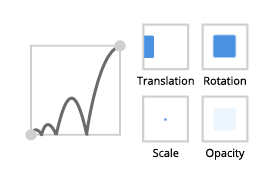
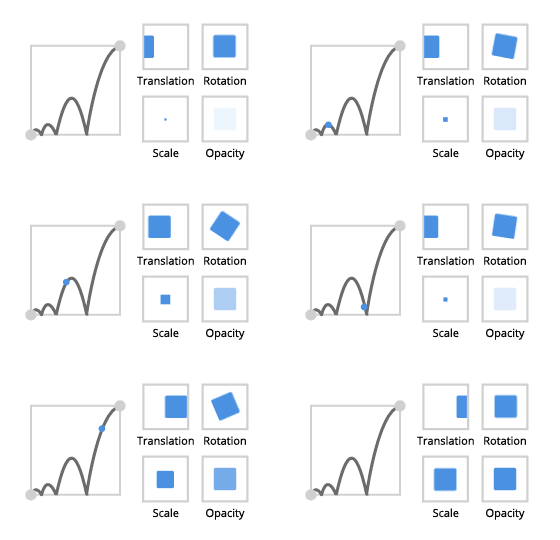
|
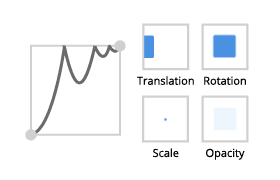
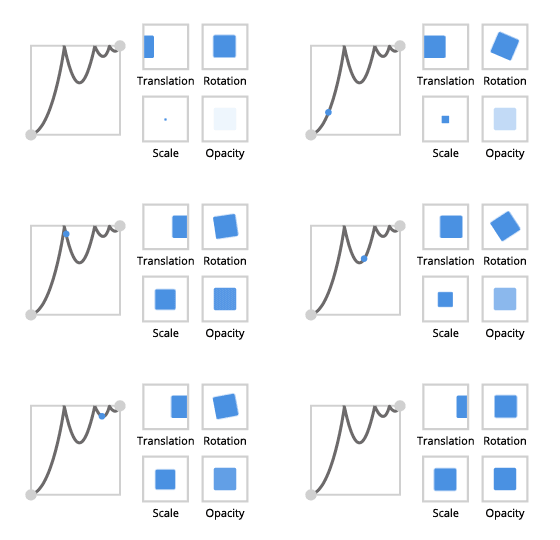
|
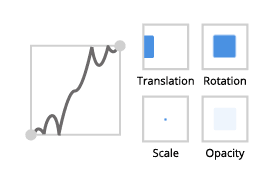
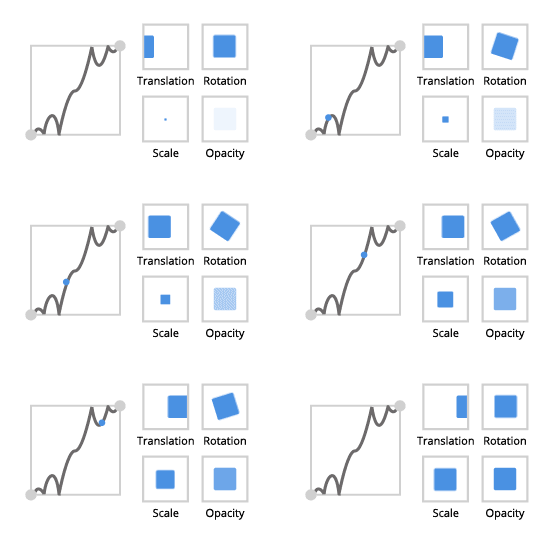
|
サークル |
||
イーズイン (Ease in) |
イーズアウト (Ease out) |
イーズインアウト |
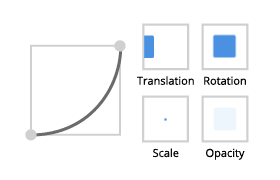
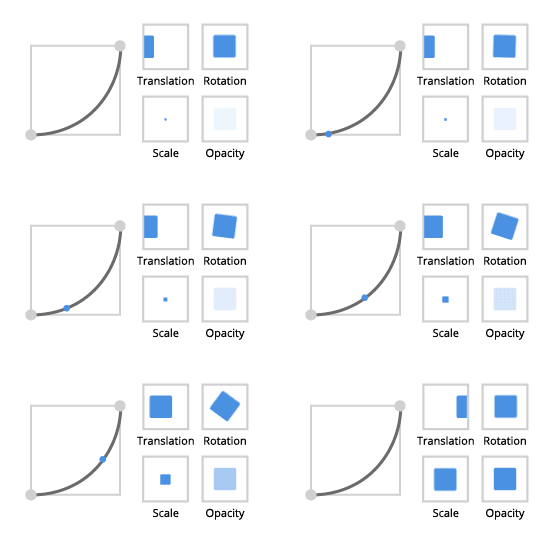
|
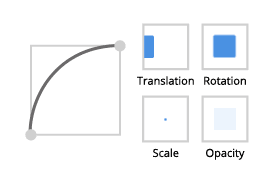
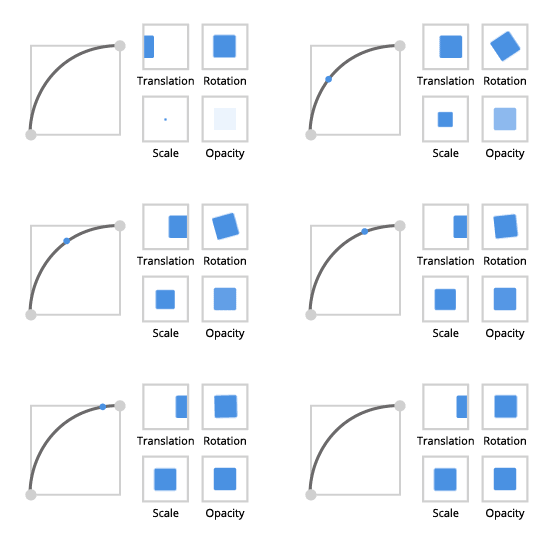
|
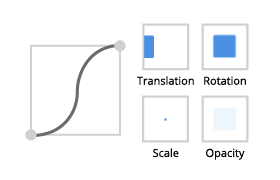
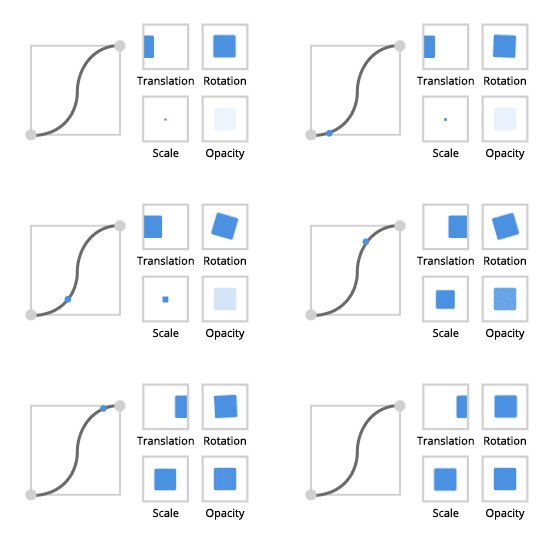
|
キュービック |
||
イーズイン (Ease in) |
イーズアウト (Ease out) |
イーズインアウト |
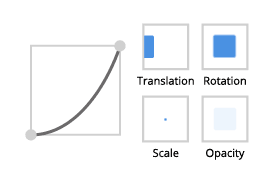
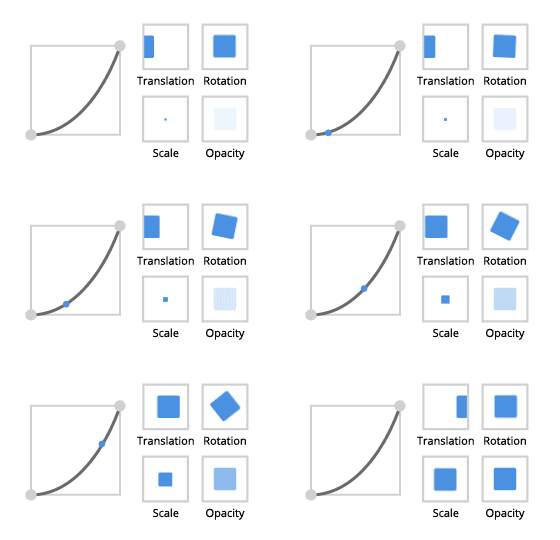
|
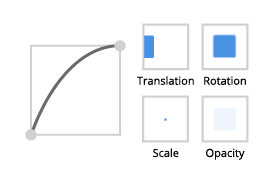
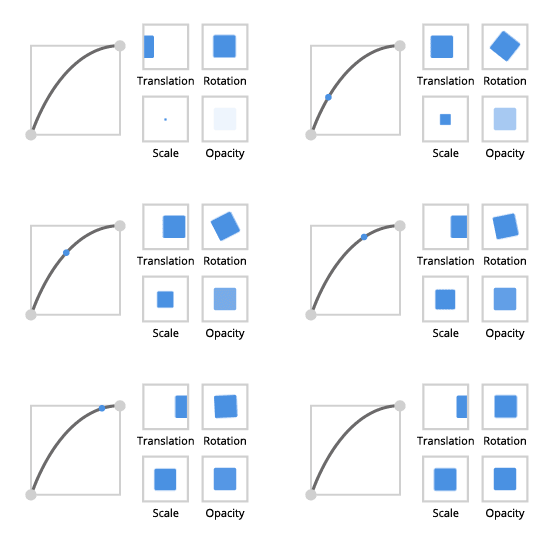
|
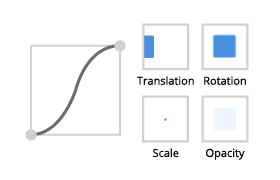
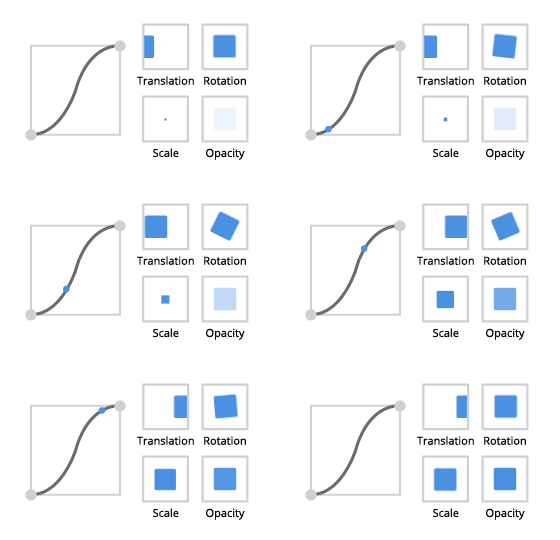
|
エラスティック |
||
イーズイン (Ease in) |
イーズアウト (Ease out) |
イーズインアウト |
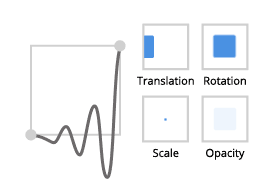
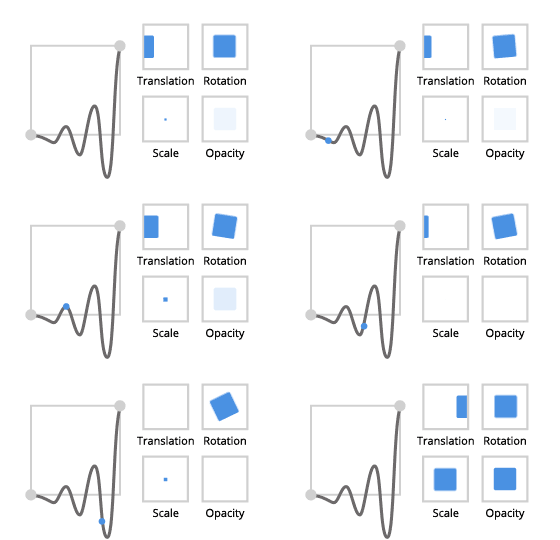
|
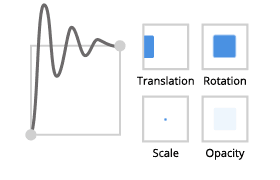
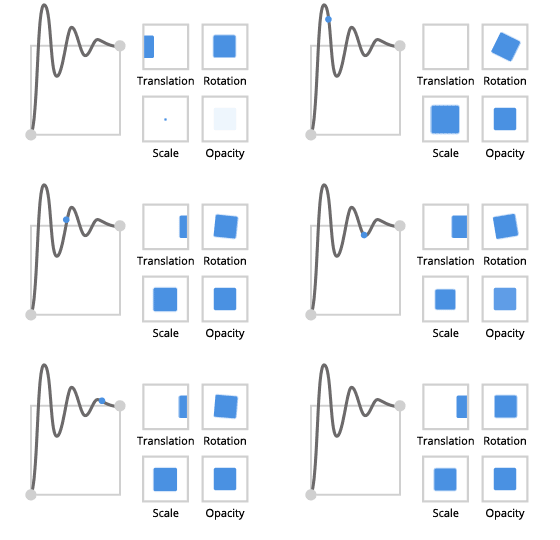
|
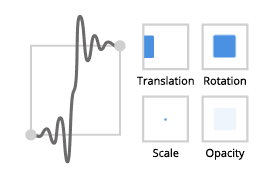
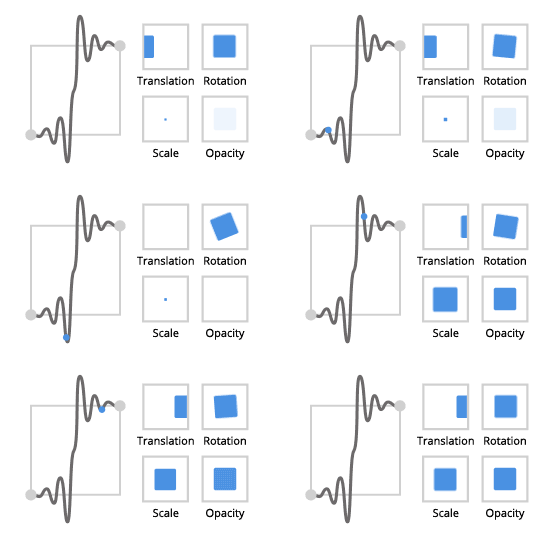
|
エクスポネンシャル |
||
イーズイン (Ease in) |
イーズアウト (Ease out) |
イーズインアウト |
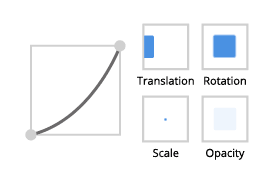
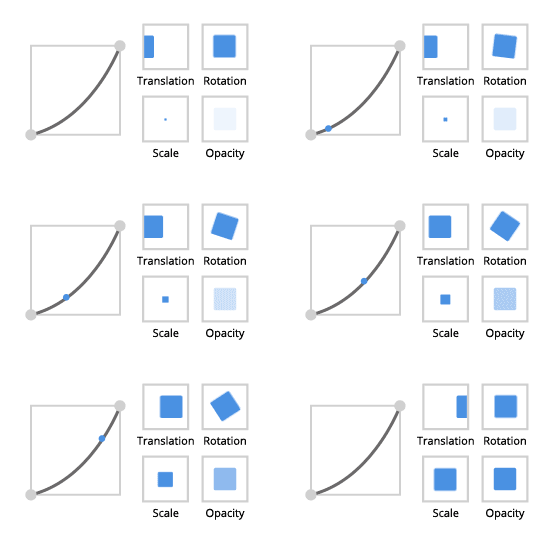
|
|
|
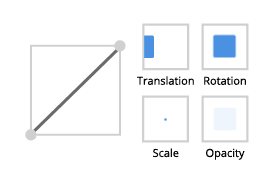
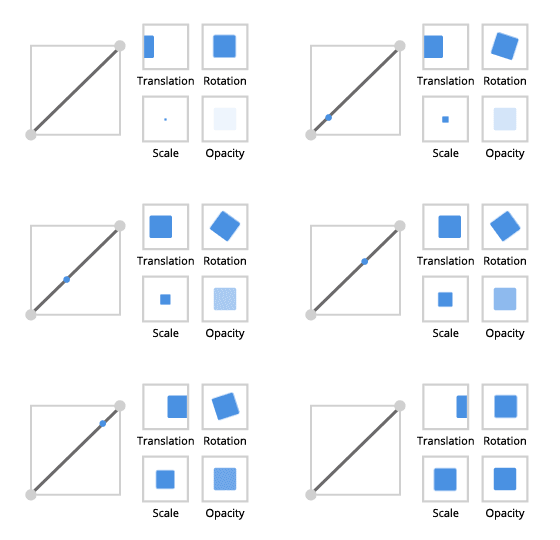
リニア |
||
イーズイン、イーズアウト、イーズインアウト |
||
|
||
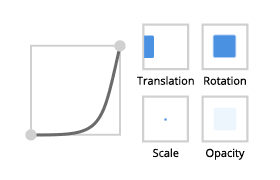
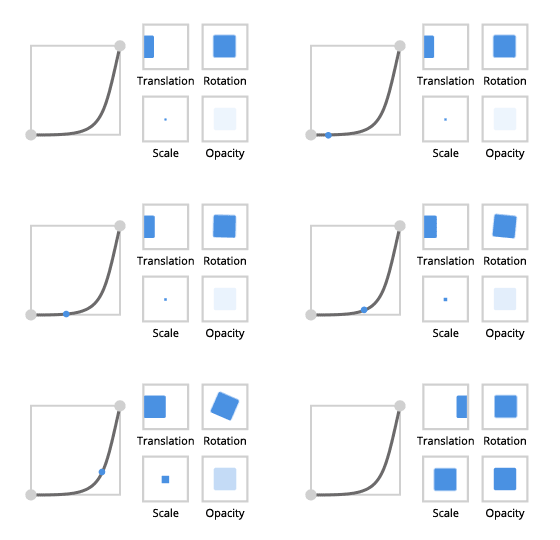
パワー |
||
イーズイン (Ease in) |
イーズアウト (Ease out) |
イーズインアウト |
|
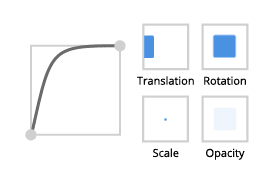
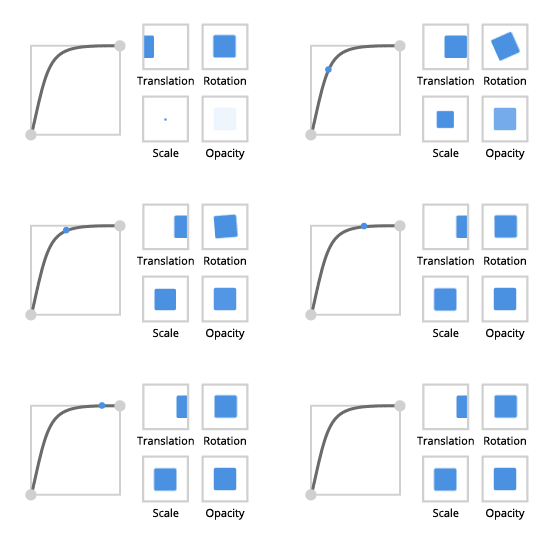
|
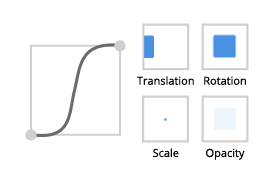
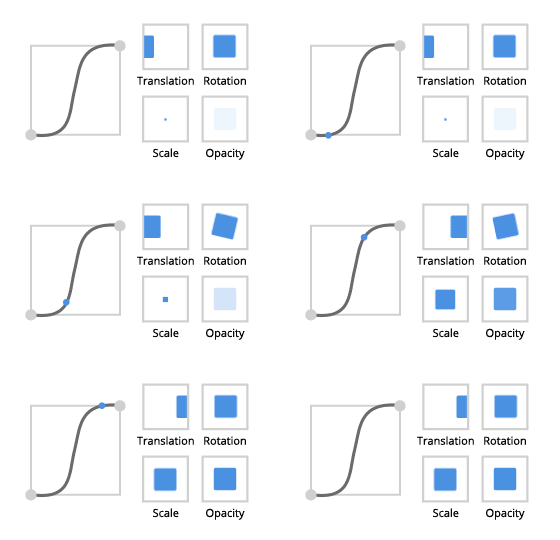
|
二次 |
||
イーズイン (Ease in) |
イーズアウト (Ease out) |
イーズインアウト |
|
|
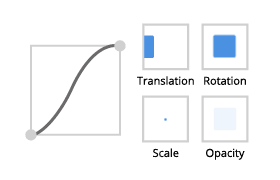
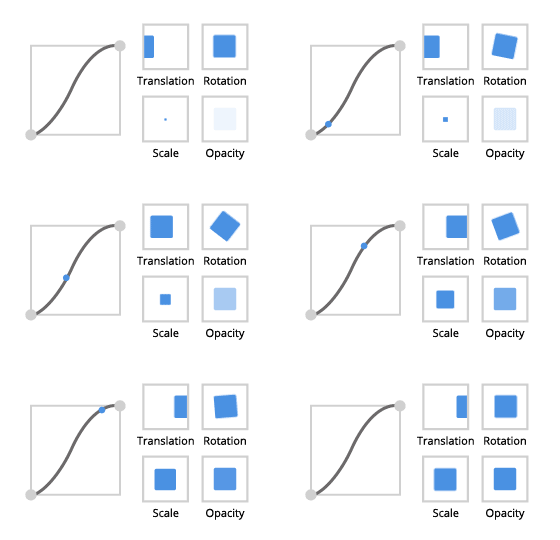
|
Quartic |
||
イーズイン (Ease in) |
イーズアウト (Ease out) |
イーズインアウト |
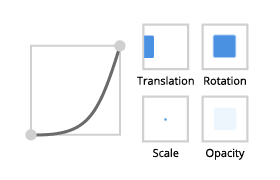
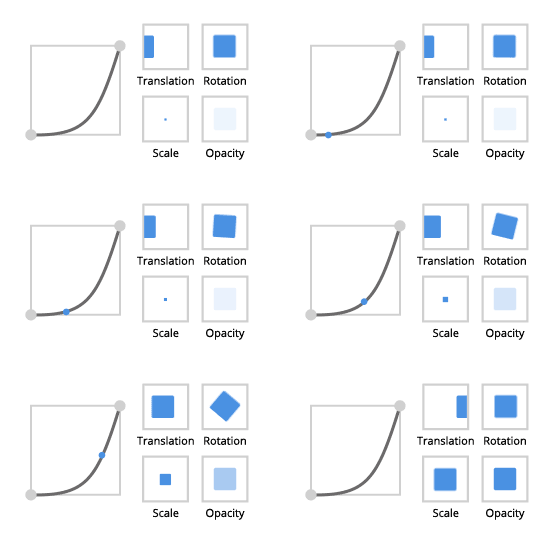
|
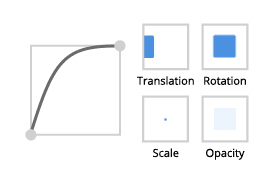
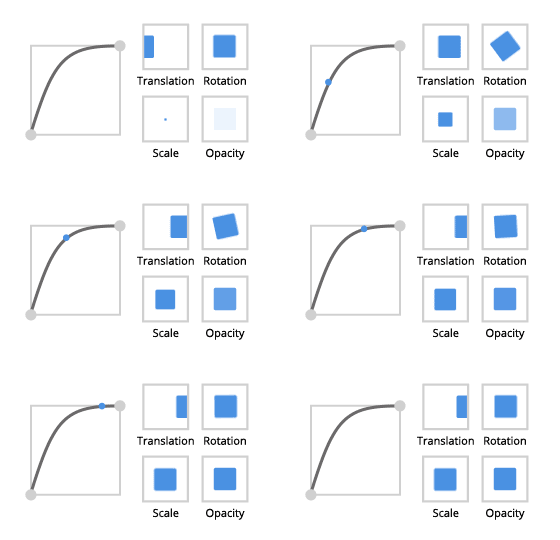
|
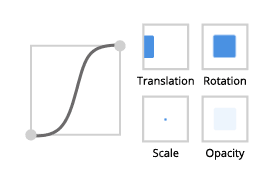
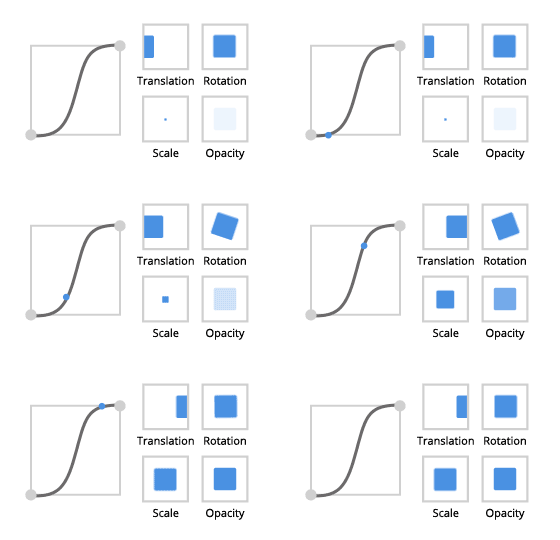
|
Quintic |
||
イーズイン (Ease in) |
イーズアウト (Ease out) |
イーズインアウト |
|
|
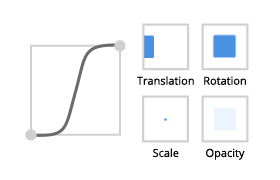
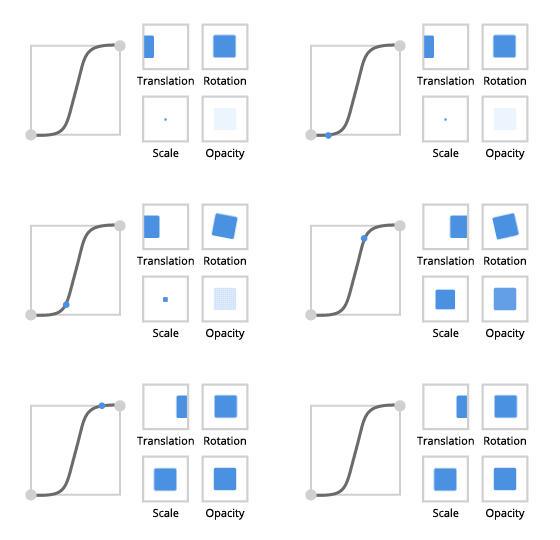
|
サイン |
||
イーズイン (Ease in) |
イーズアウト (Ease out) |
イーズインアウト |
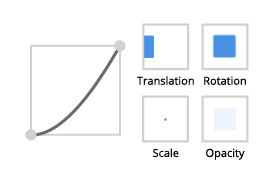
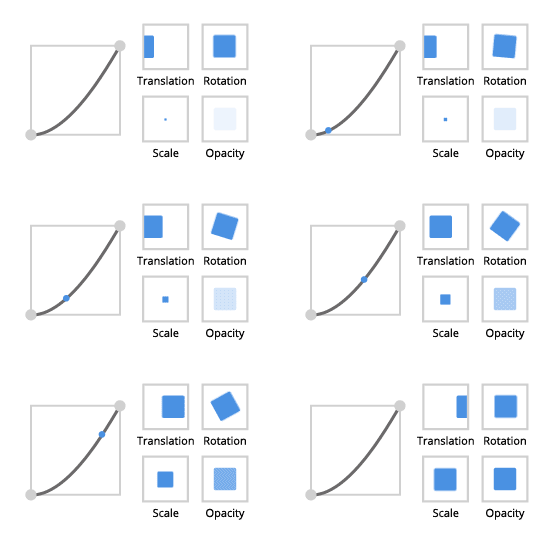
|
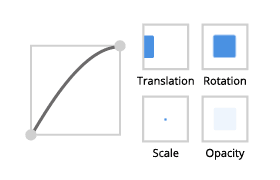
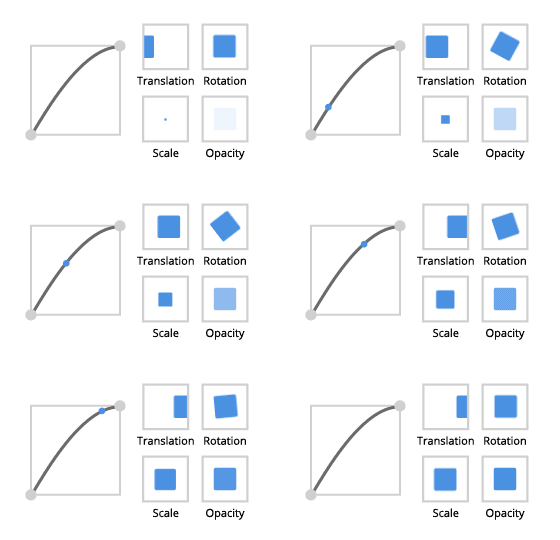
|
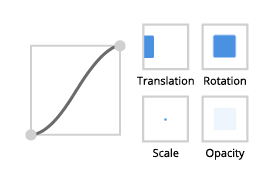
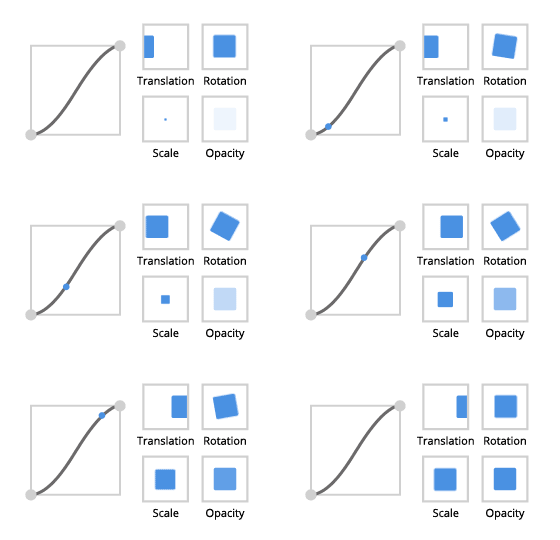
|
スムーザーステップ |
||
イーズイン、イーズアウト |
イーズインアウト |
|
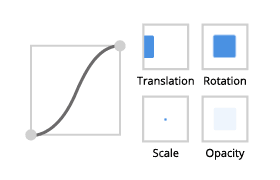
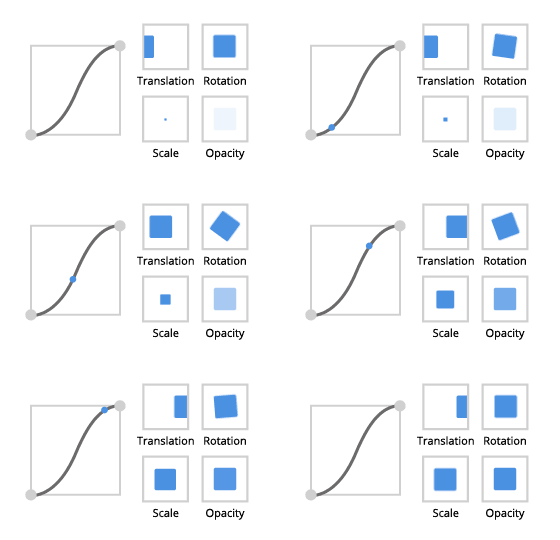
|
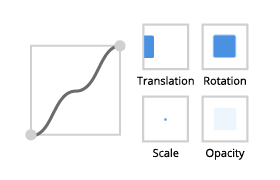
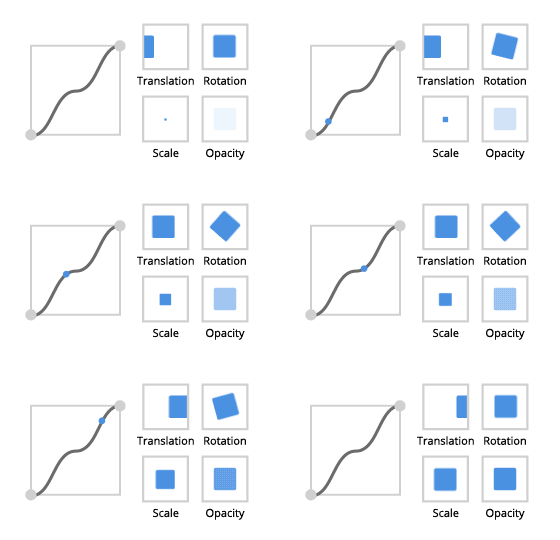
|
|
スムーズステップ |
||
イーズイン、イーズアウト |
イーズインアウト |
|
|
|
|
ステップ |
||
イーズイン、イーズアウト |
イーズインアウト |
|
|
|
|
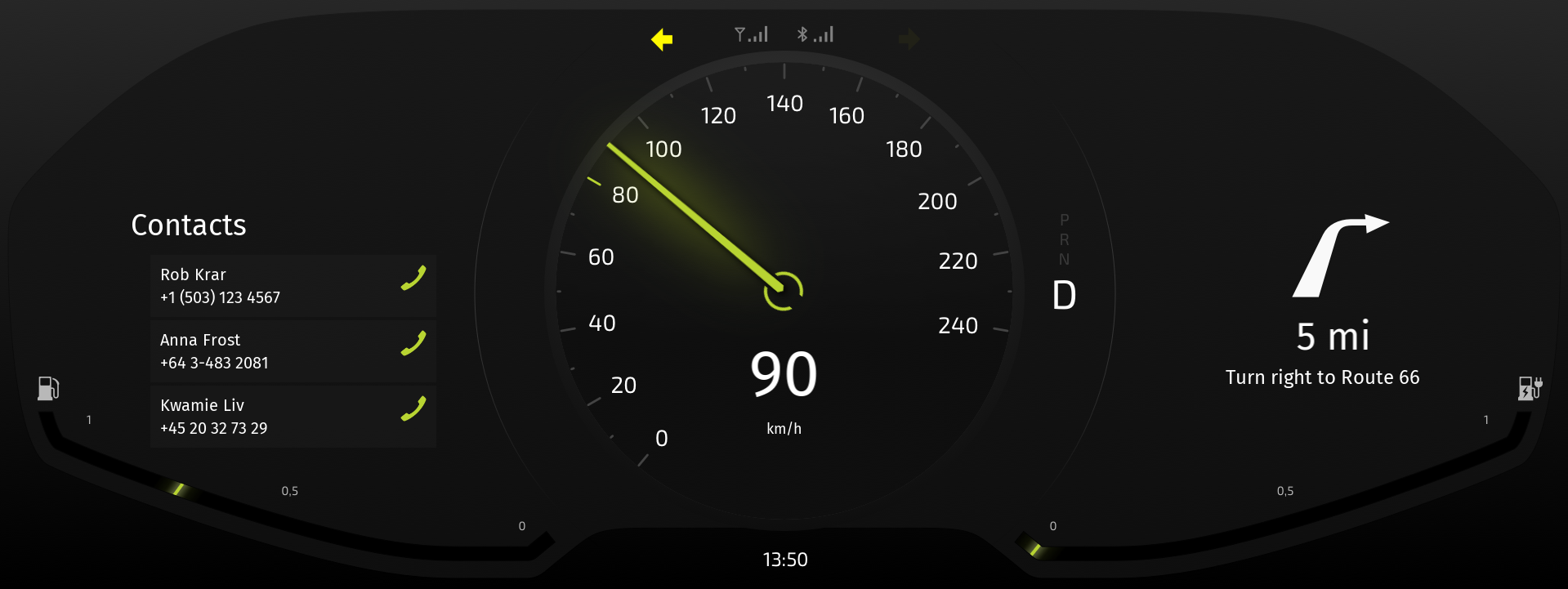
例えば、Property Target Easing Interpolator を使用して、燃料とバッテリーの針を最初に最大位置に移動させ、その後現在の位置に移動させるウェルカムアニメーションを作成します。
イージング関数を使用してプロパティ値を補間する
イージング関数を使用してプロパティ値を補間するには:
Node Tree で、補間したいプロパティを含むノードを選択します。
例:
Quick Start ウィンドウで Examples をクリックします。Data source チュートリアルの横にある
 をクリックします。
Data source チュートリアルの横にある Open をクリックし、Completed project を選択します。
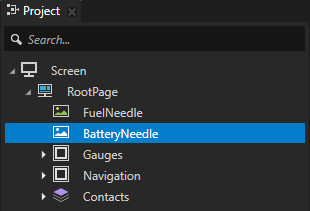
Node Tree で、RootPage > BatteryNeedle ノードを選択します。
Property Target Easing Interpolator を使用して、データソース内のバッテリー残量の値が変化したときに、BatteryNeedle ノードを前の位置から現在の位置へ徐々に移動させます。
このプロジェクトの作成方法については、チュートリアル: ゲージを作成する と チュートリアル: データソースからアプリケーションデータを取得する を参照してください。
Node Components Alt を押しながら右クリック Animation で、Property Target Easing Interpolator を選択します。
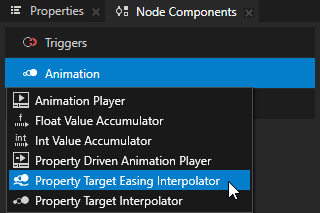
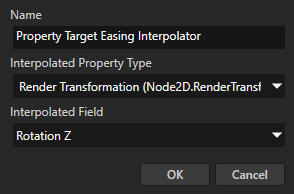
Create Property Target Easing Interpolator ダイアログセットで:
補間したいプロパティに Interpolated Property Type します。
例えば、Transform 2D > Render Transformation プロパティを選択します。
Interpolated Property Type で選択したプロパティのプロパティフィールドに Interpolated Field を入力します。
例えば、Rotation Z プロパティフィールドを選択します。
あなたが作成した Property Target Easing Interpolator で設定します:
Interpolation Duration を補間アニメーションの持続時間にしたいミリ秒に設定します。
Easing Function は、補間の曲線を定義する関数を設定します。
UI要素をよりリアルにするために、イージング関数を使用します。現実の物体は決して即座に開始または停止しないため、適切なイージング関数を使用することで、より快適なユーザー体験を作り出すことができます。
最も適したイージング関数を選択してください。
イージング関数の画像にカーソルを合わせると、それが作成するアニメーションのタイプが表示されます。
戻る
イーズイン (Ease in)
イーズアウト (Ease out)
イーズインアウト
バウンス
イーズイン (Ease in)
イーズアウト (Ease out)
イーズインアウト
サークル
イーズイン (Ease in)
イーズアウト (Ease out)
イーズインアウト
キュービック
イーズイン (Ease in)
イーズアウト (Ease out)
イーズインアウト
エラスティック
イーズイン (Ease in)
イーズアウト (Ease out)
イーズインアウト
エクスポネンシャル
イーズイン (Ease in)
イーズアウト (Ease out)
イーズインアウト
リニア
イーズイン、イーズアウト、イーズインアウト
パワー
イーズイン (Ease in)
イーズアウト (Ease out)
イーズインアウト
二次
イーズイン (Ease in)
イーズアウト (Ease out)
イーズインアウト
Quartic
イーズイン (Ease in)
イーズアウト (Ease out)
イーズインアウト
Quintic
イーズイン (Ease in)
イーズアウト (Ease out)
イーズインアウト
サイン
イーズイン (Ease in)
イーズアウト (Ease out)
イーズインアウト
スムーザーステップ
イーズイン、イーズアウト
イーズインアウト
スムーズステップ
イーズイン、イーズアウト
イーズインアウト
ステップ
イーズイン、イーズアウト
イーズインアウト
補間にイージング関数を適用する方法を定義するための Easing Mode:
Ease in はイージング関数をそのまま適用します。
Ease out はイージング関数の負の値を適用します。
Ease in-out は、補間の前半にイージング関数をそのまま適用し、補間の後半にイージング関数の負の値を適用します。
補間されるプロパティタイプが前の値への補間が完了する前に新しい値を取得した場合の補間動作を設定するための Interpolation If Interrupted:
Start from current interpolated value は、進行中のイージング補間の現在の値を新しい補間の開始値として使用します。これはデフォルトの値です。
Start from current target value は、新しい補間の開始値として、進行中のイージング補間のターゲット値を使用します。
Notify Interpolation Completed は、Property Target Easing Interpolator がイージング補間を完了したときにメッセージをディスパッチするかどうかを設定します。イージング補間の完了に関する情報を取得する を参照してください。
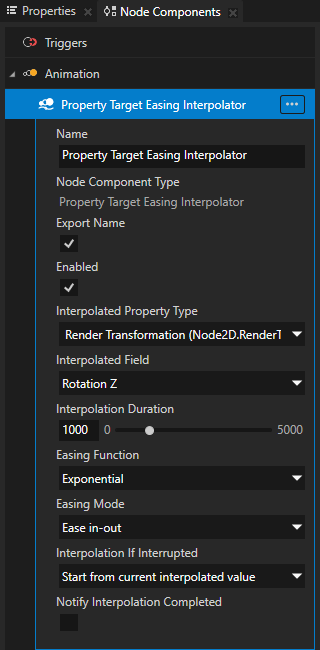
Interpolated Property Type で設定したプロパティの値を変更すると、Property Target Easing Interpolator は Interpolation Duration プロパティで設定した時間にわたって現在の値をターゲット値に補間し、設定した Easing Function と Easing Mode を使用します。
イージング補間の完了に関する情報を取得する
Property Target Easing Interpolator が補間するプロパティの補間を完了すると、メッセージを送信します。そのメッセージをインターセプトすることで、補間されたプロパティが最終値に達した時を知ることができます。
イージング補間の完了に関する情報を取得するには:
補間したいプロパティのために Property Target Easing Interpolator を作成して設定します。イージング関数を使用してプロパティ値を補間する を参照してください。
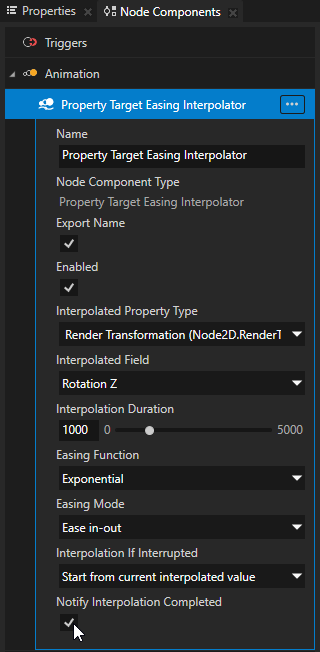
Property Target Easing Interpolator で作成した Node Components > Animation で、Notify Interpolation Completed プロパティを有効にします。
この方法で、Property Target Easing Interpolator がイージング補間を完了するたびにメッセージをディスパッチするように設定します。
Node Tree で、Property Target Easing Interpolator のイージング補間の完了に関する情報を取得したいノードを選択します。
例えば、BatteryNeedle ノードで Property Target Easing Interpolator を使用し、RootPage ノードでイージング補間の完了に関する情報を取得したい場合は、RootPage ノードを選択します。
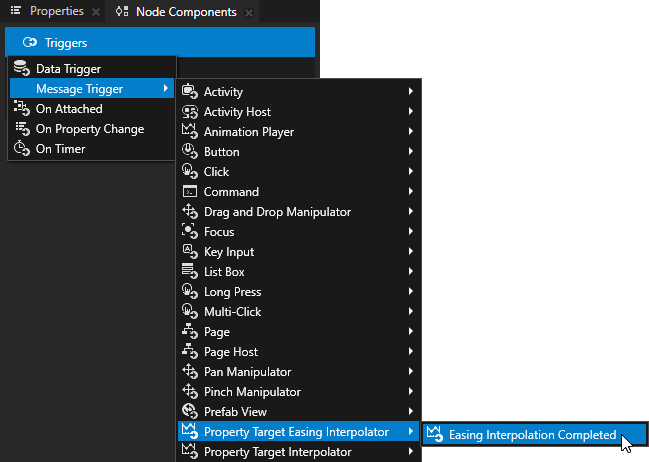
Node Components Alt を押しながら右クリック Triggers で、Message Trigger > Property Target Easing Interpolator > Easing Interpolation Completed を選択します。
Easing Interpolation Completed トリガーは、Property Target Easing Interpolator が補間するプロパティの値の補間を終了したときに送信するメッセージをインターセプトします。
作成した Easing Interpolation Completed トリガーで、補間が完了したことを知りたい Property Target Easing Interpolator を持つノードに Message Source プロパティを設定します。
例えば、RootPage ノードで Property Target Easing Interpolator が BatteryNeedle のプロパティの補間を終了するタイミングを知りたい場合、Message Source を BatteryNeedle ノードに設定します。
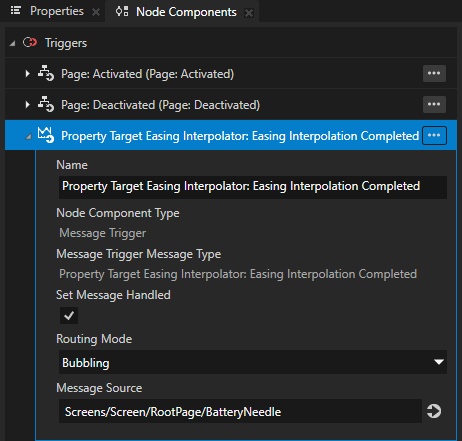
Easing Interpolation Completed トリガーで、実行したいアクションを作成します。
Property Target Easing Interpolator がイージング補間の完了についてメッセージを送信すると、このトリガーはあなたが選択したアクションを実行します。
例えば、別のプロパティの値を設定するために Set Property アクションを追加します。
Property Target Easing Interpolator をAPIで使用する
Property Target Easing Interpolator を使用してプロパティ値を補間するには:
// Create a Property Target Easing Interpolator.
auto interpolator = PropertyTargetEasingInterpolator::create(domain, "interpolator");
// Set the property type whose value you want the Property Target Easing Interpolator to interpolate.
interpolator->setInterpolatedPropertyType(Node2D::OpacityProperty.getName());
// Set the easing function to Linear.
interpolator->setEasingFunction(PropertyTargetEasingInterpolator::EasingFunction::Linear);
// Set the easing mode to Ease in-out.
interpolator->setEasingMode(AnimationEaseInOut);
// Set the duration of the interpolation to 500 milliseconds.
interpolator->setInterpolationDuration(chrono::milliseconds(500));
// Add the Property Target Easing Interpolator to a node.
node->addNodeComponent(interpolator);
プロパティターゲットイージングタイムラインを作成し、そのターゲットプロパティと補間設定を設定するには:
// Create a property target easing timeline.
auto timeline = PropertyTargetEasingTimeline::create(domain, ".", Node2D::OpacityProperty, PropertyFieldWhole);
// Adjust easing interpolation settings.
timeline->setInterpolationDuration(chrono::milliseconds(500));
timeline->setEasingFunction(LinearEasingFunction());
timeline->setEasingMode(AnimationEaseIn);
プロパティターゲットイージングタイムラインの再生を作成するには:
// Create a context which resolves path to the node.
SceneGraphTimelinePlaybackContext context(*node);
// Create playback for property target easing timeline.
auto playback = timeline->createPlayback(context);
プロパティターゲットイージングタイムラインの再生をクロックに追加するには、
// Add playback to the clock. Once playback is added to the clock it starts
// to interpolate its target property whenever the property changes.
domain->getRootTimelineClock()->addTimelinePlayback(playback);
詳細については、Kanzi Engine C++ API リファレンス 内の PropertyTargetEasingInterpolator、PropertyTargetEasingTimeline、および PropertyTargetEasingTimelinePlayback クラスを参照してください。