Text Box ノードを使用する
アプリケーションに一行テキスト入力を追加するには、Text Box ノードを使用します。
Text Box 3D を使用して3D空間にテキスト入力を追加し、Text Box 2D を使用して2D空間にテキスト入力を追加します。
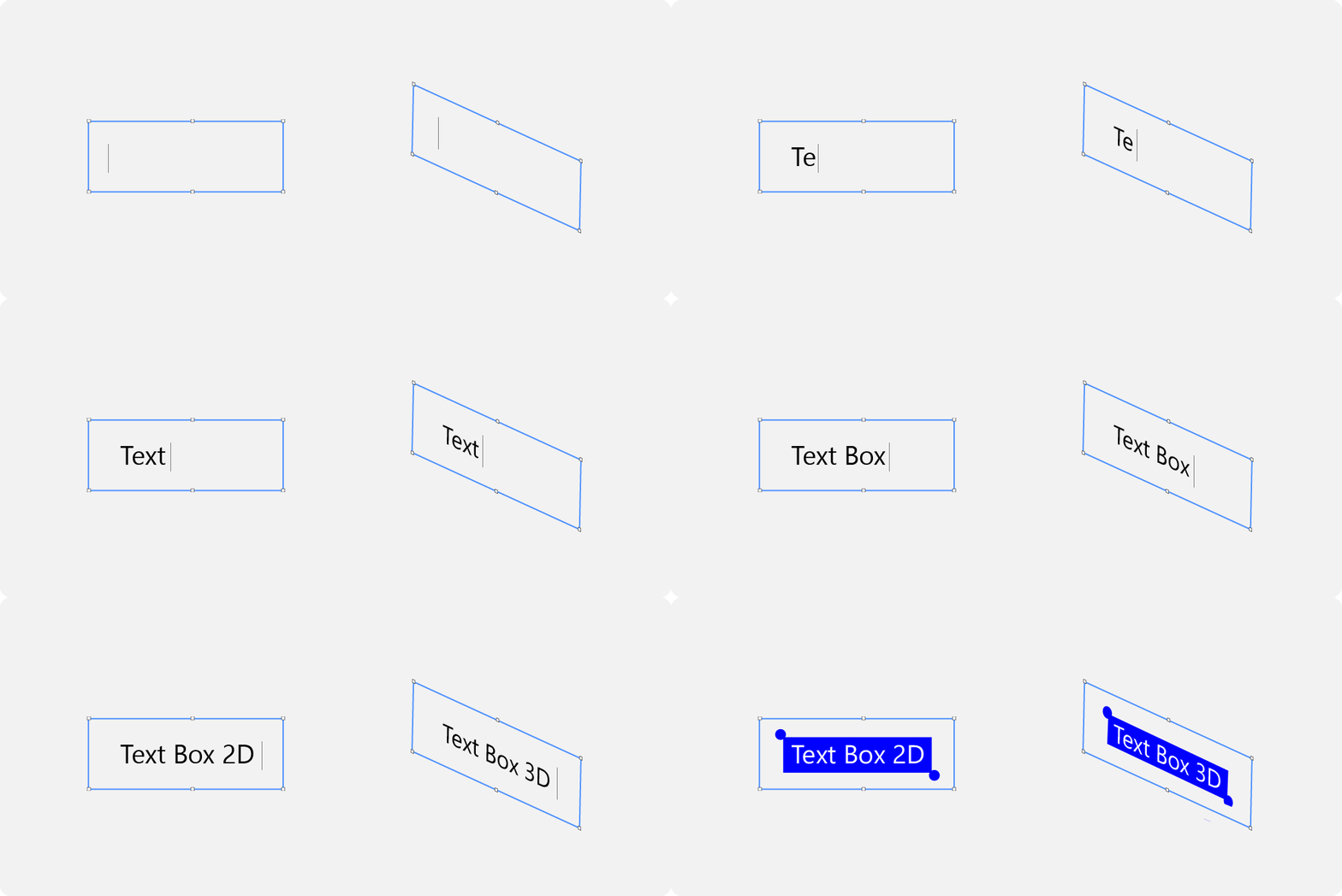
Text Box ノードは Focusable プロパティが有効になっており、デフォルトでフォーカスを受け取ることができます。デフォルトで、Text Box ノードにフォーカスがある場合、その Text Box ノードは編集状態になります。
Text Box ノードが編集状態にあるとき、そのテキストボックス内でカーソルを移動するには、次のデフォルトのキーボードキーを使用できます。
← でカーソルを1文字後ろに移動します。
→ はカーソルを1文字前に移動します。
Ctrl ← は、カーソルをカーソルの前にある単語の境界に移動します。
Ctrl → は、カーソルをカーソルの後に続く単語の境界に移動します。
Home はテキストコンテンツの先頭にカーソルを移動します。
End はテキストコンテンツの末尾にカーソルを移動します。
Text Box ノードが編集状態にあるとき、そのテキストボックス内のテキスト選択を変更するには、次のデフォルトのキーボードキーを使用できます。
Shift ← は、テキスト選択内のアクティブカーソルを1文字後ろに移動します。
Shift Ctrl は、テキスト選択内のアクティブカーソルを現在の位置に先行する単語の境界に移動します。
Shift Home は、テキスト選択内のアクティブカーソルをテキストコンテンツの先頭に移動します。
Shift → は、テキスト選択内のアクティブカーソルを1文字前に移動します。
Shift Ctrl → は、テキスト選択内のアクティブカーソルを現在の位置に続く単語の境界に移動します。
Shift End を使用して、テキスト選択内のアクティブカーソルをテキストコンテンツの末尾に移動します。
Ctrl A で全てのテキストを選択します。
Text Box ノード内のテキストを編集する
Text Box ノードはデフォルトで、
フォーカスがその Text Box ノードに移動すると、編集状態に入ります。これは、アプリケーションユーザーがノードをタップするか、フォーカスチェーンナビゲーションを使用してノードにフォーカスを設定したときに発生します。フォーカス を参照してください。
フォーカスがその Text Box ノードから別のノードに移動すると、編集状態を終了します。
Text Box ノードが編集状態にあるときに手動で制御する を参照してください。
Text Box ノード内のテキストを編集するには:
Node Tree Alt を押しながら右クリック で、アプリケーションにシングルラインテキスト入力を追加したいノードを選択し、Text Box 2D または Text Box 3D のいずれかを選択します。
3Dノードは、Scene ノードのような3Dノード内でのみ作成でき、2Dノードは2Dノード内でのみ作成できます。
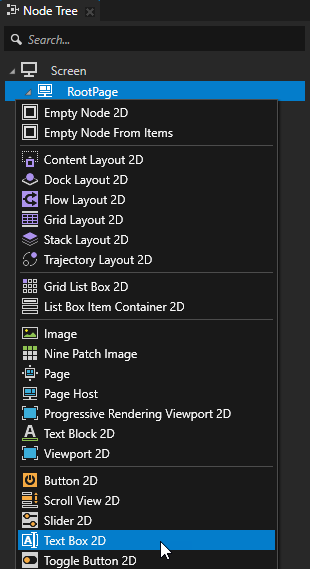
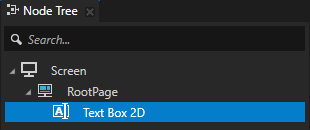
Node Tree で、Text Box ノードにテキストを追加、編集、削除するために使用するノードを作成します。
例えば、Button 2D ノードを作成し、コンテンツを追加します。
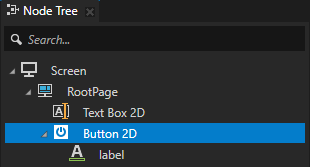
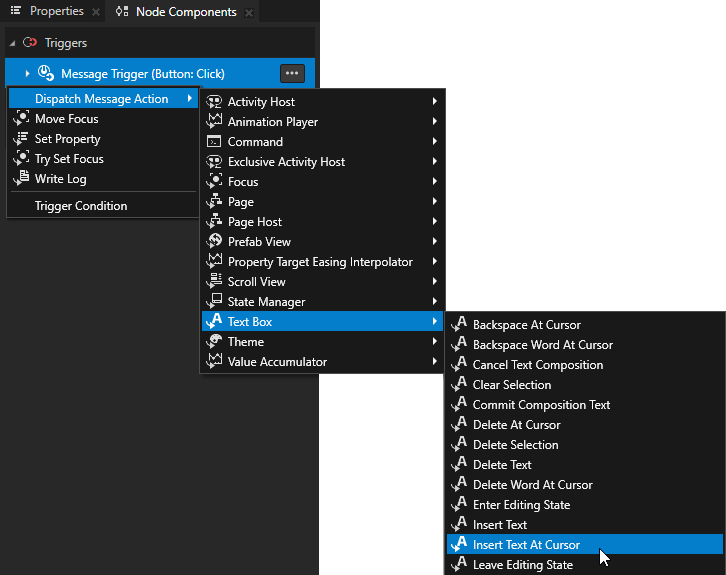
Node Tree で、前のステップで作成したノードを選択し、Node Components > Triggers セクションで、追加、編集、または削除するテキストに使用するトリガー Alt を押しながら右クリック を選択し、Text Box アクションのいずれかを選択します。テキストボックス (Text Box) アクション を参照してください。
例:
Insert Text At Cursor
カーソル位置にテキストを挿入します。
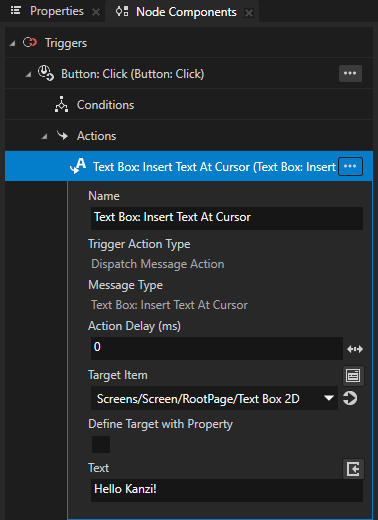
Insert Text At Cursor アクションで、Text プロパティの値を挿入したいテキストに設定します。
Delete At Cursor
deleteを使用して文字を削除します。
Backspace At Cursor
バックスペースを使用して文字を削除します。
Move Cursor Backward
カーソルを1文字後ろに移動します。
Move Cursor Forward
カーソルを1文字前に移動します。
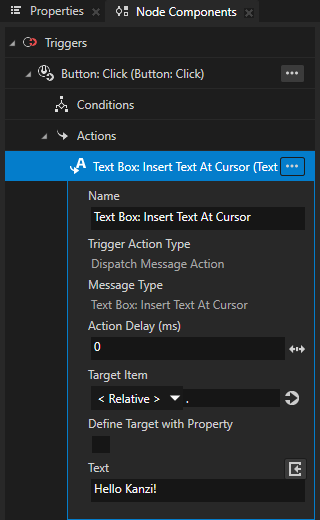
前のステップで作成したアクションで、テキストを編集したい Text Box ノードに Target Item を設定します。
トリガーにアクションを追加したとき、そのトリガーが発動されると、Kanzi は Text Box ノード内のテキストを編集するアクションを実行します。
Text Box ノードが編集状態にあるときに手動で制御する
アプリケーションユーザーは、Text Box ノードが編集状態にあるときにそのノード内のテキストを編集できます。編集状態にできる Text Box ノードは一度に1つだけです。Text Box ノードは次の場合に常に編集状態を離れます:
別の Text Box ノードが編集状態に入ります。
その Text Box ノードは無効です。Text Box ノードが使用中かどうかを制御する を参照してください。
Text Box ノードはデフォルトで、
フォーカスがその Text Box ノードに移動すると、編集状態に入ります。これは、アプリケーションユーザーがノードをタップするか、フォーカスチェーンナビゲーションを使用してノードにフォーカスを設定したときに発生します。フォーカス を参照してください。
フォーカスがその Text Box ノードから別のノードに移動すると、編集状態を終了します。
Text Box ノードが編集状態にあるときに手動で制御するには:
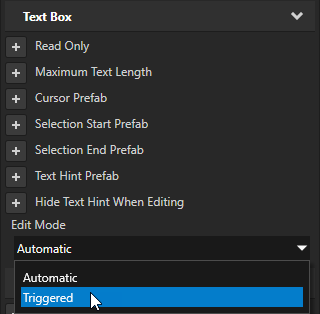
Node Tree で Text Box ノードを選択し、Properties で Edit Mode プロパティを追加し、それを Triggered に設定します。
この方法で、Text Box ノードを次のように設定します。
トリガーが Text Box: Enter Editing State アクションを実行すると、編集状態に入ります。
次のいずれかの場合に編集状態を終了します:
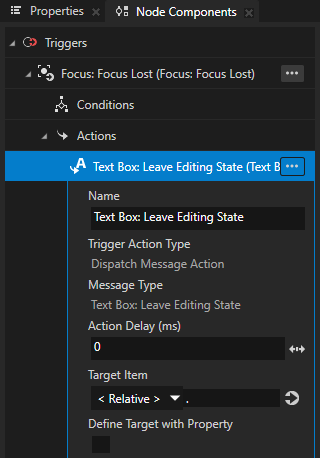
トリガーは Text Box: Leave Editing State アクションを実行します。
別の Text Box ノードが編集状態に入ります。
Text Box ノードを編集状態に設定するトリガーを作成します。
例えば、アプリケーションユーザーがボタンをクリックしたときに Text Box ノードを編集状態に設定するには、Node Tree で Button ノードを作成し、Node Components の Button: Click トリガーで Text Box: Enter Editing State アクションを作成し、Target Item を編集したい Text Box ノードに設定します。
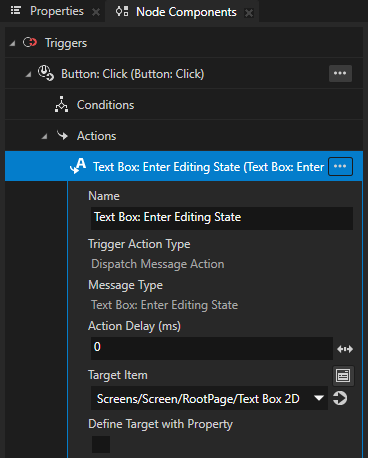
トリガーを作成して、Text Box ノードを編集状態から終了させます。
例えば、Text Box ノードがフォーカスを失ったときに編集状態を終了するように設定するには、その Text Box ノードで Focus: Focus Lost トリガーを作成し、Text Box: Leave Editing State アクションを実行します。
Text Box ノード内のテキストの長さを制限する
Text Box ノードで設定できます:
Text Box ノードが表示できるテキストの長さ。Text Box ノードが表示できるテキストの長さを設定する を参照してください。
ユーザーが Text Box ノードに入力できるテキストの長さ。Text Box ノードでユーザーが入力できるテキストの長さを設定する を参照してください。
Text Box ノードが表示できるテキストの長さを設定する
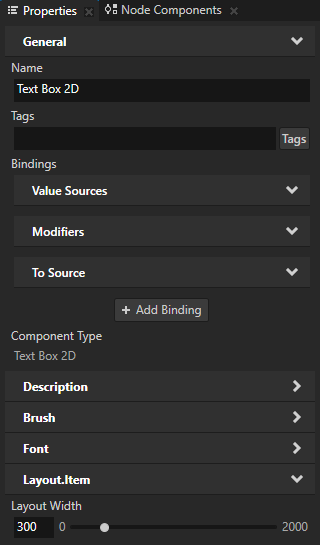
Text Box ノードが一度に表示できるテキストの長さを設定するには、Node Tree でそのノードを選択し、Properties で Layout Width プロパティの値を設定します。
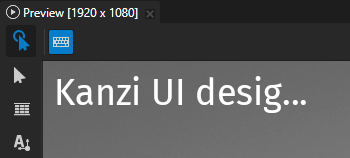
Text Box ノード内のテキストがそのノードの幅よりも長い場合、編集状態ではユーザーが Text Box ノード内でカーソルを移動することによってテキストをスクロールできます。
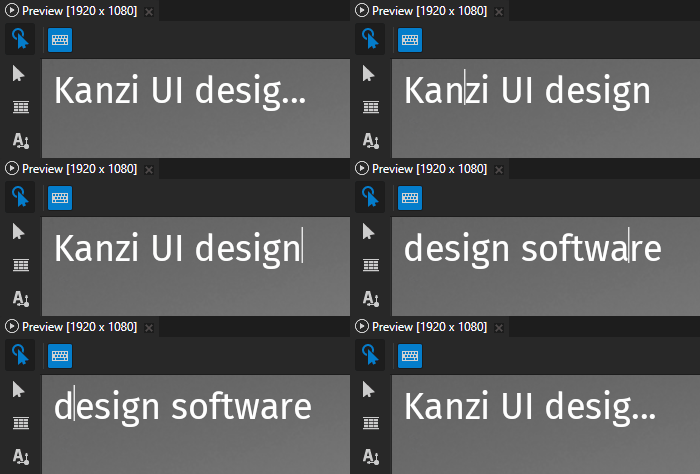
Text Box ノード内のテキストの長さでその Text Box ノードの幅を決定するには、Layout Width プロパティを削除します。
Text Box ノードでユーザーが入力できるテキストの長さを設定する
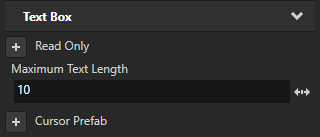
Text Box ノードでユーザーが入力できるテキストの長さを設定するには、Node Tree で Text Box ノードを選択し、Properties で Maximum Text Length プロパティを追加し、ユーザーがその Text Box ノードに入力できるテキストを制限したい UTF-8 文字数に設定します。
Text Box 2D ノード内のテキストの色を設定する
Text Block 2D または Text Box 2D ノードでテキストの色を設定するには、
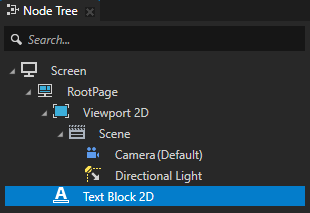
Node Tree で、Text Block 2D または Text Box 2D ノードを作成または選択します。
Properties に Foreground Brush プロパティを追加します。
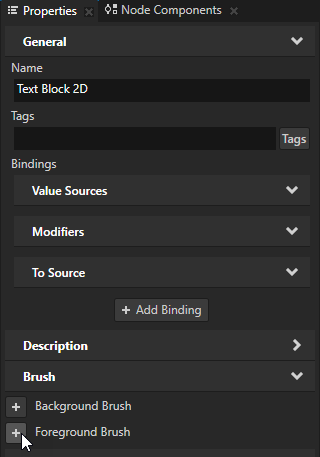
Foreground Brush プロパティを既存の Color Brush に設定するか、+ Color Brush を選択し、ブラシに名前を付け、プロパティの横にある
 をクリックし、作成した Color Brush の色を設定します。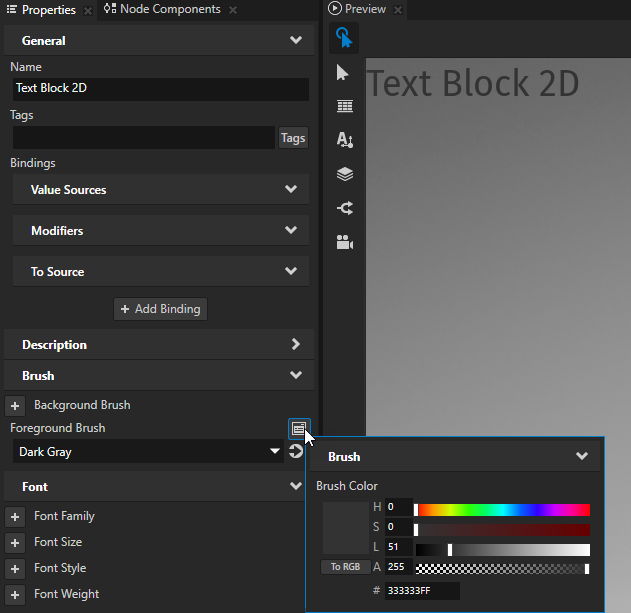
ヒント
ブラシを素早く編集するには、Background Brush または Foreground Brush プロパティの隣にある Properties で
をクリックし、ブラシを編集します。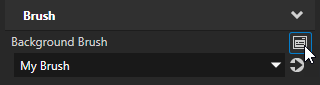
Text Box 3D ノード内のテキストの色を設定する
3Dテキストノードのテキストの色を設定するには:
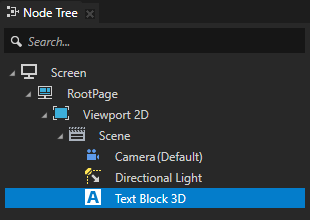
Node Tree で、Text Block 3D または Text Box 3D ノードを作成または選択します。
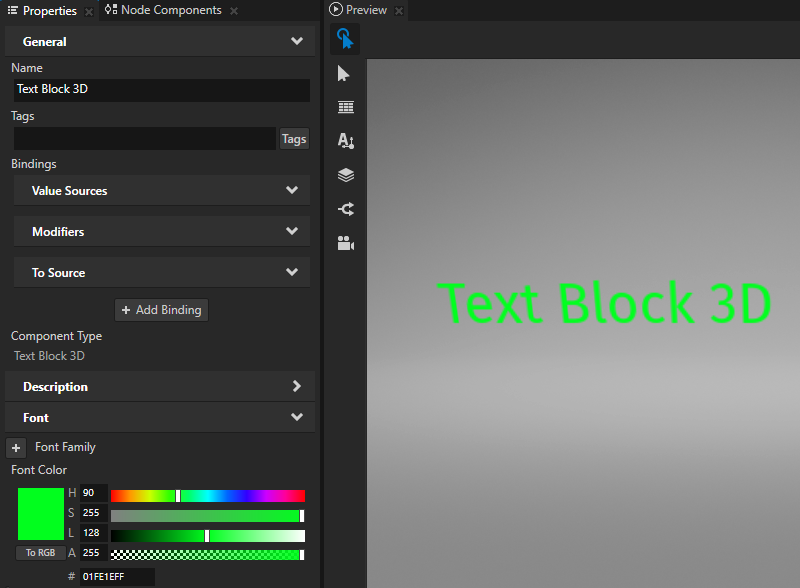
Properties に Font Color プロパティを追加して設定します。
カーソルの外観の設定
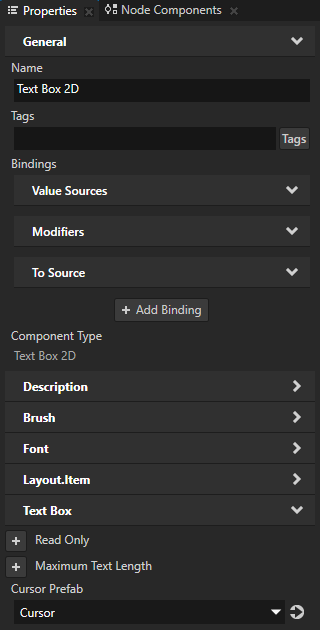
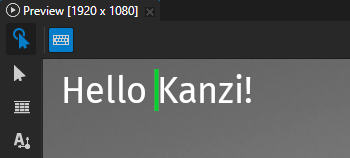
Text Box カーソルの外観を設定できます。Kanzi Studio Preview で Text Box ノードのカーソルを表示するには、その Text Box ノードをクリックします。
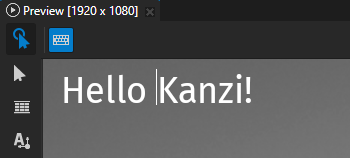
カーソルの外観を設定するには:
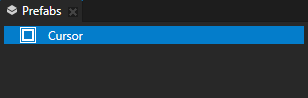
Prefabs でカーソルとして使用したいプレハブを作成します。
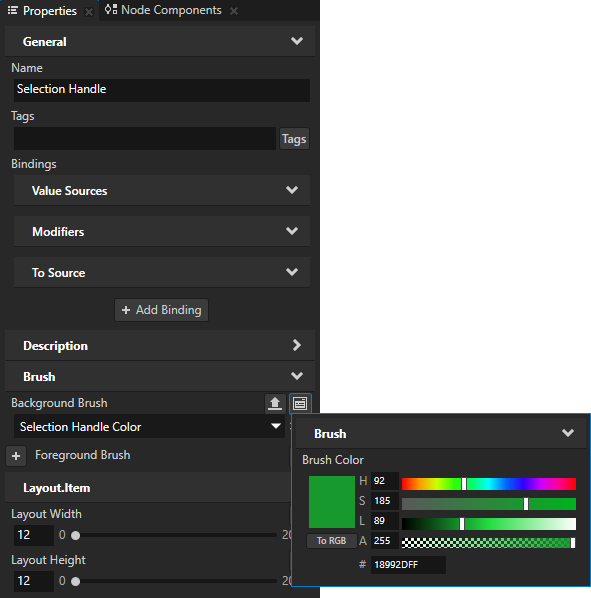
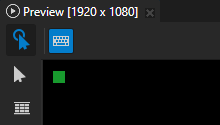
例えば、Text Box 2D ノードの場合、Empty Node 2D ノードを作成し、その Background Brush、Layout Width、および Layout Height プロパティを設定します。
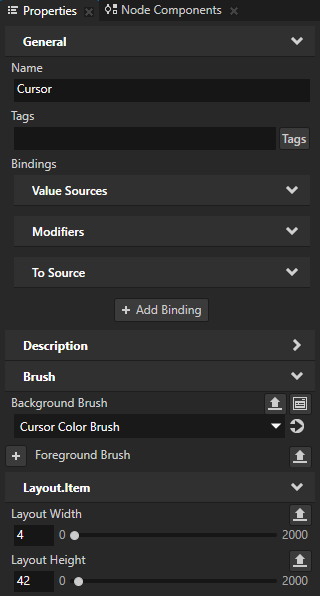
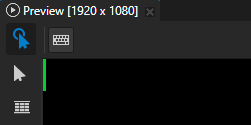
Node Tree で Text Box ノードを選択し、Properties で Cursor Prefab プロパティを追加して、カーソルとして使用したいプレハブに設定します。
Text Box ノードは、カーソルの上部を Text Box ノードの上部に揃えます。
カーソルが Text Box 2D ノードに収まらない場合、Text Box 2D ノードで Horizontal Padding および Vertical Padding プロパティを設定して、カーソル位置のオフセットを調整します。
Text Box 2D ノードでテキスト選択の外観を設定する
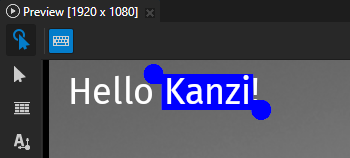
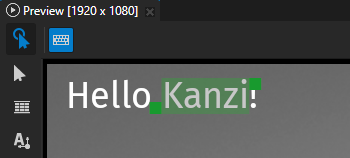
Text Box ノードでは、選択されたテキストの色、その背景、および選択されたテキストを変更するためのハンドルを設定できます。
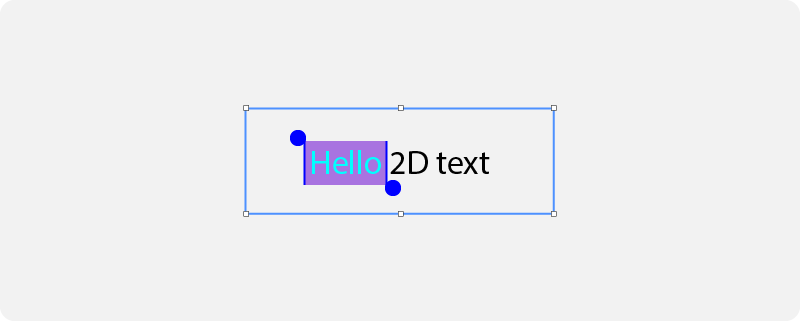
Text Box ノード内の単語を選択するには、その単語をダブルクリックします。選択範囲を変更するには、選択したテキストの左上と右下のハンドルをドラッグします。
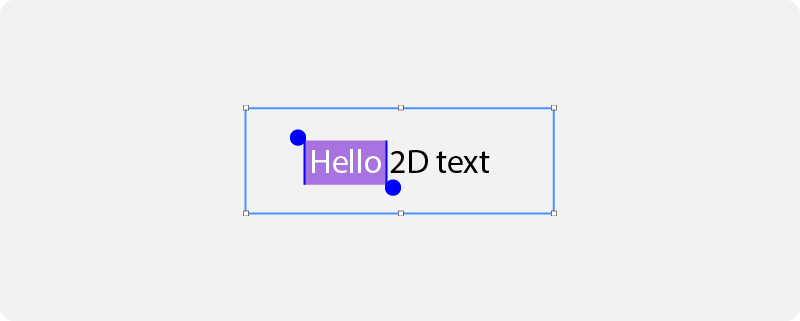
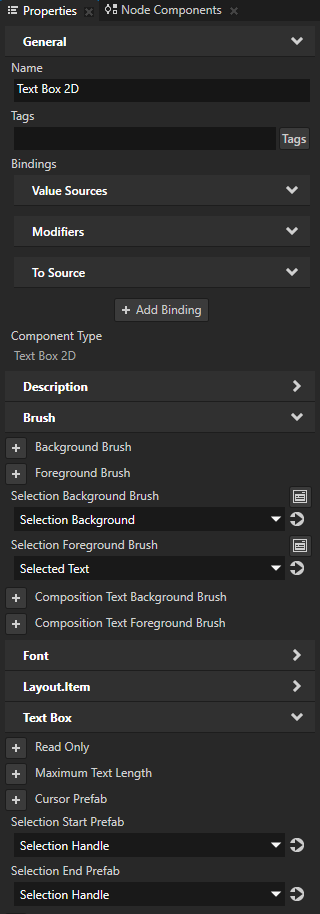
テキスト選択の外観を設定するには、Node Tree で Text Box 2D ノードを選択し、Properties で以下を追加して設定します。
選択したテキストの背景を塗りつぶすために使用したいブラシに Selection Background Brush を設定します。 |
|
選択したテキストを塗りつぶすために使用したいブラシに Selection Foreground Brush します。 |
|
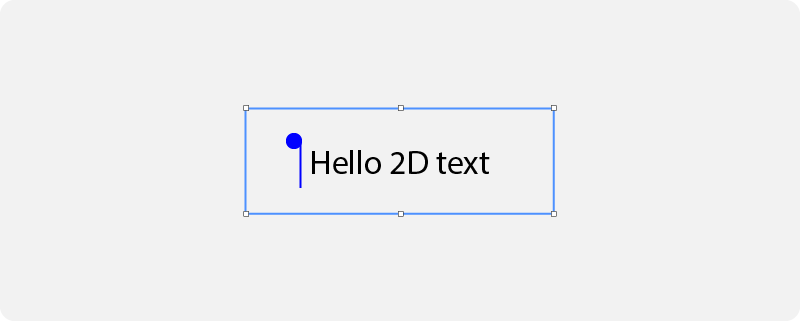
選択の開始時に選択ハンドルとして使用したいプレハブに Selection Start Prefab します。 |
|
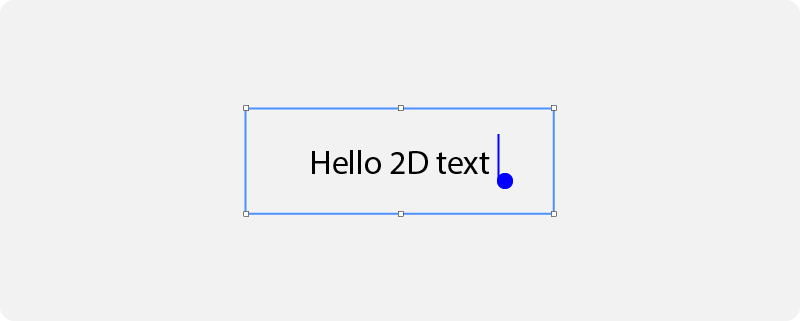
選択の終わりにある選択ハンドルに使用したいプレハブに Selection End Prefab します。 |
|
ヒント
選択ハンドルとして使用するプレハブが Text Box 2D ノードに収まらない場合、Text Box 2D ノードで Horizontal Padding および Vertical Padding プロパティを選択ハンドルプレハブの幅と高さの少なくとも半分に設定してください。
Text Box 3D ノードでテキスト選択の外観を設定する
Text Box ノードでは、選択されたテキストの色、その背景、および選択されたテキストを変更するためのハンドルを設定できます。
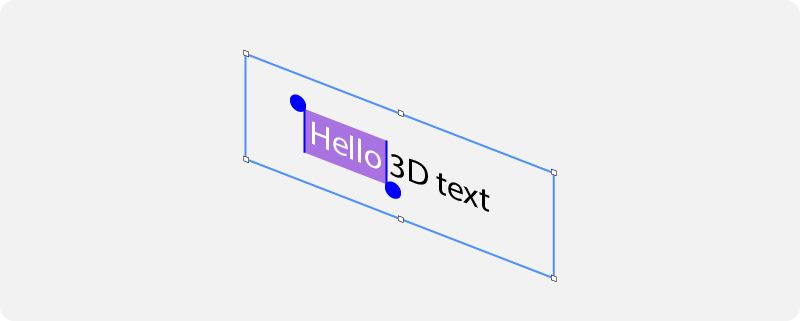
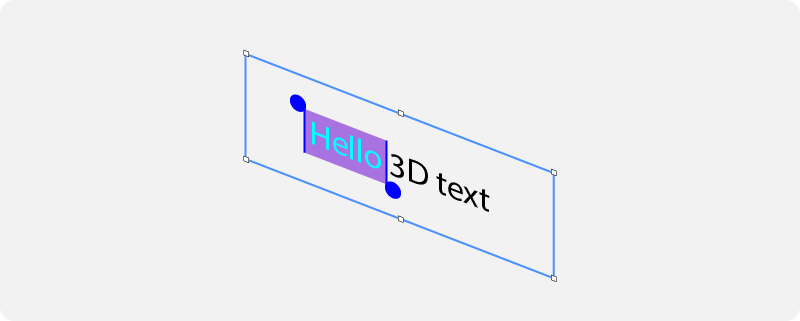
Text Box ノード内の単語を選択するには、その単語をダブルクリックします。選択範囲を変更するには、選択したテキストの左上と右下のハンドルをドラッグします。
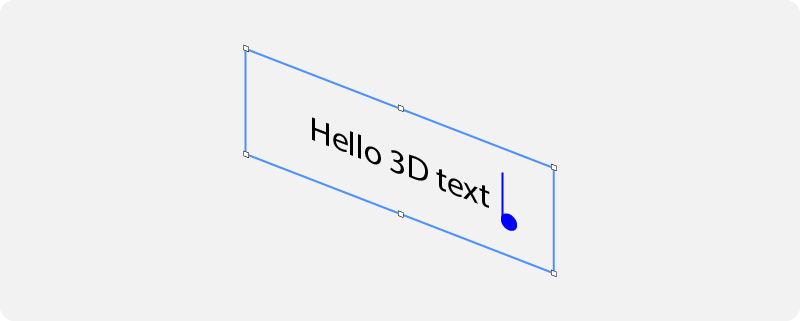
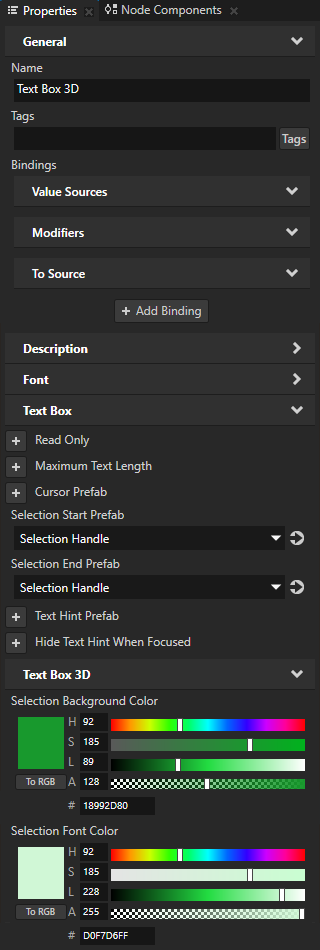
テキスト選択の外観を設定するには、Node Tree で Text Box 3D ノードを選択し、Properties で以下を追加および設定します。
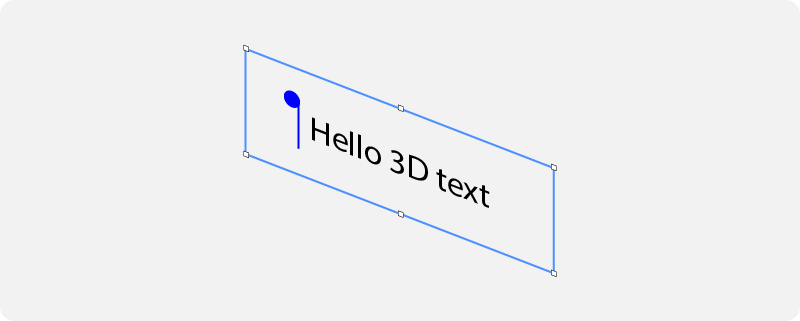
選択の開始時に選択ハンドルとして使用したいプレハブに Selection Start Prefab します。 |
|
選択の終わりにある選択ハンドルに使用したいプレハブに Selection End Prefab します。 |
|
選択したテキストの背景を埋めるために使用したい色に Selection Background Color を設定します。 |
|
選択したテキストを塗りつぶすために使用したい色に Selection Font Color します。 |
|
Text Box 2D ノード内の合成テキストの外観を設定する
合成テキストは、アプリケーションユーザーが入力メソッドエディタ (IME) を使用して生成するテキストのインスタンスです。入力メソッドエディタは、ユーザーが入力デバイスを使用して、それらの入力デバイスでネイティブに利用できない文字や記号を入力できるようにするアプリケーションです。
Text Box ノードでは、合成テキストの色とその背景を設定できます。
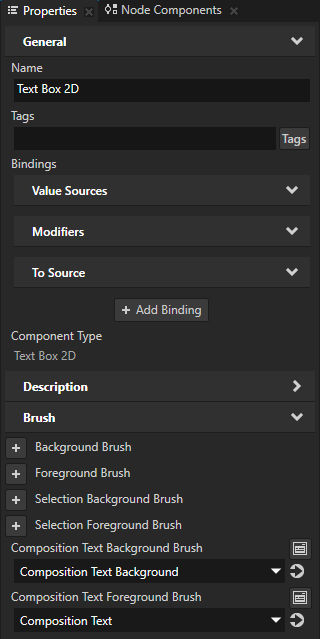
合成テキストの外観を設定するには、Node Tree で Text Box 2D ノードを選択し、Properties で以下を追加して設定します。
Composition Text Background Brush を、コンポジションテキストの背景を塗りつぶすために使用したいブラシにします。
構成テキストを埋めるために使用したいブラシに Composition Text Foreground Brush を設定します。
Text Box 3D ノード内の合成テキストの外観を設定する
合成テキストは、アプリケーションユーザーが入力メソッドエディタ (IME) を使用して生成するテキストのインスタンスです。入力メソッドエディタは、ユーザーが入力デバイスを使用して、それらの入力デバイスでネイティブに利用できない文字や記号を入力できるようにするアプリケーションです。
Text Box ノードでは、合成テキストの色とその背景を設定できます。
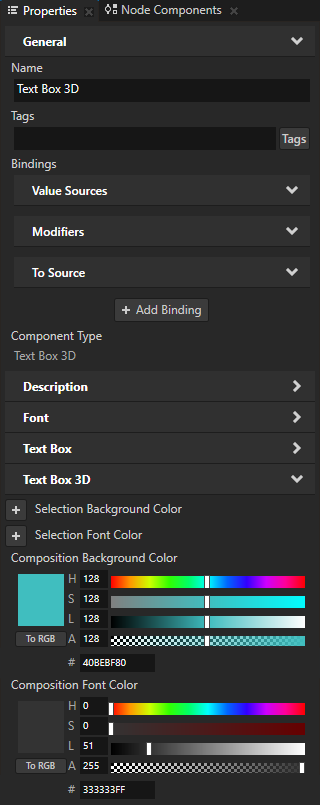
合成テキストの外観を設定するには、Node Tree で Text Box 3D ノードを選択し、Properties で以下を追加して設定します。
Composition Background Color を、合成テキストの背景を埋めるために使用したい色に設定します。
Composition Font Color をコンポジションテキストを埋めるために使用したい色にします。
プレースホルダコンテンツを表示中
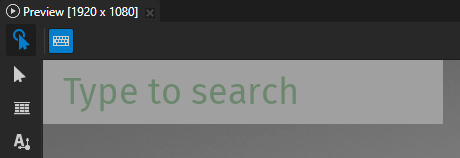
Text Box ノードを設定して、Text Box が空の場合にプレースホルダーコンテンツを表示することができます。例えば、このプレースホルダーコンテンツを使用して、ユーザーが Text Box ノードに入力できる内容を示すテキストを表示することができます。
プレースホルダコンテンツを表示するには:
Prefabs で、プレースホルダコンテンツとして使用したいプレハブを作成します。
例えば、Text Block ノードを作成し、その Text プロパティを設定します。
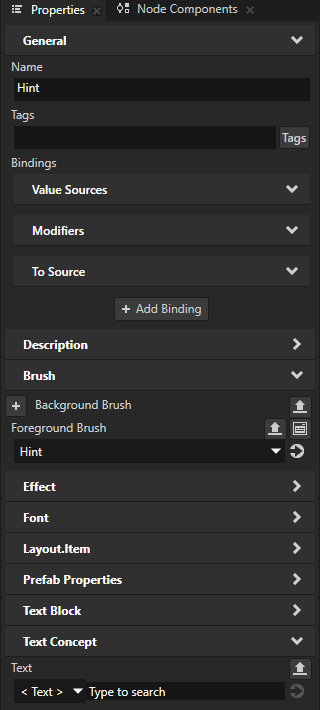
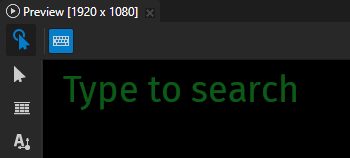
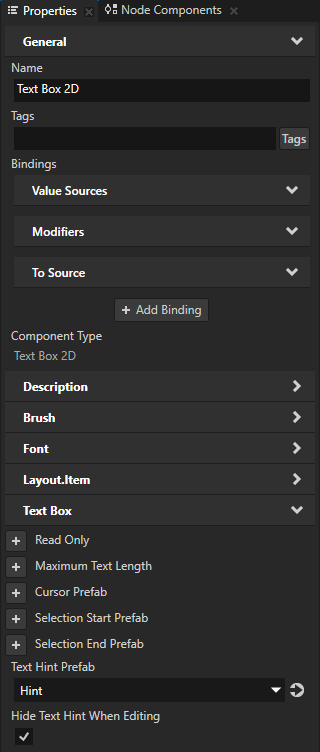
Node Tree で Text Box ノードを選択し、Properties で追加して設定します。
プレハブプレースホルダのコンテンツとして使用したいプレハブに Text Hint Prefab を設定します。
Text Box ノードが編集状態のときにプレースホルダーコンテンツを非表示にするには、(オプション) Hide Text Hint When Editing を有効にします。デフォルトで、Kanzi はユーザーが Text Box にテキストを入力するまでプレースホルダーコンテンツを表示したままにします。
パスワードのマスキング
Text Box ノードで、ユーザーが入力するパスワード文字をどのようにマスクするかを設定できます。
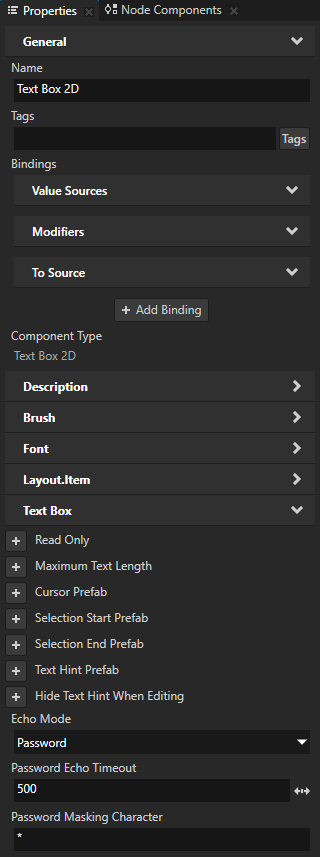
Text Box ノードで Kanzi がパスワードをどのようにマスクするかを設定するには、Node Tree でそのノードを選択し、Properties で以下を追加して設定します。
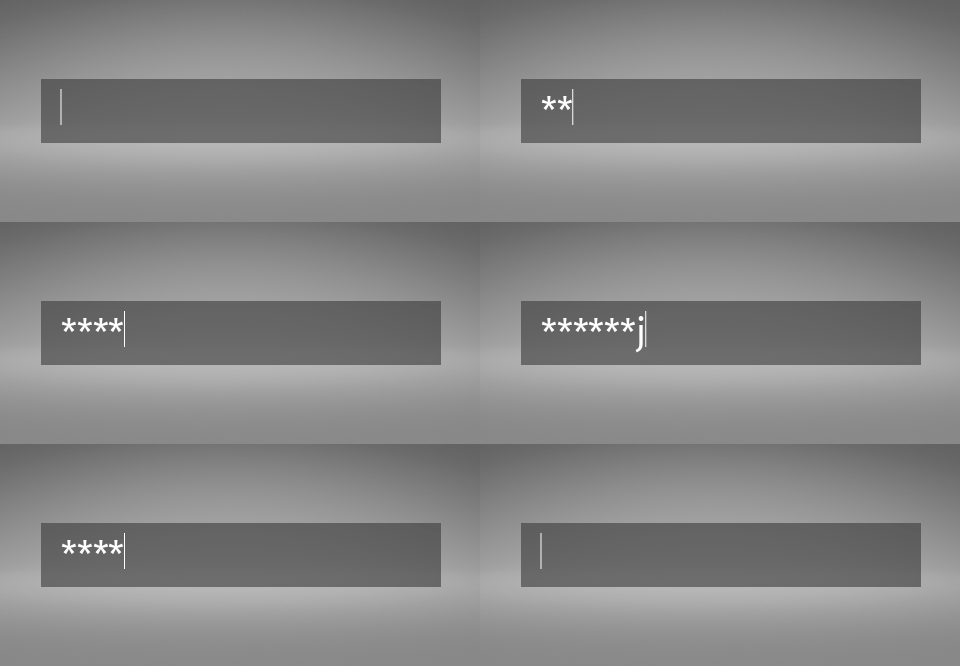
Echo Mode から Password へ この方法で、Kanzi を設定して各文字を一定時間表示し、その後マスキング文字で隠します。
Password Echo Timeout を各文字を非表示にする前に表示したい時間(ミリ秒単位)に設定します。デフォルトで Kanzi は各文字を1秒間表示します。
Password Masking Character を、各パスワード文字を隠すために使用したい UTF-8 文字に設定します。デフォルトで、Kanzi は各文字を中黒記号 (•) でマスクします。
Text Box での切り捨ての設定
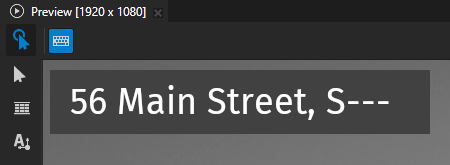
Text Box ノードが編集状態でない場合、ノード内のテキストがそのノードの幅を超えると、Kanzi はデフォルトでテキストの末尾を省略記号で切り詰めます。Text Box ノードが編集状態の場合、Kanzi はテキストを切り詰めません。代わりに、ユーザーはカーソルを動かすことでテキストをスクロールできます。
設定できます。
どの部分のテキストを切り詰めるか。切り捨てる部分の設定 を参照してください。
切り捨て境界のタイプ。切り捨て境界の設定 を参照してください。
切り捨てられたテキストを示す方法。切り捨てを示す文字を設定する を参照してください。
切り捨てる部分の設定
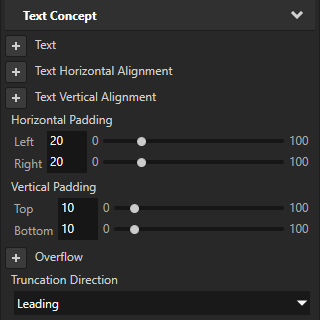
テキストのどの部分を切り詰めるかを設定するには、Text Concept > Truncation Direction プロパティを追加し、次のように設定します:
Trailing はテキストの末尾を切り詰めます。デフォルト値。
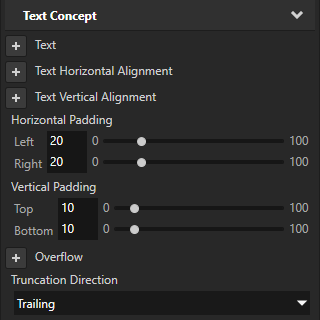
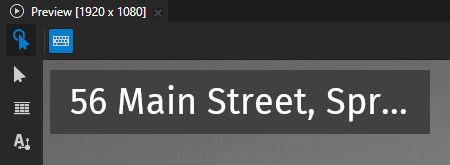
Center はテキストの中央部分を切り詰めます。
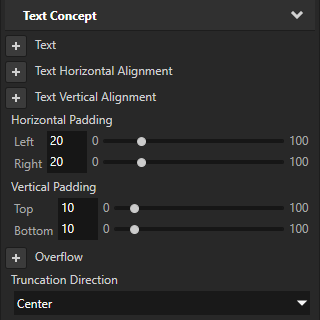
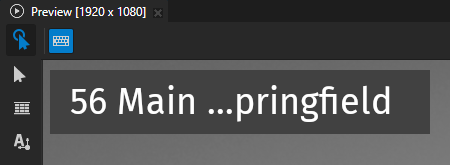
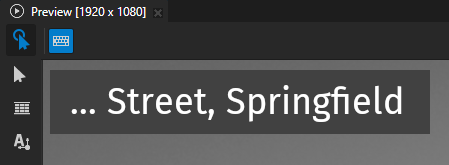
テキストの冒頭部分を切り捨てるには、Leading を使用します。
切り捨て境界の設定
切り捨て境界タイプを設定するには、Text Concept > Truncation プロパティを追加し、次のように設定します:
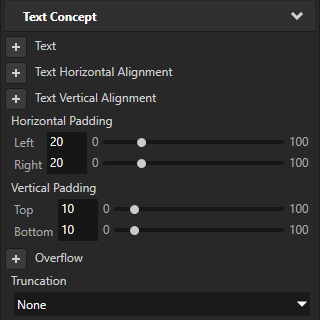
テキストの切り捨てを無効にするには、None を使用します。Kanzi はノードの境界でテキストをクリップします。
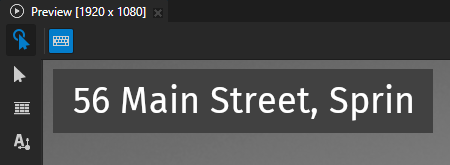
At character はテキストを文字ごとに切り詰めます。デフォルト値。
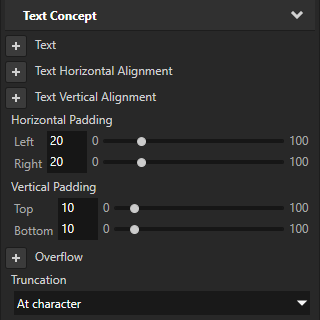
At word はテキストを単語単位で切り詰めます。
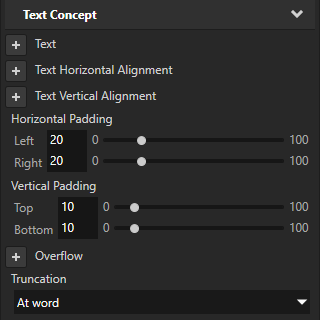
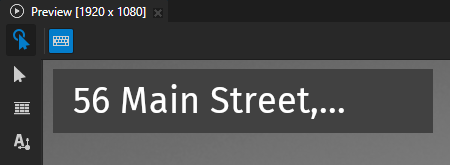
切り捨てを示す文字を設定する
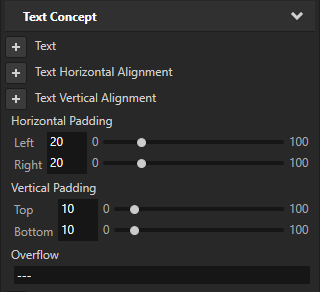
切り捨てを示す文字を設定するには、Overflow プロパティを追加して設定します。
Text Box ノードのテキストを更新するためにバインディングを使用する
バインディングを使用して Text Box ノードのテキストを更新するには、to-sourceまたは双方向バインディングを使用します。バインディング (Bindings) を参照してください。
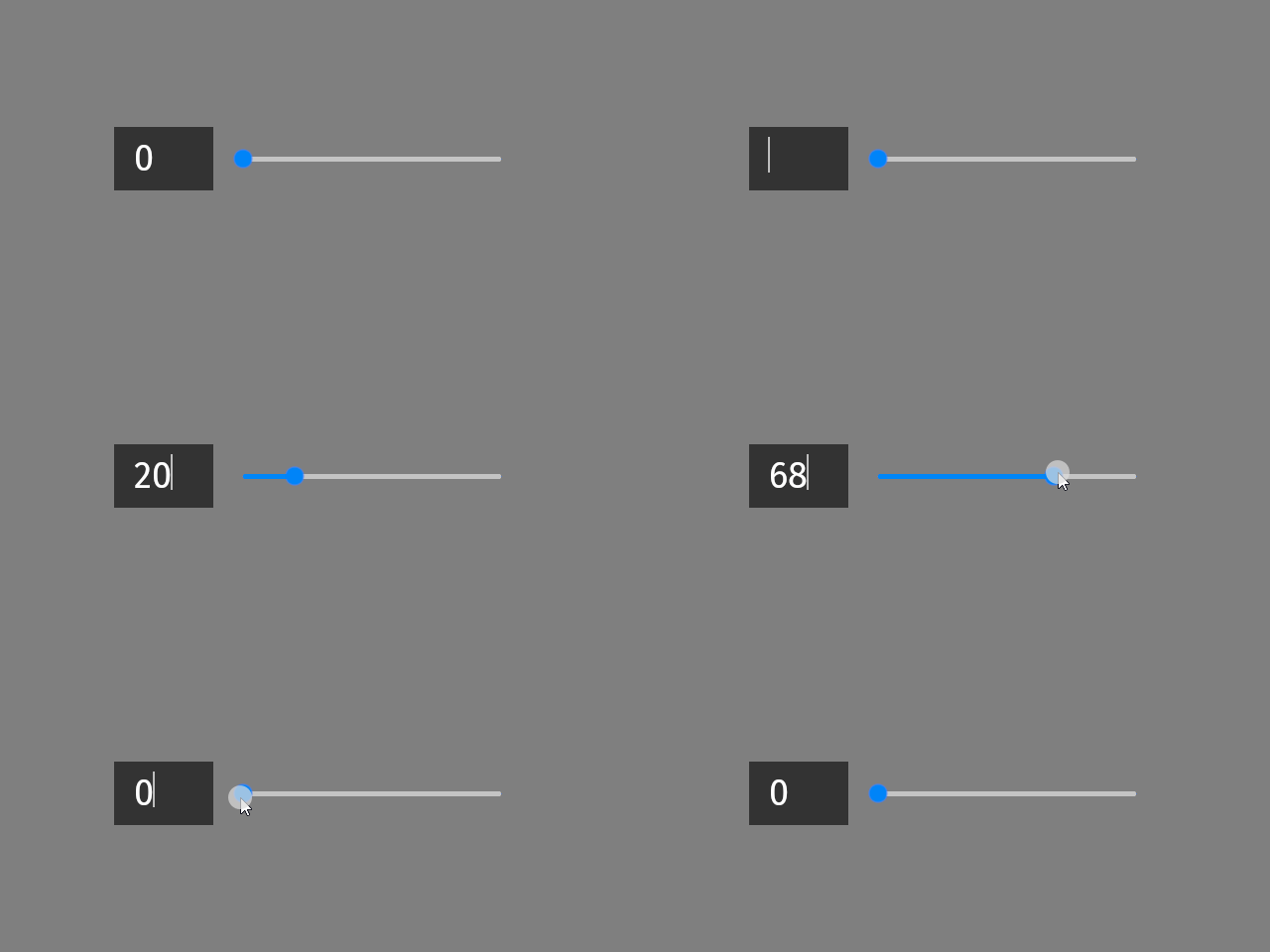
例えば、Text Box ノードでテキストを入力するか、スライダーを使用して数値を編集できるようにするために、双方向バインディングを使用します。
Text Box ノード内のテキストを更新するためにバインディングを使用するには:
Node Tree または Prefabs で、Text Box ノードを作成し、その外観を設定します。
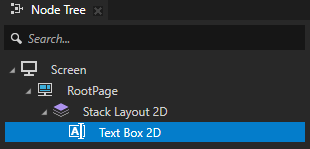
スライダーを作成し、その最小値と最大値を設定します。
Kanzi Factory Content には、使用できる2Dスライダーが含まれています。Factory Content のスライダーを使用して を参照してください。
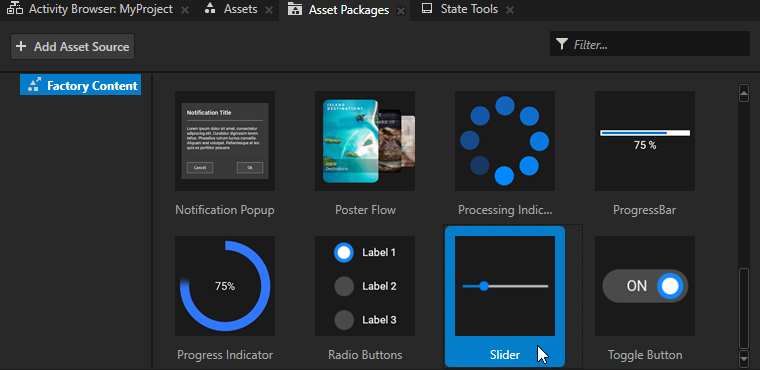
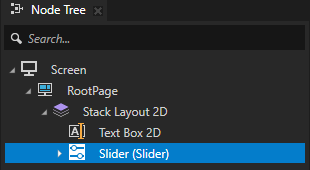
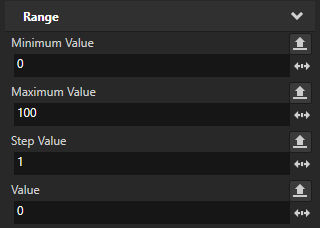
Text Box ノードを作成したら選択します。Properties で + Add Binding をクリックし、Binding Editor で設定します。
Binding Mode から Two way へ
Property から Text Concept > Text
Expression を作成したスライダーの Value プロパティにポイントします。
{@../Slider/RangeConcept.Value}
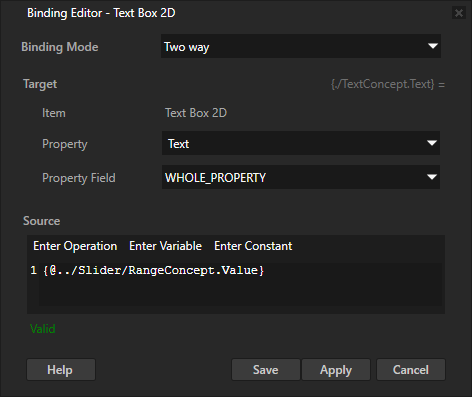
(オプション) 別のバインディングを作成し、Binding Editor で次を設定します。
Property から Text へ
Expression へ
int(getCurrentValue())
このバインディングは、Text プロパティの現在の値を取得し、それを整数に変換します。
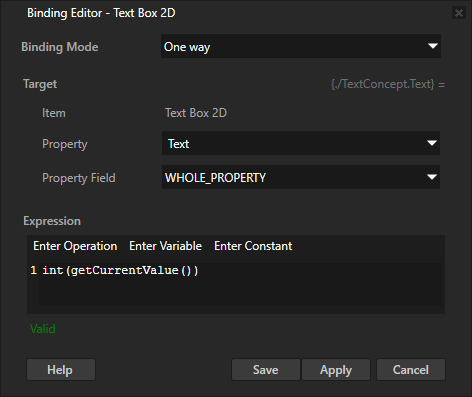
次に、Preview で:
スライダーノブを動かすと、テキストが変わります。
テキストを編集すると、スライダーノブが動きます。
Text Box ノードが使用中かどうかを制御する
Text Box ノードが使用中かどうかを制御するには、Input > Enabled プロパティを使用します。無効化された Text Box ノードはユーザー入力に反応しません。Text Box ノードを無効化すると、その Text Box ノードは編集状態を離れ、無効化されている間はその状態のままになります。
ノードの Enabled プロパティを無効にすると、そのノードとその子孫ノードが同じオーバーレイフォーカススコープ内で実質的に無効になります。
ノードが効果的に有効になっているかどうかを確認するには、ステートマネージャーまたはバインディングで Input > Effectively Enabled プロパティを使用します。たとえば、ノードが使用中であるかどうかをユーザーに視覚的に示すために、ステートマネージャーを作成し、そのコントローラープロパティとして Effectively Enabled プロパティを使用します。
ノードが入力にどのように反応するかを制御する を参照してください。
Text Box 2D ノードの外観を設定する
2D ノードの外観を設定するには:
2Dノードを単色、テクスチャ、またはマテリアルで塗りつぶすことができます。2Dノードの外観の調整 を参照してください。



2Dノードにポストプロセッシングエフェクトを適用できます。2Dノードのエフェクト を参照してください。




2Dノードを3つの軸すべてで回転させて、3Dのパースペクティブ効果を作成できます。2Dノードに3Dパースペクティブ効果を作成する を参照してください。

2Dノードにカスタムレンダリングを適用して、ポストプロセッシングエフェクトを作成できます。2Dノードにカスタムレンダリングを適用する を参照してください。
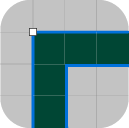
2Dノードをピクセルパーフェクトとしてレンダリングできます。ピクセルパーフェクトな2Dノードのレンダリング を参照してください。
APIで Text Box 3D ノードを使用する
Text Box 3D ノードを作成するには:
// Create a Text Box 3D node named Text Box.
TextBox3DSharedPtr textBoxNode = TextBox3D::create(this->getDomain(), "Text Box");
Text Box 3D ノードで初期テキストコンテンツを設定するには:
// Set the initial text content in the Text Box node.
textBoxNode->setText("Initial text that the Text Box contains before editing.");
Text Box 3D ノード内のテキストの外観を設定するには、
// Set the style of the text in the Text Box node:
// Set the font family of the text.
textBoxNode->setFontFamily(fontFamily);
// Set line spacing to 1.5f.
textBoxNode->setLineSpacing(1.5f);
// Set font size to 36.0f.
textBoxNode->setFontSize(36.0f);
// Set the color of the text to blue.
textBoxNode->setFontColor(ThemeBlue);
// Align the text to the right.
textBoxNode->setTextHorizontalAlignment(TextFormat::TextHorizontalAlignmentRight);
// Set font hinting: Render the text in the Text Box node using the hinter of the font engine rasterizer.
textBoxNode->setHintingPreference(FontHintingPreference::AutoHinting);
Text Box 3D ノードにプレースホルダーコンテンツを表示するには:
// Set the prefab that shows the placeholder content in the Text Box node.
textBoxNode->setTextHintPrefab(textHintPrefab);
Text Box 3D ノード内のカーソルの位置を設定するには、
// Set the cursor position in the beginning of the text field.
textBoxNode->setCursorPosition(0u);
Text Box 3D ノードでカーソルの外観を設定するには、
// Set the prefab that visualizes the cursor.
textBoxNode->setCursorPrefab(cursorPrefab);
Text Box 3D ノードでテキスト選択の外観を設定するには、
// Set the color of the selected text to orange.
textBoxNode->setSelectionFontColor(ThemeOrange);
// Set the background color of the selected text to gray.
textBoxNode->setSelectionBackgroundColor(ThemeGray);
// Set the prefab that visualizes the selection handle at the beginning of the selection.
textBoxNode->setCursorPrefab(selectionStartPrefab);
// Set the prefab that visualizes the selection handle at the end of the selection.
textBoxNode->setCursorPrefab(selectionEndPrefab);
Text Box 3D ノード内の合成テキストの外観を設定するには、
// Set the color of the composition text to red.
textBoxNode->setSelectionFontColor(ThemeRed);
// Set the background color of the composition text to gray.
textBoxNode->setSelectionBackgroundColor(ThemeGray);
Text Box 3D ノードをパスワードフィールドとして動作させるには、
// Set Kanzi to show each character for a certain amount of time, and then hide it with a masking character.
textBoxNode->setEchoMode(EchoMode::Password);
// Set the UTF-8 character with which you want to hide each password character.
textBoxNode->setPasswordMaskingCharacter("*");
// Set the time in milliseconds that you want to show each character before hiding it.
textBoxNode->setPasswordEchoTimeout(500);
詳細については、TextBox3D クラスを参照してください。
APIで Text Box 2D ノードを使用する
Text Box 2D ノードを作成するには、
// Create a Text Box 2D node named Text Box.
TextBox2DSharedPtr textBoxNode = TextBox2D::create(this->getDomain(), "Text Box");
Text Box 2D ノードで初期テキストコンテンツを設定するには:
// Set the initial text content in the Text Box node.
textBoxNode->setText("Initial text that the Text Box contains before editing.");
Text Box 2D ノード内のテキストの外観を設定するには、
// Set the style of the text in the Text Box node:
// Set the font family of the text.
textBoxNode->setFontFamily(fontFamily);
// Set line spacing to 1.5f.
textBoxNode->setLineSpacing(1.5f);
// Set font size to 36.0f.
textBoxNode->setFontSize(36.0f);
// Set the color of the text.
textBoxNode->setForegroundBrush(textColorBrush);
// Align the text to the right.
textBoxNode->setTextHorizontalAlignment(TextFormat::TextHorizontalAlignmentRight);
// Set font hinting: Render the text in the Text Box node using the hinter of the font engine rasterizer.
textBoxNode->setHintingPreference(FontHintingPreference::AutoHinting);
Text Box 2D ノードにプレースホルダーコンテンツを表示するには:
// Set the prefab that shows the placeholder content in the Text Box node.
textBoxNode->setTextHintPrefab(textHintPrefab);
Text Box 2D ノード内のカーソルの位置を設定するには、
// Move the cursor to the beginning of the text field.
textBoxNode->setCursorPosition(0u);
Text Box 2D ノードでカーソルの外観を設定するには:
// Set the prefab that visualizes the cursor.
textBoxNode->setCursorPrefab(cursorPrefab);
Text Box 2D ノードでテキスト選択の外観を設定するには、
// Set the brush that fills the background of the selected text.
textBoxNode->setSelectionBackgroundBrush(selectedTextBackgroundBrush);
// Set the brush that fills the selected text.
textBoxNode->setSelectionForegroundBrush(selectedTextColorBrush);
// Set the prefab that visualizes the selection handle at the beginning of the selection.
textBoxNode->setCursorPrefab(selectionStartPrefab);
// Set the prefab that visualizes the selection handle at the end of the selection.
textBoxNode->setCursorPrefab(selectionEndPrefab);
Text Box 2D ノード内の合成テキストの外観を設定するには、
// Set the brush that fills the background of the composition text.
textBoxNode->setCompositionBackgroundBrush(compositionTextBackgroundBrush);
// // Set the brush that fills the composition text.
textBoxNode->setCompositionForegroundBrush(compositionTextColorBrush);
Text Box 2D ノードをパスワードフィールドとして動作させるには:
// Set Kanzi to show each character for a certain amount of time, and then hide it with a masking character.
textBoxNode->setEchoMode(EchoMode::Password);
// Set the UTF-8 character with which you want to hide each password character.
textBoxNode->setPasswordMaskingCharacter("*");
// Set the time in milliseconds that you want to show each character before hiding it.
textBoxNode->setPasswordEchoTimeout(500);
詳細については、TextBox2D クラスを参照してください。
Text Box プロパティタイプとメッセージ
Text Box ノードの利用可能なプロパティタイプとメッセージのリストについては、Text Box 2D と Text Box 3D を参照してください。